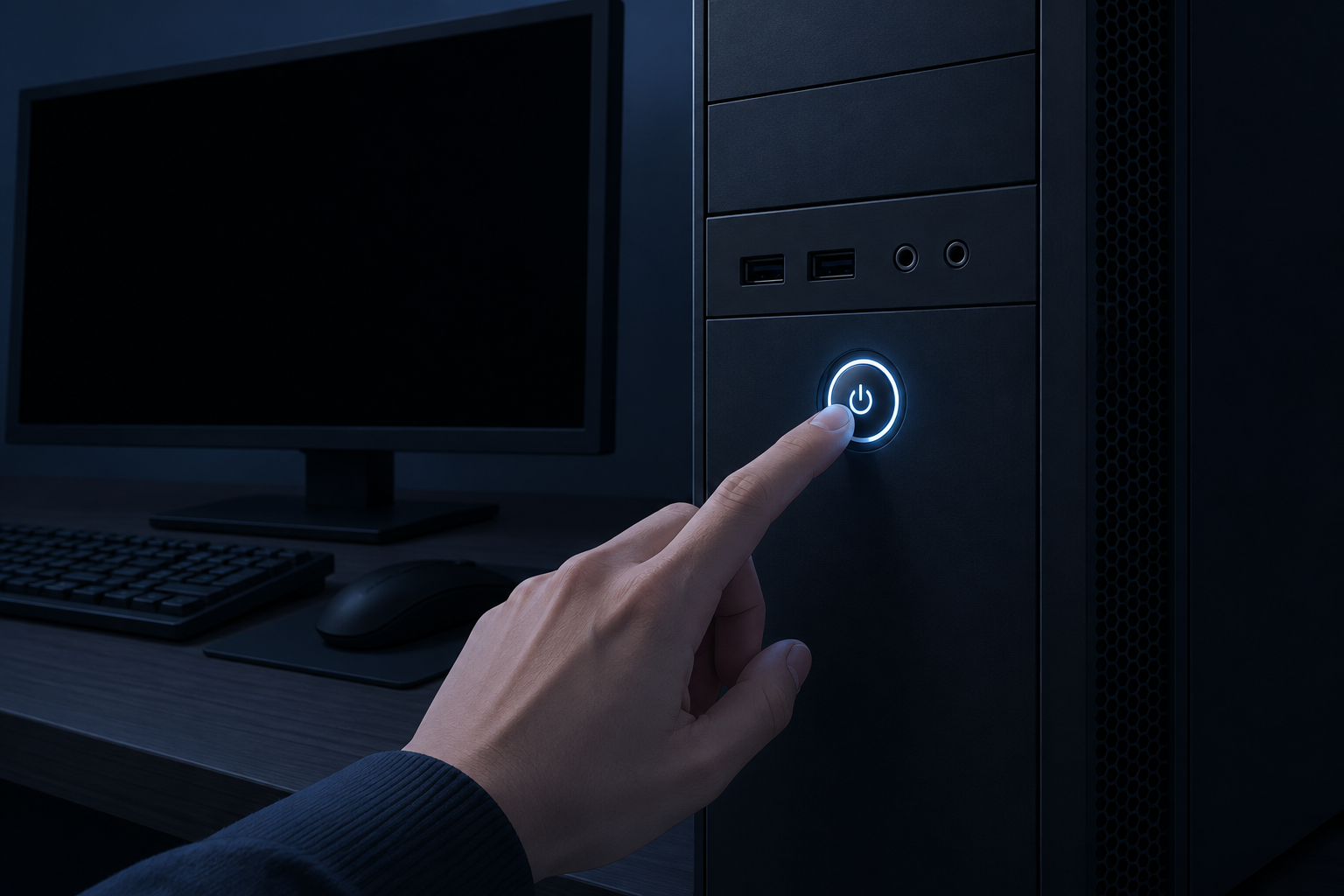
Google says one fix solves more YouTube playback problems on TVs than any other: unplug the TV or streaming stick for at least 30 seconds. If that fails, the usual causes are a YouTube outage, a weak connection, an out-of-date app or TV, or a stuck sign-in, in roughly that order. This guide shows you how to tell which one you have, with exact menu paths for Samsung, LG, Google TV, Roku, Fire TV and Apple TV.
Last checked: November 12, 2026.
Key takeaways
- First check whether YouTube itself is down: test on your phone with Wi-Fi turned off.
- Free YouTube and paid YouTube TV are separate apps, and some fixes only apply to one of them.
- Pulling the plug for 30 to 60 seconds works better than pressing power on the remote.
- Clear the app’s cache before its data. Clearing data signs you out.
- A TV from 2012 or earlier can’t run the YouTube app at all. A streaming stick fixes that.
Fact-checked
We checked these key facts against the sources named, on November 12, 2026:
- Smart TVs from 2012 and earlier lost the YouTube app in 2017 (source: flatpanelshd.com)
- Google ended the old YouTube app on smart TVs from 2012 and earlier in June 2017 (source: flatpanelshd.com)
- In February 2026, YouTube TV users got exactly these login loops while the problem was on YouTube’s side (source: cordcuttersnews.com)
- TVs from 2013 onward kept a supported app, but older models in that range stop getting updates over time (source: forums.hexus.net)
Quick fix: try these 4 things first
Most YouTube problems on a TV go away after one of four checks. Do them in this order, because each one takes longer than the last.
Fix it
- Check whether YouTube is down: open it on your phone using mobile data, and look at Downdetector.
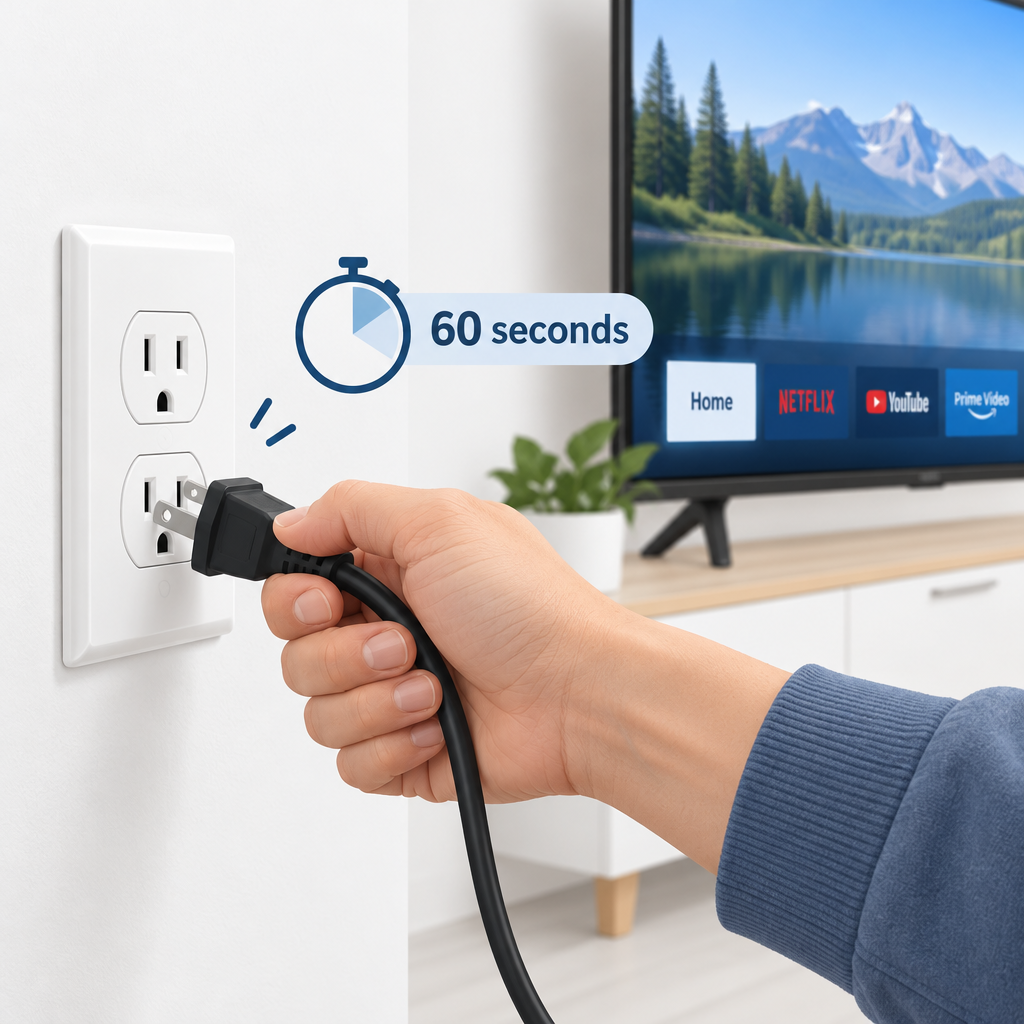
- Unplug the TV or streaming stick from the wall, wait 60 seconds, plug it back in.
- Restart your router: unplug it for 30 seconds and wait until the lights settle.
- Update the YouTube app and the TV’s software. If it still fails, delete and reinstall the app.
Step 2 fixes the most problems. YouTube Help calls a full restart the most effective fix for TV playback problems, and a full restart means the power cable comes out.
YouTube or YouTube TV? Figure out which one is broken
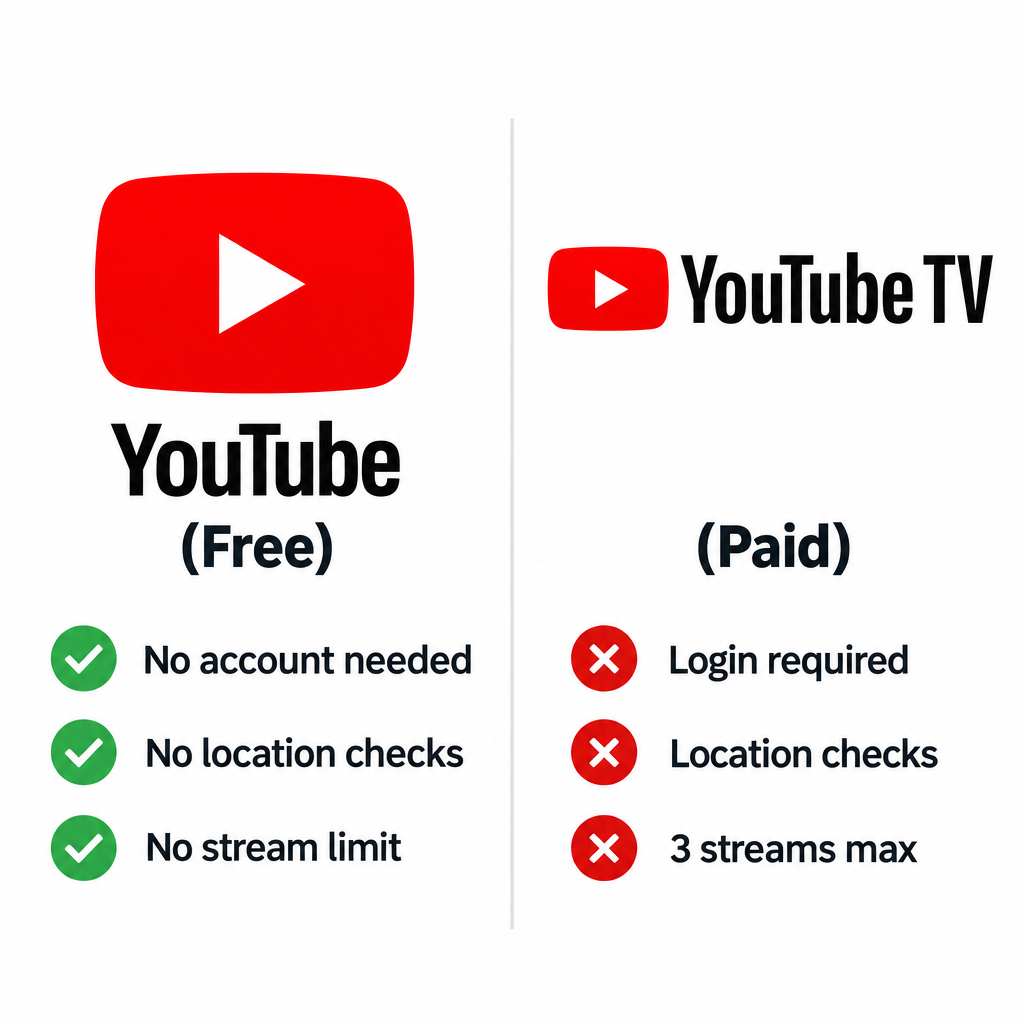
YouTube is the free video app with the red play icon. YouTube TV is a separate paid live TV service with its own app. Cord Cutters News puts the YouTube TV Base plan at $82.99 a month. The two run on the same Google infrastructure, but they fail in different ways.
| YouTube (free app) | YouTube TV (paid live TV) | |
|---|---|---|
| What it shows | Uploaded videos, Shorts, some live streams | Live broadcast and cable channels, cloud DVR |
| Account needed | Optional (Google account) | Required, paid membership |
| Location checks | No | Yes: home area and current playback area |
| Stream limit | No household limit in normal use | 3 streams at once per membership |
| Unique errors | Black or grey screen, “not supported on this device” | Location errors, too many devices, HDCP errors |
| Outage tracking | Downdetector “YouTube” page | Downdetector “YouTube TV” page |
The split matters. One reader on a YouTube TV forum put it this way: “All my other apps are working fine, including YouTube, but I get a blank screen when trying to view YouTube TV.” In that case your internet and TV are fine. The problem is with YouTube TV’s location check, your account or the service itself, so skip ahead to the YouTube TV section.
Is YouTube down right now?
If YouTube also fails on your phone over mobile data, the problem is with YouTube, not your TV. Wait it out. Nothing you change on the TV will help, and a factory reset during an outage only creates more work.
YouTube doesn’t run a public status dashboard the way many cloud services do. To check for an outage:
- Test on mobile data. Turn Wi-Fi off on your phone and open YouTube. This takes your home network out of the picture.
- Check Downdetector. It has separate pages for YouTube and YouTube TV. A sharp spike in reports over the last hour points to an outage. A flat line points to your setup.
- Check TeamYouTube. YouTube posts confirmed incidents from its TeamYouTube support account on X and in the YouTube Help Community.
Downdetector counts user reports. It doesn’t measure how many people are affected, and YouTube doesn’t confirm those reports. For YouTube TV, Downdetector’s most-reported problem types as of November 2026 are Video Streaming (49%), Server Connection (26%) and App (21%).
Phone test first
Before you change any setting, open YouTube on your phone with Wi-Fi turned off. If it fails there too, it’s YouTube’s problem and you just need to wait.
Works on my phone but not my TV: what that means
If YouTube plays on your phone over mobile data but not on the TV, YouTube isn’t down. Now test the phone on your home Wi-Fi.
- Phone fails on Wi-Fi too: the problem is your router, internet service or DNS.
- Phone works on Wi-Fi, TV doesn’t: the problem is the TV, the app, the sign-in or the HDMI chain.
- Another TV with another account fails the same way: that points back to the service. One YouTube TV subscriber described exactly this: deleting and reinstalling the app didn’t help, and a second TV with a different account failed too. That pattern means outage, not hardware.
Recent YouTube outages (2026)
| Date | Service | What happened | Source and reliability |
|---|---|---|---|
| Feb 17 to 18, 2026 | YouTube, YouTube Music, YouTube Kids, YouTube TV logins | Global outage from about 7:50 p.m. ET. Fixed by early Feb 18. YouTube blamed its recommendations system. US Downdetector reports peaked around 300,000 to 350,000. | Confirmed by YouTube (official) |
| Feb 17, 2026 | YouTube TV | “Something went wrong” errors and endless login loops | Confirmed by YouTube, reported by Cord Cutters News |
| Oct 3, 2026 | YouTube TV | Freezing and buffering that cleared on its own. Outage.Report logged 43 user reports. | User reports only (community) |
| Oct 25, 2026 | YouTube | About 3 hours from 4 p.m. UTC, listed by the Instatus aggregator | User reports only. Not confirmed by YouTube. |
Did you know?
The biggest YouTube outage of 2026 wasn’t a typical server crash. According to Android Central, YouTube blamed its recommendations system, which stopped videos from appearing on the homepage on TVs, phones and the web on February 17.
Match your symptom to the fix
What you see on screen usually tells you the cause. Find your symptom, try the first fix, and only move on if it fails.
| What you see | Most likely cause | Try this first | If that fails |
|---|---|---|---|
| App won’t open or crashes to home screen | Stuck app memory, outdated app | Unplug for 60 seconds | Update, clear cache, reinstall |
| Black screen with sound, or grey screen | Video decoder stuck, HDCP problem, app bug | Unplug for 60 seconds | Connect directly to the TV, update the TV software |
| “Something went wrong” or sign-out loop | Outage or broken sign-in | Check Downdetector | Sign out, then sign back in at youtube.com/tv/activate |
| Endless buffering or blurry video | Slow or unstable connection | Restart the router, run a speed test | Use Ethernet, set broadcast delay to Default (YouTube TV) |
| App missing, or “not supported on this device” | TV or box too old or not certified | Check the app store | Add a streaming stick |
| No picture through receiver or soundbar | HDCP handshake failure | Plug the stick directly into the TV | Turn on HDMI Ultra HD Color, try another cable |
App won’t open or crashes to home screen
This is almost always a stuck app or a pending update. Do a full power cycle, then check for an app update. If it still crashes, clear the cache, and after that the data (see the brand section below). If that doesn’t work, reinstall.
Black screen (with or without sound) or grey screen
If you hear sound over a black picture, the video decoder or HDMI copy protection is usually the problem, not your internet. Unplug the TV for 60 seconds. If the TV goes through a receiver or soundbar, plug the stick straight into the TV and test again.
The same thing happens on phones and tablets. One reader reported a black screen on an iPad and an iPhone that cleared after closing the app. A forced close plus an app update usually fixes it on those devices too.
“Something went wrong” or keeps signing you out
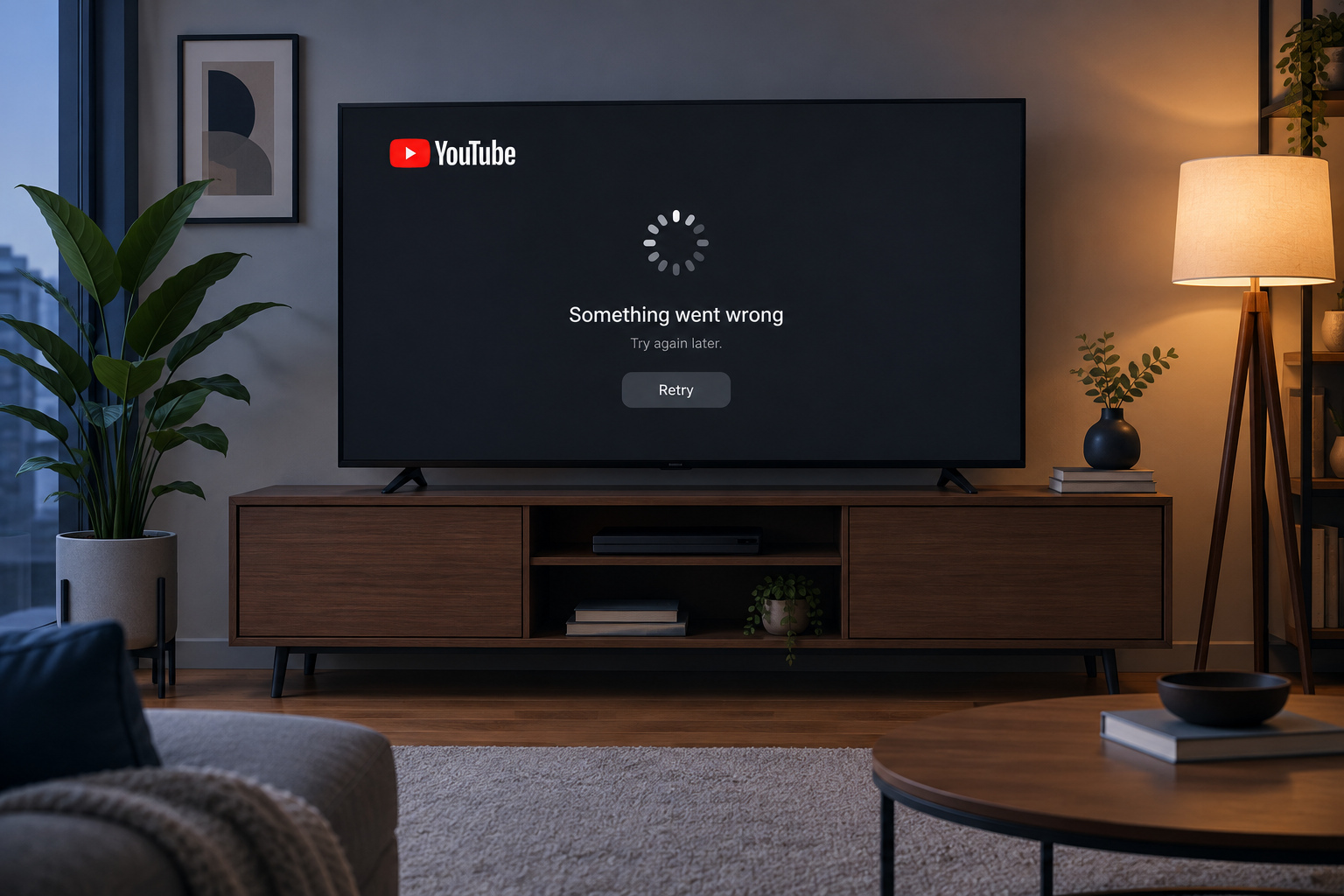
Check for an outage first. In February 2026, YouTube TV users got exactly these login loops while the problem was on YouTube’s side. Another report described videos stopping “about 5 seconds in”, then the app crashing to a login screen with “something went wrong with your account”. If Downdetector is quiet, sign out on the TV, then sign back in using the browser code method below.
Constant buffering or low quality
Buffering means your connection can’t keep up. One subscriber found Pluto TV streamed fine while YouTube TV buffered on Frontier Fiber. Lightweight apps can hide a weak connection. Compare your speed with Google’s figures in the speed table below. On YouTube TV, also set broadcast delay back to Default.
YouTube app missing or “not supported on this device”
This usually means your TV or box has aged out, or the Android box was never certified by Google. Jump to the section on old TVs.
No picture through HDMI receiver or soundbar (HDCP)
HDCP is the copy protection that runs over HDMI. Every device in the chain has to support it. Older receivers, soundbars and cheap HDMI switches often break the handshake. Plug the streaming device straight into the TV. Then send audio to the soundbar over HDMI ARC or eARC, and swap in a newer HDMI cable if the problem stays.
Step-by-step fixes that work on any TV
These fixes run from least to most disruptive. Stop as soon as YouTube loads.
Power cycle the right way
Pressing power on the remote usually just puts the TV into standby, and the app stays in memory.
- Close YouTube.
- Unplug the TV and any streaming stick from the wall (not just from the TV).
- Wait at least 30 seconds. Sixty is safer.
- Plug everything back in, then reopen YouTube.
Did you know?
YouTube Help lists restarting your device and checking your internet connection among its troubleshooting steps for YouTube playback problems on TVs.
Check your internet speed (what the numbers mean)
Restart the router first. Then run Speedtest by Ookla on the TV if your platform has the app, or on a phone held next to the TV. Compare the result with Google’s official YouTube TV figures.
| Download speed | What you can watch |
|---|---|
| Under 3 Mbps | Video may load slowly or keep rebuffering |
| 3 Mbps or more | Standard definition |
| 7 Mbps or more | One HD stream |
| 13 Mbps or more | Reliable HD with other devices using the network |
| 25 Mbps or more | 4K (YouTube TV 4K Plus subscribers) |
Some guides quote 10 to 15 Mbps for HD. Google’s own figures are 7 Mbps for one HD stream and 13 Mbps when other people are online. If you’re under those numbers on Wi-Fi, move the router closer or use an Ethernet cable.
Check date, time and DNS
These causes get missed a lot. A wrong date or time breaks the secure connection YouTube needs, so the app spins forever or throws a vague error. Set the TV’s clock to automatic in its time settings.
YouTube Help also advises checking that your DNS settings haven’t been changed by a third-party app. If someone set a custom DNS on the TV or router, switch it back to automatic and test again.
Turn off any VPN or proxy too. YouTube TV checks your real location, and a VPN often stops playback completely.
Update the app and the TV
An outdated app on outdated firmware is a common cause of crashes after YouTube pushes a change. Update both. The brand section below has the exact menu paths.
Sign out and back in
- In YouTube, open Settings, then sign out.
- Choose Sign in, then Sign in with a web browser.
- On your phone or computer, go to youtube.com/tv/activate.
- Enter the code shown on the TV and pick your Google account.
Clear cache and data, then reinstall
Clearing the cache removes temporary files and nothing else. Clearing data resets the app to its first-launch state. Sony warns that clearing data permanently deletes the app’s files, settings and accounts.
Cache before data
Clear the cache first. Clearing data signs you out and wipes app settings, so have your Google password ready.
Fixes by TV brand
Each platform puts these options in a different place. Here are the paths, plus the last-resort reset for each brand and what it wipes.
| Brand/platform | Clear cache/data path | Last-resort reset path | What you lose |
|---|---|---|---|
| Samsung (Tizen) | No cache option. Delete or reinstall the app instead. | Settings > Support > Self Diagnosis > Reset Smart Hub (many 2019+ models; path varies) | Samsung account and every app sign-in |
| LG (webOS) | No cache option. Delete and reinstall. | Settings > All Settings > General > System > Reset to Initial Settings (webOS 6.0+) | All settings, accounts and installed apps |
| Google TV / Android TV | Settings > Apps > See all apps > YouTube | Factory reset in System settings | Everything on the TV |
| Roku | Remove app, restart, reinstall | Settings > System > Advanced system settings > Factory reset | All apps, settings and sign-ins |
| Amazon Fire TV | Settings > Applications > Manage Installed Applications > YouTube | Settings > My Fire TV > Reset to Factory Defaults | Everything downloaded and signed in |
| Apple TV | No cache option. Delete the app. | Settings > System > Reset | All apps and settings |
Samsung (Tizen): cold boot and Smart Hub reset
Samsung’s official order is cold boot, update the TV software, delete and reinstall the app, then reset Smart Hub.
Samsung cold boot
Hold the remote’s power button until the TV turns off and back on. That’s a cold boot, and it clears the app memory.
- Cold boot as described above, or unplug the TV for 60 seconds.
- Update the TV through Settings > Support > Software Update > Update Now. On newer models, Support sits under All Settings.
- Reinstall from the Apps screen: open the settings gear, select YouTube, then choose Delete or Reinstall. Built-in apps sometimes show only Reinstall.
- Reset Smart Hub on many 2019 and newer models: Settings > Support > Self Diagnosis > Reset Smart Hub. The exact path varies by model and year, so check your TV’s manual if you don’t see it there. The default PIN is 0000.
Before you start
Resetting Smart Hub signs you out of your Samsung account and every app, not just YouTube. Have your streaming passwords ready.
LG (webOS)
- Unplug the TV for 60 seconds.
- Update software. On webOS 6.0 and newer, go to Settings > All Settings > General > System > Software Update.
- Delete YouTube: highlight it on the home bar, long-press OK on the remote to enter edit mode, then select the delete icon.
- Reinstall from the LG Content Store (shown as Apps on newer webOS versions). Search for YouTube and choose Install.
LG treats YouTube and YouTube TV as separate apps with separate help pages. If only YouTube TV is broken, reinstall that one. LG also lists a factory reset as a troubleshooting step for problems that persist after these fixes.
Google TV / Android TV (TCL, Hisense, Sony)
- Go to Settings > Apps > See all apps > YouTube.
- Select Force stop, then reopen the app.
- Back in the same menu, select Clear cache. Test again.
- If it still fails, select Clear data and sign in again.
- YouTube is a system app here, so you can’t remove it. If clearing data fails, choose Uninstall updates, then update it from the Google Play Store.
- Check for TV updates in Settings > System > About > System update.
Sony recommends this same order: clear cache and data, then update the YouTube app and the TV software. If other apps are failing too, our guide to fixing an Android app that isn’t working covers more steps for the same platform.
Roku TV and Roku sticks
- On the home screen, highlight YouTube or YouTube TV and press the Star (*) button.
- Select Remove app.
- Restart: Settings > System > Power > System restart. If you don’t see Power, System restart sits directly under System.
- Reinstall the app from the Roku Channel Store.
- Check Settings > System > System update > Check now.
Do the restart before reinstalling, or the reinstall may not be clean. If the Star button does nothing, see our guide to fixing a Roku remote that’s not working before blaming the app.
Amazon Fire TV
- Go to Settings > Applications > Manage Installed Applications > YouTube.
- Select Force stop, then Clear cache, and reopen the app.
- Still broken? Return and choose Clear data. You’ll need to sign in again.
- Restart through Settings > My Fire TV > Restart.
- Update through Settings > My Fire TV > About > Check for Updates.
- Last option on the app itself: Uninstall, then reinstall it from the Appstore.
Apple TV
- Restart: Settings > System > Restart.
- Update tvOS: Settings > System > Software Updates > Update Software.
- Delete the app: highlight YouTube, press and hold the clickpad center until the menu appears, choose Delete App, then reinstall it from the App Store.
Extra fixes for YouTube TV subscribers
YouTube TV adds checks the free app doesn’t have: location, stream limits and live-stream timing. A YouTube TV-only failure usually comes from one of these.
Location and home area errors
Playback fails if your Home Area or Current playback location is wrong.
- In the YouTube TV app on your TV, go to Location > Current Playback Area.
- On your phone, visit tv.youtube.com/verify and allow location access.
- Turn off any VPN on the phone and on the router.
Verify on the same network
If YouTube TV says you’re in the wrong area, open tv.youtube.com/verify on your phone while it’s on the same Wi-Fi network as your TV.
Too many devices streaming
One YouTube TV membership allows three streams at the same time. A fourth device gets a playback error. Stop playback on a device someone left running, often a bedroom TV or a phone, and try again.
Live TV stutters: broadcast delay
If you lowered the broadcast delay to avoid sports spoilers, that can cause the freezing and reloading readers complain about. Google says playback interruptions are more likely with a reduced delay, and the setting applies to every channel. To reset it while watching live, select the three-dot menu > Broadcast Delay > Default.
On Roku, two more fixes come from Google’s own help page. For an HDCP error, turn on the TV’s HDMI Ultra HD Color setting for that input. For choppy playback, open Settings > Display type and choose 4K 30Hz or 4K 60Hz, which turns HDR off.
For “no sound on channels”, set the TV’s digital audio output to PCM. Then check that the soundbar is on the HDMI ARC or eARC port, and test another app to rule out the speakers.
You can reinstall YouTube TV without losing anything. Your DVR recordings are stored in the cloud, not on the TV.
Is your TV too old for YouTube?
Yes, if it’s from 2012 or earlier. Google ended the old YouTube app on smart TVs from 2012 and earlier in June 2017. TVs from 2013 onward kept a supported app, but older models in that range stop getting updates over time.
Signs your TV has aged out:
- YouTube or YouTube TV no longer appears in the TV’s app store. One reader reported exactly this for YouTube TV on an older Samsung.
- The app opens to a message saying it’s no longer supported.
- The TV hasn’t had a firmware update in years.
Cheap Android boxes are a separate case. If a box shows “not supported on this device”, it usually isn’t Google-certified, so official YouTube apps won’t run on it properly. Don’t sideload modified YouTube apps onto it. They’re a common malware source and can get your Google account flagged.
The cheapest real fix is a streaming stick from Roku or Amazon, usually $30 to $50. Plug it into a free HDMI port. Your old TV becomes the screen, and the stick gets YouTube updates for years.
Still broken? What to do next
If YouTube still won’t work after the brand fixes, and other apps also fail, the TV’s software may be damaged. A factory reset is the last thing to try at home. It wipes every app, sign-in and picture setting, so write down your Wi-Fi password and account details first.
Get help instead of resetting if:
- Several apps fail and a firmware update won’t install.
- The TV restarts by itself or freezes outside of apps.
- YouTube TV still shows location or account errors after verifying at tv.youtube.com/verify.
For YouTube TV, contact Google’s YouTube TV support through the help menu in the app or on the YouTube TV website. Chat is the fastest option. For the free app, post in the YouTube Help Community. For hardware or firmware problems, contact Samsung, LG, Sony, TCL, Hisense, Roku, Amazon or Apple directly. If the TV is under warranty, ask about repair before paying anyone.
Have these ready so you only explain once:
- TV or stick model number (on the back label or in the About menu)
- Firmware or software version
- YouTube app version
- The exact error message or code
- What you’ve already tried, in order
Before contacting anyone, check Downdetector once more. If reports are spiking, the fix is on YouTube’s side, and the only step that helps is waiting.
FAQ
Why has YouTube suddenly stopped working on my TV?
The most common causes are a YouTube outage, a stuck app after a background update, or a connection drop. Test YouTube on your phone using mobile data first. If that works, unplug the TV for 60 seconds, then update the app.
How do I reset YouTube on my TV?
On Google TV, Android TV and Fire TV, clear the app’s cache, then its data, from the apps menu. On Samsung, LG, Roku and Apple TV, delete and reinstall the app instead. Samsung also offers a full Smart Hub reset as a last resort.
Why isn’t YouTube working on my TV today?
Check Downdetector and TeamYouTube for a live incident. Outages like the February 17, 2026 one hit every device at once. If there are no reports, the problem is on your end, so start with a full power cycle.
How do I restore YouTube to my TV?
Reinstall it from the TV’s app store: Samsung Apps, LG Content Store, Roku Channel Store, Amazon Appstore, Google Play Store or the Apple App Store. If the app is missing entirely, your TV may no longer be supported, and a streaming stick is the fix.
Why does YouTube work on my phone but not my TV?
Your phone proves YouTube is up. The fault is somewhere between your router and the TV: the TV app, its firmware, the sign-in, the date and time, DNS settings or the HDMI chain. Test the phone on the same Wi-Fi to narrow it down.
Why is YouTube showing a black or grey screen on my TV?
Usually the video decoder is stuck or the HDCP handshake failed. Unplug the TV for 60 seconds. If a receiver or soundbar sits between the stick and the TV, connect the stick directly to the TV.
Why does YouTube keep signing me out on my TV?
Login loops often come from an outage on YouTube’s side, as on February 17, 2026. If nothing is reported, sign out, choose Sign in with a web browser, and enter the code at youtube.com/tv/activate. If it keeps happening, clear the app’s data.
How do I clear the YouTube cache on a Samsung TV?
Samsung’s Tizen TVs don’t offer a separate cache button for YouTube. Do a cold boot instead by holding the power button until the TV restarts. Then reinstall the app, and reset Smart Hub only if needed.
Will reinstalling YouTube TV delete my recordings?
No. YouTube TV stores DVR recordings in the cloud, so they’re still there after you reinstall the app or switch devices.
Is my TV too old for YouTube?
Smart TVs from 2012 and earlier lost the YouTube app in 2017. Newer models can also lose support once firmware updates stop. If the app has vanished from the store, a $30 to $50 Roku or Fire TV stick is the cheapest way to get YouTube back.