To change the resolution on a Fire TV Stick, go to Settings > Display & Sounds > Display > Video Resolution. Pick Auto or the resolution that matches your TV. If the screen goes blank or you can’t reach the menu, hold Up and Rewind on the remote together for about five seconds. The stick will then cycle through the resolutions it supports, and you press Select when the picture looks right. If neither method works, restart the stick, install the latest software update, and only then think about a factory reset.
These menus are written for Fire OS sticks. Amazon announced the Fire TV Stick 4K Select on September 30, 2025 and began shipping it on October 15, 2025. It is the first Fire TV streaming stick powered by Vega OS, so it may arrange or name some options differently. Some labels can differ slightly by model.
Two ways to change the resolution
You can change the resolution on a Fire Stick in two ways:
- Change it in the Settings menu.
- Use the hidden resolution menu on your remote.
Both methods are covered below, followed by a few settings that improve the picture.
Method 1: Change the resolution in Settings
Your Fire Stick picks a video resolution on its own, based on what your TV reports it can handle. You can still set a specific resolution yourself in the display settings. It takes less than a minute:
- Press the Home button on your remote.
- Open Settings (the gear icon on the right of the home screen).
- Select Display & Sounds.
- Select Display.
- Select Video Resolution and choose the option that best fits your TV. Auto (up to 4K Ultra HD on 4K models) is the best choice for most people.
- Select Confirm if the stick asks you to keep the new setting.
Once that’s done, play a movie or TV episode and check the picture.
You can also make sure your Fire Stick isn’t capping streaming quality to save data:
- Go to Settings and select Preferences.
- Select Data Monitoring and turn it on. The quality option only shows up while Data Monitoring is on.
- Select Set Video Quality.
- Choose Best for the highest streaming quality. The other choices are Better and Good.
- Press the Home button to leave the menu.
Best is the default, so you only need to change this if someone lowered it earlier. This cap mainly applies to Amazon’s own video, such as Prime Video. Higher quality needs a faster internet connection and uses much more data. If you have a monthly data limit, Better uses roughly half as much and still looks good on most TVs.
One more thing to know: picking 4K doesn’t turn every show into 4K. The show itself has to be available in Ultra HD, and you need a 4K TV and a High-Speed HDMI connection.
Method 2: Use the hidden resolution menu on your remote
Your Fire Stick has a hidden menu that cycles through resolutions. It’s handy when the screen is blank, when the picture is cut off, or when you can’t get into Settings. Here’s how to use it:
- Press the Home button on your remote.
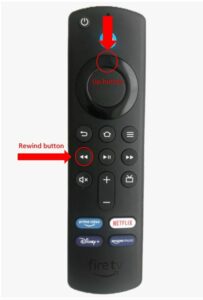
- Press and hold Up and Rewind together for about five seconds. A resolution screen appears.
- The stick switches to a different resolution roughly every ten seconds.
- When the picture looks right, press Select to keep that resolution. If you don’t press anything, the stick goes back to the setting it had before.
You may need several tries if your TV takes a while to show each new signal, so keep holding both buttons steadily.
For everyday use, pick your TV’s native resolution at 60 Hz. The old tip of choosing 24 Hz because most films are shot at 24 frames per second makes menus and live TV look choppy. A better option on Fire TV models that offer it is Match Original Frame Rate under Settings > Display & Sounds > Display. It switches to 24 Hz only while a film shot at 24 frames per second is playing.
What to do if you can’t change the resolution
Most people can set the resolution with one of the two methods above. If the resolution keeps changing on its own, the screen goes black, or the option is missing, work through the fixes below in order. They start with the quickest and safest.
First, check the basics. Plug the Fire Stick directly into the TV’s HDMI port instead of going through a soundbar or receiver, and use a High-Speed HDMI cable if you want 4K. On 4K models, Amazon’s Audio/Video Diagnostics tool under Settings > Display & Sounds checks what your TV, soundbar or AV receiver can handle.
Restart your Fire Stick
Restarting is the oldest advice there is, but it works. It clears minor glitches and restarts background processes that have crashed, and that is often all a stuck display setting needs.
To restart your Fire Stick from the menu:
- Press the Home button on your remote, then open Settings (the gear icon).
- Select My Fire TV (called Device & Software on Fire TV smart TVs), then select Restart.
- Select Restart again to confirm.
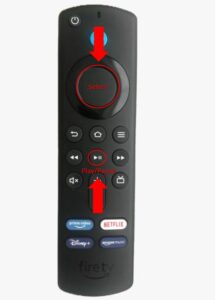
You can also restart from the remote. Press and hold Select and Play/Pause together for about five seconds, until the TV shows that the Fire TV is powering off.
If that doesn’t help, power-cycle both devices. Unplug the Fire Stick and the TV from the wall, wait about 60 seconds, and plug them back in.
This also helps when the stick keeps disconnecting from Wi-Fi. It’s worth doing before you spend time on any other streaming setup, such as one built by following How To Make Your Own ITPV Service.
Update your device
Amazon releases Fire TV software updates that fix bugs, including display and HDMI problems. If you can’t change the resolution, the stick may be running old software.
Updates normally install on their own. A slow connection or low storage can stop them, though. Amazon says you need at least 500 MB of free space, and you can check this under About > Storage.
To update manually:
- Press the Home button on your remote, then open Settings.
- Select My Fire TV (or Device & Software), then select About.
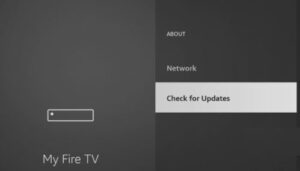
- Select Check for Updates (shown as Check for System Update on some models).
- If an update is found, select Install Update. The stick restarts to finish installing, so keep it plugged in.
Factory reset your Fire Stick
If you still can’t change the resolution after restarting and updating, a factory reset is the last step to try at home.
A reset clears serious bugs and software problems that an update couldn’t fix. It deletes corrupted files, frees up storage, and puts your Fire Stick back to how it was out of the box.
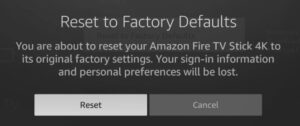
A reset erases everything: your Amazon account sign-in, every app you downloaded, and the data inside those apps. Before you start, write down your installed apps and make sure you know the passwords for your streaming services. That includes any apps you added by following a guide such as How To Install And Watch Crave On Firestick. Remove any USB drive connected to the stick, too.
To factory reset your Fire Stick:
- Go to Settings and select My Fire TV.
- Select Reset to Factory Defaults.
- Select Reset to confirm.
If you can’t see the menu, press and hold Back and the right side of the navigation circle together for 10 seconds. Then confirm the reset on screen.
If the resolution still won’t change after a reset, try the stick on a different TV. If it works there, the problem is your TV or its HDMI port. If it fails on every TV, contact Amazon Device Support, especially if the stick is still under warranty.
Final takeaway
Start with Settings > Display & Sounds > Display > Video Resolution, and keep the Up + Rewind shortcut in mind for when the screen goes blank. Most stuck resolutions are fixed by a restart, a new HDMI cable, or a software update. Save the factory reset for last, because you’ll have to sign in to everything again.
FAQ
What resolution should I set my Fire Stick to?
Choose Auto in most cases, because it uses the best resolution your TV reports it can handle. If Auto picks the wrong one, set your TV’s native resolution by hand: 1080p for a Full HD TV, or 4K (2160p) at 60 Hz for an Ultra HD TV.
Why does my Fire Stick screen go black after changing the resolution?
Your TV probably can’t display the resolution or refresh rate you picked. Wait a few seconds, because the stick goes back to the old setting if you don’t confirm. Or hold Up and Rewind for about five seconds and press Select when a working picture appears.
Why isn’t my Fire Stick playing in 4K?
You need a 4K-capable Fire TV model, a 4K TV, a High-Speed HDMI cable, and a show that is actually streamed in Ultra HD. A fast enough internet connection matters too. Plugging into an HDMI port on the TV that supports 4K and running Audio/Video Diagnostics under Display & Sounds usually shows where the problem is.
Does changing the resolution use more internet data?
Changing the output resolution doesn’t change your data use by itself. The quality of the stream does. The Set Video Quality option under Settings > Preferences > Data Monitoring controls that, and Best uses far more data than Better or Good.
Will a factory reset delete my apps?
Yes. A factory reset removes your account information, every downloaded app and its data. You’ll sign in to Amazon again and reinstall your apps afterward, so note them down first.
Are the steps different on the Fire TV Stick 4K Select?
They can be. The Fire TV Stick 4K Select runs Vega OS instead of Android-based Fire OS, so some options may be arranged or named differently. Start under Settings > Display & Sounds > Display, and if a label doesn’t match exactly, look for the closest option in the same menu.
Sources
- How to Fix Black Screen, White Screen, or Blank Display Issues on Your Fire TV Device (Amazon Customer Service)
- 4K Ultra HD Not Working on Fire TV Devices (Amazon Customer Service)
- How to Update Your Fire TV Device Software to Latest Version (Amazon Customer Service)
- How to Fix Fire TV Update Issues and Device Problems (Amazon Customer Service)
- How to Reset Your Fire TV Device to Factory Settings (Amazon Customer Service)
- Detect screen resolution on Vega (Amazon Developer)