
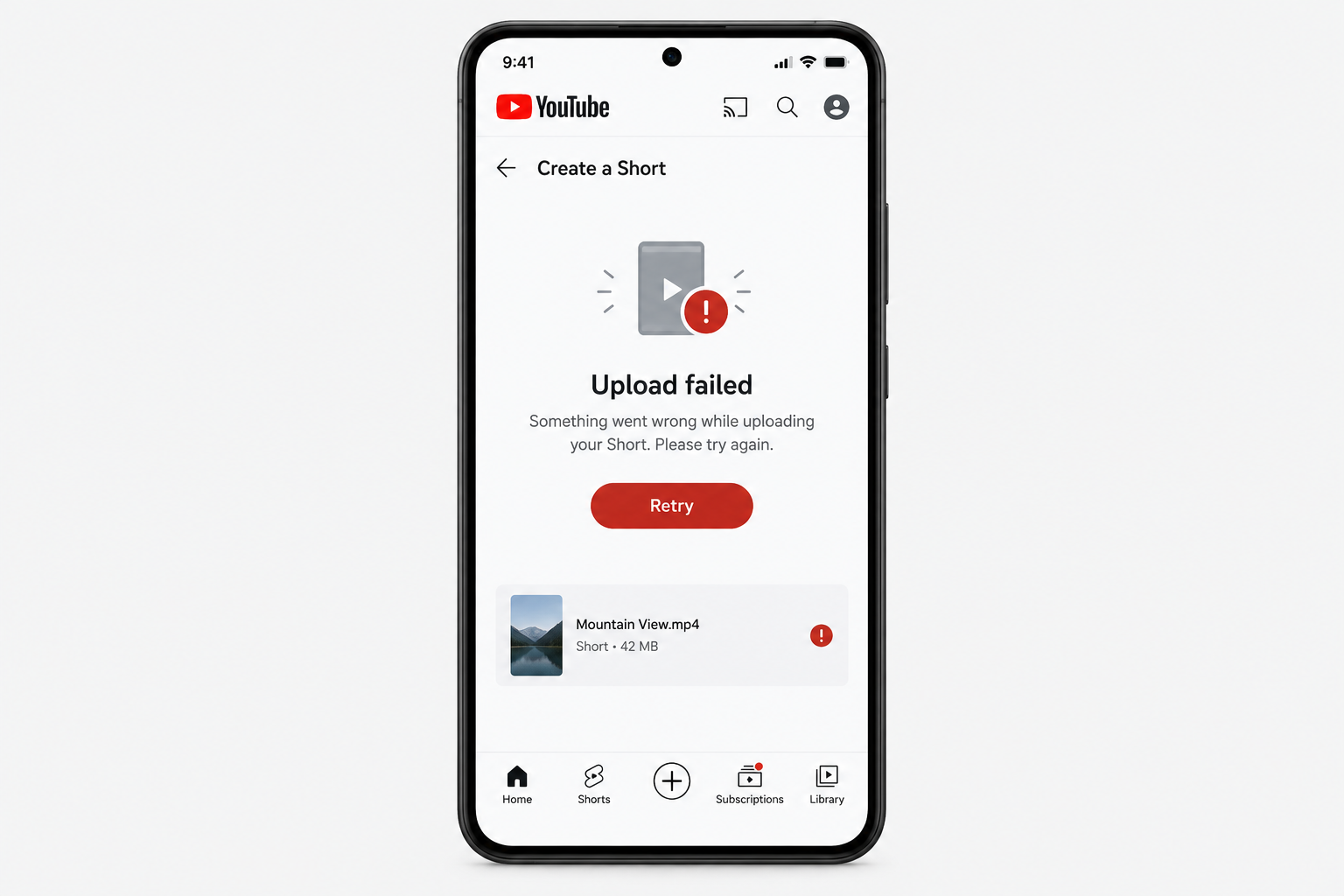
When a YouTube Short shows “Upload failed”, the cause is usually the file, a weak connection or a damaged app cache, and only rarely a bug on YouTube’s side. Check the clip first: it has to be 3 minutes or shorter, square or vertical, and no higher than 1080p. Then clear the YouTube app’s cache, update or reinstall the app, and if it still fails, upload the same file from a computer through YouTube Studio. If a computer upload fails too, the problem is with the file or with YouTube, not your phone.
Below are the fixes to try when Shorts keep failing to upload, in order from quickest to most involved. There is also a short look at the monetisation rules that make Shorts worth posting.
YouTube Shorts monetisation requirements
YouTube Shorts became much more popular once YouTube allowed creators to earn money from them. Plenty of people were put off by the thresholds, though, which look hard to reach for a new channel. As of November 2026, a channel can apply for the full YouTube Partner Program (YPP) when it meets these requirements:
- 1,000 subscribers.
- Either 4,000 valid public long-form watch hours in the last 12 months, or 10 million valid public Shorts views in the last 90 days (a rolling window).
- Real Youtube Subscribers and real views only. Bought subscribers and fake views break YouTube’s fake engagement policy and can get a channel removed, so they never help you qualify.
There is also a lower, expanded YPP tier in eligible countries. It needs 500 subscribers, 3 public uploads in the last 90 days, and either 3,000 watch hours in 12 months or 3 million Shorts views in 90 days. That tier unlocks fan funding and Shopping features, not a share of ad revenue.
YouTube has announced higher thresholds for new applicants from February 1, 2027: 8,000 watch hours in 365 days or 20 million Shorts views in 90 days for ad and Premium revenue. Channels already in YPP are not affected.
Watch hours from Shorts viewed in the Shorts feed do not count toward the 4,000 hours. So most people find that long-form video is the easier route to monetisation. Shorts still work well if you like a challenge, or if you use them to promote your long-form videos. That brings us to the main problem: Shorts that fail to upload, and how to fix them.
How to fix YouTube Shorts failing to upload
Most failed Short uploads have one of four causes. The file doesn’t meet the Shorts rules, the connection drops partway through, the app’s cached data is damaged, or YouTube itself is having an outage. The fixes below go from quickest to most involved, so work through them in order.
Check the video file and your connection first
These checks take a minute and rule out the most common causes:
- Length and shape. A Short must be 3 minutes or less, with a square (1:1) or vertical (9:16) aspect ratio. The 3-minute limit has applied since October 15, 2024. Before that, Shorts could only be 60 seconds long.
- Resolution. YouTube accepts Shorts up to 1080p. A phone set to record in 4K produces files that are much bigger and slower to upload, so 1080 x 1920 is the safest size.
- Format. MP4 with H.264 video and AAC audio is the most reliable combination. HEVC (H.265) files from newer iPhones and Android phones are also on YouTube’s list of supported formats, but if an HEVC clip keeps failing, export it again as an H.264 MP4.
- Connection. Switch from mobile data to stable Wi-Fi, or the other way round, and keep the app open until the upload finishes.
- Outages. If uploads fail on several videos at once, check the TeamYouTube account on X or YouTube’s Help Community for a known problem before changing anything on your phone.
Clear the YouTube app cache and data
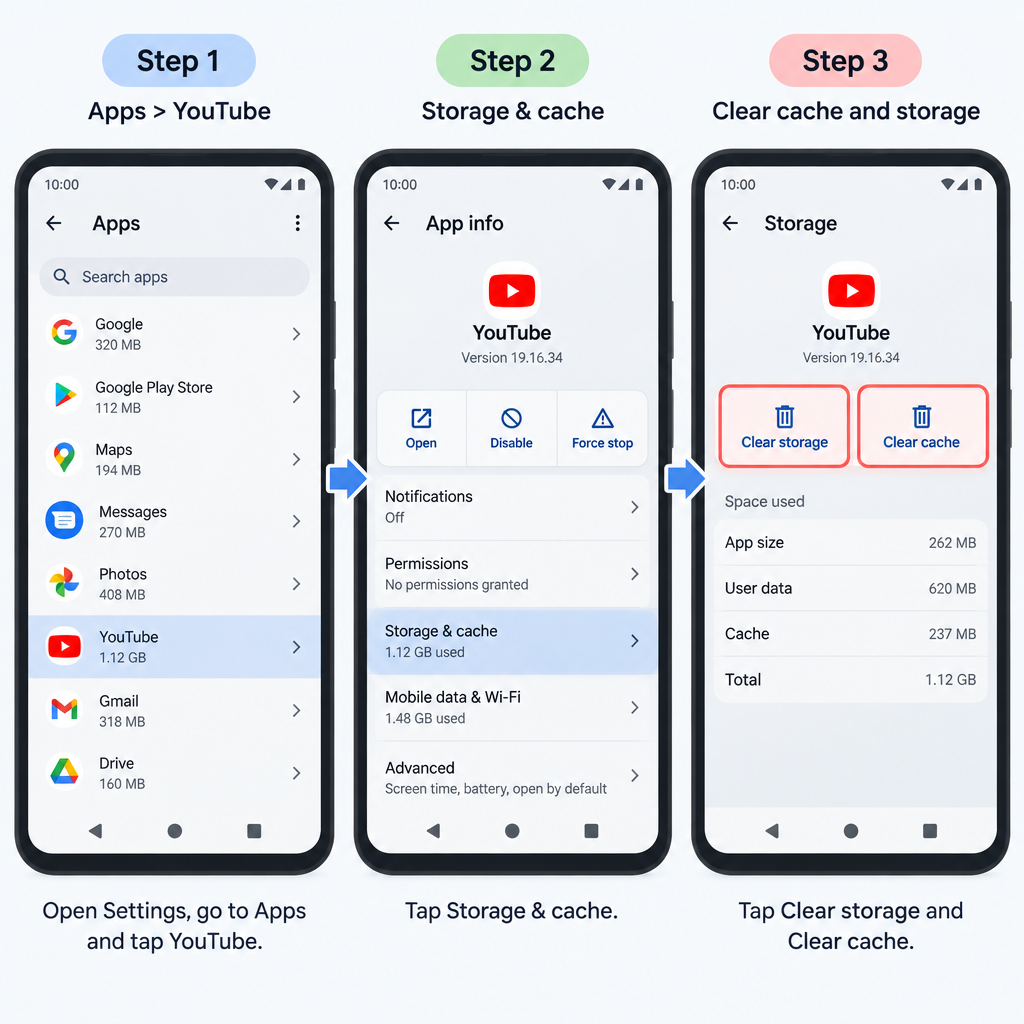
If the file is fine, clearing the YouTube app’s cache and data is the next step. It removes damaged temporary files that can break uploads. On Android, the menu names below are from a Google Pixel and may differ a little on Samsung and other phones.
- Open Settings on your device, then tap Apps and See all apps.
- Scroll down and tap YouTube.
- Tap Storage & cache, then tap Clear cache.
- Try the upload again. If it still fails, go back and tap Clear storage.

Clearing the cache only deletes temporary files. Clearing storage deletes all of the YouTube app’s data, including downloaded videos. You also have to sign in again. Once you’re signed back in, try uploading the Short again.
iPhones have no button to clear an app’s cache. The nearest equivalent is Settings > General > iPhone Storage > YouTube > Offload App, then reinstall it. Offloading keeps your settings and documents.
If clearing the cache and storage doesn’t help, uninstall the YouTube app or remove its updates.
Uninstall the YouTube app to fix Shorts not uploading
Reinstalling gives you a clean copy of the app. On many Android phones, YouTube comes preinstalled and can’t be fully removed. In that case, reset it instead:
- Go to Settings > Apps > See all apps > YouTube.
- Tap the three-dot menu in the top-right corner, then tap Uninstall updates. This takes YouTube back to the version that shipped with your phone.
- Open the Google Play Store, search for YouTube and tap Update to install the latest version.
On an iPhone or iPad, press and hold the YouTube icon, tap Remove App > Delete App, then reinstall it from the App Store.
Update the YouTube app or wait for an official fix
An out-of-date app is a common cause of failed uploads, so make sure you’re on the latest version. On Android, open the Google Play Store, tap your profile picture, then Manage apps & device and update YouTube. On iPhone, open the App Store, tap your profile picture and scroll down to the list of available updates.
If the failure comes from a bug in the current version, updating won’t fix it straight away. You’ll have to wait for YouTube to release a fixed version. While you wait, uploading from a computer (see the next section) usually gets around the problem.
Using the YouTube Studio app as well
If you also use the YouTube Studio app to upload, repeat all of the steps above for YouTube Studio. In the Studio app, tap Create > Upload a video, choose the file, add the details and tap UPLOAD SHORT. Any video that is 3 minutes or shorter and square or vertical goes up as a Short automatically.
The Studio app is rarely the cause. Still, it’s worth trying if nothing else has worked so far.
If nothing works
Upload the same file from a computer. Sign in to YouTube Studio in a browser, click CREATE in the top-right corner, then Upload videos, and choose the file. You can upload up to 15 files at once.
- If the computer upload works, the problem is with your phone or the app. Contact YouTube through the Help Center’s creator support options.
- If the computer upload fails too, export the video again from your editor as a 1080p MP4 (H.264, AAC) and try once more.
If the video uploads but then sits on “Processing” for hours, delete it and upload it again rather than waiting forever. If you’re in YPP, you can also contact Creator Support from YouTube Studio under Help > Contact us.
FAQ
Why does my YouTube Short say “Upload failed” when other videos upload fine?
Usually the Short itself breaks one of the rules. It may be longer than 3 minutes, not square or vertical, or bigger than 1080p. Export it again at 1080 x 1920 in MP4 format and try again. If it still fails, clear the app’s cache.
Does clearing the YouTube app’s data delete my channel or videos?
No. Your channel and uploaded videos are stored on YouTube’s servers, not on your phone. Clearing storage only removes data on the phone, such as offline downloads, app settings and your sign-in. You just sign in again afterwards.
How long can a YouTube Short be in 2026?
Up to 3 minutes, as long as the video is square or vertical. YouTube raised the limit from 60 seconds on October 15, 2024. A vertical video longer than 3 minutes uploads as a regular long-form video instead.
Can I upload Shorts from a computer?
Yes. Open YouTube Studio in a browser, click CREATE and then Upload videos, and choose a vertical or square file of 3 minutes or less. YouTube treats it as a Short automatically. Uploading from a computer is also the best way to tell whether the problem is with your phone.
Do Shorts views count toward YouTube monetisation?
Yes. 10 million valid public Shorts views in the last 90 days, plus 1,000 subscribers, qualifies a channel for YPP. Views from private, unlisted or deleted Shorts don’t count. Neither do watch hours from the Shorts feed, so they can’t be added to the 4,000-hour long-form target.
My Short uploaded but is stuck on processing. What should I do?
Give it at least 30 to 60 minutes, especially at busy times. If it’s still stuck after several hours, delete it and upload it again, ideally as an H.264 MP4. If the same thing happens to many of your videos at once, YouTube is probably having a wider problem.
Sources
- Upload YouTube Shorts, YouTube Help
- Get started creating YouTube Shorts, YouTube Help
- Understand three-minute YouTube Shorts, YouTube Help
- Supported YouTube file formats, YouTube Help
- YouTube Partner Program overview & eligibility, YouTube Help
- Overview of the expanded YouTube Partner Program, YouTube Help
- New opportunities to earn and changes to the YouTube Partner Program, YouTube Blog
- Free up storage on your Android device, Android Help













