Most iPhones that “won’t charge” have nothing wrong with the phone. The usual causes are a worn cable, a weak adapter, lint packed into the port, or a setting that stops charging on purpose. This guide starts with a two-minute test that finds the cause, then gives the fix for each symptom and what a repair costs if the hardware has failed.
Key takeaways
- Change one part at a time (outlet, adapter, cable). That usually finds the faulty one in two minutes.
- If the phone charges on MagSafe or a Qi pad but not on a cable, the cable or the port is the problem. The battery is fine.
- On an iPhone 15 or later, stopping at 80% is usually Charge Limit. Check Settings > Battery > Charging.
- If you see “Liquid Detected”, unplug and let the phone air-dry for at least 30 minutes. Don’t use rice or a hair dryer.
- The Mac Observer reports Apple’s out-of-warranty battery fee at $99 for recent standard models. AppleCare+ covers it once health falls below 80%.
Fact-checked
We checked these key facts against the sources named, on November 12, 2026:
- AppleCare+ covers it once health falls below 80% (source: macrumors.com)
- Apple released iOS 27 in September 2026 to replace iOS 26 (source: macrumors.com)
- Set it to 85%, for example, and the phone stops within a few percent of 85% (source: gearpatrol.com)
- Older iPhones don’t have the Charge Limit slider, so you can’t set a fixed 80% cap on them (source: support.apple.com)
- Apple’s support document describes a Charge Limit slider that runs from 80% to 100% in 5% steps (source: support.apple.com)
Quick answer: the 2-minute test that finds the culprit
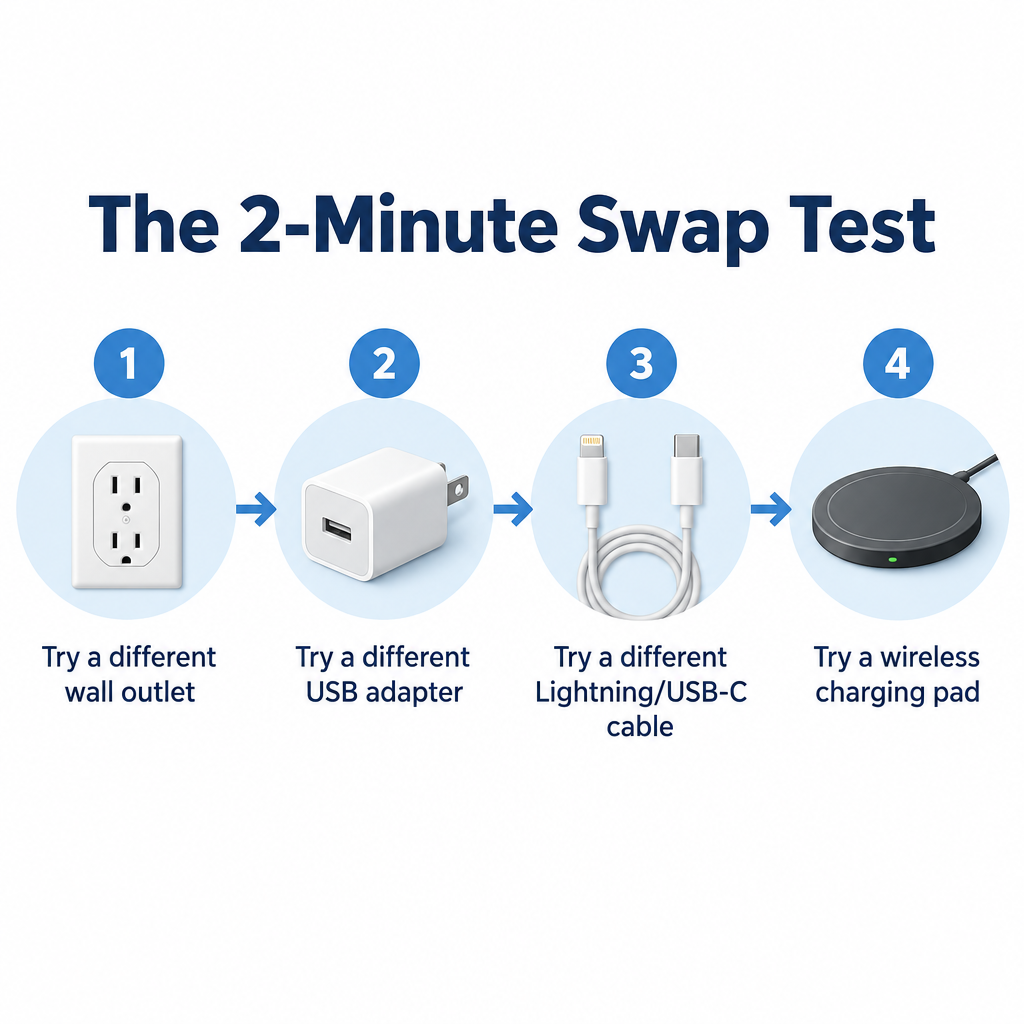
Swap one part at a time, in this order: outlet, adapter, cable, then a wireless charger. When charging starts, the last thing you changed was the faulty part. If nothing works, the problem is the port or the phone itself.
What you need
- A different wall outlet. Don’t use a power strip or a laptop’s USB port.
- A known-good adapter, ideally an Apple 20W USB-C adapter or another USB Power Delivery (USB-PD) charger.
- A known-good cable of the right type. iPhone 15 and later use USB-C. iPhone 14 and earlier use Lightning.
- A MagSafe, Qi2 or Qi wireless charger, if you have one.
- A flashlight.
Fix it
- Plug your usual cable and adapter into a different wall outlet. Wait 30 seconds and look for the lightning bolt on the battery icon.
- Keep the cable, but swap in a known-good adapter.
- Keep that good adapter, and swap in a known-good cable.
- Put the iPhone on a MagSafe, Qi2 or Qi charger, centered, with any thick case removed.
- If the bolt never appears, shine a flashlight into the port and go to the cleaning section below.
What each result tells you
| Result | What it means |
|---|---|
| Works in a different outlet | The outlet or power strip was the problem |
| Works with a different adapter | Your adapter is faulty or too weak |
| Works with a different cable | Your cable has failed, even if it looks perfect |
| Charges wirelessly, never on any cable | The port is dirty or damaged |
| Won’t charge wirelessly or on a cable | Software, battery or logic board: restart, update, then get it checked |
Pro tip
Change only one thing per test. If you swap the cable and the adapter together and the phone starts charging, you won’t know which one to throw away.
What your iPhone is telling you: match the symptom to the fix
The screen tells you a lot about the cause. “Not charging” can mean no bolt at all, a bolt with no progress, a planned stop at 80%, or an alert that pauses charging on purpose. Each one points somewhere different.
| What you see | Most likely cause | Try this first | If that fails |
|---|---|---|---|
| No lightning bolt at all | Dead cable, adapter or outlet; lint in port | Run the swap test | Clean the port, then force restart |
| Bolt shows but % doesn’t rise | Weak adapter, heavy use while charging, battery wear | 20W+ USB-C PD adapter, close heavy apps | Check Battery Health |
| Stops at 80%, 85%, 90% or 95% | Charge Limit or Optimized Battery Charging | Settings > Battery > Charging | Normal behavior, nothing to fix |
| “Charging On Hold” | Phone too hot or too cold | Move it somewhere cooler, take the case off | Contact Apple Support if it happens at room temperature |
| “Liquid Detected” | Moisture in the port or on the cable pins | Unplug, dry for at least 30 minutes | Service if it appears with every Apple cable |
| “Accessory may not be supported” | Damaged, dirty or uncertified cable | Different certified cable, clean the port | Port inspection |
| Charges only at an angle | Packed lint or a worn, loose port | Clean the port | Port repair |
| “Slow Charger” or very slow progress | Low-wattage adapter or a computer’s USB port | Use a wall adapter matched to your model | Swap the cable |
| iPhone 17 or Air dead, won’t wake on a cable | iOS bug fixed in 26.5.1 | Wireless charge, then update | Apple Support |
No lightning bolt at all
No bolt means the iPhone isn’t detecting any power. The cause is usually outside the phone: the cable, the adapter, the outlet, or debris that stops the plug making contact. Run the swap test first. If no cable works, check the port next.
Bolt shows but the percentage doesn’t go up
The phone is getting some power, but less than it’s using. An old 5W cube from an early iPhone box, or a laptop’s USB port, can fall behind while you stream video or use navigation. Switch to a USB-C Power Delivery adapter rated 20W or higher, close games and video, and wait 30 minutes. If the percentage still hasn’t moved, check battery health (covered below).
Stops at 80% (or 85, 90 or 95%)
A battery setting is almost always the cause. On iPhone 15 and later it’s Charge Limit. On older models it’s Optimized Battery Charging. Both are covered in the settings section below.
“Charging On Hold” notification
From iOS 16 onward, the iPhone pauses charging when the battery gets too hot or too cold. Apple’s advice is to move the phone somewhere cooler and out of direct sunlight. Charging restarts by itself once the temperature is back in range.
“Liquid Detected” alert
The iPhone has found moisture in its USB-C or Lightning port, or on the cable, and has stopped wired charging to protect the pins. It doesn’t take a drop in water. Humidity, sweat or a damp pocket can set it off. The full steps are in the liquid section below.
“Accessory may not be supported”
This alert usually means the cable is damaged, dirty or uncertified. On Lightning iPhones, cheap uncertified cables are a common trigger. On any model, lint or corrosion in the port can also cause it. Try a certified cable first, then clean the port.
Charges only when the cable is held at an angle
This is one of the most common complaints, and the cause is usually lint packed against the back of the port. It stops the plug going all the way in. Clean the port before you assume it’s broken. If the plug still wobbles after cleaning, the port is worn.
Says “slow charger” or charges very slowly
From iOS 26 onward, the iPhone shows an estimated time to full charge on the Lock Screen and in Settings > Battery. Battery settings also warn you when a charger is slow. That warning means the adapter, or sometimes the cable, can’t deliver the power your model can take. Apple Support says an iPhone 17 reaches about 50% in 20 minutes on a USB-C adapter rated 40W or higher. An old 5W or 12W brick is nowhere near that speed.
Check the cable and adapter (even if they look fine)
Cables cause more charging failures than anything else. They break internally at the strain points near each plug, long before any damage shows on the outside. A cable can look perfect and still carry too little power, or none.
Why cables and adapters fail without visible damage
Each time the cable bends where it meets the plug, the copper strands inside flex. After hundreds of bends they snap one by one. That’s why a cable might charge when you hold it a certain way and then cut out at random. Adapters wear differently. Repeated heating and cooling ages the parts inside, and output can drop well below the rating on the label.
Signs the cable is the problem:
- Charging starts and stops when you move the cable.
- The plug end feels warm or looks discolored.
- It charges AirPods or another low-power device, but not your iPhone.
- It works one way up but not when you flip the plug.
Lightning vs USB-C: which cable your model needs
iPhone 15 and later use USB-C. That includes iPhone 16, iPhone 17, iPhone Air, iPhone 17e and iPhone 18 Pro. iPhone 14 and earlier, and every iPhone SE, use Lightning. For Lightning, buy MFi (Made for iPhone) certified cables, which go through Apple’s certification program. Uncertified ones are the main cause of the “Accessory may not be supported” alert. For USB-C, buy from Apple or a well-known brand. Fast charging on any iPhone from the iPhone 8 onward needs an adapter that supports USB Power Delivery.
| Model | Port | Max wired / adapter to use | Max wireless | Where charge settings live |
|---|---|---|---|---|
| iPhone 17, 17 Pro, 17 Pro Max | USB-C | About 50% in 20 min with a 40W+ USB-C adapter | 25W MagSafe / Qi2.2 with a 30W+ adapter | Settings > Battery > Charging |
| iPhone Air | USB-C | 20W cap; 20W+ USB-C PD adapter | 20W MagSafe / Qi2.2 | Settings > Battery > Charging |
| iPhone 17e | USB-C | 20W; about 50% in 30 min with a 20W+ adapter | 15W MagSafe / Qi2 with a 20W+ adapter | Settings > Battery > Charging |
| iPhone 16, 16 Plus, 16 Pro, 16 Pro Max | USB-C | 20W+ USB-C PD adapter | Up to 25W MagSafe with a 30W adapter | Settings > Battery > Charging |
| iPhone 16e | USB-C | 20W+ USB-C PD adapter | 7.5W Qi (no MagSafe) | Settings > Battery > Charging |
| iPhone 15 family | USB-C | 20W+ USB-C PD adapter | 15W MagSafe / Qi2 | Settings > Battery > Charging |
| iPhone 11 to 14, iPhone SE (2nd/3rd gen) | Lightning | 20W USB-C PD adapter with a USB-C to Lightning cable | Up to 15W MagSafe (12 to 14), 7.5W Qi on others | Settings > Battery > Battery Health & Charging |
| iPhone 8, 8 Plus, X | Lightning | 18W or 20W USB-C PD adapter; about 50% in 30 min | 7.5W Qi | Settings > Battery > Battery Health & Charging |
You don’t need a bigger adapter to fix a phone that won’t charge. Any working 20W USB-C PD adapter charges every model in the table at a reasonable speed. Higher wattage only matters if you want the fastest possible charge on an iPhone 17 or 17 Pro.
Why a charger can work on other devices but not your iPhone
A charger that works on your iPad or AirPods can still be the problem on your iPhone. A cable with a few broken strands can carry the small current AirPods draw and still fail under an iPhone’s fast-charging load. The other device may also have a cleaner port that makes better contact.
It also works the other way round. If one charger works on three devices and fails only on your iPhone, the iPhone’s port is the main suspect. Try a second, different charger on the phone. If that fails too, stop buying cables and look at the port.
Clean the charging port safely
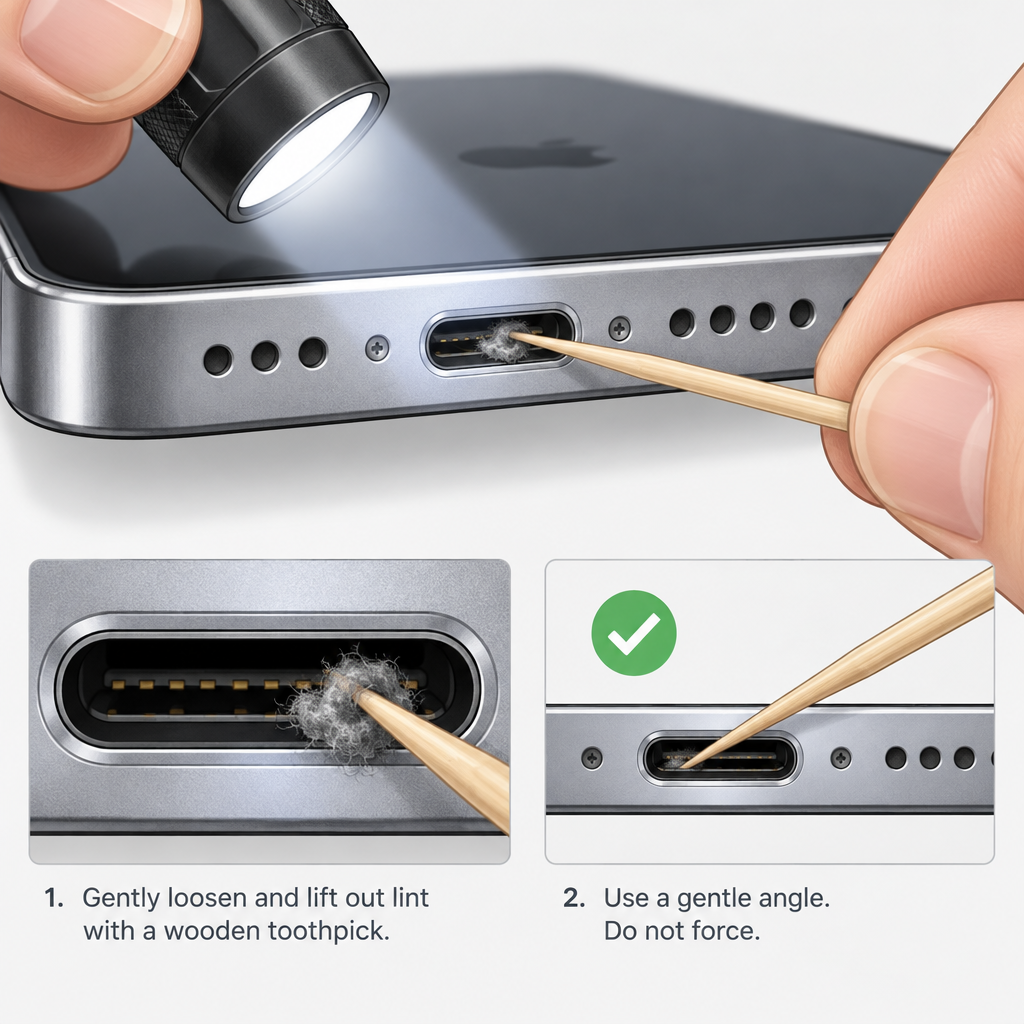
Lint is the most common reason a plug won’t stay in, only works at an angle, or cuts out when you pick the phone up. Pocket fluff packs into a hard, felt-like layer at the back of the port, and the plug can’t go in far enough to connect. Cleaning takes five minutes. Don’t use anything metal or wet.
Before you start
Turn the iPhone off completely before you put anything in the port. Never use metal (paperclips, SIM tools, pins) or liquids. They can short or bend the contacts.
Cleaning a USB-C port (iPhone 15 and later)
USB-C ports collect lint just as Lightning ports do, and they’re more delicate. A thin tongue of contacts sits in the middle of the opening. Clean around it, never across it.
Fix it
- Turn off the iPhone: press and hold the side button and either volume button, then drag the slider.
- Shine a flashlight straight into the port. Grey or dark fuzz at the back is lint.
- Gently slide a wooden or plastic toothpick along the top and bottom walls of the port. Keep it off the center tongue.
- Hook debris outward toward the opening. Don’t push it deeper.
- Check again with the light, and repeat until the back wall is clear.
- Turn the phone on and plug the cable in firmly. It should go all the way in with a slight click.
Cleaning a Lightning port (iPhone 14 and earlier)
A Lightning port is a simple slot with contacts on the sides, so lint tends to pack flat against the back wall. The steps are the same: phone off, flashlight, then a wooden or plastic toothpick scraped along the back wall and pulled outward. A clean, dry, soft brush (an anti-static brush or a new soft toothbrush) can loosen surface dust first.
What about compressed air?
Don’t use it. In its liquid-detection article, Apple tells owners not to dry an iPhone with compressed air, and a blast can push lint deeper and drive moisture past the seals. Don’t blow into the port either, because your breath carries moisture. A toothpick takes longer but is safer.
Found a huge lump of lint: is a paperclip OK?
No. A paperclip or SIM-eject pin can scratch the contacts, bend the USB-C tongue, or short the pins if the phone is on. If the lint is packed too tightly for a toothpick, take the phone to an Apple Store. Genius Bar staff often clear ports at no charge and can check the contacts under proper light.
Pro tip
If the plug doesn’t click fully into place or wiggles loose, suspect packed lint before a broken port. Cleaning fixes this far more often than a repair is needed.
How to tell if the port is damaged, not just dirty
Clean the port first, then check for these signs:
- Loose fit after cleaning: the plug still won’t stay in, even though the back wall is clear.
- Bent or missing contacts: on USB-C, a bent or cracked center tongue. On Lightning, contacts that look pushed in or out of line.
- Scorch marks or discoloration inside the port or on the cable plug.
- Green or white crust: corrosion from earlier liquid exposure.
- No cable works, but wireless charging does.
If you see any of these, stop. A damaged port needs repair, and more poking can make it worse. Use wireless charging until it’s fixed.
Restart, force restart and update iOS
A software glitch can stop an iPhone charging even when the cable, adapter and port are all fine, and a restart usually clears it. After that, make sure the phone is on a current iOS version.
Force restart by model
A force restart works even when the screen is frozen or black, and it doesn’t erase anything. The buttons depend on the model.
Fix it
- iPhone 8 and later, including every Face ID model and iPhone SE (2nd and 3rd generation): press and quickly release volume up, then volume down, then press and hold the side button until the Apple logo appears (10 to 20 seconds).
- iPhone 7 and 7 Plus: press and hold volume down and the side (Sleep/Wake) button together until the Apple logo appears.
- iPhone 6s, iPhone SE (1st generation) and earlier: press and hold the Home button and the side or top button until the Apple logo appears, about 10 seconds.
- Plug in a known-good charger and leave it connected for at least 30 minutes before you decide it isn’t charging.
A completely drained battery can take several minutes to show any sign of life. If the screen stays black, leave it plugged in and try the force restart again after 30 minutes.
Update iOS
Go to Settings > General > Software Update and install whatever is offered. Apple released iOS 27 in September 2026 to replace iOS 26. Recent releases include iOS 27.2, plus iOS 26.7.2 for phones that stay on iOS 26. Older models that can’t run iOS 26 should still install the newest update offered for them.
The iPhone 17 / iPhone Air “won’t charge when nearly dead” bug
Apple addressed this in an iOS 26 update. Its release notes say it fixed an issue that “may prevent wired charging on iPhone Air and iPhone 17 models when the battery is nearly drained” for a small number of users. AppleInsider, 9to5Mac, Forbes and Cult of Mac all covered the fix, which went to the iPhone 17, 17 Pro, 17 Pro Max, iPhone 17e and iPhone Air. The problem first surfaced in late April 2026. 9to5Mac’s Benjamin Mayo described an iPhone Air that ran completely flat and wouldn’t boot after he plugged it into a wall outlet.
A phone that’s already dead can’t install the update. Wake it up first:
- Put it on a MagSafe or Qi2 charger and leave it for 30 minutes.
- Once it turns on, go to Settings > General > Software Update and install the latest iOS.
- If wireless charging doesn’t wake it either, contact Apple Support. These phones are new enough to be under warranty.
Is it a setting? Charge Limit, Optimized Charging and heat
If your iPhone charges up to a certain level and then stops, check for a charge cap in Battery settings or a temperature pause before assuming anything is broken. Both are working as designed.
Charge Limit on iPhone 15 and later
On iPhone 15 and later, go to Settings > Battery > Charging. Apple’s support document describes a Charge Limit slider that runs from 80% to 100% in 5% steps. Set it to 85%, for example, and the phone stops within a few percent of 85%. The same screen has Optimized Battery Charging, which learns your routine and holds at 80% until shortly before you usually unplug.
To get a full charge, drag the slider to 100%. If you keep a limit on to protect the battery, expect to see 80% most mornings. Apple also notes that the iPhone will occasionally charge to 100% anyway, which keeps its battery percentage estimate accurate. That’s on purpose, not a fault.
Optimized Battery Charging on iPhone 14 and earlier
Older iPhones don’t have the Charge Limit slider, so you can’t set a fixed 80% cap on them. Go to Settings > Battery > Battery Health & Charging for the Optimized Battery Charging switch. When it’s on, the phone may hold at 80% overnight and finish charging just before you usually wake up. Turn it off if you need a full battery at unpredictable times.
Heat, cold and “Charging On Hold”
Batteries wear faster when they’re charged hot. That’s why iOS 16 and later pause charging outside a safe temperature range and show “Charging On Hold.” The pause protects the battery on any model, iPhone 15 included, and charging resumes on its own.
To cool the phone down:
- Move it out of direct sunlight and off the car dashboard.
- Take off thick cases, especially leather or rugged ones.
- Close games, navigation and video apps while it charges.
- Don’t charge it on top of a laptop or under a pillow.
- Never put it in a fridge or freezer. Condensation can trigger a liquid alert.
If “Charging On Hold” appears in a cool room while the phone is idle, contact Apple Support. That points to a sensor or battery fault.
Liquid detected: what to do (and why not rice)
The liquid-detection alert means the iPhone has found moisture in its USB-C or Lightning port, or on the cable plug. It stops wired charging so the pins don’t corrode. Unplug, let everything dry in moving air for at least 30 minutes, and don’t put the phone in rice.
Apple’s steps
From Apple Support’s liquid-detection article:
Fix it
- Unplug the cable from the iPhone and the adapter.
- Hold the iPhone with the port facing down and tap it gently against your hand to shake out liquid.
- Leave the phone in a dry place with some airflow.
- Wait at least 30 minutes, then try a cable again.
- If the alert comes back, there’s still liquid in the port or under the cable pins. Keep drying it. This can take up to a day.
Apple also says not to use an external heat source such as a hair dryer, not to use compressed air, and not to push cotton swabs or paper towels into the port.
Did you know?
Apple specifically warns against putting a wet iPhone in a bag of rice, because small rice particles can get inside and damage the phone (Apple Support, liquid-detection alert article).
“It says liquid but I never got it wet”
The moisture may be on the cable. Damp cable pins, sweat, a steamy bathroom, or condensation after moving from cold air into a warm room can all trigger the alert. Apple says that if the alert appears every time you connect one particular cable or accessory, that accessory may be damaged. If it appears every time with Apple’s own USB-C or Lightning accessories and the phone is dry, contact Apple Support, because the phone may need service.
The emergency override and why it’s risky
If you reconnect while the alert is showing, iOS offers an emergency override that lets you charge anyway. Apple warns that charging with a wet port can corrode the pins on the iPhone and the cable, which can cause permanent damage or connection problems. Some owners on Apple’s community forums report ports that stopped working after an override. Use it only when you have no choice, for example to make an emergency call, then dry the phone properly.
Battery health: when the battery is the problem
A worn battery rarely stops charging altogether. More often it drains fast, shuts the phone down at 20% or 30%, or makes the percentage jump around. Check Maximum Capacity. Once it falls below 80%, the battery is due for replacement.
Where to check
- iPhone 15 and later: Settings > Battery > Battery Health.
- iPhone 14 and earlier: Settings > Battery > Battery Health & Charging.
Check Maximum Capacity and any service message below it. Apple considers a battery worn once it drops below 80% of its original capacity. Apple says iPhone 15 and later batteries are designed to keep 80% after about 1,000 full charge cycles, and earlier models after about 500.
Failing battery or failing charger?
| Sign | Points to |
|---|---|
| No bolt on any cable, charges wirelessly | Port or cable |
| Percentage jumps (40% to 15% in minutes) | Battery |
| Shuts down above 0% in the cold or under load | Battery |
| Maximum Capacity under 80% or “Service” message | Battery |
| Charges on one adapter, not another | Adapter |
| Phone or battery looks swollen, screen lifting | Battery: stop charging and get it serviced now |
A swollen battery is the one case where you stop troubleshooting straight away. Don’t charge it or press on it. Take it to Apple or an Apple Authorized Service Provider.
Still not charging? Repair options and costs
If the swap test, port cleaning, a force restart, an iOS update and the settings checks haven’t fixed it, the fault is in the hardware: the port, the battery or the logic board. You can go to an Apple Store (Genius Bar), an Apple Authorized Service Provider, Apple’s mail-in service, or an independent repair shop.
That applies to every model, from an iPhone 8 to an iPhone 13 or an iPhone 17. If the phone still won’t charge with a clean port, two known-good cables and a restart, there’s nothing more to try at home. Book a diagnosis.
What it typically costs
| Problem | Apple (out of warranty) | AppleCare+ | Independent shop | Notes |
|---|---|---|---|---|
| Worn battery (under 80%) | $99 base on recent standard models; $89 on many models older than iPhone 14; $119 for iPhone 16 Pro and 17 Pro; $129 for iPhone 18 Pro / Pro Max | $0 once capacity is below 80% | Often cheaper, varies by shop | Non-genuine batteries show a message in Settings |
| Lint in port | Often cleaned free in store | Free | Usually free or a small fee | Try a wooden toothpick at home first |
| Damaged charging port | Quoted after diagnosis | Defects covered; accidental damage carries a service fee | Quoted per model | Ask for genuine parts |
| Liquid damage | Not covered by the one-year limited warranty | Covered as accidental damage, with a fee | Varies a lot | Corrosion spreads, so act quickly |
| Faulty Apple cable or adapter | Covered by the one-year limited warranty if defective | Covered | Replace the accessory | Keep the box and receipt |
The Mac Observer reports the base out-of-warranty battery fee at $99, and the replacement is free under AppleCare+ once Maximum Capacity falls below 80%. In September 2026, 9to5Mac and Tom’s Guide reported that Apple charges $129 to replace the battery in an out-of-warranty iPhone 18 Pro or 18 Pro Max. That’s $10 more than the $119 for the 17 Pro. Apple’s repair estimate tool on its support site gives the exact US price for your model before you book.
Apple vs an independent shop
Apple and Authorized Service Providers use genuine parts, and the repair doesn’t affect any warranty you have left. Independent shops are often faster and cheaper, which suits an older phone that’s out of warranty. The trade-off is the parts. A non-genuine battery or port can show as “Unknown Part” in Settings > General > About > Parts and Service History, and a non-genuine battery won’t show full battery health data.
Before any repair
- Back up: Settings > [your name] > iCloud > iCloud Backup > Back Up Now, or connect to a Mac or PC. If the port is dead, an iCloud backup over Wi-Fi still works.
- Make sure you know your Apple Account password. You may need it to turn off Find My.
- Check your coverage: Settings > General > About shows your warranty or AppleCare+ status.
- Bring the cable and adapter you’ve been using so the technician can test them too.
The swap test works on AirPods cases and other devices too. Rule out the cable, the adapter and the port one at a time before you pay for anything.
FAQ
What do I do if my iPhone charger is plugged in but not charging?
Try a different wall outlet, then a known-good adapter, then a known-good cable, changing one at a time. Then try a wireless charger. If wireless works, turn the phone off and clean the port with a wooden toothpick. If nothing charges it, force restart, update iOS, then contact Apple Support.
Why has my iPhone charger suddenly stopped working?
Usually the last few copper strands near the plug have broken, lint has finally blocked the port, or the adapter has failed from heat or a power surge. Test the charger on another device. If it fails there too, replace it. If it works elsewhere, check your iPhone’s port. On iPhone 17 and Air models, a sudden failure when the battery is almost empty matches the bug fixed in iOS 26.5.1.
How do I know if my iPhone charging port is damaged?
Clean it first. The port is damaged if the plug still wobbles or won’t stay in, the contacts look bent, the USB-C center tongue is damaged, or you see scorch marks or green crust. Charging only at an angle after a thorough clean is another strong sign.
Why is my iPhone charger not working even though it looks fine?
Cables break inside at the strain points, where you can’t see the damage, and adapters can lose output with no outward sign. Test the charger on a different device, and test your phone with a different charger.
Why does my charger work on other devices but not my iPhone?
Either your iPhone’s port is dirty or damaged, or the cable is too worn for the iPhone’s higher charging current. AirPods draw far less power and can hide a weak cable. If two different chargers both fail on your iPhone, the port is the cause.
Why does my iPhone stop charging at 80%?
On iPhone 15 and later, Charge Limit in Settings > Battery > Charging is probably set to 80%. On older models, Optimized Battery Charging holds at 80% and finishes later. Heat can also pause charging, with a “Charging On Hold” message.
Why is my iPhone 16 or 17 not charging when plugged in?
Both use USB-C, so check that the plug goes all the way in and isn’t blocked by lint. Use a USB Power Delivery adapter rated 20W or higher. On iPhone 17 models, make sure you’re on iOS 26.5.1 or later, or iOS 27.
Can I charge my iPhone if it says liquid detected?
Apple advises against it. Unplug, let the phone and cable dry in moving air for at least 30 minutes (it can take up to a day), then try again. The emergency override lets you charge anyway, but charging with a wet port can corrode the pins.
Is compressed air safe for the charging port?
No. Apple advises against it for drying an iPhone, and it can push lint deeper or force moisture past the seals. With the phone turned off, a wooden toothpick is the safer way to clear debris.
The one habit that prevents most charging problems
Most charging failures start in your pocket. Each time you put the phone away, lint gets pushed a little further into the port, until one day the plug won’t go all the way in. Every few months, check the port with a flashlight and clear any fuzz with a wooden toothpick while the phone is off. Keep one known-good cable and adapter aside for testing. Then, when charging stops, you’ll know within two minutes whether you need a $20 cable or a repair.