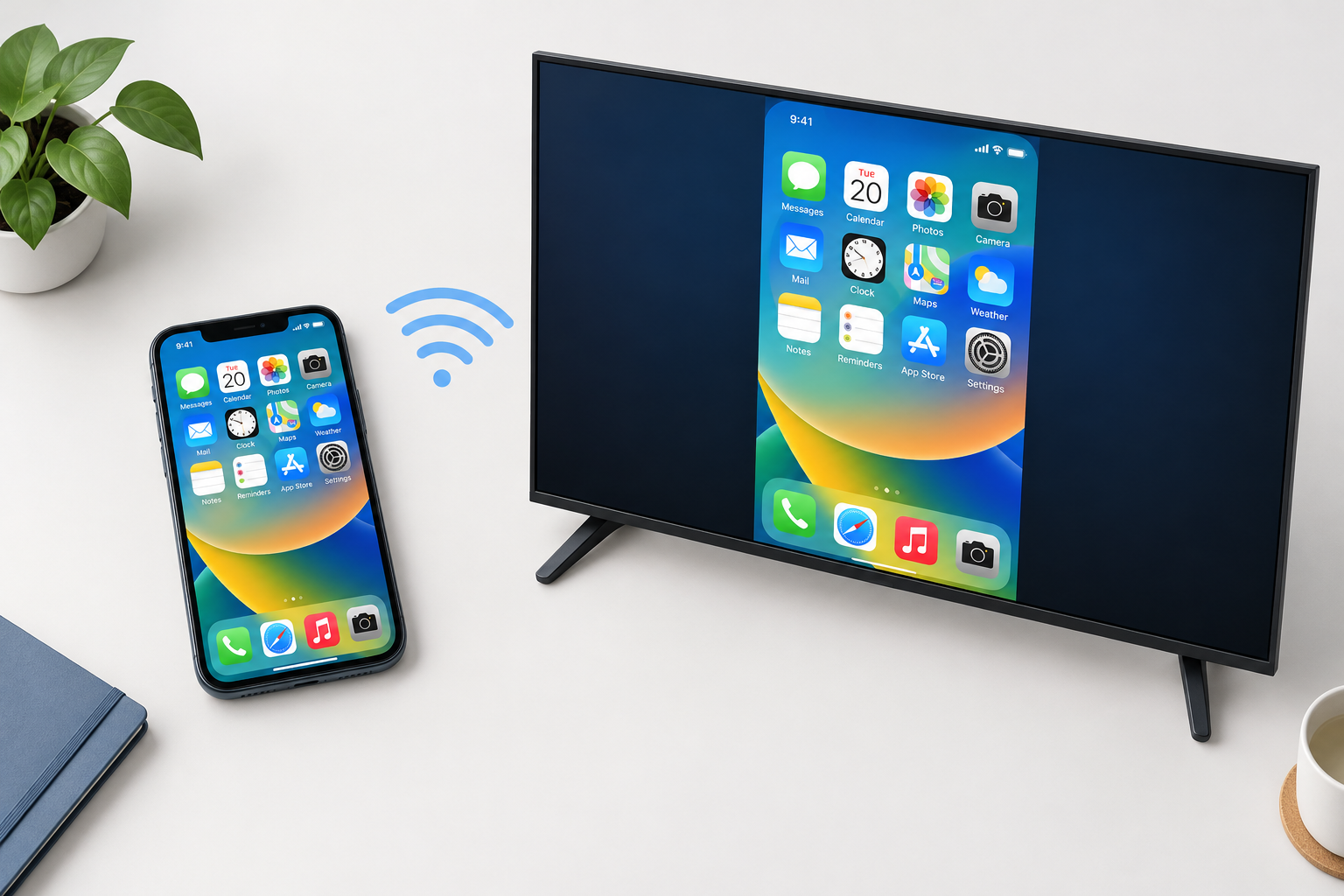
Your phone has become the center of home entertainment, and the TV often takes a back seat. Smart TVs can now run apps, though, so you can put your iPhone’s screen on the big screen and get the best of both.
Mirroring an iPhone to an Android TV
You can send a phone’s screen to a TV with Google Cast (Chromecast) or an HDMI cable. An iPhone and an Android TV make things harder, because Apple’s AirPlay and Google’s Android TV platform are rival systems that don’t work together by default.
AirPlay is still the answer. You just need something on the TV that can receive it. Some TVs have it built in. Sony says all of its Google TV models support AirPlay 2 and HomeKit, though the W8K and X74K/X75K series need a software update first. Several older Sony Android TV series, such as the X80H, X90H and A8H, support it too. TCL added AirPlay 2 to some Google TV models, but not to all of them.
Not sure about your TV? Open the iPhone’s Screen Mirroring menu while both devices are on the same Wi-Fi. If the TV shows up in the list, it supports AirPlay and you can skip the app. Apple also keeps a list of AirPlay 2 compatible TVs on its website.
If your TV isn’t in the list, a third-party Android app fills the gap. A common choice is AirScreen, AirPlay & Cast from developer ionitech. It runs a receiver on the TV and shows your iPhone’s screen over your home Wi-Fi. It also accepts Google Cast, Miracast and DLNA, so Android phones and laptops can use it too.
Here is how to set up AirScreen with Apple’s AirPlay.
Note: The Android TV and the iPhone must be on the same Wi-Fi network. Most failed connections come from a TV on a guest network or a different band of a mesh system.
Step 1: Install AirScreen on your Android TV
Open the Google Play Store on your Android TV or Google TV, search for AirScreen, and install it. If your TV or box has no Google Play Store, see whether the device’s own app store carries AirScreen. The Amazon Appstore on Fire TV does, for example. Don’t download APK files from unofficial websites. Copies sold as “premium unlocked” or “mod” versions are a known source of malware.
Step 2: Start the server
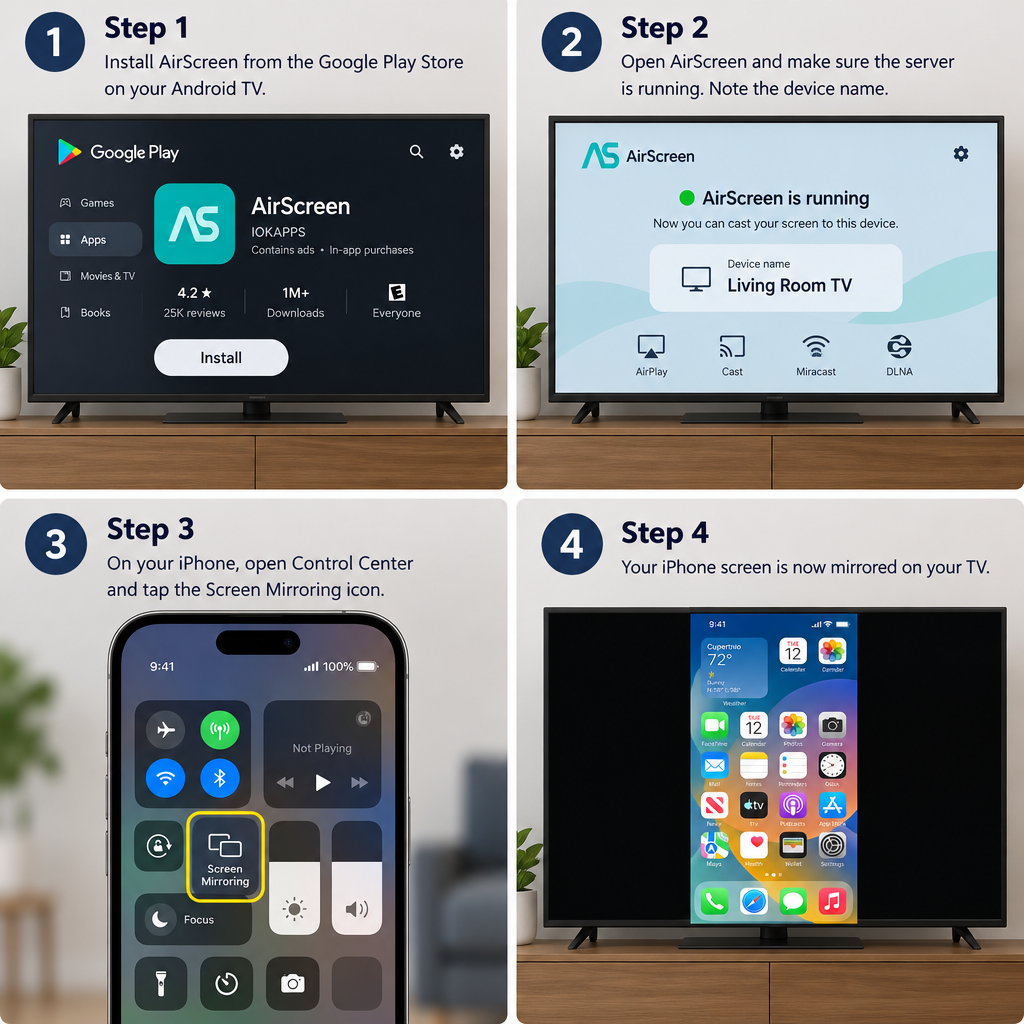
Open AirScreen on the TV. The receiver (the app calls it a server) usually starts by itself. If it doesn’t, go to the Start Server option and select the Start icon.
Step 3: Check the connection details on the TV
Once the server is running, the TV shows the device or server name and the Wi-Fi network it’s on. Some versions also show a QR code and help screens. Write down the server name, because that is what you’ll pick on the iPhone.
Then move to the iPhone.
Step 4: Connect the iPhone
- Open Control Center on the iPhone. On models with Face ID, swipe down from the top-right corner. On models with a Home button, swipe up from the bottom edge.
- Tap Screen Mirroring (the icon of two overlapping rectangles).
- Pick the AirScreen server name from the list.
- If a passcode appears on the TV, type it on the iPhone.
The iPhone’s screen now shows on the TV. To stream a single video and not the whole screen, tap the AirPlay icon inside an app that supports it, such as Photos or many video apps.
To disconnect, open Control Center, tap Screen Mirroring, then tap Stop Mirroring.
Free vs premium version
AirScreen is free to install from the Google Play Store, but the free version has limits. Older versions capped free users at 15 AirPlay videos a day, and reviews describe time limits, ads and prompts to upgrade. A paid premium subscription removes those limits. Monthly, yearly and other plans are offered, and prices vary by country and change over time. Check the upgrade screen inside the app or the Play Store listing to see the current price before you pay.
The old prices of $2.60 a month and $21.13 a year are out of date and shouldn’t be relied on.
Pricing changes how the options compare. If you mirror often, paying for the premium plan every year can end up costing more than an Apple TV, a streaming box that supports AirPlay or a TV with AirPlay built in. For occasional use, the free version or a wired Lightning or USB-C to HDMI adapter is usually enough.
Which option to choose
Start with the free check. Open Screen Mirroring on the iPhone and see whether your TV is listed. If it is, use built-in AirPlay. It’s the most reliable option and costs nothing. If it isn’t, install AirScreen from the Play Store and use the free version to see whether the picture quality and lag work for you before you subscribe. For long sessions or games, an HDMI adapter has the least delay.
FAQ
Can you AirPlay to an Android TV without an app?
Only if the TV has AirPlay 2 built in. All Sony Google TV models support it (some need a software update), and so do some TCL Google TVs. If the TV doesn’t appear under Screen Mirroring on the iPhone, it needs a receiver app such as AirScreen.
Why doesn’t my Android TV show up under Screen Mirroring?
Usually the iPhone and TV are on different Wi-Fi networks, or the receiver app isn’t running. Put both on the same network, reopen AirScreen so the server starts, and turn Wi-Fi off and on again on the iPhone. Restarting the router and the TV fixes most stubborn cases.
Is AirScreen free?
It’s free to download, and the free version works with limits on usage and with ads. A premium subscription removes the limits. The app and the Play Store listing show the current price for your region.
Can you cast an iPhone to Chromecast?
The iPhone has no built-in Google Cast support for mirroring the whole screen. Some apps, such as YouTube, have a Cast button for their own videos. To mirror the full screen, you need an AirPlay receiver.
Is mirroring with a cable better than wireless?
A Lightning or USB-C to HDMI adapter gives a steadier picture and almost no lag, which helps with games and presentations. Wireless mirroring is more convenient, but it depends on how strong your Wi-Fi is. Some streaming apps block video over both methods because of copy protection.
Does this work with an iPad too?
Yes. iPads use the same Control Center, Screen Mirroring and Stop Mirroring steps, and AirScreen accepts AirPlay from an iPad the same way it does from an iPhone.
Sources
- Apple Support: Use AirPlay to stream video or mirror the screen of your iPhone or iPad
- Sony Support: Does my TV support Apple AirPlay 2 and HomeKit?
- Google Play Store: AirScreen, AirPlay & Cast (ionitech)
- Amazon Appstore: AirScreen, AirPlay & Cast & Miracast & DLNA
- AFTVnews: AirScreen turns your Fire TV into a Chromecast with support for Google Cast and Apple AirPlay