When App Store search stops working on an iPhone, the cause is usually a weak connection, a stuck App Store app, a wrong date and time setting or an outage on Apple’s side. Start by checking Apple’s System Status page and restarting your iPhone. If search still fails, update to the latest iOS (iOS 27.2, released October 26, 2026), sign out of your Apple Account and back in, and reset network settings only as a last resort.
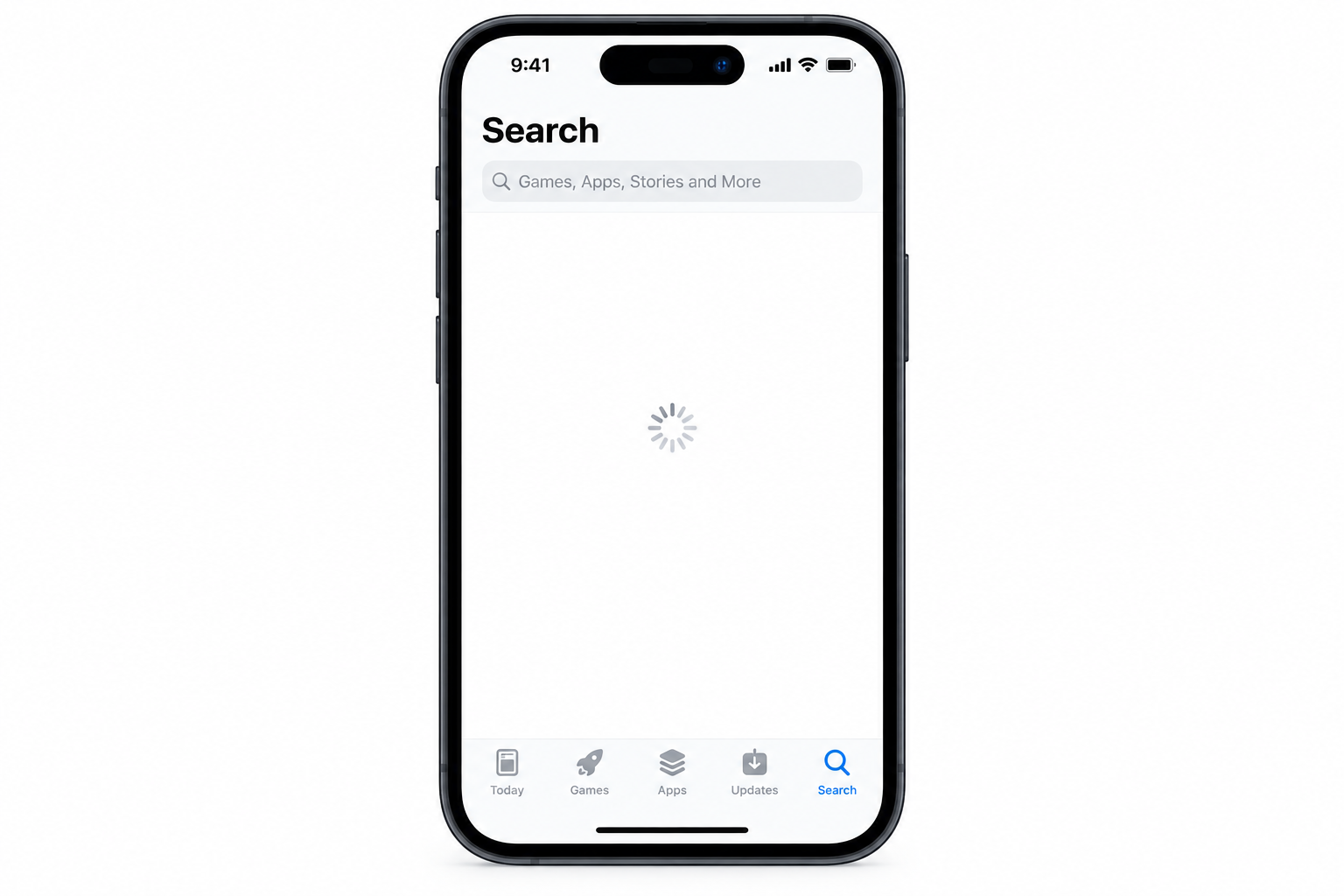
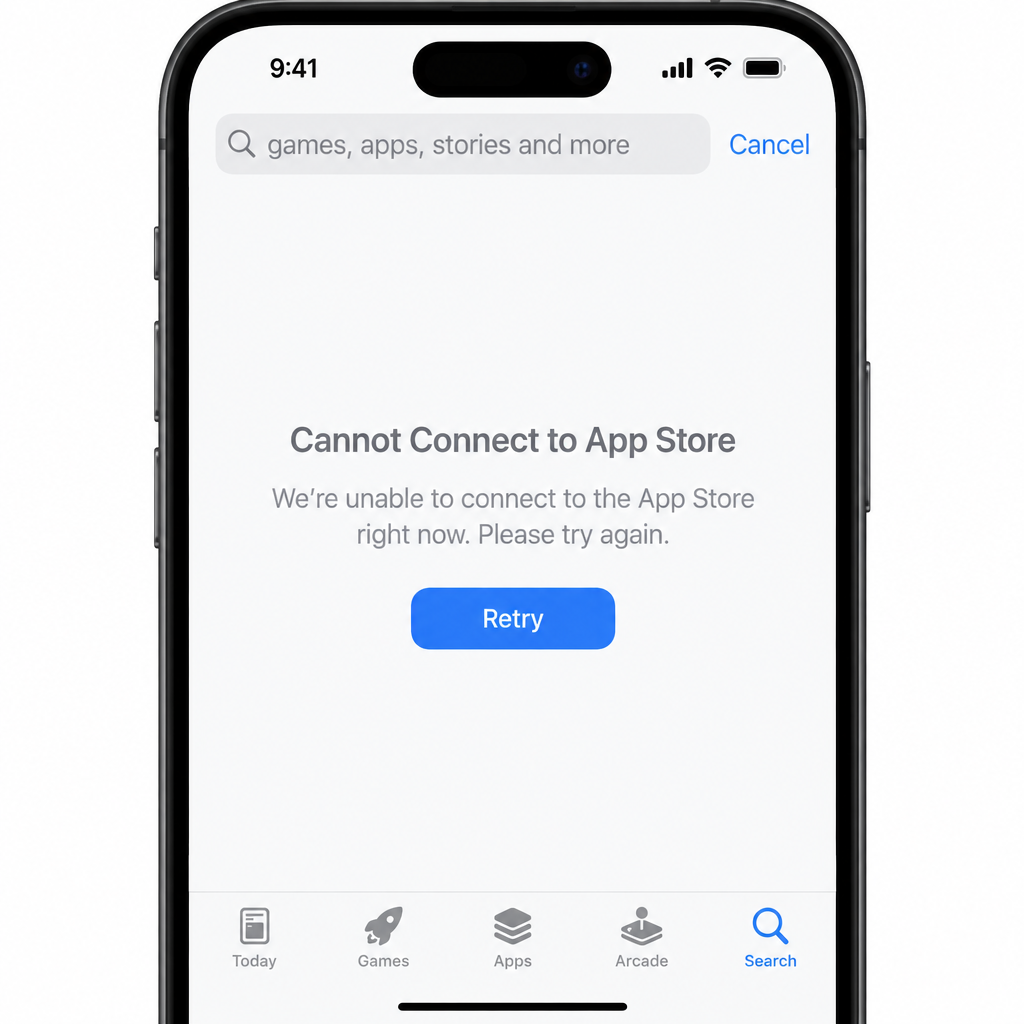
Search is the main way to find and download apps on an iPhone. When it breaks, you might see a blank results page, a spinning wheel or a “Cannot connect to App Store” message. This guide explains what causes the problem and lists the fixes from quickest to most involved.
Sometimes the cause is on Apple’s end, because the App Store servers can go down for a while. The problem also shows up more often on iOS beta builds, especially the first or second developer beta of a new version, since early betas often have bugs. A slow or unstable internet connection can also stop search results from loading.
How to fix App Store search not working on iPhone
These fixes have worked for many iPhone users. Try them in order and check App Store search after each one.
1. Restart your iPhone
Restarting is the simplest fix. It clears minor glitches that appear out of nowhere.
- Press and hold the side button together with either volume button until the power-off slider appears. On an iPhone with a Home button, press and hold the side button.
- Drag the “slide to power off” slider. The iPhone turns off.
- Wait a few seconds, then press and hold the side button until the Apple logo appears.
- Open the App Store and check whether search works.
2. Update your iPhone to the latest iOS version
An unpatched bug can keep causing problems, so make sure your iPhone runs the newest iOS build. This matters even more if you use iOS beta builds: install each new beta or the final release as soon as it comes out. As of November 2026, the current version for most iPhones is iOS 27.2.
- Open the Settings app.
- Tap General.
- Tap Software Update.
- The iPhone checks for updates and shows any that are available.
- Make sure the iPhone is on Wi-Fi and has enough battery, then tap Update Now (or Download and Install).
- The update downloads and installs, which can take a while.
The iPhone restarts when the update finishes. Open the App Store straight away and test search.
If you joined the beta program and keep running into bugs, you can go to Settings > General > Software Update > Beta Updates and choose Off. You’ll then get the next public release instead of more betas.
3. Sign out of your Apple Account and sign in again
Signing out of your Apple Account and back in can clear small account glitches that affect the App Store. Apple renamed Apple ID to Apple Account, so newer versions of iOS use that name.
- Open the Settings app.
- Tap your name at the top of the screen.
- Scroll down and tap Sign Out.
- Enter your Apple Account password to continue. You need it if Find My is turned on.
- Choose which data to keep a copy of on the iPhone, then confirm.
- Sign in again with your Apple Account email and password.
If you only want to reset the store side, there’s a lighter option. Go to Settings > [your name] > Media & Purchases and tap Sign Out, then sign back in. This doesn’t touch iCloud. If Sign Out is greyed out, check Settings > Screen Time > Content & Privacy Restrictions > Account Changes and make sure it’s set to Allow.
4. Force quit the App Store and open it again
Force-closing the App Store and reopening it has fixed search for many users.
- On an iPhone with a Home button, double-click the Home button to open the App Switcher.
- On an iPhone without a Home button, swipe up from the bottom of the screen and pause in the middle to open the App Switcher.
- Find the App Store card and swipe it up and off the screen to close it.
Wait a moment, then tap the App Store icon to open it again and check whether search works.
5. Turn off app tracking requests on the iPhone
Some users report that turning off app tracking requests helped with App Store search. This is a long shot rather than a known fix, but it’s harmless and good for your privacy.
- Open the Settings app.
- Tap Privacy & Security.
- Tap Tracking.
- Turn off Allow Apps to Request to Track.
With this setting off, apps can no longer show tracking prompts. Every app’s request is treated as if you chose Ask App Not to Track.
6. Check whether Apple’s servers are down
Apple’s System Status page shows whether the App Store servers are working. Apple sometimes takes services down for maintenance or to fix technical problems. A green dot next to App Store means the service is available and working normally.
Any other icon next to App Store means there’s an issue, outage or scheduled maintenance, and Apple is probably working on it. Nothing on your iPhone will fix a server-side outage. Wait for Apple to resolve it, then try searching again.
7. Fix your network connection
If the internet seems down or Wi-Fi is slow, check whether other apps that need the internet are working. If none of them load, restart your Wi-Fi router or join a different network.
You can also switch off Wi-Fi and try cellular data. If you use a VPN or a personal hotspot, turn it off and test again, because these can block connections to Apple’s servers. If other networks work but your home network doesn’t, contact your internet service provider to report the outage and ask for help.
8. Set the date and time automatically
A wrong date or time on your iPhone can stop some apps, including the App Store, from connecting to Apple’s servers. Turning on automatic time sets the clock from your location and network.
- Open the Settings app and tap General.
- Tap Date & Time.
- Turn on Set Automatically.
Close the App Store, open it again and check whether search works.
9. Reset network settings
As a last resort, you can reset the iPhone’s network settings. This erases saved Wi-Fi networks and passwords, paired Bluetooth devices, VPN settings and cellular network settings. Make sure you know your Wi-Fi passwords before you start.
- Open the Settings app.
- Tap General.
- Tap Transfer or Reset iPhone.
- Tap Reset. A menu asks which kind of reset you want.
- Tap Reset Network Settings, enter your iPhone passcode, and confirm.
The iPhone restarts. Reconnect to Wi-Fi, then open the App Store and test search.
If nothing works
If search still fails after all nine fixes and Apple’s System Status page shows no problem, contact Apple Support. Do the same if the App Store says your account is disabled, which usually points to a payment or account issue that only Apple can sort out. Don’t use Erase All Content and Settings just to fix App Store search. It wipes the whole iPhone and rarely helps when a network reset hasn’t.
The same order works for most gadget problems: quick restarts first, resets last. You can see it in the guides to Fix APC INDEX MISMATCH Error on Windows, Fix PS4 Controller Drift, the Fixes for AirPlay Not Working on Mac and the Ways To Fix Roku TV Volume Too Loud On Lowest Setting.
FAQ
Why does App Store search show a blank page on my iPhone?
A blank results page usually means the App Store can’t reach Apple’s servers. That happens with a weak or blocked connection, an active VPN, a wrong date and time, or a server outage. Check Apple’s System Status page first, then restart the iPhone and test on a different network.
Will resetting network settings delete my apps or photos?
No. Reset Network Settings only removes network data such as saved Wi-Fi networks and passwords, Bluetooth pairings, VPN settings and cellular settings. Your apps, photos, messages and other data stay on the iPhone.
Do I need to sign out of iCloud to fix the App Store?
Not always. Signing out of Media & Purchases only, under Settings > [your name] > Media & Purchases, resets the store connection and leaves iCloud alone. Try that before you sign out of your whole Apple Account.
Can an iOS beta break App Store search?
Yes. Early developer betas often contain bugs that affect built-in apps such as the App Store. Install the next beta or the final release as soon as it’s available, or turn off Beta Updates in Settings > General > Software Update to go back to public releases.
Why is App Store search working on Wi-Fi but not on cellular data?
Cellular data may be turned off for the App Store. Go to Settings > Cellular (called Mobile Data in some regions), scroll to the app list and make sure App Store is turned on. Also check that you haven’t run out of data on your plan.
How do I know if the App Store is down for everyone?
Apple’s System Status page lists every Apple service with a status icon. A green dot next to App Store means it’s working normally. Any other icon means there’s a known issue or maintenance that Apple is handling.
Sources
- Apple Support: If you can’t connect to the App Store, iTunes Store, or other Apple services
- Apple Support: If an app asks to track your activity
- Apple System Status