What Safari Private Browsing does
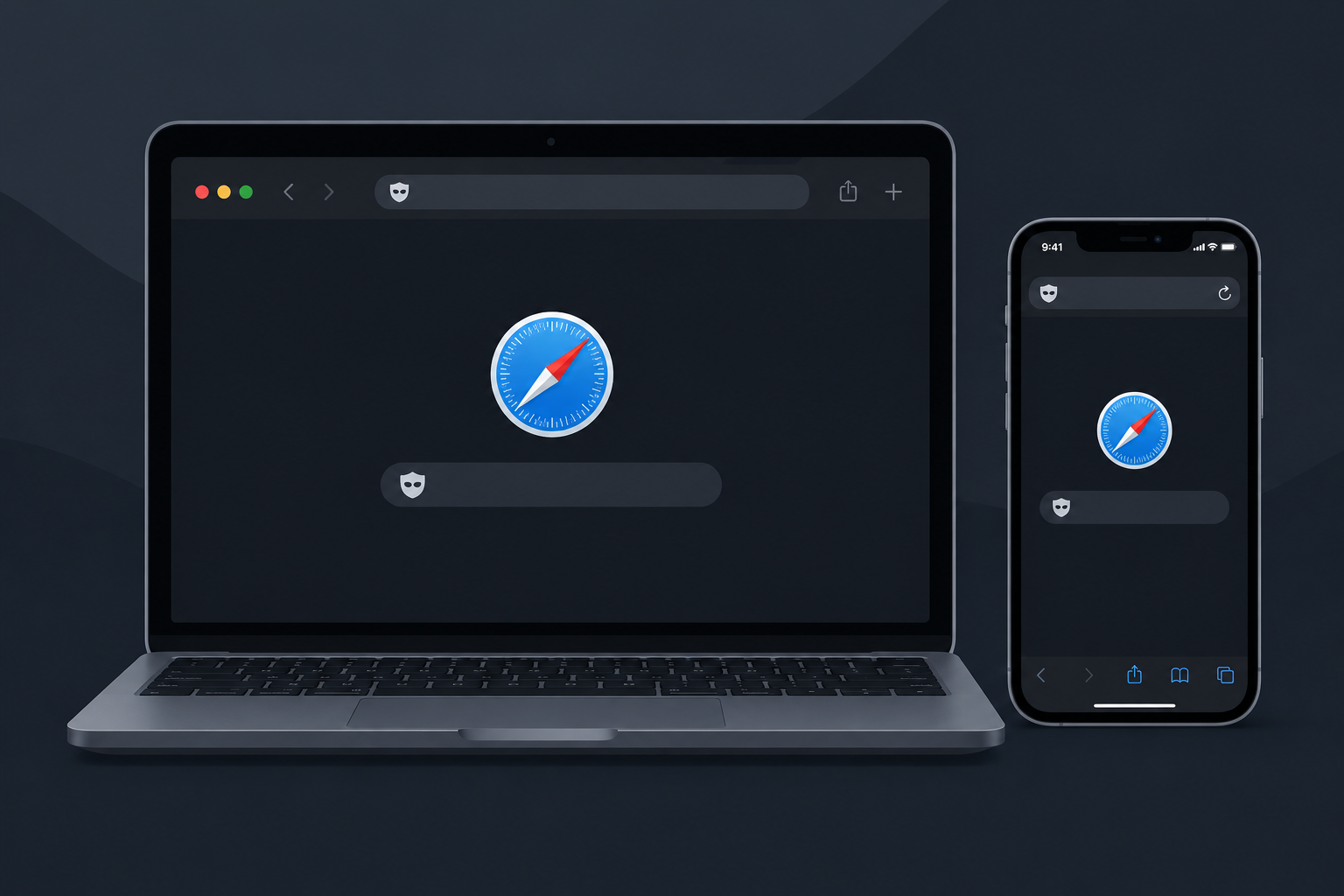
Private Browsing keeps your browsing out of Safari’s history and adds some extra tracking protection. Apple says that in Private Browsing, Safari does not remember the pages you visit, your search history or your AutoFill information. Private tabs don’t show up in History, and they don’t appear in the tab list on your other Apple devices.
Starting with iOS 17 and macOS Sonoma, Private Browsing also does more:
- Link Tracking Protection. Safari removes the tracking codes that some sites add to links so they can follow you from page to page.
- Advanced Fingerprinting Protection. Safari makes your device look more generic, which makes it harder for advertisers to build a profile of you.
- Known tracker blocking. Safari blocks hidden requests to known tracking domains.
- Extensions off by default. Any extension that can read your browsing data is switched off automatically in private tabs.
- Separate Private Relay sessions. If you pay for iCloud+ and have iCloud Private Relay turned on, each private tab gets its own Relay session. Websites can’t tell that two of your tabs come from the same device.
How to turn on Safari Private Browsing
Open a private window or tab from Safari’s File menu on a Mac, or from the tab view on an iPhone or iPad. The exact steps depend on which version of iOS or macOS you’re running.
To check your version on an iPhone or iPad, go to Settings > General > About and look at the number next to iOS Version (or iPadOS Version).
On a Mac, click the Apple menu in the upper-left corner of the screen and choose About This Mac. The window that opens shows your macOS name and version.
Turn on Private Browsing on macOS Sonoma and later
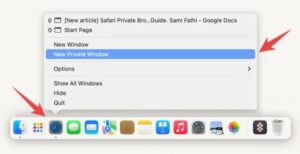
On macOS Sonoma, macOS Sequoia, macOS Tahoe 26 and macOS 27, the quickest way in is the Dock:
- Find the Safari icon in the Dock. It looks like a blue compass on a white background.
- Right-click it, or Control-click it.
- Choose New Private Window.
You can also open Safari and choose File > New Private Window from the menu bar, or press Shift-Command-N. You’ll know you’re in a private window because the Smart Search field turns dark.
Turn on Private Browsing on macOS Ventura and earlier
On a Mac running macOS Ventura or earlier:
- Open Safari, then click File in the menu bar.
- Click New Private Window.
The Shift-Command-N shortcut works on these versions too.
Turn on Private Browsing on iOS 17 and later
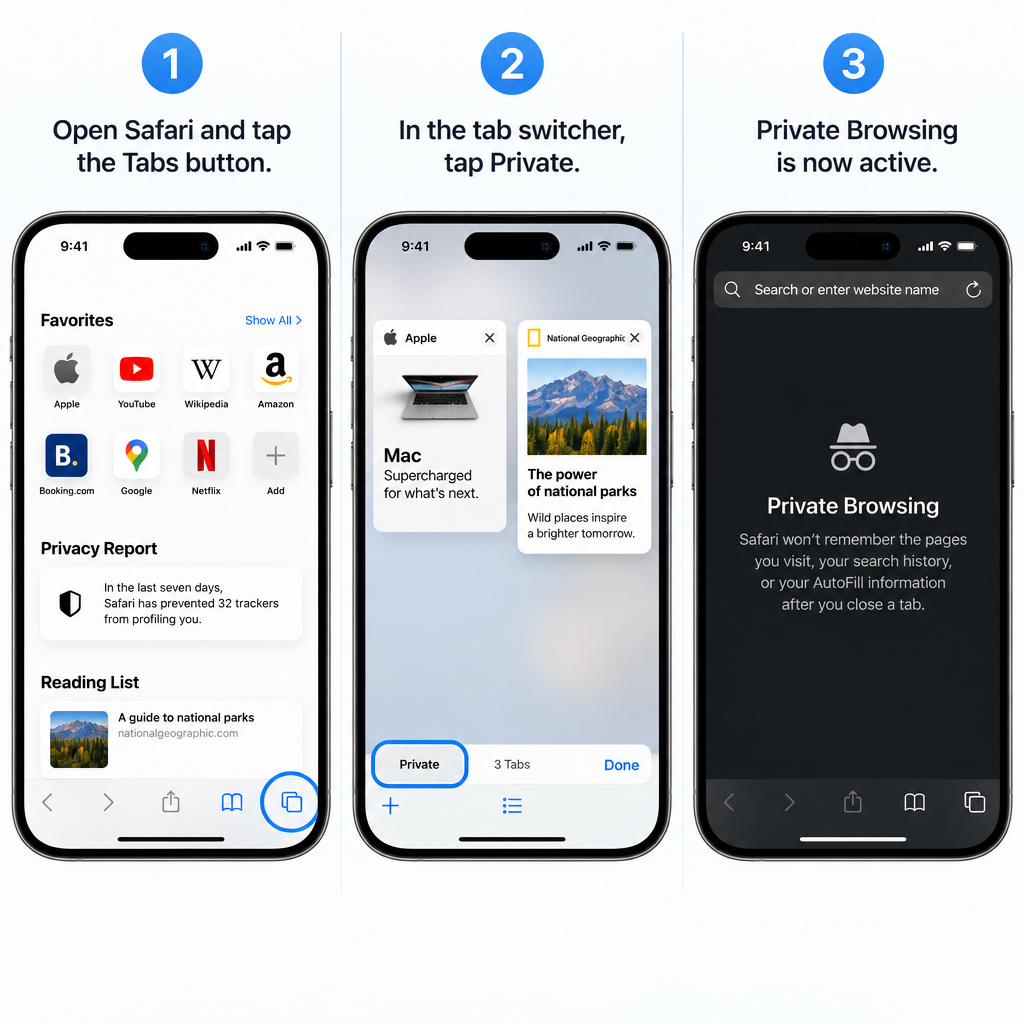
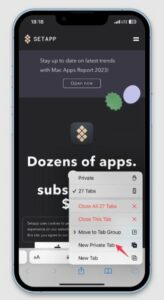
On iOS 17, tap the Tabs button, then swipe to the Private tab group button:
- Open Safari on your iPhone.
- Tap the Tabs button (the two overlapping squares at the bottom of the screen).
- Swipe along the bottom bar to Private, then tap a tab or the + button to open a new private tab.
On iOS 26 and later, open the tab view and swipe along the bar at the bottom until Private appears, then tap a tab or open a new one. If you use Safari’s Compact layout, the Tabs button sits behind the More button (three dots): tap More, then tap All Tabs. If locking is turned on, unlock the private tabs with Face ID, Touch ID or your passcode.
On an iPad, tap the sidebar button in the top-left corner of Safari, then tap Private.
Turn on Private Browsing on iOS 16 and earlier
On an iPhone running iOS 16 or earlier:
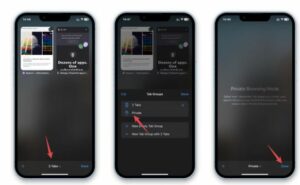
- Open Safari on your iPhone.
- Tap the Tabs button (two squares at the bottom of the screen).
- Tap [number] Tabs or Start Page to show the Tab Groups list.
- Tap Private, then tap Done.
How to turn off Safari Private Browsing
To leave Private Browsing, switch back to a normal window or tab group. In normal mode, Safari saves your history again, syncs it across your devices and shows suggestions based on what you’ve browsed. Your private tabs stay open in their own group until you close them.
macOS Sonoma and later
- Click the close button (the red dot in the top-left corner) to close the private window.
- Find Safari in the Dock.
- Right-click it.
- Click New Window.
You can also choose File > New Window in Safari, or press Command-N, to open a normal window.
macOS Ventura and earlier
- Click the close button (red dot) to close the private window.
- With Safari still open, click File in the menu bar.
- Click New Window.
iOS 17 and later
On iOS 17, either of these works:
- Open Safari on your iPhone.
- Tap the Tabs button.
- Swipe to a [number] Tabs group and tap a tab, or tap the + button to open a new tab.
Or:
- Open Safari on your iPhone.
- Tap the Tabs button.
- Swipe along the bottom bar from Private to [number] Tabs, or to one of your Tab Groups, and tap a tab.
On iOS 26 and later in the Compact layout, tap More (three dots), tap All Tabs, then swipe left to a normal tab group. The address bar goes back from dark to white or gray once you’ve left Private Browsing.
To close every private tab at once, open the Private group in the tab view, touch and hold Done, then tap Close All Tabs.
iOS 16 and earlier
On an iPhone running iOS 16 or earlier:
- Open Safari on your iPhone.
- Tap the Tabs button.
- Tap Private to show the Tab Groups list.
- Tap [number] Tabs, then tap Done.
How to lock private tabs with Face ID, Touch ID or a passcode
Since iOS 17 and Safari 17, Safari can lock private tabs whenever you’re not using them. That way, someone who picks up your unlocked device still can’t see what you had open.
iPhone and iPad (iOS 18 and later): Go to Settings > Apps > Safari and turn on Require Face ID to Unlock Private Browsing. Depending on your model, the setting may say Touch ID or Passcode instead. On iOS 17, the setting is under Settings > Safari. Your private tabs then lock whenever you leave Safari or lock your phone.
Mac: In Safari, choose Safari > Settings, click Privacy, and select Require Touch ID to view locked tabs. On Macs without Touch ID, the option is Require password to view locked tabs. Private windows lock when you lock your Mac, when it goes to sleep, when the screen saver starts, or when Safari has been in the background for a while. To lock them right away, choose Window > Lock All Private Windows. A private window won’t lock if no page has loaded yet, or if it’s playing audio or video.
Is Safari Private Browsing actually private
Only partly. Private Browsing hides your activity from other people who use your device. It doesn’t hide it from the network you’re on.
Private Browsing stops Safari from storing your history, searches and cookies on the device after you close the tabs. It doesn’t hide your IP address or encrypt your internet traffic.
That means your internet service provider, whoever runs the Wi-Fi network (such as an employer, school or café), and the websites you visit can still see your activity. On public Wi-Fi, the risk is higher.
To hide more than Private Browsing does, you have two main options:
- iCloud Private Relay. It comes with any iCloud+ plan. It hides your IP address from websites and encrypts your Safari traffic so your network provider can’t read which sites you visit. It only covers Safari and some unencrypted app traffic, not every app on your device, and it isn’t available in every country. You can turn it on in Settings > [your name] > iCloud > Private Relay.
- A VPN. A VPN routes all your device’s traffic through the provider’s servers, so it covers every app. Choose a well-known paid provider and install it only from the App Store or Mac App Store. Keep in mind that the VPN company can now see your traffic in place of your internet provider.
A common mistake is thinking Private Browsing blocks ads. It doesn’t. It makes it harder for ads to track you, but you’ll still see them. To block ads, install a content blocker from the App Store, then turn it on in Settings > Apps > Safari > Extensions on iPhone, or Safari > Settings > Extensions on a Mac.
You can also get the same tracking protection in normal browsing. On iPhone, go to Settings > Apps > Safari > Advanced > Advanced Tracking and Fingerprinting Protection and choose All Browsing. On a Mac, the same option is in Safari > Settings > Advanced.
Tip: You can also wipe what Safari has already saved without any extra apps. On a Mac, choose History > Clear History in Safari and pick a time range. On iPhone, go to Settings > Apps > Safari > Clear History and Website Data. To remove public Wi-Fi networks you don’t want your Mac to join again, go to System Settings > Wi-Fi, click the More button (three dots) next to a known network and choose Forget This Network.
How to fix Private Browsing not working in Safari
Most problems go away after restarting Safari or the device. If the Private option is missing completely, the cause is usually Screen Time restrictions or a work or school management profile.
- Restart Safari. On iPhone or iPad, swipe up from the bottom of the screen and pause to open the app switcher, then swipe Safari up to close it. Reopen Safari and try again. On a Mac, right-click Safari in the Dock and choose Quit.
- Restart your device. On a Mac, choose Apple menu > Restart. On an iPhone with Face ID, press and hold the side button and either volume button until the power-off slider appears, slide it, wait about 30 seconds, then hold the side button to turn the phone back on. On an iPhone SE (2nd or 3rd generation), iPhone 8 or older models, press and hold the side button until the slider appears.
- Check Screen Time. If Screen Time is set to limit adult websites, Private Browsing disappears. Go to Settings > Screen Time > Content & Privacy Restrictions and check the Web Content setting. If a parent or organization set this up, ask them before you change it.
- Check for a management profile. A phone or Mac managed by an employer or school can have Private Browsing turned off. Look in Settings > General > VPN & Device Management (or System Settings > General > Device Management on a Mac). Ask the IT department, because only they can change it.
- Update your software. Go to Settings > General > Software Update on iPhone or iPad, or System Settings > General > Software Update on a Mac, and install any update that’s waiting.
If none of these work, contact Apple Support.
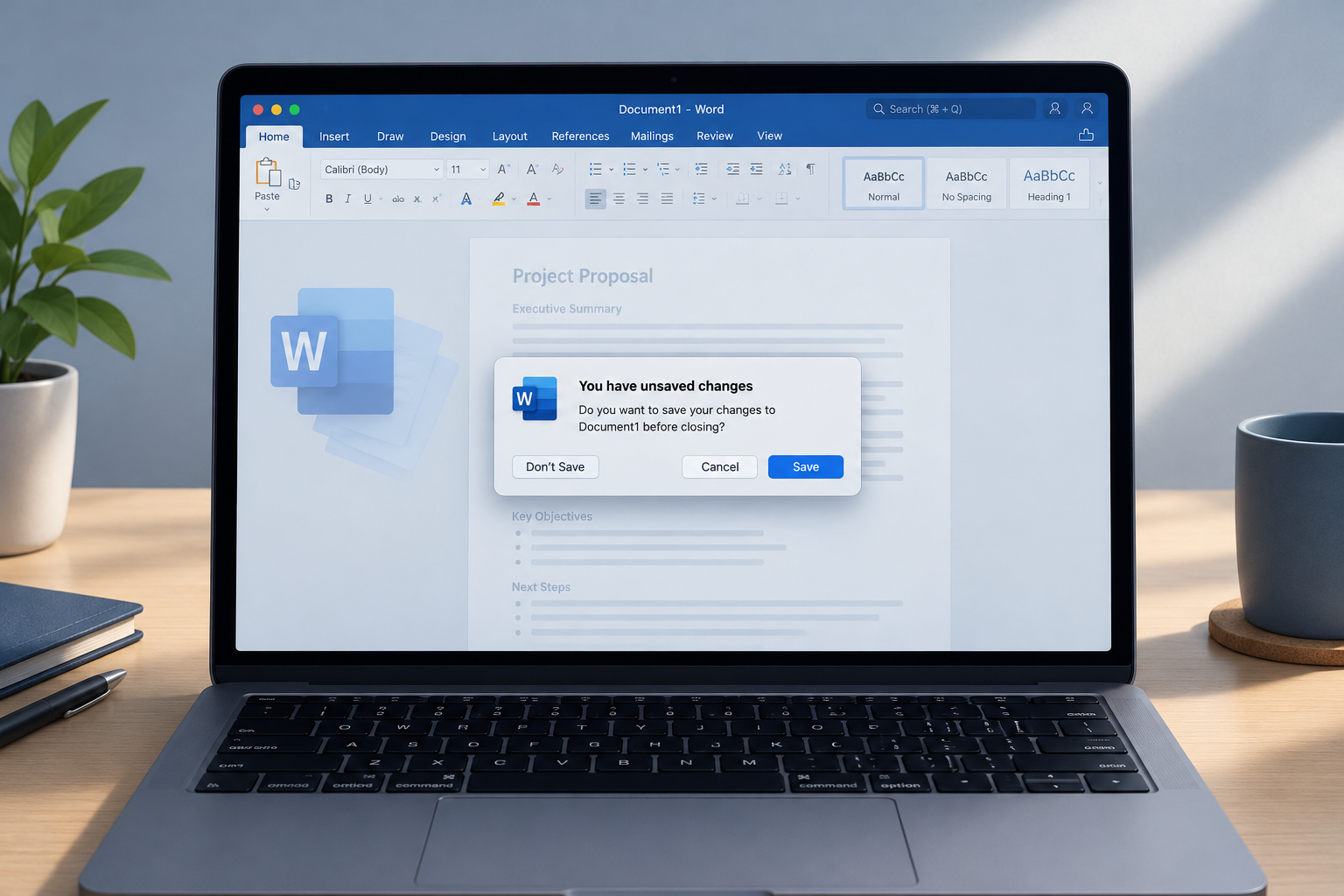
Closing a private window or tab throws its pages away for good, and there’s no undo. If it’s unsaved work rather than a web page you’ve lost, see How To Recover An Unsaved Word Document On Mac.
Getting more privacy than Private Browsing alone
Private Browsing is easy to use and fine for keeping a gift search or a shared iPad tidy. It won’t make you anonymous. For stronger privacy, combine it with iCloud Private Relay or a reputable VPN, use a content blocker for ads, and turn on Advanced Tracking and Fingerprinting Protection for all browsing.
Private searching vs private browsing
They aren’t the same thing. Private searching usually means using a privacy-focused search engine such as DuckDuckGo, which doesn’t build a profile from your searches. Private browsing is a mode inside the browser that keeps your history and site data off the device.
You can use both. In Safari, go to Settings > Apps > Safari > Search Engine on iPhone, or Safari > Settings > Search on a Mac, and choose DuckDuckGo. Safari also lets you pick a separate search engine just for Private Browsing, so you can keep Google for normal browsing and use DuckDuckGo in private tabs.
FAQ
Can iPhone Private Browsing be tracked?
Yes. Whoever runs your Wi-Fi network, your mobile carrier or internet provider, and the websites you visit can still see your activity in Private Browsing. Private Browsing only stops Safari from saving a record on your iPhone. iCloud Private Relay or a VPN hides much more.
Can Private Browsing be traced?
Your internet provider and the Wi-Fi administrator can usually see which domains you connect to, such as a news site’s address, but not the individual pages on secure (HTTPS) sites. Safari itself keeps no list of the pages you opened in private tabs. With iCloud Private Relay on, your provider can’t see the domains either.
Can someone see your private search history?
Not in Safari’s History, because private tabs are never saved there. Traces can still exist elsewhere, though, such as your network’s logs, your account history with a search engine you’re signed in to, or the Mac’s DNS cache. To clear that cache on a Mac, open Terminal and run sudo dscacheutil -flushcache; sudo killall -HUP mDNSResponder, then enter your password. Restarting the Mac clears it as well.
How do I lock private tabs in Safari?
On iPhone, go to Settings > Apps > Safari and turn on Require Face ID to Unlock Private Browsing (it may say Touch ID or Passcode, depending on your device). On a Mac, choose Safari > Settings > Privacy and select Require Touch ID to view locked tabs, or the password option. You need Safari 17 or later on both.
Do Safari extensions work in Private Browsing?
Extensions that can read your browsing data are turned off in private tabs by default. You can allow a specific extension in Safari’s extension settings if you trust it. Content blockers that only block ads keep working.
Does Private Browsing hide my location?
No. Websites can still estimate roughly where you are from your IP address. iCloud Private Relay replaces your IP address with one from the same general region, and a VPN can make you appear to be somewhere else entirely.
Sources
- Apple Support: Turn Private Browsing on or off on your iPhone
- Apple Support: Browse the web privately in Safari on iPhone
- Apple Support: How to use Locked Private Browsing in Safari
- WebKit: Private Browsing 2.0