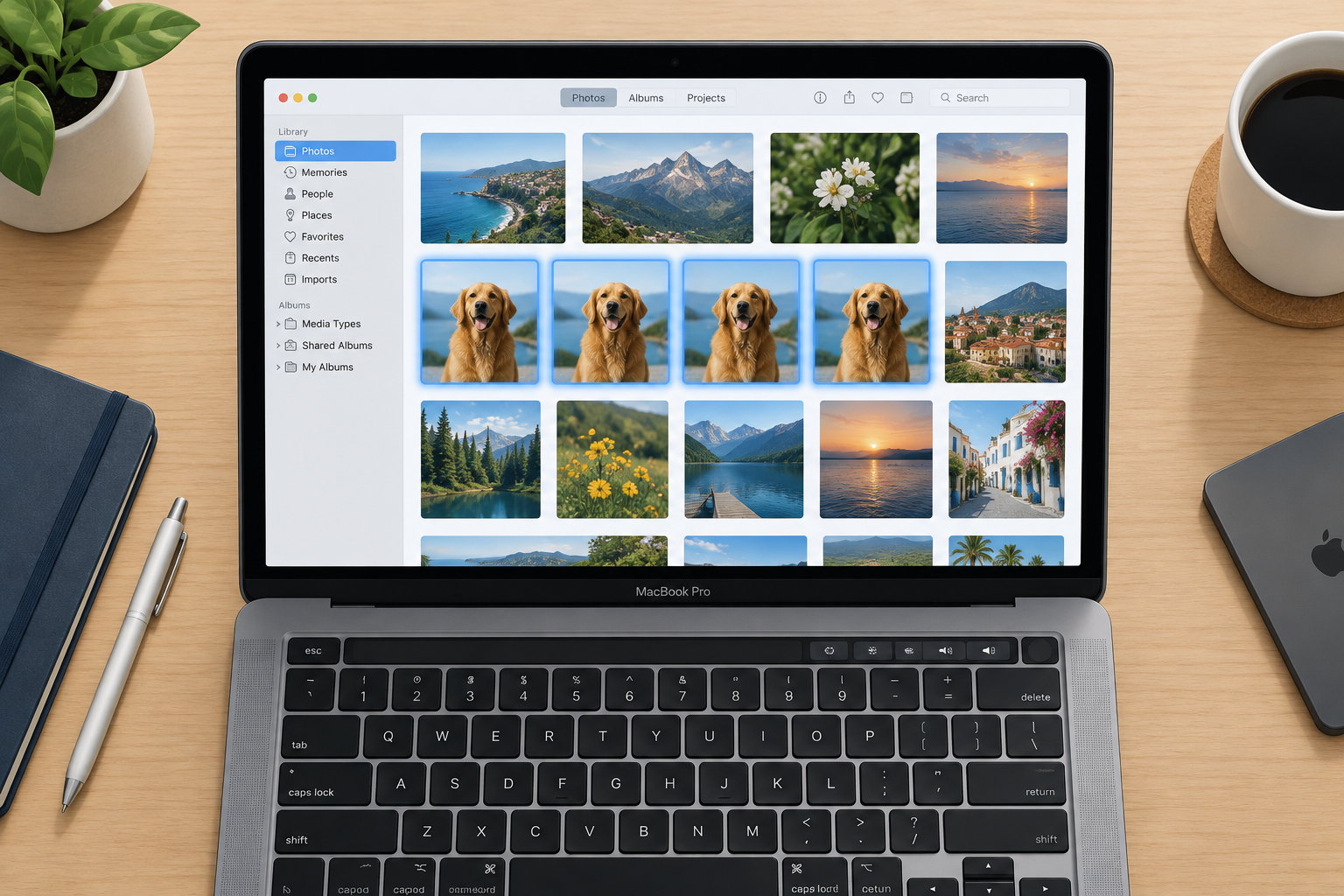
The quickest way to remove duplicate photos on a Mac is the Photos app’s built-in Duplicates album. Open Photos, click the arrow next to Utilities in the sidebar, choose Duplicates, then click Merge on each set. It works on macOS 13 Ventura and later, including the current macOS 27 Golden Gate. For loose image files outside Photos, a Finder Smart Folder helps you spot copies. A paid cleaner such as MacKeeper is optional.
Duplicate photos pile up when you import the same pictures twice, save one image several times or copy files between folders. They make your library harder to sort, and they take up storage you could use for something else.
This guide covers each way to clean up duplicate photos on a Mac, from the quickest built-in option to third-party software. It also explains how to get back a photo you deleted by mistake.
How to Find and Delete Duplicate Photos on Mac
You can look for duplicates by hand, but the built-in Duplicates album in Photos does most of the work for you. Finder Smart Folders cover image files kept outside your Photos library. Here is how each method works.
Find duplicate photos by hand on Mac
This method needs nothing extra, but it takes a long time with a big library. It suits a small library or a short burst of repeated shots.
- Open the Photos app on your Mac and click Library in the sidebar.
- Switch the view to All Photos in the toolbar so every picture appears in date order. Duplicates usually sit next to each other.
- Hold the Command key and click each duplicate you want to remove.
- Control-click one of the selected photos and choose Delete [number] Photos, or press the Delete key. Then confirm.

Deleted photos go to the Recently Deleted album and stay there for 30 days. If you use iCloud Photos, they are also removed from your other Apple devices.
Use the Duplicates album to remove duplicate photos on Mac
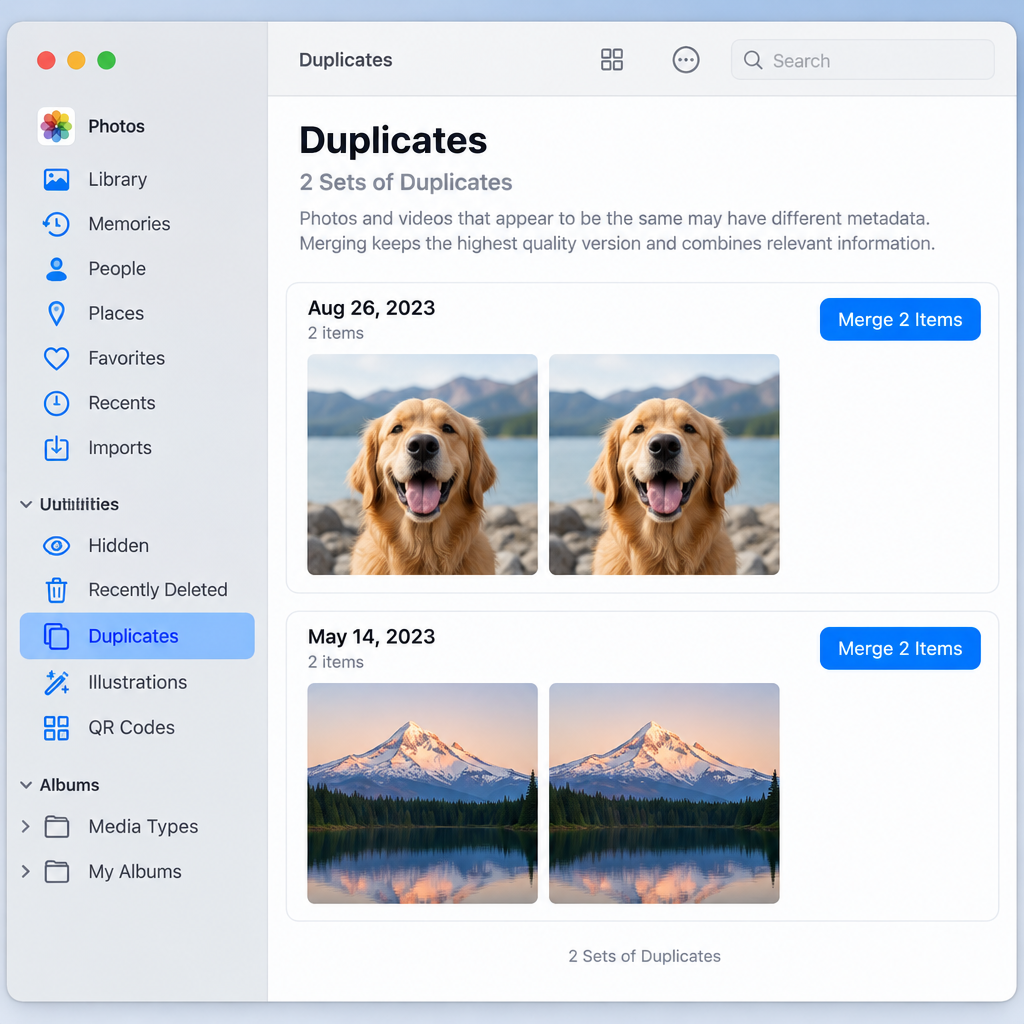
Apple added duplicate detection to Photos with macOS 13 Ventura in 2022, and it is still built in today. Photos scans your library and groups exact copies, along with copies that look the same but have different resolutions, file formats or metadata. You can merge each group or delete individual copies.
When you merge, Photos keeps one version of the photo, adds relevant details such as keywords and captions to it, and moves the other copies to Recently Deleted. When you delete, you choose which copy goes, so you decide which one stays.
Here is how to use the Duplicates album:
- Open the Photos app on a Mac running macOS 13 Ventura or later.
- In the sidebar, click the arrow next to Utilities, then click Duplicates. On Ventura, the album appears in the sidebar’s albums list.

- Select the duplicates you want to clean up. Pick a single row, or hold Command to select several rows. Press Command-A to select every set at once.
- Click Merge [number] Items (on older versions the button reads Merge [number] Duplicates). Photos keeps one copy of each photo in your library and moves the rest to Recently Deleted.

Some things to know before you merge everything at once:
- No Duplicates album? It only appears when Photos finds matches. After a large import, give Photos time to analyze the library.
- Check which copy stays. Apple Community forum users have reported cases where Photos kept the smaller or lower-quality file. For photos that matter, compare the copies first. Then select the one you don’t want and press Delete, so the copy you prefer stays.
- iCloud Photos syncs the change. Merges and deletions carry over to your iPhone, iPad and other Macs signed in to the same Apple Account.
Find and remove duplicate photos on Mac with a Smart Folder
A Smart Folder is a saved search in Finder. It gathers files that match rules you set, such as file type, creation date or name. It doesn’t detect duplicates for you. Instead, it puts matching images side by side so you can compare them. Use it for image files saved in folders like Downloads or Desktop. Don’t use it for your Photos library: edit that library only inside the Photos app.
- Open Finder on your Mac.
- Go to the location you want to check, such as Downloads.
- Choose File > New Smart Folder.

- Click the + button on the right of the search bar and add your criteria. For example, set the first menu to Kind and the second to Image, then pick a format such as HEIC. Click + again to add more rules, such as Created date. Check the search scope at the top (for example, This Mac or your chosen folder).

- Finder lists every image that matches. Open the View menu and choose a layout such as as List or as Columns. Sorting by name or size makes copies like “IMG_1234 copy.heic” easy to spot.
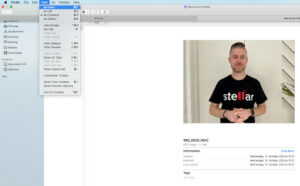
- Look through the pictures and compare likely duplicates. Press the Space bar to preview a file with Quick Look.
- Select the duplicates, Control-click them and choose Move to Trash.
To keep the search for later, click Save in the top-right corner of the Smart Folder window.
Delete duplicate photos on Mac with MacKeeper
If a manual cleanup would take hours, a third-party app can scan your whole Mac in one pass. MacKeeper, made by Clario Tech, is one paid option. Its Duplicates Finder looks for exact duplicates, similar photos and screenshots, both in your Photos library and in ordinary folders.
- Download MacKeeper from the developer’s official website only, then install it.
- Click Duplicates Finder in the sidebar, then click Start Scan.

- When the scan finishes, review the results. By default, MacKeeper selects every duplicate except the original. Deselect anything you want to keep, then click Remove Selected.

- Click Remove to confirm.

Before you pay for any cleaner, try the free Duplicates album in Photos. It covers most libraries. A third-party tool makes most sense when your duplicates are spread across folders, external drives and the Photos library at the same time.
What to do if you delete the wrong photos
Most mistakes can be undone if you act within 30 days. Check these places in order:
- Recently Deleted in Photos. Open Photos, click Utilities > Recently Deleted, unlock the album with Touch ID or your login password, select the photo and click Recover. Items stay there for 30 days.
- The Trash in Finder. Files you removed from a Smart Folder or with Finder go here. Control-click a file and choose Put Back.
- iCloud. With iCloud Photos turned on, deleted items can be restored for 30 days before they are removed from iCloud and all your devices.
- Time Machine. If you back up with Time Machine, you may be able to restore photos even after they have been permanently deleted from your Mac or iCloud.
With no backup at all, Mac photo recovery software such as Stellar Photo Recovery is the last resort. It scans the drive for deleted image files. Stop saving new files to the drive as soon as you notice the loss. Recovery is less reliable on the SSDs in modern Macs, so treat it as a fallback rather than a safety net.
Which method to use
For most people, the Duplicates album in Photos is the right tool: it is free, built in and catches near-copies as well as exact ones. Use a Smart Folder for loose image files outside Photos, and keep manual deletion for small cleanups. Make sure Time Machine or iCloud Photos is backing up your library before any big cleanup, so a wrong merge can always be reversed.
FAQ
Why don’t I see a Duplicates album in Photos on my Mac?
The album only appears when Photos has found duplicates in your library. Your Mac also needs macOS 13 Ventura or later. After a big import, Photos may need some time to analyze new pictures before matches show up.
Does merging duplicates in Photos delete them permanently?
No. Merged copies go to the Recently Deleted album and stay there for 30 days. You can recover them during that time, and after that they are deleted for good.
If I merge duplicates on my Mac, does it affect my iPhone?
Yes, if iCloud Photos is turned on. Merges and deletions sync to every device signed in to the same Apple Account, so the extra copies disappear from your iPhone and iPad too.
Is it safe to delete duplicate photos in the Photos Library folder with Finder?
No. The Photos library is a package that the Photos app manages, and changing its contents in Finder can damage it. Remove duplicates from inside Photos, and use Finder only for image files saved in ordinary folders.
Do I need paid software to remove duplicate photos on a Mac?
Usually not. The free Duplicates album in Photos handles most libraries. Paid tools like MacKeeper help when duplicates are spread across many folders and drives, or when you want similar shots and screenshots grouped for review.
Can I get back a photo after Recently Deleted has been emptied?
Check Time Machine first, since it may still hold the photo. If you have no backup, photo recovery software can scan the drive, but success isn’t guaranteed. Stop saving files to that drive until you have tried.
Sources
- Apple Support: Find and merge duplicate photos and videos in Photos on Mac
- Apple Support: Delete photos and videos or recover deleted ones on Mac
- Apple Support: How to recover deleted photos on your iPhone, iPad, Mac or Apple Vision Pro
- Apple Support: Create or change Smart Folders on Mac
- MacKeeper Help: How to use Duplicates Finder