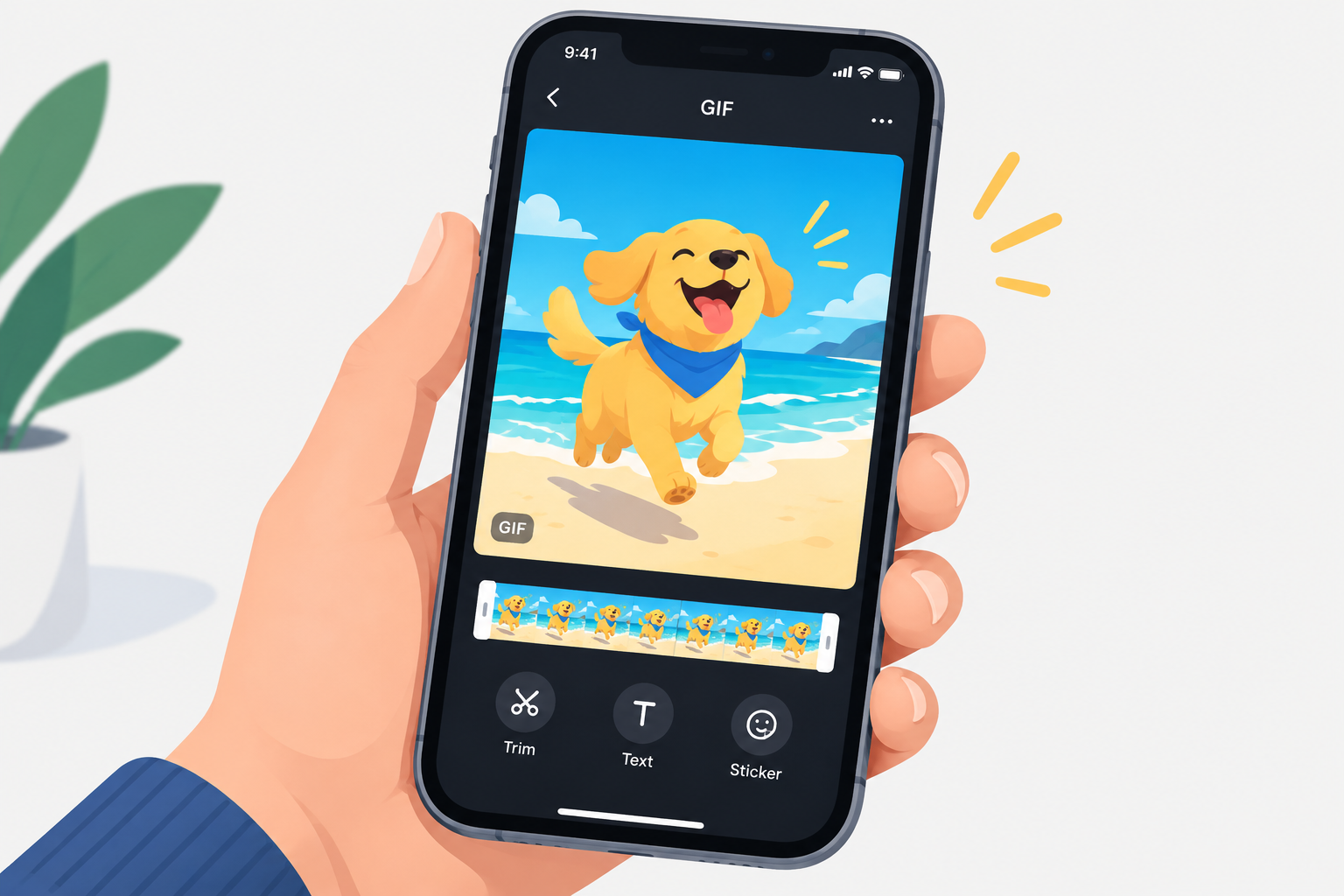
Your iPhone can’t edit GIFs on its own, so the quickest route is the free GIPHY app from the App Store. Open GIPHY, tap the Create (+) button, pick a GIF from your photo library, then trim it, add text or stickers, or change how it plays. Save the result back to Photos. To make a GIF from a Live Photo or video without installing anything, use the Make GIF action in Apple’s Shortcuts app.
There are plenty of GIF apps for iOS, plus GIF keyboards that let you find and share GIFs without leaving a messaging app. Some apps also turn Live Photos into GIFs. Most of them are built for finding GIFs, though, and very few let you edit one. If you have a GIF and only want a certain part of it, GIPHY can trim it for you on your iPhone.
Edit GIFs on iPhone
Install GIPHY: The GIF Search Engine from the App Store. It’s free and published by Giphy, Inc., which Shutterstock bought from Meta in 2023. You can edit a GIF you found on GIPHY or one that’s already saved in your Photos library.
- Open GIPHY and tap the Create (+) button.
- The camera opens. From there you can record something new or open your photo library. Allow photo access if GIPHY asks for it.
- Choose the GIF you want to edit.
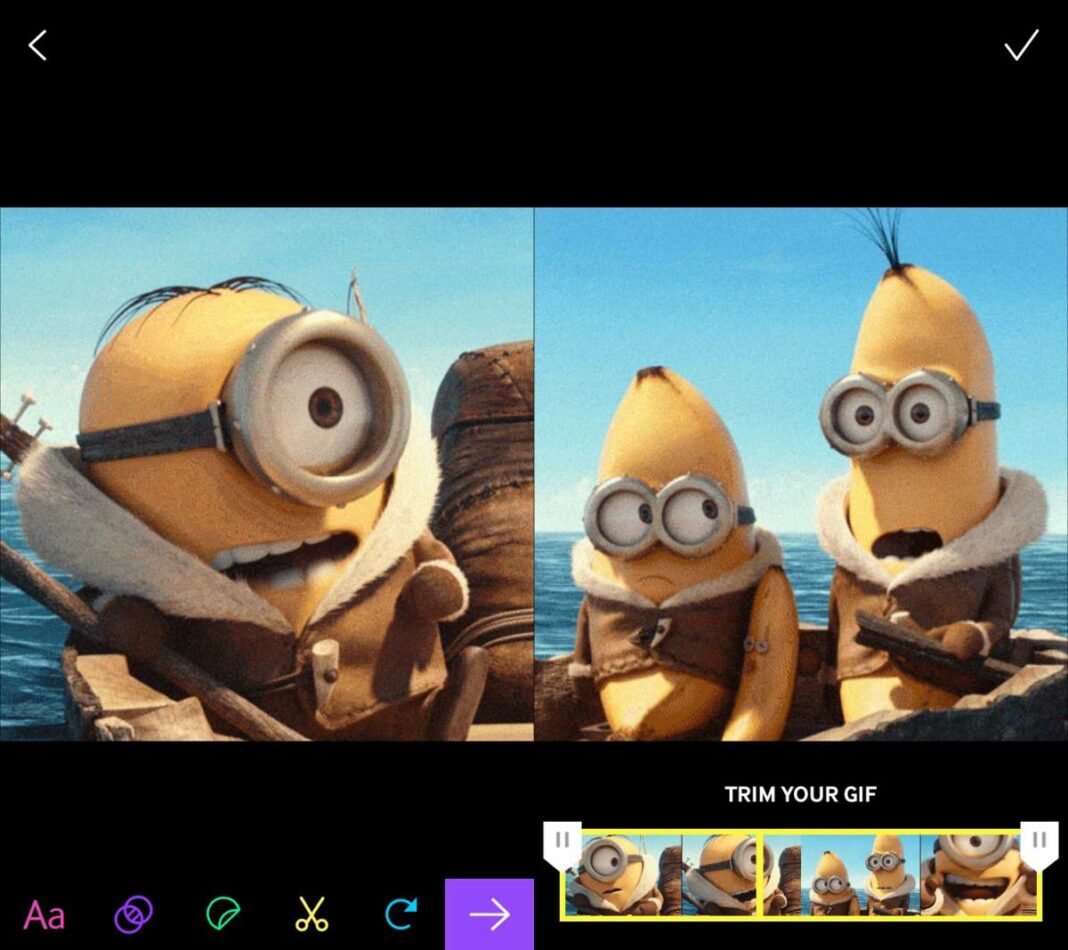
- GIPHY opens it in its editor. You can trim it, add text and stickers, and apply filters.
- When you’re finished, tap the check button at the top right.
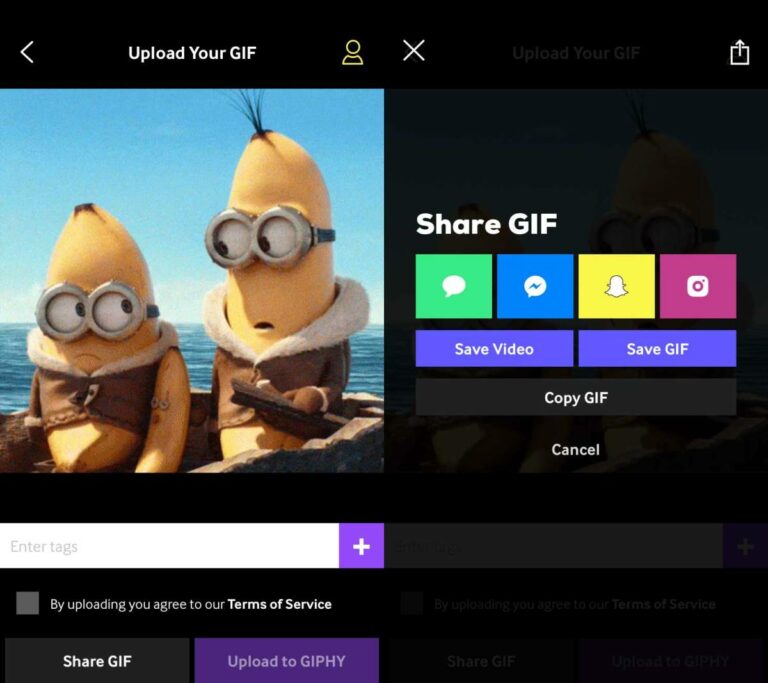
Once the edit is saved, you can upload the GIF to GIPHY or save it to your camera roll. To save it to your camera roll, tap Share GIF, then tap Save GIF on the share screen. If you upload it to GIPHY instead, you can choose whether it’s public or private on your account. Public uploads can have tags and show up in search.
You can’t edit a GIF straight from GIPHY’s search results. Save it to your camera roll first (press and hold the GIF, then tap Save to Camera Roll), then open it through the Create button as described above.
The tools you’ll use most are text and trim. GIPHY’s help center says trim, which changes a GIF’s length, is only available in the iOS app. For text, you type a caption, pick a preset style and change its color. You can also change how a GIF plays. For example, you can reverse it so it plays backwards. There are a few other playback options to try, but you can’t turn off the loop, since every GIF loops by design.
GIPHY’s help center also says a GIF has to be animated. If you pick a still photo, you’ll need to add some movement while editing, such as an animated sticker or effect. Otherwise it can’t be saved as a GIF.
It doesn’t matter where the GIF came from. Editing it in GIPHY doesn’t add a GIPHY logo, so you can use the saved file anywhere. File size follows your edits. Trimming makes the GIF smaller, while adding text, stickers or effects makes it bigger.
Built-in options that need no extra app
The iPhone doesn’t have a GIF editor, but it can make GIF-style animations and real GIF files on its own. These tools work well when you’re starting from a Live Photo or a video rather than an existing GIF.
Loop or Bounce a Live Photo in Photos
Open a Live Photo in Photos and tap the Live button at the top left. Choose Loop to replay the motion over and over, or Bounce to play it forward and then backward. Bounce is the better pick if Loop shows a visible jump between the last frame and the first. Tap Live again and choose Live to go back to normal. These effects play like a GIF inside Photos, but they don’t create a separate GIF file.
Make a real GIF with Shortcuts
Apple’s Shortcuts app includes a Make GIF action. It turns a Live Photo, a video, or a Loop or Bounce photo into an actual GIF file.
- Open Shortcuts and tap + to create a new shortcut.
- Tap Add Action, search for “Make GIF” and add it.
- Add a Save to Photo Album action after it.
- Run the shortcut and pick a Live Photo or video.
If it fails, the video may be stored in iCloud and not yet downloaded to your iPhone, or the file may be too large. Open the clip in Photos first so it downloads, or trim it before converting. Shortcuts doesn’t add text or stickers. For that, open the new GIF in GIPHY.
Other apps for loops and effects
If you’d rather freeze part of a photo and animate the rest, Apps like Loopsie specialise in looping effects and cinemagraphs. If you prefer working in a browser to installing another app, a list of Onpaste Alternatives covers web-based image editors.
FAQ
Can the iPhone Photos app edit GIFs?
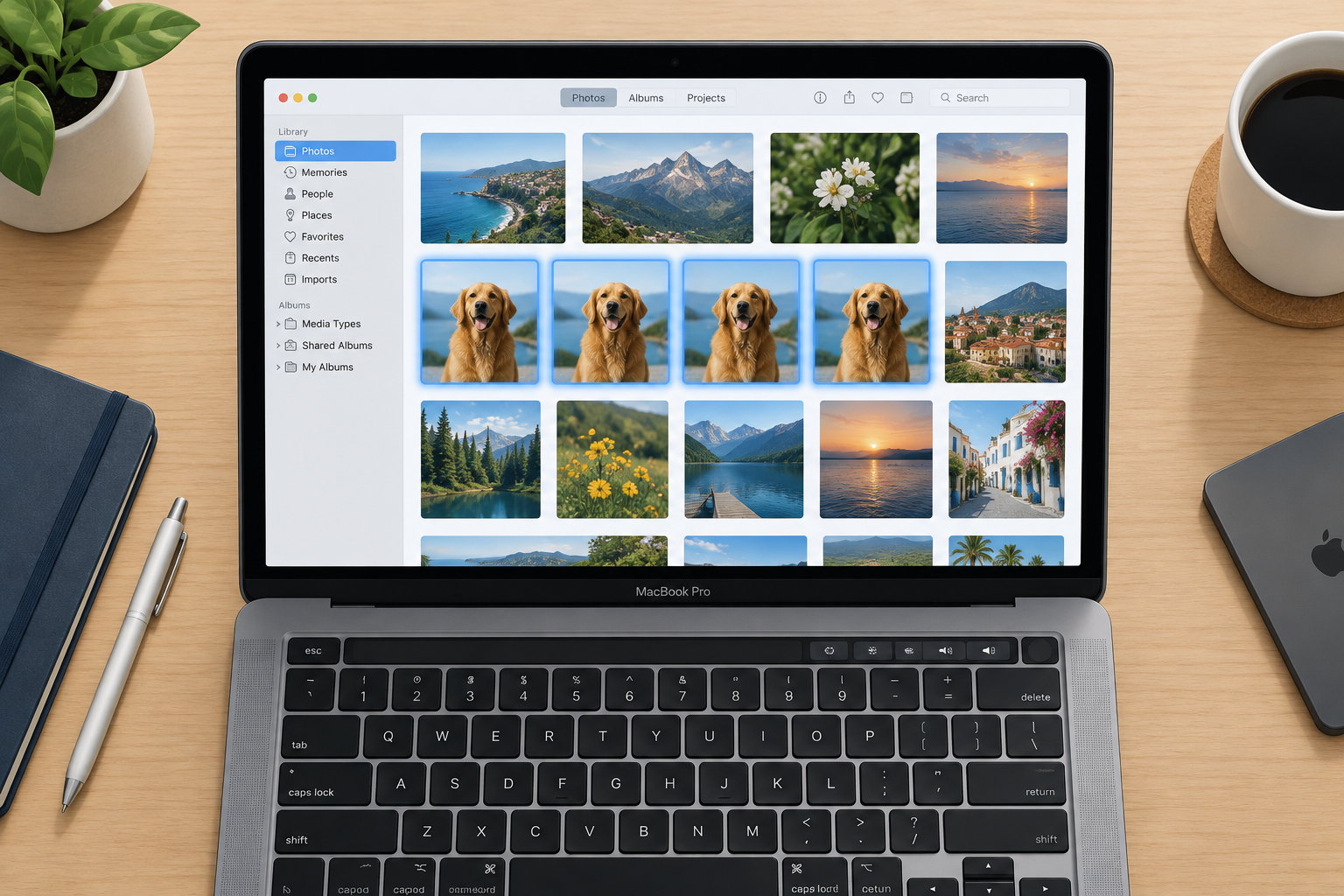
No. Photos plays GIFs and groups them in the Animated album under Media Types, but its Edit tools don’t handle GIF files the way they handle photos and videos. Use GIPHY to trim a GIF or add text to it.
Is GIPHY free to use for editing GIFs?
Yes. GIPHY is a free download from the App Store, and its Create tools for trimming, text, stickers and filters don’t cost anything. You don’t need to upload your edit to GIPHY. You can save it straight to your camera roll.
Why can’t I edit a GIF I found in GIPHY?
GIPHY doesn’t let you edit GIFs directly from its search results. Press and hold the GIF and tap Save to Camera Roll. Then tap Create (+), open your photo library and choose the saved GIF.
How do I turn a video into a GIF on iPhone?
The fastest built-in way is a shortcut that uses the Make GIF action followed by Save to Photo Album. GIPHY can also turn a video from your library into a GIF, and it lets you trim the clip and add captions before saving.
Why does my saved GIF look like a still photo?
The GIF is usually fine. It just isn’t playing in the view you’re using. Open it from the Animated album in Photos, or send it in Messages, and it should play. If it still doesn’t move, it may have been saved as a still image. Save it again from GIPHY using Save GIF.
Sources
- GIPHY Help Center: How to Create on Mobile
- GIPHY Help Center: How to Upload
- GIPHY: The GIF Search Engine on the App Store