Can you play Valorant on a Mac
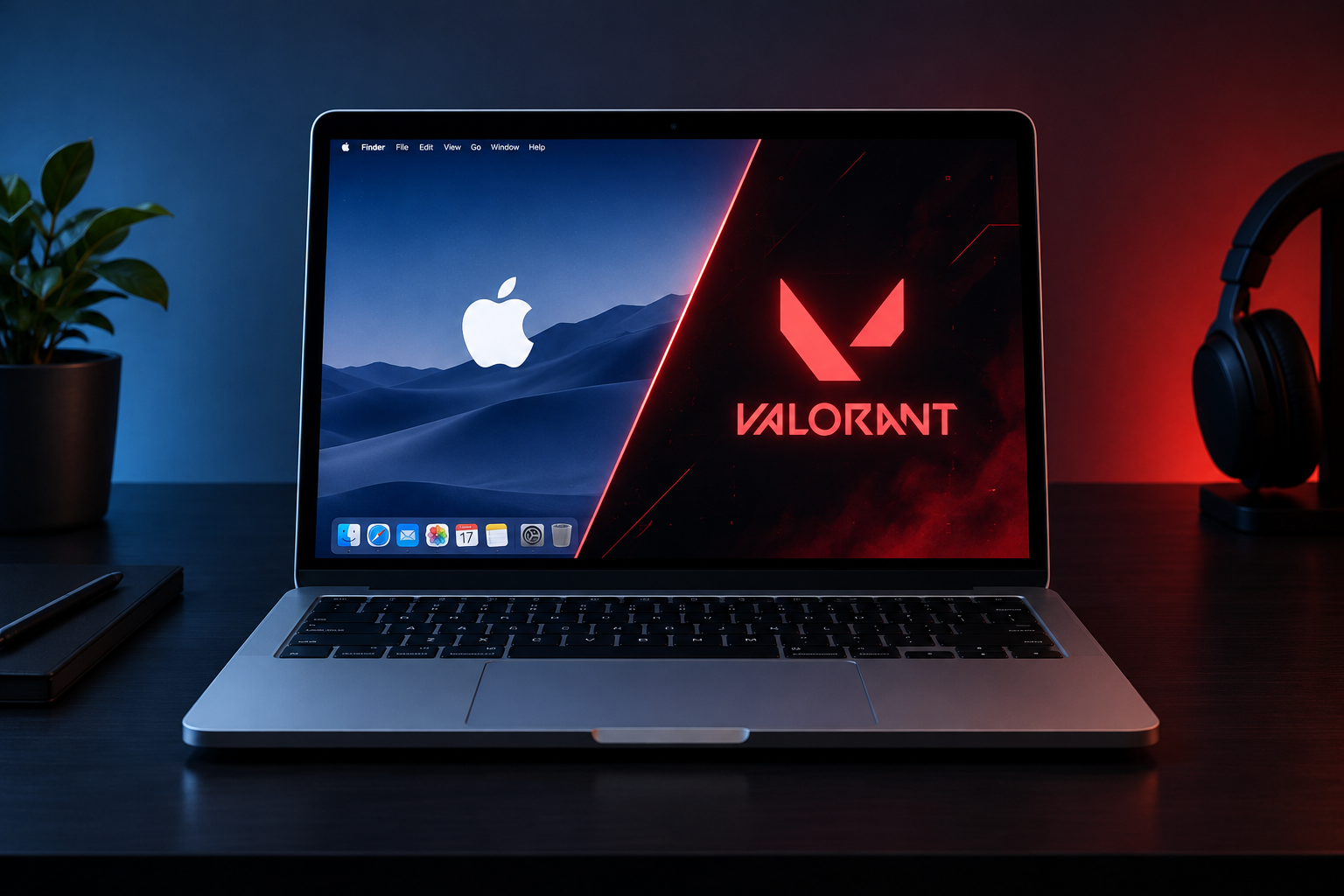
Only on an Intel Mac running real Windows. Riot has never released a macOS client and has announced no plans for one. Valorant needs the Riot Client and Riot Vanguard, a kernel-level anti-cheat that runs only on Windows.
Vanguard is also why the usual Mac tricks fail. Riot’s support pages say Vanguard is not supported in virtual machines. When it detects one, you get errors such as VAN 138 or VAN 9100. Riot’s fix is to run the game on a standard Windows installation.
To check which chip your Mac has, open the Apple menu and choose About This Mac. If you see “Chip” followed by an Apple M-series name, your Mac uses Apple silicon. If you see “Processor” followed by an Intel name, you have an Intel Mac.
Can you play Valorant on Apple silicon Macs (M1, M2 and later)
No. Boot Camp doesn’t work on any Apple silicon Mac, from M1 onward. Without it there is no way to start the Mac in a normal copy of Windows. Virtual machines can run Windows 11 on these Macs, but Vanguard detects the virtual machine and stops Valorant from running.
Cloud gaming doesn’t help here either. Valorant isn’t available on NVIDIA GeForce NOW, Xbox Cloud Gaming, Amazon Luna or Boosteroid. The Xbox version is for Series X|S consoles only, not for streaming. Riot doesn’t support any route that runs the game on a virtual or remote Windows machine.
How to play Valorant on Mac (two methods)
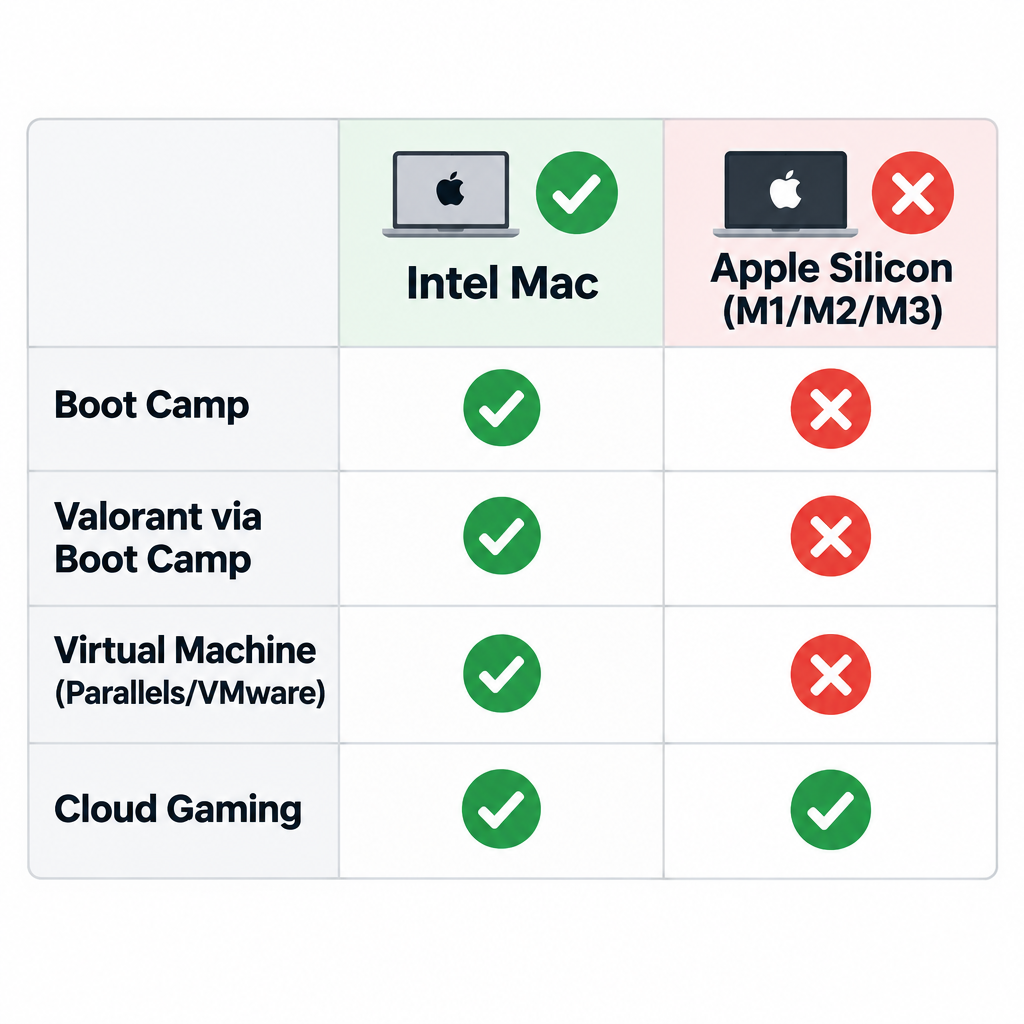
There are two methods people usually try. Only one of them works today.
1. Using a Windows emulator or virtual machine
This method doesn’t work for Valorant. Virtual machine apps such as Parallels Desktop, VMware Fusion and UTM run a second operating system inside macOS. Compatibility tools such as CrossOver translate Windows apps so they run on a Mac. Both are useful for many Windows-only programs, but they can’t get past Vanguard. Riot blocks virtual machines on purpose.
If one of these apps is already on your Mac, keep it for other Windows software. For Valorant, use Boot Camp on an Intel Mac or play on a PC or console.
2. Boot Camp
Boot Camp Assistant is built into macOS on Intel Macs. It splits your drive so you can install Windows 10 next to macOS and pick either one when your Mac starts up. Because Windows runs directly on the hardware, Vanguard treats it like a normal PC.
Before you start, two points matter:
- Use Windows 10. Boot Camp officially supports Windows 10 64-bit only. Riot lists Windows 10 (build 19041 or later, 64-bit) as supported. On Windows 11, Riot requires TPM 2.0 and Secure Boot for Valorant, and Apple’s Boot Camp documentation covers Windows 10, not Windows 11, so Windows 10 version 22H2 is the practical choice for Boot Camp.
- Windows 10 support has ended. Microsoft ended support for Windows 10 on October 14, 2025. Enroll that copy of Windows in Microsoft’s Extended Security Updates program. Use the Windows partition for gaming, not for banking or sensitive work.
Back up your Mac with Time Machine before you begin, because these steps repartition your startup drive.
Step 1: Check that your Mac is an Intel model that supports Windows 10. Apple lists the supported models on its Boot Camp support page at https://support.apple.com/102622. Apple has confirmed that macOS Tahoe 26 is the last macOS release for Intel Macs, so this route won’t get new features.
Step 2: Free up storage space. Apple asks for at least 64 GB of free space on your startup disk and recommends 128 GB for the best experience. Use System Settings > General > Storage to find and remove large files. Valorant and its updates need extra room beyond Windows itself.
Step 3: Download an official Windows 10 64-bit disk image (ISO) from Microsoft’s Windows 10 download page. Choose the download option and save the ISO file to your Mac. Don’t use Windows images from unofficial websites.
Step 4: Open Boot Camp Assistant from Applications > Utilities. Newer Intel Macs don’t need a USB drive. Some older models, including certain Macs introduced in 2015 or earlier, ask for one: connect a USB flash drive of 16 GB or more, then tick Create a Windows 10 or later install disk and Install Windows 10 or later version. Click Continue.
Step 5: Choose the Windows 10 ISO you downloaded. If Boot Camp asks for a destination disk, choose the connected USB drive.
Step 6: Set the size of the Windows partition by dragging the divider between macOS and Windows, then click Install. Boot Camp Assistant creates the partition and shows its progress on screen. You can’t resize the partition later without starting over, so make it bigger than you think you need.
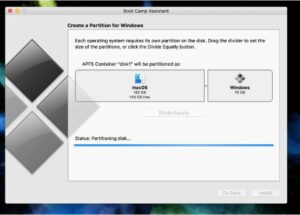
Step 7: Your Mac restarts into the Windows installer. If it asks where to install Windows, select the partition named BOOTCAMP, click Format, and then continue.
Step 8: Follow the on-screen setup to finish installing Windows. When Windows starts for the first time, the Boot Camp installer opens. Let it install the Windows support software (Apple’s drivers), then restart when prompted.
Step 9: To switch between Windows and macOS, hold the Option (Alt) key while your Mac starts up and choose a drive. In Windows, you can also click the Boot Camp icon in the system tray and choose Restart in macOS.
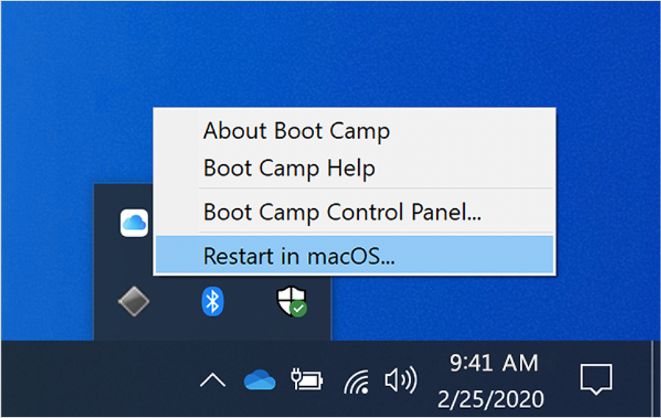
Step 10: In Windows, open a web browser and go to the official Valorant website, playvalorant.com.
Step 11: Click Play Free, then sign in with your Riot account or create a new one. Download and run the installer. The Riot Client installs Valorant along with Riot Vanguard.
Step 12: Restart Windows when the installer asks, because Vanguard needs a reboot before you can play. Then open the Riot Client and launch Valorant.
If you get a VAN error, check Riot’s support article for that error code. If the game still won’t start on a Boot Camp install, contact Riot Player Support.
Which option is right for you
Your choice depends on your Mac’s chip and how much effort you want to put in.
| Your setup | Can it run Valorant? | Best option |
|---|---|---|
| Intel Mac supported by Boot Camp | Yes, in Windows 10 | Boot Camp with Windows 10 22H2 |
| Apple silicon Mac (M1 or later) | No | A Windows PC, PS5 or Xbox Series X|S |
| Any Mac with Parallels, VMware Fusion or UTM | No, Vanguard blocks it | Not usable for Valorant |
| Cloud gaming (GeForce NOW, Xbox Cloud Gaming, Luna, Boosteroid) | No, not in their catalogs | Not available |
The bottom line
On a Mac, Valorant comes down to one question: does your Mac have an Intel chip? If it does, Boot Camp with Windows 10 gives you a real, supported Windows install. Keep that copy of Windows patched, and remember that Intel Macs won’t get macOS releases after Tahoe 26. If your Mac has an Apple chip, no app or setting will make Valorant run. The console versions are the cheapest official route if you don’t own a Windows PC.
FAQ
Is there a Mac version of Valorant?
No. Valorant is available on Windows PC, PlayStation 5 and Xbox Series X|S, but not on macOS. Riot hasn’t announced a Mac client, mostly because its Vanguard anti-cheat is built for Windows.
Can you play Valorant on an M1, M2 or newer MacBook?
No. Apple silicon Macs can’t use Boot Camp, and Riot Vanguard blocks Windows running in virtual machine apps like Parallels Desktop. If you try, you’ll usually see a VAN 138 or VAN 9100 error.
How can I get Valorant for free on my Mac?
On an Intel Mac, install Windows 10 with Boot Camp, then download Valorant free from playvalorant.com inside Windows. The game itself costs nothing. You do need a valid Windows 10 license to keep using Windows long term.
Can I play Valorant on GeForce NOW or Xbox Cloud Gaming?
No. Valorant isn’t in the GeForce NOW, Xbox Cloud Gaming, Amazon Luna or Boosteroid catalogs. The Xbox version runs on Series X|S consoles only, and Vanguard isn’t supported on the virtual machines that streaming services use.
Can I install Windows 11 with Boot Camp to play Valorant?
Boot Camp officially supports Windows 10 only. On Windows 11, Valorant requires TPM 2.0 and UEFI Secure Boot. Windows 10 version 22H2 is the most reliable choice on an Intel Mac.
Will a Boot Camp install hurt my Mac?
Not if you follow Apple’s steps, but repartitioning your drive always carries some risk of data loss. Back up with Time Machine first. If you later remove Windows, use Boot Camp Assistant to restore the disk to a single macOS partition.
Sources
- Apple Support: Install Windows 10 on your Mac with Boot Camp Assistant
- Riot Games Support: VALORANT minimum and recommended PC specs
- Riot Games Support: Error VAN 138
- Riot Games Support: Error VAN 9100
- Bloomberg: Apple’s macOS Tahoe to be final operating system to work on Intel Macs