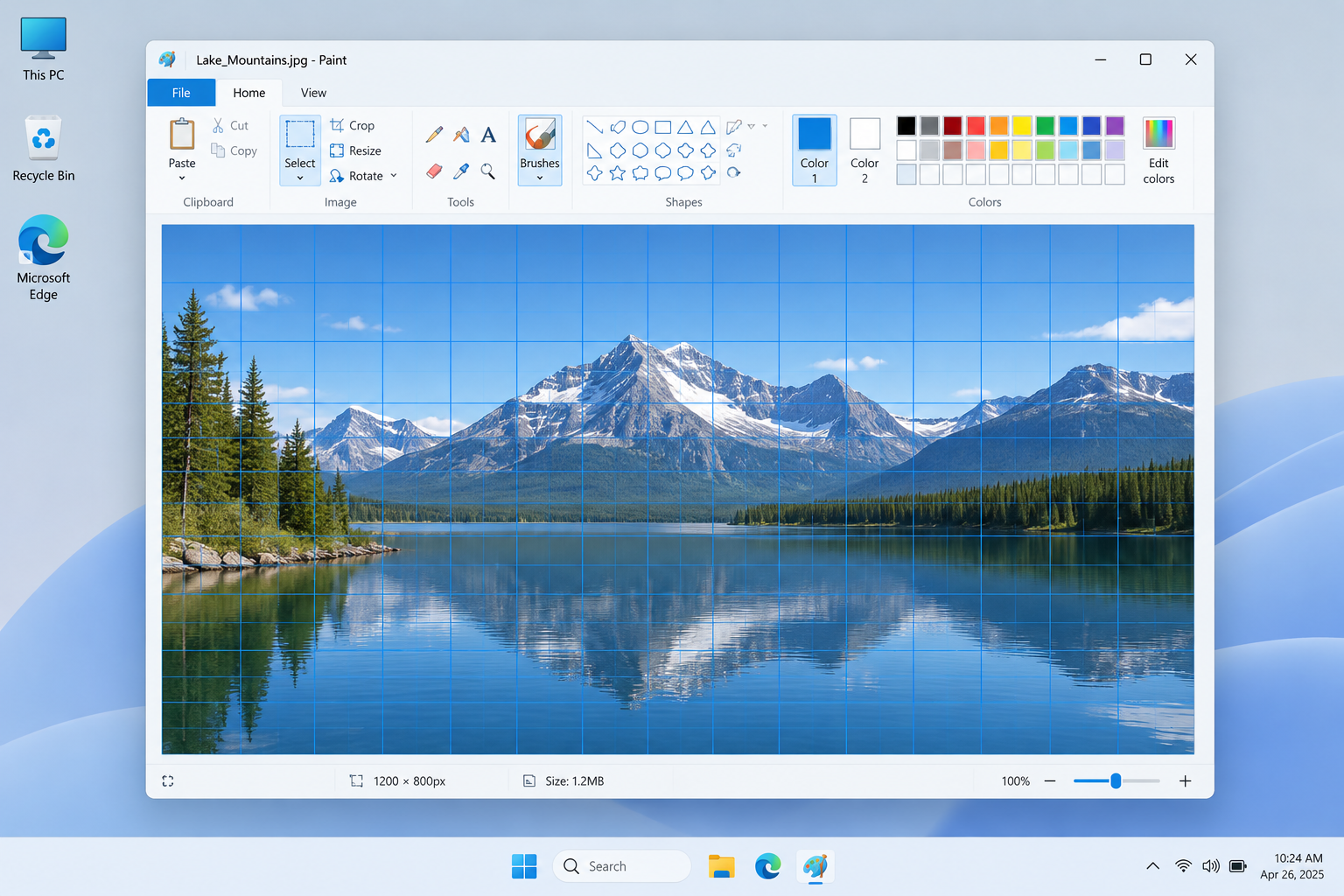
Microsoft Paint’s gridlines don’t become part of your picture. In Windows 10 and Windows 11 you turn them on from the View menu, or with Ctrl + G, and they only show on screen as a guide. They are never saved or printed. To put a grid into the image itself, use the free Paint.NET with a grid plugin such as BoltBait’s Grid / Checkerboard effect, then save the result as a PNG.
Show gridlines in Microsoft Paint
Paint still gets updates on Windows 11, and it remains a handy basic editor for resizing, cropping, and cutting and pasting parts of a picture. Its gridlines help you line things up while you edit, but they stay on the screen and never become part of the file.
- Windows 11 Paint: open the View menu in the top bar and select Gridlines. Ctrl + G turns them on and off. The same menu holds Rulers (Ctrl + R) and Status bar.
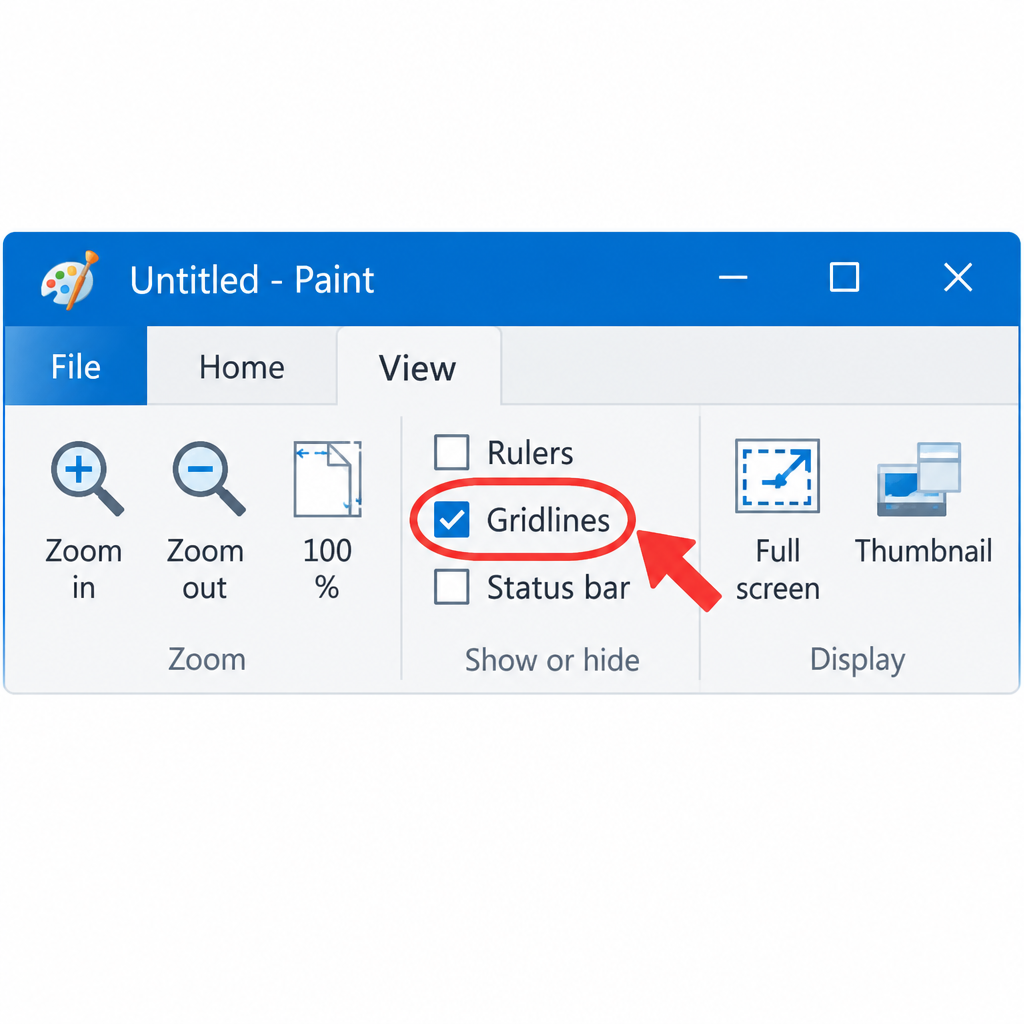
- Windows 10 Paint: click the View tab on the ribbon, then tick Gridlines in the Show or hide group.
You won’t find the toggle in a side panel or a widget stack. It lives only in the View menu. If no grid appears after you turn it on, zoom in. Paint hides the gridlines at low zoom levels.
Windows 10 itself reached end of support on October 14, 2025. Paint works the same way on it, but if the PC can run Windows 11, moving to Windows 11 gets you the current Paint and continued security updates.
Why Paint.NET is the better tool for a real grid
Paint.NET is a free Windows image editor from developer Rick Brewster, and it’s still actively developed. The current stable version is 5.1.12, released on March 8, 2026. Version 5.2 is listed on the official roadmap for the second half of 2026. You can use it for most everyday photo editing and for making simple graphics.
Paint.NET has no grid generator built in, but a small plugin adds one. The classic version is a free download from getpaint.net. A paid version in the Microsoft Store has the same features and installs and updates itself automatically.
Only install plugins from the plugin author’s own page or the official forum at forums.getpaint.net. Unofficial add-on sources, like the mucky ducks repositories in the Kodi world, are exactly the kind of place to avoid when you add code to an app.
How to add Paint.NET grid lines
The plugin used for this is BoltBait’s Grid / Checkerboard effect. It started out as the Grid Maker plugin and now comes in BoltBait’s free plugin pack, which needs Paint.NET 5.0 or later.
- Close Paint.NET if it’s open.
- Download BoltBait’s plugin pack from boltbait.com/pdn.
- Run the included installer. Newer releases install the effects for you. Older versions had you copy the DLL files by hand (see the next section).
- Open Paint.NET again.
- Go to Effects > Render > Grid / Checkerboard. A window opens where you set up the grid.
Where to put the plugin files if you install them by hand
If you copy plugin DLL files manually, the folder depends on which version of Paint.NET you have.
| Paint.NET version | Effects folder | Notes |
|---|---|---|
| Classic (from getpaint.net) | C:\Program Files\paint.net\Effects | You need admin rights to paste files here |
| Microsoft Store | Documents\paint.net App Files\Effects | Create the “paint.net App Files” folder and the Effects subfolder yourself if they’re missing |
Restart Paint.NET after copying the files. Leave the Store app’s own install files alone. Brewster has said on the official forum that Store plugins belong in the Documents location instead.
Grid options and how to get a clean result
The plugin can draw a plain grid or a checkerboard. The older Grid Maker version could also draw a dotted pattern, chosen from its Grid type dropdown. Option names vary a little between plugin versions, but the main settings are these:
- Same Step H/V: keeps horizontal and vertical spacing equal, so the cells come out square.
- Transparent only: draws only the lines and leaves everything else transparent.
- Draw Mode > Centered lines: centres the grid on the canvas.
Changes show on the canvas as you make them. A few habits give a clean grid:
- Resize the canvas first (Image > Canvas Size) to the size you want the grid to be.
- Pick the line colour before you open the plugin. The plugin uses whatever is set as the primary colour in the Colors window.
- Draw the grid on a new, empty layer (Layers > Add New Layer) so you can move, recolour or delete it later without touching your photo.
- Draw inside a selection if you want it there. The plugin only renders inside the active selection, so selecting an area limits the grid to that area.
- Crop part-cells at the edges. If the canvas size isn’t an exact multiple of the cell size, the outer cells come out cut off. Crop them, or adjust the canvas size.
- Save as PNG for a transparent overlay with no fill layer under it. Save as.PDN to keep the layers for later edits.
Paint.NET doesn’t compete with Photoshop or GIMP. But if all you need is a grid, few tools make it simpler.
Adding gridlines in Paint 3D
Microsoft deprecated Paint 3D and removed it from the Microsoft Store on November 4, 2024. You can no longer download or reinstall it. Copies that were already installed still open, but they get no updates, and Microsoft recommends Paint or Photos for 2D editing instead.
Paint 3D never had a grid you could save into a picture. If you still have it installed, you can lay a transparent grid image over a photo:
- Open Paint 3D from the Start menu.
- Select Menu, then Browse files, and open your photo.
- Select Menu > Insert and choose a transparent grid PNG. The safest one to use is a grid you made yourself in Paint.NET as described above.
- Resize the grid with the 2D selection handles so it fits the picture exactly, then click outside the selection box.
- Open Canvas and drag the canvas borders in to match the photo, so no white space is left above or below it.
Many people go looking for printable grids in Reddit art threads. If your feed gets crowded along the way, it helps to know how to block subreddits. A grid you render yourself in Paint.NET is cleaner and needs no downloads from unknown sites, though.
Which method to use
Use Microsoft Paint’s gridlines when you only need a guide while editing. Use Paint.NET with the Grid / Checkerboard plugin when the grid has to be in the saved or printed picture, for example a drawing reference grid or a pixel-art template. Paint 3D is no longer a real option for new setups.
FAQ
Why don’t my Paint gridlines show up when I save or print?
Paint’s gridlines are a display aid only. They never become part of the image file, so they don’t show in a saved picture or on paper. To keep a grid, draw it into the image with Paint.NET and its grid plugin.
What is the shortcut for gridlines in Paint?
Ctrl + G turns gridlines on and off in Microsoft Paint, and Ctrl + R toggles the rulers. On Windows 11 both are also in the View menu. If the grid doesn’t appear, zoom in, because Paint hides it at low zoom.
Can I change the size of the gridlines in Microsoft Paint?
No. Paint has no setting for grid spacing, and how the grid looks depends on your zoom level. If you need a set cell size, such as 50 pixels, use the Paint.NET plugin, where you choose the spacing and line width.
Is Paint.NET free?
Yes. The classic version from getpaint.net is free, and the developer asks for optional donations. The Microsoft Store version costs money but has the same features, plus automatic updates and a free trial.
Can I still download Paint 3D?
No. Microsoft removed Paint 3D from the Microsoft Store on November 4, 2024. Copies that were already installed keep working without updates, but once it’s uninstalled it can’t be reinstalled.
Why doesn’t the grid plugin show up in Paint.NET?
Usually the files are in the wrong folder, or Paint.NET wasn’t restarted. The classic version reads plugins from C:\Program Files\paint.net\Effects. The Microsoft Store version reads them from Documents\paint.net App Files\Effects. Also check that you have Paint.NET 5.0 or later, which the current BoltBait pack requires.
Sources
- Paint.NET Roadmap and Change Log
- BoltBait’s Paint.NET plugins
- Paint.NET forum: plugins and the Microsoft Store version
- Paint.NET blog: Paint.NET in the Windows Store
- Tom’s Hardware: Microsoft removes Paint 3D from the Microsoft Store