
You may not need to install a screenshot app at all. Since 2023, Windows 11’s free Snipping Tool has added OCR, screen recording, GIF export and a markup toolbar. This guide shows where the built-in tool is enough and where ShareX, Greenshot, Snagit, FastStone Capture and five other apps do more. Prices and versions were checked on November 19, 2026.
Key takeaways
- Win+Shift+S and Win+Shift+R cover most screenshots and recordings in Windows 11 with no extra software.
- Snipping Tool has no scrolling capture. For long pages, use ShareX, Snagit, PicPick, FastStone Capture or your browser’s full-page capture.
- Since the 2025 release, Snagit is sold only as an annual subscription. It costs $39 a year for individuals and $48 per user a year for Business.
- TechSmith Capture and Jing are retired. Update any Greenshot build older than 1.3.315, which fixed a security flaw.
- Before you capture anything sensitive, check whether your tool uploads by default.
Fact-checked
We checked these key facts against the sources named, on November 19, 2026:
- FastStone’s site lists version 11.3, released July 29, 2026 (source: faststone.org)
- The build that shipped alongside the Windows 11 November 2025 Update is 11.2511.31.0, released January 15, 2026 (source: en.wikipedia.org)
- According to the Windows Insider Blog, Snipping Tool’s GIF export keeps only the first 30 seconds of a recording (source: blogs.windows.com)
- Builds follow an 11.YYMM pattern, and the one released with the Windows 11 November 2025 Update is 11.2511.31.0 (January 15, 2026) (source: en.wikipedia.org)
- Since the 2025 release, Snagit is subscription-only: $39 a year for individuals or $48 per user a year for Business, with volume pricing from 10 seats (source: costbench.com)
Quick answer: the best screenshot tool for Windows in 2026
ShareX is the best screenshot tool for Windows overall. It’s free and open source, it gets updated almost every week, and it does everything the paid apps do. What it lacks is a polished editor that beginners find easy. For simple screenshots, the Snipping Tool already on your PC is the better choice.
| Category | Pick | Price | Why |
|---|---|---|---|
| Best built-in | Snipping Tool | Free with Windows | OCR, recording, GIF export, nothing to install |
| Best free power tool | ShareX | Free, open source | Scrolling capture, OCR, recording, automation |
| Best lightweight free | Greenshot | Free, open source | Fast, simple editor with arrows, blur and steps |
| Best paid | Snagit | $39/year (individual) | Best editor, templates, library, video with webcam |
| Best one-time purchase | FastStone Capture | Lifetime license | Pay once, free upgrades, small and fast |
Who should pick what:
- If you take a few screenshots a week, use Snipping Tool.
- If you write documentation or do support work, install ShareX if you can handle lots of settings, or Greenshot if you want something simpler.
- If you make tutorials for clients and the polish is worth $39 a year, buy Snagit.
- If you hate subscriptions, buy FastStone Capture.
How these tools were ranked
The ranking starts from primary sources: the ShareX GitHub releases page, the Windows Insider Blog, TechSmith’s product, pricing and retirement pages, Greenshot’s version history, Screenpresso’s pricing page and each vendor’s official download page. Reporting from BetaNews, AlternativeTo, WIRED, Windows Latest, Tom’s Hardware, How-To Geek and Winaero fills in the details. Nothing here comes from a hands-on test diary. Each tool was scored on six criteria, weighted in this order:
- Capture range (highest weight). Region, window, full screen, delayed and scrolling capture.
- Editing and annotation. Arrows, text, blur or pixelate, step numbers, cropping.
- Price and license. The total cost over three years, and whether you can legally use the tool at work.
- Maintenance and security. How recent the last stable release is, and whether the tool still supports current Windows.
- Extras. OCR, screen recording, GIF output, automation.
- Privacy defaults. Whether captures upload to a public link without you asking.
A tool that is free, actively maintained and complete ranks above a more polished one that costs more or uploads by default.
Windows screenshot shortcuts you already have (no app needed)
Windows has several built-in screenshot shortcuts, and Win+Shift+S is the one to learn first. Some shortcuts send the image only to the clipboard, while others save a file automatically. That difference explains most “where did my screenshot go” moments.
| Shortcut | What it captures | Where it goes | Windows 10 / 11 |
|---|---|---|---|
| Win+Shift+S | Rectangle, freeform, window or full screen (your choice) | Clipboard, plus Snipping Tool’s auto-save folder in Windows 11 | Both (Snip & Sketch on 10, Snipping Tool on 11) |
| PrtScn | Full screen, or opens Snipping Tool on Windows 11 | Clipboard only | Both |
| Win+PrtScn | Full screen | File in Pictures\Screenshots, plus clipboard | Both |
| Alt+PrtScn | Active window only | Clipboard only | Both |
| Win+Shift+R | Screen recording of a region or window | Snipping Tool, then a video file | Windows 11 |
| Win+Alt+PrtScn | The active game or app, via Xbox Game Bar | Videos\Captures | Both |
Win+Shift+S: the snipping bar
Win+Shift+S dims the screen and shows a small bar with four modes: rectangle, freeform, window and full screen. Tom’s Hardware’s Windows 11 guide explains that the capture goes to the clipboard and a notification pops up. Click the notification to open the snip for markup. On Windows 10, the same shortcut opens Snip & Sketch, the older app that Snipping Tool replaced in Windows 11.
Pro tip
Press Win+Shift+S, drag a box, then press Ctrl+V straight into an email, Teams or Slack. You never have to save a file. Click the notification only if you want to add arrows or highlights first.
PrtScn, Win+PrtScn and Alt+PrtScn
What the Print Screen key does depends on your Windows settings. If the option to open screen capture is on, it opens Snipping Tool. If it is off, it copies the whole screen to the clipboard and does not save a file. Win+PrtScn is the only built-in shortcut that writes a file automatically, to Pictures\Screenshots. The screen dims briefly to confirm it worked.
Alt+PrtScn copies only the active window, with no taskbar or other windows in the image. The window mode in the Win+Shift+S bar gives the same result, and in Windows 11 it also saves a copy.
Win+Shift+R: screen recording
Win+Shift+R opens Snipping Tool straight into recording mode. You draw a region, press Start, and Snipping Tool records it. The recorder can include your microphone and system audio. Version 11.2507.14.0 also added a window mode, which sizes the recording area to one app window. According to the Windows Insider Blog, that area stays fixed once recording starts. When you stop, you can save the clip as a video or export a GIF, which is covered below.
Laptop has no Print Screen key?
Many compact laptops put Print Screen on a shared key or leave it off entirely. Try these in order:
- Fn+PrtScn. The key is often printed in a second color on F10, F11, F12 or Insert.
- Fn+Insert. This is a common combination on some Lenovo and Dell models.
- Win+Shift+S. This needs no Print Screen key, so it works on every Windows 10 and 11 keyboard.
- Win+Shift+R for recording on Windows 11.
If none of these work on a gaming keyboard, look for a “Windows key lock” or game mode light. Many gaming keyboards disable the Windows key in that mode, which breaks every Win-key shortcut.
Pro tip
On a laptop with no Print Screen key, Win+Shift+S is the fastest option. It covers windows and full screen too, so you never need the Print Screen key.
Make Print Screen open Snipping Tool (or stop it)
On Windows 11, go to Settings > Accessibility > Keyboard and find Use the Print screen key to open screen capture. With it on, PrtScn opens Snipping Tool. With it off, PrtScn goes back to silently copying the whole screen.
On Windows 10, the same toggle is under Settings > Ease of Access > Keyboard > Print Screen shortcut.
Turn the toggle off if you want ShareX, Greenshot or Snagit to use the Print Screen key. Otherwise Windows takes the key first and your third-party tool reports a hotkey conflict.
Win+Shift+S stopped working after an update
It’s usually blocked notifications, an outdated Snipping Tool or another app grabbing the shortcut. This is one of the most common complaints after a Windows update. Work through these fixes from quickest to most involved:
Fix Win+Shift+S
- Check that notifications are allowed for Snipping Tool in Settings > System > Notifications. The snip works, but without notifications you won’t see it.
- Open Microsoft Store > Library and update Snipping Tool.
- Go to Settings > Apps > Installed apps > Snipping Tool > three dots > Advanced options and click Repair.
- If that fails, click Reset on the same page. This clears your Snipping Tool settings.
- Close any third-party screenshot app that might have taken over the shortcut, then try again.
- Restart Windows.
If Store updates fail with an install error such as 0x800f0988, fix Windows Update first. Snipping Tool updates arrive through the same servicing pipeline. If Win+Shift+S still does nothing after a reset and a working Windows Update, contact Microsoft Support, because the problem is outside the app.
Where do screenshots go on Windows?
It depends on the shortcut. Win+PrtScn saves a file to Pictures\Screenshots. PrtScn and Alt+PrtScn put the image on the clipboard only, so nothing shows up in any folder until you paste it. Snipping Tool keeps its own auto-saved copies.
Here is where each kind of capture ends up:
- Win+PrtScn:
C:\Users\YourName\Pictures\Screenshots. If OneDrive backs up your Pictures folder, look inOneDrive\Pictures\Screenshotsinstead. - PrtScn and Alt+PrtScn: clipboard only. Open Paint, Word or an email, press Ctrl+V, then save from there.
- Win+Shift+S and Snipping Tool captures in Windows 11: saved to Pictures\Screenshots if auto-save is on. To change the folder, open Snipping Tool, click the three dots (See more) > Settings, and change the screenshot folder. The same page has a separate folder for screen recordings, which defaults to Videos\Screen Recordings.
- Xbox Game Bar captures: Videos\Captures.
If a screenshot never appeared anywhere, you almost certainly pressed plain PrtScn. The image went to the clipboard and was replaced by the next thing you copied.
Pro tip
Turn on Clipboard history in Settings > System > Clipboard. Then press Win+V to pick any of your recent captures, not just the last one.
Is the built-in Snipping Tool good enough now?
For most home and office users, yes. Windows 11’s Snipping Tool now reads text from images, records your screen, exports short GIFs and has a markup toolbar. You still need a third-party tool for scrolling captures, automation and upload workflows.
What’s new in Snipping Tool (2025 to 2026)
Microsoft ships Snipping Tool features to the Windows Insider Program first, then to everyone through the Microsoft Store. The version number encodes the year and month, so 11.2505 is a May 2025 build. The build that shipped alongside the Windows 11 November 2025 Update is 11.2511.31.0, released January 15, 2026. Store updates keep arriving after that, and Microsoft rolls features out in stages, so two up-to-date PCs can show slightly different toolbars.
| Feature | Version | Date | Requirement |
|---|---|---|---|
| Text Actions (OCR: copy text, redact emails and phone numbers) | 11.2308.33.0 | 2023 | Windows 11 |
| Screen recording (Win+Shift+R) | Before GIF export | 2023 onward | Windows 11 |
| Text Extractor button on the capture bar | 11.2503.27.0 | Rolling out from April 15, 2025 | Windows 11 |
| GIF export of recordings, max 30 seconds | 11.2505.21.0 | Rolling out from June 19, 2025 | Windows 11 |
| Window mode for screen recording | 11.2507.14.0 | August 2025 | Windows 11 |
| Quick Markup toolbar (annotate before saving) | 11.2508.24.0 | 2025 | Windows 11 |
| Perfect Screenshot (AI auto-crop) | Recent builds | 2025 | Copilot+ PC only |
| Color Picker (HEX, RGB, HSL values) | Recent builds | 2025 | Windows 11 |
| Text tool (type text onto a snip) | Insider testing | From November 2025 | Windows 11 Insiders |
| November 2025 Update build | 11.2511.31.0 | January 15, 2026 | Windows 11 |
| Copilot button removed | Production builds | April 2026 | Windows 11 |
Check your version
Open Snipping Tool, click the three dots (See more) > Settings, and scroll to About this app to see your build. If it starts with 11.24 or lower, open Microsoft Store > Library and click Get updates.
Text Actions is the most useful of these. Winaero’s coverage of version 11.2308.33.0 explains how it works. After you take a snip, click the Text Actions button. Snipping Tool finds the text in the image, and you can copy all of it, copy a selection, or use Quick redact to cover email addresses and phone numbers before sharing. The redaction step alone is a good reason to use Snipping Tool for support tickets. The April 2025 Text Extractor button goes further and lets you grab text straight from the capture bar, without saving a snip first.
GIF export was announced on the Windows Insider Blog on June 19, 2025. After you record, an Export GIF button lets you choose low or high quality.
Did you know?
According to the Windows Insider Blog, Snipping Tool’s GIF export keeps only the first 30 seconds of a recording. Anything longer is cut off at the 30-second mark.
Quick Markup, added in 11.2508.24.0, puts a slim annotation toolbar on the snip so you can mark it up before saving. Before that, you had to open the full editor. A separate Text tool, which gHacks reported Insiders seeing from November 2025, adds a T button to the editor so you can type labels onto a screenshot.
Perfect Screenshot and the Color Picker were covered by How-To Geek. Perfect Screenshot uses on-device AI to crop the snip to the content you meant to capture, and it needs a Copilot+ PC with a neural processing unit. The Color Picker returns HEX, RGB or HSL values, which helps designers match brand colors.
The Copilot button is gone. In March 2026, Microsoft said it would cut “unnecessary Copilot entry points,” naming Snipping Tool, Photos, Widgets and Notepad. Windows Latest reported in April 2026 that the Copilot button had been fully removed from Snipping Tool in production builds, not just for Insiders. The OCR, redaction and capture features above are unaffected.
What it still can’t do
These limits matter most to people who capture all day:
- No scrolling capture. Snipping Tool still can’t capture a long page in one image, so use ShareX or Snagit for long pages and documents.
- No automation. You can’t set it to name, resize, watermark and file a capture automatically.
- No upload destinations. You can’t send a capture to a shared drive, an image host or a custom server.
- Limited editing. You get pens, a highlighter, shapes, crop and, on newer builds, typed text.
- Short GIFs only. The 30-second cap rules it out for longer animated demos.
- Windows 10 gets less. On Windows 10, Text Actions and screen recording vary by app version, and Microsoft documents them as Windows 11 features. Windows 10 reached end of support on October 14, 2025, so a third-party tool fills more gaps there, and upgrading to Windows 11 is the bigger fix.
You don’t need another app if…
Stay with Snipping Tool if all of these describe you:
- You snip a region, paste it into chat or email, and move on.
- You sometimes need to copy text from an image or hide an email address.
- Your screen recordings are short and you don’t need webcam overlays.
- You rarely need a full web page in one image. When you do, the browser method below covers it.
Install ShareX or Greenshot only if you hit one of the limits above. Otherwise an extra app is just one more program to keep updated.
The 9 best screenshot tools for Windows, compared
ShareX tops the list. Snipping Tool is the best tool you already have, and Greenshot is the simplest free install. Snagit (subscription) and FastStone Capture (lifetime license) are the paid picks. The table below shows prices and current stable versions as of November 19, 2026.
| # | Tool | Price / license | Latest version | Scrolling capture | Screen recording / GIF | Auto-upload / sharing | Best for |
|---|---|---|---|---|---|---|---|
| 1 | ShareX | Free, open source | 22.4.0 (Nov 8, 2026) | Yes | Yes / Yes | Optional, many destinations | Power users, IT, automation |
| 2 | Snipping Tool | Free with Windows | Updated via Microsoft Store (11.2511.31.0 shipped Jan 15, 2026) | No | Yes / Yes (30 s cap) | No | Everyday snips |
| 3 | Greenshot | Free, open source | 1.3.328 (Oct 19, 2026) | No | No | Optional via plugins | Simple, fast annotation |
| 4 | Snagit | $39/yr individual, $48/user/yr business | Snagit 2026.4 (fall 2026) | Yes | Yes / Yes | Optional (TechSmith sharing) | Tutorials, polished docs |
| 5 | FastStone Capture | Lifetime license, $19.95 to $29.95 | 11.3 (Jul 29, 2026) | Yes | Yes / video | Optional (email, FTP) | Pay once, small footprint |
| 6 | PicPick | Free personal use; about $30/yr commercial | 7.6.2 (Oct 26, 2026) | Yes | Yes / No | Optional | Home users wanting design extras |
| 7 | Screenpresso | Free tier; Pro $29.99 one-time | 2.4.2.0 (Nov 12, 2026) | Yes | Yes / Yes | Optional cloud services | Documentation with video |
| 8 | Ashampoo Snap | One-time purchase, often on sale | Snap 17 | Yes | Yes | Optional | Feature-rich paid alternative |
| 9 | Lightshot | Free | 5.5.0.7 (unchanged for years) | No | No | Public prnt.sc links | Quick throwaway shares |
1. ShareX (free, open source)
Best for: IT staff, developers, documentation writers and anyone who wants one free tool that does everything.
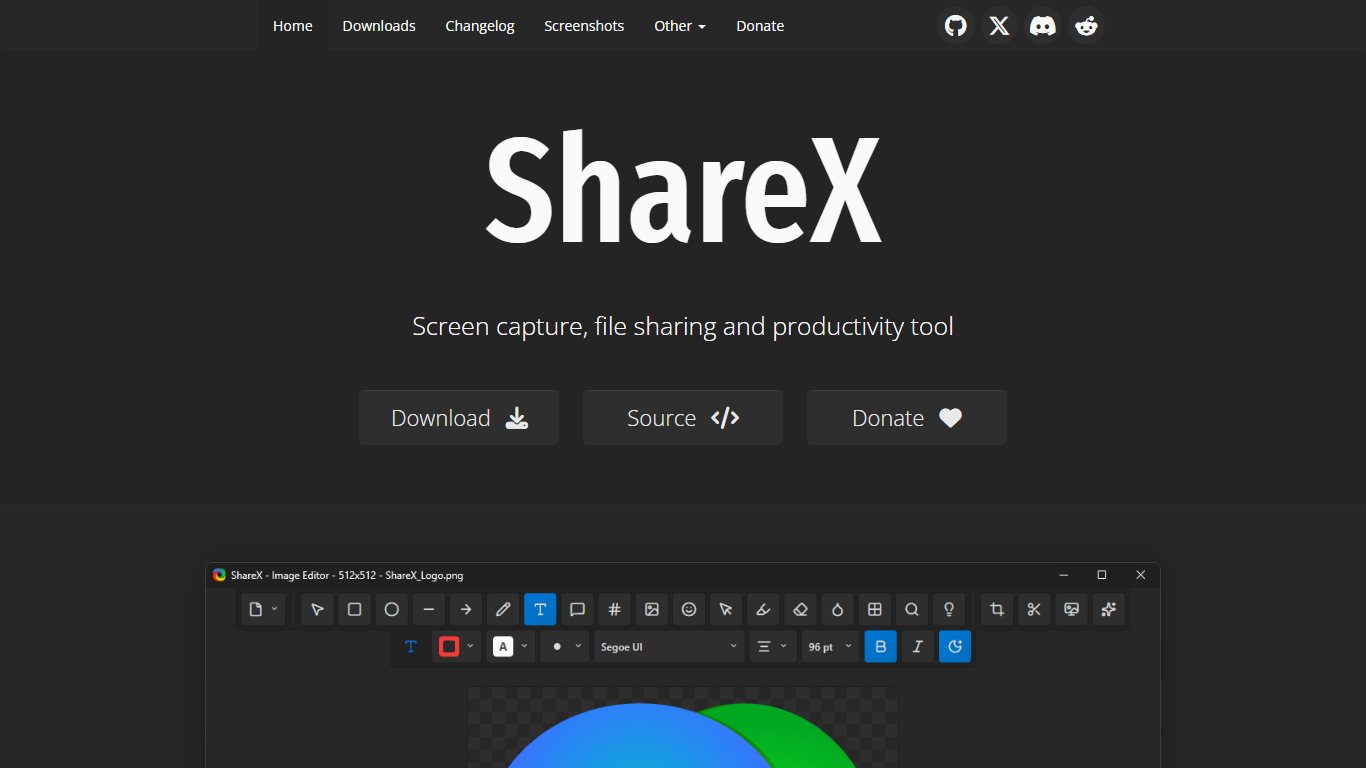
Official download: getsharex.com, the ShareX GitHub releases page (github.com/ShareX/ShareX/releases), Steam or the Microsoft Store.
ShareX is a GPL-licensed project developed on GitHub. It covers region, window, monitor, freehand and scrolling capture, plus OCR, screen recording, GIF output, a color picker, a ruler and dozens of upload destinations. Its standout feature is after-capture automation. You can chain tasks so a single keypress captures a region, adds a watermark, saves it with a dated file name, copies it, and uploads it to your company’s SharePoint or an FTP server.
ShareX’s release pace in 2025 and 2026 has been unusually fast:
| Version | Date | What changed | Source |
|---|---|---|---|
| 18.0 | August 2025 | Moved to .NET 9.0, history rebuilt on SQLite, Windows 7 support ended | AlternativeTo |
| 19.0 | January 2026 | AI image analysis, region capture upgrades, new defaults | AlternativeTo |
| 20.0 | April 2026 | Native ARM64 build via the Microsoft Store, updated image editor | Release notes |
| 22.0.0 | October 20, 2026 | Rebuilt interface, native screen recorder with no FFmpeg needed (pre-release) | BetaNews, AlternativeTo |
| 22.1.0 | November 2, 2026 | GIF recording without FFmpeg, new photo editor | BetaNews |
| 22.4.0 | November 8, 2026 | HDR tone mapping for recordings, canvas sizing in the editor, goal-based after-capture setup; 64-bit installer and portable zip | ShareX GitHub releases, TutKit |
The ARM64 build in 20.0 matters if you own a Snapdragon laptop. The developers warned that 22.0.0 was much less stable than a usual release, which explains why four releases, 22.1.0 through 22.4.0, followed between November 2 and November 8. The 22.4.0 HDR tone mapping fixes the washed-out colors you get when you record an HDR monitor. Its goal-based after-capture setup picks the tasks needed for the clipboard result you choose, so you don’t have to tick boxes one by one. The ShareX/DevBuilds repository on GitHub also publishes 22.4.0.xxxx development builds. Those are pre-releases, so stick with the main releases page.
Downside: the settings menus are huge, and the new 22.x interface is still settling. If you depend on ShareX at work, update a test machine first.
Privacy note: ShareX has built-in upload destinations such as Imgur. Before your first capture, open Task settings > After capture tasks and make sure “Upload image to host” is unticked, unless you want public links.
2. Snipping Tool (built into Windows 11)
Best for: everyone, as the starting point.
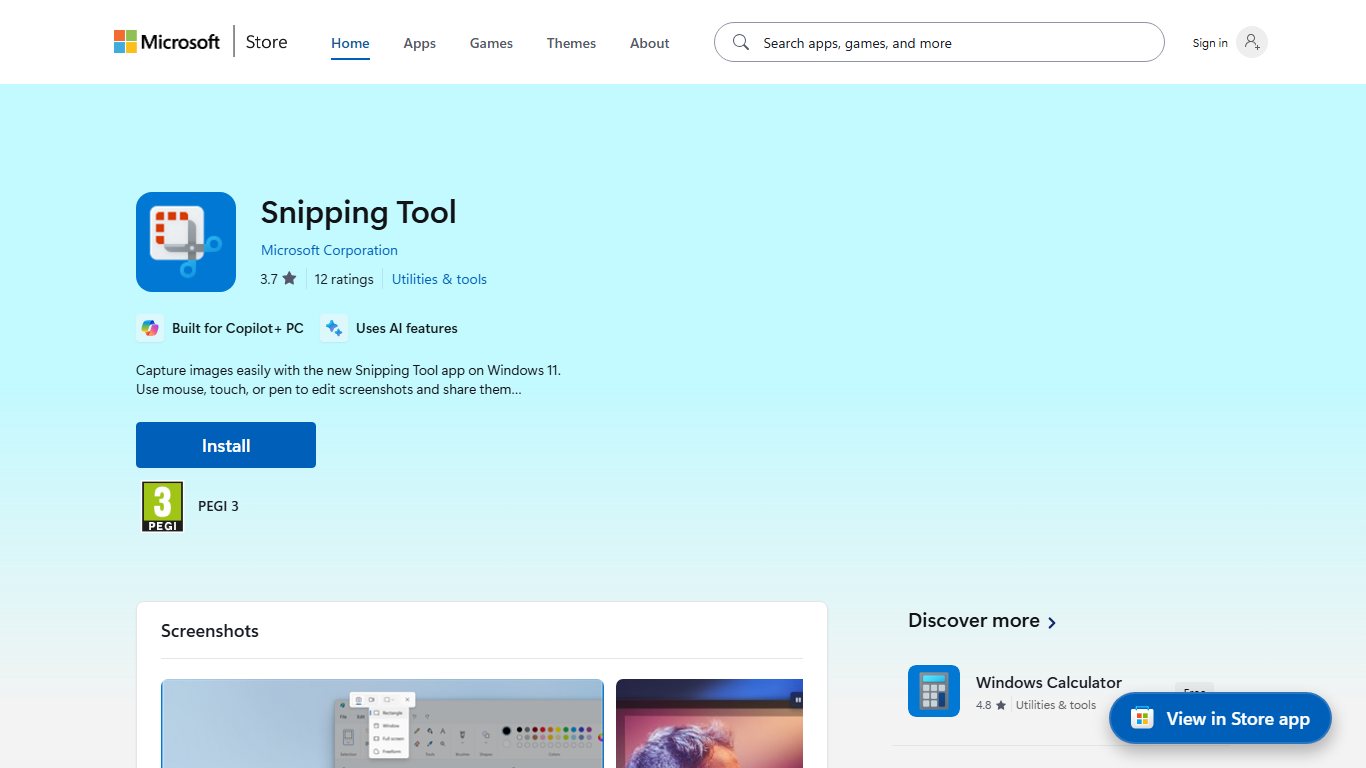
Official download: preinstalled on Windows 11. To reinstall or update it, open the Microsoft Store and search for Snipping Tool (published by Microsoft Corporation).
The previous section covers the full feature set. It’s free, fast and always there, and Text Actions OCR makes it better than most free alternatives at copying text out of images. Its weak spots are scrolling capture, which it lacks, and automation. Updates come through the Microsoft Store, so there’s no separate installer to track.
3. Greenshot (free, open source)
Best for: people who find ShareX too complicated and want arrows, blur and step numbers with no learning curve.
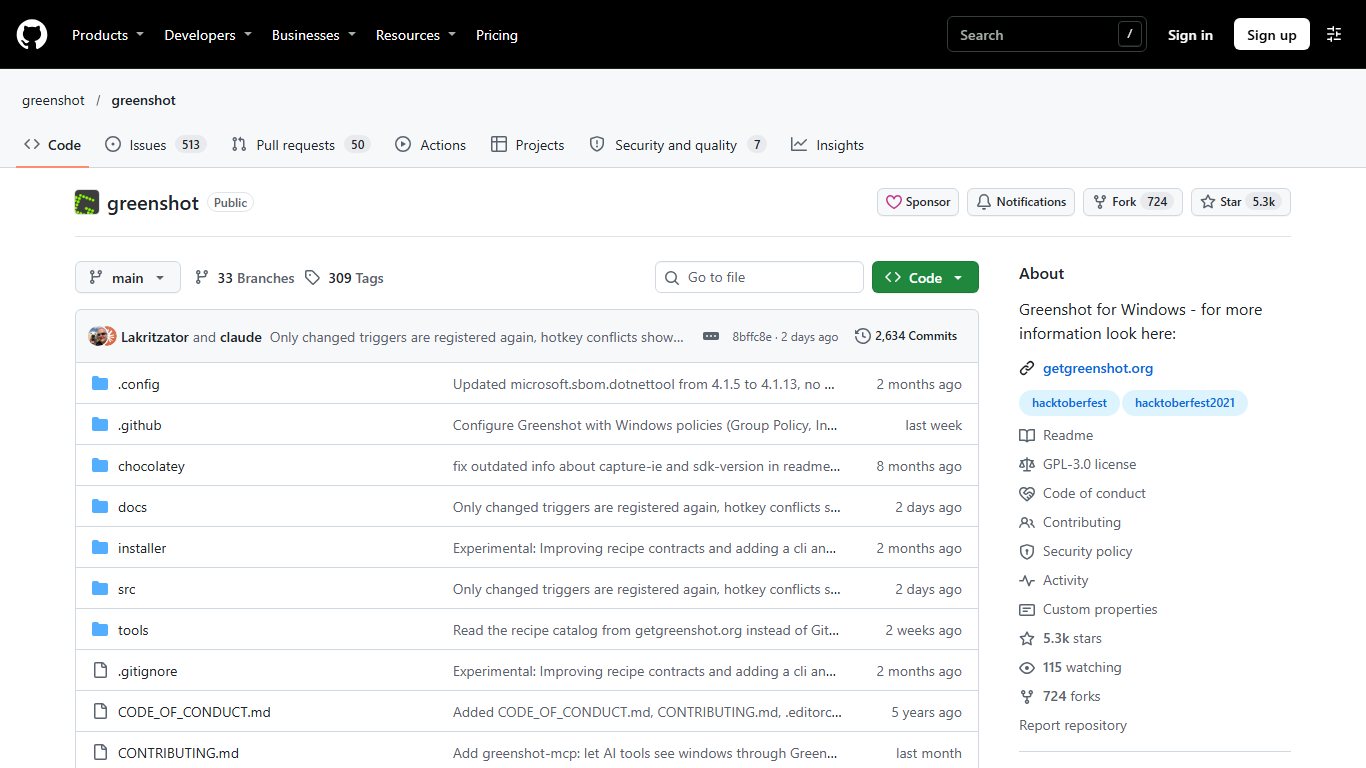
Official download: getgreenshot.org (the Downloads page), or the Greenshot GitHub releases page.
Greenshot takes over the Print Screen key. PrtScn grabs a region, Alt+PrtScn grabs a window and Ctrl+PrtScn grabs the full screen. After each capture, a small menu asks what to do next: open the editor, save, copy, print, or send to an Office app. The editor has arrows, text boxes, highlighting, obfuscate (pixelate or blur) and numbered counters for step-by-step guides.
Current version: Greenshot’s version history lists 1.3.328 (October 19, 2026) as the latest stable release. The 1.4 builds (latest 1.4.508, November 17, 2026) are marked unstable, so most people should stay on 1.3.x.
Security: on March 20, 2026, Greenshot released 1.3.315 as an important security fix and urged everyone on earlier 1.3 versions to update. Many PCs still run Greenshot builds that were installed years ago and never updated. If yours is one of them, reinstall it from the official site.
Downsides: there’s no scrolling capture and no screen recording. Greenshot also needs the Print Screen key, so you have to turn off the Windows 11 Print Screen toggle described earlier.
4. Snagit (paid subscription)
Best for: trainers, technical writers, support teams and marketers who produce polished visual guides every week.
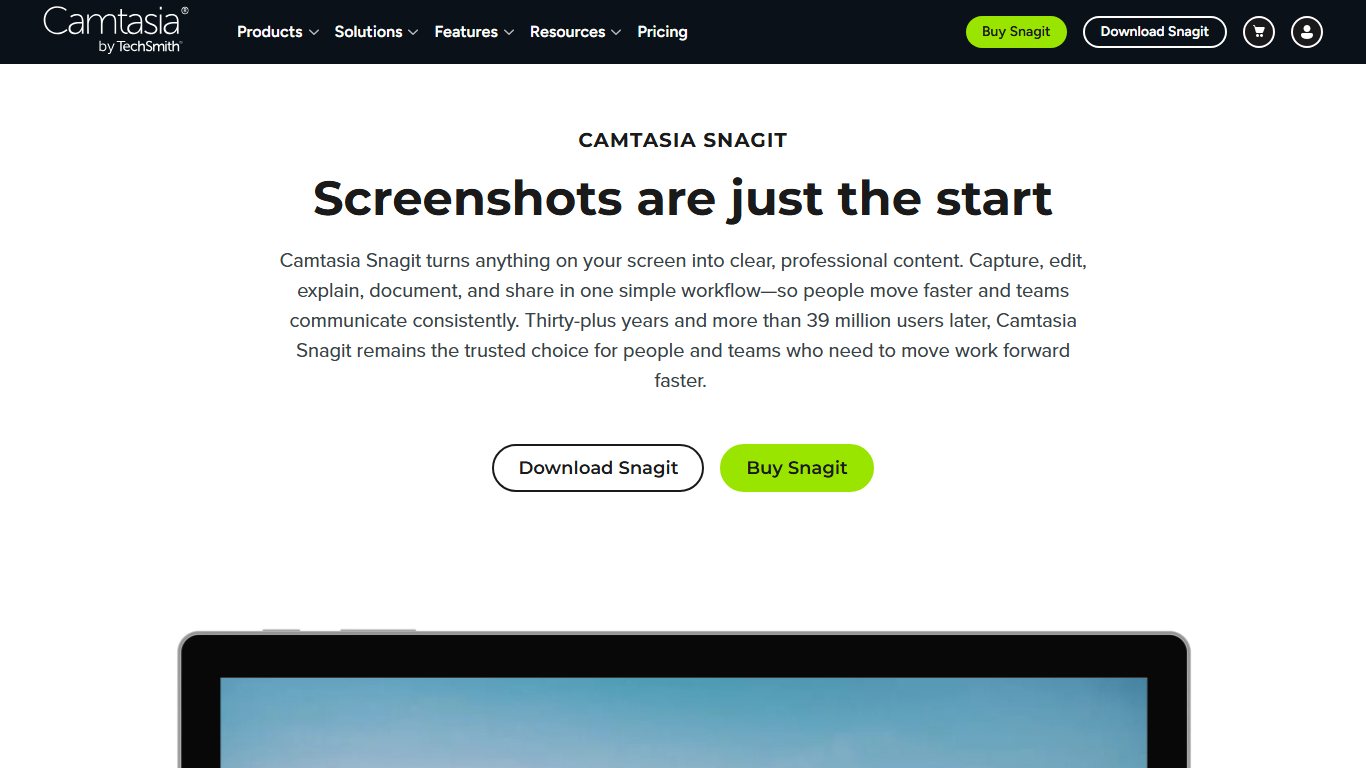
Official download: techsmith.com/snagit (a free 14-day trial is available).
TechSmith’s Snagit has the best editor on this list. It offers callouts, a Step tool that numbers actions automatically, Simplify (which redraws busy interfaces as clean shapes), stamps, blur, and templates that combine several captures into one how-to document. It does scrolling and panoramic capture, records the screen with an optional webcam overlay, exports GIFs, grabs text with OCR, and keeps everything in a searchable library sorted by date, app and tags.
Price (as of November 2026): Snagit has been sold only as an annual subscription since Snagit 2025 came out on February 12, 2025. The current version, released in January 2026, is simply called Snagit, and TechSmith no longer sells a perpetual license. TechSmith’s Snagit pricing page and 2026 software listings such as Capterra and GetApp give these plans:
| Plan | Price | Covers | Transferable |
|---|---|---|---|
| Individual | $39 per year | 1 user, 2 machines | No |
| Business | $48 per user per year | Per seat, volume pricing from 10 seats | Yes, between employees |
| Enterprise | Custom annual quote | Large deployments | Yes |
| Snagit 2024 or older (perpetual) | Already paid | Keeps working | No further updates |
TechSmith’s store detects your location, so readers outside the US may see euro or other local prices. Check the figure on the checkout page.
Did you know?
New Snagit licenses are subscription-based. Perpetual licenses for Snagit 2024 and older still run, but they won’t get any more updates, and the only free option is a 14-day trial.
Downside: the cost adds up. The individual plan costs $117 over three years and a Business seat costs $144. ShareX costs $0, and FastStone Capture is a single lifetime payment.
Privacy note: Snagit can share to TechSmith’s cloud and other destinations, but only when you choose to.
5. FastStone Capture (lifetime license)
Best for: people who refuse subscriptions but want scrolling capture, recording and a capable editor.
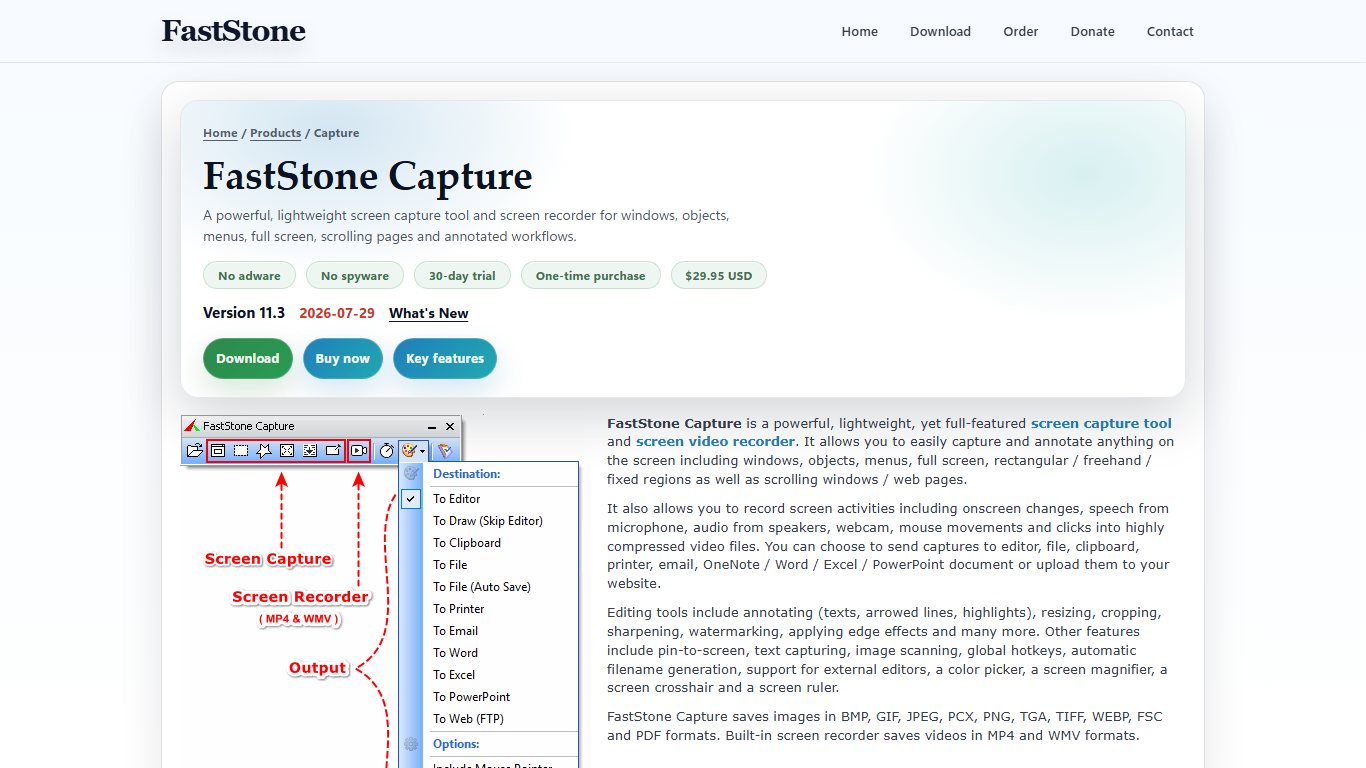
Official download: faststone.org (the FastStone Capture download page).
FastStone Capture is a small, fast utility with a floating capture toolbar. It covers active window, window or object, rectangle, freehand, full screen, scrolling window and fixed-size region captures. It also includes a screen recorder, an editor with annotations and blur, a screen magnifier, a color picker and a ruler.
Version and price: FastStone’s site lists version 11.3, released July 29, 2026. The license is lifetime with free future upgrades, and there’s a 30-day trial. FastStone’s official pages disagree on the price: one order page shows $19.95 for a single user, while another official page and some third-party listings show $29.95. Trust the price on the checkout page. A family license covers up to five home computers.
Downside: the interface looks dated, and there’s no modern cloud sharing. Some users see that as an advantage.
6. PicPick (free for personal use)
Best for: home users who want a screenshot tool bundled with design utilities.
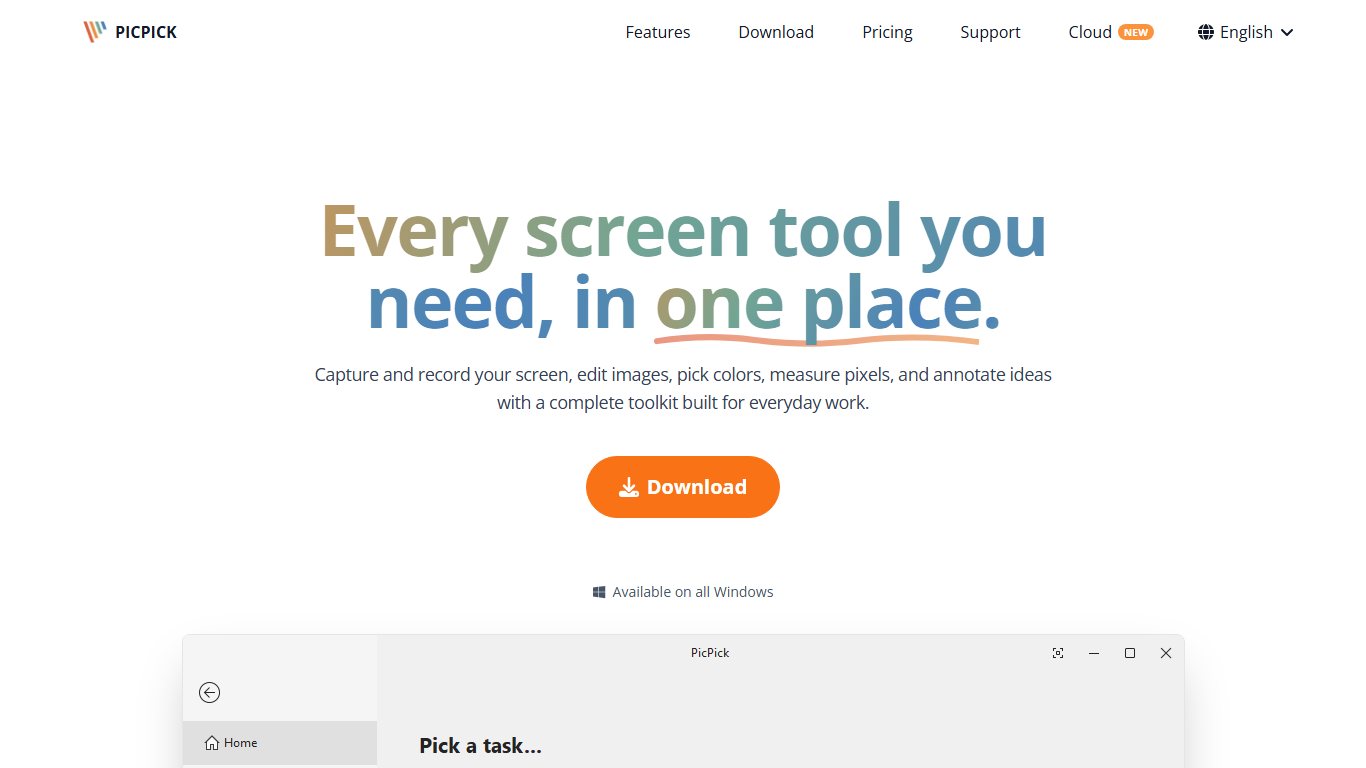
Official download: picpick.app.
PicPick combines capture modes, including scrolling capture, with an image editor, color picker, color palette, pixel ruler, protractor, crosshair, magnifier and on-screen whiteboard. Its ribbon-style interface looks like an Office app, which many beginners find familiar.
Current version: PicPick’s official update page lists 7.6.2 (October 26, 2026) as the stable release. Its notes mention improved scrolling-window capture, a Torn Edge frame style and screen recorder fixes. Version 8.0.0 is in beta, so stay on 7.6.x unless you want to test it.
License: PicPick’s official site says the free version is for personal, non-commercial use only. Work use requires the Professional license, which the official page lists at about $30 per user per year, shown as a discount from $36. Promotional prices vary by region, so check at checkout.
Downside: the free license doesn’t cover business use, and the yearly fee makes the paid version a subscription.
7. Screenpresso
Best for: documentation teams that want captures, short videos and a workspace of recent captures in one window.
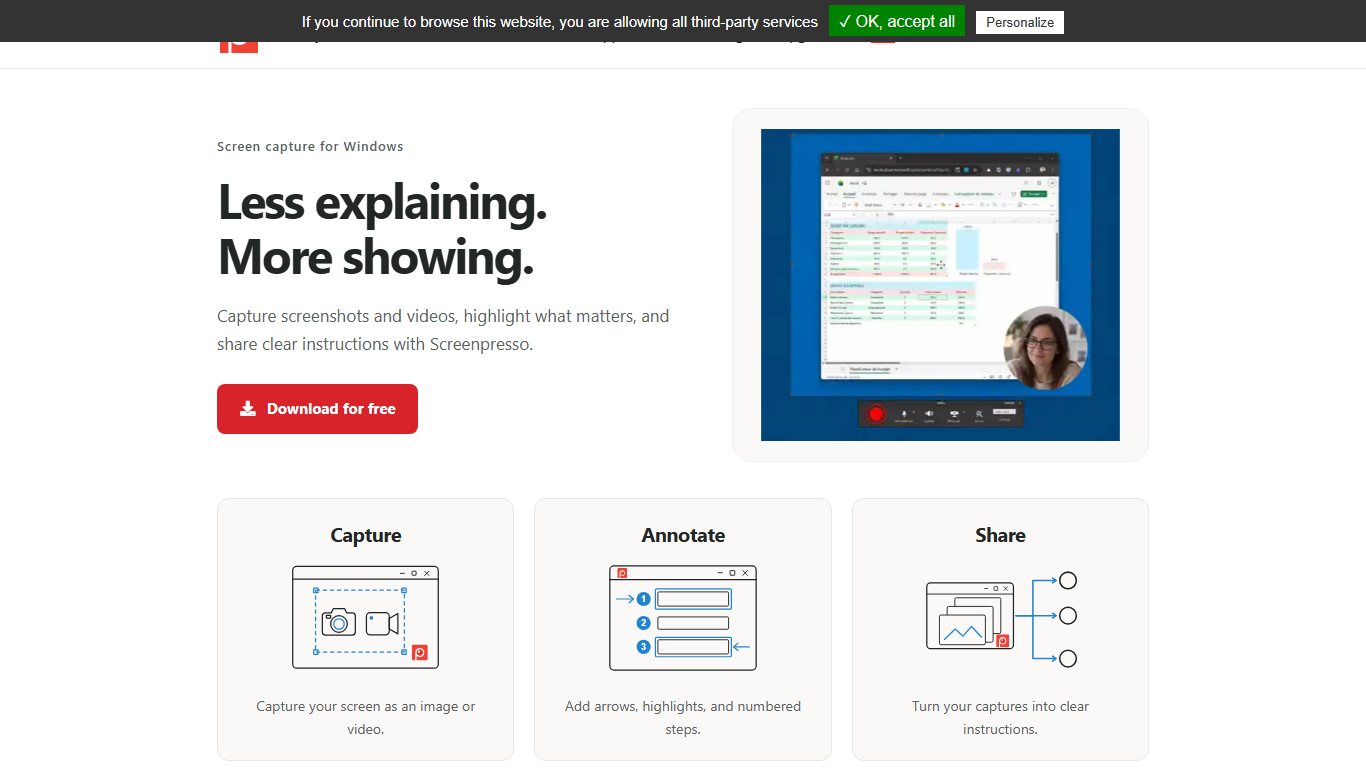
Official download: screenpresso.com.
Screenpresso keeps a filmstrip-style workspace of everything you’ve captured. It supports scrolling capture and screen recording, and its editor has numbered steps and callouts. It can also build documents from a series of captures.
Current version: Screenpresso’s official releases page lists 2.4.2.0 (November 12, 2026) as the latest stable release, with a 2.4.3.0 beta after it. The 2.2.8 release notes (March 22, 2026) say new features now require Windows 11. On Windows 10, Screenpresso is deprecated and runs only in compatibility mode. Newer builds also use Windows APIs that request permissions one feature at a time, so expect a few Windows prompts the first time you use each feature.
License: the free edition covers the basics. According to Screenpresso’s official pricing page, Pro is a one-time payment of $29.99 per user. That includes one year of updates and activation on up to five computers for one person, and the license can’t be transferred once applied. An Enterprise site license with unlimited users is $2,190 and is required for Citrix, RDS or VMware VDI deployments. All purchases have a 30-day money-back guarantee.
Downside: after the first year, you pay again if you want new versions.
8. Ashampoo Snap
Best for: people who want a Snagit-style feature set for a one-time price.
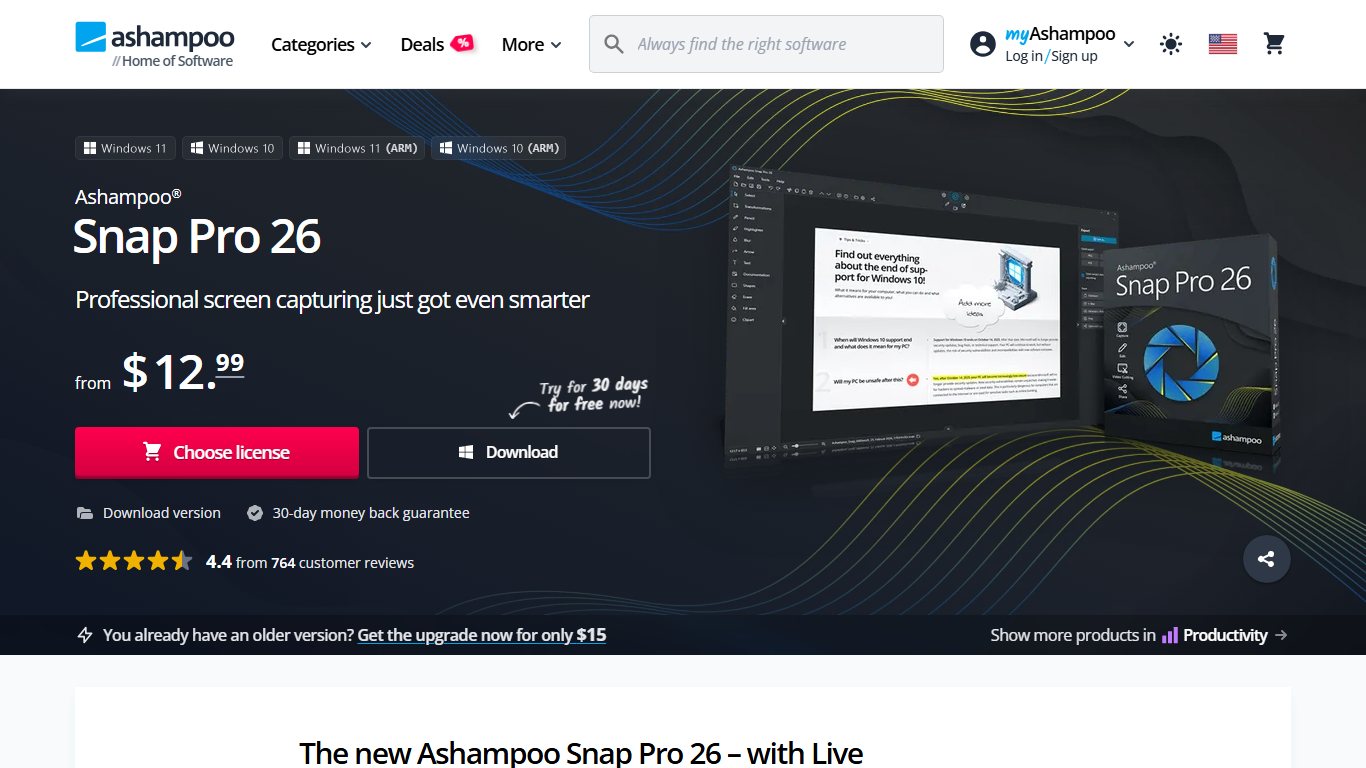
Official download: ashampoo.com (the Ashampoo Snap product page).
Ashampoo Snap 17 offers scrolling capture, video recording and text recognition, with a broad editor. Ashampoo sells it as a one-time purchase. PC-WELT gives the regular price as €39.99, but Ashampoo runs sales often, and its US store has listed it from $12.99 during promotions. Prices differ by region, so compare over a few weeks before buying.
Downside: the frequent sales make the real price hard to judge, and the installer may promote other Ashampoo products. Read each installer screen.
9. Lightshot (free)
Best for: quick, throwaway shares of images that aren’t sensitive.
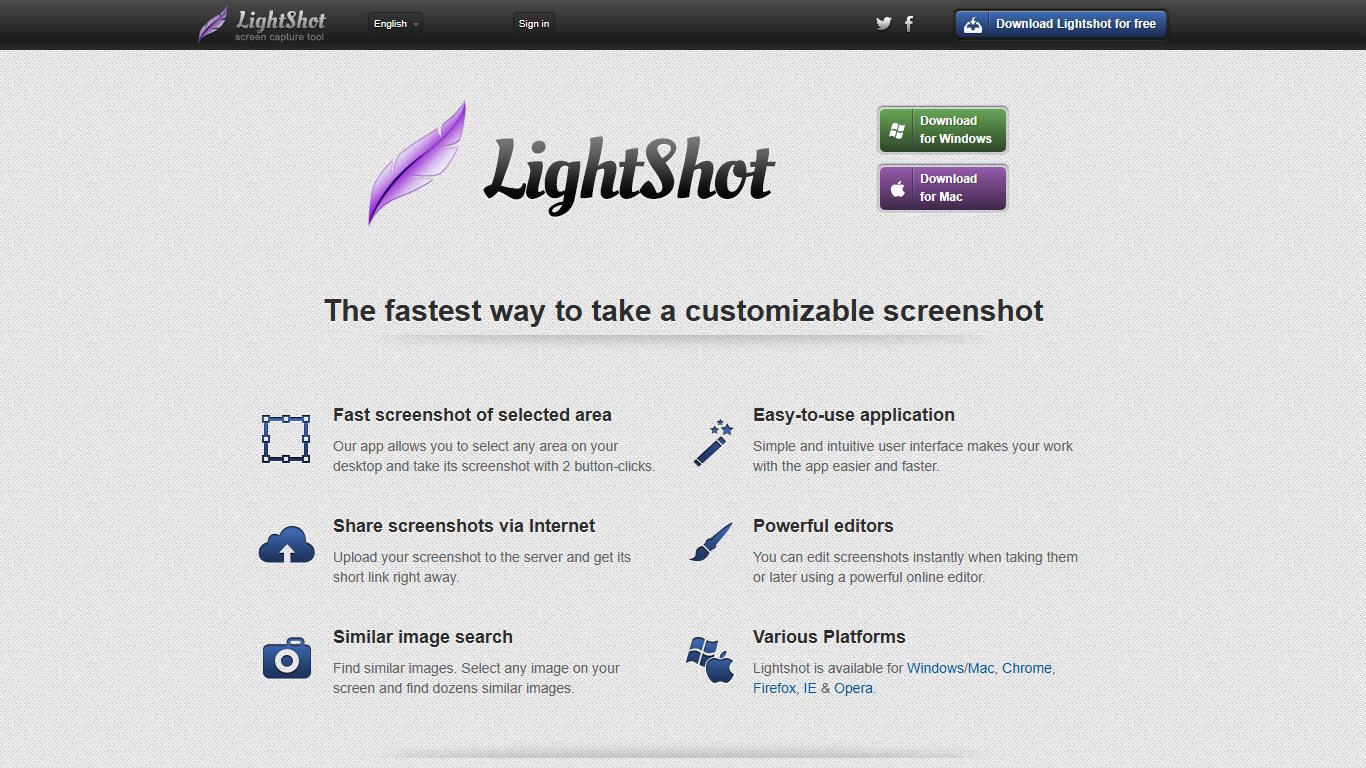
Official download: app.prntscr.com.
Lightshot is built for speed. Press PrtScn, drag a region, add an arrow or text, and click upload to get a short prnt.sc link. It has no scrolling capture, no recording and no OCR. Its current Windows version, 5.5.0.7, has not changed in years. That’s slow for a tool that sends your images to a public server.
Privacy warning: prnt.sc links are a six-character code that follows a near-sequential pattern, so anyone can guess them and browse other people’s uploads. There’s no login or access control. A WIRED investigation looked at 11,000 randomly generated prnt.sc URLs and found names, phone numbers, addresses and bank details among them. Treat anything you upload as public. If you save locally instead, the image stays on your PC. Never upload screenshots that show passwords, bank details, customer data or internal systems.
Before you start
Any tool with one-click upload (Lightshot, ShareX, Snagit, Screenpresso) can put a screenshot on the internet. Check its upload settings before you capture anything confidential.
Snagit vs Snipping Tool: is Snagit worth paying for?
For most people, no. Snipping Tool now handles basic capture, OCR, redaction, short recordings and GIFs for free. Snagit is worth $39 a year if you make visual guides or tutorials every week and care more about its editor, templates and library than about the cost.
| Feature | Snipping Tool (free) | Snagit ($39/yr) |
|---|---|---|
| Region, window, full screen, freeform | Yes | Yes |
| Delayed capture | Yes | Yes |
| Scrolling / panoramic capture | No | Yes |
| OCR (copy text) | Yes, Text Actions and Text Extractor | Yes, Grab Text |
| Auto-redact emails and phone numbers | Yes, Quick redact | Manual blur tools |
| Screen recording | Yes, Win+Shift+R (region or window) | Yes, with webcam overlay |
| GIF export | Yes, 30-second cap | Yes |
| Annotation | Pens, highlighter, shapes, Quick Markup | Callouts, Step tool, stamps, Simplify, templates |
| Capture library | Folder on disk | Searchable library with tags |
| Multi-capture templates | No | Yes |
| Price | Free | $39/yr individual, $48/user/yr business |
| License | Part of Windows | Subscription only since 2025 |
Is the subscription worth it if you used to own Snagit outright? If you have a Snagit 2024 or older perpetual license that does what you need, keep using it. It won’t stop working. Subscribe only when you need a feature or compatibility fix your version lacks.
If you’ve never owned Snagit, try the free combination first:
- Snipping Tool for daily snips.
- ShareX for scrolling capture and long recordings.
- Greenshot for step numbering.
Together, these cover most of what Snagit does. Snagit still wins on polish. If you write help-center articles for a living, its templates and Simplify tool save real hours, and $39 a year is small next to that time.
How to take a scrolling (full-page) screenshot on Windows
Snipping Tool has no scrolling capture. Use ShareX if you want a free tool, Snagit if you already pay for it, or the full-page capture built into Edge, Chrome or Firefox for web pages.
In ShareX
ShareX’s Scrolling capture scrolls the window for you and stitches the frames into one tall image.
Scrolling capture in ShareX
- Open the target window or web page and scroll to the top.
- In ShareX, choose Capture > Scrolling capture.
- Click the window or content area you want to scroll.
- Set the scroll method and delay if the page loads slowly, then click Start scrolling capture.
- Let ShareX scroll to the end, then review the stitched result.
- Click Upload/save depending on after capture settings, or copy the image.
On pages with a sticky header, ShareX may repeat the header in the stitched image. Increase the scroll delay or trim the result in the editor.
In Snagit
Snagit offers automatic scrolling arrows and a manual Panoramic mode. Open Snagit’s capture window, choose Image, and start an All-in-One capture. Hover over the window and click the scrolling arrow buttons on its edge, or use Panoramic capture to scroll manually while Snagit stitches the image. The result opens in Snagit Editor for cropping and annotation.
In your browser (no install)
For web pages, the browser you already use can capture the full page:
- Microsoft Edge: press Ctrl+Shift+S, then choose Capture full page.
- Firefox: press Ctrl+Shift+S or right-click the page and choose Take Screenshot, then Save full page.
- Chrome: open DevTools (F12), press Ctrl+Shift+P, type “full size screenshot” and choose Capture full size screenshot.
PicPick, FastStone Capture, Screenpresso and Ashampoo Snap can also capture scrolling windows, and PicPick 7.6.2 improved its version. Among free tools, ShareX is the most reliable for capturing an entire web page.
Which screenshot tool should you pick? (by job)
Pick by the job, not by the feature list. The right tool depends on how often you capture, what you do with the image, and whether you need a commercial license.
| Your situation | Best pick | Runner-up |
|---|---|---|
| Occasional screenshots at home | Snipping Tool | Greenshot |
| Support, IT and internal docs | ShareX | Greenshot |
| Tutorials, training, help-center content | Snagit | Screenpresso Pro |
| Short screen recordings and GIFs | ShareX | Snipping Tool (under 30 s) |
| Gamers | Xbox Game Bar (Win+Alt+PrtScn) | ShareX |
| Work use with no licensing questions | Greenshot or ShareX | Snagit Business |
| No subscriptions, ever | FastStone Capture | Screenpresso Pro |
| Still on Windows 10 | ShareX or Greenshot | FastStone Capture |
| Windows 7 or older PCs | Upgrade the OS | Greenshot (check support notes) |
Occasional users should stick with Win+Shift+S and Win+PrtScn. Installing anything else just adds another update to remember.
Support and IT staff get the most from ShareX’s after-capture tasks. One hotkey can capture, redact and save to a ticket folder, and setting it up pays off within days. If colleagues find ShareX overwhelming, standardize on Greenshot.
Tutorial makers should look at Snagit first and Screenpresso second. Screenpresso’s one-time $29.99 Pro license suits freelancers who don’t want a subscription, as long as they’re on Windows 11.
Gamers should use Xbox Game Bar (Win+G) in games. ShareX’s region capture can conflict with exclusive full-screen modes. If you record an HDR display outside games, ShareX 22.4.0’s tone mapping gives more accurate colors.
Businesses need a clear license. ShareX and Greenshot are open source under the GPL, so they’re free to use at work. Snipping Tool comes with Windows. PicPick’s free edition isn’t licensed for business use, so you’d need its Professional plan. Snagit Business seats can be reassigned when staff leave, which the Individual plan doesn’t allow. That makes Greenshot and ShareX the simplest choices for work use.
Windows 10 users get the least from built-in tools. Text Actions and Win+Shift+R recording are documented as Windows 11 features, and Screenpresso now runs only in compatibility mode there. ShareX and Greenshot still support Windows 10.
Old PCs: ShareX 18.0 dropped Windows 7, and Windows 10 itself is out of support. The bigger risk isn’t the screenshot tool, it’s the unsupported OS. Plan an upgrade rather than hunting for old installers.
Pro tip
If ShareX or Greenshot slows down startup, open Task Manager > Startup apps, right-click it and choose Disable. You can still launch it from the Start menu when you need it.
Tools to skip in 2026
Skip TechSmith Capture and Jing, outdated Greenshot builds, and installers from mirror or “free download” sites. The first two are retired, and the others are security risks.
- TechSmith Capture and Jing. TechSmith’s own retirement page says TechSmith Capture is retired and no longer supported on Windows or Mac. TechSmith recommends Snagit, or Camtasia Online as a free browser-based option. Some roundups still list it as a current free tool.
- Greenshot older than 1.3.315. Update to the current 1.3.x stable release from the official site.
- Mirror downloads and “cracked” builds. Download each tool only from the official sources listed in its section above. Bundled installers from download portals are a common way malware gets in, and cracked copies of paid tools like Snagit are a frequent culprit. Any site offering a “pre-activated” or “full version” Snagit is distributing pirated software. Close the page.
- Unmaintained browser extensions. Screenshot extensions often ask for permission to read every page you visit. Use your browser’s built-in capture instead.
Did you know?
According to TechSmith, Jing was retired because it saved videos as Flash .SWF files, which stopped working when Flash reached end of life. Its replacement, TechSmith Capture, has since been retired too.
What replaced Jing and TechSmith Capture? For free quick capture and short recordings, Snipping Tool or ShareX. On TechSmith’s paid side, Snagit. For quick browser-based video, Camtasia Online.
The bottom line
Use Win+Shift+S and Text Actions for a week before you install anything. If you then need full web pages in one image, automatic file naming, or videos longer than 30 seconds, install ShareX from getsharex.com or its GitHub releases page. Change its upload setting before your first capture. Pay for Snagit only when polished guides are part of your job.
FAQ
Is Snagit better than the Windows Snipping Tool?
For heavy, professional use, yes. Snagit adds reliable scrolling capture, webcam recording, templates, a searchable library and a much richer editor. For quick snips, OCR and short GIFs, Snipping Tool does the job for free, and most home users don’t need Snagit.
What are the shortcuts to take a screenshot on Windows?
Win+Shift+S captures an area you choose. PrtScn copies the whole screen. Win+PrtScn saves the whole screen to Pictures\Screenshots. Alt+PrtScn copies the active window. On Windows 11, Win+Shift+R records the screen, and Win+Alt+PrtScn captures a game through Xbox Game Bar.
How do I take a screenshot on Windows without the Snipping Tool?
Press Win+PrtScn to save a full-screen file, or press PrtScn or Alt+PrtScn and paste with Ctrl+V. Xbox Game Bar (Win+G) also takes screenshots. For more features, install ShareX or Greenshot from their official sites.
How do I find my screenshots on a Windows PC?
Open File Explorer and go to Pictures\Screenshots. If OneDrive backs up your Pictures folder, check OneDrive\Pictures\Screenshots. Plain PrtScn and Alt+PrtScn captures exist only on the clipboard until you paste them. If Clipboard history is on, press Win+V to see recent ones.
What is the best free screenshot tool for Windows 11?
ShareX is the most capable free tool, with scrolling capture, OCR, recording and automation. Greenshot is the best simple free option. Snipping Tool is best if you don’t want to install anything.
What version of Snipping Tool do I have?
Open Snipping Tool, click See more (three dots) > Settings, and check About this app. Builds follow an 11.YYMM pattern, and the one released with the Windows 11 November 2025 Update is 11.2511.31.0 (January 15, 2026). If your number is lower, open Microsoft Store > Library and click Get updates.
Did Microsoft remove Copilot from Snipping Tool?
Yes. Microsoft said in March 2026 that it would cut unnecessary Copilot entry points, and Windows Latest reported in April 2026 that the Copilot button was gone from production Snipping Tool builds. Text Actions, recording and the other capture features still work.
Can Snipping Tool take a scrolling screenshot?
No. Snipping Tool has no scrolling capture. Use ShareX’s Scrolling capture, Snagit’s scrolling or panoramic capture, or the full-page capture in Edge, Chrome or Firefox.
Can Snipping Tool record my screen with audio, or make a GIF?
Yes, on Windows 11. Press Win+Shift+R to record a region or a single window with microphone and system audio. Use Export GIF to make an animated GIF in low or high quality. GIFs keep only the first 30 seconds of a recording.
Is ShareX safe to use?
Yes, if you download it from getsharex.com, its GitHub releases page, Steam or the Microsoft Store. It’s open source and actively maintained, with 22.4.0 (November 8, 2026) as the current stable release. Its upload features can make images public, so check the after-capture tasks before you capture anything private.
Is Lightshot safe to use?
The app is fine for local saves, but anything you upload to prnt.sc is effectively public. The short links follow a guessable pattern with no access control, and WIRED found personal and financial details by sampling 11,000 random links. Save sensitive captures locally or use a tool that doesn’t upload.
Is Snagit a one-time purchase?
Not anymore. Since the 2025 release, Snagit is sold only as an annual subscription: $39 a year for individuals or $48 per user a year for Business, with volume pricing from 10 seats. Perpetual licenses for Snagit 2024 and earlier still work but get no updates.
How do I copy text from a screenshot on Windows?
Take a snip with Win+Shift+S, open it in Snipping Tool, and click Text Actions. Choose Copy all text, or select part of the text and copy it. The same panel’s Quick redact hides email addresses and phone numbers before you share the image. ShareX and Snagit also have built-in OCR.











