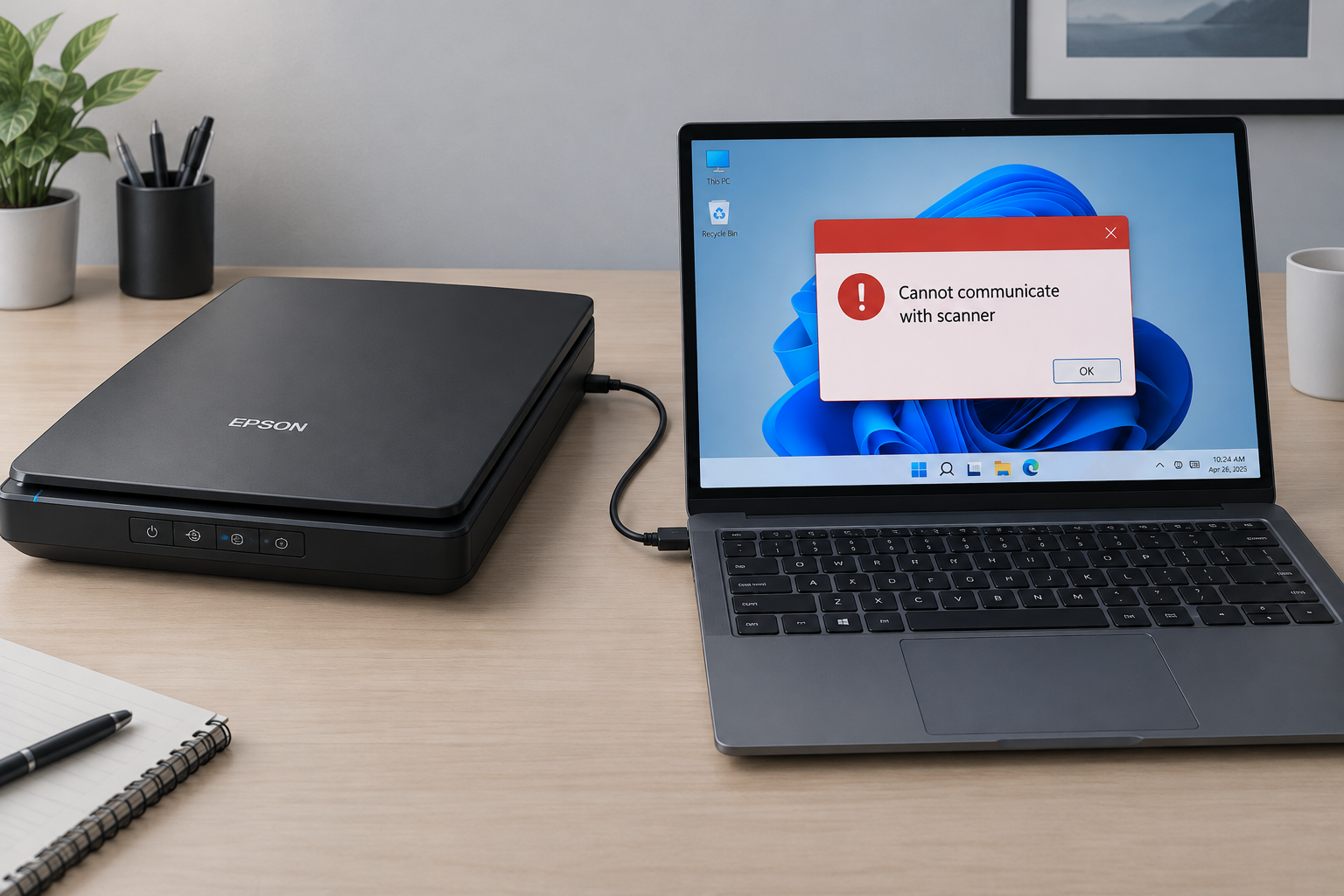
The “0x0 0x0” message isn’t a single Windows error with one fix. It’s a generic code, usually caused by damaged system files, a faulty driver, malware or a clash between programs. To fix it on Windows 11 (current version 26H2) or Windows 10, install all updates, run Microsoft’s built-in DISM and SFC repair tools, scan with Microsoft Defender, and reinstall your graphics driver from an official source. Don’t download “PC repair” apps that pop-up ads push on you. Two of the best-known ones were the subject of a $26 million FTC settlement in 2024.
The 0x0 0x0 code shows up when something goes wrong inside Windows, and the code alone doesn’t tell you what. That’s why it can feel alarming: it may appear in several places at once, and the message gives no clear cause. In most cases the problem is in Windows itself or in software running on it, and you can fix it with free tools that come with Windows.
What the 0x0 0x0 Error Means
The error is common, so there’s no need to panic. In programming, “0x0” is the hexadecimal way of writing zero, so the code carries almost no information of its own. It doesn’t point to one specific Windows fault. It tells you something failed and returned an empty or zero value.
Because it has many possible causes, it also has several reliable fixes. The steps below run from the quickest and safest to the most involved. Try them in order and check after each one whether the error is gone.
Check your Windows version first, because it decides which updates you can still get. Windows 10 reached end of support on October 14, 2025. Home and Pro PCs on Windows 10 version 22H2 can still get security fixes through Microsoft’s consumer Extended Security Updates (ESU) program, which now runs until October 12, 2027. On Windows 11, version 26H2 (the Windows 11 2026 Update) is the latest release. Microsoft began rolling it out on September 29, 2026.
What Causes 0x0 0x0 Errors?
The error almost always comes from one of a small number of problems. These are the most common:
- Deleted or damaged system files. Important Windows files may have been removed by accident or corrupted.
- Outdated or unsupported antivirus software. A security program its vendor no longer supports can interfere with Windows.
- Graphics driver problems. A faulty or mismatched display driver is a frequent cause.
- Improper shutdowns. Cutting the power or forcing the PC off during an update or file write can corrupt data.
- Malware or a virus infection.
- Bad installs or uninstalls. Software that was installed or removed incorrectly can leave broken files and settings behind.
- Conflicting background programs. Two programs fighting over the same resources can trigger the error.
Ways to Fix the 0x0 0x0 Error Now
You can fix 0x0 0x0 errors yourself. If you’d rather not, a reputable local repair shop or the support line of your PC maker can do it. If you’d like to do it yourself, follow the steps below, starting at number 1. Back up important files to an external drive or OneDrive before you change drivers or system files.
1. Skip Reimage Plus and Run DISM and SFC Instead
Older guides told you to install a program called Reimage Plus, run its scan and click “Fix All.” Don’t. In March 2024 the US Federal Trade Commission (FTC) settled with Restoro Cyprus Limited and Reimage Cyprus Limited. The two companies agreed to pay $26 million over charges that they used fake Windows pop-ups and “scans” to scare people into paying for repairs they didn’t need. The FTC said those scans reported serious problems whether or not any existed. It later announced refunds of more than $25.5 million to people who were misled.
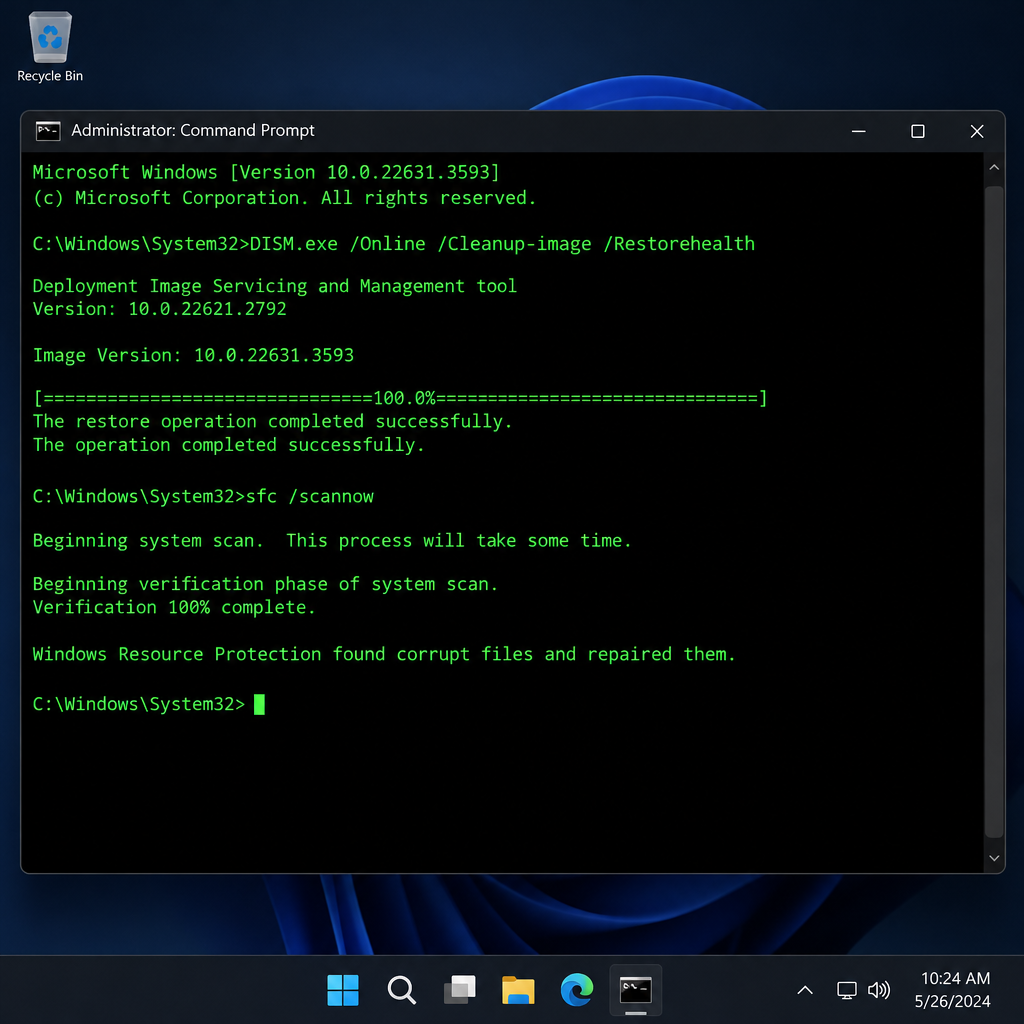
Windows already includes free tools that do the real job. DISM (Deployment Image Servicing and Management) repairs the store of files Windows uses for repairs. SFC (System File Checker) then checks your system files and replaces any damaged ones.
- Click Start and type cmd.
- Right-click Command Prompt and choose Run as administrator. On Windows 11 you can also right-click Start and choose Terminal (Admin).
- Type
DISM.exe /Online /Cleanup-image /Restorehealthand press Enter. This can take several minutes to start and finish, and it needs an internet connection. - When it finishes, type
sfc /scannow(note the space before the slash) and press Enter. - Wait until verification reaches 100%, then restart your PC.
If SFC says it found corrupt files and repaired them, check whether the error still appears. If SFC says it couldn’t repair some files, run both commands one more time and restart. Also check Error Code 405 Method Not Allowed
2. Update Windows and Your Antivirus
Missing updates and malware are two of the most common causes of runtime errors like this one, so deal with both early.
Update Windows:
- On Windows 11, open Settings > Windows Update and click Check for updates.
- On Windows 10, open Settings > Update & Security > Windows Update and click Check for updates.
- Install everything offered and restart, even if Windows doesn’t ask you to.
Run a full virus scan with Microsoft Defender:
- Open Windows Security from the Start menu.
- Go to Virus & threat protection.
- Under Current threats, click Scan options.
- Choose Full scan and click Scan now.
A full scan checks every file on your fixed drives, so it can take hours on a large drive. Let it finish. If you use a different antivirus product, update it first and run its full scan instead. If that product is no longer supported by its vendor, uninstall it through Settings > Apps > Installed apps and let Microsoft Defender take over.
3. Run Disk Cleanup
Clearing junk files frees space and removes leftover temporary and update files that can cause trouble. On its own it rarely fixes the error, but it’s quick and safe, and it gives Windows room to work.
- On Windows 11, open Settings > System > Storage > Cleanup recommendations, review the list and click Clean up.
- For the classic tool on Windows 10 or 11, click Start, type Disk Cleanup and open it.
- Choose drive C: and click OK.
- Click Clean up system files to include old update files, tick the boxes you want and click OK.
Check the Downloads box carefully before you clean. It deletes everything in your Downloads folder.
4. Reinstall the Graphics Driver
A faulty graphics driver is one of the main causes of the 0x0 0x0 error. You can remove the driver in Device Manager, restart, and then install a clean copy.
- Right-click Start (or press Windows key + X) and choose Device Manager.
- Expand Display adapters.
- Right-click your graphics card and choose Uninstall device.
- Tick Attempt to remove the driver for this device if it appears, then click Uninstall.
- Restart your PC. Windows will load a basic display driver.
- Run Windows Update again, or get the latest driver from your PC maker or from NVIDIA, AMD or Intel’s official websites.
Your screen may look low resolution between steps 5 and 6. That’s normal. Only ever download drivers from Windows Update, your PC maker or the chip maker’s own site, never from “driver updater” sites.
5. Close Conflicting Programs
Too many background apps can cause the error, and so can two programs that clash with each other. Task Manager shows you everything that’s running.
- Press Ctrl + Shift + Esc to open Task Manager.
- On the Processes tab, select apps you don’t need right now and click End task, one at a time.
- Open the Startup apps page and disable programs you don’t need at sign-in.
- Restart and see whether the error comes back.
If it keeps happening, do a clean boot to find the culprit. Press Windows key + R, type msconfig and press Enter. On the Services tab, tick Hide all Microsoft services, click Disable all, then restart. If the error disappears, turn services back on a few at a time until it returns. The last group you turned on contains the conflicting program. Return to msconfig afterwards and choose Normal startup when you’re done.
Final Words
If none of these fixes work, Windows 11 can reinstall itself without touching your files or apps. Go to Settings > System > Recovery and use Fix problems using Windows Update. If the error still appears after that, or if it started after a hardware change, contact Microsoft Support or your PC maker. Never call a phone number shown in a pop-up warning. Microsoft doesn’t put support numbers in error messages.
FAQ
1. 0x0 @ 0x196f2f0: What Does It Mean?
The “0x0” part is zero or NULL written in hexadecimal, depending on whether the program expected a number or a pointer. The “@ 0x196f2f0” part is the memory address where that value was stored. Together they mean a program read an empty value at that address, which usually points to a bug or a damaged file in that program. Related guide: How To Fixed Discord Mic Not Working Error
2. Is the Number 0x0 Hexadecimal?
Yes. The “0x” prefix marks a hexadecimal number. Hexadecimal uses sixteen symbols (0 to 9 and A to F) instead of the ten digits of the decimal system, and 0x0 equals plain zero.
3. Is the 0x0 0x0 error a virus?
The code itself isn’t a virus, but malware is one possible cause. Run a full Microsoft Defender scan to rule it out. Be wary of web pages or pop-ups that show this code and claim your PC is infected. That’s a common tactic used to sell fake repair software.
4. Are PC repair tools like Reimage or Restoro safe to use?
They aren’t needed, and you should avoid them. In 2024 the FTC charged Restoro and Reimage with using fake scans and scare tactics, and the companies paid $26 million to settle. DISM, SFC and Microsoft Defender are free, built into Windows and do the real repair work.
5. Can the 0x0 0x0 error be fixed permanently?
Usually, yes, once you fix the actual cause, such as a damaged system file or a bad driver. Keeping Windows and your drivers updated and always shutting down properly stops most repeat cases. If it keeps coming back after a full Windows reinstall, suspect a hardware fault and have the PC checked.
6. Does this error happen more on Windows 10 now that support has ended?
Windows 10 lost free mainstream support on October 14, 2025, so PCs that aren’t enrolled in ESU no longer get security fixes, and that raises the malware risk. Enrolled 22H2 PCs get security updates until October 12, 2027. Upgrading to Windows 11 is the long-term fix if your PC meets the requirements.
Sources
- FTC: Tech support firms will pay $26 million to settle FTC charges
- Microsoft Support: Use System File Checker
- Microsoft Learn: Windows 11 release information
- Windows Experience Blog: How to get the Windows 11 2026 Update
- Microsoft Learn: Microsoft Defender Antivirus full scan best practices