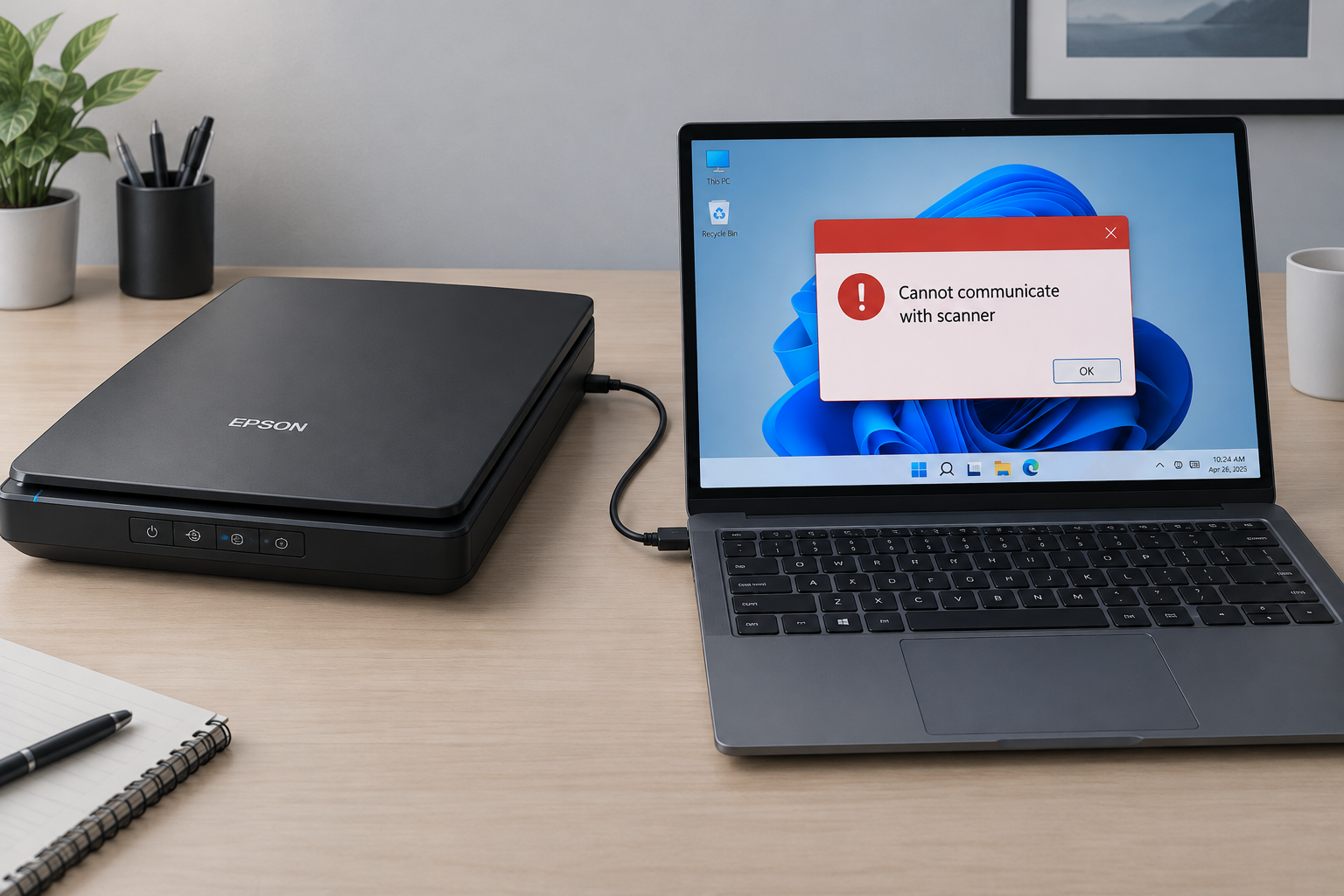
In most cases you only need to find the program that triggers the error and update it. The message “A fatal error occurred while creating a TLS client credential. The internal error state is 10013” is Schannel Event ID 36871. Windows logs it when a program asks for a TLS version that is switched off on your PC, which is usually TLS 1.0 or 1.1. If nothing on your PC is broken, you can leave it alone. If an app has stopped connecting, update that app first and confirm TLS 1.2 is on. Turn the old protocols back on only as a temporary last resort.
Computer problems are harder to diagnose when the on-screen message is vague and doesn’t say what actually went wrong. This TLS client credential error is a good example. It usually shows up in Event Viewer, not as a pop-up, and the text gives you almost nothing to work with.
Where this error shows up
This guide covers every common fix for internal error state 10013, ordered from the safest change to the most involved.
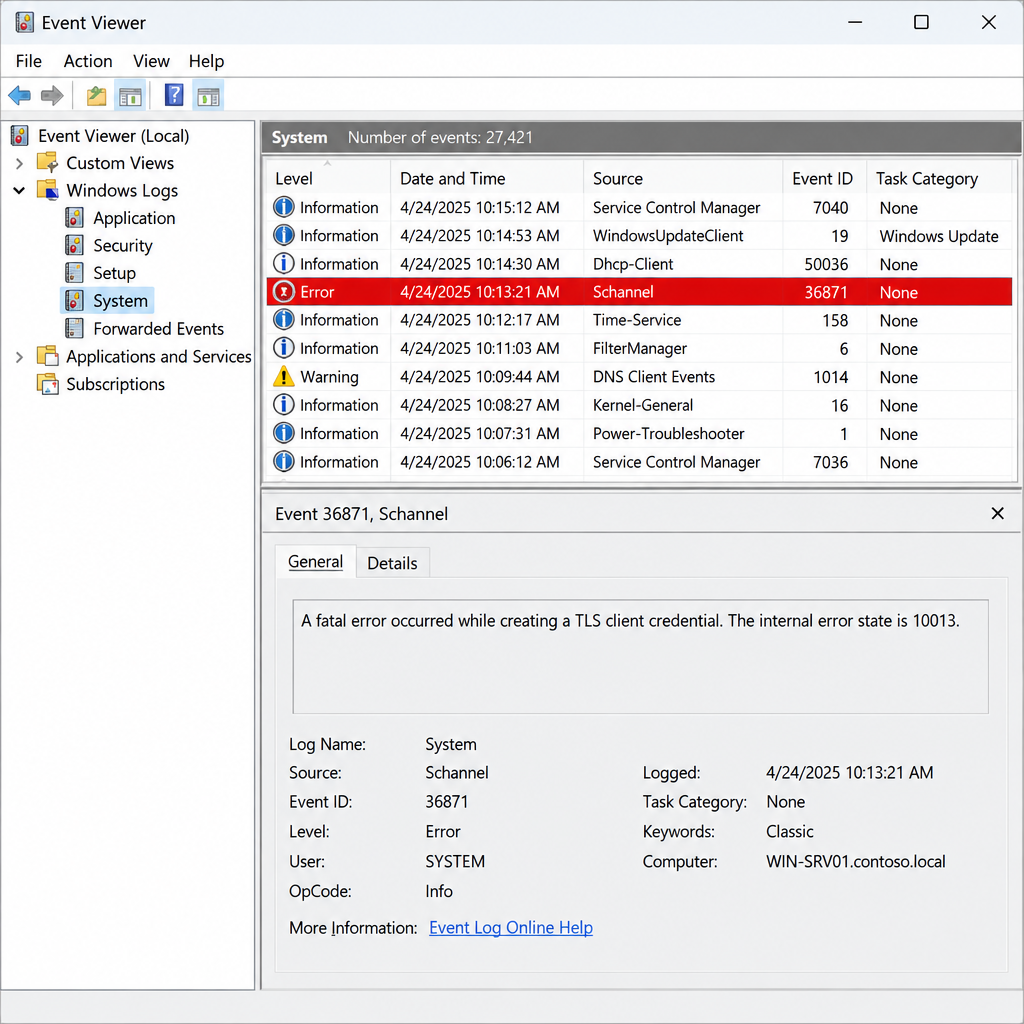
The error appears on Windows 10 and Windows 11, and it also shows up on Windows Server. The usual cause is a mismatch between the protocols a program asks for and the ones Windows allows. Most often an older program wants TLS 1.0 or TLS 1.1, and those versions are disabled. The full entry looks like this:
“A fatal error occurred while creating a TLS client credential. The internal error state is 10013.”
To see it, open Event Viewer and go to Windows Logs > System. Look for entries with the source Schannel and Event ID 36871. Schannel is the Windows component that handles TLS and SSL connections for apps that use it.
What the TLS client fatal error means
Before changing any settings, it helps to know what TLS is and what this error is reporting. TLS stands for Transport Layer Security. It is the encryption layer that protects the connection between a client (your PC or an app on it) and a server. During a TLS connection, the server presents its certificate and the client checks it to confirm the server is genuine. Both sides then agree on a TLS version and a set of ciphers to encrypt the traffic.
Event 36871 happens a step earlier. Before connecting, a program asks Schannel to build a “client credential” for the TLS versions and settings it wants. If none of those versions are allowed on the machine, Schannel can’t build the credential and logs the fatal error with internal state 10013. The program never reaches the server.
The most likely reason is an older program that only knows TLS 1.0 or TLS 1.1. Microsoft deprecated both versions because of known weaknesses. In August 2023 it announced that they would be disabled by default, starting with Windows 11 Insider Preview builds in September 2023 and continuing in future Windows releases. Microsoft also said that Microsoft 365 and the WinHTTP and WinINet APIs had already disabled them. Windows 11 uses TLS 1.2 and TLS 1.3 instead, which these older programs can’t speak. Microsoft’s own guidance tells admins to look for Event ID 36871 to find apps that break because of this change.
The event is not always tied to a visible problem. Microsoft’s community forums have many threads from Windows 10 and Windows 11 users who see 36871 at every startup while everything works normally. Support forums have also reported the event from software such as Qlik Sense, Microsoft Excel on Windows Server 2016 and SCOM 2019 management servers.
Find what is triggering the error first
This step costs nothing and changes nothing. Ask yourself whether anything is actually broken. If every app connects and the only symptom is a red entry in Event Viewer, you don’t need to weaken your security settings.
If an app has stopped working:
- Note the exact time the app fails.
- Open Event Viewer > Windows Logs > System, click Filter Current Log and enter 36871 in the Event IDs box.
- Check that the errors appear at the same moment the app fails.
- Update that app to its latest version. Microsoft says this is the first step for any app that breaks after TLS 1.0 and 1.1 are disabled, because current versions support TLS 1.2 or TLS 1.3.
- If no update exists, contact the vendor before trying Fix 1 or Fix 4 below.
Microsoft’s own list of software known to break includes Safari 5.1.7, EVault Data Protection 7.01.6125 and SQL Server 2012, 2014 and 2016. Microsoft says the list is not complete.
Four ways to fix the fatal error
Once you know which app is affected, these four fixes cover the common causes. Fixes 2 and 3 turn on TLS 1.2, which is safe. Fixes 1 and 4 turn the deprecated protocols back on, which should only be temporary.
1. Allow TLS 1.0/1.1 using Internet Properties
This fix turns TLS 1.0 and TLS 1.1 back on for apps that use the Windows internet settings. Microsoft describes re-enabling these protocols as a last resort and a temporary solution until the app can be updated or replaced. Use it only for a specific app that has no update, and switch the protocols off again once you can.
Follow these steps to enable TLS 1.0/1.1:
- In the taskbar search box, type Internet Options and open it. You can also press Windows + R and run inetcpl.cpl.
- The Internet Properties window opens.
- Go to the Advanced tab and scroll down to the Security section.
- Tick Use TLS 1.0 and Use TLS 1.1. Leave Use TLS 1.2 and Use TLS 1.3 ticked.
- Click Apply, then OK.
Restart your PC so the change takes effect, then check whether the app connects and whether new 36871 errors still appear.
The opposite can also work. One administrator found that 36871 errors from Excel on Windows Server 2016 stopped after they unticked Use TLS 1.0 and Use TLS 1.1 here and rebooted. If those boxes are already ticked on your PC, try clearing them first.
2. Change values in the Registry
If the error continues, make sure TLS 1.2 isn’t switched off in the registry. Windows 10 and Windows 11 enable TLS 1.2 by default, but some security tools, old scripts and hardening guides change it. This fix restores the standard values.
Back up the registry before you start. In Registry Editor, select File > Export and save a copy. Microsoft warns that Registry Editor doesn’t validate values, so a typo is saved exactly as you type it.
- Press Windows + R to open the Run box.
- Type regedit and press Enter. Click Yes when User Account Control asks for permission.
- In Registry Editor, go to this path: HKEY_LOCAL_MACHINE\SYSTEM\CurrentControlSet\Control\SecurityProviders\SCHANNEL\Protocols
- Check whether a TLS 1.2 key already exists under Protocols. If it doesn’t, right-click Protocols, select New > Key and name it TLS 1.2.
- Right-click TLS 1.2, select New > Key and name it Client.
- Right-click Client, select New > DWORD (32-bit) Value and name it DisabledByDefault.
- Double-click it and set its Value data to 0.
- Right-click Client again, select New > DWORD (32-bit) Value and name it Enabled.
- Double-click it and set its Value data to 1.
- Click OK and close Registry Editor.
When you’re done, restart your PC. If a disabled TLS 1.2 was the cause, the error stops.
The same steps fix other registry-related Windows problems. If you also see a different cryptic code, the guide How To Fix 0x0 0x0 Error Permanently covers a common one.
3. Use a PowerShell script
This does the same thing as Fix 2 in one go. It also tells apps built on.NET Framework 4.x to use the TLS versions Windows allows, so they don’t fall back to old defaults. Microsoft recommends letting apps take their TLS version from the operating system rather than hard-coding one. The two.NET values below, SystemDefaultTlsVersions and SchUseStrongCrypto, do exactly that.
Don’t download ready-made “.ps1” files from file-sharing sites. Paste the script yourself so you can see what it changes.
- Search for PowerShell ISE in the Start menu, right-click it and choose Run as administrator.
- Click File > New and paste this script into the top pane:
$tls = 'HKLM:\SYSTEM\CurrentControlSet\Control\SecurityProviders\SCHANNEL\Protocols\TLS 1.2\Client'
if (-not (Test-Path $tls)) { New-Item -Path $tls -Force | Out-Null }
New-ItemProperty -Path $tls -Name 'Enabled' -Value 1 -PropertyType DWord -Force | Out-Null
New-ItemProperty -Path $tls -Name 'DisabledByDefault' -Value 0 -PropertyType DWord -Force | Out-Null

$net = 'HKLM:\SOFTWARE\Microsoft\.NETFramework\v4.0.30319',
 'HKLM:\SOFTWARE\WOW6432Node\Microsoft\.NETFramework\v4.0.30319'
foreach ($path in $net) {
 if (Test-Path $path) {
 New-ItemProperty -Path $path -Name 'SystemDefaultTlsVersions' -Value 1 -PropertyType DWord -Force | Out-Null
 New-ItemProperty -Path $path -Name 'SchUseStrongCrypto' -Value 1 -PropertyType DWord -Force | Out-Null
 }
}
Write-Output 'TLS 1.2 client and.NET settings applied. Restart the PC.'
- Press F5 or click the green Run Script button.
- Restart your PC.
After the restart, check Event Viewer for new Event ID 36871 entries. If none appear when you use the affected app, the fix worked.
4. Allow TLS protocols that are no longer in use with IIS Crypto
IIS Crypto is a free tool from Nartac Software that switches Schannel protocols, ciphers and hashes on and off. It is built mainly for Windows Server and is popular with administrators. The current release is version 4.0 Build 18, released on February 13, 2025, which added Windows Server 2025 support. It needs.NET Framework 4.6.2 or later. Download it only from Nartac’s official website.
Here’s how to use it:
- Download the IIS Crypto GUI version from nartac.com.
- Double-click IISCrypto.exe to launch it. It needs administrator rights.
- The app opens on the Schannel tab.
- You’ll see two lists, Server Protocols and Client Protocols. Tick TLS 1.0 and TLS 1.1 only in the lists the affected app needs, then click Apply.
- Restart the PC so the change takes effect.
Like Fix 1, this reopens deprecated protocols on the whole machine. Undo it once the app is updated. IIS Crypto’s Best Practices button resets the protocols to a modern configuration.
If nothing works
If 36871 keeps appearing after these fixes and nothing is broken, you can safely stop. Forum threads on Microsoft’s community site describe the same boot-time errors on fully working Windows 10 and Windows 11 PCs, and no official fix has been published for that case. Note that Windows 10 reached end of support on October 14, 2025. Moving to Windows 11 or joining Extended Security Updates matters more than chasing a harmless log entry.
If a business app still fails, contact its vendor and ask for a version that supports TLS 1.2 or TLS 1.3. For work PCs, talk to your IT team before changing Schannel settings, because these policies are often managed centrally. If the PC is also crashing or restarting, that is a different problem. See How To Fix the Blue Screen Error on Windows.
FAQ
What is internal error 10013?
In this Schannel event, 10013 means Windows refused to build the TLS credential a program asked for. This usually happens because the program asked for a TLS version or setting that is disabled on the PC. The program never gets as far as contacting the server. Check your TLS settings in Internet Options and the SCHANNEL registry key, and check which app was running when the error was logged.
Why am I getting a TLS error?
A TLS error means a secure connection between your PC and a server failed. With Event 36871 the failure happens on your PC, before the connection starts. Old software that only supports TLS 1.0 or 1.1 is the most common cause, followed by security tools or scripts that have disabled TLS 1.2.
How do I know if TLS 1.2 is enabled?
Type Internet Options in the taskbar search box and open it. On the Advanced tab, scroll to the Security section and check that Use TLS 1.2 is ticked. If it isn’t ticked, TLS 1.2 is disabled for apps that use these settings. For a full check, look at HKEY_LOCAL_MACHINE\SYSTEM\CurrentControlSet\Control\SecurityProviders\SCHANNEL\Protocols\TLS 1.2\Client. If Enabled is set to 0 there, TLS 1.2 is turned off system-wide.
What are TLS client credentials?
A TLS client credential is the package of settings Schannel prepares for a program before it opens a secure connection. It includes which TLS versions and ciphers the program may use, and sometimes a client certificate. TLS itself keeps traffic between the client and the server private. The server proves its identity with its certificate, which the client checks before trusting it.
Is Event ID 36871 safe to ignore?
If every app on your PC connects normally, yes. In that case it is a log entry, not a fault, and many fully working Windows 10 and 11 PCs log it at startup. If it lines up with an app that fails to connect, treat it as a sign that the app needs updating.
Is it dangerous to turn TLS 1.0 and 1.1 back on?
It weakens your security, which is why Microsoft calls it a temporary last resort. Both protocols have known weaknesses, and Microsoft may remove them from Windows entirely in the future. Turn them on only for an app that has no other option, and turn them off again once the vendor ships an update.
Sources
- Microsoft Windows IT Pro Blog: TLS 1.0 and TLS 1.1 soon to be disabled in Windows
- Microsoft Learn: Resources for deprecated features in Windows
- Microsoft Learn: Transport Layer Security (TLS) registry settings
- Nartac Software: IIS Crypto download
- Qlik Support: A fatal error occurred while creating a TLS client credential