
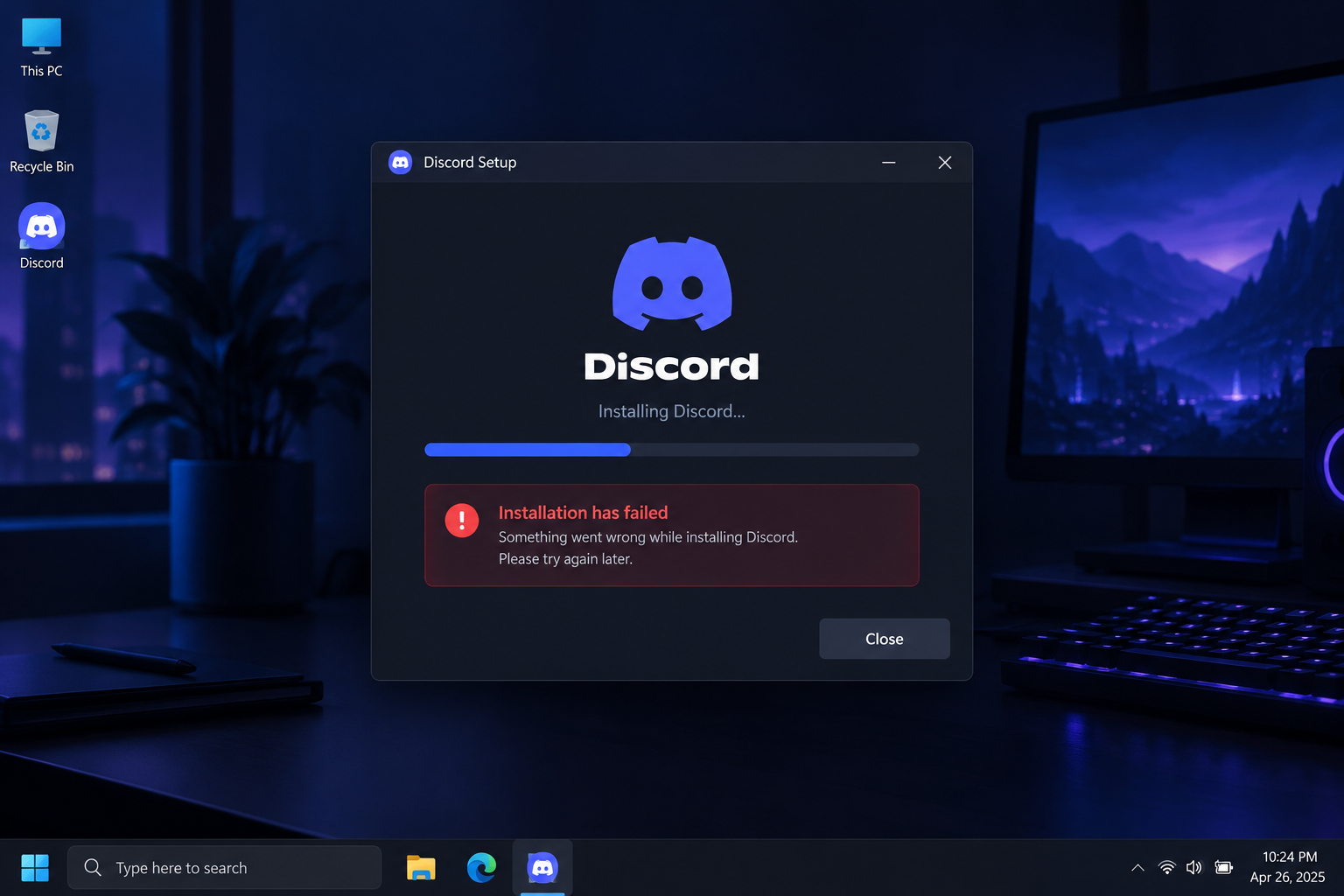
The Discord “Installation has failed” error usually comes from leftover files of an earlier install, or from a Discord process that is still running in the background. The quickest fix works on both Windows 11 and Windows 10. End every Discord process in Task Manager, uninstall Discord, delete the Discord folders in %AppData% and %LocalAppData%, restart, and run a freshly downloaded installer. Discord’s Windows app now needs a 64-bit edition of Windows 10 or Windows 11. On Windows 7, 8 or 8.1, it won’t install no matter what you try.
If you play online PC games, you probably know Discord already. It works a bit like Skype for gamers. Players use it to coordinate on private servers, with text chat, voice chat and video. Over the years it has grown into one of the most installed chat apps on Windows.
Like any program, though, Discord can break. A common complaint is “Discord won’t install on my PC,” and it comes up often. Usually the setup window shows the “Installation has failed” message while you are adding Discord to the computer, and it often appears right after an uninstall and reinstall.
Why Discord Installation Fails
Most Discord install failures come down to corrupted or leftover files. When Discord is removed, it often leaves folders behind in your user profile. The new installer then trips over them and stops with the “Installation has failed” error. A Discord process still running in the background has the same effect, because it locks files the installer needs to replace.
A few other things can cause it too:
- Windows updates. A recent Windows update can conflict with Discord’s own update packages, so the error appears when you try to reinstall.
- Security software. Antivirus or other security tools sometimes block the installer from writing files.
- An unsupported Windows version. Discord stopped supporting 32-bit Windows on December 1, 2023. On March 15, 2024, it also ended support for Windows 7, Windows 8 and Windows 8.1.
If you also have audio problems once Discord is running, see How To Fixed Discord Mic Not Working Error Windows 10.
How to Fix the Discord “Installation Has Failed” Error
The steps below work on Windows 11 and Windows 10. Do them in order. Most people only need the first two steps.
Step 1: Remove Discord from Your Computer
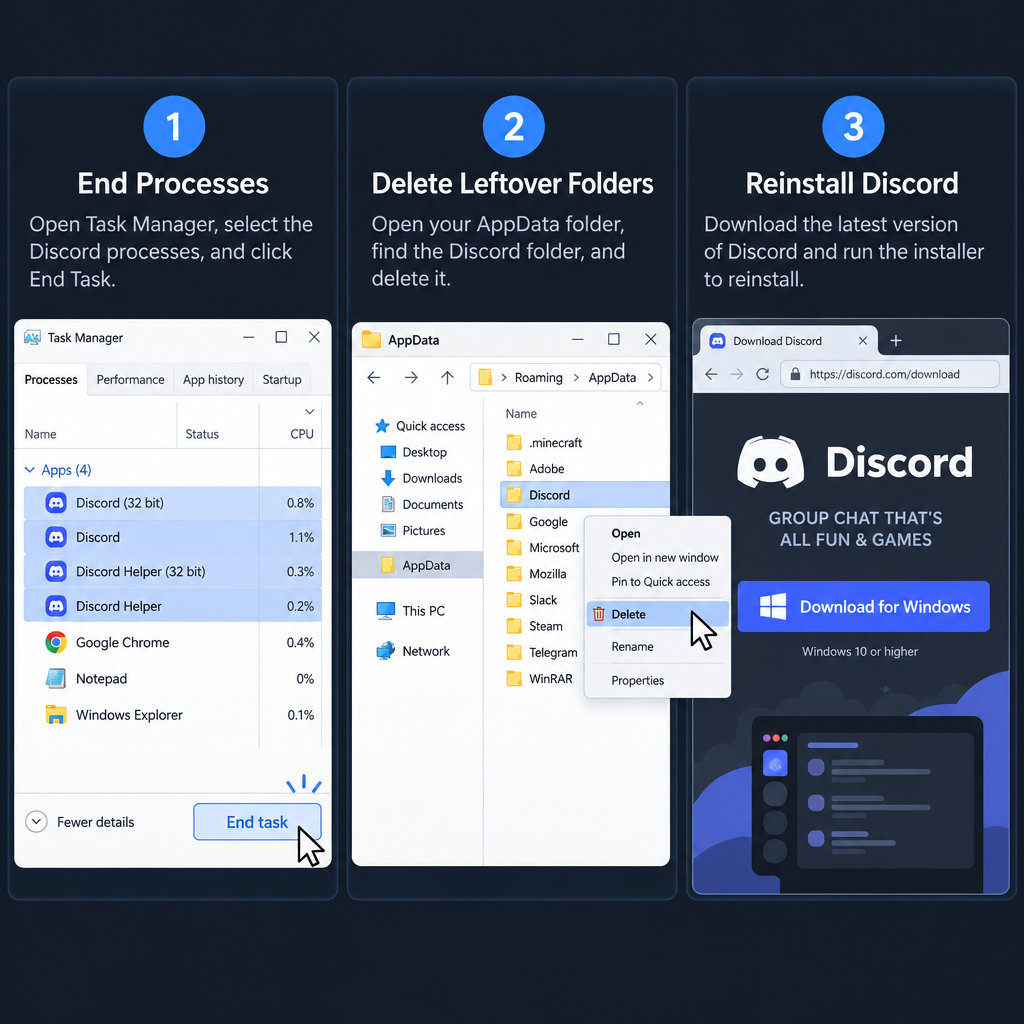
- Press Ctrl+Shift+Esc on the keyboard to open Task Manager.
- Go to the Processes tab and look for any entry linked to Discord. There are often several.
- Select each Discord process, then click End task.
- Close Task Manager.
- Click the Search icon on the taskbar.
- Type “Control Panel” (without quotes) and press Enter.
- Under Programs, click Uninstall a program.
- Right-click Discord, then select Uninstall.
On Windows 11, you can also uninstall it from Settings > Apps > Installed apps. Click the three dots next to Discord and choose Uninstall. If Discord isn’t in the list, go straight to Step 2.
Step 2: Remove Leftover Discord Files
- Press Windows key+R to open the Run dialog box.
- Type “%appdata%” (without quotes) and click OK.
- Delete the Discord folder if you see it.
- Open the Run dialog box again, type “%localappdata%” and click OK.
- Delete the Discord folder there as well.
- Restart your PC.
- Download a fresh copy of the installer from Discord’s official website and run it.
If Windows says a folder is in use, a Discord process is still running. Go back to Task Manager, end it, and try again.
Additional Troubleshooting Steps
If Discord still won’t install, try these checks next, roughly from quickest to most involved.
- Run the installer as administrator. Right-click the setup file and choose Run as administrator.
- Pause your antivirus while you install. Turn it back on as soon as Discord is installed. Don’t leave your protection switched off.
- Try compatibility mode. Discord’s own support article on Windows installation errors suggests running the Discord app from its %LocalAppData%\Discord folder as administrator, with compatibility mode set to Windows 7 or Windows 8. Try both settings.
If the error started right after a Windows update, removing the most recent update can stop it from interfering with Discord. Uninstalling an update also removes the security fixes it brought, so only do this as a test. Install the update again once Discord is working.
On Windows 11:
- Press Windows key+I to open Settings.
- Click Windows Update, then Update history.
- Scroll down to Related settings and click Uninstall updates.
- Find the most recent update and click Uninstall next to it.
- Restart if Windows asks you to, then try installing Discord again.
On Windows 10:
- Press Windows key+I to open Settings.
- Click Update & Security, then Windows Update in the left pane.
- Click View update history.
- Click Uninstall updates.
- In the new window, right-click the most recent update and select Uninstall.
- Once the update is removed, try reinstalling Discord.
Windows 10 Home and Pro reached end of support on October 14, 2025. Eligible PCs enrolled in Microsoft’s Extended Security Updates (ESU) program still get security fixes, and some editions, such as Windows 10 Enterprise LTSC 2021, follow separate support timelines. If a Windows 10 PC keeps causing install problems, moving to Windows 11 is the longer-term fix, if the hardware supports it.
Clearing out stale app data works for more than Discord. The same idea fixes many streaming and chat apps, as in How To Fix Disney Plus Stuck On Loading Screen.
Pro tip: Keep your device drivers up to date so Discord runs smoothly. Outdated, corrupted or missing drivers, especially audio and graphics drivers, can cause crashes, voice problems and stutter in Discord and in games.
Updating Your Drivers Safely
The safest way to update drivers is through Windows itself or the hardware maker. On Windows 11, go to Settings > Windows Update > Advanced options > Optional updates and look under Driver updates. For graphics cards, use the official apps or download pages from NVIDIA, AMD or Intel. For laptops, use the support page of the PC maker, such as Dell, HP or Lenovo.
Installing drivers by hand from the manufacturer’s site takes a little longer, but you get drivers made for your exact model and Windows version. Skip third-party “driver updater” programs. They often install the wrong drivers or bundle unwanted software. A driver that doesn’t match your Windows version or processor can cause more problems than it fixes.
If none of these steps work, contact Discord Support with the exact error message and your Windows version. Discord’s setup log in the %LocalAppData%\Discord folder can help them find the cause.
FAQ
Why does Discord say “Installation has failed”?
The most common cause is leftover files from an earlier Discord install, or a Discord process still running in the background. The new installer can’t overwrite those files, so it stops. Ending every Discord process and deleting the Discord folders in %AppData% and %LocalAppData% fixes it in most cases.
Can you install Discord on Windows 7 or Windows 8?
No. Discord ended support for Windows 7, Windows 8 and Windows 8.1 on March 15, 2024. It removed the last download for those versions from its website on June 15, 2024. On those systems, use Discord in a web browser instead.
Does Discord still work on Windows 10?
Yes, the desktop app still installs on 64-bit Windows 10. Windows 10 Home and Pro reached end of support on October 14, 2025. Those editions now only get security fixes on eligible PCs enrolled in Microsoft’s Extended Security Updates program. Some other editions, such as Enterprise LTSC 2021, have separate support timelines. 32-bit Windows hasn’t been supported by Discord since December 1, 2023.
Is it safe to delete the Discord folders in AppData?
Yes. Your messages, servers and settings are stored on your Discord account, not in those folders. After you reinstall and sign in, everything comes back. The folders only hold the app files and local cache.
What can you do if Discord still won’t install?
Run the installer as administrator and pause your antivirus during setup. If the error started after a Windows update, remove that update as a test. If it still fails, use Discord in your browser for now and contact Discord Support with your Windows version and the exact error message.
Sources
- Discord Support: Windows Installation Errors
- Discord Support: Known Issue, Support for Windows 7, 8 and 8.1
- Microsoft Support: Uninstall updates in Windows 11













