
Why the Discord mic stops working
The usual pattern is that you can hear everyone in the voice channel, but nobody can hear you. Most reports involve the Windows desktop app. The browser version of Discord often still works, which makes it a useful test.
Before you change any settings, try another headset or microphone, or test your mic in a different app. If the mic doesn’t work anywhere, the problem is the hardware, the cable or the Windows driver, not Discord. If it works everywhere except Discord, the fixes below are the right place to start.
How to fix the Discord mic not working error
Try the methods in order. The first few take a minute each and are completely safe. The later ones change system audio settings. Test your mic after each one so you know which change fixed it.
Method 1: Log out of Discord and back in
Logging out and back in is a quick refresh. It sometimes clears a stuck voice connection, but it’s often only a temporary fix.
- Click the User Settings gear icon at the bottom left of the Discord desktop app, next to your username.
- Scroll to the bottom of the left-hand menu and click Log Out.
- Click Log Out again to confirm.
- Sign back in and join a voice channel to check whether your friends can hear you.
- If the problem keeps coming back, you may need to repeat this, so move on to the more lasting fixes below.
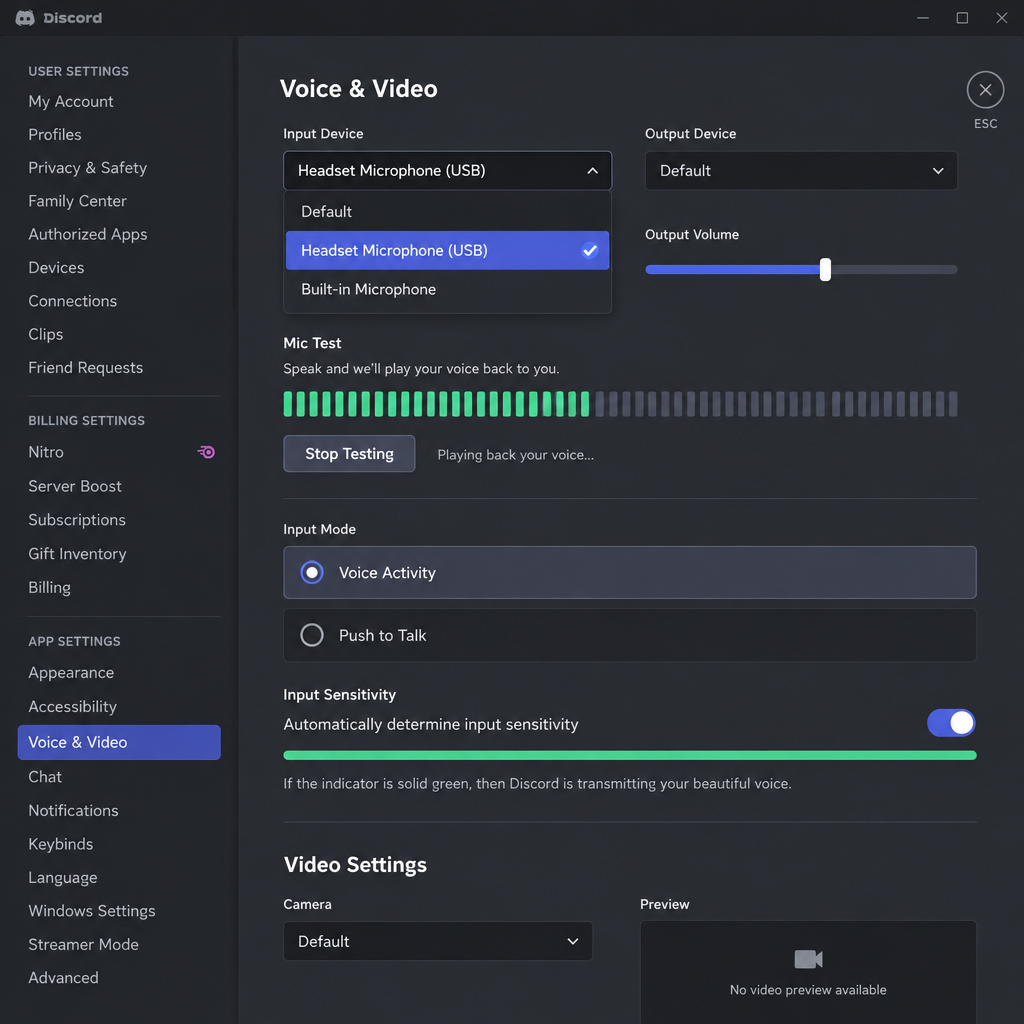
Method 2: Select your headset microphone as the input device
Discord often uses the Windows default microphone. On many laptops and gaming PCs, that’s the built-in mic, not your headset. Telling Discord exactly which mic to use fixes a large share of these cases.
This problem is most common on laptops and gaming laptops with built-in microphones. Even with a headset plugged in, Discord may keep listening to the internal mic. That mic may be muted, too quiet or missing the right driver.
- Make sure your headset is plugged in or connected over Bluetooth before you start.
- Click the User Settings gear icon at the bottom left of the Discord window.
- Select Voice & Video from the menu on the left.
- Open the Input Device drop-down and choose your headset microphone by name. Don’t pick “Default”.
- Click Let’s Check under Mic Test and speak. The bar should move when you talk.
If you’re not sure which entry is your headset, check in Windows:
- Press Windows key + R, type mmsys.cpl and press Enter. This opens the classic Sound window on both Windows 10 and 11. You can also get there on Windows 11 through Settings > System > Sound > More sound settings, or on Windows 10 by right-clicking the speaker icon on the taskbar and choosing Sounds.
- Open the Recording tab.
- Speak into your headset and watch which level meter lights up green.
- The device name next to that meter is the one to choose in Discord.
- Right-click that device and choose Properties. On the Levels tab, make sure the microphone slider is turned up and not muted.
Method 3: Allow microphone access in Windows privacy settings
If Windows blocks desktop apps from using the microphone, Discord won’t hear anything, however you set it up. This switch is easy to miss, and Windows updates sometimes change it.
On Windows 11:
- Open Settings > Privacy & security > Microphone.
- Turn on Microphone access.
- Turn on Let apps access your microphone.
- Scroll down and turn on Let desktop apps access your microphone. The Discord desktop app depends on this one.
On Windows 10:
- Open Settings > Privacy > Microphone.
- Turn on Allow apps to access your microphone.
- Turn on Allow desktop apps to access your microphone.
Restart Discord after you change these settings.
Method 4: Run Discord as administrator
Running Discord with administrator rights can show whether a permissions problem is blocking its voice traffic. Discord sends voice over UDP, and limited permissions or other software can sometimes get in the way.
- Fully close Discord. Right-click its icon in the system tray (bottom right) and choose Quit Discord.
- Right-click the Discord shortcut on your desktop or in the Start menu and choose Run as administrator.
- Join a voice channel and test your mic.
Use this as a test, not a permanent setting. If it works, check your antivirus or firewall settings for Discord, and make sure Method 3 is set correctly.
Method 5: Turn off exclusive mode in Windows
Some apps can take full control of your microphone through a Windows setting called exclusive mode. When that happens, Discord can lose the mic completely, and with some headsets it cuts out in the middle of a call. Turning this off lets apps share the mic.
- Press Windows key + R, type mmsys.cpl and press Enter. You can also open it from the speaker icon or Settings, as described in Method 2.
- Open the Recording tab.
- Select your headset microphone and click Properties.
- Open the Advanced tab and untick Allow applications to take exclusive control of this device.
- Click Apply, then OK.
- Restart your computer and check whether Discord picks up your microphone.
Exclusive mode applies to playback devices too. If your speakers or headphones also cut out in Discord, repeat these steps on the Playback tab.
Method 6: Change the input mode to Push to Talk
If nothing else has worked, try switching from Voice Activity to Push to Talk. Discord then sends your voice only while you hold a key, so input sensitivity no longer matters. Some users find that their mic works again after the switch.
- Go to User Settings > Voice & Video.
- Under Input Mode, select Push to Talk.
- Click Record Keybind under Shortcut and press the key you want to use.
- Hold that key while you talk.
The downside is that you have to press a key every time you speak. That’s a minor inconvenience if it gets you back into the game and talking to your team. The opposite case also happens: if Push to Talk is already on and you forgot, people won’t hear you unless you hold the key. Switching back to Voice Activity fixes that.
Method 7: Reset Discord’s voice settings
Resetting Discord’s voice settings has one of the best success rates of any fix here. It’s especially useful after you replace an old headset, because Discord can keep old device choices that no longer exist.
- Click the User Settings gear icon at the bottom left of the Discord window.
- Select Voice & Video.
- Open the Debugging tab and click Reset Voice Settings. In older versions of the app, the button is at the bottom of the Voice & Video page.
- Click Okay to confirm. Discord restarts its voice engine.
- Reconnect your headset, choose it again under Input Device (see Method 2), and test whether the mic works.
A reset puts every voice option back to its default, including input and output devices, volume and noise suppression. Plan to set those up again afterwards.
Method 8: Adjust the automatic input sensitivity setting
Input sensitivity controls how loud you have to be before Discord sends your voice. If it’s set too high, Discord treats normal speech as background noise and sends nothing.
This often happens after someone has adjusted their voice settings. Turning off Automatically determine input sensitivity shows a manual slider. If that slider ends up too far to the right, Discord ignores everything your mic picks up. The automatic setting doesn’t always work well either, so it’s worth testing both.
How to set input sensitivity step by step
- Click the User Settings gear icon at the bottom left of the Discord window.
- Select Voice & Video.
- Under Input Sensitivity, turn on Automatically determine input sensitivity.
- Speak into your headset. If the bar below lights up green when you talk, you’re done.
- If it stays dark, turn the switch off and drag the manual slider towards the middle. Speak again. When the bar pulses green as you talk, your setting is right.
If the bar moves but your voice sounds choppy, check Noise Suppression in the same menu as well. Very aggressive noise suppression can cut off quiet voices. Try setting it to Standard or None while you test.
If nothing works
If none of the methods above help, do a clean reinstall of Discord and update your audio drivers.
- Quit Discord from the system tray.
- Uninstall it through Settings > Apps > Installed apps on Windows 11, or Settings > Apps > Apps & features on Windows 10.
- Press Windows key + R, type %appdata% and delete the discord folder. Do the same with %localappdata%.
- Download a fresh copy only from Discord’s official website or the Microsoft Store, and install it.
- Get audio and headset drivers only from Windows Update, your PC maker or your headset maker. Don’t use third-party driver download sites.
If the mic works in other apps but still not in Discord, contact Discord Support. Include screenshots of your Voice & Video settings, a list of your input and output devices, and the debug log from the Debugging tab. If the mic doesn’t work in any app, the headset or the PC’s audio hardware is the likely cause, and the manufacturer’s support team is the next step.
Some voice problems aren’t about the mic at all. If people can hear you but screen shares and streams stutter, the cause is your network, and general Ways to Fix Video Buffering are a better place to start. On a phone, Discord needs its own microphone permission in the phone’s settings. If you need to reinstall Discord on an iPhone but can’t find it in the store, see how to fix app store search not working on iPhone.
FAQ
Why can I hear people on Discord but they can’t hear me?
Discord is most likely listening to the wrong microphone, or Windows is blocking its access to the mic. Choose your headset by name under User Settings > Voice & Video > Input Device, then check that Let desktop apps access your microphone is turned on in Windows. Also make sure Push to Talk isn’t on without you realizing it.
Why does the Discord Mic Test work but my friends still can’t hear me?
The Mic Test plays your voice back to you so you can check your mic input and how you sound, but it doesn’t confirm that your voice reaches other people in a voice channel. The usual causes are input sensitivity set too high, Push to Talk turned on, or being muted in that server. Lower the sensitivity slider or switch to Voice Activity, then test again in a voice channel.
Does resetting voice settings in Discord delete anything important?
No. It only resets Discord’s voice options to their defaults, such as input and output devices, volume and noise suppression. Your account, servers and messages stay as they are. You’ll need to choose your headset again afterwards.
Do these fixes work on Windows 11?
Yes. Discord’s settings are the same on Windows 10 and Windows 11. Only the Windows menu paths differ: Windows 11 uses Settings > Privacy & security > Microphone, and Windows 10 uses Settings > Privacy > Microphone. The classic Sound window opens with mmsys.cpl on both.
Should I always run Discord as administrator?
No. Use it only as a test. If running as administrator fixes the mic, look for the real cause, such as a privacy setting, your antivirus or your firewall, and then go back to running Discord normally.
Does the Discord mic work in the browser if the app fails?
Often, yes. The browser version uses the browser’s own microphone permission, so it’s a good way to tell whether the problem is with the desktop app. Allow microphone access when the browser asks, and check that Windows lets desktop apps use the microphone.
Sources
- Discord Support: voice and audio troubleshooting
- Discord Support: microphone not detected
- Microsoft Support: turn on app permissions for your microphone in Windows
- BleepingComputer: Microsoft extends free Windows 10 ESU support to October 2027












