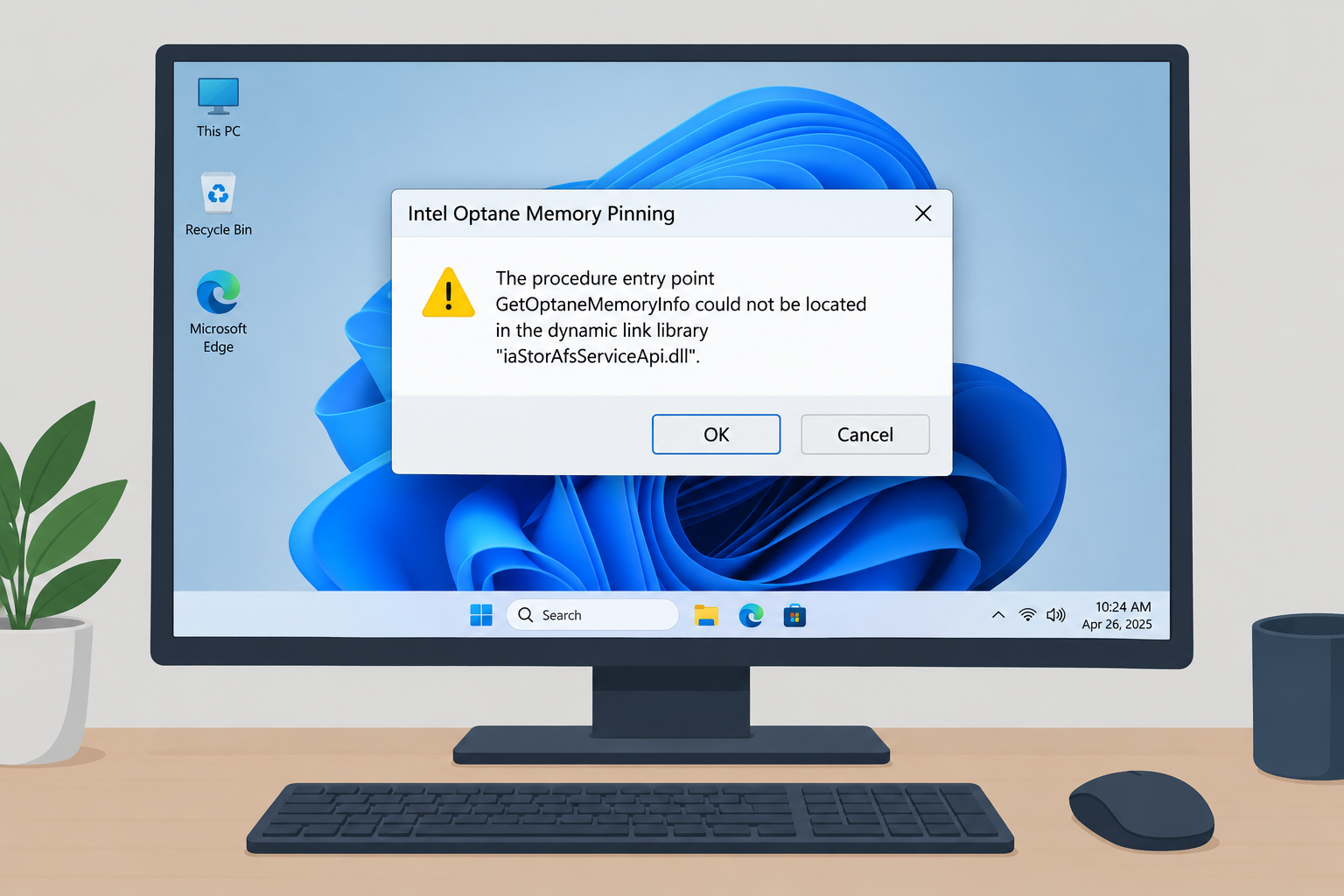
To stop the “Intel Optane(tm) Memory Pinning: Unable to load DLL ‘iaStorAfsServiceApi.dll'” pop-up, start by repairing Intel Optane Pinning Explorer Extensions in Programs and Features. Then uninstall Intel Pinning Shell Extensions under Software components in Device Manager and restart. Intel’s permanent fix is the Intel Rapid Storage Technology (RST) driver 17.9.1.1009 or later, which you can get from your PC maker or Intel. If your PC has no Optane memory module, you can simply remove the pinning extension. Intel dropped pinning completely in RST 19.0.
The full error usually looks like this: “Intel Optane(tm) Memory Pinning: Unable to load DLL ‘iaStorAfsServiceApi.dll’: The specified module could not be found. (Exception from HRESULT: 0x8007007E)”. It shows up after a Windows update, mostly on Windows 10, when you open File Explorer or right-click a file. The code 0x8007007E means Windows went looking for a file that isn’t there.
What this error is and who gets it
This error comes from a broken Intel shell extension, not from a failing drive. According to Intel, it affects systems with Intel Optane memory running Intel RST driver versions 17.5.x to 17.8.x. After a Windows 10 update, the message can pop up at random while you use the PC.
Dell and Intel both published fixes, and they work for most people. The message can still come back after the next big Windows update if the old pinning package stays installed. The steps below explain why it happens, how to clear it, and how to keep it from coming back.
Why this Intel Optane memory pinning error appears
Optane memory is a small, fast cache module that speeds up a slower hard drive on supported Intel platforms. “Pinning” let you mark certain files, folders or apps to stay in that cache, and you did it from a right-click option in File Explorer. That right-click option is the Intel Optane Pinning Explorer Extension, and it needs the file iaStorAfsServiceApi.dll to load. The file normally lives in C:\Program Files\Intel\OptaneShellExtensions.
Intel says that starting with RST driver 17.5.0.1017, it changed the way the pinning components get installed. Dell explains what goes wrong: when the driver is updated, for example from 16.8.x to 17.5.x or 17.8.x, a later Windows update may try to use installation files from the older version, which have already been removed. The DLL ends up missing, and the extension throws the error every time File Explorer loads it.
Plenty of Windows problems start right after an update, from an audio renderer error to alt tab not working, and this one follows the same pattern: the update leaves a driver component half installed.
Two details help you figure out how worried to be:
- Your files are safe. The error comes from the right-click extension. It doesn’t mean data has been lost from the drive.
- You can get it without Optane hardware. Some PCs got the extension through Windows Update or a preloaded RST package even though they have no Optane module. An Intel support technician has said that if no Optane memory is installed, there is no reason to keep the extension, and it can be removed.
How to fix the Intel Optane memory pinning unable to load DLL error
The causes are the extension’s driver package and the extension itself, so the fixes target both. Intel’s and Dell’s official order is to repair the extension first (the Repair step in Solution 2), then remove the pinning driver in Device Manager (Solution 1), then restart. If the Repair option is missing or doesn’t help, go straight to Solution 1.
Before you start, save your open work. Every fix here ends with a restart.
Solution 1: Uninstall and update the Intel pinning drivers
Removing the Intel Pinning Shell Extensions driver and installing a newer RST driver from an official source fixes most cases for good. This is the step Dell says stops the error from coming back after the next Windows update.
- Open Device Manager. Right-click the Start button and choose Device Manager, or press Windows + X and then M.
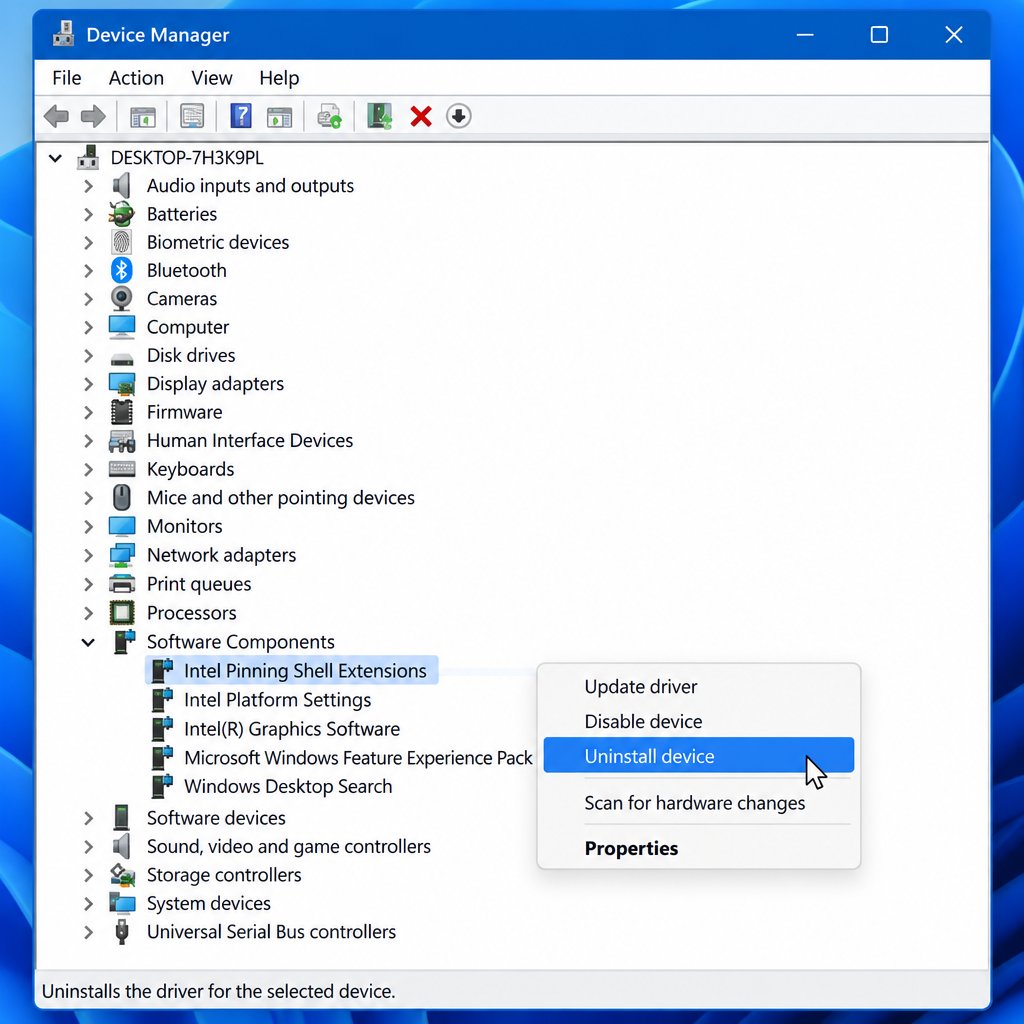
- Expand Software components, right-click Intel Pinning Shell Extensions and choose Uninstall device. In the confirmation box, tick Attempt to remove the driver for this device (older Windows 10 builds call it Delete the driver software for this device), then click Uninstall.
- Restart your PC.
- Get the current Intel RST driver from an official source. The best option is your PC maker’s support page (Dell, HP, Lenovo and others post RST builds tested for each model). Go to Settings > Windows Update > Advanced options > Optional updates (on Windows 10: Settings > Update & Security > Windows Update > View optional updates), or use Intel Driver & Support Assistant from intel.com.
- Install the update and look for RST version 17.9.1.1009 or later. Intel names this as the permanent fix.
- Restart again and open File Explorer. If the pop-up doesn’t appear, the fix worked.
Skip “driver updater” utilities from third parties. They sometimes install the wrong RST build for your chipset, and a storage driver is the worst driver to get wrong. On some setups a bad RST driver can stop Windows from booting.
Which RST version to choose
Don’t just grab the newest RST driver. Use the newest version your PC maker lists for your exact model. Intel’s notes for RST 19.0 and later say the driver no longer supports the original Intel Optane Memory and Optane Memory M10 modules, and it supports 11th and 12th Gen platforms only with a BIOS that supports Intel VMD. RST 19.x also removed pinning entirely, and the Optane Memory and Storage Management app from version 19.x on no longer offers pinning management. Data you pinned earlier still gets accelerated, but RST’s normal caching algorithm now decides what stays in the cache.
| Your situation | What to install |
|---|---|
| Older PC with an Optane Memory or M10 module | Your PC maker’s latest 17.x or 18.x RST build (17.9.1.1009 or later) |
| PC with Optane Memory H10 or H20 | The version your PC maker lists. RST 19.0 supports these on 12th Gen platforms |
| PC with no Optane module | Remove the pinning extension. You don’t need pinning at all |
Solution 2: Repair or uninstall Intel Optane Pinning Explorer Extensions
Repairing the extension puts the missing iaStorAfsServiceApi.dll back. Uninstalling it removes the source of the error entirely. Do the repair first if you use Optane pinning. If you don’t use it, or have no Optane module, uninstalling is the cleaner choice.
- Open Control Panel. A faster route is to press Windows + R, type appwiz.cpl and press Enter, which opens Programs and Features directly.
- In Control Panel, set View by to Category, then go to Programs > Uninstall a program.
- In the Programs and Features window, find Intel Optane Pinning Explorer Extensions, right-click it and choose Repair. If you don’t need pinning, choose Uninstall instead.
- Wait for the repair or uninstall to finish, then restart your PC so the change takes effect.
On Windows 11 you can also go to Settings > Apps > Installed apps, click the three dots next to the entry and choose Uninstall. The Repair option is only in the classic Programs and Features window.
Once this is done, the “Intel Optane(tm) Memory Pinning: Unable to load DLL ‘iaStorAfsServiceApi.dll’ (Exception from HRESULT: 0x8007007E)” message should no longer appear when you open File Explorer. If you only repaired the extension, finish Solution 1 too, so a future Windows update doesn’t bring the error back.
Repair the Optane management app if the error remains
Some Dell owners fixed it by repairing the main app as well. Go to Settings > Apps, select Intel Optane Memory and Storage Management, open Advanced options, and click Repair, then Reset if needed. After that, the DLL was back in place. Dell lists this as a community workaround, not an official step, so treat it as a backup option.
If nothing works
Contact your PC maker’s support, or Intel if you built the PC yourself. Have your RST version ready. You can find it in Device Manager under Storage controllers: right-click the Intel controller and choose Properties > Driver. Don’t download a stray copy of iaStorAfsServiceApi.dll from a DLL website or paste it into System32. Those files are unofficial, may be a mismatched version, and can carry malware. Also keep Windows Update switched on. Turning it off may hide the pop-up, but it leaves your PC without security patches.
FAQ
Is it safe to uninstall Intel Optane Pinning Explorer Extensions?
Yes. The extension only adds the pinning option to File Explorer’s right-click menu. Removing it doesn’t affect your files, and Optane caching keeps working. Intel has said there is no reason to keep it on a PC that has no Optane memory installed.
Do I have Intel Optane memory?
Open Device Manager and expand Disk drives. Optane modules appear with “Optane” in the name, such as “INTEL HBRPEKNX0202AH” for an H10. You can also check whether the Intel Optane Memory and Storage Management app is installed, or look up your model’s specs on your PC maker’s site.
Why did the error come back after a Windows update?
Dell explains that a Windows update can try to reuse installation files from an older RST version that have already been deleted. That breaks the extension again. Removing Intel Pinning Shell Extensions in Device Manager with the driver-removal box ticked, then installing RST 17.9.1.1009 or later, stops it from returning.
What does error code 0x8007007E mean?
It’s a general Windows code meaning “the specified module could not be found.” Here, the missing module is iaStorAfsServiceApi.dll, the file the Optane pinning extension needs to load. The fix is to repair or remove the extension, not to hunt for the DLL online.
Can I still pin files to Optane memory?
Only on older RST versions. Intel removed pinning in RST driver 19.0 and later. Files you pinned earlier are still accelerated, but RST’s normal caching now manages them. On any PC running a 19.x driver, the pinning extension is no longer needed.
Is Intel Optane memory still supported?
Intel has discontinued the consumer Optane line. Its discontinued-products list shows end of life for the Optane Memory Series on August 5, 2019, the M10 Series on January 13, 2021, and the H10 and H20 on September 8, 2022. Driver updates now come through your PC maker. After a product passes its end of interactive support date, Intel Customer Support no longer provides technical help for it.
Sources
- Intel: How to Resolve Intel Optane Memory Pinning Error “Unable to load DLL”
- Intel: Changes for Intel Optane Memory with the Intel RST Driver Version 19.0 and Greater
- Intel: Pinning a File, Folder, or Application for System Acceleration with Intel Optane Memory
- Intel: Discontinued Intel Optane Memory products
- Dell: Resolving the Intel Optane Memory Pinning Error “Unable to load DLL ‘iaStorAfsServiceApi.dll'”