
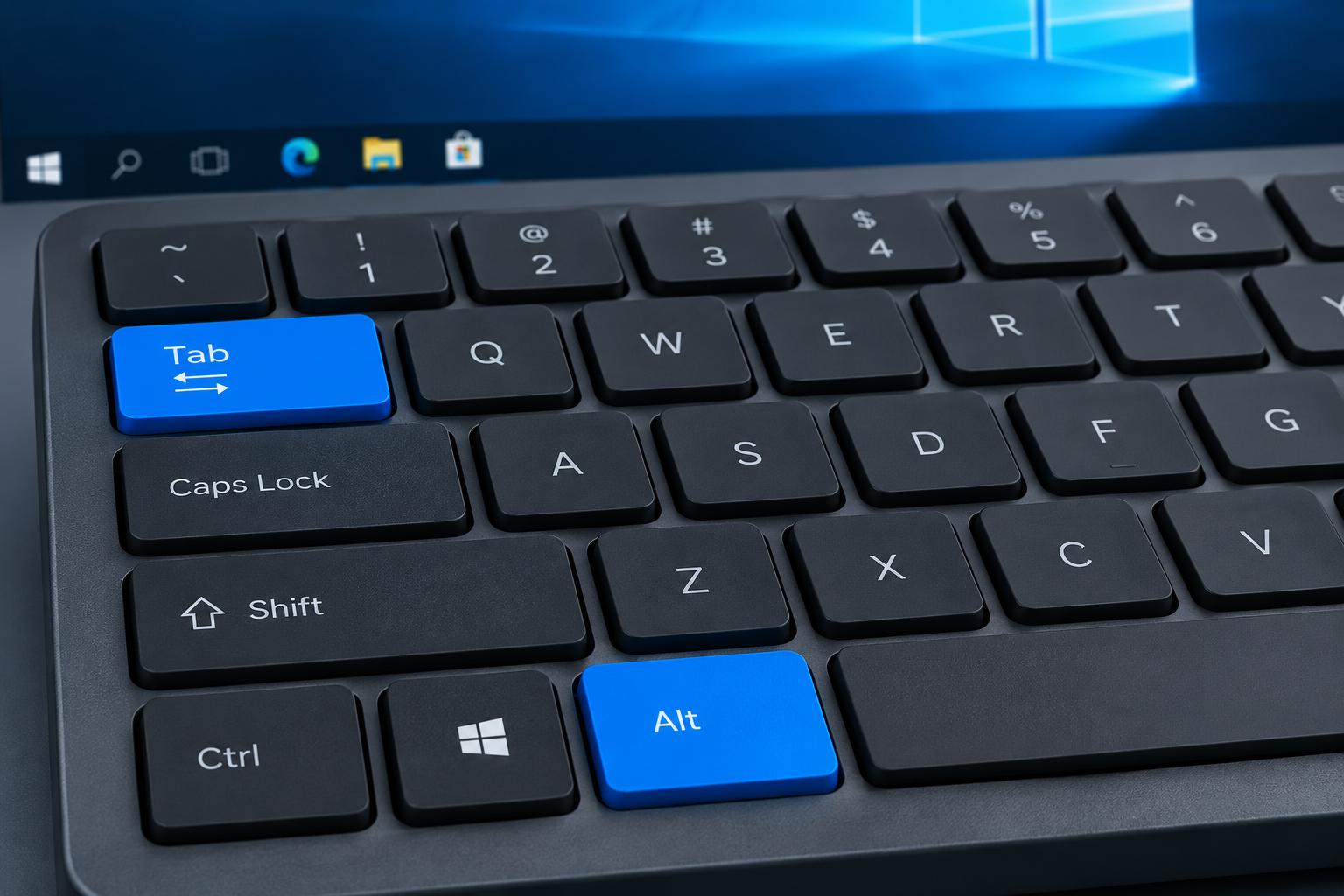
If Alt+Tab stops switching windows in Windows 10, restart Windows Explorer from Task Manager first (Ctrl+Shift+Esc, right-click Windows Explorer, then Restart). That fixes most cases in under a minute. If the problem keeps coming back, look for a disabled hotkey policy, reinstall the keyboard driver and test with a second keyboard. As of November 2026, Windows 10 22H2 still gets security fixes only through Microsoft’s Extended Security Updates (ESU) program, which runs until October 12, 2027, so these fixes apply to a system that no longer gets new features.
Alt+Tab is one of the most used shortcuts in Windows. You hold Alt, tap Tab, and move between open programs without touching the mouse. When it stops working, every task takes longer. Several things can cause it, and the fixes below cover each one.
Common Alt+Tab problems
The fixes in this guide cover these symptoms:
- Alt+Tab does nothing at all. You press the shortcut and no switcher appears, so you can’t move to another program window.
- Alt+Tab works, then stops now and then. This usually means Windows Explorer has glitched for a while. Restarting Explorer usually fixes it.
- Alt+Tab does not toggle. The switcher may appear, but it won’t move to the next window.
- The Alt+Tab switcher disappears too fast. It flashes on screen and closes before you can pick a window.
- Alt+Tab doesn’t switch windows. The shortcut responds, but you stay in the same program.
Fixes for Alt+Tab not switching windows
The methods below run from a registry change to hardware checks. If you want the quickest and safest fix first, start with Method 2 (restart Windows Explorer). Then come back to Method 1 if the problem returns.
Method 1: Change the AltTabSettings registry value
This change switches Windows to the older, icon-only Alt+Tab switcher. It helps when the modern thumbnail switcher won’t open or keeps vanishing. Editing the registry carries some risk, so back it up first: in Registry Editor, go to File > Export and save a copy.
- Press Windows + R to open the Run box.
- Type regedit and press Enter. Click Yes if User Account Control asks.
- Go to this path: HKEY_CURRENT_USER\Software\Microsoft\Windows\CurrentVersion\Explorer
- Look for a value called AltTabSettings in the right pane. If it isn’t there, create it: right-click the Explorer key, choose New > DWORD (32-bit) Value, type AltTabSettings as the name and press Enter.
- Double-click AltTabSettings, set its value data to 1, then click OK.
- Restart Windows Explorer (see Method 2) or sign out and back in so the change takes effect.
Now try Alt+Tab again. If you want the normal thumbnail switcher back later, set the value to 0 or delete it. This tweak is meant for Windows 10. Reports say it stopped working in Windows 11 24H2. If the problem is still there, move on to the next method.
Method 2: Restart Windows Explorer
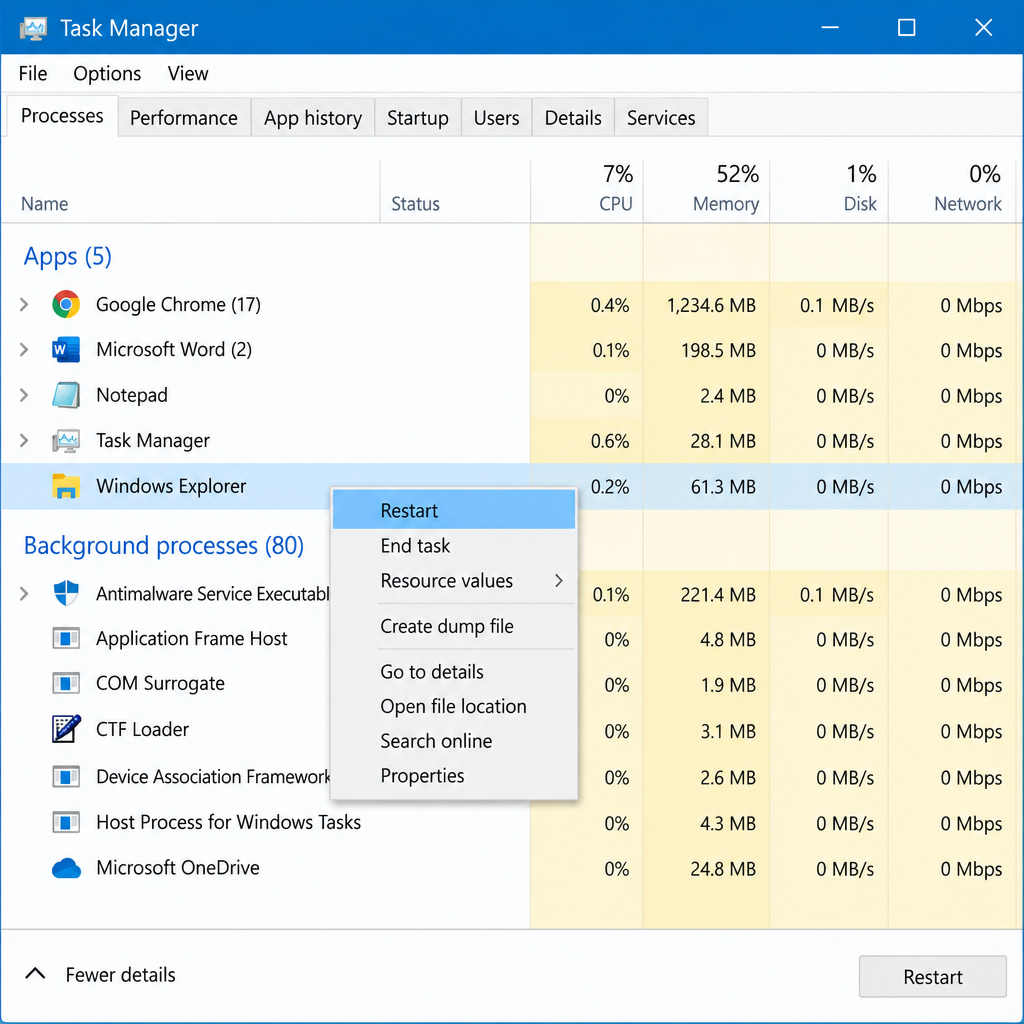
Restarting Windows Explorer reloads the taskbar, the Start menu and the Alt+Tab switcher. It is the fastest fix for this problem.
- Press Ctrl + Shift + Esc to open Task Manager. If you only see a small window, click More details.
- On the Processes tab, find Windows Explorer.
- Right-click Windows Explorer and choose Restart.
Your taskbar will disappear for a second and then come back. Alt+Tab should work again. This is a temporary fix, though. If the problem keeps coming back, you’ll need to repeat it each time, or try the other methods to find the cause.
Method 3: Check the Windows key hotkeys setting
A policy called Turn off Windows Key hotkeys can block keyboard shortcuts when it is enabled. It mainly affects Windows-key shortcuts such as Win + Tab. An archived Microsoft blog post on Microsoft Learn notes that many people misread the policy (once named Turn off Windows+X hotkeys) as covering only Win + X, when it actually covers Windows-key shortcuts in general. Malware or a cleanup tool can also change this setting. So run a scan in Windows Security > Virus & threat protection > Quick scan too.
Group Policy Editor only comes with Windows 10 Pro, Enterprise and Education.
- Press Windows + R, type gpedit.msc and press Enter.
- Group Policy Editor opens. Go to: User Configuration > Administrative Templates > Windows Components > File Explorer
- Click File Explorer. Then, in the right pane, double-click Turn off Windows Key hotkeys.
- If it says Enabled, change it to Not Configured (or Disabled). Enabled is the setting that turns the shortcuts off.
- Click Apply, then OK. Restart the PC so the change takes effect.
Windows 10 Home doesn’t have gpedit. On Home, open Registry Editor and go to HKEY_CURRENT_USER\Software\Microsoft\Windows\CurrentVersion\Policies\Explorer. If you see a value called NoWinKeys set to 1, change it to 0 or delete it. Then restart. Now check whether Alt+Tab works again.
Method 4: Reinstall the keyboard driver
A damaged keyboard driver can stop some key combinations from reaching Windows. Reinstalling it is safe, because Windows installs a generic driver again when it starts up.
- Press Windows + R to open the Run box.
- Type devmgmt.msc and press Enter to open Device Manager.
- Expand Keyboards. Right-click your keyboard (often listed as HID Keyboard Device or Standard PS/2 Keyboard) and choose Uninstall device. Confirm with Uninstall.
- Restart your PC.
When the PC restarts, Windows reinstalls the keyboard driver on its own. If it doesn’t, or if your keyboard needs its own software, download the driver only from the keyboard maker’s official support site. Device Manager is also where you reinstall the sound driver for an audio renderer error, using the same uninstall and restart steps.
Method 5: Check your keyboard
A faulty Alt or Tab key looks exactly like a software problem. To test it, unplug your keyboard, connect a different one, and try Alt+Tab.
If Alt+Tab works on the second keyboard, the first one is the problem and you’ll need to repair or replace it. A few other checks:
- Try the right Alt key as well as the left one. If only one side works, that key is worn out.
- Open the On-Screen Keyboard (press Windows + R, type osk, press Enter). Use it to check whether Windows registers Alt and Tab.
- Gaming keyboards often have a Win Lock key or a game mode in the maker’s app that blocks Windows shortcuts, and some can also block Alt+Tab. Turn that mode off.
- For wireless keyboards, swap in fresh batteries and re-pair the keyboard.
If Alt+Tab fails on every keyboard, the cause is in Windows, so go on to the next method.
Method 6: Enable the Peek option
Many users fixed Alt+Tab by turning on the Enable Peek visual effect. Peek is part of the window preview feature that Alt+Tab uses.
- Press Windows + R, type sysdm.cpl and press Enter to open System Properties.
- Go to the Advanced tab. Under Performance, click Settings.
- On the Visual Effects tab, make sure Enable Peek is ticked. If it isn’t, tick it, then click Apply and OK.
Then try Alt+Tab again.
If nothing works
Repair Windows’ system files if every method above fails. Open Command Prompt as administrator, run sfc /scannow, and then run DISM /Online /Cleanup-Image /RestoreHealth. Restart afterward. You can also create a new user account under Settings > Accounts > Family & other users. If Alt+Tab works there, your old profile’s settings are corrupted.
If the PC is still on Windows 10, keep it enrolled in ESU. You can also move to Windows 11 if the hardware supports it. On a work PC, ask your IT department before changing policies or the registry, because they may manage those settings.
FAQ
Why does Alt+Tab suddenly stop working?
Usually Windows Explorer, which runs the switcher, has glitched. Restarting it from Task Manager fixes that. A problem that keeps coming back often comes from a hotkey policy, a keyboard driver issue, a gaming keyboard’s lock mode or a worn key.
Is Windows 10 still safe to use in November 2026?
Only if it’s enrolled in Extended Security Updates. Microsoft ended mainstream support on October 14, 2025. The consumer ESU program delivers critical and important security fixes to Windows 10 version 22H2 until October 12, 2027. ESU doesn’t add new features or technical support.
How do I fix Alt+Tab in Windows 11?
Restarting Windows Explorer, checking the hotkey policy, reinstalling the keyboard driver and checking Peek all work the same way in Windows 11. Windows 11 also adds an Alt+Tab option under Settings > System > Multitasking. There you can choose to show open windows only, or open windows plus your most recent browser tabs. The AltTabSettings registry tweak has been reported not to work on Windows 11 24H2.
Does Alt+Tab work in full-screen games?
Usually, but some games capture the keyboard in exclusive full-screen mode and switch slowly or not at all. Changing the game to borderless windowed mode in its display settings usually makes Alt+Tab reliable again. Also check that your keyboard’s game mode isn’t blocking the shortcut.
Is there another shortcut if Alt+Tab is broken?
Yes. Windows + Tab opens Task View, which shows all open windows and virtual desktops. You can also click a program’s button on the taskbar. Alt + Esc moves through open windows one at a time without showing a switcher.
Will these fixes delete my files?
No. None of these methods touch your documents. The registry and policy steps only change settings. Still, export a registry backup before you edit anything, so you can undo the change easily.
Sources
- Microsoft: Windows 10 Consumer Extended Security Updates (ESU)
- Microsoft Learn: Policy CSP Multitasking
- Microsoft Learn: Windows+X is not really Windows+X












