
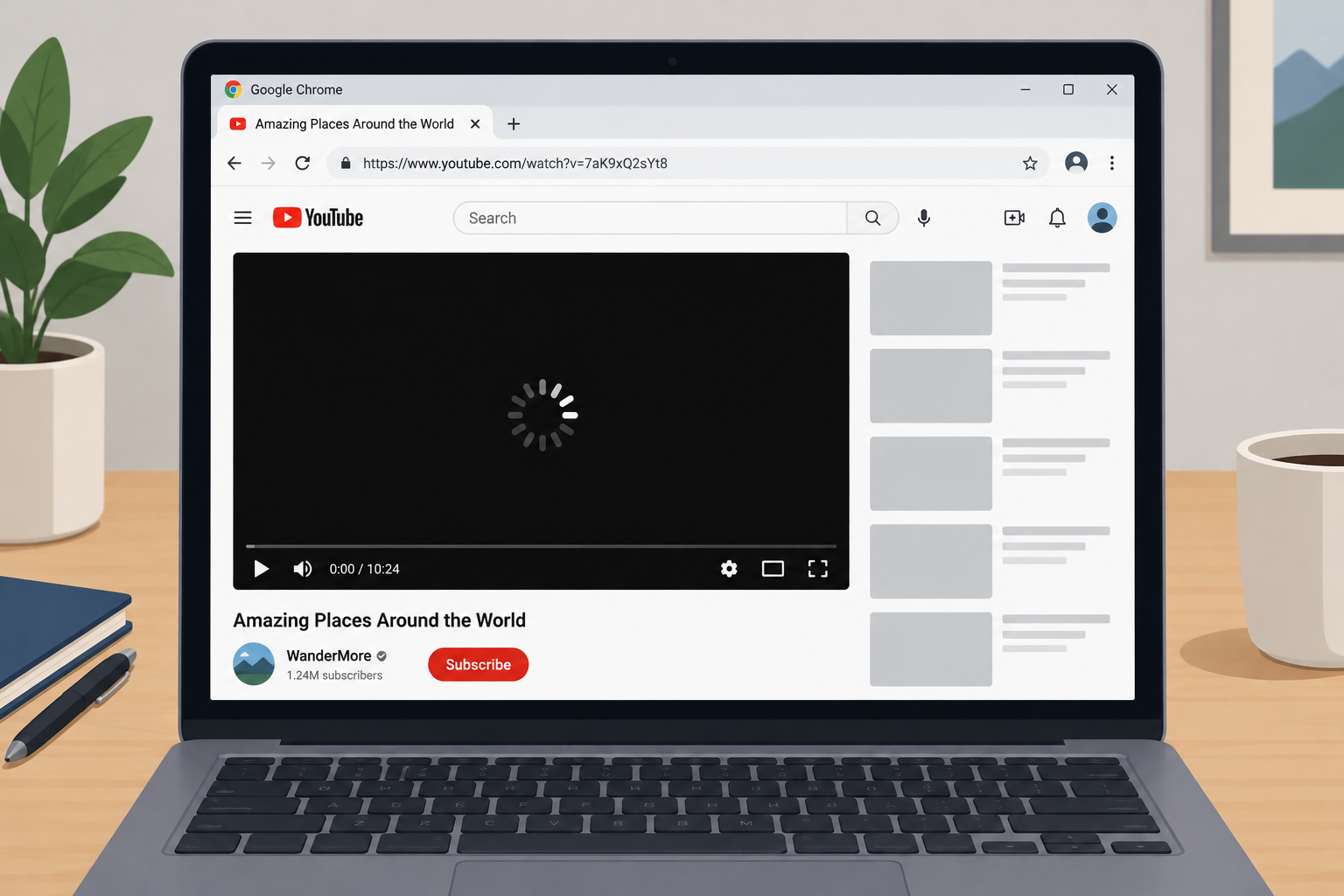
Most embedded videos that won’t play in Chrome come back after four checks: update Chrome, clear the cached images and files, turn off your ad blocker or privacy extensions, and turn off graphics acceleration. You do not need Adobe Flash Player. Adobe ended Flash on December 31, 2020, and modern video embeds use HTML5. If the player shows a message such as “Error 153” or “Playback on other websites has been disabled by the video owner,” the problem is usually on the website or with the video owner, not on your computer.
Google Chrome is the most widely used web browser on desktop and mobile. Even so, it sometimes has bugs, and a video that will not play inside a web page is one of the most common.
Why embedded videos stop playing in Chrome
An embedded video is one that plays inside another website, usually through a YouTube, Vimeo or Facebook player. When it fails, you might see a black box, an endless loading spinner, a grey “video unavailable” frame or a player that won’t respond. Most of the time you can fix it quickly.
The usual causes are a corrupted cache, an extension that blocks the player, a graphics driver that doesn’t work well with Chrome’s graphics acceleration, an old version of Chrome, or JavaScript being turned off. Google’s own Chrome Help page notes that some media, YouTube videos included, will not run without JavaScript.
What to check before you start
Chrome runs on macOS, Windows, Android, Linux and iOS, and on every one of them, glitches like black screens, slowdowns and crashes happen from time to time. Before you change any settings, make sure you have the basics covered:
- A stable internet connection. Try a video on a different site. If nothing plays anywhere, fix the connection first.
- Up-to-date graphics drivers. On Windows, get them from Windows Update or the support site of your PC or graphics card maker. Never use third-party “driver updater” sites. Some older laptops can’t run current Chrome at all, so if you are trying to update dell inspiron 1520 drivers, note that current Chrome needs Windows 10 or later.
- The latest version of Chrome. See Solution 3 below.
- No Flash Player. You don’t need it. Adobe stopped supporting Flash Player on December 31, 2020, and began blocking Flash content on January 12, 2021. Adobe advises uninstalling it, and any site that still asks for it can’t be fixed from your side.
If the player doesn’t react to clicks on any site, check your mouse before you blame Chrome. That needs a separate fix, the same one you would use for a wireless mouse not working on windows.
When the basics are in place and embedded videos still won’t play, work through the solutions below in order.
Solution 1: Clear browsing data and cache in Chrome
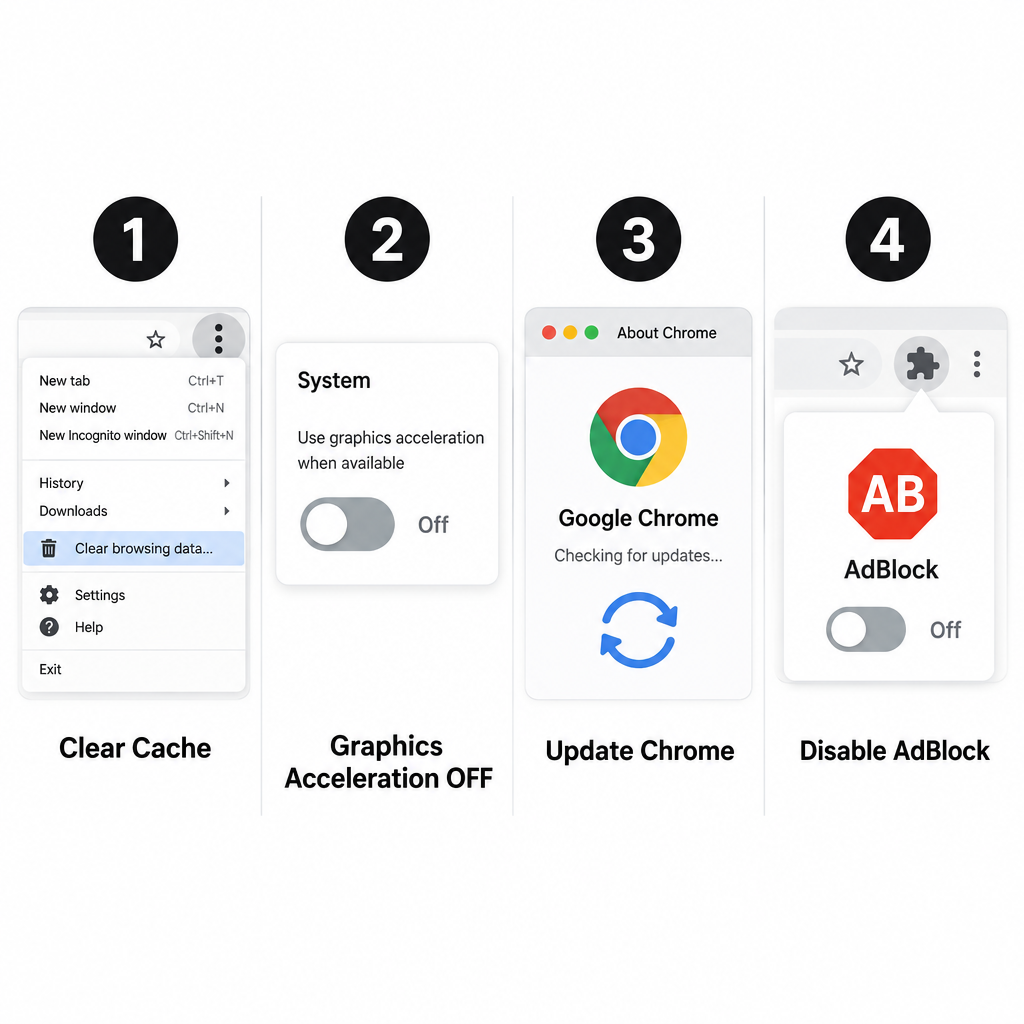
Old or damaged temporary files are a common cause. Clearing Chrome’s cache often fixes video playback and other browser problems too. Here is how to do it.
Step 1: Open Google Chrome, click the three-dot icon in the top-right corner of the window, then click Settings.
Step 2: Click Privacy and security in the left pane, then click Delete browsing data. You can also press Ctrl + Shift + Delete on Windows, or Command + Shift + Delete on a Mac, to open the same window.
Step 3: Choose a time range. All time is the most thorough.
Step 4: Tick Cached images and files. You can also tick Cookies and other site data, but this signs you out of most websites.
Step 5: Click Delete data.
Close Chrome, open it again and reload the page with the video to see if it plays.
Solution 2: Turn off graphics acceleration in Chrome
If the video still won’t play after you clear the cache, turn off graphics acceleration. Chrome used to call this setting “hardware acceleration.” It hands video decoding to your graphics card, and a buggy driver can then leave the player black or frozen.
Step 1: Open Settings again, or type chrome://settings/system in the address bar.
Step 2: Click System in the left pane.
Step 3: Turn off Use graphics acceleration when available.
Step 4: Click Relaunch so the change takes effect.
Test the video again. If nothing has changed, turn the setting back on, because graphics acceleration makes video smoother and saves battery on most computers. Then move on to the next solution. The graphics acceleration switch is only in desktop Chrome. Chrome on phones and tablets doesn’t have it.
Solution 3: Update Google Chrome
Updates fix bugs and security flaws, and they often fix playback problems as well. Chrome 157 reached the Stable channel for Windows, Mac and Linux on November 3, 2026, with 213 security fixes, so an out-of-date browser is worth ruling out.
Step 1: Open Settings.
Step 2: Click About Chrome at the bottom of the left pane.
Step 3: Chrome checks for an update and downloads it if there is one. Click Relaunch to finish.
You can also open the three-dot menu and look for Update Google Chrome. If that option isn’t there, you already have the latest version.
Solution 4: Turn off AdBlock and other extensions
Ad blockers and privacy extensions can stop embedded players from loading, and some websites hide their videos when they detect a blocker. Turning the extension off for a moment tells you if it’s the cause.
Step 1: Click the three-dot menu and choose Extensions, then Manage extensions. You can also type chrome://extensions in the address bar.
Step 2: Find AdBlock, or any other ad blocker or privacy tool, and switch it off.
Step 3: Reload the page with the video.
If the video plays now, turn the extension back on and add the site to its allow list instead of leaving it off everywhere. To remove it completely, click Remove. Privacy extensions that strip the web address of the page you came from can also cause YouTube’s “Error 153.”
Solution 5: Make sure JavaScript is allowed
Google’s Chrome Help page lists this check for videos that won’t load or show up blank. Without JavaScript, YouTube embeds and most other video players can’t start.
Step 1: Open Settings and click Privacy and security.
Step 2: Click Site settings, then JavaScript.
Step 3: Make sure sites are allowed to use JavaScript, and that the site with the video isn’t in the “not allowed” list.
If the video still won’t play
At this point the problem is probably not your browser. Look closely at what the player says:
- “Playback on other websites has been disabled by the video owner.” The owner has turned off embedding. Click the video title to watch it on YouTube instead.
- “Error 153, Video player configuration error.” YouTube expects to be told which page the player sits on, and this error usually means the website’s settings are hiding that information. The site owner has to fix it. As a viewer, you can open the video directly on YouTube.
- Private or age-restricted videos often won’t play when embedded, whatever you do.
If every embedded video fails on every site, reset Chrome. Go to Settings > Reset settings > Restore settings to their original defaults. This turns off extensions and clears temporary data, but it keeps your bookmarks, history and saved passwords. If videos still fail after that, try another browser such as Microsoft Edge or Firefox. If they fail there too, the problem is your graphics driver or your network, and it’s worth asking your PC maker or a local repair shop for help.
Embedded videos playing again
Most people fix this problem with the steps above: clearing the cache, turning off graphics acceleration, updating Chrome, turning off ad-blocking extensions and checking JavaScript. You don’t need to try them all. Work down the list and test the video after each one. Interactive formats work the same way once Chrome is healthy. For example, embedded 360-degree videos made for virtual reality headsets play in desktop Chrome too, and you drag inside the frame to look around.
FAQ
Do I need Adobe Flash Player to play embedded videos in Chrome?
No. Adobe stopped supporting Flash Player on December 31, 2020, and began blocking Flash content on January 12, 2021. Chrome no longer runs Flash at all. Modern embedded videos use HTML5, which is built into the browser.
Why does an embedded YouTube video say “Video unavailable” when it plays fine on YouTube?
The owner has probably turned off embedding, or the video is private or age-restricted. None of these can be fixed from your browser. Click the video title to watch it on YouTube itself.
What does YouTube Error 153 mean?
It means the embedded player couldn’t confirm which website it was on. Usually that’s because the site’s settings, or a privacy extension, hide that information. If turning off your privacy extensions doesn’t help, the website owner has to fix it. In the meantime, watch the video on YouTube.
Will clearing my cache delete my passwords or bookmarks?
Ticking only Cached images and files removes temporary files and nothing else. Ticking Cookies and other site data signs you out of websites. Bookmarks stay, and saved passwords are only removed if you choose them in the advanced options.
Should I leave graphics acceleration turned off?
Only if turning it off fixed the problem. On most computers, graphics acceleration makes video smoother and uses less power. If turning it off fixed your playback, update your graphics driver later and try turning it back on.
Why do videos play in other browsers but not in Chrome?
That points to something in Chrome itself, usually an extension, the cache or the graphics acceleration setting. Work through Solutions 1 to 4. If nothing changes, reset Chrome’s settings, which keeps your bookmarks and passwords.
Sources
- Google Chrome Help: Fix videos & games that won’t play
- Google Chrome Help: Install and manage extensions
- Chrome Releases: Stable Channel Update for Desktop
- Adobe: Flash Player end of life













