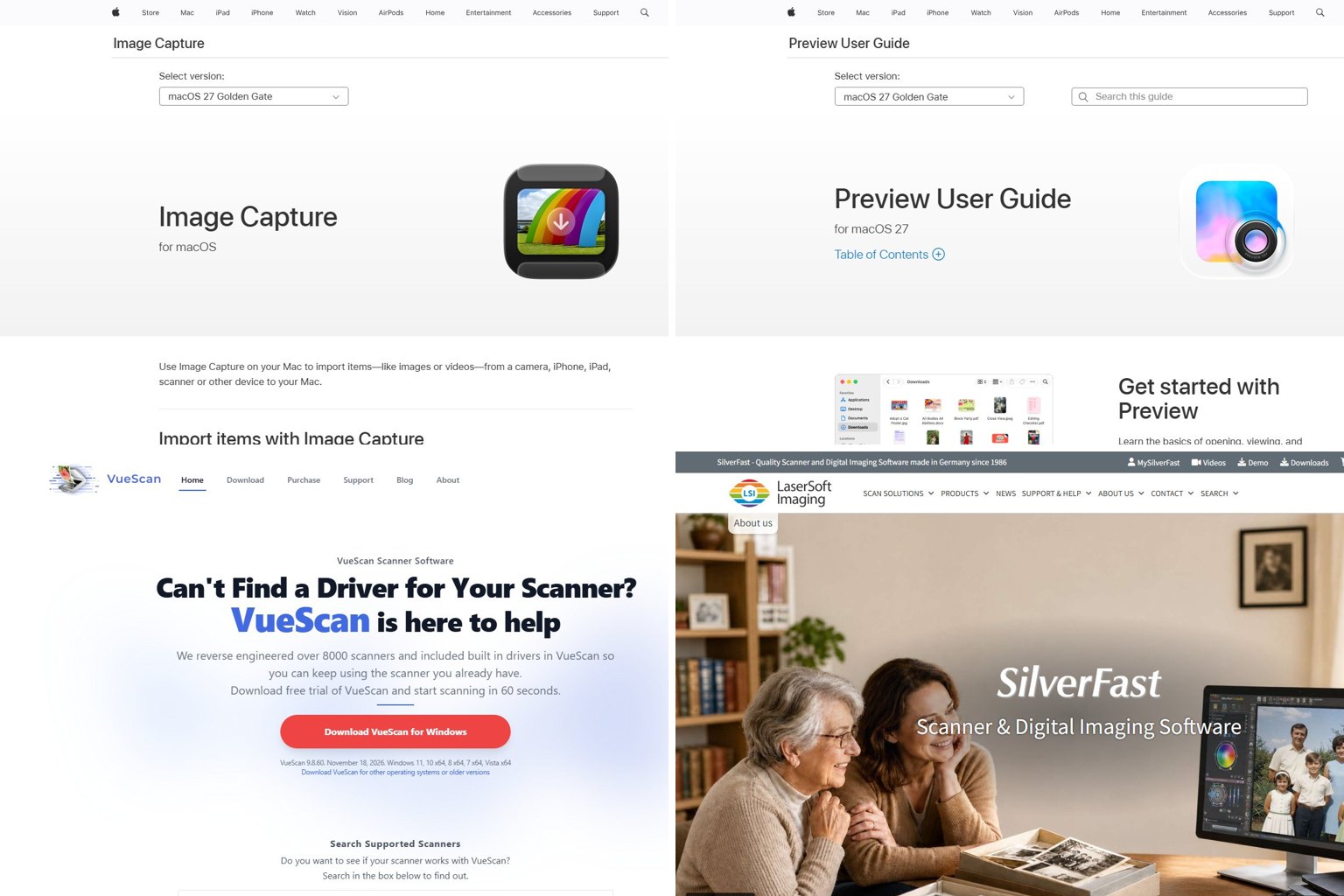
Your Mac already has a free photo scanner built in: Image Capture can split several prints on the glass into separate, straightened files. Paid apps such as VueScan and SilverFast earn their price when you need dust and fade repair, film scanning, or a driver for a scanner that stopped working after macOS 26 Tahoe. This guide covers which tool fits which job, current prices, and the settings and workflow for a box of a few dozen prints or several thousand.
Last checked: November 19, 2026.
Key takeaways
- Try Image Capture first. It’s free, it’s on every Mac, and it can auto-crop several photos per pass.
- VueScan is the fix when your scanner vanished after a macOS update, and it adds fade and dust repair.
- Scan 4×6 prints at 600 DPI, wallet-size prints at 1200 DPI, and keep TIFF masters.
- For 1,000+ prints, an auto-feed scanner beats a flatbed on speed. Fragile or curled prints still belong on the glass.
- Each time you double the DPI, file size and scan time go up about four times. Budget storage before you start.
Fact-checked
We checked these key facts against the sources named, on November 19, 2026:
- VueScan by Hamrick Software ($99.95 Standard or $199.95 Professional, one-time list price) (source: hamrick.com)
- Standard ($99.95 one-time or $39.95/year) covers photo and document scanning, including Restore Fading (source: hamrick.com)
- The current release, VueScan 9.8.60, is dated November 18, 2026, and runs on Intel and Apple Silicon Macs as well as Windows and Linux (source: hamrick.com)
- That includes cases like a Canon MF642cdw on a Mac mini running Tahoe, or an HP Envy Pro 6455 that Image Capture finds but won’t scan from (source: discussions.apple.com)
- Epson’s macOS 26 Tahoe support page acknowledges that Epson Scan 2 can freeze after you click Refresh in Scanner Settings, and Epson says a software update will fix it (source: epson.com)
Quick answer: the best photo scanning software for Mac in 2026
Most people need only one of these five, and the right one depends on the scanner you own and how many photos you have. Picks were weighed on four things, in this order: whether the app works on macOS 26 Tahoe and Apple Silicon, how many scanners it supports, photo-specific features (auto-crop, restoration, film), and price. The assessments come from vendor documentation, release notes and user reports.
- Image Capture (free). For anyone whose scanner still shows up on the Mac and who has a few hundred prints or fewer.
- VueScan by Hamrick Software ($99.95 Standard or $199.95 Professional, one-time list price). For anyone whose scanner lost its driver, or who wants Restore Fading and dust repair.
- SilverFast 9 by LaserSoft Imaging (licensed per scanner model). For serious negative and slide scanning on Epson Perfection or Plustek OpticFilm hardware.
- Epson FastFoto FF-680W with Epson’s FastFoto software or VueScan (Epson lists the scanner at $599.99, and it’s often discounted). For families with thousands of loose prints.
- iPhone via Continuity Camera (free). For anyone without a scanner who needs quick digital copies, or whose photos are stuck in albums.
Does your Mac already have scanning software?
Yes. Every Mac ships with Image Capture and Preview, and both can drive a flatbed scanner. For plain photo scanning they’re good enough. What they lack is restoration: no dust removal, no fade correction, and only basic color controls.
Image Capture
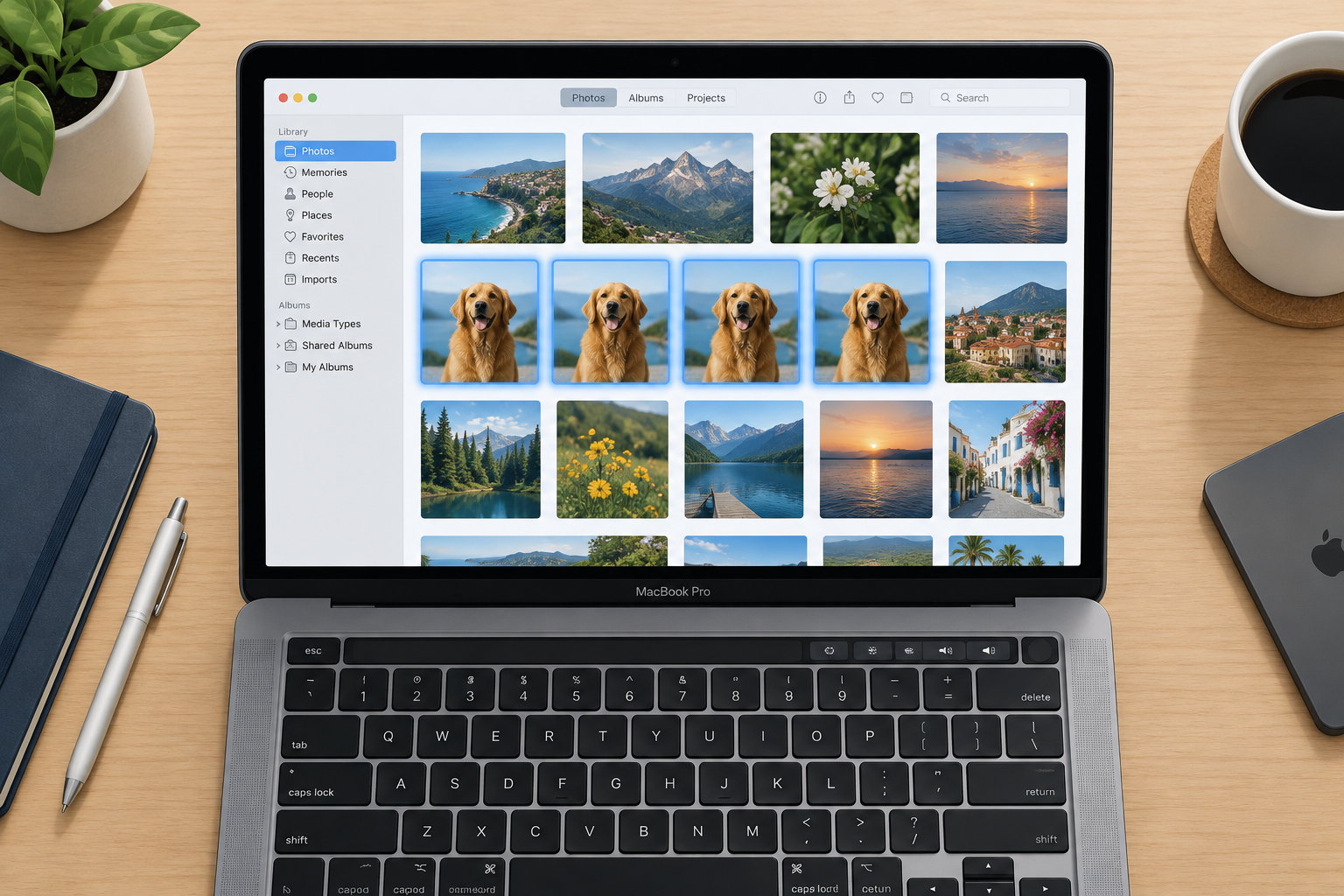
Image Capture is in your Applications folder. It’s the more capable of the two built-ins. Apple’s Image Capture guide for macOS 26 (Image Capture 8.0) covers scanning from a connected scanner, saving multipage documents to one file through an automatic document feeder, and scanning several smaller images in one pass so each is stored in its own file and straightened.
Some vendor blogs say macOS tools scan one item at a time and need manual cropping. That’s wrong. The Detect Separate Items option (some Apple pages call it Detect Separate Images) does the cropping for you, as long as the photos have space between them.
Preview: File > Import from Scanner
Preview offers the same scanning panel through File > Import from Scanner. Use it when you want to scan one image and annotate, crop or export it right away. For batches, Image Capture is faster because you can set a destination folder and a file name pattern.
What the built-in tools can’t do
The free tools stop at capture. You won’t get infrared dust removal for film, automatic fade restoration, multi-exposure for dense slides, or a driver for a scanner its maker never updated. Image Capture also depends completely on the manufacturer’s ICA driver or on AirPrint scanning. If neither works on Tahoe, Image Capture sees nothing.
Test before you buy
Open Image Capture and run one test scan before you buy anything. If your scanner appears and scans, the free tool may be all you need for a few hundred prints.
How to scan a photo on a Mac with Image Capture (macOS 26 Tahoe)
Connect the scanner, open Image Capture, choose the scanner in the sidebar, click Show Details, set your options and click Scan. The full sequence for a photo-quality scan:
Scan photos in Image Capture
- Connect the scanner by USB or join it to the same Wi-Fi network, then switch it on.
- Open Image Capture from Applications (or press Command-Space and type Image Capture).
- Select your scanner in the sidebar under Devices or Shared.
- Click Show Details at the bottom of the window to see the full settings.
- Set Kind to Color, even for black-and-white prints, so you keep the tone of aged paper.
- Set Resolution to 600 DPI for standard prints or 1200 DPI for small ones.
- In the Size pop-up, choose Detect Separate Items.
- Choose a Scan To folder, a Name prefix and Format: TIFF.
- Click Overview, check the boxes drawn around each photo, then click Scan.
You can also start from System Settings > Printers & Scanners. Select your device, then click Open Scanner. It opens the same scanning panel.
Scanning several photos at once into separate files
This answers a common question: which app is best for scanning multiple photos at once? Image Capture handles it well if you lay the prints out properly. Apple’s own advice is to leave empty space between items. Photos with lots of white space, like old prints with wide borders or pale skies, can get split into more than one image.
User reports on Apple Community and MacRumors say detection can be spotty. Two problems come up most. Old black-and-white photos sometimes get extra selection boxes inside a single print, and some users saw correct boxes in the overview that still didn’t split in the final scan. The fix is quick. After clicking Overview, select any unwanted box by its corner handle, delete it, then scan.
Lay out prints for clean auto-crop
Put 4 to 6 photos on the glass with a finger-width gap between them and keep them away from the edges. Auto-detection then separates and straightens each one far more reliably.
Best settings for old prints
| Setting | Recommended value | Why |
|---|---|---|
| Kind | Color | Keeps sepia and toning, even for monochrome prints |
| Resolution | 600 DPI (4×6 and larger), 1200 DPI (wallet size) | Enough detail for reprints and restoration |
| Size | Detect Separate Items | One file per photo, straightened |
| Format | TIFF | Lossless master you can edit later |
| Image correction | None or Manual | Leave fixes for later copies, not the master |
Scanner not showing up after updating to macOS Tahoe? Fix it first
If Image Capture can’t find your scanner on macOS 26, the cause is almost always a missing driver, not a broken scanner. Scanners show up on a Mac in one of two ways. Either the maker supplies an ICA driver for that macOS release, or the device supports AirPrint scanning over the network. Several Apple Community threads on Tahoe, including 26.1, describe exactly this: printing still works but scanning fails. The usual explanation is that the vendor hasn’t shipped a Tahoe-compatible ICA driver.
Work through these in order, quickest first:
- Restart the scanner and the Mac, then reconnect by USB directly, not through a hub.
- Test in Image Capture. If the scanner appears there but not in the vendor’s app, the vendor app is the problem. If it’s missing from both, it’s a driver problem.
- Check the maker’s macOS 26 support page and install the current driver package for Tahoe.
- Remove and re-add the device in System Settings > Printers & Scanners. For network models, add it again so macOS picks up its AirPrint scanning.
- Try VueScan’s free trial if the maker offers no Tahoe driver.
Apple’s own scanning troubleshooting guide gives similar advice when a scanner’s button does nothing: scan from Image Capture or Preview, or from the manufacturer’s recommended app.
Epson scanners
Epson runs a dedicated macOS 26 Tahoe support page. It lists a known issue where Epson Scan 2 becomes unresponsive after you click Refresh in Scanner Settings, and says an Epson Scan 2 update will fix it. Until you have that update, don’t click Refresh. Select the scanner from the list directly instead. Epson’s FastFoto support page also links to Tahoe information for the FF-680W and FF-640. Epson advises uninstalling scanner software for your other Epson products if scanning on a Mac misbehaves.
A common question is whether an Epson Perfection V600 still works on macOS Sequoia or Tahoe. It does, either with Epson Scan 2 or with VueScan, which lists the V600 as supported on macOS as an alternative to Epson’s software.
Did you know?
Epson’s macOS 26 Tahoe support page acknowledges that Epson Scan 2 can freeze after you click Refresh in Scanner Settings, and Epson says a software update will fix it.
Canon and HP all-in-ones
Multifunction printers cause most of the “able to print but unable to scan” reports. That includes cases like a Canon MF642cdw on a Mac mini running Tahoe, or an HP Envy Pro 6455 that Image Capture finds but won’t scan from. Install the scanner driver from Canon’s or HP’s support site for macOS 26 (for HP, that often means the HP Smart app). Then re-add the device in Printers & Scanners. Owners of a Canon CanoScan LiDE 400 should check Canon’s support page for a Tahoe driver first, then VueScan’s supported-scanner list if there isn’t one.
When VueScan is the fix
If the maker has dropped your model, VueScan is usually the answer. Hamrick Software says it has reverse-engineered over 8,000 scanners and builds the drivers into the app. That’s why scanners abandoned years ago still work on Apple Silicon Macs. The current release, VueScan 9.8.60, is dated November 18, 2026, and runs on Intel and Apple Silicon Macs as well as Windows and Linux.
Did you know?
According to Hamrick Software, VueScan includes built-in drivers for more than 8,000 reverse-engineered scanners, so many models their makers stopped supporting still work on a 2026 Apple Silicon Mac.
The best photo scanning apps for Mac, compared
The table below compares the six options on what matters for photos. Prices are 2026 list prices. VueScan often shows lower sale prices.
| App | Price (2026) | Apple Silicon / Tahoe | Auto-crop multiple photos | Fade & dust repair | Film/slides | Best for |
|---|---|---|---|---|---|---|
| Image Capture / Preview | Free, built in | Native; needs vendor ICA driver or AirPrint | Yes (Detect Separate Items) | No | Basic, if driver allows | Small batches on supported scanners |
| VueScan Standard | $99.95 one-time or $39.95/year | Native, 9.8.60 | Yes, multi-crop | Restore Fading, AI Touch Up | Yes, without infrared clean | Old or orphaned scanners |
| VueScan Professional | $199.95 one-time, $79.95/year or $19.95/month | Native, 9.8.60 | Yes, multi-crop | Adds Infrared Clean on film | Full film toolset | Film, archival work |
| SilverFast 9 (Ai Studio 9 and other editions) | Per-scanner license, varies by edition | Universal Binary, native (v9.2.8) | Yes | Yes, including infrared on supported scanners | Strongest | Negatives and slides |
| Epson FastFoto software / Epson Scan 2 | Free with Epson hardware | Tahoe support page; Epson Scan 2 fix pending | FastFoto feeds one print at a time | Auto enhance, color restore | V600/V850 via Epson Scan 2 | Epson owners |
| PhotoScanner | Free trial with all features | macOS 12+, Intel and Apple Silicon | Yes | Basic | No | Prints straight to Apple Photos |
| Snip: Batchcrop Scanned Photos | Free download, in-app unlock | macOS 10.12+, on-device processing | Yes, after scanning | No | No | Splitting existing multi-photo scans |
VueScan (Standard vs Professional)
VueScan is the most useful single app for most Mac owners with a scanner, because it fixes the driver problem and adds restoration in one place. It also handles the Epson FastFoto FF-680W on macOS, including Apple Silicon. The 2026 releases added AI features. AI Super-Resolution doubles image resolution. Touch Up 2.0 repairs dust and scratches on-device with three quality modes. There’s also AI colorization for black-and-white photos.

The honest downside is the interface. It looks technical, and its multi-photo splitting gets more complaints than Image Capture’s. A typical user report: “VueScan works well except splitting multiple photos on the flatbed into separate files.” If that’s you, scan the whole bed in VueScan and split it afterwards with Snip.
| Feature | Standard | Professional |
|---|---|---|
| One-time list price | $99.95 | $199.95 |
| Subscription | $39.95/year | $79.95/year or $19.95/month |
| Built-in drivers for 8,000+ scanners | Yes | Yes |
| Photo and document scanning | Yes | Yes |
| Restore Fading | Yes | Yes |
| Infrared Clean (film, IR-capable scanners) | No | Yes |
| Raw scan files and IT8 color calibration | No | Yes |
| Free trial (watermarked output) | Yes | Yes |
If you’re doing prints only, Standard is enough. If you’re doing negatives or slides on a scanner with an infrared channel, Professional is the edition that removes dust automatically. Whether a subscription or a one-time license works out cheaper depends on how long your project runs and which edition you need.
Trial with your real scanner
Run the VueScan free trial with your own scanner before paying. The output carries a watermark, but you’ll see right away whether the driver works on Tahoe.
SilverFast 9
LaserSoft Imaging’s SilverFast 9 is the specialist’s choice for film. It’s a Universal Binary with native Apple Silicon support (version 9.2.8 is the latest listed). Licensing is per scanner model. Retailers such as B&H sell separate SilverFast Ai Studio 9 editions for the Epson Perfection V600, Perfection V850, Expression 12000XL and Plustek OpticFilm 8200i. A license for one scanner won’t move to another model. SilverFast also comes in cheaper SE and SE Plus tiers, and some Epson scanners, including the V600 Photo, qualify for a free upgrade to version 9 according to Epson’s FAQ.
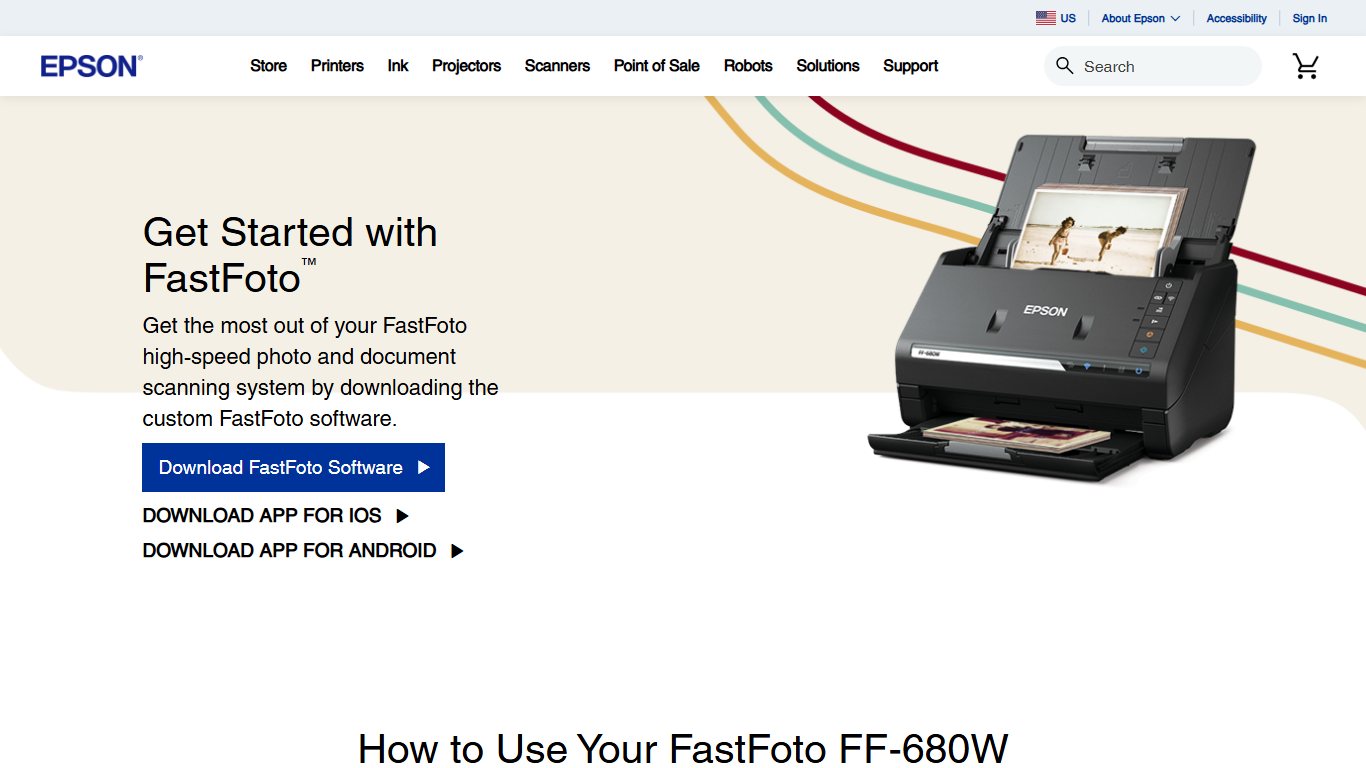
Epson FastFoto, Epson Scan 2 and Epson ScanSmart
Epson’s free software is the default for Epson hardware. Epson Scan 2 drives flatbeds like the Perfection V39 II, V600 and V850. The FastFoto app runs the FF-680W photo feeder, and Epson ScanSmart handles documents. On a Mac, Epson’s combo installer bundles the scanner driver, Epson Scan 2, FastFoto, ScanSmart and Epson Software Updater. Some Tahoe users have reported FastFoto’s enhancement settings misbehaving after a reinstall, so update through Epson Software Updater first.
PhotoScanner
PhotoScanner is a Mac app built only for prints. It requires macOS 12 or later, runs on Intel and Apple Silicon, and offers DPI presets of 150, 300, 600 and 1200. It exports straight into Apple Photos, and the free trial includes every feature. It’s a tidy choice if your scanner already works with macOS and you want fewer settings than VueScan. Keep in mind it’s sold by the same company whose blog recommends it, and it doesn’t do film.
Snip: Batchcrop Scanned Photos
Snip doesn’t scan. It takes scans that already exist, each holding several photos, and crops them into separate files using AI that runs on your Mac. It’s a free Mac App Store download with an in-app unlock and requires macOS 10.12 or later. User reviews are mixed, from roughly 90% success with its Computer Vision option to outright misses, so check the results. Its sibling app, SnipTag, adds EXIF and IPTC editing for dates and captions. It’s the best answer to the common request for “a Mac way to straighten and auto-crop scanned images.” Adobe Photoshop users already have a similar tool in File > Automate > Crop and Straighten Photos.
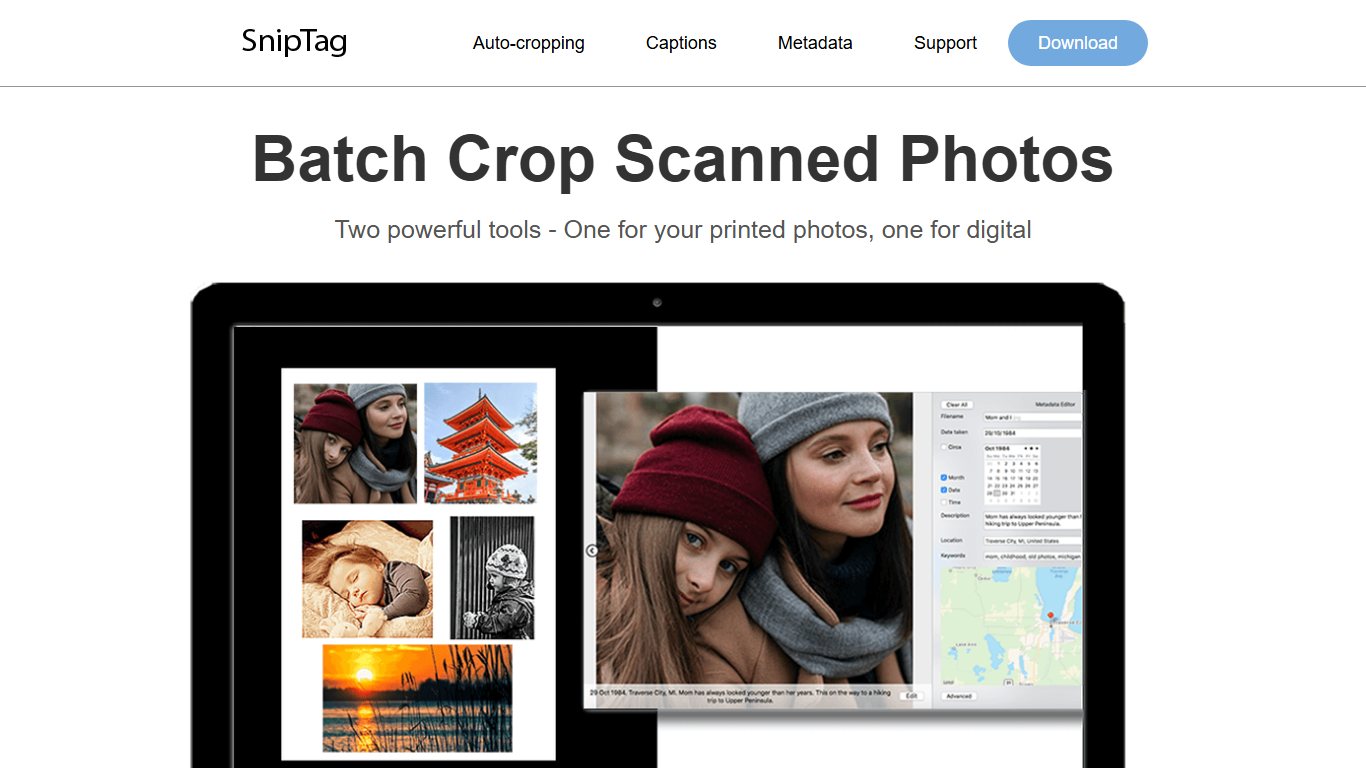
Image Capture and Preview
The free built-ins are covered above. They’re the right first step for everyone and the last step for many. Move on only when you hit a specific wall: a missing driver, film, or damage you want repaired.
Free photo scanning software for Mac: what you really get
The best free scanner software for a Mac is Image Capture, as long as your scanner has a current driver. Your full set of free options:
- Image Capture and Preview: full-resolution scans, TIFF output and multi-photo auto-crop.
- Continuity Camera: your iPhone as a camera-scanner, saving straight into a Mac folder.
- Manufacturer apps: Epson Scan 2, Epson FastFoto, Canon’s and HP’s utilities, free with the hardware.
- Apple Photos editing: Auto Enhance, color and light sliders, and the Retouch brush for dust spots.
- VueScan trial: every feature, with a watermark on the output.
Free stops being enough at three points. The first is when your scanner has no Tahoe driver. The second is when you scan film and want infrared dust removal. The third is when hundreds of faded prints each need color correction, which takes far longer by hand than with VueScan’s Restore Fading.
No scanner? Use your iPhone with your Mac
Continuity Camera turns an iPhone or iPad into a scanner for your Mac. It needs both devices signed in to the same Apple Account, with Wi-Fi and Bluetooth turned on. In a supported app, choose File > Insert from iPhone or iPad, then Take Photo or Scan Documents. In Finder, Control-click inside a folder window and choose the same menu to save the image directly into that folder.
Pick the right mode. Apple’s support page notes that Scan Documents output lands on the Mac as a PDF, which suits receipts and letters. If you have documents too, OCR software can make those PDFs searchable. For photos, use Take Photo so you get an image file.
To get good phone captures:
- Shoot in soft daylight near a window, never under a single ceiling lamp.
- Hold the phone parallel to the print to avoid keystone distortion.
- Tilt the album or the light slightly if glossy prints show glare.
- Google’s free PhotoScan app for iPhone reduces glare by combining several shots of each print.
A phone beats a flatbed for photos glued into albums, and for speed when you just want everything captured. It loses on detail. A 12-megapixel phone shot of a 4×6 print is roughly equal to a 600 DPI scan on paper, but lens softness, uneven lighting and texture make it a weaker master for enlargements.
How to digitize thousands of old photos on a Mac
The best way to digitize thousands of old photos is a batch workflow: sort first, scan in consistent batches, name files by date or event, then import and back up. Skipping the sorting step is what turns a weekend project into a year-long one.
- Sort prints into piles by decade, event or person. Label each pile on an index card.
- Choose the method for each pile (see the table below). Loose glossy prints suit a feeder. Fragile ones go on the flatbed.
- Scan in batches of 4 to 6 per flatbed pass, one pile at a time.
- Name folders and files with dates, for example 1978-07 Lake Tahoe trip, with files numbered 001, 002 and so on.
- Scan the backs of any prints with handwriting. The notes are often the most valuable part.
- Import into Apple Photos and add dates and captions.
- Back up the TIFF masters in two places, such as an external drive and a cloud service.
Flatbed vs auto-feed photo scanner vs phone
| Method | Speed | Quality | Risk to originals | Cost | Mac software |
|---|---|---|---|---|---|
| Flatbed (e.g. Epson Perfection V39 II, V600) | Slow: 4 to 6 prints per pass | Highest; 600 to 1200 DPI easy | Very low | Moderate | Image Capture, Epson Scan 2, VueScan, SilverFast |
| Auto-feed (Epson FastFoto FF-680W) | Fastest: Epson rates it at up to one photo per second at 300 DPI | Good; 600 DPI maximum | Real risk for curled, torn or brittle prints | Epson list $599.99 | Epson FastFoto, VueScan |
| iPhone (Continuity Camera, PhotoScan) | Fast for albums | Fine for screens, weak for enlargements | None | Free | Finder, Photos |
Protecting fragile, curled or album-mounted prints
Before you feed old prints
Rollers can crease curled prints, tear brittle ones and catch Polaroids or prints with tape. Put anything fragile, glued or valuable on the flatbed glass instead.
Clean the glass with a microfiber cloth before each session. Handle prints by the edges. Don’t peel photos out of old “magnetic” albums. The adhesive often damages the print surface. Photograph those pages with your iPhone, or scan the whole page on a flatbed and crop afterwards.
Organizing scans in Apple Photos
In Apple Photos, use File > Import and choose your scan folder. Scans carry the date you scanned them, not the date the photo was taken. Fix that with Image > Adjust Date and Time, which works on many selected photos at once. Add captions in the Info window (Command-I) so the names of people and places become searchable. Photos keeps TIFFs at full quality, and iCloud Photos syncs them, but they count against your iCloud storage. Large master sets may push you to a bigger plan. Keep the original folder outside Photos as your archive.
What resolution and file format should you scan photos at?
Scan standard prints at 600 DPI, small prints at 1200 DPI, and save TIFF masters. Use 300 DPI only for photos you’ll never print or enlarge.
| What you’re scanning | Goal | DPI | Format |
|---|---|---|---|
| 4×6 or 5×7 print | Sharing on screens | 300 | JPEG |
| 4×6 or 5×7 print | Reprints, restoration, archive | 600 | TIFF master |
| Wallet or 2×3 print | Reprint at 4×6 or larger | 1200 | TIFF master |
| 8×10 print | Archive | 400 to 600 | TIFF master |
| 35mm negatives or slides | Prints up to 8×10 | 2400 to 4000 | TIFF master |
Pick DPI by print size
Scan 4×6 prints at 600 DPI if you might ever enlarge or restore them, and wallet-size prints at 1200 DPI. 300 DPI is enough for sharing on screens.
The time and storage budget
Resolution applies in two directions, so doubling the DPI roughly quadruples the pixel count, the file size and usually the scan time. The math for a 4×6 print saved as an uncompressed 24-bit TIFF:
| DPI | Pixels | Approx. TIFF size | 1,000 prints |
|---|---|---|---|
| 300 | 1200 x 1800 | about 6.5 MB | about 6.5 GB |
| 600 | 2400 x 3600 | about 26 MB | about 26 GB |
| 1200 | 4800 x 7200 | about 104 MB | about 104 GB |
Scanning at 48-bit color doubles those figures again. A thousand prints at 600 DPI fit easily on a 1 TB external drive with plenty of room for a backup copy.
TIFF or PNG masters, JPEG copies
TIFF and PNG are lossless, so the master never degrades. JPEG throws away detail every time you save. Editing and re-saving the same JPEG over and over slowly adds visible blockiness. Keep one untouched TIFF master per photo, and export JPEG copies for sharing, email and social media.
Fixing faded colors, dust and scratches
Restoration works best as a step after the master is saved, never baked into it. The main tools and what each one does:
- VueScan Restore Fading rebuilds the color balance of prints that have faded to red or yellow. It’s one checkbox in the Color tab.
- VueScan Infrared Clean removes dust and scratches from film only. It needs a Pro license and a scanner with an infrared channel. It doesn’t work on prints, because paper doesn’t pass infrared the way film does.
- VueScan Touch Up 2.0 uses on-device AI to repair dust and scratches, including on prints, with three quality modes.
- VueScan AI Super-Resolution doubles resolution. It’s useful for small prints scanned at too low a DPI, though it invents some detail.
- Apple Photos (free) offers Auto Enhance, Color and Light sliders, and the Retouch brush for spot repairs. Its edits are non-destructive, and Revert to Original brings back the scan.
Never edit the master
Save a TIFF master of every scan and make copies for editing and sharing. AI repairs and colorization improve every year, so an untouched master lets you redo them later.
Scanning negatives and slides on a Mac
Film needs a scanner with a transparency light source, such as the backlit lid of an Epson Perfection V600 or V850, or a dedicated film scanner like the Plustek OpticFilm 8200i. A plain document flatbed lights film from the front and can’t capture it properly.
On software, choose by hardware and patience. VueScan Professional handles film on almost any scanner, includes Infrared Clean, and one license covers every scanner you own. SilverFast 9 offers finer control over negative profiles and color, but each license is tied to one scanner model. If you own one good film scanner and plan years of archival work, SilverFast is worth learning. If you own several scanners, or a model SilverFast doesn’t cover, VueScan Pro is the simpler buy.
FAQ
Does Mac have a built-in scanner app?
Yes. Every Mac includes Image Capture and Preview (File > Import from Scanner), and both scan from connected or network scanners. Continuity Camera also lets an iPhone act as a scanner. None of them restores faded color or removes dust.
How do I scan a photo on my Mac?
Open Image Capture, select your scanner and click Show Details. Set Kind to Color, Resolution to 600 DPI, Size to Detect Separate Items and Format to TIFF. Choose a folder and click Scan.
What is the best free scanner software for Mac?
Image Capture, as long as your scanner has a macOS 26 driver or supports AirPrint scanning. It auto-crops multiple photos and saves lossless TIFFs. If your scanner isn’t detected, the manufacturer’s free app or the VueScan trial is the next thing to try.
What is the best way to digitize thousands of old photos?
Sort prints by decade or event, then scan sturdy loose prints on an auto-feed scanner like the Epson FastFoto FF-680W. Put fragile ones on a flatbed. Name folders by date, add dates and captions in Apple Photos, and keep TIFF masters in two backup locations.
Is VueScan worth paying for?
Yes, if your scanner lost driver support, if you scan film, or if you have many faded prints. If Image Capture already works and your prints are in good shape, you can skip it.
What is the difference between VueScan Standard and Professional?
Standard ($99.95 one-time or $39.95/year) covers photo and document scanning, including Restore Fading. Professional ($199.95 one-time, $79.95/year or $19.95/month) adds film tools such as Infrared Clean, raw scan files and IT8 calibration.
Can Image Capture scan multiple photos into separate files?
Yes. Choose Detect Separate Items in the Size menu and leave space between prints. If it draws extra boxes inside a photo, delete them in the overview before scanning.
What DPI should I scan old photos at?
600 DPI for 4×6 and 5×7 prints, 1200 DPI for wallet-size prints, and 300 DPI only for photos you’ll view on screens.
Should I scan photos as JPEG or TIFF?
Scan to TIFF for the master and make JPEG copies for sharing. JPEG loses detail each time it’s re-saved, while TIFF doesn’t.
Why can’t my Mac find my scanner after updating to macOS Tahoe?
Usually the manufacturer hasn’t released a Tahoe-compatible ICA driver, or the device needs to be re-added for AirPrint scanning. Install the maker’s macOS 26 driver, test in Image Capture, and try the VueScan trial if no driver exists. If a supported scanner still won’t connect, contact the manufacturer’s support.
Where to start today
Put four prints on your scanner, open Image Capture and scan them at 600 DPI with Detect Separate Items turned on. If they come out as four clean TIFFs, you have a free workflow, and the only thing left is sorting the box. If the scanner doesn’t show up or the colors come out badly faded, that one test tells you whether you need a driver fix, VueScan, or a different scanner.