If you have been thinking about starting a podcast but can’t decide which app to record with, this list will help. The app stores are full of options, so this guide narrows them down to a few you can pick and stick with. It also covers the basic audio gear you need for a good-sounding show.
What you need before you pick an app
Have three things ready before you choose an app: a topic, a rough script or outline, and a guest if your format needs one. The apps below cover recording, remote interviews, cover art, editing and publishing. You don’t need all of them. Most new shows use one recording app, one editor and one host.
If you record on a computer rather than a phone, a separate roundup of the best audio recording software for mac covers more desktop options.
Best apps for podcast creation
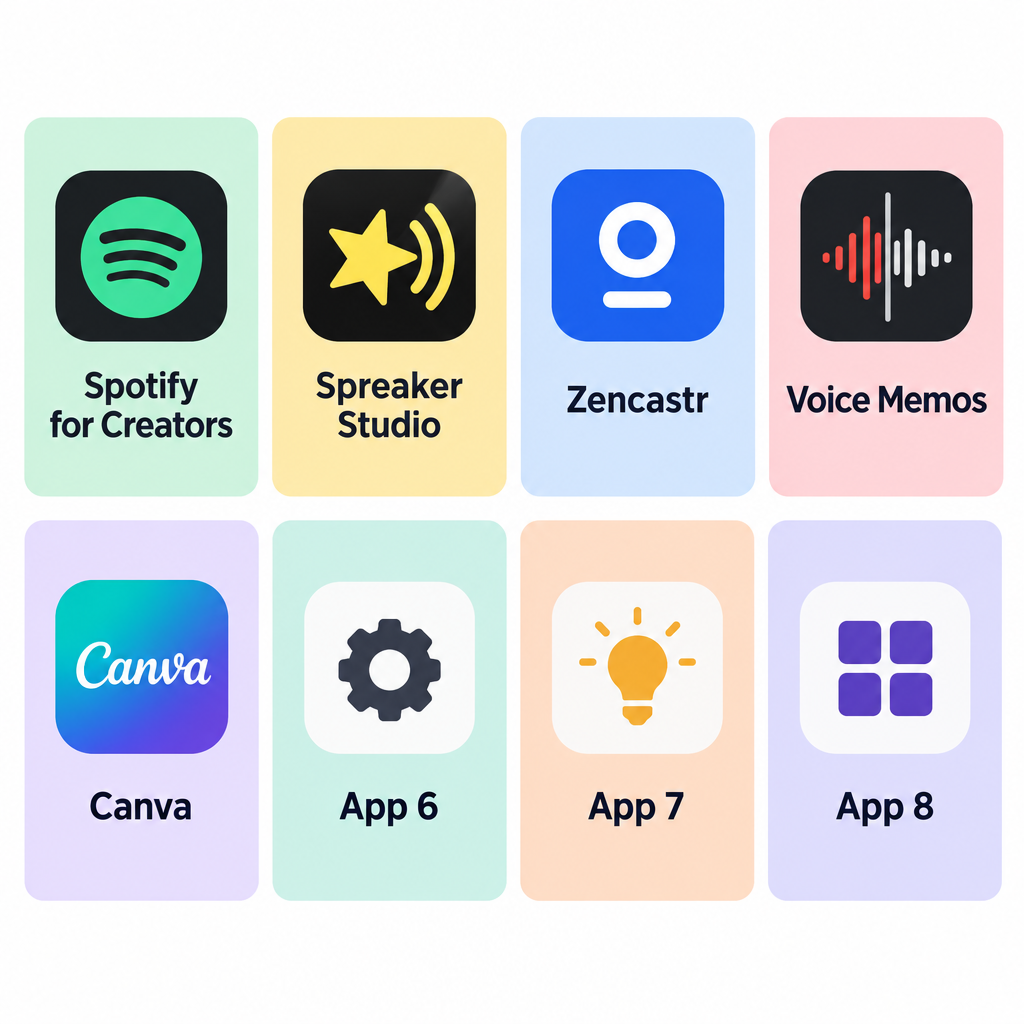
These eight picks cover each stage of making a podcast, from the first recording to the published episode. They are ordered from all-in-one apps to specialist tools.
1. Anchor (now Spotify for Creators)
Anchor used to be the easiest all-in-one podcast app. Spotify bought it, renamed it Spotify for Podcasters and then Spotify for Creators. It is still free and it still hosts your show. It just doesn’t record or edit anymore.
When it was called Anchor, the app let you record and edit on your phone, rearrange segments, add background music and sound effects, and invite friends to record remotely. Spotify has since retired those tools. Its support documentation lists Record with Friends, Music + Talk, Voice Messages and the episode builder’s recording and editing tools as no longer available on the web or mobile app. Spotify has also ended the option to use full licensed music tracks in podcasts.
Here is what still works:
- Hosting and publishing. You upload a finished audio or video file and Spotify for Creators publishes it. Episodes you already published stay live and unchanged.
- Recording through Riverside. Spotify now points creators to its built-in Riverside integration. You record multitrack audio or video in a browser or on mobile, then import the file straight into Spotify for Creators. Full use of Riverside needs a paid Riverside plan.
- Distribution. Your show appears on Spotify, and you can submit its RSS feed to Apple Podcasts and other apps. Google Podcasts, which used to be on the list, shut down in 2024.
The mobile app has limits. It uploads one file at a time and doesn’t take video uploads. A good routine is to record and edit in another app, then upload the finished file.
Overview
- Free hosting with publishing to Spotify
- Riverside built in for recording (paid Riverside plan)
- No built-in recording or editing in the app anymore
2. Spreaker Studio
Spreaker Studio is now the closest thing to the old Anchor experience. You can record, do basic editing and publish from your phone. Its standout feature is live broadcasting: you can stream an episode and chat with listeners in real time. On the App Store the app now appears as Podcast Studio by Spreaker.
You have two ways to use it. You can broadcast live, or you can record and publish later. Basic editing tools such as trimming are built in, which helps beginners tidy up an episode without a second app. Spreaker is owned by iHeartMedia, and the app works with Spreaker’s own hosting.
The app is free to download. The free version limits how long you can broadcast. Paid Spreaker plans add more recording time, hosting for several podcasts, monetization and detailed stats. Plan names and prices have changed several times, so check the current price on Spreaker’s plans page before you subscribe.
Overview
- Live broadcasting to your audience
- Live chat while you broadcast
- Hosting on Spreaker, with paid plans for monetization and stats
3. Zencastr
Zencastr is a web app for recording remote interviews in high quality. Some people misspell it as Zencaster. Everything runs in the browser, so neither you nor your guests need to install anything on a PC.
Here is how a session works:
- Create an episode in Zencastr.
- Copy the invite link and send it to your guests.
- Once everyone has joined, click record.
- When you finish, download each person’s track separately, or let Zencastr process the tracks for you.
Each participant is recorded on their own device. Because of that, a shaky internet connection doesn’t ruin the audio, and you get a clean separate track for each person to edit later. Zencastr now records video as well as audio.
Zencastr doesn’t have a full editor, so you’ll need desktop software such as Audacity or GarageBand for the final cut. During the pandemic, Zencastr offered unlimited guests and recording time for free. That offer has ended. Today there is a free tier with limits, and paid plans remove them.
Overview
- Runs in the browser, nothing to install
- Each guest recorded locally on a separate track
- Free tier, with paid plans for more recording and storage
4. Phone’s Audio Recorder
At its simplest, a podcast is two or more people having a conversation. If everyone is in the same room, the voice recorder already on your phone is the easiest option. Open the app, put the phone in the middle of the table, and start recording.
The one thing to change first is the quality setting:
- iPhone (Voice Memos): go to Settings > Apps > Voice Memos > Audio Quality and choose Lossless instead of Compressed.
- Android: the recorder app depends on your phone maker. Open the app’s settings and pick the highest quality or bitrate it offers.
Other voice recording apps for iOS and Android give you more control over format and quality if the built-in app isn’t enough.
You’ll also need an audio editor to add an intro, an outro and music. Mobile audio editors can handle simple jobs. For anything more involved, use the desktop tools in section 8.
5. Canva
Every podcast needs cover art, and publishing platforms won’t list your show without it. It’s the image listeners see before they press play, so it should be clear even at thumbnail size. Canva is the usual choice because it has a large library of podcast cover templates.
The built-in editor lets you change the background, add text and stickers, and switch fonts. Apple Podcasts requires square artwork between 1400 x 1400 and 3000 x 3000 pixels in JPEG or PNG. Set a custom size of 3000 x 3000 in Canva and you’ll meet that requirement everywhere. The free version is enough for most shows.
Overview
- Many podcast templates in the free version
- Built-in photo editor
6. Zoom
Many podcasts are also video shows. The Joe Rogan Experience, for example, is filmed and posted on YouTube, and Spotify supports video podcasts too. If you want video and your guests are in other places, Zoom is a familiar and reliable way to record. You can bring in several guests on any device, schedule sessions ahead of time, and record with one click.
Zoom’s free Basic plan caps meetings at 40 minutes, with up to 100 participants. The paid Workplace Pro plan raises the cap to 30 hours. It costs around $16 a month on monthly billing, and less per month if you pay yearly. If you show slides or a browser window during a video episode, Zoom’s sharing works as well as standalone screen sharing tools windows mac users install separately.
For better audio, turn on Zoom’s original sound option for musicians and record each participant to a separate audio file in the recording settings. That gives you separate tracks to edit, much like Zencastr.
7. Podcast Starter Kit
Recording on a phone is the easiest way to start, but it isn’t the best. Depending on your phone, quality can drop, especially in an echoey room or with more than one speaker. A Podcast Starter kit doesn’t need to cost much.
Here is gear that fits each setup:
| Setup | Suggested gear | Why it helps |
|---|---|---|
| Solo, recording on a phone | A clip-on lavalier (lav) mic | Sits close to your mouth under your shirt, so your voice is clearer and the room is quieter |
| Several people in one room | Zoom H1essential handheld recorder | Replaced the older Zoom H1n and records in 32-bit float, so loud laughs won’t distort |
| Recording on a PC or Mac | Logitech G Yeti USB mic (formerly Blue Yeti) | Plug-and-play USB mic that comes with a stand |
Logitech retired the Blue brand in 2023, so the Yeti mics are now sold as Logitech G products. Older Blue Yeti units still work fine if you find one used.
8. Audacity (software on a PC)
Once you’re past the beginner stage and comfortable recording, the next step is better gear and a computer for editing. On a computer you can cut, rearrange, add effects and turn the recording into a polished episode. You don’t need to buy any software to do it.
On a Mac, use GarageBand. It is free from Apple and is a capable podcast editor. It has a built-in sound library, presets, audio effects, EQ and support for up to 255 tracks. You can plug in your mic or another instrument and record directly. The current Mac version needs macOS 14.4 or later.
On Windows, Linux or Mac, use Audacity. Audacity is free, open source and very flexible. You can record several tracks, choose from a huge range of effects, cut silences automatically, and normalize, compress, amplify and adjust EQ. Audacity 4.0 came out in September 2026 with a redesigned interface. Version 4.0.2, a fix release for crashes and project corruption, followed in early November 2026. A few features from the older 3.x line are still missing from 4.0. If you rely on one of them, the 3.7 branch is still maintained.
Which app to start with
If you plan to use only your phone, Spreaker Studio is now the best all-in-one option: it records, edits, broadcasts and hosts. Spotify for Creators is still the easiest free host and puts your show on Spotify, but it no longer records. You need to make the episode somewhere else first, or use its Riverside integration.
If you’re happy to use a computer, buy a decent USB mic and edit in GarageBand or Audacity. That setup costs very little beyond the mic and covers almost every kind of show. A good next step is to record a 10-minute test episode this week, edit it, and listen back on headphones before you plan a full season.
FAQ
Can you still record a podcast in the Anchor app?
No. Anchor is now Spotify for Creators, and Spotify removed its recording and editing tools, including Record with Friends and the episode builder. You can still upload finished episodes for free, or record through the built-in Riverside integration with a paid Riverside plan.
What is the best free app to record a podcast on a phone?
For recording and publishing in one app, Spreaker Studio (listed as Podcast Studio by Spreaker on the App Store) is the strongest free option. For in-person recording only, your phone’s built-in recorder works well once you set it to its highest quality, such as Lossless in iPhone Voice Memos.
Is Zoom good enough for recording a podcast?
Yes, for remote interviews and video podcasts. Turn on separate audio files for each participant so you can edit voices on their own tracks. The free plan stops meetings at 40 minutes, so longer episodes need the Pro plan.
Is Audacity still free?
Yes. Audacity is free and open source on Windows, macOS and Linux. The current version is 4.0.2 from November 2026, and the older 3.7 series is still maintained for anyone who needs features not yet in 4.0.
What size should podcast cover art be?
Make it square, between 1400 x 1400 and 3000 x 3000 pixels, in JPEG or PNG format, which is what Apple Podcasts requires. Designing at 3000 x 3000 in Canva meets every major platform’s rules. Keep the text big enough to read when the image is shown as a small thumbnail.
Do I need an expensive microphone to start a podcast?
No. A lav mic for your phone or a single USB mic such as the Logitech G Yeti is enough for most new shows. A quiet room with soft furnishings makes as much difference as the microphone itself.
Sources
- Evolving how you create on Spotify for Creators (Spotify Support)
- Recording and editing an episode (Spotify Support)
- Podcast Studio by Spreaker (App Store)
- Zoom Workplace Pro (Zoom)
- Zoom H1essential Operation Manual (Zoom Corporation)
- GarageBand for Mac (App Store)
- Audacity changelog (Audacity Team)