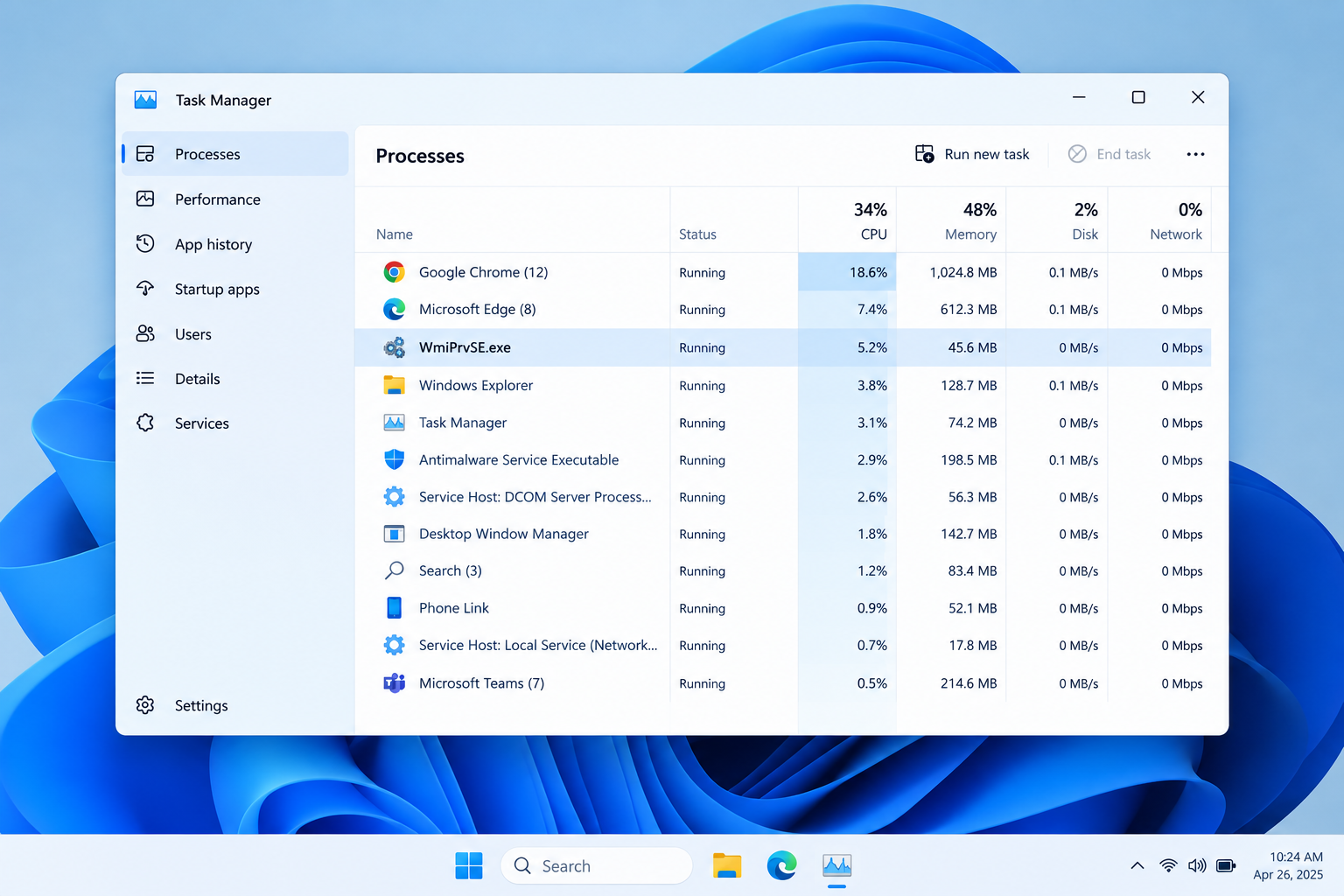
WMI Provider Host (WmiPrvSE.exe) is a real Microsoft part of Windows. It answers questions that apps and Windows itself ask about your hardware, drivers and settings. When it uses a lot of CPU, WMI is almost never the thing that’s broken. Some other program is asking it too many questions, and the fix is to find that program.
Key takeaways
- WmiPrvSE.exe is a Microsoft system process. Don’t delete it, and don’t disable the WMI service.
- High CPU often means another app is asking WMI too many questions. Event ID 5858’s ClientProcessId can point you to the client process involved, but you need to correlate it with process data.
- The real file is normally in C:\Windows\System32\wbem. Anywhere unusual is a red flag.
- Run winmgmt /verifyrepository before any repair. Only reset the repository as a last resort.
- Microsoft has deprecated WMIC, and its removal is planned for a future Windows release. Old wmic tips are best replaced with PowerShell.
Fact-checked
We checked these key facts against the sources named, on November 16, 2026:
- Event 5858 logs a failed WMI operation (source: learn.microsoft.com)
- In the Event IDs box type 5857,5858 and click OK (source: learn.microsoft.com)
- Not every high-CPU episode logs a 5858, because 5858 only records failed operations (source: learn.microsoft.com)
- Download it from Microsoft’s Sysinternals site only, run it as administrator, and double-click the busy WmiPrvSE.exe (source: learn.microsoft.com)
- Microsoft’s quota-exceeded scenario guide advises against raising these limits without investigating first, because higher limits can increase memory, handle and CPU consumption (source: learn.microsoft.com)
WMI Provider Host in 30 seconds: what it is and whether you need it
WMI Provider Host is the process that runs WMI “providers,” the small code modules that answer questions about your system. Windows needs it, so you should leave it enabled. Short bursts of CPU are normal. Constant high CPU means a client app is overloading it.
What “WMI” and “providers” mean, in plain English
Windows Management Instrumentation (WMI) is a built-in system that lets software ask Windows questions. Typical ones are “what’s this PC’s serial number?”, “how full is drive C:?” and “which services are running?” The Windows Management Instrumentation service (its short name is Winmgmt) takes those questions. It runs inside a shared svchost.exe process.
Winmgmt doesn’t answer most questions itself. It passes each one to a provider. The event log provider answers questions about event logs, and the disk provider answers questions about disks. Those providers run inside WmiPrvSE.exe, which Task Manager shows as “WMI Provider Host.” Keeping providers in separate processes means a buggy one can’t crash the WMI service itself.
Plenty of software relies on this. Management and inventory tools, antivirus suites, hardware monitors, RGB lighting apps, backup agents and PowerShell scripts all query WMI. That’s why WmiPrvSE.exe jumps briefly when you open some apps and then drops back to near zero.
Is WMI Provider Host needed? Can I disable it?
Yes, it’s needed, and no, you shouldn’t disable it. If you stop the Windows Management Instrumentation service or set it to Disabled, every app that depends on WMI starts failing in confusing ways. Management and security tools can lose visibility, and hardware utilities stop reading sensors.
Ending one WmiPrvSE.exe task in Task Manager is safe as a short test, though. Windows starts a new host the next time something needs a provider. If the CPU climbs straight back up, a client app is driving it, and the next sections show you how to find it.
Is it a virus? A 30-second safety check
The genuine WmiPrvSE.exe is signed by Microsoft and lives in C:\Windows\System32\wbem. High CPU on its own doesn’t prove malware. A copy running from your user folder or a temp folder does point to malware.
Where the real WmiPrvSE.exe lives
Check the file location
- Press Ctrl + Shift + Esc to open Task Manager.
- Select Details in the left sidebar (Windows 11) or the Details tab (Windows 10).
- Right-click a WmiPrvSE.exe entry and choose Open file location.
- Confirm the folder is C:\Windows\System32\wbem.
- Repeat for every WmiPrvSE.exe entry you see.
WmiPrvSE.exe is normally found in C:\Windows\System32\wbem. A copy anywhere else deserves a closer look.
How to check the digital signature
In the wbem folder that opened, right-click WmiPrvSE.exe, choose Properties and open the Digital Signatures tab. The signer should be Microsoft Windows. Click Details and you should see “This digital signature is OK.” If the Digital Signatures tab is missing or names another company, treat the file as suspicious.
| Check | Normal | Suspicious | What to do |
|---|---|---|---|
| File location | C:\Windows\System32\wbem | C:\Users…, C:\Temp, AppData, ProgramData | Run a full Microsoft Defender scan, then an offline scan |
| Digital signature | Microsoft Windows, “This digital signature is OK” | Missing, invalid or another publisher | Scan, then remove using your antivirus |
| File name | WmiPrvSE.exe | Look-alikes such as WmiPrvSE32.exe or a zero in place of an “o” | Treat as malware until proven otherwise |
| CPU pattern | Spikes when an app starts, then settles | Constant load with no client found in the logs | Follow the troubleshooting steps below, and scan |
| Number of copies | One to several, all in wbem folders | Copies from different, odd folders | Check each copy’s location |
What to do if it’s in the wrong folder
Don’t just delete the file. Open Windows Security > Virus & threat protection > Scan options and run a Full scan. Then run a Microsoft Defender Antivirus (offline scan), which restarts the PC and scans before Windows loads. If something is found and removed, change the passwords you use on that PC from a different, clean device. If the scan finds nothing but the file is still in an odd location, get help from a professional or your antivirus vendor’s support.
Why are there 2 (or more) WMI Provider Host processes?
Several WmiPrvSE.exe entries are normal. Windows runs separate host processes for different providers and security contexts, such as providers that must run as Local System versus Network Service.
According to Microsoft’s troubleshooting documentation, one host can also load more than one provider, and any of them can be the one using CPU. So “WMI Provider Host” in Task Manager tells you where the load is but not what causes it.
More copies only point to a problem when they come from the wrong folders, or when they keep multiplying under constant load. The second case usually means a client keeps opening WMI connections without closing them. That shades into the quota errors covered in the admin section.
Did you know?
The process ID that matters in the WMI log is the client’s, not WmiPrvSE’s. In Microsoft’s own example, client process 5484 queries Win32_NTLogEvent through the MS_NT_EVENTLOG_PROVIDER, which runs in WmiPrvSE.exe PID 552.
Quick fixes first (5 minutes)
Start with the quick, safe steps: restart the PC, restart the Windows Management Instrumentation service, install pending updates, and quit RGB or monitoring apps. Each takes a minute, and between them they clear a lot of cases.
Fix it
- Restart Windows using Start > Power > Restart, not Shut down. Fast Startup can carry the problem over a shutdown.
- Install updates in Settings > Windows Update > Check for updates. Also update your peripheral and lighting apps.
- Restart the Windows Management Instrumentation service (steps below).
- Quit RGB, peripheral and hardware-monitoring apps from the system tray, then watch CPU in Task Manager for two minutes.
Restart the Windows Management Instrumentation service
Press Win + R, type services.msc and press Enter. Scroll to Windows Management Instrumentation, right-click it and choose Restart. Windows may warn that dependent services will also restart, such as IP Helper. Click Yes. The startup type should stay Automatic.
If the CPU drops and stays down, something was stuck. If it climbs back within minutes, the client app is still running, so move on to finding it.
High CPU right after a big Windows update or after waking from sleep often settles once background tasks finish. Give it 10 to 15 minutes. If it’s still high after that, treat it like any other case and trace the client. Other post-update background tasks behave the same way. The CompatTelRunner.exe compatibility telemetry task is a common one.
Temporarily quit RGB, peripheral and monitoring apps
These apps poll WMI constantly to read sensors and device states, which makes them the most common cause on home PCs. Right-click each tray icon and choose Exit or Quit. That covers Razer Synapse, ASUS Armoury Crate, other lighting suites, and fan or temperature monitors. Then watch the CPU.
Pro tip
If CPU drops the moment you quit Razer Synapse, ASUS Armoury Crate/AURA or a hardware monitor, update or reinstall that app. You don’t need to touch WMI at all.
Find the app that’s really causing the high CPU: Microsoft’s method step by step
Microsoft’s method works like this. Note the PID of the busy WmiPrvSE.exe, open the Microsoft-Windows-WMI-Activity/Operational log, and read the ClientProcessId in the related events. That number belongs to the app sending the queries. Then deal with that app.
Step 1: Note the busy WmiPrvSE.exe PID
In Task Manager > Details, click the Name column to sort, then find the WmiPrvSE.exe entries. If you don’t see a PID column, right-click any column header, choose Select columns, and tick PID. Note the PID of the instance with the high CPU value.
Pro tip
Write the PID down before you change anything. With several instances running, guessing which one is busy wastes time, and the number changes if the host restarts.
Step 2: Open the WMI-Activity Operational log
- Press Win + X and choose Event Viewer.
- In the left pane, expand Applications and Services Logs > Microsoft > Windows > WMI-Activity.
- Click Operational.
- In the right pane, choose Filter Current Log. In the Event IDs box type 5857,5858 and click OK.
Two event IDs matter here:
| Event ID | What it records | Why you care |
|---|---|---|
| 5857 | A provider was loaded, with its DLL name and the host process ID | Tells you which provider runs in the busy WmiPrvSE.exe PID |
| 5858 | A WMI operation failed, with the query, the user, a ResultCode and the ClientProcessId | Tells you which app sent the failing query |
| 5860 / 5861 | Temporary and permanent event subscriptions were registered | Helps you spot scripts or software that poll WMI constantly |
Match a 5857 event’s ProcessID to the busy PID from Step 1, and you know which provider is doing the work. Then look at the 5858 events from the time of the spike.
Step 3: Read ClientProcessId and compare it with running processes
Open a 5858 event and read the General tab. The text includes ClientProcessId = #### and the query that was sent, for example SELECT * FROM Win32_NTLogEvent. The value is a process ID and may be shown in hexadecimal. Go back to Task Manager > Details, sort by PID, and look for that number. If the process is still running, its name is a lead on which program sent the query. If it has exited or the ID has been reused, the match may fail or point to the wrong program, so treat it as a clue and not as proof.
Then fix that app, in this order:
- Update it from the vendor’s own site or the Microsoft Store.
- Turn off its monitoring, lighting sync or sensor-polling features.
- Uninstall it, restart the PC, and see whether the CPU stays down.
- If it’s a service, set it to Manual in services.msc as a test. This is the fix that worked for the ASUS AURA lighting service.
A ResultCode of 0x80041032 is a common sight. It means WBEM_E_CALL_CANCELLED: the app started a query but gave up before collecting the full result. Repeated 0x80041032 errors from the same ClientProcessId point to an app that fires queries in a tight loop. That app is a strong suspect, though you should confirm it against the WMI activity and how the system behaves.
Pro tip
Filter for Event ID 5858 at the time of the spike, then check the ClientProcessId against running processes right away. Scripts and scheduled tasks often exit within seconds, and their PID disappears with them.
If the process ID is gone or there’s no 5858 event
A ClientProcessId that’s missing from Task Manager usually means a short-lived process. Typical examples are a scheduled task, a PowerShell or VBScript run by an updater, or an agent that starts, queries and exits. Open Task Scheduler and look for tasks that run every few minutes. Then wait for the next spike and check the PID while it’s happening.
Not every high-CPU episode logs a 5858, because 5858 only records failed operations. To see the queries that succeed too:
- In Event Viewer, click View > Show Analytic and Debug Logs.
- Under WMI-Activity, right-click Trace and choose Enable Log. Do the same for Debug if you need more detail.
- Reproduce the problem for a few minutes.
- Right-click the log and choose Disable Log so it doesn’t keep growing, then read the entries for the queries and client IDs.
Going deeper: Process Explorer and Performance Monitor
Process Explorer, Microsoft’s free Sysinternals tool, gives you the quickest view. Download it from Microsoft’s Sysinternals site only, run it as administrator, and double-click the busy WmiPrvSE.exe. The WMI Providers tab lists every provider loaded in that host, with its namespace and DLL.
Performance Monitor is Microsoft’s own method for matching the busy host to a performance counter instance:
- Press Win + R, type perfmon and press Enter.
- Click Performance Monitor, then the green plus button.
- Expand Process, select % Processor Time, and add each WmiPrvSE instance (WmiPrvSE, WmiPrvSE#1, WmiPrvSE#2 and so on).
- Add Process > ID Process for the same instances, and use the Report view to see which instance number matches your PID.
Performance Monitor numbers instances, not PIDs, so the ID Process counter is what links “WmiPrvSE#1” to the PID you noted in Task Manager.
Did you know?
Sometimes the busy process isn’t WmiPrvSE.exe at all. Microsoft’s troubleshooting guide notes that the CPU consumer can be the svchost.exe that hosts the Winmgmt service itself.
Known culprits and what fixes them
Most WMI Provider Host CPU problems trace back to a short list of software and leftovers: peripheral suites, lighting services, monitoring agents, orphaned subscriptions and repository damage. The table covers the causes reported most often and what fixes each one.
| Software or cause | Typical symptom | Fix |
|---|---|---|
| Razer Synapse | WMI Provider Host at 60 to 70% CPU while Synapse runs, as reported on Razer’s Insider forum | Quit Synapse to confirm, update it, remove unused modules or reinstall |
| ASUS AURA lighting service / Armoury Crate | High CPU and memory in WmiPrvSE.exe | Set the AURA service to Manual or Disabled in services.msc, or update Armoury Crate from ASUS |
| Hardware and fan monitors | Steady load that matches the app’s polling interval | Raise the polling interval or turn off sensors you don’t use |
| Monitoring agents (Checkmk, other RMM or inventory tools) | Periodic spikes every few minutes, often on servers | Reduce check frequency, update the agent, or exclude heavy WMI checks |
| Citrix and VDI components | High CPU on session hosts | Update the Citrix components and review their WMI-based checks with the vendor |
| Leftover WMI event subscriptions | Constant polling with no matching app installed | List and review subscriptions in root\subscription (see below) |
| Corrupted WMI repository | Errors in many apps, WMI queries failing or hanging | Verify, then salvage (repair ladder below) |
| Antivirus scanning the wbem folder | Repository corruption, slow WMI after AV updates | Ask your AV vendor about their supported exclusion for the WMI repository |
If you can’t spot a culprit and your whole machine still feels sluggish, a heavy WMI client is just one possible cause. The usual reasons for a slow PC are worth checking next.
How to check and repair a corrupted WMI repository (safely)
Repository corruption is rarer than most guides suggest. Check it with winmgmt /verifyrepository first. If it reports a problem, run /salvagerepository and verify again. Keep /resetrepository for when nothing else works.
Before you start
Create a restore point first (search “Create a restore point” > Create). A repository reset can break installed apps and wipe antivirus and inventory registrations.
Verify first
Right-click Start, choose Terminal (Admin) on Windows 11 or Windows PowerShell (Admin) on Windows 10, and run:
winmgmt /verifyrepository
If you see “WMI repository is consistent,” corruption isn’t your problem, so stop here and go back to finding the client app. Microsoft’s support team has warned for years that deleting and rebuilding the repository without confirming corruption can damage Windows or installed applications.
Salvage, then re-verify
If the result says the repository is inconsistent, run:
winmgmt /salvagerepository
This merges whatever readable data remains into a rebuilt repository. Run /verifyrepository again afterwards. Most of the time it now reports consistent, and you’re done.
Why a reset is the last resort
winmgmt /resetrepository resets the repository to its initial state when the operating system was first installed, and Microsoft cautions against doing this as a first action. Anything an app registered later is lost. Automox’s documentation for its repair task notes that a salvage-then-reset sequence can wipe antivirus and inventory data. After a reset, you’ll often need to reinstall security software, management agents or hardware utilities.
| Command | What it does | Risk | When to use |
|---|---|---|---|
winmgmt /verifyrepository |
Checks repository consistency | None, read-only | Always first |
winmgmt /salvagerepository |
Rebuilds, keeping readable data | Low | Only when verify reports inconsistent |
winmgmt /resetrepository |
Resets to the default state | High: apps and AV can lose their WMI registrations | Only after salvage fails and you’ve made a restore point |
sfc /scannow |
Repairs protected Windows files, including wbem files | Low | When WMI files themselves may be damaged |
DISM /Online /Cleanup-Image /RestoreHealth |
Repairs the Windows image that SFC repairs from | Low, needs internet or a source | Before re-running SFC if SFC can’t fix everything |
Run SFC and DISM
In the same admin terminal, run DISM /Online /Cleanup-Image /RestoreHealth, wait for it to finish, then run sfc /scannow and restart. If DISM fails with a source error, it could not find the files it needs. DISM uses Windows Update as the repair source by default, or you can point it at a repair source such as installation media that contains the needed files. Component store problems like error 0x800f0988 can have a similar cause.
If antivirus scanning keeps corrupting the repository, ask your vendor whether they publish an exclusion for C:\Windows\System32\wbem\Repository. Don’t add broad exclusions on your own, because malware hides in system folders.
Leftover WMI event subscriptions (the hidden cause)
Uninstalled software, and some malware, can leave permanent WMI event subscriptions behind. These are __EventFilter, consumer and binding entries in the root\subscription namespace, and they keep polling with nothing visible running. You can list them with PowerShell, but review them carefully before you delete anything.
List them from an admin PowerShell window:
Get-CimInstance -Namespace root\subscription -ClassName __EventFilterGet-CimInstance -Namespace root\subscription -ClassName __EventConsumerGet-CimInstance -Namespace root\subscription -ClassName __FilterToConsumerBinding
Look at the Name and Query properties. A filter with a query such as WITHIN 5 runs every five seconds. Some entries are legitimate. Windows itself registers one called SCM Event Log Filter, and security and management products add their own. If an entry names software you removed long ago, or a consumer runs a script or command line you don’t recognise, it’s worth a closer look. If you find one you can’t explain, run a full Defender scan first. On a work PC, hand it to your IT team, because unknown command-line consumers are a known persistence trick used by attackers.
WMIC is deprecated in Windows 11: what to know
Microsoft has announced the WMIC command-line tool as deprecated, with removal planned for a future Windows release. The WMI service and WMI Provider Host are separate components and stay. Old wmic commands are best replaced with PowerShell.
Microsoft’s support article KB 5067470 gives the timeline:
| Date | Change |
|---|---|
| 2021 | WMIC deprecated in Windows 10 version 21H1 |
| 2022 | WMIC becomes a Feature on Demand in Windows 11 version 22H2 |
| 2023 to 2024 | Disabled by default on new installs of Windows 11 23H2 and 24H2 |
| 2025 | Removed from existing installations when upgrading to Windows 11 25H2 |
| Future release | Removal planned |
If your scripts use wmic, plan to rewrite them in PowerShell before the tool is removed from your version of Windows.
Did you know?
BleepingComputer reported that attackers’ abuse of WMIC as a Microsoft-signed “living off the land” binary was part of the reason for retiring it. The WMI service it talked to remains a core part of Windows.
Old wmic command vs. PowerShell replacement
| Task | Old wmic command | PowerShell (Get-CimInstance) command |
|---|---|---|
| PC serial number | wmic bios get serialnumber |
Get-CimInstance Win32_BIOS \| Select-Object SerialNumber |
| Motherboard model | wmic baseboard get product,manufacturer |
Get-CimInstance Win32_BaseBoard \| Select-Object Manufacturer, Product |
| Disk model and status | wmic diskdrive get model,status |
Get-CimInstance Win32_DiskDrive \| Select-Object Model, Status |
| CPU name | wmic cpu get name |
Get-CimInstance Win32_Processor \| Select-Object Name |
| Windows version | wmic os get caption,version |
Get-CimInstance Win32_OperatingSystem \| Select-Object Caption, Version, BuildNumber |
| Installed RAM sticks | wmic memorychip get capacity |
Get-CimInstance Win32_PhysicalMemory \| Select-Object Capacity, Speed |
Each of these PowerShell commands still runs through WMI, so it briefly wakes WMI Provider Host too. That’s normal.
For IT admins: Windows Server 2019/2022 and quota errors
On servers, the cause is usually monitoring or management software polling too hard. Domain controllers that peak at 45 to 50% WmiPrvSE.exe CPU, as described in a Microsoft Q&A thread about a Server 2019 DC, follow the same pattern. Use the same PID-to-client method. Investigate quota errors before you raise any limit.
The workflow is the same as on Windows 11, but check svchost.exe as well. If the load sits in the svchost.exe that hosts Winmgmt rather than in a WmiPrvSE.exe, the core service is the consumer. That often means a large number of event subscriptions or clients connecting at once. Find that svchost’s PID with tasklist /svc /fi "services eq winmgmt".
Quota-exceeded errors appear when a provider host hits the limits set in the __ProviderHostQuotaConfiguration class in the root namespace. Read the current values with Get-CimInstance -Namespace root -ClassName __ProviderHostQuotaConfiguration. The commonly reported defaults from Vista and Server 2008-era systems are below, so check your own servers rather than assuming:
| Property | Reported default |
|---|---|
| MemoryPerHost | 536,870,912 bytes (512 MB) |
| MemoryAllHosts | 1 GB |
| HandlesPerHost | 4,096 |
| ThreadsPerHost | 256 |
| ProcessLimitAllHosts | 32 |
Changes apply to all hosts, not just one, and they take effect after a restart. Microsoft’s quota-exceeded scenario guide advises against raising these limits without investigating first, because higher limits can increase memory, handle and CPU consumption. A host that hits 4,096 handles usually has a client that leaks connections. Fix that client, and the quota error goes away. Servers running IIS can show similar “one process, many causes” behaviour in w3wp.exe, and you troubleshoot it the same way: find the request source before tuning the host.
If the method above doesn’t identify a client, open a case with Microsoft Support or your monitoring vendor. Include the WMI-Activity logs, a Performance Monitor capture and the Process Explorer provider list.
FAQ
What is WMI Provider Host?
WMI Provider Host (WmiPrvSE.exe) is a Windows process that runs WMI providers, the modules that answer system queries from apps and Windows. It works with the Windows Management Instrumentation service (Winmgmt) and ships with every version of Windows 10 and Windows 11.
Is WMI Provider Host a virus?
No, not when it runs from C:\Windows\System32\wbem with a valid Microsoft signature. Copies in C:\Users, C:\Temp or AppData are suspicious and need a full and offline Defender scan.
Is a WMI Provider Host needed? Can I disable it?
Yes, it’s needed, and you shouldn’t disable the WMI service. Management tools, security software and hardware utilities depend on it. Fix the app that overloads it instead.
Why is WMI Provider Host using so much CPU?
Because another app or script is sending it lots of queries, often in a loop. Peripheral software like Razer Synapse, lighting services like ASUS AURA, and monitoring agents are the usual causes. Repository corruption is a less common cause.
How do I fix WMI Provider Host high CPU on Windows 11?
Restart the Windows Management Instrumentation service in services.msc, then quit RGB and monitoring apps. If the CPU is still high, check Event ID 5858 in the WMI-Activity Operational log, find the ClientProcessId in Task Manager > Details, and update or remove that app. The same steps work on Windows 11 24H2, 25H2, 26H1 and Windows 10.
Why are there 2 WMI Provider Host processes in Task Manager?
Windows runs separate hosts for providers with different security contexts. Two or more copies are normal as long as each one is in the System32\wbem folder.
How do I repair a corrupted WMI repository?
Run winmgmt /verifyrepository in an admin terminal. If it reports inconsistent, run winmgmt /salvagerepository and verify again. Use /resetrepository only if salvage fails, after making a restore point.
Is it safe to end the WMI Provider Host task?
Yes, as a short test. Windows starts a new host when one is needed. If CPU returns quickly, a client app is causing it.
What is Event ID 5858 WMI-Activity?
Event 5858 logs a failed WMI operation. It records the query, the user, a ResultCode and the ClientProcessId of the app that sent it. ResultCode 0x80041032 means the caller cancelled before collecting the full result.
Is WMI being removed from Windows 11?
No. Only the WMIC command-line tool is deprecated, with removal planned for a future Windows release. WMI and WMI Provider Host remain part of Windows.
Next time WmiPrvSE.exe acts up, go straight to the PID and Event 5858 rather than tweaking Windows itself. The busy process alone does not prove the cause, but the client ID, correlated with process data, can help you find the program making the requests.