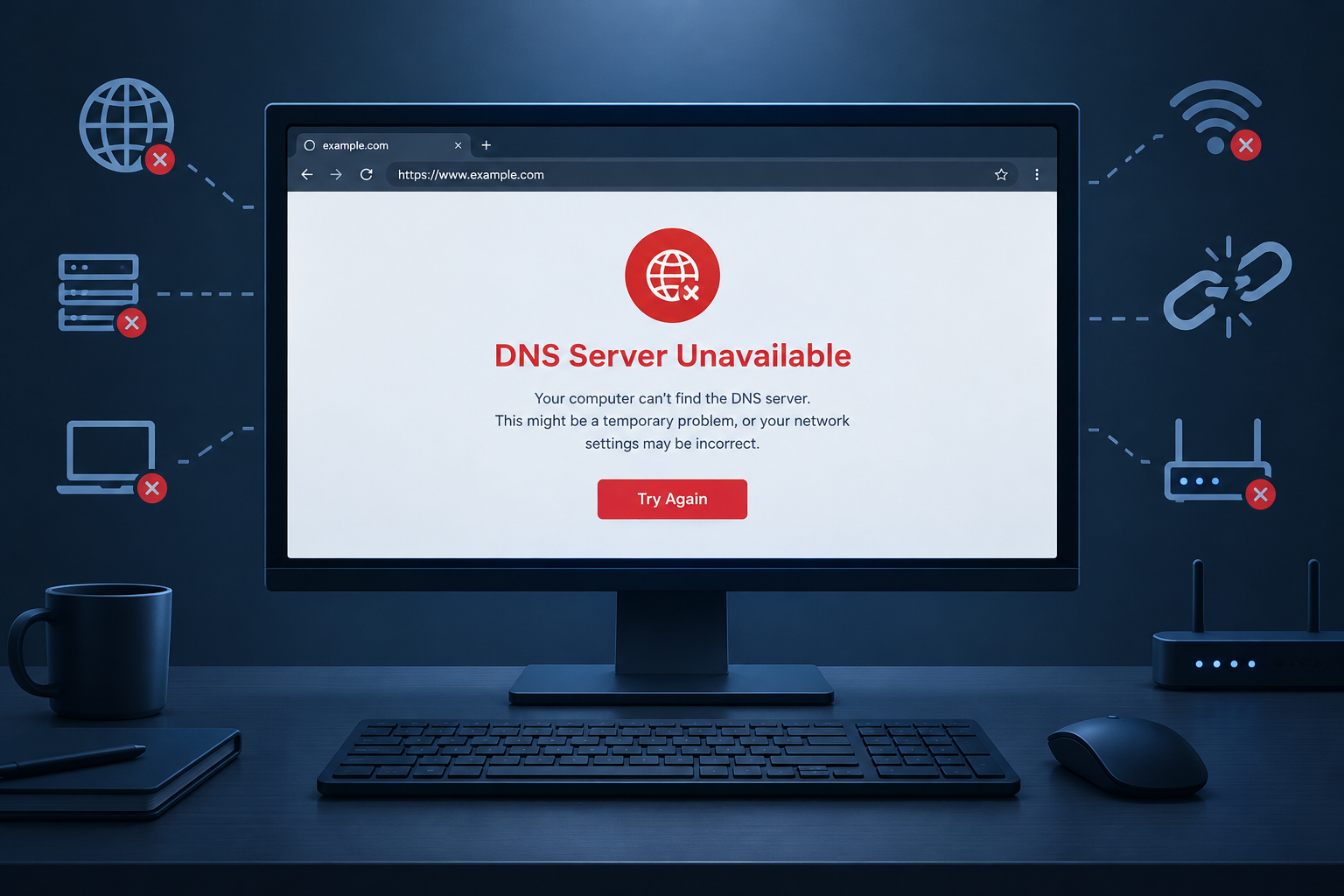
A “DNS server unavailable” or “DNS server not responding” error means your device can’t get a working answer from the server that turns website names into IP addresses. To fix it, restart your router first. Then flush the DNS cache on your computer. If the error comes back, switch to a public DNS service such as Google Public DNS (8.8.8.8 and 8.8.4.4) or Cloudflare (1.1.1.1 and 1.0.0.1). If no device on your network can reach anything at all, the fault is most likely with your internet service provider (ISP) and not with your computer.
The Domain Name System (DNS) works like the internet’s phone book. When you type a domain name into a web browser, your device asks a DNS resolver for that site’s IP address. That resolver is usually run by your ISP, and the request normally passes through your router. Your device and the resolver both keep a cache of recent answers, which makes sites you’ve already visited load faster. The system works well most of the time, but a resolver can be down or slow, and a cache can hold a stale entry. When that happens, your browser shows a “DNS server not responding” or “DNS server unavailable” error. Most of the time the cause is simple and so is the fix.
Quick checks before anything else
Many DNS errors go away after a browser change, a firewall check or a router reboot. Start with these quick checks so you know whether the problem is one app, one device or the whole connection.
- Try another browser. If you see the error in Mozilla Firefox, open the same page in Microsoft Edge or Google Chrome. If the other browser works, the problem is in the first browser’s settings or extensions.
- Try another device on the same network. Open the page on a phone connected to the same Wi-Fi. If the phone fails too, your computer’s hardware isn’t the cause.
- Try mobile data. Turn off Wi-Fi on the phone and load the page over cellular data. If it loads, the problem is your home network or your ISP’s DNS server, not the website.
- Restart your router and modem. Unplug them, wait about 30 seconds, then plug them back in and give them a couple of minutes to reconnect.
If the “DNS server unavailable” error is still there after all four checks, move on to the fixes below.
Flushing your DNS on a Mac
Flushing the DNS cache on a Mac clears out stale or broken name lookups. On current versions of macOS, including macOS Tahoe 26 and macOS Sequoia 15, you only need one Terminal command.
- Open Finder and go to Applications > Utilities > Terminal.
- Type the command for your macOS version. On any recent version, use:
sudo dscacheutil -flushcache; sudo killall -HUP mDNSResponder

- Press Return, type your Mac’s administrator password (nothing shows on screen while you type), and press Return again.
- You won’t get a confirmation message or sound. If no error appears, the cache has been cleared, and you can close Terminal.
Older guides tell you to run sudo discoveryutil mdnsflushcache and sudo discoveryutil udnsflushcaches as well. Those commands only applied to a short stretch of OS X Yosemite, when Apple briefly replaced mDNSResponder with a service called discoveryd. They don’t exist on modern macOS, so you can skip them.
Flushing your DNS on Windows
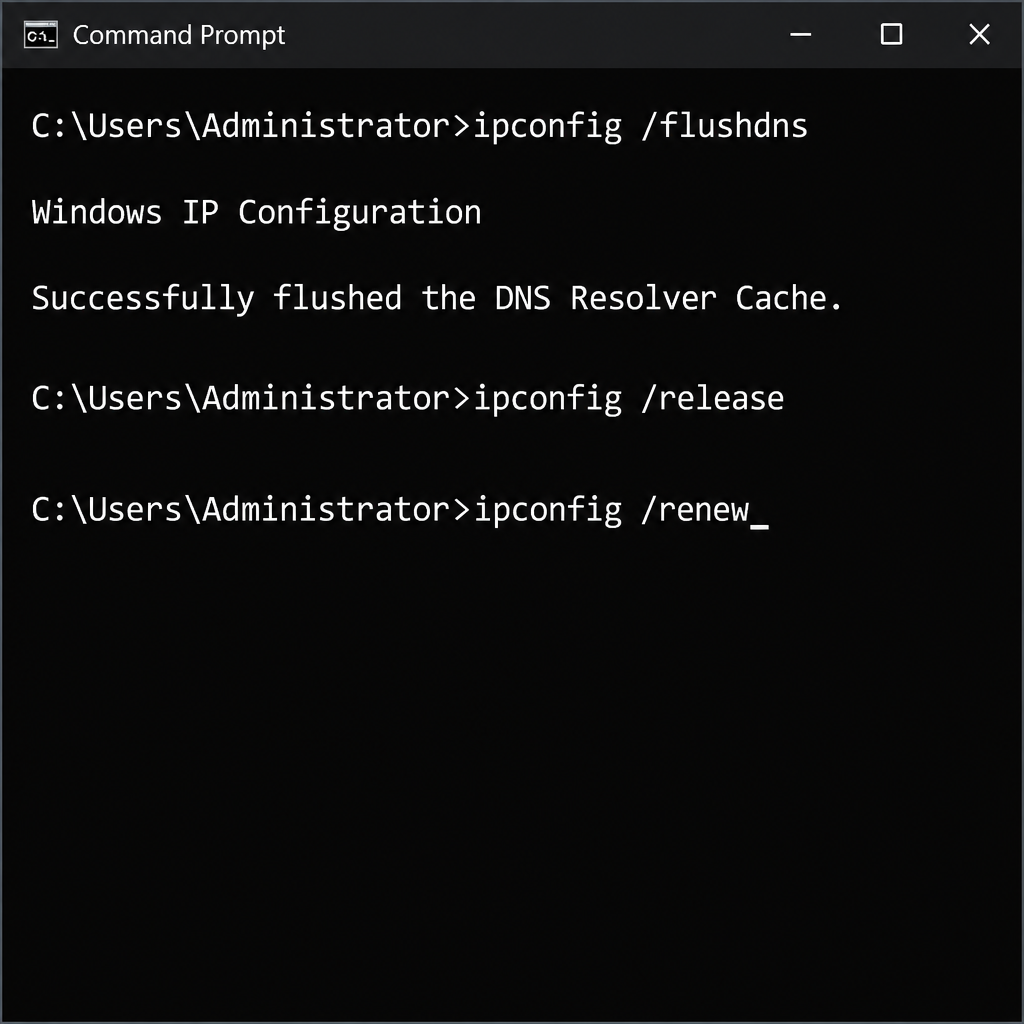
Flushing the DNS cache and renewing your IP address in Command Prompt is one of the most effective fixes on Windows 11. The same commands also work on Windows 10.
- Press the Windows key and R together to open the Run dialog.
- Type
cmdin the box and press Enter. - In the Command Prompt window, type
ipconfig /flushdnsand press Enter. You should see “Successfully flushed the DNS Resolver Cache.” - Next, type
ipconfig /releaseand press Enter. Your connection will drop for a moment. - Finally, type
ipconfig /renewand press Enter to get a fresh IP address from your router. - Close the Command Prompt window and restart your PC.
Remove extra antivirus programs
Running two or more full antivirus programs at the same time can interfere with your network traffic, DNS lookups included, and it doesn’t make you any safer. Check whether a second antivirus suite is installed alongside your main one, for example a trial that came preinstalled on a new laptop.
On Windows 11, go to Settings > Apps > Installed apps, find the extra program and uninstall it. Keep one antivirus active. Microsoft Defender Antivirus, which is built into Windows Security, is enough for most home users, and it turns itself back on automatically if no other antivirus is installed. Restart the PC once the extra program is gone. Don’t switch off all protection to “test” the problem and then leave it off. If a single security suite seems to be the cause, check its firewall or web protection settings, or contact its vendor.
Changing DNS servers
If you’ve tried everything above and still get the “DNS server unavailable” error, switch to a different DNS server. Free public DNS services are reliable and take a couple of minutes to set up. The two best known are Google Public DNS and Cloudflare’s 1.1.1.1.
| Provider | Preferred IPv4 | Alternate IPv4 | Preferred IPv6 | Alternate IPv6 |
|---|---|---|---|---|
| Google Public DNS | 8.8.8.8 | 8.8.4.4 | 2001:4860:4860::8888 | 2001:4860:4860::8844 |
| Cloudflare 1.1.1.1 | 1.1.1.1 | 1.0.0.1 | 2606:4700:4700::1111 | 2606:4700:4700::1001 |
Google recommends entering at least two addresses and never using the same address as both preferred and alternate. Changing DNS is also a common step when other apps hit connection errors, such as the Discord No Route error. The examples below use Windows, and the router method works for every device on your network.
Changing DNS in Windows
Windows 11 lets you change DNS in Settings. The classic Network Connections window still works too.
Using Settings in Windows 11:
- Open Settings > Network & internet.
- Select Wi-Fi > Hardware properties, or select Ethernet if you use a cable.
- Next to DNS server assignment, click Edit.
- Change Automatic (DHCP) to Manual and turn on IPv4.
- Enter the preferred and alternate DNS addresses from the table above, then click Save.
Using the Network Connections window (Windows 11 and Windows 10):
- Press the Windows key and R to open Run, type
ncpa.cpland press Enter.

- Find the network adapter you’re using. “Wi-Fi” (sometimes labelled WLAN) is your wireless connection. “Ethernet” (sometimes labelled LAN) is a wired connection through a network cable.
- Right-click that adapter and select Properties.

- On the Networking tab, select Internet Protocol Version 4 (TCP/IPv4), or Version 6 (TCP/IPv6), and click Properties.

- Choose “Use the following DNS server addresses” so you can type in the boxes.

- Enter the DNS server addresses you want to use. If manual addresses were already filled in, write them down first in case you need them again.
- Click OK, then Close, to save the changes.
Windows 10 reached end of support on October 14, 2025. The steps above still work on it, but moving to Windows 11 keeps you on a system that still gets security updates.
Changing DNS on your router
Setting DNS on the router applies the change to every phone, laptop and console on your network.
- Find your router’s address, called the Default Gateway. Open Command Prompt, type
ipconfigand press Enter, then copy the numbers next to Default Gateway (often 192.168.0.1 or 192.168.1.1).

- Type that address into your browser’s address bar and log in to the router with its admin username and password. These are often printed on a label on the router itself.
- Find the internet, WAN or network settings section. Its name depends on the router brand.
- Find the DNS settings and switch them from automatic to manual for IPv4, IPv6 or both.
- Enter the new DNS addresses. For Google Public DNS, use 8.8.8.8 as the primary DNS server and 8.8.4.4 as the secondary.
- Save the changes and log out of the router.
Some routers supplied by an ISP are managed through a phone app instead of a web page, and some don’t let you change DNS at all. If yours doesn’t, change DNS on each device using the Windows steps above.
Test the new DNS server
After you change DNS servers, check that names resolve and that the connection itself works.
- Open a browser and go to a well-known website, such as www.google.com. If it loads right away, the new DNS server is working.
- If it doesn’t load, open Command Prompt and type
ping 8.8.8.8, then press Enter. - If you get replies, your internet connection works and the problem is still name lookups. Run
ipconfig /flushdnsagain and check the DNS addresses you typed in. - If the ping times out, the problem is your internet connection, not the DNS server. Contact your internet service provider for help, especially if every device in your home is affected.
FAQ
What does “DNS server not responding” mean?
It means your device sent a name lookup to its DNS server and got no answer, or an unusable one. Without that answer, your browser can’t find the website’s IP address, so the page won’t load even though your connection may be working fine.
Is it safe to use Google or Cloudflare DNS?
Yes. Both are free, widely used public services, and both support encrypted lookups through DNS over HTTPS. Windows 11 can turn that on in the same DNS server assignment screen. Changing DNS doesn’t hide your browsing from websites and isn’t a replacement for a VPN, but it often makes lookups more reliable than a struggling ISP resolver.
Why does only one website give a DNS error?
If every other site loads, the problem is usually with that site’s own DNS records or its domain registration. A domain that has expired stops resolving, and names like these often end up listed on websites to buy expired domains. Flushing your DNS cache helps only if your device cached an old, wrong answer.
Will flushing DNS delete anything important?
No. Flushing only clears the list of recently looked-up addresses, and your device rebuilds it automatically as you browse. Your files, passwords and browser bookmarks aren’t touched.
What should you do if nothing works?
On Windows 11, try Settings > Network & internet > Advanced network settings > Network reset. This reinstalls your network adapters and restarts the PC, so you’ll need to reconnect to Wi-Fi afterwards. If the error still appears on every device in your home, contact your ISP, because the problem is on their side of the connection.
Sources
- Google Public DNS: Get started
- Cloudflare 1.1.1.1: Set up on Windows
- Microsoft Learn: ipconfig command reference