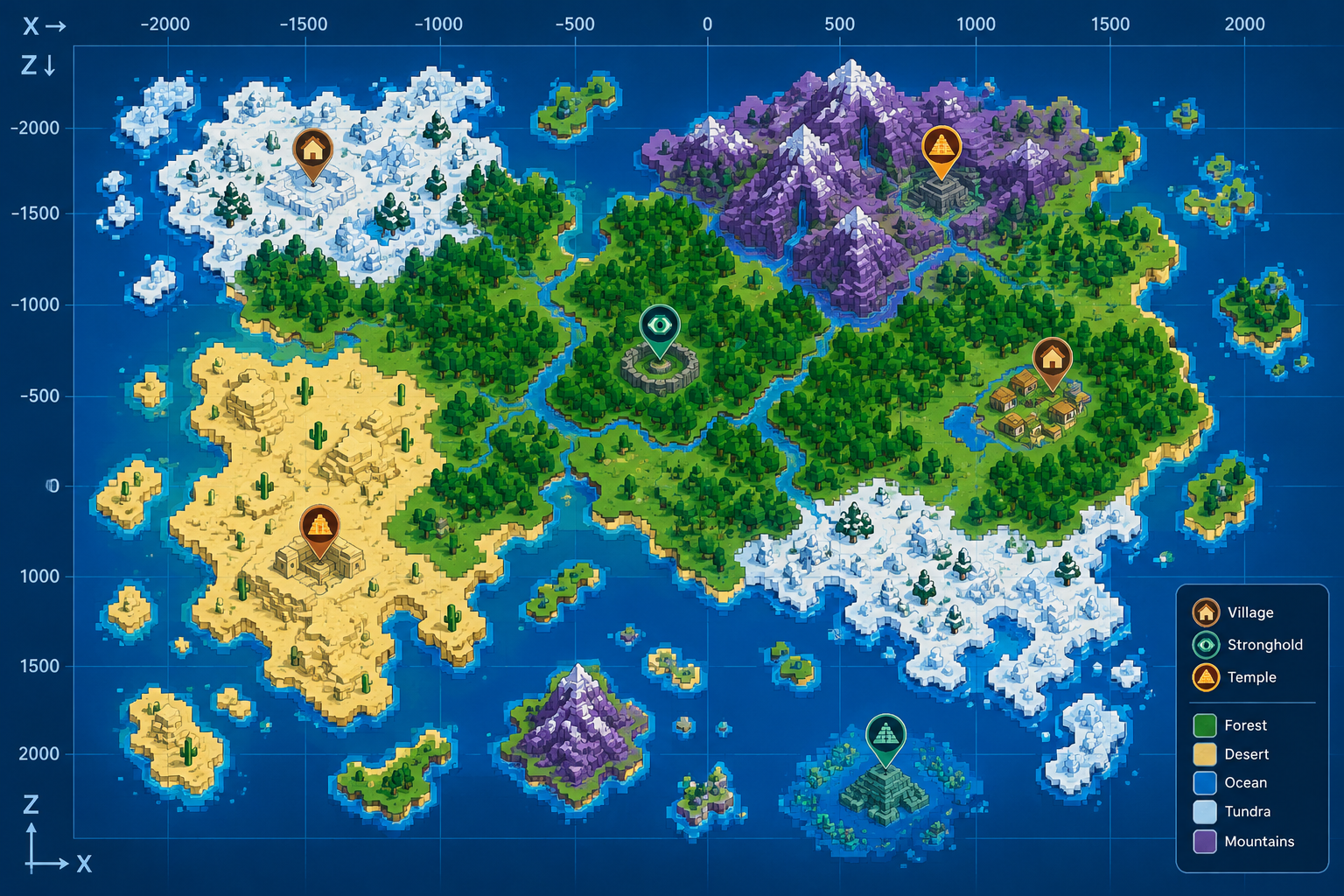
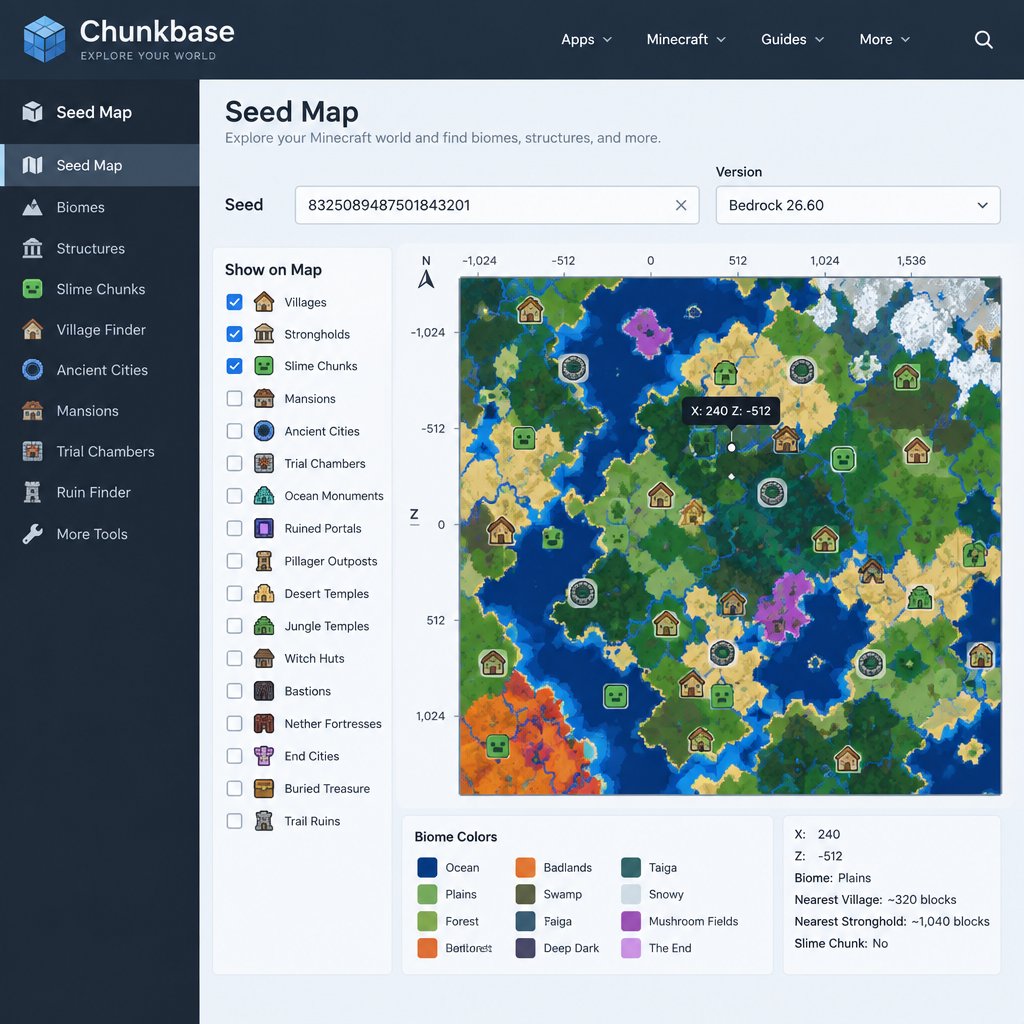
To use Chunkbase with Minecraft Bedrock Edition, copy your world’s seed from the world settings, then open the Seed Map on chunkbase.com, paste the seed in, and pick the Bedrock version your game runs. You get a map of your world showing biomes, villages, strongholds, slime chunks and other structures, with exact X and Z coordinates. In November 2026 Chunkbase supports the current year-based Bedrock releases, including Bedrock 26.60. Java and Bedrock place structures in different spots even with the same seed, so choosing the correct edition matters more than anything else.
Minecraft worlds are huge, and the game has no full world map of its own. Plenty of third-party programs, add-ons and websites try to fill that gap with a mini-map or some other mapping system. Chunkbase is one of the best known.
Chunkbase is a free website with a set of Minecraft tools. Its main tool, the Seed Map, reads any seed you enter and shows you where specific biomes and structures will generate. When you add a seed, you also have to tell it the game edition, the version and the world type, because those settings change where things generate.
What Chunkbase supports in Bedrock Edition
Chunkbase covers both Java Edition and Bedrock Edition. That includes the year-based version numbers Mojang started using in 2026, such as Bedrock 26.60. The Seed Map can show the Overworld, the Nether and the End, so you can find structures and biomes at exact coordinates in all three dimensions.
Bedrock support used to start at Bedrock 1.14. Since then the site has kept up with each major update. Its apps page was last updated on 1 November 2026, and that update added Bedrock 26.60 support to the Biome Finder.
The version numbers can be confusing, so here is how they work now:
| Item | What it means in 2026 |
|---|---|
| First number | The year, so 26 means 2026 |
| Second number (Bedrock) | The game drop, with hotfixes included in this number, for example 26.60 and then the hotfix 26.62 |
| Latest stable Bedrock release | 26.62, a bug-fix hotfix released 4 November 2026 |
| Next Bedrock update | 26.70, in Preview testing and due in Q4 2026 |
A hotfix like 26.62 fixes bugs and doesn’t change how worlds generate. If Chunkbase doesn’t list your exact hotfix yet, pick the nearest main version, which is 26.60 for a game on 26.62.
The Seed Map isn’t the only tool. Chunkbase also has separate apps for single jobs. The Biome Finder hunts for one biome. A seed finder for slime chunks searches for seeds that have slime chunks where you want them, which helps when you’re planning a slime farm. There are also dedicated finders for structures such as villages and strongholds.
How to use Chunkbase in Bedrock Minecraft
To build a map in Chunkbase, you first need your world seed. The seed is the string of numbers (sometimes letters) that Minecraft uses to generate the whole world from scratch. In Bedrock Edition you can see it in the world’s settings once the world has finished loading.
Step 1: Find your Bedrock world seed
- On the main menu, select Play.
- Find your world in the list and select the pencil (Edit) icon next to it.
- Open the Game tab and scroll down to the Seed field.
- Write the seed down or copy it exactly. Negative seeds keep their minus sign.
If you’re already inside the world, pause the game and go to Settings > Game. The same Seed field is there.
On Realms and multiplayer servers, the seed is usually only visible to the world owner. If you don’t own the world, ask the owner or server admin for it.
Step 2: Load the seed into the Chunkbase Seed Map
- Go to chunkbase.com and open Apps > Seed Map.
- Paste your seed into the Seed box.
- In the version list, pick the Bedrock entry that matches your game, for example Bedrock 26.60. Don’t pick a Java entry.
- Set the dimension (Overworld, Nether or End) and the world type if your world isn’t Default.
- The map loads. Move your cursor over it to see the X and Z coordinates of any point.
Step 3: Choose what to show on the map
Chunkbase makes it easy to find all of these:
- Slime chunks
- Dungeons
- Strongholds
- Woodland mansions
- Ocean monuments
- Biomes, including cave biomes
- Ruined portals
- Jungle temples
- Desert temples
- Newer structures such as ancient cities, trail ruins and trial chambers
Tick the structures you want in the Seed Map’s list and they show up as icons on one map. Select an icon to see its coordinates. Then travel to those X and Z values in your world. You can turn on Show Coordinates in the world’s Game settings so the numbers appear on screen while you play.
If you only need one kind of structure or biome, the single-purpose apps on the Chunkbase site are often quicker than switching icons on and off.
Bedrock differences that catch people out
Most wrong results come from two Bedrock quirks, not from Chunkbase itself.
The first is the edition. Java and Bedrock share a lot of world generation, but structure positions can differ even with the same seed number. A village Chunkbase shows for “Java” may not exist at that spot in your Bedrock world.
The second is slime chunks. In Bedrock Edition, slime chunk positions don’t depend on the seed, so they’re in the same places in every world. In Java they change from seed to seed. If you’re checking Bedrock slime chunks, make sure Bedrock is selected and don’t expect the seed to change them.
Two more checks if a structure isn’t where the map says:
- Old chunks. Parts of a world you explored before a big update keep their old terrain. Chunkbase shows what the current version would generate, so it only matches freshly generated areas.
- Exact location. Some structures appear on the map as a rough point. Search the surrounding few chunks before you decide the map is wrong.
FAQ
Is Chunkbase free to use with Bedrock Edition?
Yes. The Seed Map and the other Chunkbase apps run in a web browser and cost nothing. You don’t install anything in Minecraft, so it works with Bedrock on Windows, consoles, phones and tablets. Open the site on any device next to you while you play.
Is using Chunkbase cheating?
Chunkbase’s Seed Map only uses the seed and Minecraft version you select to display where features generate. It doesn’t change the game or connect to it. Many players treat it as a planning tool, like a printed map. Some multiplayer servers and challenge runs ban outside seed tools, though, so follow the rules of the server you’re on.
Why doesn’t the structure Chunkbase shows exist in my world?
The usual cause is the wrong edition or version, especially a Java entry used for a Bedrock world. The other common cause is chunks you generated before an update, which keep the old terrain. Check the version setting first. Then look at a part of the world you haven’t explored yet.
How do I find the seed of a Realm in Bedrock?
The Realm owner can see the seed in the world’s settings. Members and operators normally can’t. If you’re not the owner, ask them for the seed. That’s the only official route.
Which Bedrock version should I choose if mine isn’t listed?
Choose the nearest main version, not a later one. Hotfixes such as 26.62 fix bugs and don’t change world generation, so Bedrock 26.60 gives the right map for a game on 26.62. When a new drop such as 26.70 comes out, wait for Chunkbase to add it before you map any newly generated areas.
Sources
- Chunkbase: Minecraft Apps overview (chunkbase.com)
- Minecraft Wiki: Bedrock Edition version history and Bedrock Edition 26.62
- Minecraft.net: Minecraft Preview 26.70.22 release notes
- Windows Central: Minecraft is changing how it handles update version numbers