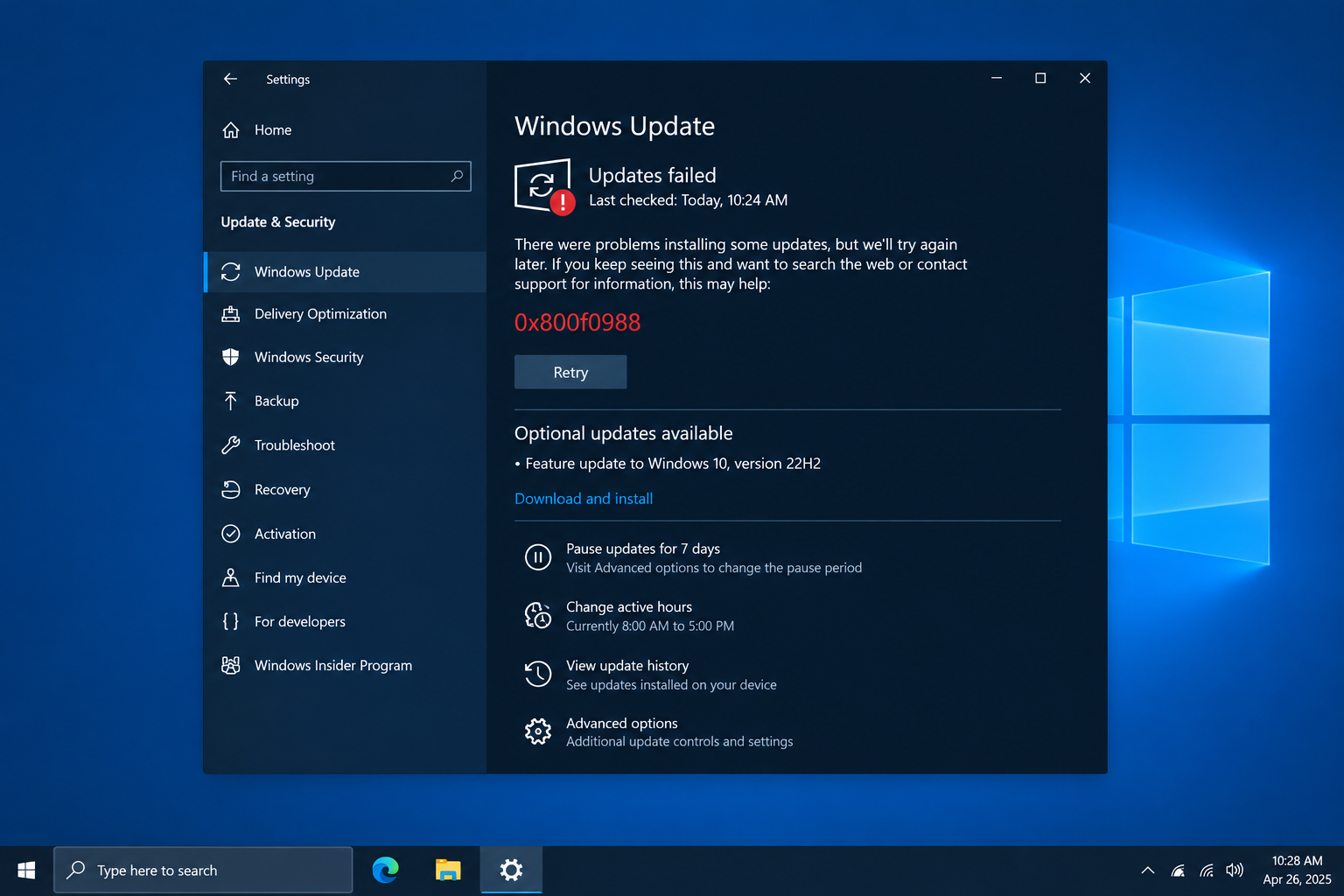
Error code 0x800f0988 stops Windows 10 from installing the updates it has downloaded. It usually shows up as “Updates failed” or “There were some problems installing updates” next to a cumulative update. This guide covers six fixes, ordered from the quickest and safest to the most involved.
Before you start
The steps below are written for Windows 10 version 22H2, the final version of Windows 10. Most of them also work on Windows 11, where the same error appears, and the Windows 11 menu paths are noted where they differ.
Getting updates installed still matters. Microsoft ended extended support for Windows 10 on October 14, 2025. The consumer Extended Security Updates (ESU) program was first due to end in October 2026, but Microsoft has since extended it. Enrolled PCs now get security updates through October 12, 2027. Those patches arrive through Windows Update, so a PC stuck on 0x800f0988 misses them even when it is enrolled.
Before you begin, back up your important files to an external drive or OneDrive. The first four fixes don’t touch your personal data. The last two reinstall Windows, so a backup is essential for those.
What is error code 0x800f0988 on Windows 10?
Error 0x800f0988 is a Component-Based Servicing failure. Windows tried to apply an update to its component store and found something missing, damaged or out of sync. Some logs show the error as PSFX_E_INVALID_DELTA_COMBINATION. That means the small “delta” package Windows downloaded didn’t match the files already on the PC.
The error became widely known in early 2020. Users reported it on Windows 10 cumulative updates such as KB4528760 in January 2020 and KB4566782 for version 2004 in August 2020. The same period brought KB4532693, released on February 11, 2020. That update caused a different problem: some people were signed in with a temporary profile and their desktop looked empty. Since then the error has appeared on Windows 10, on Windows 11 and on Windows Server 2019 cumulative updates.
Older guides claimed this error causes Wi-Fi problems, startup trouble or blue screens. There is no good evidence for that. A failed update rolls back and leaves Windows as it was. The real cost is that your PC misses the security fixes in every update that won’t install.
How to fix error code 0x800f0988 on a Windows 10 PC
Try the fixes in order and restart, then retry Windows Update, after each one. Most PCs are fixed by Option 2 or Option 3. The repair upgrade and the reset are there for stubborn cases.
Option 1: Run the Windows Update troubleshooter
The built-in troubleshooter is the quickest fix to try. It restarts the update services and fixes common settings problems automatically.
- Click the Start menu and open the Settings app.
- Select Update & Security.
- Select Troubleshoot in the left pane.
- Click Additional troubleshooters in the right pane.
- Select Windows Update, then click Run the troubleshooter.
- Wait until it finishes and apply any fixes it suggests.
Microsoft is retiring the old troubleshooters that ran on the Microsoft Support Diagnostic Tool (MSDT). The replacements run in the Get Help app. If the Windows 10 troubleshooter page doesn’t open, open Get Help from the Start menu and search for “Windows Update troubleshooter.” On Windows 11, go to Settings > System > Troubleshoot > Other troubleshooters and click Run next to Windows Update.
Finally, restart your computer and check whether the error is still there. If it is, move on to Option 2.
Option 2: Clean the WinSxS folder
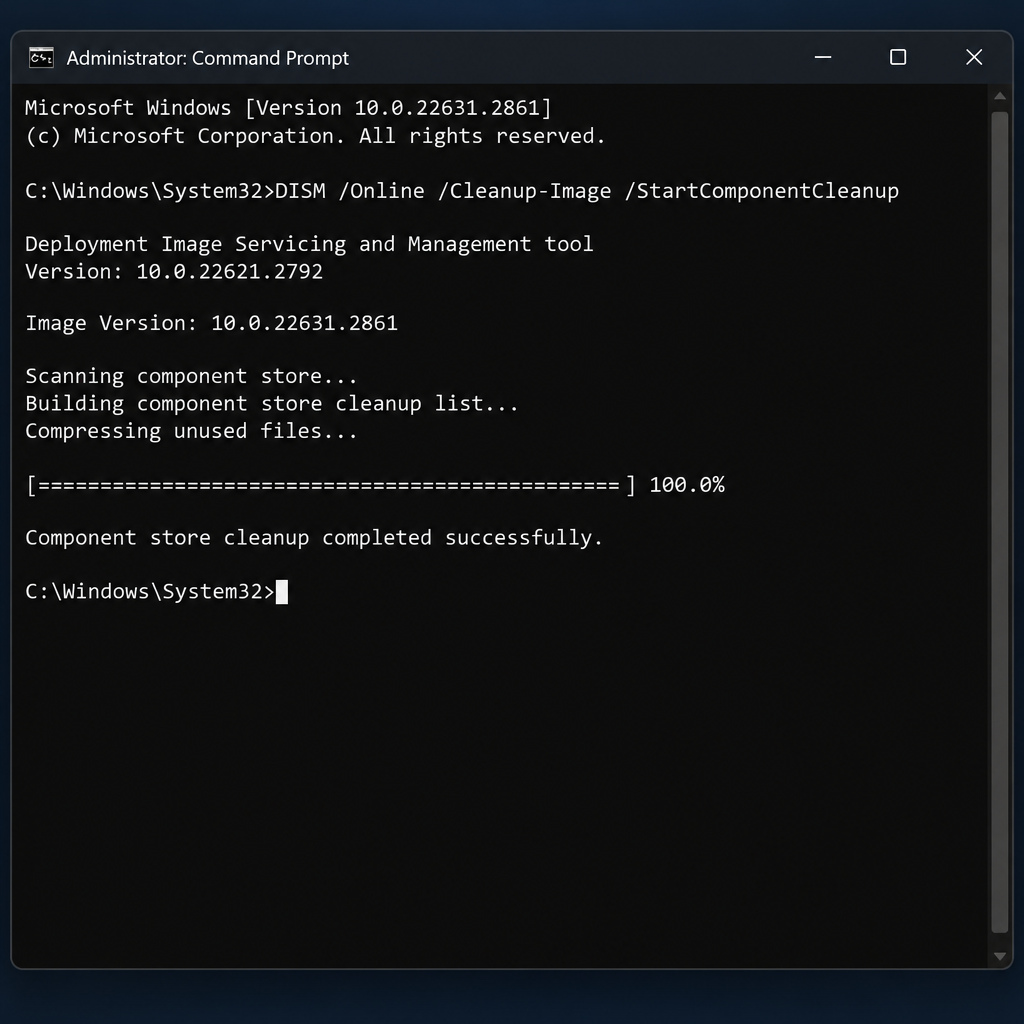
Cleaning the WinSxS folder with Deployment Image Servicing and Management (DISM) fixes 0x800f0988 more often than any other step. This command removes superseded versions of system components. Those leftovers are usually what confuses the update. Here’s how:
- Press Windows + S to open Search.
- Type cmd.
- Right-click Command Prompt and select Run as administrator.
- Click Yes in the User Account Control prompt.
- Type
DISM /Online /Cleanup-Image /StartComponentCleanupand press Enter. - Wait for the process to finish. It can sit at one percentage for several minutes, which is normal.
- Restart your computer and check whether the update installs.
DISM may report that the component store is damaged, or the cleanup may fail. In that case, run DISM /Online /Cleanup-Image /RestoreHealth first, then sfc /scannow, and then repeat the cleanup command. RestoreHealth downloads clean copies of damaged files from Windows Update, so keep the PC online while it runs.
Some guides add /ResetBase to the cleanup command. That option frees more space, but it also means you can never uninstall the updates already on the PC. Skip it unless you are desperate for disk space.
Updates also need free space on drive C:. If downloaded movies and shows are filling that drive, the guide on how to change Netflix download location windows shows how to move them to another drive.
Option 3: Remove additional languages
Extra language packs are one of the most common causes of 0x800f0988. The update has to patch every installed language. A pack that is mismatched or half-installed can make the whole update fail. Follow these steps to remove the ones you don’t use.
- Press Windows + I to open the Settings app.
- Select Time & Language, then Language in the left pane.
- Under Preferred languages, make sure the language you use every day, for example English (United States), is at the top of the list.
- Click each language you don’t need and select Remove.
- Restart your PC.
On Windows 11, go to Settings > Time & language > Language & region. Click the three dots next to a language and choose Remove.
Now try to install the Windows updates again. If the error comes back, go on to the next method. You can add a language back after the update installs, if you need it.
Option 4: Reset Windows Update components
Resetting the update components clears the download cache and the update signature store, so Windows Update starts fresh. Your files and installed updates are not affected. Here’s how it works.
- Right-click the taskbar and open Task Manager.
- Select the File menu, then Run new task. In Task Manager on Windows 11, click Run new task at the top.
- Type cmd and tick the box labelled “Create this task with administrative privileges,” then click OK.
- Type these commands one at a time and press Enter after each one. They stop the background services that use the update folders.
net stop wuauservnet stop cryptSvcnet stop bitsnet stop msiserver
- Next, rename the catroot2 and SoftwareDistribution folders. Windows builds new, empty copies of both. Type these commands and press Enter after each one:
ren C:\Windows\System32\catroot2 Catroot2.old
ren C:\Windows\SoftwareDistribution SoftwareDistribution.old
- Now restart the services you stopped earlier. Type these commands and press Enter after each one:
net start wuauservnet start cryptSvcnet start bitsnet start msiserver
- Restart your PC and install the pending Windows 10 updates again. The first check may take longer than usual because Windows downloads everything again.
If a rename command says “Access is denied,” a service is still running. Run its net stop command again and retry.
If none of these fixes has worked, the next step is a repair upgrade.
Option 5: Run an in-place repair upgrade
A repair upgrade reinstalls Windows 10 over itself and keeps your files, apps and most settings. It replaces the damaged component store completely. Users on Microsoft’s forums have reported that it fixed 0x800f0988 when nothing else did.
- On a working PC, download the Windows 10 Media Creation Tool from Microsoft’s official Windows 10 download page. Microsoft still offers Windows 10 22H2 there.
- Run the tool on the affected PC, accept the license terms and choose Upgrade this PC now.
- When you reach the Ready to install screen, click Change what to keep.
- Choose Keep personal files and apps, then click Next and Install.
- Leave the PC plugged in until setup finishes. Expect it to take an hour or more.
Start the repair from inside Windows. If you boot from a USB stick instead, setup lists both an Upgrade option and a Custom option, and Custom is a clean install that wipes your apps. Once setup finishes, run Windows Update to install the latest cumulative update.
Option 6: Reset Windows 10 to resolve error 0x800f0988
Resetting the PC is the last resort. Use it when the repair upgrade fails or won’t start. Even with “Keep my files” selected, it removes your desktop apps. Before you start, make a list of the programs you rely on, from Microsoft Office to the best video converter software you picked, so you can reinstall them.
- Open Settings and select Update & Security.
- Select Recovery in the left pane.
- Under Reset this PC, click Get started.
- Choose Keep my files.
- Choose Cloud download, which gets a fresh copy of Windows from Microsoft, or Local reinstall. Cloud download is the better choice when system files are damaged.
- Review the list of changes, click Next, then click Reset.
- When the PC restarts, open Windows Update and install the updates.
On Windows 11, the path is Settings > System > Recovery > Reset PC.
The reset reinstalls drivers too. If a device misbehaves afterwards, the fixes for a wireless mouse not working on windows are a good place to start.
Error code 0x800f0988 on Windows 10 PC fixed
For most PCs, the error goes away after the DISM cleanup or after you remove unused language packs. Resetting the update components handles most of the rest. The repair upgrade is the safe heavy option because it keeps your apps. Save Reset this PC for when nothing else works.
If the error survives a repair upgrade, the cause is probably beyond a home fix. Possible causes include a failing drive, third-party security software blocking the update, or a corrupted recovery partition. Check the drive’s health first. Then contact Microsoft Support or the PC maker before you try a clean install.
FAQ
Is it safe to rename the SoftwareDistribution folder?
Yes. The folder holds downloaded update files, update data, log files and the update history, and Windows recreates it automatically after you rename it. Your files, apps and installed updates are not affected. After a few days you can delete the SoftwareDistribution.old folder to free space.
Does Windows 10 still get updates in November 2026?
Yes, but only security updates, and only on PCs enrolled in Microsoft’s Extended Security Updates program. Microsoft extended consumer ESU so that it now runs through October 12, 2027. Windows 10 22H2 will not get new features. PCs that are not enrolled stopped getting security fixes after support ended on October 14, 2025.
Will Reset this PC delete my files?
Not if you choose Keep my files. Your documents, photos and other personal files stay, but desktop apps and some settings are removed. The Remove everything option wipes the drive. Back up first in either case.
Does error 0x800f0988 happen on Windows 11 too?
Yes. Windows 11 users report the same code on cumulative updates, often on PCs with extra language packs. The fixes are the same: DISM cleanup, removing languages, resetting the update components and a repair install. Only some menu paths differ.
Can a third-party “PC repair” tool fix 0x800f0988?
There is no need for one. The built-in DISM, SFC and Get Help tools do the same job without the risk of adware or fake scan results. Download Windows installation media only from Microsoft’s own website.
How long does the DISM cleanup take?
On most PCs it takes 5 to 20 minutes. It can take longer on older hard drives or on PCs that have not been cleaned in years. Progress often stalls at one percentage for a while. Let it finish rather than closing the window.
Sources
- Microsoft Learn: Clean Up the WinSxS Folder
- Microsoft Support: Deprecation of Microsoft Support Diagnostic Tool (MSDT) and MSDT troubleshooters
- Microsoft Q&A: Windows 11 Update Failed error code 0x800f0988
- BleepingComputer: Microsoft quietly extends free Windows 10 ESU support to October 2027
- Windows Central: Microsoft quietly extends Windows 10’s extra security updates program to October 2027