
If Steam keeps crashing on Windows, start by restarting your PC. Then run Steam as an administrator and delete its appcache folder. If it still crashes, update your graphics driver and Windows, and reinstall the client as a last resort. As of November 2026, Steam runs only on 64-bit Windows 10 and Windows 11, so check that first if you use an older or 32-bit PC.
Restarting your computer is the first thing to try when Steam keeps crashing. After that, run Steam as an administrator so it has full access to the files it needs to change.
Steam keeps temporary data from the games you download and play in its appcache folder. Deleting that folder is a quick test. Steam rebuilds it the next time it starts.
Skip the “PC repair” utilities that are often advertised next to fixes like these. In March 2024 the US Federal Trade Commission said Restoro and Reimage would pay $26 million to settle charges that they used fake Windows pop-ups to scare people into buying repair services. The free steps below cover what those tools claim to do.
Steam is one of the most popular stores for downloading PC games. Like any big app, it sometimes runs into problems. The most common is the client crashing when it starts or while you browse the store or your library. That is a different problem from Steam not opening at all.
A crash during an online game hurts more. If Steam closes during online matchmaking, you can lose your current match and get disconnected. Some games also hand out a penalty for leaving.
A crash has no single known cause. Valve’s own support page says crashes can come from many combinations of hardware and software, and that Valve has to fix some of them in client updates. The fixes below start with the quickest and safest.
Fix 1: Restart your computer
A restart is the easiest way to clear problems with programs like Steam. It reloads your system resources properly and clears temporary glitches that built up while the PC was running.
To restart your computer:
- Press the Windows key on your keyboard to open the Start menu.
- Click the Power button.
- Select Restart and wait for your computer to reboot.
- Open Steam again and check whether it still crashes.
Use Restart, not Shut down. On Windows 10 and 11, Fast Startup can keep parts of the system running after a normal shutdown, and Restart clears everything.
Fix 2: Run Steam as an administrator
Steam needs to read and write to your drive to download and install game updates. It may also have to change system files to install DirectX and other components your games need. If it tries to do this without permission, it can crash or throw errors.
Running Steam as an administrator gives it full access:
- Right-click the Steam shortcut on your desktop and choose Properties. If you only have a Start menu entry, right-click it, choose Open file location and right-click the shortcut there.
- Open the Compatibility tab.
- Check Run this program as an administrator.
- Click Apply, then OK.
- Use Steam for a few minutes and see if it still crashes.
If this stops the crashes, the problem was most likely permissions on your Steam or library folder.
Fix 3: Delete the appcache folder
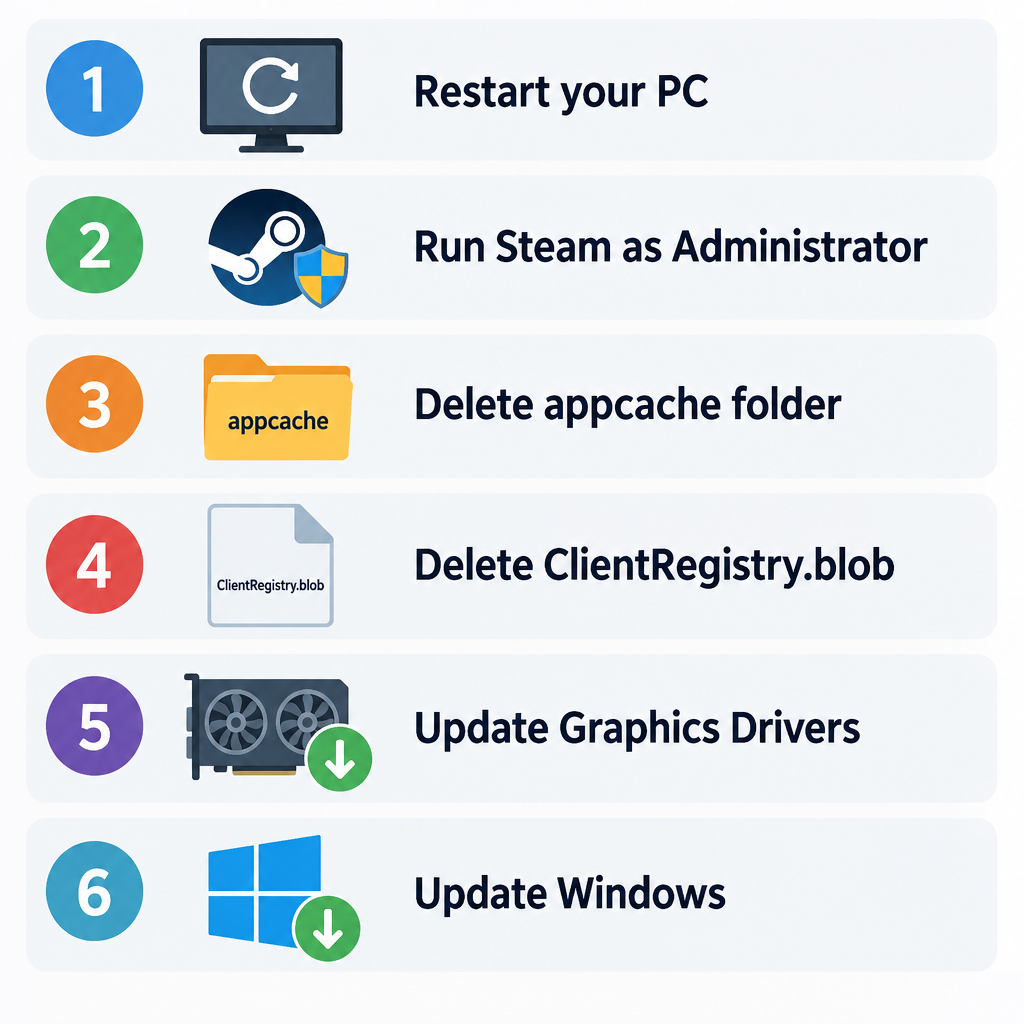
Steam stores temporary data for the games you have downloaded and played in its appcache folder. It uses this data to load your library faster. If some of the cached data gets corrupted, Steam can crash when it reads it. The folder holds no Steam system files and no game files, so deleting it is safe.
To delete the appcache folder:
- Quit Steam fully. Right-click the Steam icon in the system tray and choose Exit.
- Open File Explorer and go to C:\Program Files (x86)\Steam. That is the default install location. If you installed Steam somewhere else, go there instead.
- Find the appcache folder.
- To be safe, copy it to your desktop first. Then delete the original.
- Open Steam again. It will rebuild the folder, so the first launch may be a little slower.
If Steam opens long enough to use its menus, also try clearing the download cache. Go to Steam > Settings > Downloads and click Clear Download Cache. Steam will restart and ask you to sign in again. Your installed games are not touched.
Fix 4: Delete ClientRegistry.blob
Older Steam installs keep a file called ClientRegistry.blob, which stores registration data for your installed games. If that file gets corrupted, Steam can freeze or crash. Deleting it is safe because Steam creates a new one at the next launch. Newer installs may not have this file. If you can’t find it, skip this fix.
To remove ClientRegistry.blob:
- Press Ctrl + Shift + Esc to open Task Manager. End any Steam and Steam Client WebHelper processes.
- Open File Explorer and go to C:\Program Files (x86)\Steam.
- Find ClientRegistry.blob and delete it.
- Start Steam, sign in if asked, and check whether the crashes still happen.
Fix 5: Update your graphics drivers
Graphics drivers matter for games, and also for Steam. The client draws its store and library with a built-in web browser that uses your graphics card. A damaged or outdated driver can make Steam crash as well as your games.
To check your graphics driver:
- Press Windows key + X to open the Quick Link menu.
- Select Device Manager and expand Display adapters.
- Right-click your graphics card and choose Update driver, then Search automatically for drivers.
- When it finishes, open Steam again and see if it still crashes.
Device Manager often reports that the best driver is already installed when it isn’t. For the latest version, use your graphics maker’s own tool: the NVIDIA app for GeForce cards, AMD Software: Adrenalin Edition for Radeon cards, or the Intel Driver & Support Assistant for Intel graphics. Download drivers only from NVIDIA, AMD, Intel or your PC maker. Avoid “driver updater” sites.
Fix 6: Update Windows
A bug in your version of Windows, or an out-of-date install, can make Steam crash. A pending update can also leave system files half-replaced until you install it and restart.
To check for updates on Windows 11:
- Open Start and select Settings.
- Click Windows Update.
- Click Check for updates and install anything offered.
- Your PC may restart more than once. When it finishes, open Steam and check for crashes.
On Windows 10 the path is Settings > Update & Security > Windows Update.
Also make sure your version of Windows is still supported. Steam dropped Windows 7, 8 and 8.1 on January 1, 2024, and 32-bit Windows 10 on January 1, 2026. The client is now 64-bit only on Windows 10 and Windows 11. Older 32-bit installs may keep working for a while, but they no longer get any Steam updates, including security fixes. To check what you have, go to Settings > System > About and look at System type.
Fix 7: Reinstall Steam
If Steam still crashes, reinstall it as a last resort. The client may not have installed correctly, or a failed update may have damaged some of its files.
Before you start, protect your games. Steam’s official support page warns that uninstalling Steam also removes any game content installed in its folder. To keep your games, move the steamapps folder out of C:\Program Files (x86)\Steam first, for example to your desktop or another drive.
To reinstall Steam:
- Open Start and go to Settings > Apps > Installed apps (on Windows 10: Settings > Apps > Apps & features). Control Panel’s Uninstall a program works too.
- Find Steam in the list.
- Click the three dots (or select Steam) and choose Uninstall. Follow the on-screen instructions.
- Restart your computer.
- Download the installer from Steam’s official website, store.steampowered.com, and install it.
- Move your steamapps folder back into the new Steam folder before you launch Steam, then sign in. Steam will detect the games instead of downloading them again.
If Steam still crashes
If none of these fixes work, contact Steam Support through help.steampowered.com. Valve’s guide for client crashes includes steps for collecting crash details, and some crashes can only be fixed by Valve in a client update. If you joined the Steam Beta, leave it under Steam > Settings > Interface (Client Beta Participation) and go back to the stable client. Beta builds crash more often.
If several apps crash, not just Steam, the problem is your PC, not Steam. The same order applies: restart, update drivers and Windows, then reinstall. For other Windows slowdowns, see the Fixes for Slow Context Menu on Windows. The same quickest-fix-first approach works on other devices too, from Ways To Fix Roku TV Volume Too Loud On Lowest Setting to how to Fix Instagram Keeps Logging Out.
FAQ
Will deleting the appcache folder delete my games or saves?
No. The appcache folder only holds cached data that Steam uses to load your library faster. Your games are in the steamapps folder, and most saves are in the game’s own folder or in Steam Cloud. Steam rebuilds appcache the next time it starts.
Why does Steam crash only when I open the store or library?
Steam draws those pages with a built-in web browser. That browser relies on your graphics driver and on cached web data. Clearing the download cache and the appcache folder, then updating your graphics driver, fixes most crashes that only happen there.
Does Steam still work on Windows 10?
Yes, on 64-bit Windows 10. Valve ended support for 32-bit Windows 10 on January 1, 2026, and for Windows 7 and 8 on January 1, 2024. Microsoft ended mainstream support for Windows 10 on October 14, 2025, so moving to Windows 11 is the safer long-term choice if your PC can run it.
Will reinstalling Steam make me download all my games again?
Only if you uninstall without moving the steamapps folder first. Steam’s uninstaller deletes the whole Steam folder, including the games stored in it. Move steamapps out before you uninstall and put it back after you reinstall, and Steam will find your games.
Should I use a PC repair tool to fix Steam crashes?
No. These tools add nothing that Windows Update, your graphics maker’s driver app and the steps above can’t do. In 2024 the FTC said Restoro and Reimage would pay $26 million over charges that they scared people with fake infection warnings.
Is it safe to run Steam as an administrator all the time?
It is a common fix, and Steam is signed software from Valve. Even so, it gives the client more access than it normally needs. If the crashes stop after you fix folder permissions or reinstall Steam, you can uncheck the option again.
Sources
- Steam Support: Steam client crashes, closes or will not open
- Steam Support: Uninstalling Steam
- FTC: Tech support firms will pay $26 million to settle FTC charges
- PC Gamer: Steam announces end of support for Windows 10 32-bit












