
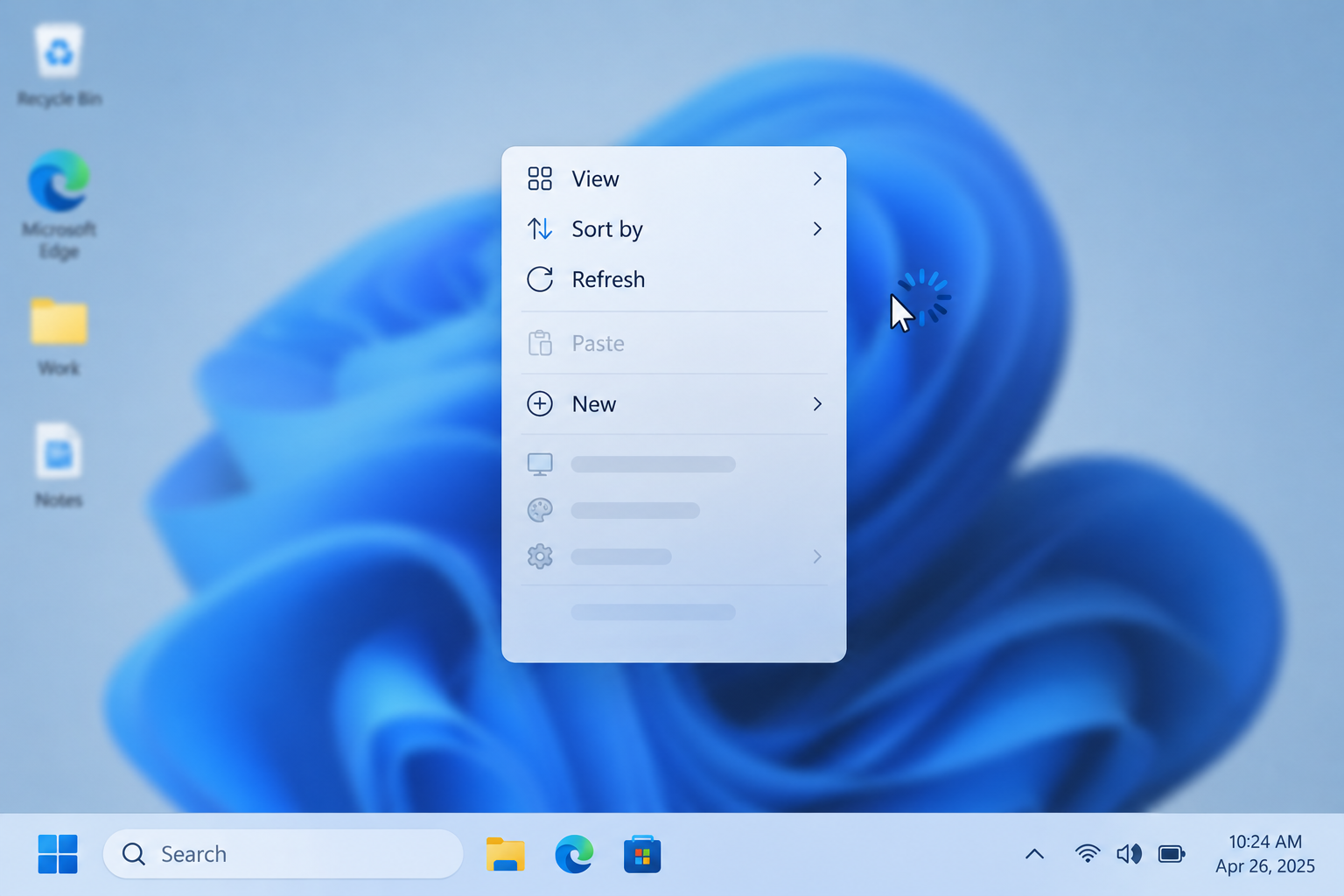
Where the slow context menu bug came from
The slowdown first appeared soon after Windows 11 launched in October 2021. Many users reported that the right-click menu took a long time to load in File Explorer, on the desktop, in the Start menu and in some third-party apps. In early November 2021, Windows Latest reported that Microsoft had built a performance fix and was testing it with Windows Insiders.
That first bug is long fixed. Slow menus still happen today, but the usual causes are now:
- shell extensions that other apps add to the menu
- slow OneDrive or cloud files
- mapped network drives that are no longer connected
On August 17, 2026, Microsoft’s Windows Insider blog admitted the menu had become cluttered and sluggish. Microsoft said it needed to “dramatically reduce the time between right-clicking and having a menu that’s fully ready to use,” and it began testing a redesigned menu.
The fixes below run from quickest and safest to most involved.
Restart Windows Explorer
The context menu is part of Windows Explorer (explorer.exe), so restarting Explorer is the quickest fix. It reloads the menu from scratch, the same way it loads when Windows starts.
To restart Windows Explorer in Task Manager:
- Press Ctrl + Shift + Esc to open Task Manager. You can also press the Windows key, type Task Manager and select it.
- Open the Processes page. It’s the first icon in the left sidebar.
- Scroll down the list to find Windows Explorer.
- Select it and click Restart task in the top toolbar, or right-click it and choose Restart.
Your taskbar and desktop icons will disappear for a moment, then come back. Restarting is enough on most PCs. If the menu is still slow, use End task instead and start Explorer again by hand, as described in the next section.
Reopen Windows Explorer
If you ended Windows Explorer, your taskbar and desktop stay blank until you start it again. You can do that from Task Manager, which stays open.
- Click Run new task in Task Manager’s top toolbar. On older versions of Windows 11, go to File > Run new task.
- Type explorer.exe in the box.
- Leave Create this task with administrative privileges unticked. Explorer doesn’t need admin rights to work normally.
- Click OK.
Explorer reloads, and the context menu should open faster. If the screen goes blank and Task Manager is hidden, press Ctrl + Alt + Delete, choose Task Manager, and follow the same steps.
Edit the Windows Registry
Only try this after the fixes above and after installing every pending update (see the last section). It removes context menu handlers that apps have added to Windows. A broken or slow handler is the most common reason the right-click menu lags.
Back up the registry first
Make a backup in case something goes wrong:
- Press Windows key + R to open the Run box.
- Type regedit and click OK. Click Yes if User Account Control asks.
- In Registry Editor, click File > Export.
- Under Export range, choose All.
- Pick a folder you can find later, type a name, and click Save.
To undo changes later, open Registry Editor, click File > Import and choose the file you saved.
Delete the extra context menu handlers
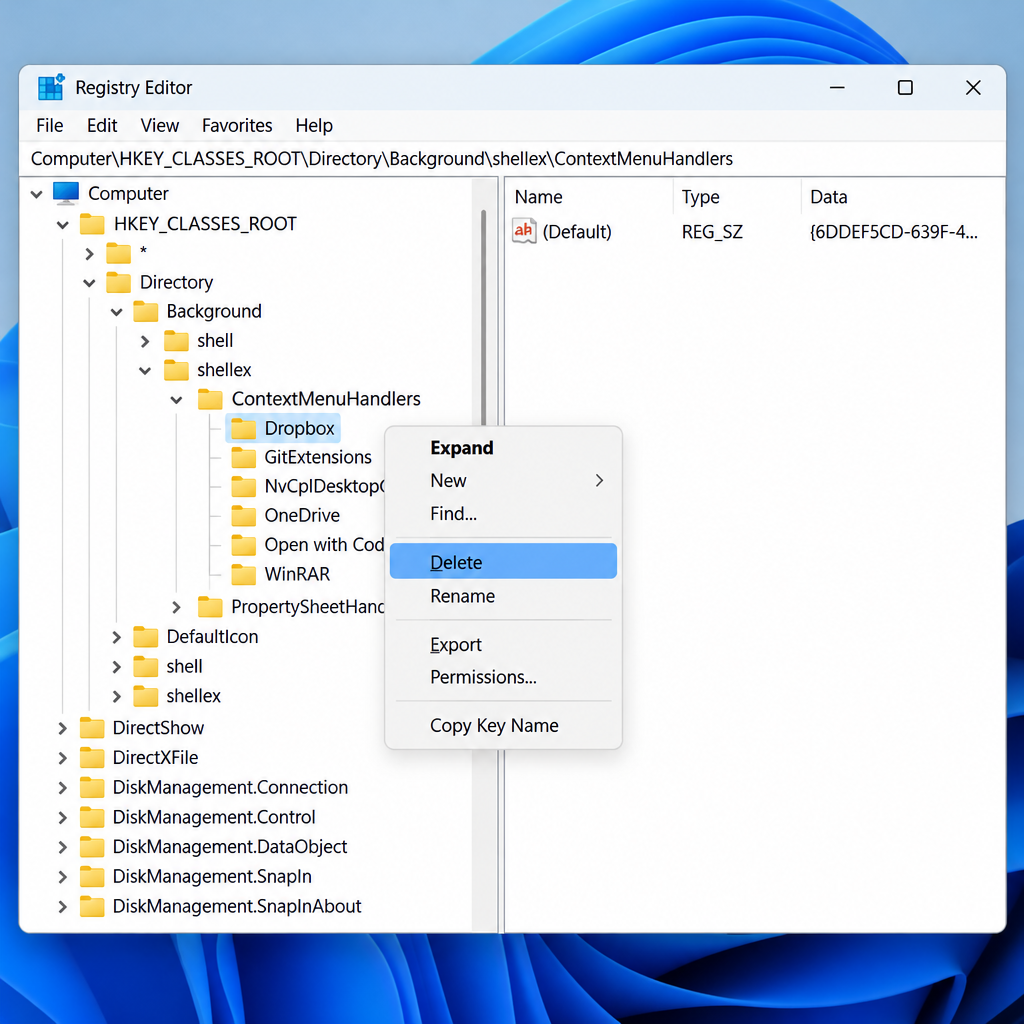
- In Registry Editor, paste this path into the address bar and press Enter:
Computer\HKEY_CLASSES_ROOT\Directory\Background\shellex\ContextMenuHandlers - Expand ContextMenuHandlers to see the subkeys (folders) inside it.
- Right-click a subkey added by a third-party app and choose Delete. These are usually named after the app, such as a graphics driver panel, an archive tool or a cloud storage client.
- Repeat for the other third-party entries. Do not delete New or WorkFolders, and leave alone any entry you don’t recognize.
- Close Registry Editor and restart Windows for the changes to take effect.
Deleting a handler removes that app’s entry from the desktop and folder-background menu. The app itself keeps working. If you’d rather keep the app’s menu option, uninstalling and reinstalling the app often replaces a broken handler with a working one.
If the menu is still slow on a clean PC, or you aren’t comfortable editing the registry, stop here. Contact Microsoft Support, or ask the PC maker if the computer is under warranty.
Install the latest Windows 11 update
Microsoft fixed the original 2021 bug through Windows Update long ago. Its newer work on the menu also arrives through Windows Update.
The optional preview update KB5127936, released October 28, 2026 for Windows 11 versions 25H2 and 26H2, makes the File Explorer context menu faster. It also lets you choose which commands and app entries appear in the menu and how they are arranged. Microsoft is releasing these features gradually, so they may take a while to appear even after the update is installed. Preview changes normally move into the next Patch Tuesday security update, which is due November 10, 2026.
To check for updates:
- Open Settings > Windows Update.
- Click Check for updates.
- If KB5127936 is listed as optional, click Download & install.
- Restart when asked.
Microsoft now recommends that 25H2 users move to version 26H2, which was released September 29, 2026. Install pending updates before you try the registry fix.
FAQ
Why is my right-click menu so slow in Windows 11?
Usually an app has added a shell extension that loads slowly or hangs when you right-click. Other common causes are OneDrive files that are still syncing, disconnected network drives, and an Explorer process that needs a restart. The bug that slowed menus right after Windows 11’s 2021 launch was fixed long ago.
How do I get the old full right-click menu in Windows 11?
Click Show more options at the bottom of the menu, or hold Shift while you right-click. Both open the classic full menu with every app entry. Pressing Shift + F10 while an item is selected also opens it.
Is it safe to delete ContextMenuHandlers keys in the registry?
It’s safe as long as you back up the registry first and only delete entries from third-party apps you recognize. Keep New and WorkFolders, because Windows uses them. If something breaks, import your backup file to undo the change.
Did Microsoft fix the slow context menu?
Yes, twice. The 2021 bug was fixed through Windows Update shortly after launch. In 2026, Microsoft redesigned the File Explorer menu to make it faster and less cluttered. The redesign was tested by Insiders from August and reached the public in the October 28, 2026 preview update KB5127936.
Does restarting Windows Explorer delete any files?
No. Restarting Explorer only reloads the taskbar, desktop and File Explorer windows. Open File Explorer windows close, but your files and running apps are not affected.
Sources
- October 28, 2026: KB5127936 (OS Builds 26300.9818 and 26200.9818) Preview, Microsoft Support
- Improving the File Explorer context menu: faster, simpler and more customizable, Windows Insider Blog
- Windows 11 release information, Microsoft Learn












