
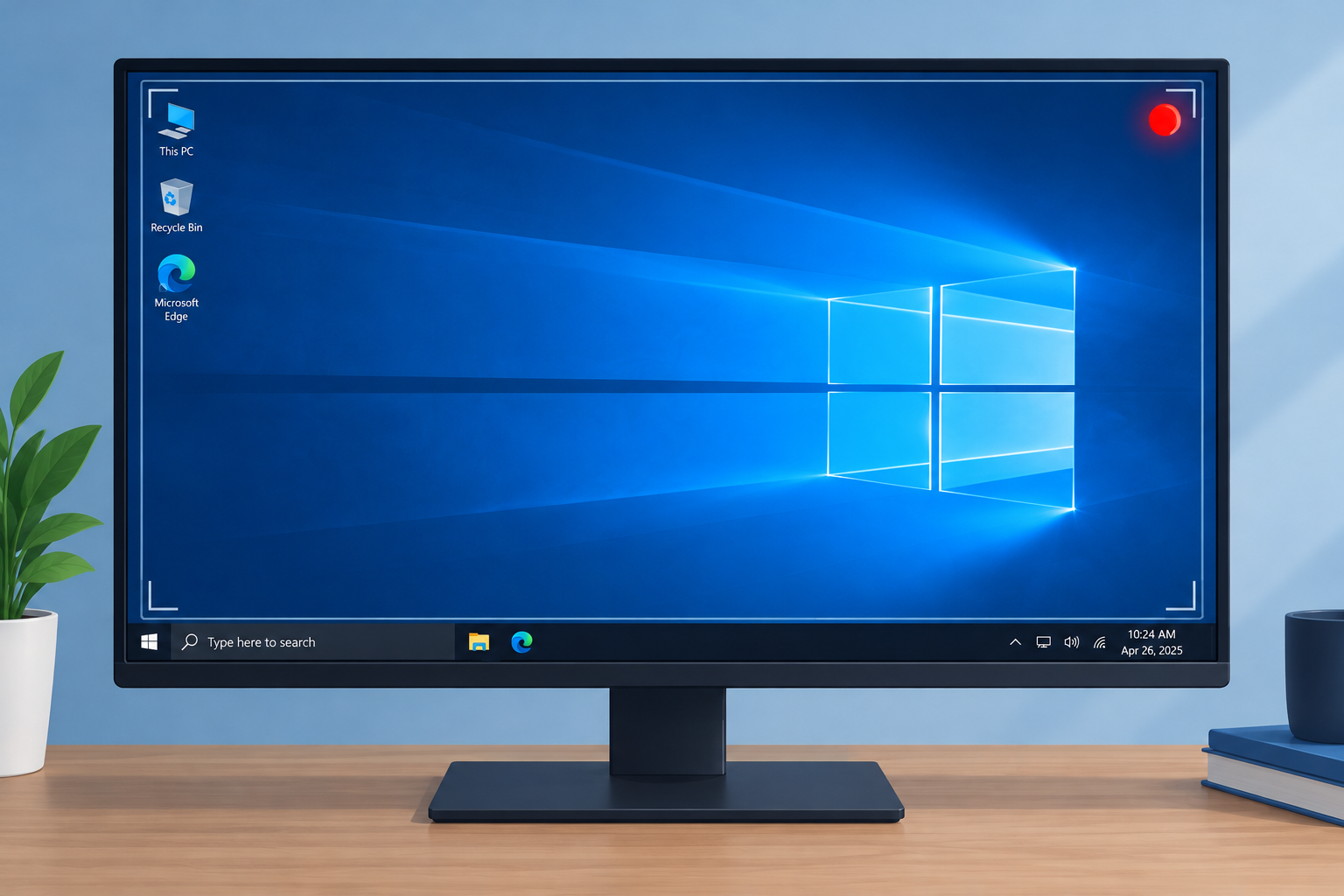
Xbox Game Bar is the gaming overlay built into Windows 10. Press Win + G and it gives you quick widgets for recording clips, taking screenshots, finding teammates through Looking for Group (LFG) and chatting with Xbox friends on console, mobile and PC, all without leaving your game. It is good for games and not much else. This guide shows you how to record your screen without it.
Why Xbox Game Bar is not the best screen recorder
Xbox Game Bar has three limits. It records one app window at a time, it will not record the Windows desktop or File Explorer, and it only works if your graphics card meets the hardware requirements for game capture. On PCs that fall short, the record button stays greyed out or Windows says the PC doesn’t meet the hardware requirements for recording clips.
VLC media player gets around all three. Most people know it as one of the best free media players, but it can also capture your screen and save it as a video file. VLC is a good example of how some types of computer programs do far more than their name suggests.
How to record your screen on Windows 10 with VLC
VLC can record the whole desktop into an MP4 file without any extra screen recording software. Install it first:
Step 1. Download VLC media player from the official VideoLAN website, videolan.org. Don’t use third-party download sites, because they often bundle adware.
Step 2. Run the installer and install VLC on your Windows 10 PC.
Step 3. Open VLC, click Media in the top-left corner and choose Open Capture Device (shortcut: Ctrl + C).
About VLC media player
VLC is made by the non-profit VideoLAN project. It is popular for good reasons. It is free and open source, and it plays almost every file format without extra codec downloads. It also handles streaming and can be extended with add-ons. The current stable desktop version belongs to the VLC 3.0 series, and VLC 4.0 is still in testing.
Plus points
- Highly customizable
- Outstanding file format support
- Expandable through add-ons
Limits for screen recording
- Recording sound with the desktop capture needs extra setup
- You can’t select just one region of the screen
- There is no cursor highlighting or built-in editor
Set up and start the VLC recording
These steps pick up from the Open Media window that opens after Step 3 above.
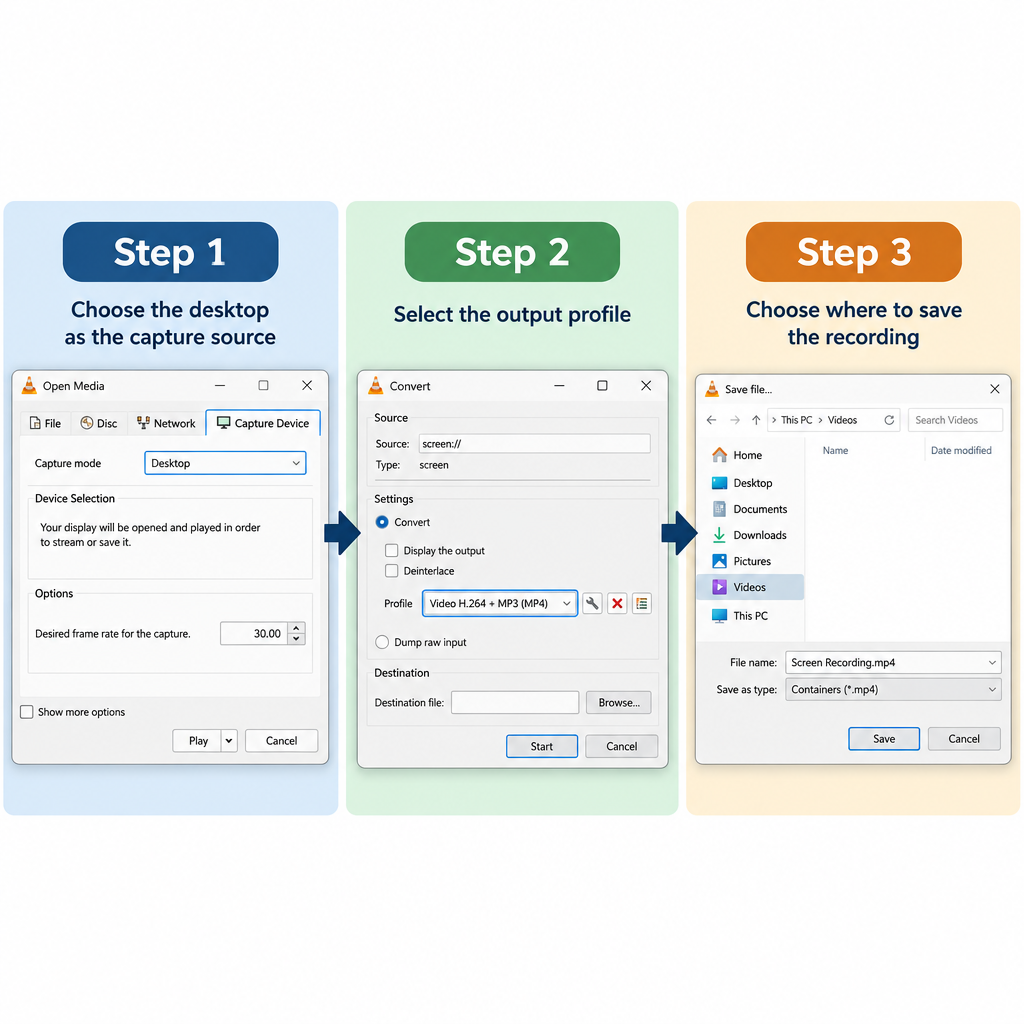
Step 1. In the Capture Device tab, set Capture mode to Desktop.
Step 2. Set Desired frame rate for the capture to 30.00 f/s. The default is very low and makes choppy video. You can use 60 f/s on a fast PC, but the files get much bigger and older laptops may stutter.
Step 3. Click the small arrow next to the Play button at the bottom and choose Convert (Alt + O). Don’t click Play itself, because that only shows a preview and saves nothing.
Step 4. Set Profile to Video, H.264 + MP3 (MP4).
Step 5. Click Browse next to Destination file and choose where to save the recording.
Step 6. Type a name for the recording that ends in.mp4, then click Save.
Step 7. Click Start. VLC is now recording your screen.
Step 8. When you’re done, click the Stop button in the main VLC window. The MP4 file is saved where you chose in Step 5.
Long, high-frame-rate recordings use a lot of RAM and disk space. If Windows warns that your computer is low on memory while VLC is recording, close browser tabs and other apps, or lower the frame rate to 24 or 30 f/s.
3 best free screen recorders for Windows 10
VLC is fine for quick silent clips. For narration, system sound, webcam overlays or editing, a dedicated recorder is the better tool. All three below are free, work on Windows 10, and don’t add a watermark to normal recordings.
| Recorder | Developer | Records audio | Watermark (free) | Best for |
|---|---|---|---|---|
| OBS Studio | OBS Project (open source) | Yes, mic and system | None | Streaming, long recordings, gameplay |
| FlashBack Express | FlashBack (originally Blueberry Software) | Yes, plus webcam | None | Simple tutorials and quick captures |
| ActivePresenter | Atomi Systems | Yes | Only on paid features | Tutorials that need editing |
1. OBS Studio
OBS Studio is a free, open-source program for screen recording and live streaming, with no watermark and no time limit. Gamers use it to stream gameplay, but it is just as good for everyday screen recording. You can capture the whole screen, a single window, your webcam and your microphone. You choose which apps and audio sources to include, and you can stack them in layers, for example a webcam bubble over your desktop. The current version is in the OBS Studio 32 series and supports 64-bit Windows 10 and Windows 11. Download it only from obsproject.com.
2. FlashBack Express
FlashBack Express is the free version of the FlashBack screen recorder, which was originally developed by Blueberry Software. It captures your screen, webcam and sound, with no time limit and no watermark. On a PC with more than one monitor, you can record all of them or just one. You can also set it to start and stop recording at set times or when a chosen app opens. Editing in the free version is basic. Its own recording format opens in the FlashBack player, so export to MP4 before you share a video.
3. ActivePresenter
ActivePresenter from Atomi Systems is a screen recorder and video editor in one program. It is popular with YouTubers, teachers and trainers who make how-to guides, presentations and step-by-step tutorials. The current version is ActivePresenter 10. The free edition is for trial and non-commercial use and adds no watermark as long as you stick to free features. Paid-only features stamp a watermark on the output until you buy a Standard or Pro license.
If you upload your tutorial and playback fails in the browser, that is usually a problem with Windows and your audio device, not your recording. The audio renderer error youtube shows is a common example, and restarting the browser or reconnecting the audio device often fixes it.
Which option to use
VLC is the quickest free way to record your Windows 10 screen without Xbox Game Bar when you don’t need sound. For anything with narration or system audio, use OBS Studio. FlashBack Express is simpler if OBS feels like too much, and ActivePresenter is the one to pick if you will edit the video afterwards.
Xbox Game Bar is still the fastest tool for game clips and screenshots: press Win + G, or Win + Alt + R to start and stop recording. It records apps only. It cannot record the full desktop or a selected area, which makes sense for a tool built for games, and it needs a graphics card that meets its hardware requirements. Clips are saved to the Videos\Captures folder.
FAQ
Can VLC record my screen with sound?
Yes, with some setup. VLC’s desktop capture can record audio as well as video, but system sound needs extra configuration, such as enabling Stereo Mix or selecting an audio input device. If you want an easier way to capture your voice or system sound, use OBS Studio or FlashBack Express, which record the microphone and system audio together with the screen.
Does Windows 10 have a built-in screen recorder besides Xbox Game Bar?
Not as part of Windows itself. The screen recording feature in Snipping Tool is a Windows 11 feature. If you have Microsoft PowerPoint, though, Insert > Screen Recording lets you record a chosen area of the screen with audio and save it as a separate video file.
Why is Xbox Game Bar recording greyed out?
Game Bar can’t record the desktop or File Explorer, so the button is disabled until a supported app or game is in focus. It also stays greyed out if your graphics card doesn’t meet the hardware requirements for game capture. In that case, use VLC or OBS Studio instead.
Are these free screen recorders safe to install?
Yes, if you download them from the developers’ own websites: videolan.org, obsproject.com, flashbackrecorder.com and atomisystems.com. Repackaged copies on download portals can include adware. Skip any “cracked” pro versions, because they are a common way malware gets onto PCs.
Is it still safe to use Windows 10 for this in 2026?
Mainstream support for Windows 10 ended on October 13, 2020, and extended support ended on October 14, 2025. Home users on version 22H2 can still get security fixes through the consumer Extended Security Updates program, which Microsoft extended until October 12, 2027. If your PC isn’t enrolled, check Settings > Update & Security > Windows Update for the enrollment option.
Where does VLC save the screen recording?
VLC saves it to the location and file name you chose with Browse in the Convert window. If you forgot to set one, the recording may not save at all, so always pick a destination file before you click Start.
Sources
- VideoLAN: VLC media player
- OBS Studio 32.1 Release Notes
- Atomi Systems: Download ActivePresenter
- BleepingComputer: Microsoft extends free Windows 10 ESU support to October 2027












