
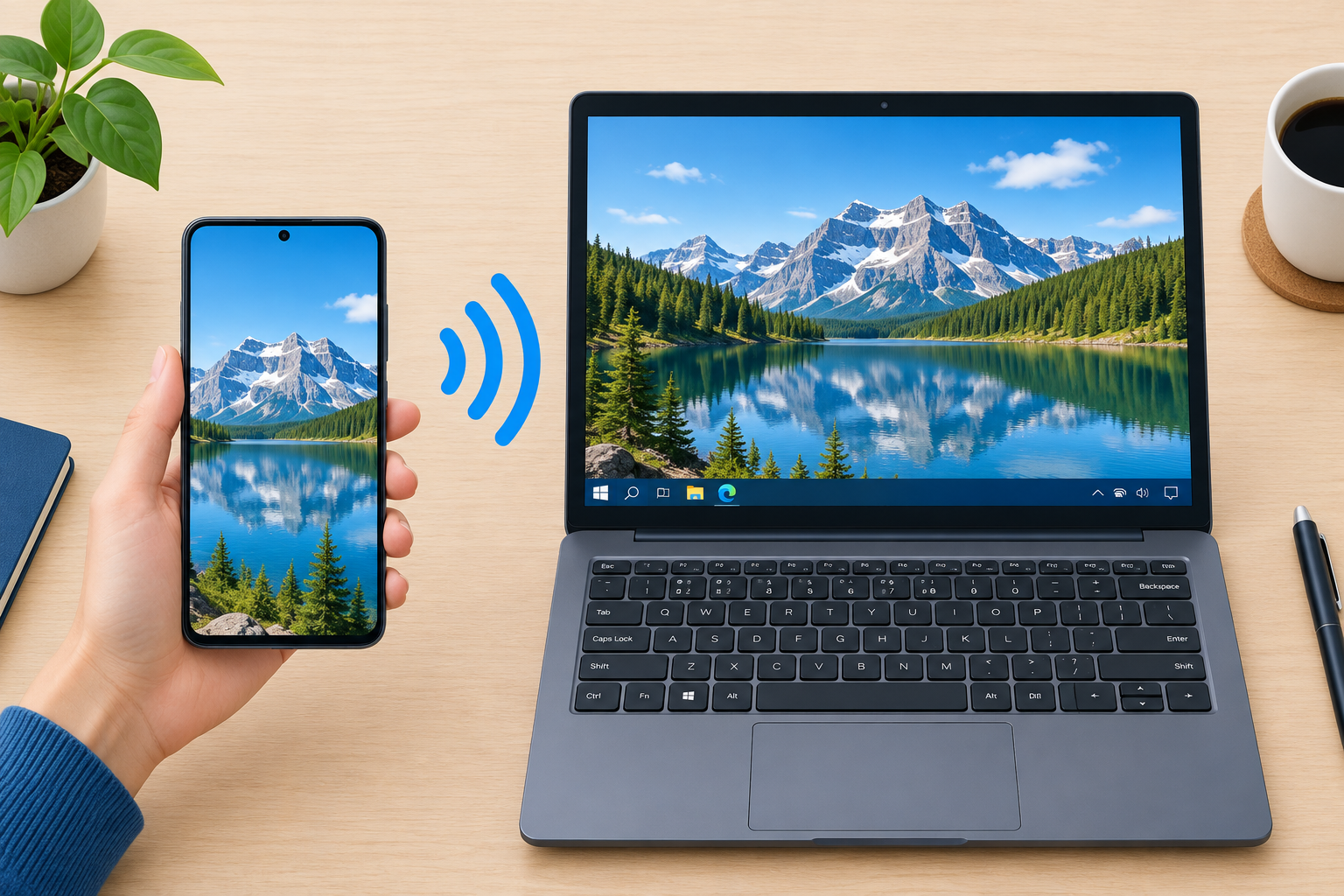
Windows 10 can show your Samsung Galaxy’s screen without any extra software. On the PC, add the free Wireless Display feature and turn on Settings > System > Projecting to this PC. On the phone, open the Quick panel, tap Smart View and pick your PC. Both devices need to be on the same Wi-Fi network, and the PC’s Wi-Fi adapter and graphics driver must support Miracast. The same steps work on Windows 11, and Microsoft’s Phone Link app gives you a second way to do it.
This guide shows you how to mirror (cast) your Samsung Galaxy phone or tablet to a Windows 10 PC with no third-party apps. It uses two built-in tools: Smart View on the Galaxy and the Projecting to this PC feature in Windows.
What you need before you start
Current Galaxy phones and tablets all include Smart View, Samsung’s screen mirroring tool. Very old models may call it “Screen Mirroring” instead. Galaxy S, Note, A and Tab models running recent versions of One UI can all mirror to a Windows PC that supports Miracast.
Microsoft first let Windows 10 act as a wireless display receiver in the Anniversary Update (version 1607). With that, your PC can show the screen of an Android phone, a Windows tablet or another PC. In Windows 10 version 2004 and later, this part of Windows became an optional feature called Wireless Display, which you have to install before the setting works.
Before you begin, check these four things:
- Same network: your Galaxy and your PC must be on the same Wi-Fi network.
- Miracast support: the PC’s Wi-Fi adapter and graphics driver must both support Miracast. Most laptops made in the last several years do. Many desktops with only a wired network connection do not.
- Up-to-date Windows: Windows 10 version 22H2 is the final release. Standard support for Windows 10 ended on October 14, 2025. Home users who join the Extended Security Updates (ESU) program get security fixes until October 12, 2027.
- Power: keep the PC plugged in. One of the projection settings hides the PC from phones while it runs on battery.
How to screen mirror a Samsung Galaxy to a Windows 10 PC
If you have a recent Galaxy and a Windows 10 or Windows 11 PC, you don’t need any third-party software. Follow these steps in order.
Install the Wireless Display feature first
If Projecting to this PC is greyed out or says the feature is missing, install Wireless Display:
- Open Start > Settings > Apps > Apps & features > Optional features.
- Click Add a feature.
- Search for Wireless Display, tick it and click Install.
- Wait for it to finish, then restart the PC if Windows asks you to.
On Windows 11, the path is Settings > System > Optional features > View features. Search for Wireless Display there.
Set up the PC and connect the phone
Step 1. Click the Start button in the bottom-left corner of the screen, then select Settings.
Step 2. Click System.
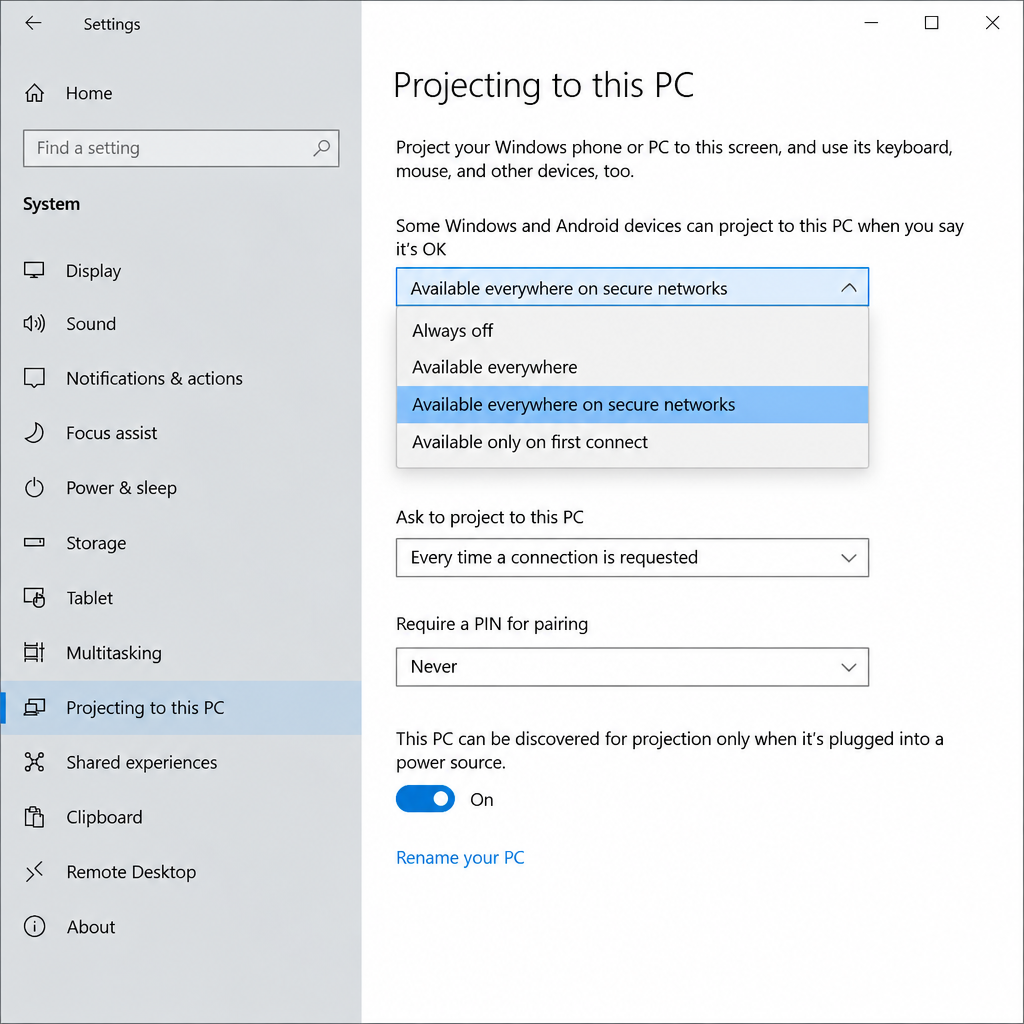
Step 3. Click Projecting to this PC in the left-hand menu.
Step 4. Under “Some Windows and Android devices can project to this PC when you say it’s OK”, change Always Off to Available everywhere on secure networks. For more secure connections, also choose an option that requires a PIN for pairing.
You can leave the other settings as they are and everything will work. Here is what each one does:
| Setting | Options | What it does |
|---|---|---|
| Ask to project to this PC | First time only / Every time a connection is requested | Controls how often Windows asks you to approve a device |
| Require PIN for pairing | Never / First time / Always | Makes the phone enter a PIN shown on the PC before it can connect |
| This PC can be discovered for projection only when it is plugged into a power source | On / Off | Hides the PC from phones while it runs on battery |
| PC name | Shown at the bottom of the page | The name your Galaxy will show in its Smart View list |
Step 5. On your Galaxy, swipe down from the top of the screen twice to open the full Quick panel, then tap Smart View. If you can’t see it, swipe left through the Quick panel pages. You can also tap the pencil (Edit) icon and drag Smart View into the panel.
Step 6. Smart View searches for nearby screens. Tap your PC’s name, which matches the name shown on the Projecting to this PC page. If the phone asks you to confirm, tap Start now. Older versions of Smart View first asked you to choose between “Phone → Other device” and “Other device → Phone”. If you see that choice, pick Phone → Other device.
Step 7. On your PC, a notification appears saying your phone wants to project. Click it and choose Allow, or Always allow if you don’t want to be asked again for this phone.
Step 8. The Connect app opens on the PC and shows a message like “DESKTOP-XXXXXX is ready for you to connect wirelessly”. After a few seconds, your Galaxy’s screen appears in that window. If the PC asks for a PIN, type the one shown on the PC into the phone.
Step 9. To stop mirroring, tap the floating Smart View icon on your Galaxy (or the Smart View notification in the Quick panel), then tap Disconnect. You can also close the Connect window on the PC.
If the PC doesn’t show up or the connection drops
Most failures come down to the network, Miracast or the PC’s Wi-Fi driver. Try these fixes in order, from quickest to most involved:
- Check that both devices are on the same Wi-Fi network, not one on 2.4 GHz guest Wi-Fi and the other on the main network.
- Turn Wi-Fi off and back on, on both devices, then open Smart View again.
- Press Windows key + R, type
dxdiag, and click Save All Information. Open the saved text file and look for “Miracast: Available”. If it says “Not Supported”, this PC can’t receive a Miracast stream. - Update the Wi-Fi and graphics drivers through Settings > Update & Security > Windows Update > View optional updates, or from the PC maker’s support website. Never download drivers from unofficial sites.
- Allow the Connect app through any third-party firewall or security suite. Leave your antivirus turned on.
- On a work or school PC, the administrator may have blocked Wireless Display or projection by policy. In that case, contact your IT department.
If your PC lacks Miracast support, plugging in a USB Miracast adapter does not make it a receiver. Use Phone Link instead (see below), which works over your normal Wi-Fi connection.
Other built-in ways to mirror a Galaxy to a PC
Smart View is not the only free option. Microsoft and Samsung both offer apps that also show your phone’s screen on the PC:
| Method | What you need | Best for |
|---|---|---|
| Smart View + Projecting to this PC | Miracast-capable PC, Wireless Display feature | Showing the full screen, videos and presentations |
| Phone Link (Windows) + Link to Windows (Galaxy) | Microsoft account on both, Android 9 or later | Using phone apps with your mouse and keyboard, notifications, messages |
| Samsung Flow + Smart View | Samsung Flow installed on the phone and the PC | Galaxy owners who already use Flow for file sharing |
Phone Link comes built into Windows 10 and Windows 11. On most Galaxy phones, Link to Windows is already part of the Quick panel. Once you link the phone, the Apps section in Phone Link can mirror the phone’s screen in a window that you control with your mouse.
Which method to use
Use Smart View with Projecting to this PC when you want the whole phone screen on your monitor quickly, for example to show photos or a video to a room. Pick Phone Link when you want to work with phone apps day to day using your keyboard. Also keep in mind that most consumer Windows 10 editions now rely on the ESU program for security fixes, although some editions, such as LTSC releases, still receive updates through their own servicing channels. If your PC can run Windows 11, upgrading keeps these features supported for longer.
FAQ
Why is “Projecting to this PC” greyed out in Windows 10?
Usually the Wireless Display optional feature isn’t installed. Add it through Settings > Apps > Apps & features > Optional features > Add a feature. If the setting stays greyed out afterwards, the PC’s Wi-Fi adapter or graphics driver probably doesn’t support Miracast, or a work policy is blocking it.
Do I need to install any app on my Samsung phone?
No. Smart View is built into Galaxy phones and tablets, and you’ll find it in the Quick panel. Phone Link also needs nothing extra on most Galaxy phones, because Link to Windows comes preinstalled.
Can I mirror my Galaxy to a PC with a USB cable?
Windows has no built-in way to mirror over a cable. Smart View and Phone Link both work over Wi-Fi. If your network is unreliable, putting both devices on the same 5 GHz band usually gives a smoother picture.
Does sound play through the PC when I mirror?
With Smart View and Projecting to this PC, audio from videos and games normally plays through the PC’s speakers. If it doesn’t, check the media volume on the phone and the output device in Windows sound settings.
Will this still work now that Windows 10 support has ended?
Yes. Ending support doesn’t remove features, so Projecting to this PC keeps working. Without the ESU program, though, the PC no longer gets security fixes, which matters more than mirroring does.
Is screen mirroring the same on Windows 11?
Almost. The setting is still at Settings > System > Projecting to this PC, and it still needs the Wireless Display feature. The only real change is where you install that feature: Settings > System > Optional features.
Sources
- Microsoft Support: Screen mirroring and projecting to your PC or wireless display
- Microsoft Support: Screen mirroring and projecting to your PC (Wireless Display)
- Samsung Support: Share your Galaxy phone’s screen with Smart View in Samsung Flow
- Samsung: Samsung Flow












