
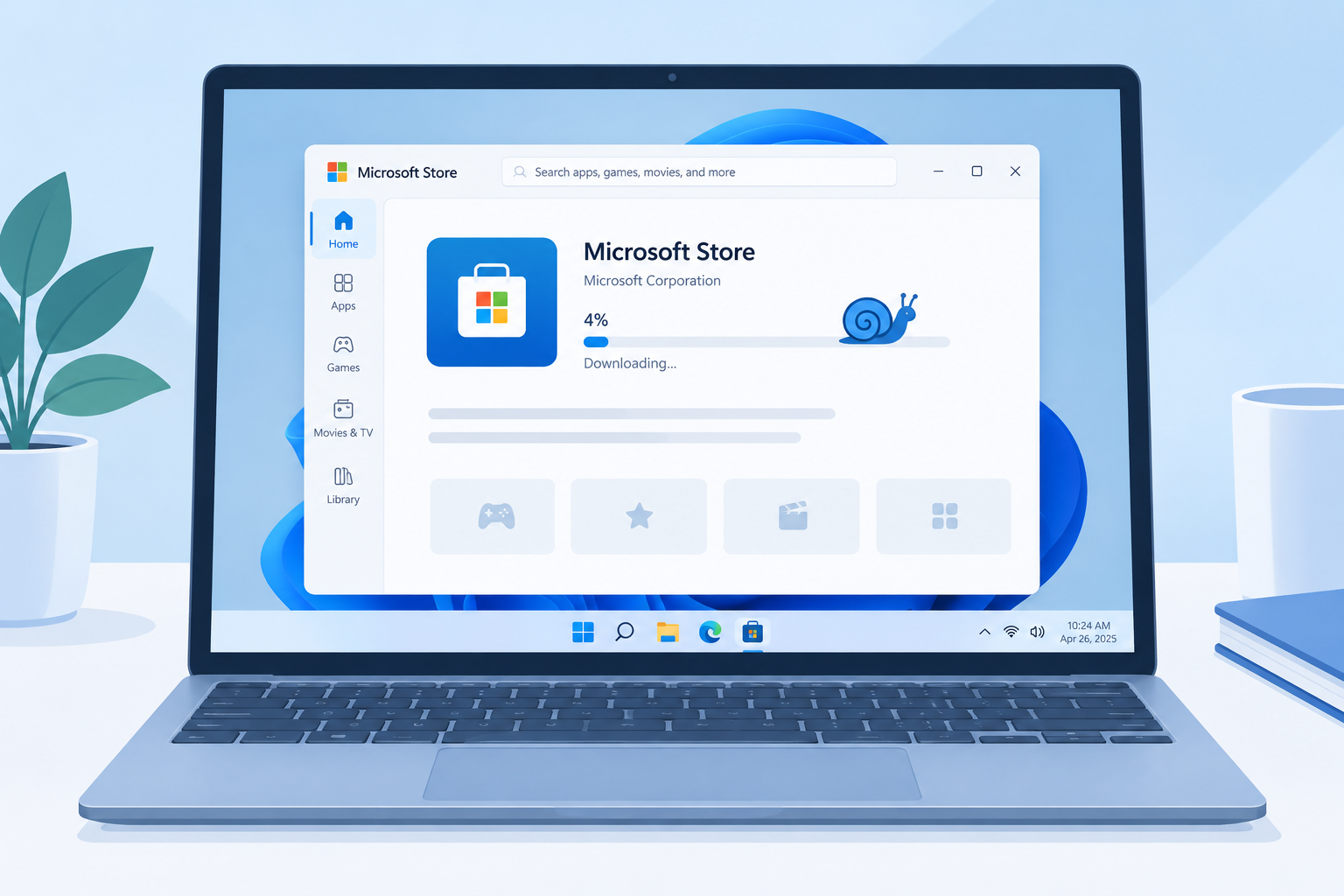
If Microsoft Store downloads crawl or get stuck, start with the quick checks: test your internet speed, pause other downloads in the Store’s Library, and make sure Windows is fully updated. Microsoft’s June 9, 2026 cumulative update for Windows 11 (KB5094126) is widely reported to have sped up Store downloads, so installing current updates matters more than ever. If that doesn’t help, raise the Delivery Optimization bandwidth limit, run wsreset.exe to clear the Store cache, and then repair or reset the Microsoft Store app from Settings.
Microsoft Store came with Windows 10 and is still built into Windows 11. It keeps your Windows apps and games in one place, so it’s easy to find both free and paid apps, install them and keep them updated. When it works, it’s simple. When downloads slow to a crawl, the cause is usually easy to fix.
Why Microsoft Store downloads slow down
A slow or stuck Store download is annoying, but it’s almost never permanent. The usual causes are your connection, a busy download queue, a Windows bandwidth limit, a corrupted Store cache or an outdated copy of Windows. The fixes below go from the quickest and safest to the more involved ones.
Check your internet speed
Slow Store downloads usually come down to how fast and stable your internet connection is. If you’re away from home on someone else’s Wi-Fi, you may not know how fast that network is. Your home network could also be having problems.
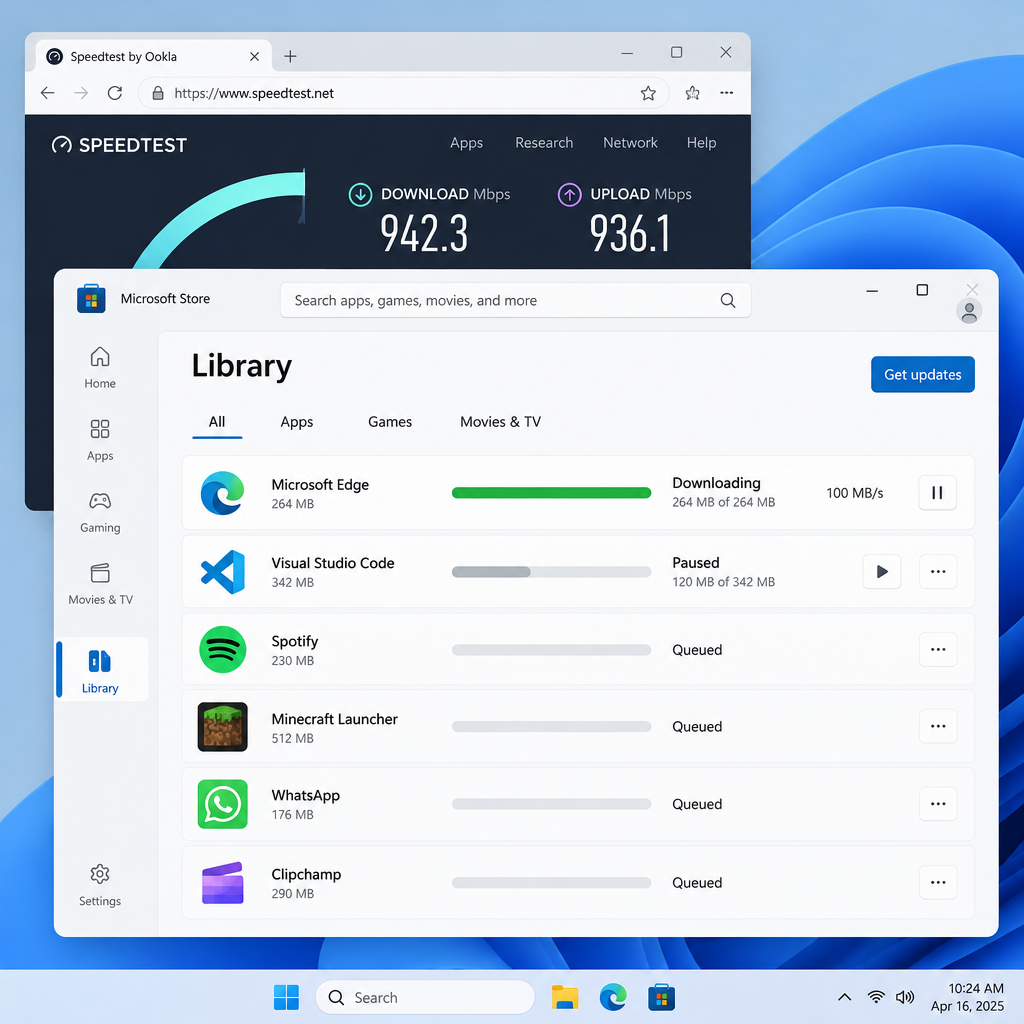
Run a speed test in your browser first. If the speed looks normal, move on to the next fix. If it’s slow or keeps dropping, restart your router or contact your internet provider.
Check two Windows settings while you’re at it:
- Metered connection. Windows holds back some downloads on connections marked as metered. Go to Settings > Network & internet > Wi-Fi, select your network’s properties and turn Metered connection off. For a wired connection, use Settings > Network & internet > Ethernet.
- VPN or proxy. A VPN or proxy can route Store traffic through a slow server. Turn it off for a moment, then try the download again.
Check whether Microsoft’s servers are down
This probably isn’t the first thing you’d think of, but it’s worth ruling out. Microsoft Store runs on Microsoft’s Azure cloud platform. An outage-tracking site such as Downdetector shows whether lots of other people are reporting Microsoft problems right now. For games and Game Pass downloads, also check the official Xbox status page, because those downloads go through Xbox services.
If there’s an outage, you’ll have to wait until Microsoft fixes it. If everything looks fine, move on to the next fix.
Check whether the Store is busy with other downloads
Before you lose patience, remember that Microsoft Store downloads apps in order. If you start several apps or games at once, only a few download at the same time and the rest wait in line. Large game updates can hold up the whole queue.
- Open Microsoft Store and select Library in the lower-left corner.
- Look at the downloads and updates that are running or waiting.
- Pause or cancel the items you don’t need right now, so the one you want gets all the bandwidth.
Sign out of Microsoft Store
Try the basics before the more complicated fixes. Open Microsoft Store from the Start menu, select your profile picture at the top of the window and choose Sign out. Then restart your PC.
Once Windows is back up, open Microsoft Store again, sign in with your Microsoft account and restart the download. Signing out and back in fixes download problems in a lot of apps, and it often works for Microsoft Store too.
Repair or reset Microsoft Store
You can repair or reset Microsoft Store without uninstalling it. Repair keeps your data. Reset clears the app’s data and settings and puts it back the way it was when first installed. You’ll need to sign in again afterwards, but your purchased apps stay tied to your Microsoft account.
On Windows 11:
- Go to Settings > System > System components. On some Windows 11 versions, Microsoft Store is listed under Settings > Apps > Installed apps instead.
- Find Microsoft Store, select the three-dot menu next to it and choose Advanced options.
- Select Repair first and test a download.
- If that doesn’t help, select Reset on the same page.
On Windows 10, go to Settings > Apps > Apps & features, select Microsoft Store, choose Advanced options and use Repair or Reset.
A fresh start like this can be enough to get downloads moving at full speed again.
Check for updates
If you’re sure the Store itself is the problem, it could be a bug that Microsoft has already fixed in an update. This matters a lot right now. After the June 9, 2026 cumulative update for Windows 11 versions 24H2 and 25H2 (KB5094126), Windows Latest and other tech outlets reported that Store downloads got much faster than before. Microsoft’s own release notes describe the change in narrower terms, as better download performance and error reporting. Either way, a fully updated PC is the right place to start.
- On Windows 11, press Windows key + I and go to Windows Update, then select Check for updates. On Windows 10, go to Settings > Update & Security > Windows Update.
- Download and install everything that’s offered, then restart your PC.
- Open Microsoft Store, go to Library and select Get updates so the Store app updates itself too.
- Sign in again if asked, and try your download.
Windows 10 stopped getting regular updates on October 14, 2025. If you’re still on Windows 10, you only get security fixes through the Extended Security Updates (ESU) program. Reports say Microsoft has extended consumer ESU to October 12, 2027. Fixes for features like the Store are going into Windows 11.
Change Delivery Optimization settings
Windows may be set to use only a small share of your bandwidth for downloads. That cap can be what’s slowing down the apps you’re trying to get.
This is easy to change. On Windows 11:
- Go to Settings > Windows Update > Advanced options > Delivery Optimization.
- Select Advanced options.
- Under Download settings, check whether the background and foreground download limits are turned on.
- Turn the limits off, or move the percentage sliders higher, so Windows can use more bandwidth for downloads in the background and foreground.
On Windows 10, the same page is at Settings > Update & Security > Delivery Optimization > Advanced options. You can also type “Delivery Optimization settings” into the Settings search box to jump straight there.
Clear the Store cache
A Windows update can sometimes mess up Store download speeds. If everything worked before an update and suddenly doesn’t, clearing the Store cache is worth trying. It doesn’t uninstall your apps or delete your purchases.
- Press Windows key + R to open the Run box.
- Type wsreset.exe and press Enter.
- An empty Command Prompt window opens for a few seconds while the cache clears. Then Microsoft Store opens by itself.
- Try the download again.
If downloads are still slow after that, Windows 11 also has a built-in troubleshooter. Go to Settings > System > Troubleshoot > Other troubleshooters and select Run next to Windows Store Apps. On newer builds, this opens the Get Help app.
If downloads are still slow
People expect fast downloads from a Microsoft product, whatever they’re getting: Netflix, games or messaging apps. Often, though, Microsoft isn’t the problem. The usual culprits are your Wi-Fi or too many downloads at once, and both are quick to fix.
If you’ve tried every fix above and one app is still slow while others download fine, the problem may be with that app or game. Microsoft Q&A threads describe Game Pass and Xbox downloads crawling while free apps download at full speed. In that case, contact Microsoft Support or the Xbox support team, and say which fixes you’ve already tried.
FAQ
Why is Microsoft Store downloading so slowly when my internet is fast?
The most common causes are a Delivery Optimization bandwidth limit, a metered connection setting, a VPN, or a long queue of other downloads in the Store’s Library. An outdated Windows install can also play a part. Tech outlets reported faster Store downloads after Windows 11’s June 2026 update. Check those settings first, then install the latest updates.
Does wsreset delete my apps or purchases?
No. wsreset.exe only clears the Microsoft Store cache. Your installed apps, games and purchases stay where they are, and the Store opens again by itself when it’s done.
What is the difference between Repair and Reset for Microsoft Store?
Repair tries to fix the app and keeps its data, so it’s the safer first step. Reset clears the Store’s data and settings, and you’ll need to sign in again. Both are under Advanced options for Microsoft Store in Settings.
Why are Xbox Game Pass downloads slower than other apps?
Game Pass and Xbox game downloads go through Xbox services and are often very large, so they’re more affected by queues, outages and bandwidth limits. Check the official Xbox status page, pause other downloads in Library, and make sure Windows and the Xbox app are up to date. If only these downloads stay slow, contact Xbox support.
Can I still fix Microsoft Store on Windows 10?
Yes. Every fix here works on Windows 10, but the menus are under Update & Security instead of Windows Update. Windows 10 now only gets security updates through ESU, so the Store download improvements are going into Windows 11. Upgrading is the long-term fix if your PC supports it.
Sources
- Microsoft Support: Repair apps and programs in Windows
- Microsoft Support: Delivery Optimization in Windows
- Microsoft Support: Windows 11 cumulative update KB5094126 (June 9, 2026) release notes
- Microsoft: Windows 10 end of support and Extended Security Updates
- Microsoft Q&A: Microsoft Store download and repair threads












