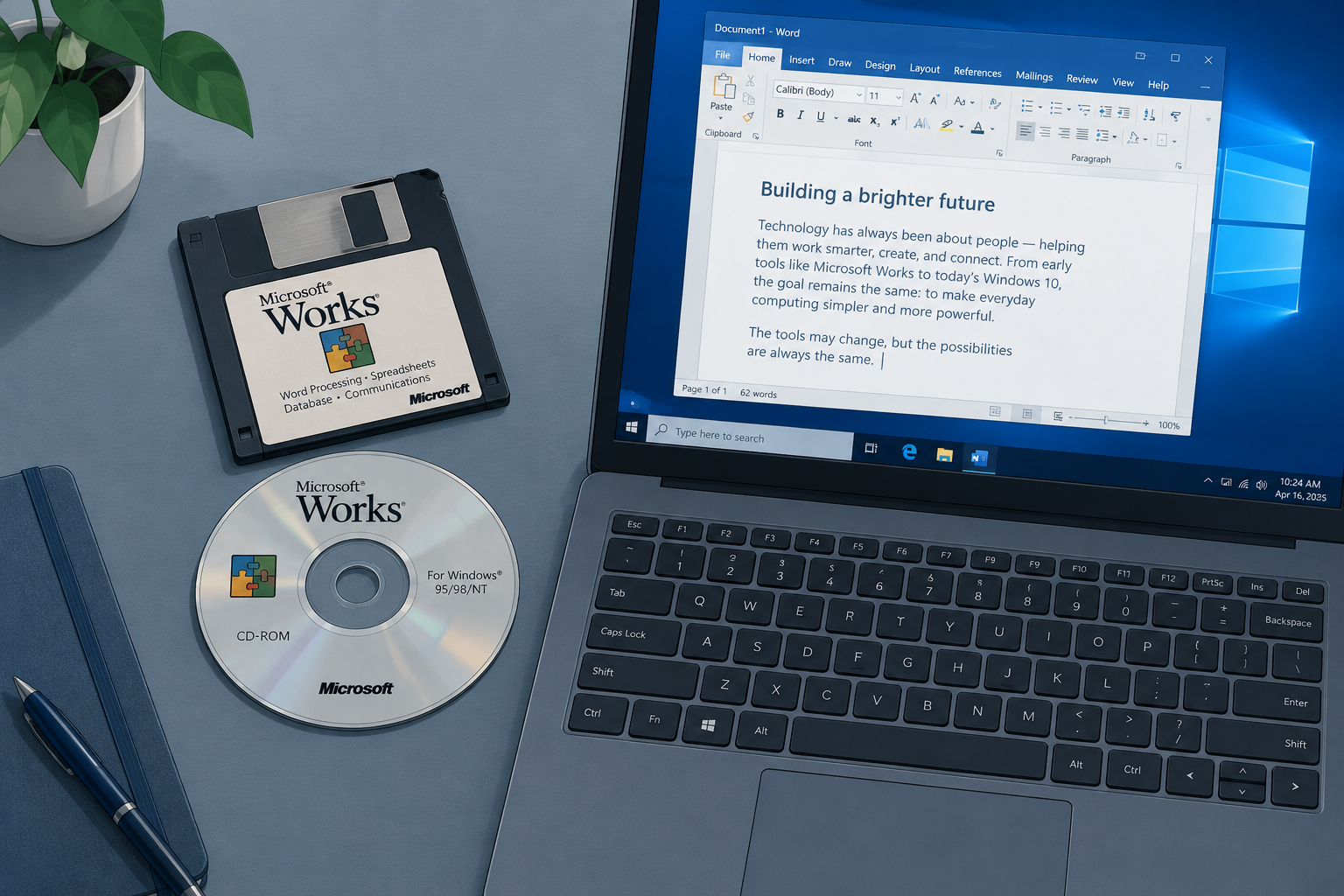
Microsoft Works can still run on Windows 10 if you already have it installed or still own the original installation CD. Right-click MSWorks.exe and run it in compatibility mode. Microsoft no longer offers Works as a download, so if you only need your old.wps files, it is easier to open them in LibreOffice Writer or a recent version of Microsoft Word and save them as.docx or.odt. Converting is the better long-term choice, because Works 9 dates from 2007 and Microsoft has not supported it for more than a decade.
Why Microsoft Works is hard to use today
Microsoft stopped developing Works a long time ago. The last version, Works 9.0, came out in September 2007. In late 2009 Microsoft announced that Office 2010 Starter would replace it, and support for Works 9 ended in 2012 and 2013. It has had no updates since.
Some people still prefer Works to Microsoft Office because it is simple and easy to set up the way they like. Windows 10 is also near the end of its own life. Free support for Windows 10 ended on October 14, 2025. Home users can still get security fixes through the consumer Extended Security Updates (ESU) program. Microsoft extended that program in June 2026, so it now runs until October 12, 2027.
This guide covers two jobs. The first is running Works itself, if you have the installation CD or the program is already on your PC. The second is converting files from Works’ own.wps format into a format that LibreOffice, Apache OpenOffice or Microsoft Office can open.
How to run Microsoft Works on Windows 10 today
You have two options. You can run MSWorks.exe in compatibility mode, or you can convert your.wps files into a modern format. Compatibility mode only helps if Works is already installed or you have the disc. Conversion works for anyone who has the files.
Microsoft’s own Works 6-9 File Converter used to fill this gap, but Microsoft has removed it from the Download Center. Do not download it, or Works itself, from third-party “free download” sites. Those copies are unofficial and can carry malware.
1. Run the MS Works program file in compatibility mode
Compatibility mode makes Windows 10 act like an older version of Windows, such as Windows Vista or Windows 7, for one program. Works 9 was built for those versions.
- Check that Works is installed on your computer. If it isn’t, install it from your original CD. Many newer PCs have no disc drive, so you may need a USB DVD drive.
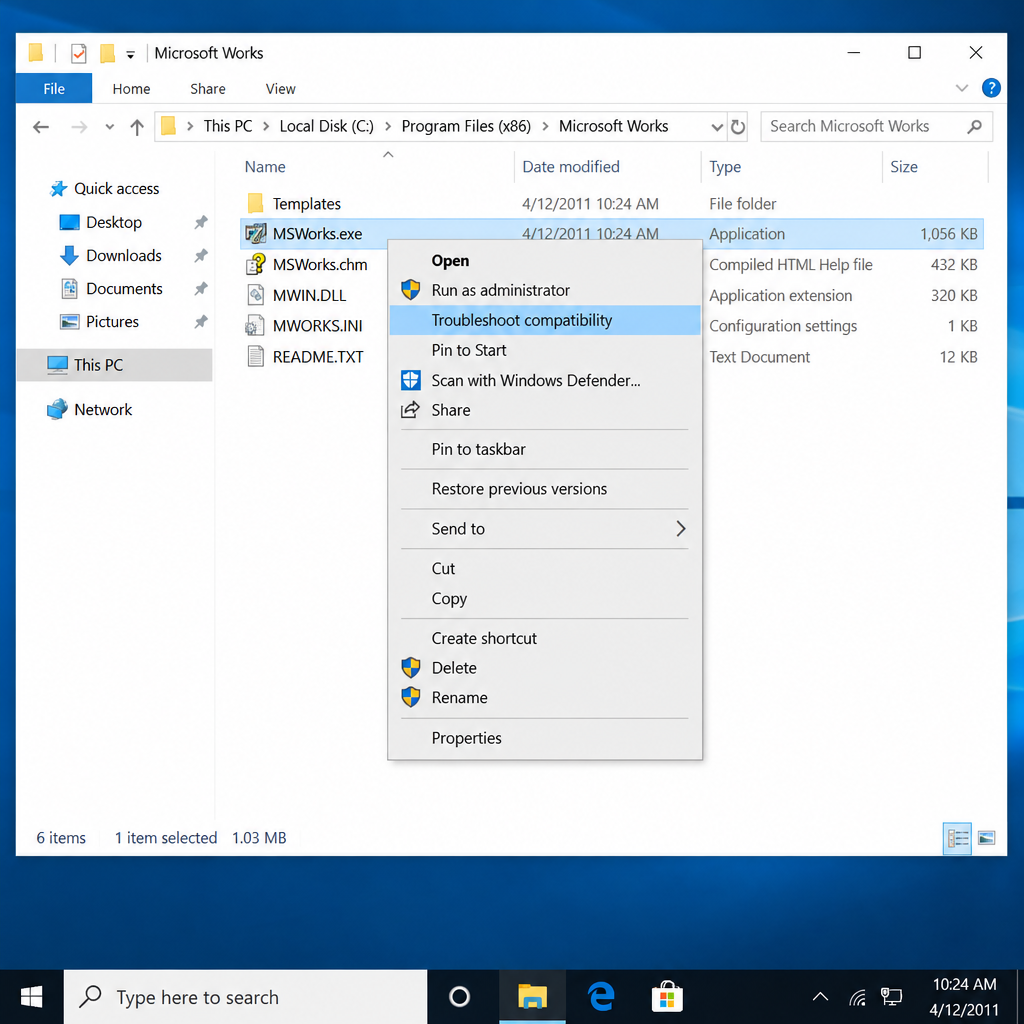
- Open the folder that holds the Works program file: C: > Program Files (x86) > Microsoft Works.
- Right-click MSWorks.exe, then click Troubleshoot compatibility.
- The Program Compatibility Troubleshooter works out the best settings for you.
- When it finishes, select Try recommended settings.
- Click Test the program. Works should open.
- If Works runs properly, go back to the troubleshooter and choose Yes, save these settings for this program.
If the troubleshooter doesn’t help, set the mode yourself:
- Right-click MSWorks.exe and choose Properties.
- Open the Compatibility tab.
- Tick Run this program in compatibility mode for: and choose Windows Vista (Service Pack 2) or Windows 7.
- Click Apply, then OK, and start Works again.
On Windows 10, the compatibility troubleshooter is still built in. On newer versions of Windows 11, Microsoft has been retiring its old troubleshooters and sending people to the Get Help app instead. If Troubleshoot compatibility is missing or doesn’t work there, use the Compatibility tab steps above.
This method only helps if you already have a Works installation CD or Works is already on your computer.
2. Convert MS Works files (WPS)
Converting your.wps files into.docx,.doc,.odt or.rtf lets you open, edit and save them in any modern office program, with no Works needed.
Microsoft used to offer the free Microsoft Works 6-9 File Converter for Word, but it has since removed it from the Download Center. Recent versions of Word don’t need it. Word 2013 and later can open Works 6.0 to 9.0 documents directly:
- In Word, go to File > Open > Browse.
- In the file type list next to the file name box, choose Works 6-9 Document (*.wps).
- Select your file and click Open.
- Go to File > Save As and save it as a Word Document (*.docx).
Files from older versions, such as Works 4.x, need a separate converter, and Microsoft no longer offers it. Use LibreOffice for those (see below).
Watch out for one thing: Kingsoft’s WPS Office also uses the.wps extension. A.wps file from WPS Writer is a different format, so if a file won’t open as a Works document, it may have come from WPS Office.
OpenOffice: convert files online with Zamzar
Apache OpenOffice has never been able to open Works files reliably. The easiest route is to convert them first with Zamzar, an online file converter, and then open the result in OpenOffice.
- Go to Zamzar’s website and click Choose Files. Find your.wps file, select it and click Open.
- In the Convert To list, choose your output format. Pick.odt for OpenOffice, or.doc or.docx if you might use Word later.
- Click Convert Now and wait for the upload and conversion to finish.
- Click Download and choose where to save the converted file.
- Open the new file in OpenOffice.
Without an account, Zamzar converts 2 files every 24 hours, and each file can be up to 50 MB. Zamzar’s paid plans start at $12 a month. If you have a whole folder of old documents, use LibreOffice, which has no limits. Also, think twice before uploading anything private, such as tax letters or medical records, to an online service.
LibreOffice
LibreOffice is free and opens Works word processor files directly. It reads them with libwps, an open-source library built to import them. This is the best free way to convert a batch of old documents on Windows 10 or Windows 11.
If LibreOffice is already installed on your computer:
- Open LibreOffice Writer and go to File > Open.
- Find your.wps file. If you can’t see it, set the file type to All files. Then click Open.
- Go to File > Save As.
- Choose the folder where you want to save the file.
- Open the File type menu and pick a format: Word 2007-365 (.docx), ODF Text Document (.odt) or Rich Text (.rtf).
- Click Save. If LibreOffice asks which format to keep, choose the one you picked.
You can then open the converted files as normal. Check the layout once. Simple letters usually convert cleanly, but tables and fancy formatting can shift, because the Works import filter has never been perfect.
Old.wps files often hold things people keep for years: letters, family recipes, or a project timeline from a past job. Converting them now means you won’t depend on Works ever again.
If nothing works
If compatibility mode fails and the files won’t convert, stop there. Third-party “PC repair” tools and unofficial converter downloads won’t fix a 2007 program, and some of them are risky.
- Try a different converter first. If Word fails on a file, try LibreOffice, and the other way round. They use different import code.
- Check the file itself. If no program can open a file, it may be damaged. Look for an older copy in a backup or on an old USB stick.
- Get help locally. A trusted local computer shop can usually convert a batch of files for a small fee. Check their reviews first, the same way you would before paying someone to fix apple watch screen damage or replace a laptop battery.
- Spreadsheets and databases: Works spreadsheet (.wks) and database (.wdb) files are harder to convert than documents. Try LibreOffice Calc for spreadsheets first. If a database matters, export it from Works to CSV while you can still run the program.
FAQ
Can you still download Microsoft Works from Microsoft?
No. Microsoft stopped selling Works after announcing in 2009 that it would be replaced, and it no longer offers it or the Works 6-9 File Converter for download. Sites offering free copies are unofficial, so avoid them. If you don’t have the original CD, convert your files instead.
Does Microsoft Works run on Windows 11?
Works 9 often runs on Windows 11 in compatibility mode set to Windows Vista or Windows 7, but Microsoft doesn’t support it. Newer Windows 11 versions are retiring the old compatibility troubleshooter, so set the mode yourself in Properties > Compatibility. Expect occasional crashes and printing problems.
Is it safe to keep using Microsoft Works on Windows 10?
Works has had no security fixes since support ended in 2012 and 2013. Windows 10 itself only gets security updates through the consumer ESU program, which now runs until October 12, 2027. Using Works for your own offline files is low risk. Opening.wps files from strangers or email attachments is not.
What is the easiest free way to open a.wps file?
Install LibreOffice and open the file in Writer with File > Open. Then save it as.docx or.odt. It’s free, works offline and has no daily limit, unlike online converters.
Can Microsoft Word open Works files without a converter?
Yes, for Works 6.0 to 9.0 documents. Word 2013 and later can open them through the Works 6-9 Document (*.wps) file type in the Open dialog. Older Works 4.x files need LibreOffice or an online converter.
Why does my converted document look different?
The Works format was never fully documented, so converters rebuild the layout as best they can. Plain text and basic formatting usually come through fine, but tables, columns and clip art may move. Check each important file once after converting and fix it before you delete the original.
Sources
- Microsoft Support: Deprecation of Microsoft Support Diagnostic Tool (MSDT) and MSDT Troubleshooters
- BleepingComputer: Microsoft quietly extends free Windows 10 ESU support to October 2027
- Zamzar: Plans and free service limits
- libwps project wiki (Works import library used by LibreOffice)
- Computer Hope: How to open a Microsoft.wps or Works file in Word