
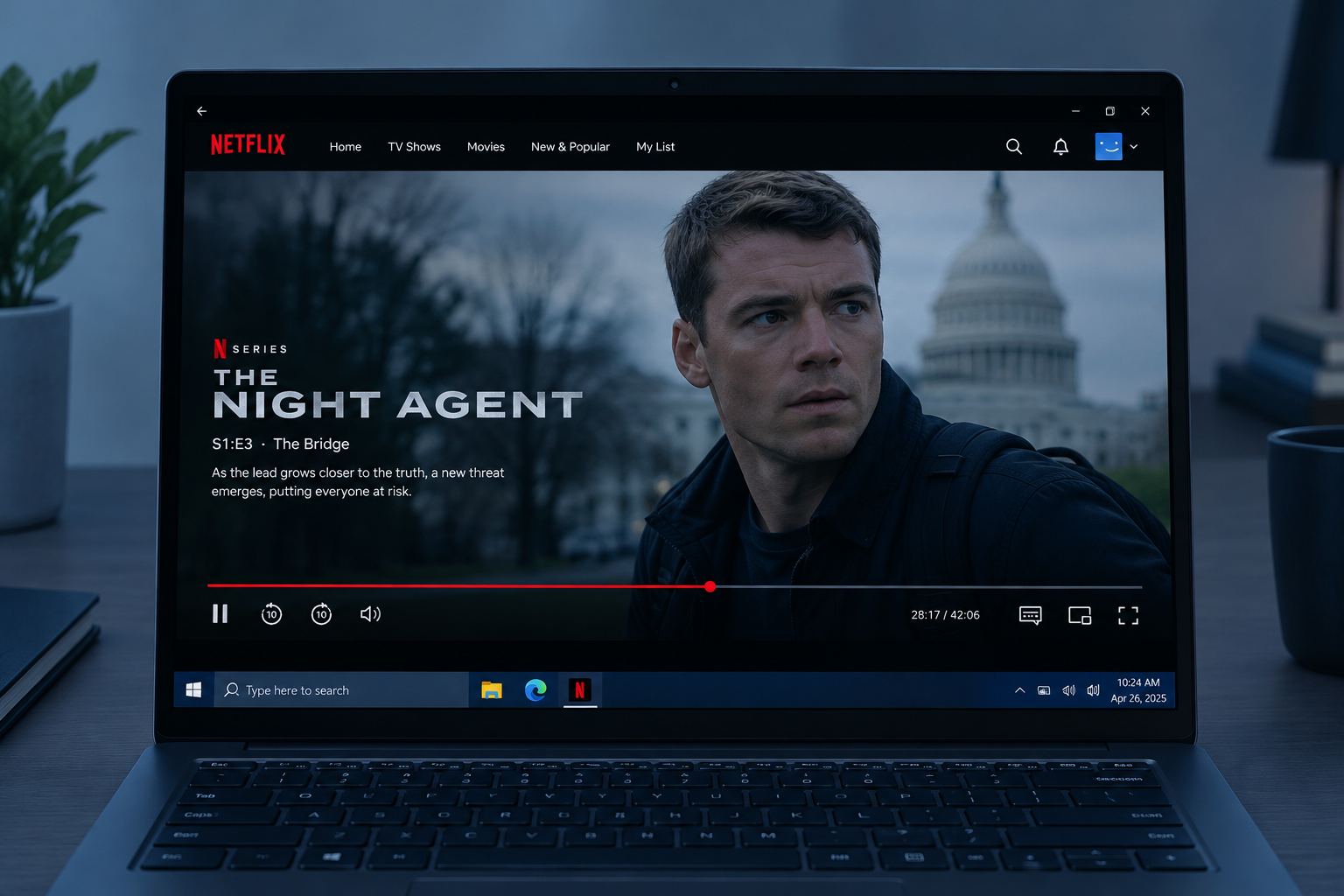
As of November 2026, you can’t change where Netflix saves downloads on Windows 10 because the Netflix app for Windows no longer downloads anything. Netflix announced in May 2024 that its updated Windows 10 and Windows 11 app would drop offline downloads, and its Help Center now says the download feature isn’t available on Windows devices. To watch offline, download titles in the Netflix app on an iPhone, iPad, Android phone or tablet, Amazon Fire tablet (Fire OS 7 or later), or a Chromebook that has the Google Play Store. On a Windows PC, you can only stream, in the app or in a browser such as Edge or Chrome.
Streaming services like Netflix and Amazon Prime Video have long let you download movies and TV shows to watch offline. For several years the Netflix app for Windows 10 did this too, much like the mobile app. That app installed on the C drive by default, so if you downloaded a lot, the drive filled up faster than you’d expect. The rest of this page explains how the old fix worked, what changed, and which Netflix download settings still matter on the devices that support them.
Why Netflix Downloads Filled Up Your Windows 10 PC
Every title you download for offline viewing takes up space on your device’s internal storage, on a PC and on a phone alike. If you downloaded a lot of shows, the drive bar in File Explorer could turn red quickly.
The usual fix was to move the whole Netflix app, downloads included, to another drive. It didn’t take long. You could never open the downloaded files directly in File Explorer, though. Netflix downloads are protected video, so you could only play them from the Downloads section of the Netflix app.
That fix no longer helps with downloads. The current Windows app streams only, so there’s nothing left to fill up the drive.
How the Netflix Download Location Was Changed on a Windows 10 PC
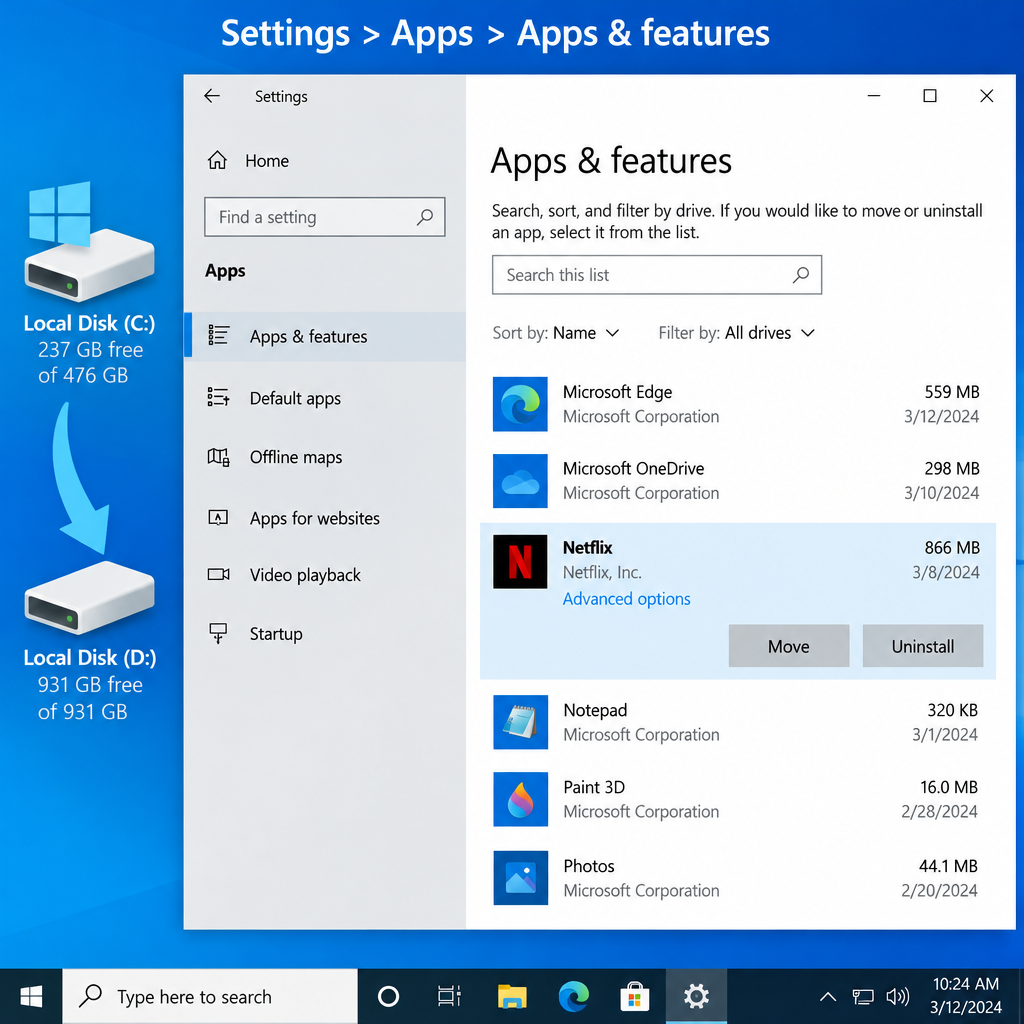
Windows 10 lets you move many Microsoft Store apps to another drive. This is how Netflix downloads used to get moved. The steps below show the old method. You can still use them to move the Netflix app itself, but the app has no downloads to take with it.
Step 1: Open Settings on your Windows 10 PC, go to Apps > Apps & features, and find Netflix in the list. On Windows 11, the path is Settings > Apps > Installed apps. Click the three dots next to Netflix.
Step 2: Click Netflix, then Move, and pick the drive you want. It can be another partition, a second internal drive or a removable USB drive. Make sure the new drive has enough free space, then click Move again. If the Move button is greyed out or missing, Windows can’t move that version of the app.
The move could take a while if you had a lot of downloads, and you couldn’t use the Netflix app until it finished. You could keep watching in a browser like Chrome or Microsoft Edge in the meantime.
Step 3: When the move finished, the Netflix folders were on the new drive. Folders like WindowsApps were locked, so you still couldn’t open the files yourself.
There was one limit: you couldn’t pick a subfolder. Windows created the folders in the root of the new drive.
If you chose an external hard drive or USB drive, it had to be plugged in every time you opened Netflix. Without it, the app showed a “Can’t open” error. The same rule still applies to any Store app you move to a removable drive.
Did you know? Storage Sense in Windows 10 and Windows 11 can clear out temporary files and old Recycle Bin items on a schedule. You turn it on under Settings > System > Storage. It’s a simple way to free up space on the C drive.
What Changed for Netflix on Windows
Netflix announced the change in May 2024, and the updated Windows app removed downloads that year. Netflix gave no detailed reason. Its notice told users they could keep watching offline on a supported mobile device. The new app works much like the Netflix website, which has never offered downloads.
So on Windows 10 and Windows 11 today:
- The Netflix app streams only. There’s no download button and no Downloads page.
- Titles you downloaded before the update are no longer available in the app.
- Moving the app to another drive won’t save any real space.
Windows 10 itself is also past its end of support. Microsoft stopped regular support on 14 October 2025. Home users can get critical and important security fixes through the consumer Extended Security Updates (ESU) program, which Microsoft extended to 12 October 2027. ESU only covers security fixes, with no new features or support, so it won’t bring Netflix downloads back.
Netflix Download Settings That Still Work
These settings are in the Netflix app on phones, tablets and Chromebooks. They don’t appear on Windows any more. In the current mobile app, most of them are under My Netflix (bottom right), then the Menu icon (top right), then App Settings.
1. Smart Downloads
Smart Downloads saves you from managing episodes by hand. When you finish a downloaded episode, the app deletes it and downloads the next one the next time you’re on Wi-Fi.
For example, if you’re rewatching The Big Bang Theory with Smart Downloads on and you finish episode 2, the app removes episode 2 and downloads episode 3. Your downloads stay about the same size.
To turn it on, go to My Netflix > Menu > App Settings, then open Smart Downloads under Downloads and switch on Download Next. The same screen has Downloads for You, which downloads shows and movies Netflix thinks you’ll like. You choose how much storage each profile can use for it. Downloads for You isn’t available on ad-supported plans.
If you want to keep episodes you’ve already watched, turn Smart Downloads off and delete them yourself.
2. Delete all downloads
To free up space fast, go to My Netflix > Menu > App Settings and tap Delete All Downloads. This removes every download on that device, for all profiles. To delete just one title, open Downloads in My Netflix, tap Edit or the checkmark next to the title, and choose Delete Download.
Did you know? Netflix shows different artwork for the same title depending on what you’ve watched before, so two people in the same home can see different thumbnails for one show.
3. Manage download devices
Netflix has a lot of rules for downloads. “Download expired” shows up on old downloads, but the one that annoys people most is the too many devices error. You get it when your plan’s download devices are all in use. Depending on your plan, you can download on 1, 2 or 4 devices. Until you free one up, you can’t download on a new device.
The fix is quick:
- In a web browser, sign in to Netflix and open Account, then Manage download devices. In the mobile app, you’ll find it under App Settings.
- Your downloads are grouped by device name. Select See downloads to check which titles are on each device.
- Select Remove device for the one you no longer use.
You can’t pick single titles to delete here. Removing a device deletes everything downloaded on it. Removing a download device also doesn’t sign it out of your account. That’s a separate option, Manage access and devices. If Netflix says “Sorry, this device can’t be removed now,” you’ve removed too many devices recently. Wait and try again later, or delete the downloads on the device itself. If downloads still won’t start on the new device, close and reopen the Netflix app.
Plan limits apply too. Ad-supported plans allow 15 downloads per device per calendar month. Ad-free plans allow up to 100 active downloads per device at a time. Some titles also expire after a set time or can only be downloaded a certain number of times a year, and not every show or movie can be downloaded.
Netflix and Chill
Netflix is still one of the most popular streaming services, with big shows like Stranger Things and The Crown. If you watch mostly on a Windows PC, stream in the app or in Edge or Chrome, and use the storage tips above for everything else on your C drive. If you need offline viewing for a flight or a commute, download on a phone, tablet or Chromebook while you’re on Wi-Fi, and give yourself time before you leave in case a title has hit its download limit.
FAQ
Can you still download Netflix movies on Windows 10 or Windows 11?
No. Netflix removed downloads from its Windows app in 2024, and its Help Center says downloading isn’t available on Windows devices. You can still stream in the Netflix app or in a browser like Microsoft Edge or Chrome.
Which devices can download Netflix shows?
According to Netflix, you need the latest Netflix app on an iPhone, iPad, Android phone or tablet, Amazon Fire tablet with Fire OS 7 or later, or a Google Chromebook with the Google Play Store. Not every title can be downloaded, and downloads expire after a while.
Where are Netflix downloads stored on a phone?
They’re kept inside the Netflix app’s protected storage and can only be played from the Downloads section in the app. On Android, Netflix lets you pick internal storage or an SD card under App Settings > Download Location if your device has a card slot.
Why does Netflix say I have downloads on too many devices?
Your plan limits how many devices can have downloads at once: 1, 2 or 4, depending on the plan. Go to Account > Manage download devices in a browser and remove a device you don’t use. That deletes its downloads and frees up a slot.
Does Netflix still work on Windows 10 after support ended?
Yes, streaming still works on Windows 10. Microsoft ended regular support on 14 October 2025, though, and home users only get security fixes through the consumer ESU program, which runs to 12 October 2027. Moving to Windows 11 or a supported device is the safer choice for the long term.
Is it worth moving the Netflix app to another drive now?
Usually not. With no downloads, the Windows app takes up very little space. To free up room on your C drive, try Storage Sense or move other large apps and files instead.
Sources
- Netflix Help Center: How to download titles to watch offline
- Netflix Help Center: Can’t download a TV show or movie
- Netflix Help Center: How to delete downloads
- Netflix Help Center: How to use Smart Downloads
- Netflix Help Center: How to use Downloads for You
- Netflix Help Center: Sorry, this device can’t be removed now
- Microsoft: Windows 10 Consumer Extended Security Updates (ESU)
- Microsoft: End of support for Windows 10












