
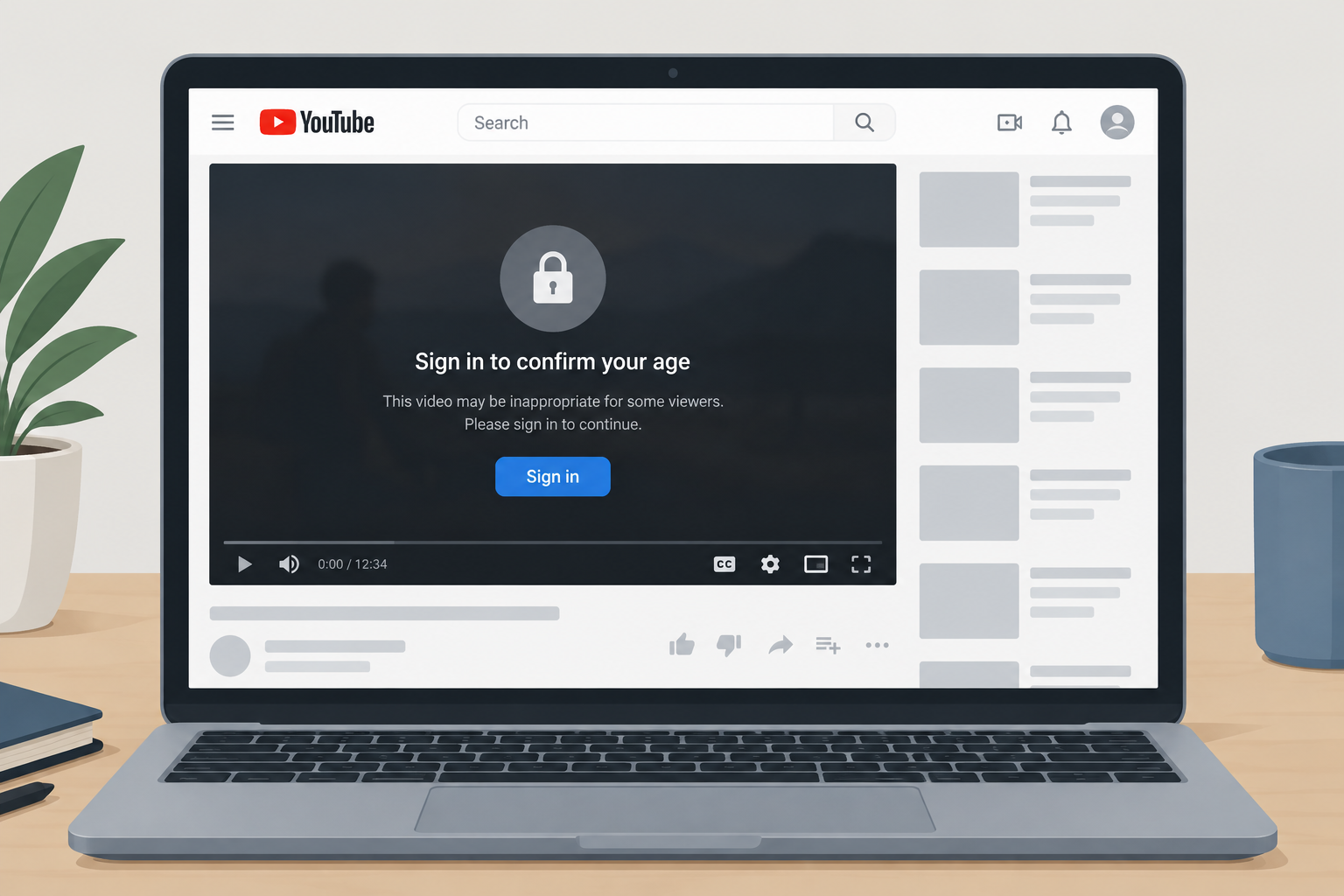
You can’t switch off YouTube’s age restriction for one video. The official way to watch an age-restricted video in November 2026 is to sign in with a Google Account that YouTube treats as 18 or older. If it still blocks you, check the birthday on your Google Account, or prove your age with a government ID, a selfie or a credit card. If what you’re actually seeing is Restricted Mode, that’s a separate setting, and you can turn it off yourself under Settings in the YouTube app or site unless a school, employer or Family Link parent has locked it.
YouTube, which Google owns, is the biggest free video platform, and children, adults and older people all use it. Its rules ban sexually explicit material outright. Some videos are allowed but aren’t suitable for every age, such as graphic news footage, some medical content or violent scenes in films and games. YouTube marks these as age-restricted and puts a warning in front of them. Only signed-in viewers whose accounts YouTube treats as adults can play them.
How age restriction works on YouTube today
An age-restricted video plays only for signed-in viewers whose accounts are confirmed or estimated to be 18 or over. If you’re signed out, YouTube asks you to sign in. If you’re signed in but your account isn’t treated as an adult, you see a message that the video may be inappropriate for some users, and it won’t play.
Two things decide whether your account counts as an adult:
- The birthday on your Google Account. This has always been the basic check.
- YouTube’s age estimation. In August 2025 YouTube began using a machine-learning model in the United States to estimate whether a signed-in user is under 18. It looks at signals such as what you search for, the kinds of videos you watch and how long the account has existed. It does this whatever birthday you entered. YouTube already used the same approach in some other markets.
If the model decides you’re probably under 18, YouTube switches on its teen protections. Age-restricted videos are blocked, personalized ads are turned off, and digital wellbeing reminders are switched on. It stays that way until you verify that you’re an adult.
How to turn off age restriction the official way
The only reliable route is to make sure YouTube knows you’re an adult. Do these steps in order, starting with the quickest.
- Sign in. Open the video and select Sign in in the top-right corner. Use your Google Account. If you don’t have one, you can create one for free at accounts.google.com in a few minutes.
- Check your birthday. Go to myaccount.google.com, open Personal info, then Birthday. If the date is wrong, correct it. If you change your birthdate after you’ve already verified your age, Google may ask you to verify again.
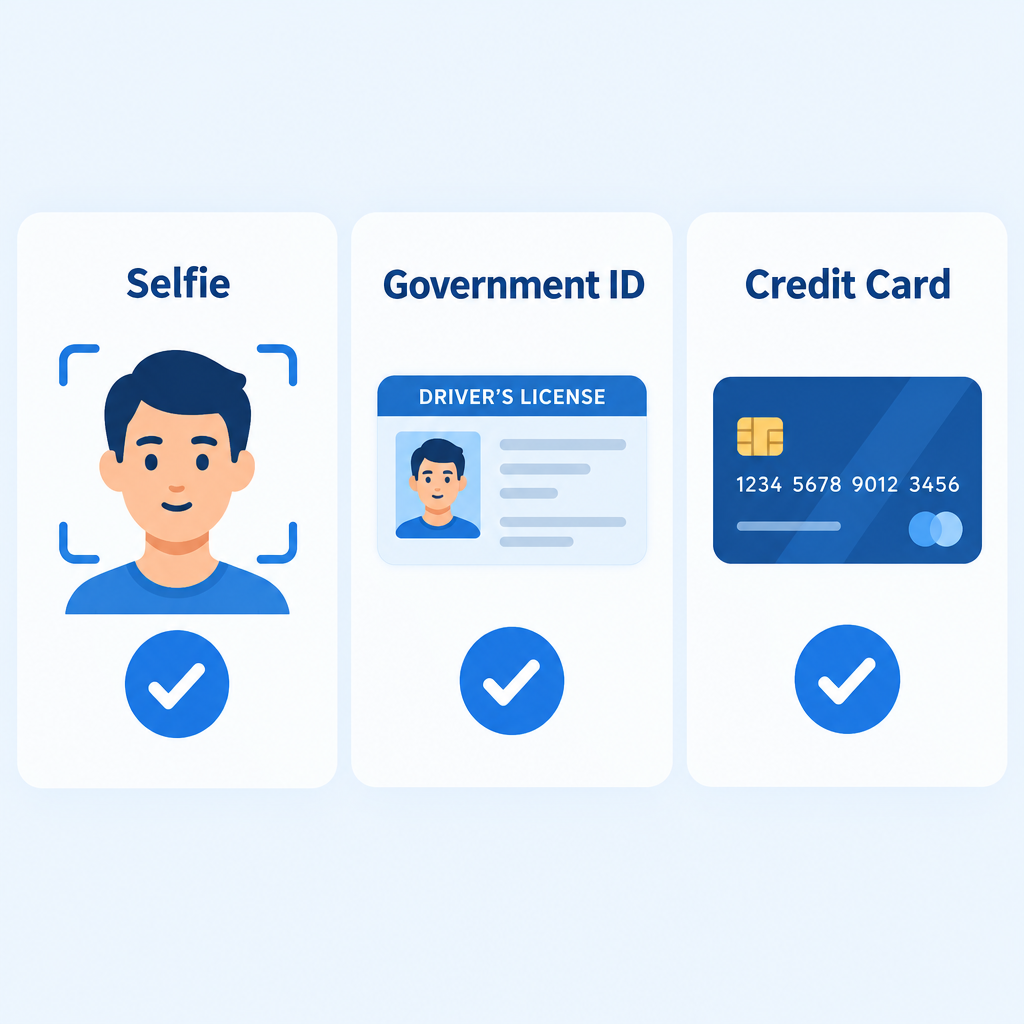
- Verify your age if asked. If YouTube shows a pop-up saying your account settings have changed and you need to verify your age, follow it. Depending on your country, the options are:
– Selfie: a quick facial age check. Google says it deletes the image after the check.
– Government ID: a photo of a driver’s license, passport or similar. Google says it deletes the image after verification but keeps the confirmed birthdate on your account. Some IDs are checked by a person, and Google emails you when that review is finished.
– Credit card: an authorization, not a charge. Your bank may still show a temporary hold for 1 to 14 business days. - Reload the video. Once you’re verified, the age restriction lifts on every device signed in to that account.
Not every option is offered in every country. Of the three, the selfie shares the least data with Google. The ID shares the most.
Why the old URL tricks no longer work
For years, articles shared “bypass” tricks for YouTube’s age gate. They’re described here as history only. Most stopped working once YouTube tied age-restricted playback to a verified, signed-in account. They also get around YouTube’s rules, which isn’t the official route, so this page doesn’t give steps for any of them.
The NSFW URL trick
This trick changed the video’s web address so the page loaded on a third-party mirror site instead of YouTube. These sites were never run by Google. Many of them closed or turned into ad-heavy pages. Changing a URL this way means you’re no longer on YouTube at all. You’re trusting an unknown site with your browser.
The embed link trick
This trick relied on embedded players, the YouTube windows inside other websites. They used to play age-restricted videos without a sign-in. In September 2020 YouTube announced that age-restricted videos would stop playing when embedded on most third-party sites. Google’s help page now says that viewers who hit one of these videos on another site are sent to YouTube, where they need to sign in and be over 18.
Listen On Repeat
Listen On Repeat was a looping site that played YouTube videos through its own player. It was a popular workaround, but it ran into the same embed rule as every other third-party player. Age-restricted videos now send viewers back to YouTube to sign in.
Proxy websites
Proxy sites load YouTube through someone else’s server. This method was always risky. A proxy can see and change everything you send through it, including any Google password you type. It also can’t change your account’s age status, because age restriction depends on who is signed in, not on where the connection comes from. If you get stuck, the safe choice is to sign in on youtube.com directly and verify your age.
Downloading the video
Some guides used to suggest downloader sites or programs. YouTube’s Terms of Service don’t allow downloading unless YouTube shows a download button or link for that content. The official option is the Download button in the YouTube app, which needs a YouTube Premium subscription for most videos. Third-party downloader sites and “converter” programs are also a common source of adware, fake download buttons and malware. Steer clear of them on family computers in particular.
The PWN URL trick
The PWN trick was another address change that sent the video to an outside download and mirror service. It had the same problems as the NSFW trick: the site wasn’t run by Google, it was full of ads and it didn’t reliably work.
Restricted Mode is a different setting
A lot of people searching for “age restriction” actually have Restricted Mode turned on. Restricted Mode is an optional filter that hides videos that may be mature. Age restriction is YouTube’s rule for specific videos. Turning off Restricted Mode doesn’t verify your age, and verifying your age doesn’t turn off Restricted Mode.
Restricted Mode is set separately for each browser and each device, so you may need to turn it off in more than one place.
On a computer:
- Go to youtube.com and select your profile picture in the top-right corner.
- Select Restricted Mode near the bottom of the menu.
- Turn Activate Restricted Mode off.
In the YouTube app on Android or iPhone:
- Tap your profile picture, then the Settings gear.
- Tap General.
- Turn Restricted Mode off.
On a smart TV: open Settings from the left-hand menu in the YouTube app, choose Restricted Mode and switch it off.
If the setting is greyed out or you see “Turned on by your network administrator,” the switch isn’t yours to change. A school, an employer or a public Wi-Fi network has locked it. If you’re a child on a supervised Google Account, a parent controls it through Family Link and you can’t change it on any device you’re signed in to. Ask whoever manages the network or account. Don’t try to get around the lock.
If YouTube thinks you are under 18
If you’re an adult and YouTube’s age estimation flags you as a teen, verify your age as described above. That’s the only way to reverse the decision. According to Kiplinger, adults whose viewing habits look like a teenager’s can get caught out for a while. Examples include a lot of animation, gaming or school-related videos.
If you have no ID or credit card and the selfie check fails, you can’t fix it by changing settings. Follow the appeal or help options shown in the verification prompt, or contact Google through the YouTube Help Center.
Accounts for kids and teens
For children, the official tools are built to keep age-restricted content away, not to unlock it. YouTube Kids is the separate app for younger children. Parents of older children can set up a supervised experience through Google Family Link. Teens aged 13 and over who are signed in get teen protections automatically. For younger children, a curated choice such as YouTube Kids or one of the best animation apps is usually a better fit than a regular YouTube account.
FAQ
Can I watch age-restricted YouTube videos without signing in?
No. YouTube plays age-restricted videos only for signed-in accounts it treats as 18 or older. Since 2020, embedded copies on most other websites also send you back to YouTube to sign in.
Why does YouTube ask me to verify my age when my birthday is correct?
YouTube’s age estimation model looks at signals from your account activity, not only the birthday you entered. If it estimates you’re under 18, it asks you to prove your age with a selfie, a government ID or a credit card. After you verify once, the restriction lifts on that account.
Does turning off Restricted Mode remove age restrictions?
No. Restricted Mode is a separate filter for each device that hides possibly mature videos. Age-restricted videos still need a signed-in adult account, even with Restricted Mode off.
Is it safe to give Google my ID or credit card for age verification?
Google says it deletes ID images and selfies after the check. It keeps your confirmed birthdate on your account. The credit card check is an authorization, not a charge, though your bank may show a hold for up to 14 business days. If privacy is your main concern, the selfie option shares the least.
Why can’t I turn off Restricted Mode on my school or work computer?
The network or device administrator has locked it. In that case YouTube shows a message saying it was turned on by your network administrator. Only that administrator, or a parent on a Family Link account, can turn it off.
Can I download an age-restricted video to watch later?
YouTube’s terms only allow downloads through its own Download button, which needs YouTube Premium for most videos. Third-party downloader sites break those terms and are a common source of malware.
Sources
- YouTube Help: Age-restricted content
- YouTube Help: Understanding age estimation on YouTube
- YouTube Help: Turn Restricted Mode on or off on YouTube
- YouTube Blog: Extending our built-in protections to more teens on YouTube
- YouTube: More choices for kids and teens













