

CRITICAL_PROCESS_DIED (stop code 0x000000EF) means a process Windows can’t run without stopped unexpectedly, so the system crashed to protect itself. The usual causes in November 2026 are corrupted system files, a bad driver, a recent update or app, or failing RAM or storage. Start by getting into Safe Mode. Then run DISM and SFC, update or roll back drivers, and remove whatever you installed just before the crashes began. If none of that helps, use System Restore or test your hardware.
On Windows 11 24H2 and later, this crash may show up on a black “unexpected restart” screen instead of the old blue one. The stop code and the fixes are the same.
What CRITICAL_PROCESS_DIED means
This guide explains what the CRITICAL_PROCESS_DIED stop code means, what causes it and how to fix it, from the quickest fixes to the most involved. It also covers how to cut the risk of future blue screen (BSOD) crashes.
It’s one of the most common blue screen errors on Windows 10 and Windows 11 PCs, and one of the most frustrating. It belongs to the family of crashes Microsoft calls stop errors, better known as the Blue Screen of Death.
Why this error needs attention
This error usually points to a real problem: something broke badly enough for Windows to shut itself down. Microsoft’s documentation says the crash happens when a critical system process ends. Examples include csrss.exe or wininit.exe, which Windows can’t keep running without.
The error has several possible causes, but most of them are fixable at home once you know which one you’re dealing with. The sections below go through them in order.
What a blue screen (BSOD) error is
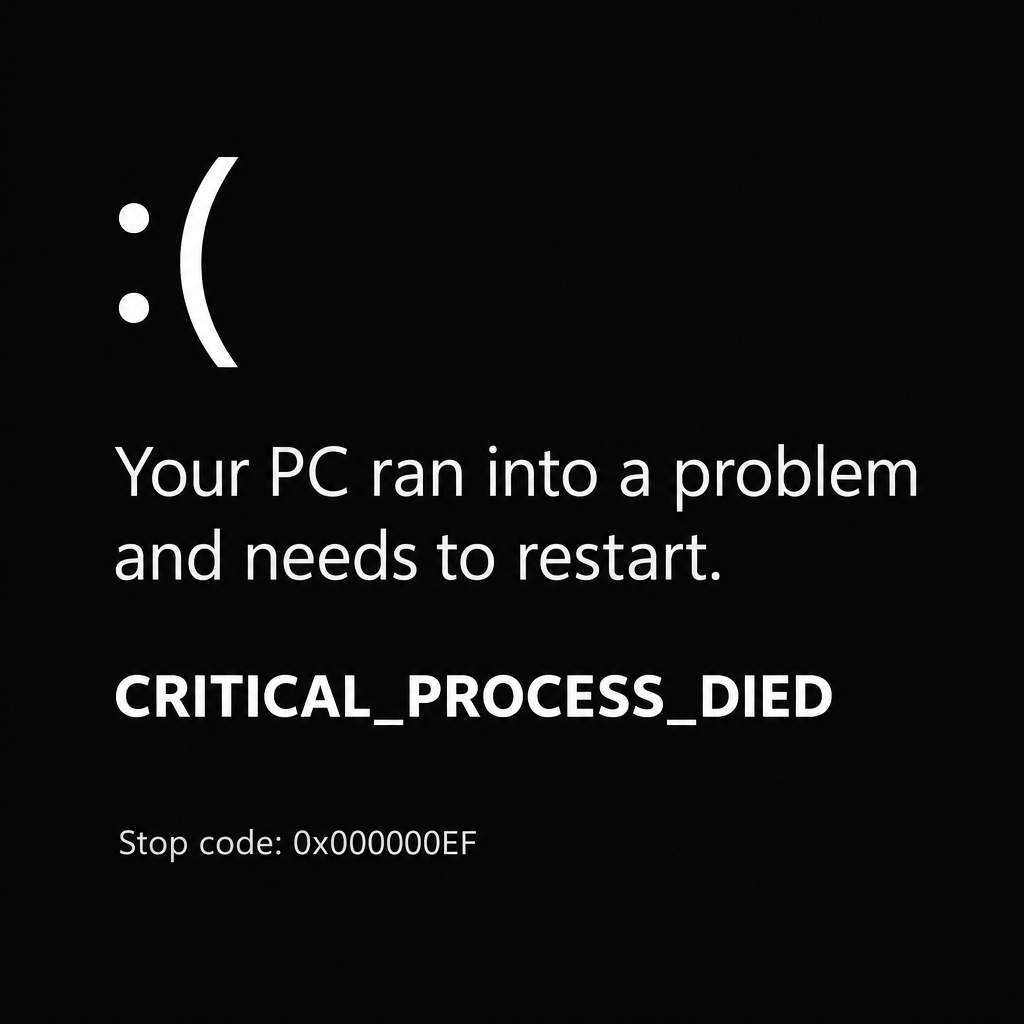
A blue screen error appears when Windows hits a problem so serious it can’t keep running safely. It stops everything, shows a stop code and restarts.
Most blue screens come from problems with drivers, system files, software or hardware. Windows records a STOP code and forces a crash so the problem can’t damage anything further.
The crash comes without warning, so you can lose unsaved work, and files that were being written at the time can be damaged. Save often, and keep regular backups using File History, OneDrive or an external drive.
Every blue screen shows a stop code. You can use it to look up fixes, to work out what caused the crash, and to help a repair technician diagnose the problem faster.
Since mid-2025, Windows 11 version 24H2 and later show a black “Your device ran into a problem and needed to restart” screen in place of the old blue one. The black screen drops the sad face and QR code, but it still shows the stop code (for example, CRITICAL_PROCESS_DIED) and the name of the faulting driver or process when Windows can identify it. Microsoft rolled this out alongside Quick Machine Recovery. That feature, which is on by default on Windows 11 Home, can fetch fixes from Windows Update when a PC repeatedly fails to start.
Most of the time you won’t need a costly repair. Work through the fixes below in order.
What causes the CRITICAL_PROCESS_DIED error
Blue screen errors can happen in many situations. Once you know the likely cause, you can pick the right fix sooner. These are the most common reasons for CRITICAL_PROCESS_DIED on Windows 10 and Windows 11:
- Damaged system components. The error appears when a core Windows process stops unexpectedly. This is often caused by corrupted system files, which the built-in DISM and SFC tools can repair.
- Hardware problems. Failing RAM or a failing hard drive or SSD can crash critical processes. If tests confirm a fault, you’ll need to replace the memory module or the drive.
- Faulty or incompatible drivers. A buggy, outdated or wrong driver is one of the most frequent triggers. Get drivers only from Windows Update, your PC maker (such as Dell, HP or Lenovo) or the chip maker (Intel, AMD or NVIDIA).
- Conflicting third-party software. Security suites, system “optimizers” and other tools that hook deep into Windows can clash with core processes and crash them.
- A new Windows update. Occasionally a cumulative or security update has unexpected effects on some PCs, especially combined with an older driver.
- Malware. Malicious software can damage or interfere with system processes.
The fixes for each cause are below.
How to fix the CRITICAL_PROCESS_DIED stop code
Work through these fixes in order. The first ones are the quickest and safest.
- Boot into Safe Mode.
- Perform a clean boot.
- Update or roll back your drivers.
- Uninstall recently installed software or updates.
- Run the System File Checker (SFC).
- Run the DISM command.
- Use System Restore.
- Check your memory and drive.
Before you start, back up anything important if Windows still starts long enough for you to do it. Copying your Documents, Desktop and Pictures folders to an external drive takes only a few minutes.
Method 1: Boot your computer in Safe Mode
Some of the fixes below need Safe Mode. If the crash doesn’t happen in Safe Mode but does in a normal start, that tells you a driver or third-party program is the likely cause. You can then troubleshoot from there.
The old trick of pressing F8 at startup doesn’t work on most Windows 10 and Windows 11 PCs. Use one of these routes into the Windows Recovery Environment (WinRE) instead:
- If Windows starts: In Windows 11, open Settings (Windows + I) > System > Recovery, and next to Advanced startup click Restart now. In Windows 10, the path is Settings > Update & Security > Recovery > Advanced startup > Restart now.
- From the sign-in screen: Hold the Shift key, click the power icon, and choose Restart.
- If Windows won’t start at all: Turn the PC on, and as soon as the Windows logo appears, hold the power button until it switches off. Do this two or three times. Windows should then open Automatic Repair. Choose Advanced options.
Once you’re in WinRE:
- Go to Troubleshoot > Advanced options > Startup Settings > Restart.
- When the list of startup options appears, press 4 for Safe Mode or 5 for Safe Mode with Networking. Choose 5 if you’ll need the internet for driver downloads or DISM.
- Sign in and check whether the PC runs without crashing.
If Windows runs in Safe Mode without the blue screen, carry on troubleshooting from there. A good first step is a full scan with Microsoft Defender. Go to Windows Security > Virus & threat protection > Scan options, and choose Full scan or Microsoft Defender Antivirus (offline scan).
Method 2: Perform a clean boot
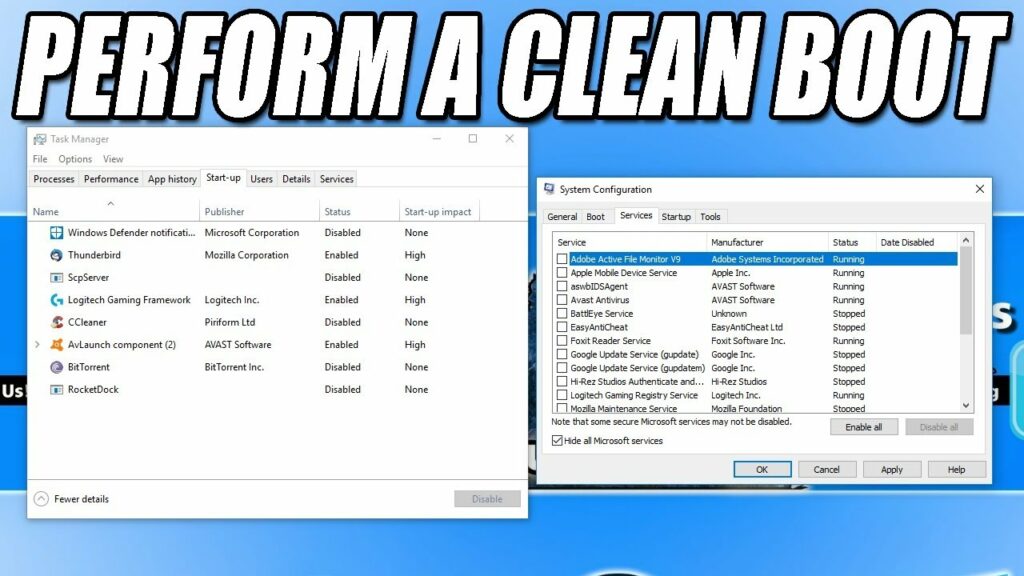
A clean boot starts Windows with only Microsoft services and no third-party startup programs. If the crash stops in a clean boot, a third-party service or app is to blame.
- Start Windows normally. If it crashes before you reach the desktop, start in Safe Mode using Method 1.
- Press Windows + R to open the Run box.
- Type msconfig and press Enter. The System Configuration window opens.
- Select the Services tab.
- Tick the box labeled Hide all Microsoft services so only third-party services are listed.
- Click Disable all.
- Select the Startup tab and click Open Task Manager. Select each startup app, then choose Disable.
- Close Task Manager. In System Configuration, click Apply, then OK.
- Restart your computer.
Windows now starts with only Microsoft’s own services. If the CRITICAL_PROCESS_DIED crash doesn’t come back, turn the third-party services back on a few at a time and restart after each batch until the crash returns. The last batch you turned on contains the culprit. Update, reinstall or remove the app or driver that service belongs to.
When you’re done, go back to msconfig, choose Normal startup on the General tab, and restart.
Method 3: Update your drivers

Outdated, buggy or corrupted hardware drivers are a common cause of the CRITICAL_PROCESS_DIED stop code. You can update drivers through Windows Update or one device at a time in Device Manager.
Update drivers with Windows Update
- Press Windows + I to open Settings.
- In Windows 11, select Windows Update > Advanced options > Optional updates. In Windows 10, go to Update & Security > Windows Update and click View optional updates.
- Expand Driver updates to see what’s available. If there’s no Optional updates entry, Windows has nothing extra to offer right now.
- Tick the drivers you want and click Download & install.
- Restart your computer once the drivers are installed.
Update a single driver in Device Manager
- Press Windows + X and select Device Manager.
- Expand the category for the device you suspect. For example, expand Display adapters if the crash started after a graphics driver update, or Printers if a new printer was just added.
- Right-click the device and select Update driver.
- Choose Search automatically for drivers. Windows looks for the best available driver for the device.
- Restart your computer when the installation is finished.
If the crash started right after a driver update, roll it back instead. In Device Manager, right-click the device, choose Properties, open the Driver tab, and click Roll Back Driver. If Windows has nothing newer, download the driver directly from your PC maker’s or the chip maker’s official support site. Never use third-party “driver updater” tools or download sites.
If the driver was the problem, you’ll know as soon as the PC runs without crashing.
Method 4: Uninstall newly installed software
If the crashes began after you installed a new program, service or Windows update, remove it and see whether the CRITICAL_PROCESS_DIED error goes away.
Remove a recent app
- Press Windows + I to open Settings.
- In Windows 11, go to Apps > Installed apps. In Windows 10, go to Apps > Apps & features.
- Set Sort by to Install date. The newest programs move to the top of the list.
- In Windows 11, click the three-dot menu next to the program and select Uninstall. In Windows 10, click the program, then click Uninstall.
- Confirm by clicking Uninstall again.
- If User Account Control (UAC) asks for permission, click Yes.
- Follow the uninstaller’s on-screen instructions. You can only remove one app at a time.
Remove a recent Windows update
If the error started right after Patch Tuesday or an optional update, go to Settings > Windows Update > Update history > Uninstall updates. Remove the latest update and restart.
If Windows won’t stay running long enough for that, open WinRE (see Method 1). Go to Troubleshoot > Advanced options > Uninstall Updates and choose Uninstall latest quality update.
Method 5: Run the System File Checker (SFC) scan

Corrupted system files can cause serious problems, including blue screens. Windows includes a repair tool called the System File Checker (SFC). It scans protected system files and replaces damaged or missing ones with good copies, which can fix the CRITICAL_PROCESS_DIED error.
Microsoft recommends running DISM (Method 6) before SFC when you can, because DISM repairs the store of files SFC copies from. If you can reach Safe Mode, run Method 6 first and then come back here.
Run SFC from Windows or Safe Mode
- Right-click the Start button and select Terminal (Admin) in Windows 11, or Command Prompt (Admin) / Windows PowerShell (Admin) in Windows 10.
- Type the following command and press Enter:
sfc /scannow
- Wait for the scan to reach 100%. It can take 10 to 30 minutes.
- Restart your computer and check whether the blue screen comes back.
Run SFC from the recovery environment
If Windows won’t start even in Safe Mode:
- Open WinRE using one of the routes in Method 1.
- Go to Troubleshoot > Advanced options > Command Prompt.
- Windows may use a different drive letter in the recovery environment. Type
dir C:\Windowsto check that C: is your Windows drive. If it isn’t, try D: instead. - Run this command, swapping in the right letter if needed:
sfc /scannow /offbootdir=C:\ /offwindir=C:\Windows
- When it finishes, close Command Prompt and choose Continue to start Windows.
If SFC finds and repairs files and the crash doesn’t come back, the problem is solved. If it reports files it couldn’t fix, run DISM and then SFC again.
Method 6: Run the DISM command

Corrupted system files are a leading cause of the CRITICAL_PROCESS_DIED error, and they can seriously damage your operating system. SFC repairs individual files. The Deployment Image Servicing and Management (DISM) tool repairs the Windows component store that those files come from.
DISM checks the whole Windows image for corruption and downloads clean replacements from Windows Update. It needs a working Windows session and an internet connection. Run it from a normal desktop or from Safe Mode with Networking (Method 1, option 5), not from the WinRE Command Prompt.
- Right-click the Start button and select Terminal (Admin) in Windows 11, or Command Prompt (Admin) in Windows 10.
- Type the following command exactly and press Enter:
DISM.exe /Online /Cleanup-Image /RestoreHealth
- Wait for it to finish. It can sit at 20% or 62.3% for several minutes, which is normal.
- Run
sfc /scannowagain so SFC can use the repaired files. - Close the window and restart to see whether the CRITICAL_PROCESS_DIED error appears again.
Method 7: Use System Restore
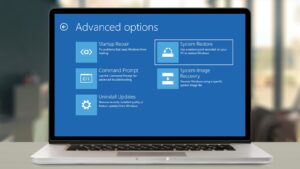
If Windows saved a restore point before the blue screens started, or you created one yourself, you can roll the system back to that earlier state. This undoes driver, update and settings changes but leaves your personal files alone. It only works if System Protection was turned on before the problem began.
From Windows or Safe Mode
- Press Windows + S to open search.
- Type Recovery and select the Recovery Control Panel result under Best match.
- Click Open System Restore.
- Choose the recommended restore point, or select Choose a different restore point to pick one yourself.
- Click Scan for affected programs to see which apps and drivers will be removed or brought back.
- Click Next, then Finish, and wait while Windows restores the PC.
From the recovery environment
If Windows won’t start, open WinRE (Method 1), then go to Troubleshoot > Advanced options > System Restore and follow the same steps.
The PC restarts when the restore is finished, and you’ll know straight away whether it worked.
Method 8: Check your memory and drive
Windows 11 no longer includes the old Hardware and Devices troubleshooter. Microsoft has retired the classic troubleshooters in favor of the Get Help app. For hardware faults behind CRITICAL_PROCESS_DIED, use these built-in tests instead.
- Test your RAM. Press Windows + R, type mdsched.exe, press Enter, and choose Restart now and check for problems. The test runs before Windows loads and shows the result after you sign in. Any reported error means a memory module needs reseating or replacing. A clean result doesn’t completely rule out bad RAM.
- Check the drive. Open an admin Terminal and run
chkdsk C: /f. Type Y to schedule the check for the next restart, then restart. From WinRE’s Command Prompt, you can runchkdsk C: /f /xdirectly. - Read the crash log. Press Windows + X, open Event Viewer, and go to Windows Logs > System. Look at the Critical and Error entries just before each crash. They often name the driver, service or disk behind it.
If nothing works
If you’ve worked through every method and the CRITICAL_PROCESS_DIED crash keeps coming back, try Reset this PC. In Windows 11, go to Settings > System > Recovery > Reset PC, or use WinRE > Troubleshoot > Reset this PC. Choose Keep my files, which reinstalls Windows but keeps your documents. You’ll need to reinstall your apps afterward.
If the crash survives a reset, or the memory test or chkdsk reports errors, the hardware is almost certainly at fault. Contact your PC maker’s support while the device is under warranty, or take it to a repair shop to test the RAM and drive. If you’re still on Windows 10, keep in mind that it reached end of support on October 14, 2025. A PC enrolled in the consumer Extended Security Updates program still gets security fixes, but driver and reliability updates for Windows 10 are drying up. Moving to Windows 11, if the hardware supports it, is the long-term fix.
FAQ
What does stop code CRITICAL_PROCESS_DIED mean?
It means a process Windows needs to run, such as csrss.exe or wininit.exe, stopped unexpectedly. Windows can’t continue without it, so it crashes on purpose and shows stop code 0x000000EF. The usual causes are corrupted system files, a bad driver, conflicting software or failing hardware.
Can CRITICAL_PROCESS_DIED damage my computer?
The crash itself doesn’t damage hardware, but it can lose unsaved work and corrupt files that were open at the time. Repeated crashes can be a sign of a failing drive or memory module, and that hardware can get worse over time. Back up your files as soon as you can.
Why does my PC show a black screen instead of a blue screen?
Microsoft replaced the blue crash screen with a black one in Windows 11 version 24H2 and later, starting in mid-2025. It’s the same type of crash with the same stop codes, just a simpler design without the sad face and QR code. Every fix in this guide applies to both.
Should I run SFC or DISM first?
Microsoft recommends DISM first, then SFC. DISM repairs the component store that SFC copies its replacement files from, so running it first gives SFC a better chance of fixing everything. If Windows won’t start at all, run SFC offline from the recovery environment, because DISM’s /Online option needs a running Windows session.
Will resetting Windows fix CRITICAL_PROCESS_DIED?
A reset fixes the error when the cause is software, such as corrupted system files, a bad driver or a conflicting app. Choose “Keep my files” to keep your documents, but expect to reinstall your programs. If the error comes back after a reset, the cause is almost certainly hardware.
Is it safe to use driver updater apps to fix this error?
No. Third-party driver updaters often install the wrong or outdated drivers, and some bundle unwanted software or malware. Get drivers only from Windows Update, Device Manager or the official support site of your PC maker or chip maker.
Sources
- Bug check 0xEF: CRITICAL_PROCESS_DIED (Microsoft Learn)
- Troubleshooting Windows unexpected restarts and stop code errors (Microsoft Support)
- Use the System File Checker tool to repair missing or corrupted system files (Microsoft Support)
- Start your PC in safe mode in Windows (Microsoft Support)
- Windows 11, version 25H2 known issues and notifications (Microsoft Learn)












