
To turn on an experimental Chrome feature from the command line, add , enable-features=FeatureName to the end of the Target field in a Chrome shortcut. To turn one off, add , disable-features=FeatureName. Then close every Chrome window and open Chrome from that shortcut. This works the same way in Chrome 157, which became the current stable release on November 3, 2026, and in Microsoft Edge, which is also built on Chromium.
Google Chrome and Microsoft Edge ship with experimental features that are switched off by default. One way to turn them on is the chrome://flags page (edge://flags in Edge).
These features can improve your browsing, but they are not fully tested, so they stay off by default. Some of them end up in later stable releases. Others get renamed or removed. Google’s enterprise release notes say Chrome moved to a two-week release cycle starting with Chrome 153 in September 2026, so a flag can now appear or disappear faster than before.
Why use command line switches instead of chrome://flags
Command line switches are useful when you want the same experimental features on several computers, or when you want a feature on in one shortcut and off in another. Settings on chrome://flags apply to one browser on one computer. A switch lives in a shortcut, and you can copy a shortcut to as many machines as you like.
The catch is that switches take more work than flags. You have to know the exact switch or feature name, and you have to type it correctly. The Chromium project’s own documentation says there is no official list of every switch. It points to a third-party list maintained at peter.sh instead.
The shortcut method below works on Windows 11. It also worked on older releases such as Windows 10 version 21h1 build 19043 899, although the Home and Pro editions of that version stopped getting updates on December 13, 2022, and support for Windows 10 Home and Pro ended on October 14, 2025. Some editions, such as Enterprise LTSC, follow different timelines, and eligible devices can still receive Extended Security Updates.
Here’s how to do it.
How to enable experimental features in Chrome (and Edge) using command line switches
- Create a shortcut to Chrome on the desktop. One way is to right-click Chrome in the Start menu, choose More > Open file location, then right-click the shortcut and choose Send to > Desktop (create shortcut).
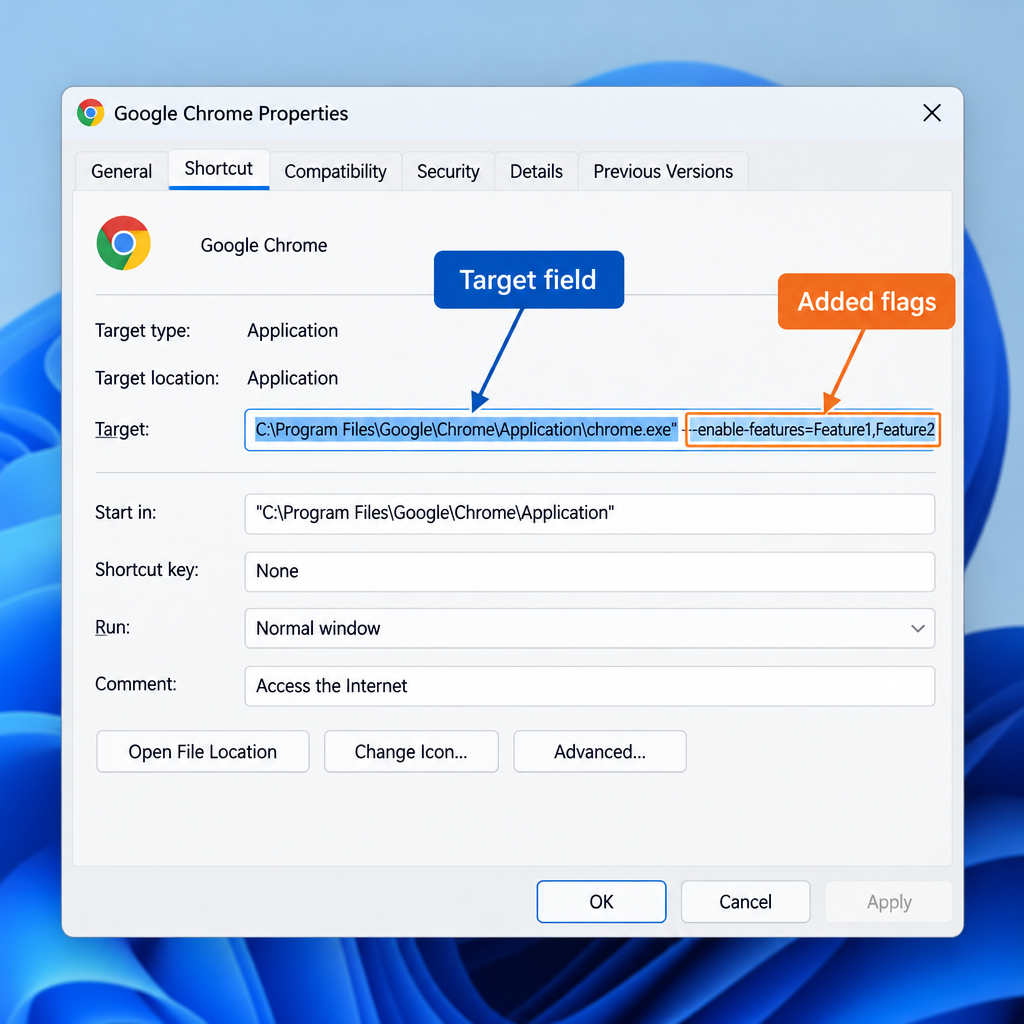
- Right-click the new Chrome shortcut and select Properties.
- Go to the Shortcut tab.
- Click in the Target field and move to the very end of the path, after the closing quotation mark. Type a space, then
, enable-features=FeatureName. - Replace
FeatureNamewith the real name of the feature. - To turn a feature off, use
, disable-features=FeatureNameinstead. - Click OK, close every Chrome window, then open Chrome from this shortcut. The feature is now on.
Both switches start with two normal hyphens. If you copy a switch from a web page that turned them into one long dash, Chrome ignores it without any warning.
Finding the right feature name
The tag that starts with # on chrome://flags is the flag’s internal name. It is not always the name the command line expects. Take the GPU example. The flag chrome://flags/#ignore-gpu-blocklist matches a standalone switch called , ignore-gpu-blocklist. It is not a feature you can pass to , enable-features. Chromium’s documentation also says switches and flags are separate settings.
The most reliable way to get the exact name:
- Open chrome://flags, find the feature, set it to Enabled, and click Relaunch.
- Open chrome://version and look at the Command Line row.
- Everything between
, flag-switches-beginand, flag-switches-endis what that flag actually passes to Chrome. Copy it exactly as shown, including capital letters. - If you don’t want it set both ways, go back to chrome://flags and set the flag to Default.
For the GPU example, the full Target line looks like this:
"C:\Program Files\Google\Chrome\Application\chrome.exe", ignore-gpu-blocklist
A feature looks like this. FeatureName is a placeholder for the name you found on chrome://version:
"C:\Program Files\Google\Chrome\Application\chrome.exe", enable-features=FeatureName
Some switches also put a yellow bar at the top of Chrome warning that you are using an unsupported command-line flag. That is normal for testing switches. If you don’t need the switch, remove it.
Approving the administrator prompt
When you click OK in the shortcut’s Properties, Windows may say you need to provide administrator permission. Click Continue (or Yes) to save the change. You only see this prompt when the shortcut is in a protected location, such as the Public Desktop or the Start menu for all users. A shortcut on your own desktop usually saves without it.
Enabling several features at once
To turn on or off several features, list the names after one switch, separated by commas with no spaces:
"C:\Program Files\Google\Chrome\Application\chrome.exe", enable-features=Feature1,Feature2,Feature3
You can use , enable-features and , disable-features on the same line. Standalone switches like , ignore-gpu-blocklist go on the line separately, with a space between each one.
You can also make several Chrome shortcuts with different features turned on. That way you can test features one at a time just by picking a different shortcut. This is handy when you want to push one feature at full throttle without touching the shortcut you use every day. Keep in mind that Chrome only reads switches when it starts. If any Chrome window or background process is already running, the new shortcut joins that session and its switches are ignored.
Using the same switches in Edge, Vivaldi and Opera
The same method works for shortcuts to Microsoft Edge, Vivaldi and Opera, because they are all built on Chromium. In Edge, the program is usually at "C:\Program Files (x86)\Microsoft\Edge\Application\msedge.exe". Use edge://flags and edge://version to find names and check the result. Edge has its own features that Chrome doesn’t, and their names often start with “ms”, for example msDownloadsHub. Microsoft has renamed some of these over time, so a name from an old guide may no longer work.
If you are a sysadmin, you can push the shortcut out across your network so that Chrome runs with certain experimental features on or off. For settings that need to stay put across a whole organization, Chrome’s enterprise policies are the supported route. Experimental feature names can change or disappear with any release.
FAQ
Do command line switches stay on after Chrome updates?
Yes. The switch is saved in the shortcut, not in Chrome, so updating Chrome doesn’t remove it. What can change is the feature itself. If Google renames or removes it in a new version, the switch quietly stops doing anything.
How can you check whether a switch is working?
Open chrome://version (or edge://version in Edge) and look at the Command Line row. If your switch isn’t listed, Chrome was already running when you opened the shortcut. Close all Chrome windows, check the system tray for Chrome running in the background, and try again.
Why does the feature name from chrome://flags not work with, enable-features?
The # tag on chrome://flags is the flag’s internal name. Many flags use a different feature name or a standalone switch. Turn the flag on, relaunch Chrome, and copy the exact text that chrome://version shows between , flag-switches-begin and , flag-switches-end.
Is it safe to turn on experimental features?
Most experimental features are just unfinished, not dangerous. Still, they can cause crashes, slowdowns or display glitches. Some switches, especially ones that turn off security checks, can expose you to real risks, which is why Chrome shows a warning bar for them. Only use a switch when you know what it does, and delete it from the shortcut if Chrome starts acting up.
How do you undo a command line switch?
Open the shortcut’s Properties, delete everything after the closing quotation mark of the chrome.exe path in the Target field, and click OK. Then close Chrome completely and open it again. You can also just delete the custom shortcut and use the regular one.
Can you use switches on a Mac?
Yes. On macOS, open Terminal and run Chrome with the switch added, for example open -a "Google Chrome", args, enable-features=FeatureName. Quit Chrome completely first, or the switch won’t apply. The Chromium documentation covers Windows, macOS, Linux and Android.
Sources
- Run Chromium with command-line switches (The Chromium Projects)
- Chrome Releases: Stable Channel Update for Desktop, November 2026
- Chrome Enterprise and Education Help: Previous release notes
- List of Chromium command line switches (peter.sh)
- Edge Command Line Arguments (Eric Lawrence)













