
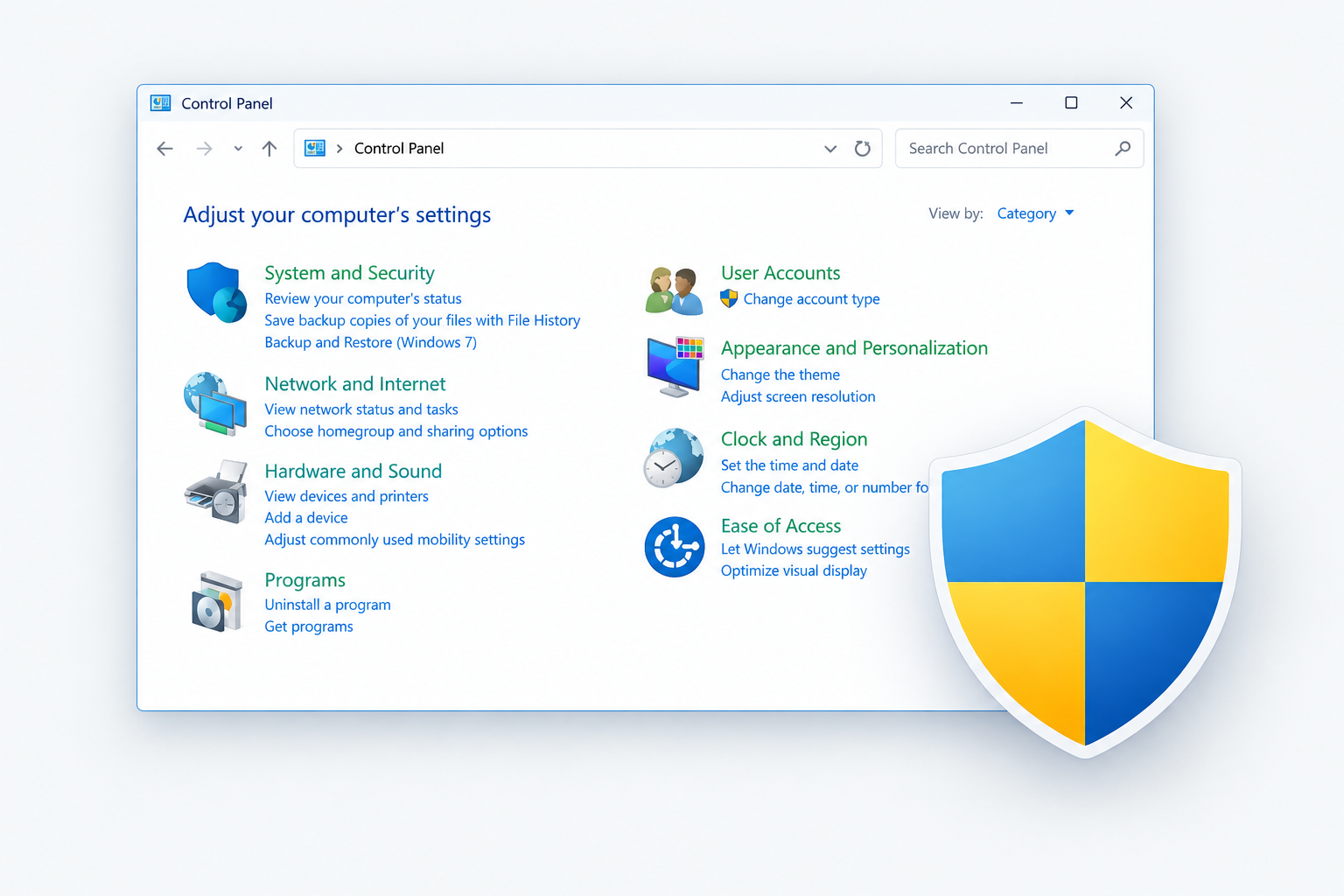
Who needs to run Control Panel as administrator
You need it if you use a standard account. Some Control Panel settings and configurations only work with administrative rights. This method is mainly for users who are not already in the Administrators group.
Administrator accounts work differently. Settings that need elevation have a small blue-and-yellow shield next to them. When you click one, Windows asks for approval with a UAC prompt. On a standard account, that same prompt asks for an administrator’s username and password.
The two methods below give you the rights to make those changes. Before you start, check that you are signed in with a standard account (the next section but one shows how). Elevated rights also matter for repair work. Cleaning up malware, for example, often needs admin access, and many guides on how to remove roblox virus scams assume you can open tools as an administrator.
Two ways to open Control Panel as an administrator
The shortcut is the quicker option if you will need it again. The command line is better for a one-off task, or when you need the full rights of the built-in Administrator account.
| Desktop shortcut | runas command | |
|---|---|---|
| Runs as | Your account, elevated through UAC | The built-in Administrator account |
| Needs | An administrator’s password at the UAC prompt (standard users) | The built-in Administrator account enabled, with a password |
| Best for | Repeated use | One-off tasks |
| Works on Windows 11 Home | Yes | Yes |
Launch Control Panel as administrator using a shortcut
A practical way to get admin rights in Control Panel is a shortcut that always runs as administrator. You only set it up once.
- Right-click an empty area of the desktop, choose New, then Shortcut.
- In the Create Shortcut window, paste this path into the text box and click Next:
C:\Windows\System32\control.exe
- Type a name for the shortcut, such as “Control Panel (Admin)”, and click Finish.
- Right-click the new shortcut and choose Properties. On Windows 11 it is right there in the context menu.
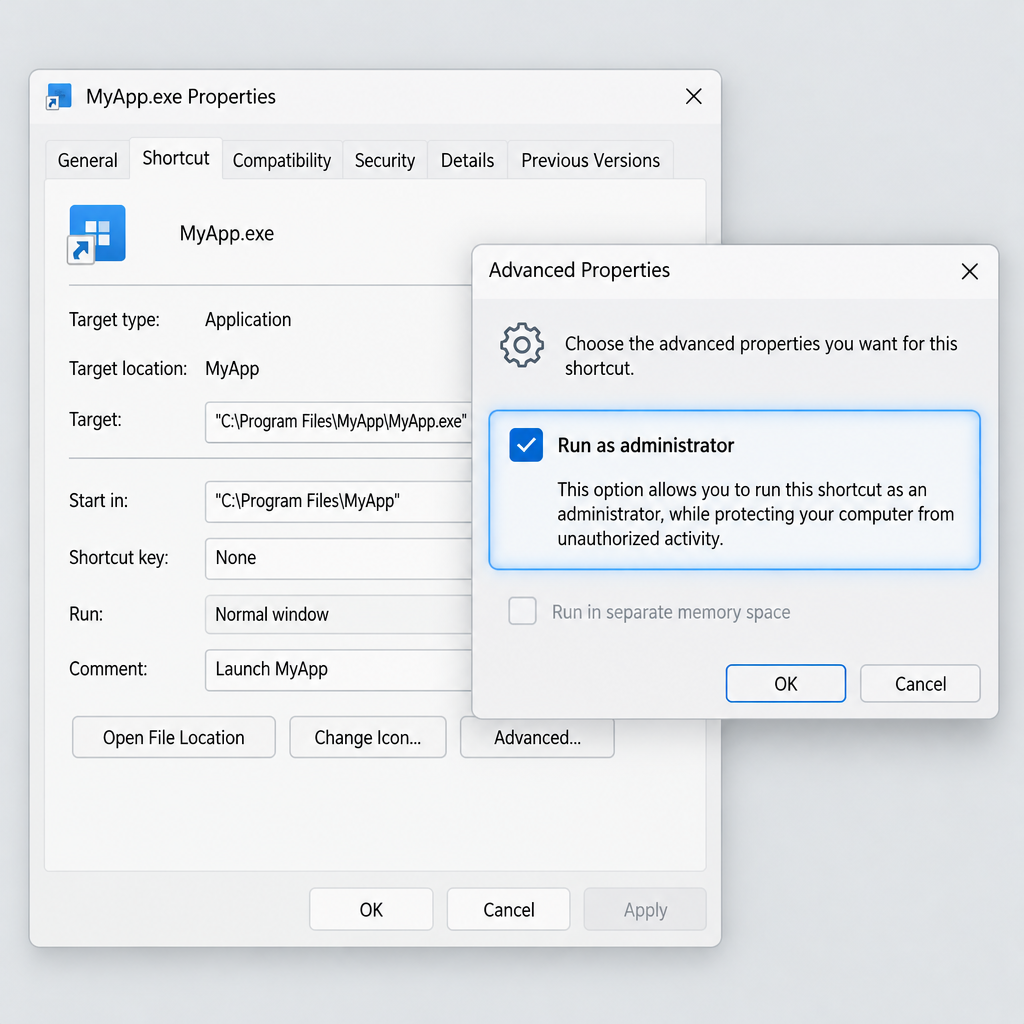
- On the Shortcut tab, click Advanced.
- In Advanced Properties, tick Run as administrator and click OK.
- Click Apply, then OK, to close the Properties window.
Now open the shortcut and Control Panel launches with administrative rights. Windows shows a User Account Control prompt first. On an administrator account, click Yes. On a standard account, type an administrator’s username and password.
Be aware that Control Panel’s window is drawn by File Explorer, and on some builds Explorer ignores the elevation request. If a setting still shows the shield icon and asks for approval, approve it with the same admin credentials. Either way, the change goes through.
Open Control Panel as administrator using the command line
The second method uses the runas command in Command Prompt. It works differently from the shortcut. Control Panel does not just get administrative privileges: it runs as the Windows built-in Administrator account.
runas lets you start a program as a different user account. For this to work, the built-in Administrator account has to be enabled and must have a password. It is turned off by default.
Enable the built-in Administrator account (an existing admin has to do this):
- Click Start, type cmd, right-click Command Prompt and choose Run as administrator. On Windows 11 you can open Terminal (Admin) from the Win + X menu instead.
- Type
net user administrator /active:yesand press Enter. - Type
net user administrator *and press Enter, then set a password. By default the account has no password, andrunaswill not accept a blank one.
Turning on the Administrator account creates a new user profile. Your apps, files and browser data stay in your usual profile, so if you plan to sign in to that account directly, look up how to save chrome history and other data you want to keep handy first.
Run Control Panel as Administrator:
- Open Command Prompt. It does not need to run as administrator for this step.
- Find your computer’s name by typing
hostnameand pressing Enter. You can also see it under Settings > System > About. - Type the following command, with ComputerName replaced by your computer’s name:
runas /user:ComputerName\Administrator “control.exe”
- Press Enter.
Windows then asks for the built-in Administrator account’s password. Type it and press Enter. Nothing appears on screen while you type the password, but Windows is still reading it. The command line shows no other output. A moment later, Control Panel opens with administrative rights.
When you are done, turn the built-in account off again from an elevated Command Prompt with net user administrator /active:no. Leaving it on all the time is an unnecessary security risk.
How to check if your account has administrative privileges
If your account is already in the Administrators group, there is no point forcing Control Panel to run as admin. Windows will ask for approval whenever it is needed. If you have a standard account, run Control Panel as administrator to make the changes you need.
Here is how to check which groups your account belongs to on Windows Pro, Enterprise or Education:
- Press Windows key + R to open Run.
- Type compmgmt.msc and press Enter to open Computer Management.
- In the left pane, expand System Tools > Local Users and Groups and click Users.
- Double-click your account in the right pane.
- In the Properties window that opens, go to the Member Of tab.
This tab lists every group your account belongs to. If Administrators is not listed, your account does not have admin privileges, and you can use either method above.
Local Users and Groups is missing from Windows 11 Home and Windows 10 Home. On those editions, use one of these checks:
- Settings: On Windows 11, open Settings > Accounts > Your info. “Administrator” appears under your name if you have admin rights.
- Command Prompt: Type
net user %username%and press Enter. Look for *Administrators under “Local Group Memberships”.
Admin rights also unlock the system repair tools you need for errors such as the bad image error status 0xc000012f windows 10. That is one more reason to know which account type you are using.
When running Control Panel as admin won’t help
On a work or school PC, opening Control Panel with admin rights may still get you nowhere. If your organization’s IT team manages the PC through Group Policy or Microsoft Intune, those policies can block a setting even for an administrator. In that case, ask your IT department to make the change for you. Do not try to get around the policy.
Control Panel is also gradually being phased out. Microsoft’s support documentation says Control Panel is being deprecated in favor of the Settings app, but there is still no removal date. Features keep moving across in the meantime. In 2026, for example, Windows Insider builds added account renaming to Settings. Many tasks that once needed Control Panel are now in Settings, which prompts for admin approval in the same way.
For Windows 11 version 24H2 or later, Microsoft offers another option called Sudo for Windows. Turn it on under Settings > System > Advanced > Enable sudo. On some earlier builds the switch is under System > For developers. After that, you can put sudo in front of a command in Terminal to run it elevated. For example, sudo appwiz.cpl opens Programs and Features with admin rights. It still triggers a UAC prompt, so on a standard account you need an administrator’s credentials.
FAQ
Why does Control Panel keep asking for an administrator password?
You are signed in with a standard account, and the setting you clicked needs admin rights. Settings with a shield icon always need approval. Enter an administrator’s username and password at the prompt, or use one of the two methods above if you will make several changes.
Can I run Control Panel as administrator without a password?
No. That is deliberate in Windows. An administrator account only has to click Yes at the UAC prompt, but a standard account always needs an administrator’s credentials. If nobody in your home knows the admin password, Microsoft’s account recovery options are the official way back in.
Is it safe to enable the built-in Administrator account?
It is fine for a short task, as long as the account has a strong password. It runs without UAC’s usual Admin Approval Mode prompts, so any program you start from it has full control of the PC. Turn it off afterward with net user administrator /active:no.
Does running Control Panel as admin work on Windows 11?
Yes. Both the shortcut method and the runas command work on Windows 11 versions 24H2 and 25H2. The menus look slightly different from Windows 10, but the Properties > Shortcut > Advanced path and the Command Prompt steps are the same.
Will Microsoft remove Control Panel?
Microsoft says Control Panel is being deprecated in favor of the Settings app, but it has not set a removal date. Control Panel is still included for compatibility and for options Settings does not have yet. Expect more of its features to move to Settings over time.
Why can’t I find Local Users and Groups?
It is not included in Windows 10 Home or Windows 11 Home. You can check your account type in Settings > Accounts > Your info or with net user %username% in Command Prompt. For local account management you would need Pro, Enterprise or Education.
Sources
- Microsoft Support: Windows 10 support has ended
- Microsoft Learn: Sudo for Windows
- Microsoft Learn: Runas command reference)
- Microsoft Learn: User Account Control guidelines












