
To control fan speed on Windows 10, start with the fan settings in your PC’s BIOS/UEFI or your laptop maker’s own app, such as Lenovo Vantage, Dell Power Manager or ASUS Armoury Crate. These are the safest options. If those settings are missing or too limited, HWiNFO’s Fan Control window (or the open-source Fan Control app) can set fixed speeds or a temperature-based curve on supported hardware. SpeedFan still works on some older PCs, but it hasn’t been updated in years and doesn’t recognise most modern motherboards.
Every laptop and desktop has built-in fans. You don’t need a high-end gaming rig or gaming laptop to have them, because every computer produces heat and needs cooling.
How fans behave on Windows 10
Fans usually spin fast for a moment when a PC boots, then quiet down. When you start using more system resources, for example with lots of Chrome tabs open, a game or a video export, they speed up again.
This is all automatic. Windows 10 has no built-in fan speed slider. The motherboard firmware or the laptop’s embedded controller runs the fans, and apps can only change this when that hardware allows it.
How fan speed control works
Fans are controlled by temperature sensors. Sensors inside the PC check the temperature all the time. When it rises above a set point, the firmware spins the fans faster to cool the system down.
Never block the vents on your laptop or computer. The case is designed to let hot air flow out. The fans will also run harder while your PC is doing demanding work, so that it stays within a safe temperature.
Windows itself doesn’t show you the temperature sensors, the limits set on them or the different fan speeds. Manufacturers hide these settings on purpose, because a wrong setting can let a PC run too hot.
Fans that run all the time use more power than needed and add noise and wear. Fans that run too slowly let the CPU and GPU overheat. Good fan control keeps the system cool without running the fans harder than necessary.
If you change fan speeds on Windows 10, you take on the risk yourself. If your computer or laptop overheats, the hardware can be permanently damaged and need replacing. Overheating can also cause sudden shutdowns or a Blue Screen Error on Windows, so keep an eye on temperatures after any change.
Try the built-in options first
Before you install anything, check these options. They are the safest:
- BIOS/UEFI fan curves (desktops). On Windows 10, go to Settings > Update & Security > Recovery > Advanced startup > Restart now, then Troubleshoot > Advanced options > UEFI Firmware Settings > Restart. Look for a section called Q-Fan (ASUS), Smart Fan (Gigabyte and MSI) or Hardware Monitor, and set a curve for each fan header.
- The laptop maker’s app. Most laptops don’t allow direct fan control. Instead, they offer thermal or performance modes in apps like Lenovo Vantage, Dell Power Manager, HP Command Center or ASUS Armoury Crate. A “Quiet” or “Cool” mode is the supported way to change how the fans behave.
- Windows cooling policy. Go to Control Panel > Hardware and Sound > Power Options > Change plan settings > Change advanced power settings > Processor power management > System cooling policy. “Active” speeds up the fans before slowing the processor. “Passive” slows the processor first. Many PCs don’t show this option.
Third-party apps
If the built-in options don’t give you enough control, you need a third-party program. Which one works depends on your hardware, since an app can only control fans that it can detect on your motherboard or laptop.
Two well-known free apps that can detect fans and adjust their speed are:
- SpeedFan
- HWiNFO
The free, open-source Fan Control app by Rem0o is also popular on newer desktops. It is released on GitHub and can be installed with winget using the ID Rem0o.FanControl. Only download these tools from the developer’s own site or official release page, never from download mirrors that bundle other software.
Install the program, then follow the steps below to control fan speed on Windows 10.
1. Control fan speed on Windows 10 with SpeedFan
SpeedFan is made by Almico. The latest version is still 4.52, and it hasn’t had a feature update in years. It works best on older boards and often finds no fans on modern motherboards or laptops.
- Run SpeedFan after installing it.
- Click the Configure button in the main window.
- A settings window opens. Go to the Fans tab.
- Wait while the app finds and lists your fans.
- Go to the Speeds tab and choose the fan you want to control.
- To make the fan respond to temperature, open the Fan Control tab, tick Advanced fan control and set the response curve.
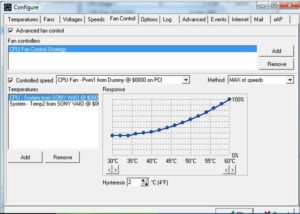
Response curve
A response curve links fan speed to temperature. You choose how fast the fan should spin at each temperature, and the fan speeds up as the system gets hotter.
For example, you could keep a fan at 30 percent up to 50°C, raise it to 60 percent at 70°C and run it at 100 percent at 80°C or above. Always set full speed for the top of the curve, so that the fan never stays slow while the CPU is under heavy load.
2. Control fan speed on Windows 10 with HWiNFO
HWiNFO is still updated regularly, with version 8.x releases coming out through 2026. Its Fan Control window only appears if HWiNFO supports the fan controller in your PC.
To use HWiNFO to control fan speed, follow these steps:
- Launch the app, tick Sensors-only and click Start (or open Sensors from the main window).
- Confirm the pop-up message if one appears.
- A new window opens and lists all of your system’s sensors.
- Click the fan button at the bottom of the window.
- The Fan Control window opens and lists the fans HWiNFO can control. Pick one of the running fans.
- To set a fixed speed, enter a value and click Set Manual. To make the speed follow a temperature sensor, click Custom Auto. To hand control back to the firmware, click System Auto.
Be careful with Set Manual. It holds the fan at one speed no matter how hot the PC gets, and HWiNFO’s staff describe it as meant for testing. Custom Auto links speed to temperature, but it only works while HWiNFO is running. A restart puts the fans back to their default behaviour. Whichever mode you use, watch your CPU and GPU temperatures in the Sensors window to make sure nothing overheats.
A note on driver warnings and Windows 10 support
In 2025, Microsoft Defender started flagging the WinRing0 driver used by many fan and monitoring tools. The driver has a known, unpatched flaw (CVE-2020-14979). Fan Control has since moved to the PawnIO driver. If Defender flags an older tool, update the tool or switch to a maintained app. Don’t make an exception in Defender.
Windows 10 itself reached end of support on October 14, 2025. Home users can keep getting security updates through the Consumer Extended Security Updates (ESU) program, which Microsoft extended to October 12, 2027. Everything in this guide also works on Windows 11.
FAQ
Can Windows 10 control fan speed without extra software?
Not directly, because Windows 10 has no fan speed slider. You can set fan curves in the BIOS/UEFI on most desktops, change the thermal mode in your laptop maker’s app, or change the System cooling policy in Power Options. These are the safest ways to change how the fans behave.
Why doesn’t SpeedFan or HWiNFO show any fans on my laptop?
Many laptops run their fans through an embedded controller that third-party apps can’t access. In that case, the app can read temperatures but can’t change fan speeds. Use the maker’s own app, such as Lenovo Vantage, Dell Power Manager or HP Command Center, instead.
Is it safe to lower fan speeds?
It’s safe if the fan still speeds up when temperatures rise. Problems start when a fan is fixed at a low speed during heavy work, which can cause throttling, crashes or hardware damage. Use a temperature-based curve and check CPU and GPU temperatures under load after any change.
Why are my laptop fans always loud?
The usual causes are blocked vents, dust in the fans, or a program using lots of CPU in the background. Check Task Manager (Ctrl + Shift + Esc) for high CPU use, use the laptop on a hard, flat surface and clean the vents. If the fans stay loud while the laptop is idle, contact the manufacturer or a repair shop.
Why does Microsoft Defender warn about my fan control app?
Many older monitoring and fan tools use the WinRing0 driver. It has a known security flaw, so Defender treats it as a vulnerable driver. Update the app to a version that uses a newer driver, such as PawnIO, or remove the app.
Do fan settings stay after a restart?
BIOS/UEFI fan curves and laptop thermal modes stay in place. HWiNFO’s manual and Custom Auto settings don’t last after a restart, and Custom Auto needs HWiNFO running to work. For settings that last, set them in the BIOS/UEFI.
Sources
- Microsoft: Windows 10 Consumer Extended Security Updates (ESU)
- Almico: SpeedFan download page
- HWiNFO forum: Fan Control
- Rem0o: Fan Control releases on GitHub
- PCWorld: If Windows Defender flags WinRing0 on your gaming PC, pay attention












