

Fixing Netflix buffering on a Windows PC
Netflix buffering is a common complaint from Windows PC users, and it is usually simple to fix. The solutions below go from the quickest and safest to the most involved. It helps to know what causes the problem first, so you can skip fixes that don’t apply to you.
Why Netflix keeps buffering
Netflix buffers when your internet connection is too slow or unstable to keep up with the video. Other things can cause it too. These are the main ones:
- Buggy updates. A faulty browser, app or Windows update can break playback until a fix is released.
- Streaming quality higher than your setup can handle. Netflix suggests at least 3 Mbps for 720p, 5 Mbps for 1080p and 15 Mbps for 4K. 4K and HDR are only on the Premium plan. Before you buy a screen, keep this in mind: a guide comparing 2K Vs 4K Which Monitor is worth reading, because a 4K screen only gets 4K Netflix if you have Premium, a supported browser and enough bandwidth. In Windows, Microsoft Edge plays Netflix in 4K with HDR on compatible hardware. Google Chrome 117 or later can now play 4K on fully updated Windows 11 PCs with compatible hardware, but without HDR or Dolby Atmos.
- Server problems. Sometimes the problem is on Netflix’s side. Netflix’s Help Center has a page that shows whether the service is down.
- Outdated network drivers. An old or faulty Wi-Fi or Ethernet driver can cause random drops and slowdowns.
Step-by-step fixes for Netflix buffering
The quickest fix is to restart the Netflix app or your device. This alone often stops the buffering. If Netflix still buffers or freezes after a restart, work through the solutions below in order.
Solution 1: Try the basic fixes first
Try the simple fixes before anything more advanced. They solve a large share of buffering problems:
- Restart your browser, or reload the Netflix page.
- Restart your computer.
- Avoid public Wi-Fi, which is often slow and shared with many people.
- Try Netflix on a different device. If it plays smoothly there, the problem is with your PC, not your connection.
- Avoid business or school networks. They often limit or block streaming.
- Lower your video quality. On the Netflix website, go to Account > Profiles, choose your profile, then select Playback settings. Picking a lower data usage setting reduces the bandwidth Netflix needs. Each profile has its own setting.
If Netflix still buffers after these basic steps, move on to the solutions below.
Solution 2: Check your internet connection
An unreliable internet connection is the main cause of Netflix buffering. Netflix needs a steady connection to stream. Here is how to check yours and improve it:
- Power cycle your modem and router. Unplug the power cables from both, wait about 30 seconds, then plug them back in. Once they have reconnected, see whether Netflix still buffers.
- Reduce load on your Wi-Fi. If many devices are connected to your Wi-Fi, turn off Wi-Fi on the ones you don’t need right now. Netflix also says routers get better reception in an open space and off the floor, such as on a desk or shelf. If you can, a wired Ethernet connection is more stable than Wi-Fi.
- Test your speed. Go to Fast.com, Netflix’s own speed test, in your browser. On a TV or streaming stick, you can run a network check from the Get Help menu in the Netflix app. If your speed is far below what you pay for, or below 5 Mbps for HD, contact your ISP (internet service provider) for help.
Solution 3: Close apps and programs that use a lot of bandwidth
Close background programs before you start watching Netflix, because they can use up your bandwidth. Also make sure you are not downloading large files, game updates or other videos at the same time. Here is how to close apps that use a lot of bandwidth:
- Right-click your taskbar and select Task Manager. You can also press Ctrl + Shift + Esc.
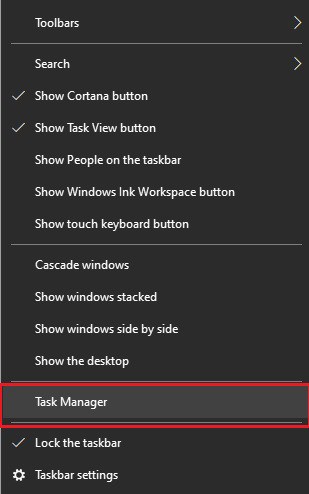
- On the Processes tab, click the Network column heading to sort apps by how much bandwidth they use. Common culprits include Twitch, Zoom, Skype, music players, cloud sync apps and other browser windows.
- Right-click the app that is using bandwidth and select End task.
Then check whether Netflix loads faster. If it is still slow, try the next solution.
Solution 4: Update your network driver
If nothing so far has worked, update your network driver. An outdated or faulty Wi-Fi or Ethernet driver can cause random or unexpected connection problems, so make sure you have the latest version.
On Windows 11, you can update network drivers manually or automatically.
Manual driver update: In Windows 11, the main place to get driver updates is the Settings app:
- Open Settings > Windows Update and click Check for updates.
- Go to Advanced options > Optional updates.
- Expand Driver updates, tick the network adapter driver if it is listed, and click Download & install.
If Windows doesn’t offer a newer driver, go to the official website of your PC maker or network adapter maker and search for your model. Only download drivers from the maker’s own site, and make sure they match your version of Windows. Windows 11 version 26H2 is the newest version as of November 2026.
Automatic driver update: Many PC and chip makers offer their own free update tools, such as Intel Driver & Support Assistant for Intel Wi-Fi adapters. These tools find and install official drivers for you. There are also third-party driver updaters, such as Bit Driver Updater. If you use one, download it only from the developer’s official site. The basic process looks like this:
- Run the installer and follow the on-screen instructions.
- Open Bit Driver Updater and click Scan.

- When the scan finishes, find the outdated network driver in the results and click Update Now next to it. The Update All button installs every driver update at once.

One-click Update All is only in the paid Pro version. For a single network driver, the free Windows Update and manufacturer routes do the same job without costing anything. If buffering turns into an on-screen code such as NW-2-5 or M7111, a guide explaining What is Netflix Error codes will help you understand what the code means.
Once the new network driver is installed, restart your PC so the change takes effect. Then try Netflix again.
If Netflix still keeps buffering
If Netflix buffers even though your internet seems fine, try Netflix on another device on the same network. If it buffers there too, the problem is your network or ISP, so contact your provider with your Fast.com results. If only one device has the problem, contact that device’s maker. Netflix’s own guidance says some device problems can only be fixed by the device maker. If every device on every network has problems, check whether Netflix is down, then contact Netflix support through the Help Center.
FAQ
What internet speed do I need for Netflix?
Netflix recommends at least 3 Mbps for 720p HD, 5 Mbps for 1080p Full HD and 15 Mbps for 4K Ultra HD. These numbers are for one stream. If several people stream at the same time, or someone is gaming or on video calls, you need more.
Why does Netflix keep buffering when my internet is fine?
Usually another app is using your bandwidth, your Wi-Fi signal is weak where you sit, or the browser or network driver has a problem. Close apps that use bandwidth in Task Manager, move closer to the router or use Ethernet, and update your network driver. Netflix’s servers can also have short outages, so check whether the service is down.
Is Netflix buffering better in the app or in a browser?
On Windows, Microsoft Edge is the best browser for Netflix quality, with 4K and HDR on compatible hardware. Chrome 117 or later now supports 4K on updated Windows 11 PCs, but without HDR. Buffering itself depends more on your connection than on which browser you use, so switching browsers is a quick test, not a cure.
Does lowering Netflix video quality stop buffering?
Often, yes. Lower quality needs less bandwidth, so the video can stay ahead of playback. On the Netflix website, go to Account > Profiles, choose your profile and open Playback settings to pick a lower data usage level.
Why does Netflix buffer only at night?
In the evening, more people in your home and neighbourhood are online, so both your Wi-Fi and your ISP’s network get busier. If speeds drop sharply every evening, test with Fast.com at different times and show the results to your ISP. A wired connection or a less crowded Wi-Fi channel can also help.
Sources
- Netflix Help Center: TV show or movie loads slowly or keeps buffering
- Netflix Help Center: Internet connection speed recommendations
- Netflix Help Center: How to control how much data Netflix uses
- Netflix Help Center: Supported browsers and system requirements
- Microsoft Support: Automatically get recommended drivers and updates for your hardware













