
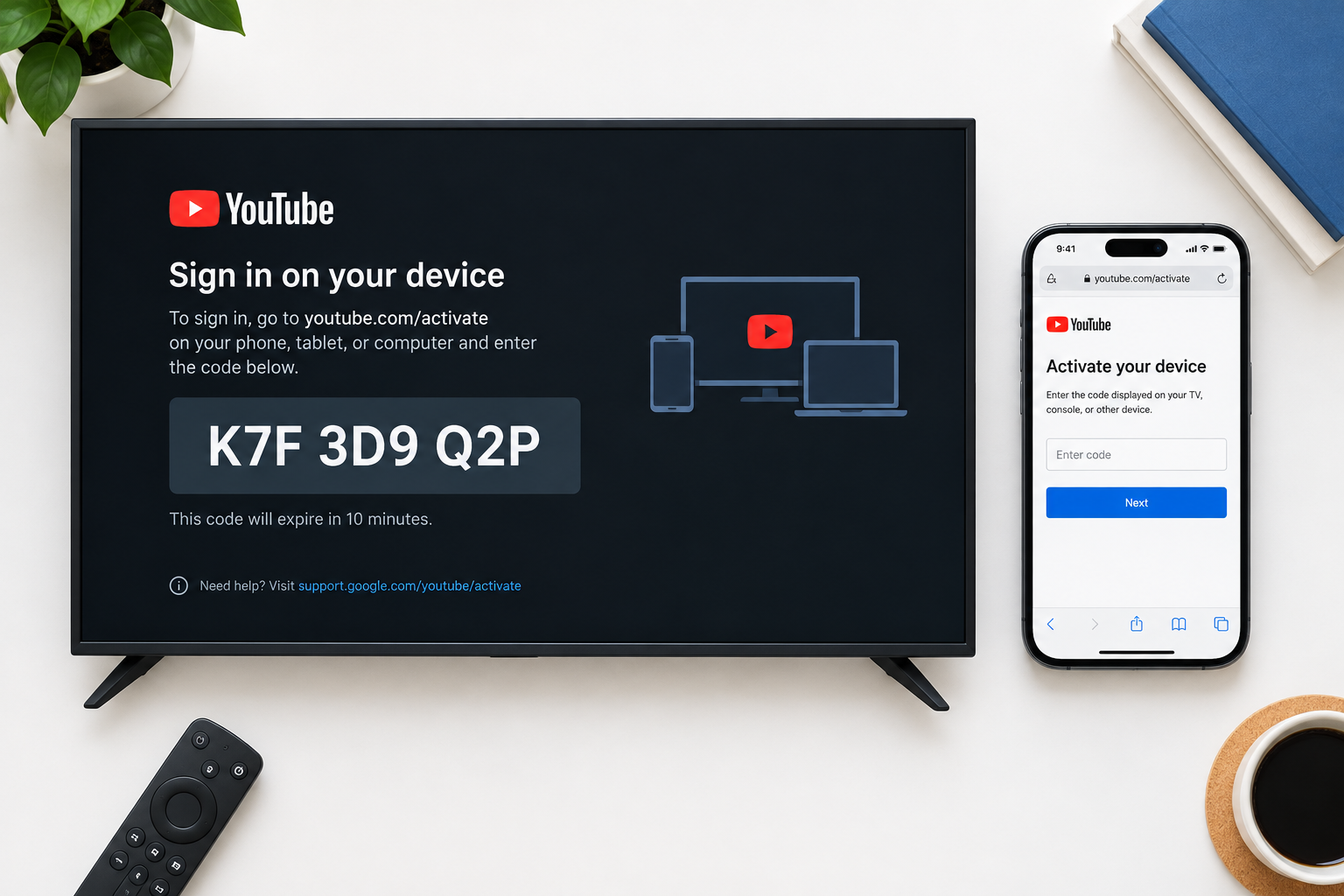
To activate YouTube on a TV, streaming stick or game console, open the YouTube app on the device and choose Sign in. Then scan the QR code with your phone, or go to youtube.com/activate (or the short link yt.be/activate) on a phone or computer, sign in to your Google account, enter the code shown on the TV and allow access. YouTube TV, the paid live TV service, is separate: it uses tv.youtube.com/start. You never have to pay anyone to activate YouTube, and you should only type the code into a youtube.com or google.com page.
Many smart TVs and streaming devices use youtube.com/activate to link the YouTube app to your Google account. This includes Apple TV, Roku, Amazon Fire TV, Android TV and Google TV, Samsung TVs, PlayStation and Xbox consoles. The steps for each device are below.
The idea is the same on every device. The YouTube app on the TV shows a short code. You go to youtube.com/activate in a browser on another device, sign in, type the code and select Next. After you allow access, the TV signs in to your account with your subscriptions, playlists and history.
Most TVs also give you other ways to sign in. Google’s YouTube Help page lists three of them. You can scan a QR code with your phone, sign in with the TV remote and on-screen keyboard, or sign in from a phone that is on the same Wi-Fi network as the TV.
Devices That Support YouTube.com/activate
The current YouTube app, and its code sign-in, works on these devices:
- Amazon Fire TV devices, including every Fire TV Stick
- Roku players and Roku TVs
- Android TV and Google TV devices, including Chromecast with Google TV
- Apple TV
- Smart TVs from brands such as Samsung, LG, Sony and Vizio
- PlayStation 4 and PlayStation 5
- Xbox One and Xbox Series X|S
The Xbox 360 and PlayStation 3 used to be on this list. Both are over a decade old, and YouTube’s current TV app is made for newer hardware. If YouTube won’t install or open on one of these consoles, there is no official fix. Use a current console, a streaming stick or your phone instead.
NOTE: On an iPhone, iPad or Android phone, you don’t need an activation code. Download the YouTube app from the Apple App Store (iPhone and iPad) or the Google Play Store (Android) and sign in inside the app. Most Android phones come with YouTube already installed.
Installing the YouTube App
You need the YouTube app on your TV or streaming device before it can show an activation code. Many smart TVs and streaming sticks come with it already installed. If yours doesn’t:
- Open the device’s app store (Roku Streaming Store, Amazon Appstore, Google Play, Apple App Store, Samsung Apps, PlayStation Store or Microsoft Store).
- Search for “YouTube”. Pick the official app published by Google.
- Select Add app, Get, Install or Download. The button name depends on the device.
- Open the app and choose Sign in.
When the app shows the sign-in screen, you’ll see your activation code and a QR code. Use them at youtube.com/activate to finish linking your account.
YouTube.com/activate on Roku
On Roku, you add YouTube from the store on the home screen and then link it with a code.
- Turn on your Roku and make sure it is connected to Wi-Fi.
- Press the Home button on your Roku remote.
- Open the store (it is called Streaming Store or Streaming Channels, depending on your Roku OS version) and search for YouTube.
- Select YouTube, then select Add app. If YouTube is already on your home screen, skip this step.
- Open YouTube, go to the menu on the left and select Sign in.
- Write down the code that appears on your TV screen.
- Go to youtube.com/activate in a web browser on your phone or computer.
- Sign in with your Google account, enter the code and select Next.
- When prompted, select Allow to give Roku access to your YouTube account.
If you open the link on a phone, the browser may load the mobile version of the page (m.youtube.com/activate). That is fine. Enter the same code there.
YouTube.com/activate on Samsung Smart TV
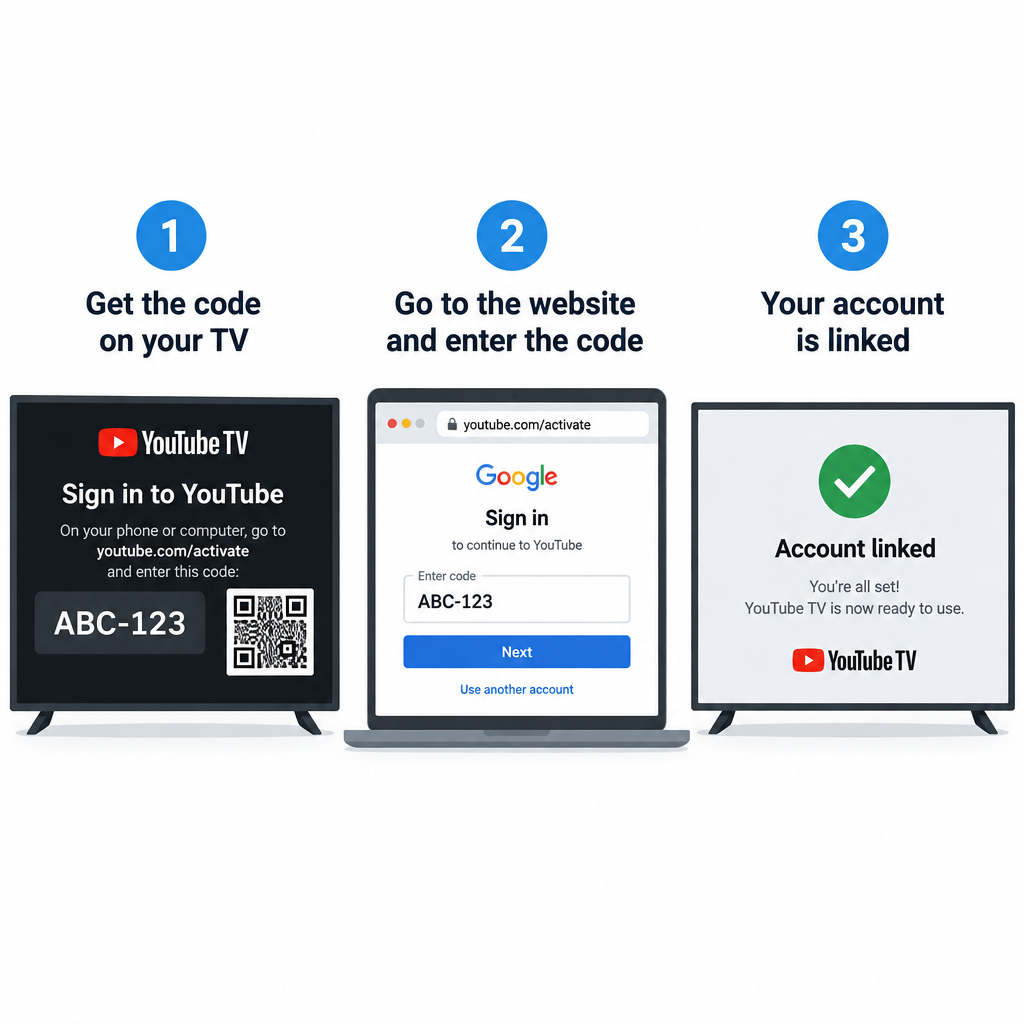
YouTube is preinstalled on most Samsung smart TVs, so you usually just open it and sign in.
- Press the Home button on the Samsung remote and open YouTube from the apps row. If it isn’t there, go to Apps, search for YouTube and install it.
- Open YouTube and select Sign in.
- Write down the code that appears on your TV screen, or scan the QR code with your phone.
- On your phone or computer, open a browser and go to youtube.com/activate.
- Sign in to your Google account, enter the code and select Next.
- When prompted, select Allow so the TV can access your YouTube account.
YouTube.com/activate on Kodi
Kodi is the exception to this guide. It doesn’t run the official YouTube app. It runs a community-made YouTube add-on that is installed from the official Kodi repository. You can search and play videos without signing in. To sign in to your account, you need your own Google API keys.
- In Kodi, go to Settings (the gear icon), then Add-ons.
- Select Install from repository, then Kodi Add-on repository.
- Open Video add-ons, select YouTube, then select Install and wait for it to finish.
- Once it is installed, the add-on is under Add-ons > Video add-ons > YouTube.
- To sign in, the add-on’s own documentation says you need three values from the Google Cloud console: an API key, an OAuth client ID and a client secret. You enter them in the add-on’s settings.
- Start the sign-in from the add-on. It will show a code and a Google address to enter it at. Open that address on your phone or computer, sign in and enter the code.
- The add-on’s wiki warns that you may be asked to connect a device up to three times. Google may also show an “app isn’t verified” warning, which is normal for a personal API project.
Each API key has a free daily quota, and home use rarely reaches it. If you’d rather skip the setup, use the official YouTube app on your TV or streaming stick instead.
Activate YouTube on Apple TV
- On your Apple TV, open the App Store, search for YouTube and download it.
- Open YouTube and select Sign in.
- Write down the code that appears on the TV screen, or scan the QR code with your iPhone.
- Open a browser on your phone or computer and go to youtube.com/activate.
- Sign in to your Google account, enter the code, select Next and then Allow.
YouTube.com/activate on Xbox One and Xbox Series X|S
- Open the Microsoft Store on your Xbox, search for YouTube and install it.
- Open YouTube and select Sign in.
- Write down the code that appears on the screen.
- Open a browser on your phone or computer and go to youtube.com/activate.
- Sign in to your Google account, enter the code and select Next.
- Select Allow, then wait a few seconds for the console to sign in.
The Xbox 360 had a YouTube app as well. Microsoft closed the Xbox 360 Store in July 2024, so you can no longer download apps on that console.
YouTube.com/activate on Amazon Fire TV
The official YouTube app is in the Amazon Appstore for all Fire TV devices.
- Press the Home button on your Fire TV remote.
- Select the search option, type “YouTube” and pick the official app.
- Select Get (or Download if you’ve had it installed before).
- Open YouTube and select Sign in. Write down the code shown on the TV.
- On your phone or computer, go to youtube.com/activate and sign in to your Google account.
- Enter the code from your TV and select Next.
- Follow the on-screen prompts and select Allow to finish.
YouTube.com/activate on Firestick
A Fire TV Stick is a Fire TV device, so the steps are the same as in the section above. Amazon confirmed in 2019 that the official YouTube app had reached all Fire TV hardware, including the original Fire TV Stick.
- Press the Home button on your Firestick remote.
- Go to search, type “YouTube” and select the official app.
- Select Get or Download, then Open.
- Select Sign in and write down the code on screen.
- On your phone or computer, go to youtube.com/activate, sign in and enter the code.
- Select Next, then Allow, to finish activating YouTube on your Firestick.
Don’t sideload YouTube with a downloader app or a copy from a website. The official app from the Amazon Appstore is free, it updates automatically and it doesn’t carry the malware risk of files from unofficial sites.
Playing YouTube Videos on PlayStation
On PS4 and PS5, the YouTube app uses the same controls as on other TVs. On the PlayStation 3, YouTube was a separate older app that no longer reflects how YouTube works today.
- Use the search icon in the YouTube app to find a video. You can type with the controller or search by voice from the YouTube app on your phone.
- Press X to play the selected video, and press X again to pause or resume.
- Use the progress bar and the left and right directions to skip forward or back.
- To report a video, open the video’s options and select Report.
Find and Play YouTube Videos on Xbox
These steps apply to the current YouTube app on Xbox One and Xbox Series X|S. On the old Xbox 360 app, you pressed Y to open search.
- Open YouTube and go to the search icon in the menu on the left.
- Start typing. YouTube shows suggestions that match your search.
- Use the D-pad or left stick to pick a suggestion from the list.
- If search doesn’t find it, browse the Home, Subscriptions and Library sections with the D-pad or left stick.
- When you’ve found the video, press A to start playing it.
How to Activate YouTube on PS4 and PS5
- Open the PlayStation Store on your PS4 or PS5, search for YouTube and download it. Some consoles show it under TV & Video.
- Open YouTube and select Sign in.
- Write down the code that appears on the screen, or scan the QR code with your phone.
- Go to youtube.com/activate in a browser on your phone or computer and sign in.
- Enter the code and select Next.
- Select Allow to give your PlayStation access and finish activation.
Activate YouTube on Google Chromecast
With a classic Chromecast (the small dongle without a remote), you don’t sign in on the TV. You cast videos from your phone, which is already signed in. Google’s help page says signing in directly to YouTube on older Chromecast devices isn’t supported. Chromecast with Google TV is different: it has its own YouTube app and signs in like any Google TV device.
- Connect your phone or tablet to the same Wi-Fi network as your Chromecast.
- Open the YouTube app (not the YouTube TV app, unless you subscribe to YouTube TV) and tap the Cast icon at the top of the screen.
- Choose your Chromecast from the list of devices.
- Pick a video and tap Play. It will start on the TV.
Quick Access to YouTube.com/activate
The fastest way to sign in is usually the QR code. Point your phone’s camera at the code on the TV screen, tap the link and approve the sign-in. You don’t have to type an address or a code.
If you’d rather type it:
- yt.be/activate is the short link Google shows on many TV sign-in screens. It goes to the same activation page as youtube.com/activate.
- YouTube TV, the paid live TV service, uses a different address. Open the YouTube TV app on your TV, select Sign in and go to tv.youtube.com/start on your phone or computer. Then sign in with the Google account linked to your subscription.
- Enter the code exactly as shown, select Next and follow the on-screen instructions.
How to Fix a YouTube.com/activate Code Error
Most activation errors happen because the code has expired, was typed wrong or was entered while signed in to the wrong Google account. Work through these fixes in order, starting with the quickest.
Get a fresh code first:
- On the TV, go back out of the sign-in screen and select Sign in again to get a new code. Codes time out after a few minutes.
- Open youtube.com/activate on your phone or computer.
- Check which Google account is signed in at the top of the page. If you use a brand account or a child’s supervised account, make sure you pick the right one.
- Type the new code carefully. Letters like O and 0, or I and 1, are easy to mix up.
- Select Next, then Allow. The TV should sign in within a few seconds.
A weak or dropped internet connection can also stop the TV from finishing sign-in. On an Xbox, test the connection like this:
- Press the Xbox button on your controller to open the guide.
- Go to Profile & system > Settings.
- Select General > Network settings.
- Select Test network connection.
- If the test fails, restart your router by unplugging it for 30 seconds, then try again.
If the connection is fine, restart the console:
- Press the Xbox button to open the guide.
- Go to Profile & system > Power.
- Select Restart console.
- Confirm with Yes, then open YouTube and sign in again.
On other devices, the same idea works. Restart the TV or streaming stick (unplug it for 30 seconds if there’s no restart option), update the YouTube app, and try a new code. If the error keeps coming back, sign in with the remote instead of the code, or contact the device maker’s support.
Beware of fake “YouTube activation” websites and phone numbers. Google never charges for activation and never asks you to call anyone. If a page wants payment, remote access to your computer or your password outside a google.com sign-in page, close it.
FAQ
Is youtube.com/activate the same as yt.be/activate?
Yes. yt.be/activate is the short link YouTube shows on many TV sign-in screens, and it leads to the same activation page. Use whichever address your TV shows, or scan the QR code.
Why is my YouTube activation code not working?
The code has usually expired or was typed incorrectly. Go back on the TV and select Sign in again to get a new code. Also check that you’re signed in to the right Google account in the browser before you enter it.
Is activating YouTube on a TV free?
Yes. Signing in to the YouTube app on a TV, console or streaming stick costs nothing. Only paid services such as YouTube Premium or YouTube TV cost money, and you pay for those through YouTube or Google, not through an activation website.
What is the difference between youtube.com/activate and tv.youtube.com/start?
youtube.com/activate signs the regular YouTube app on your TV in to your Google account. tv.youtube.com/start is for YouTube TV, Google’s paid live TV service, which uses a separate app. If you pay for YouTube TV, use tv.youtube.com/start with the account linked to your subscription.
Can I sign in to YouTube on my TV without a code?
Yes. Most TVs let you scan a QR code with your phone, sign in with the remote and on-screen keyboard, or approve sign-in from the YouTube app on a phone that’s on the same Wi-Fi network. With a classic Chromecast, you cast from your signed-in phone and don’t need to sign in on the TV.
How do I sign out of YouTube on a TV?
Open YouTube on the TV, go to your account icon or settings and choose Sign out. You can also remove the TV from your Google account under Security > Your devices on myaccount.google.com. That signs it out remotely, which helps if you’ve sold or given away the device.
Sources
- YouTube Help, Sign in to the YouTube app on your smart TV or game console: support.google.com/youtube/answer/3015415
- YouTube TV Help, Sign in and out of the YouTube TV app: support.google.com/youtubetv/answer/16519270
- Amazon, Official YouTube app on Fire TV devices: aboutamazon.com.au/news/entertainment/can-i-watch-youtube-on-amazon-fire-tv
- YouTube add-on for Kodi, Personal API Keys wiki: github.com/anxdpanic/plugin.video.youtube/wiki/Personal-API-Keys













