
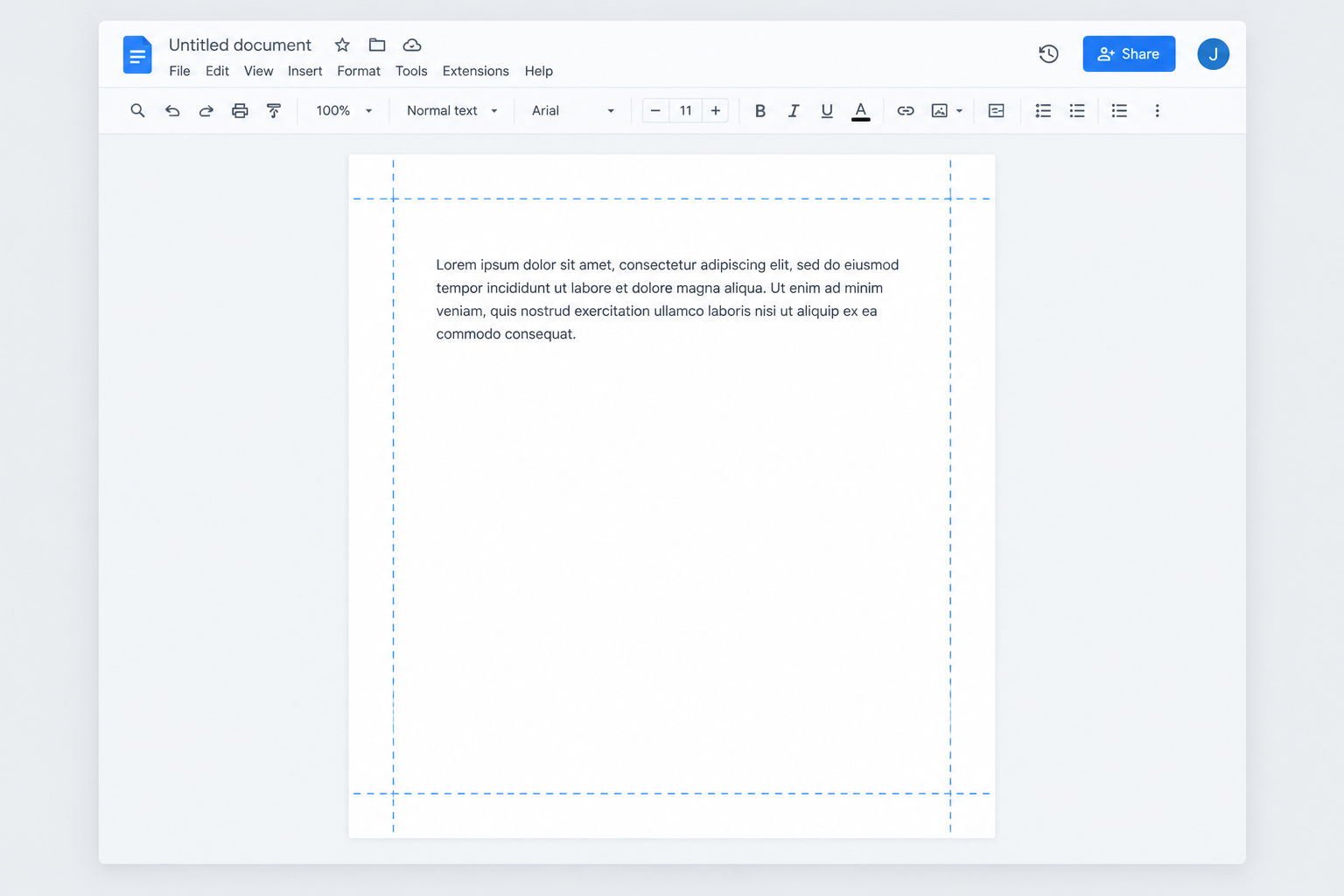
To change margins in Google Docs on a computer, open File > Page setup, type the Top, Bottom, Left and Right values, and click OK. If you want quicker but less exact control, drag the margin edges on the ruler. Margins only work in Pages format, so if your document is Pageless, switch it first with Format > Switch to Pages format. The iPhone and iPad app has margin presets under Page setup, but the Android app has no margin setting, so on Android you need to use Docs in a browser.
Margins are part of a properly formatted Google Docs document. This guide covers Google Docs in a web browser and in the mobile app.
A document is more than its text. Formatting matters too, including line spacing, paragraph styles and margins. Margins matter most in documents with strict rules, such as school essays that require 1-inch margins.
Before you start: check Pages or Pageless format
Google Docs has two page formats. Pages shows separate pages with margins, headers and footers. Pageless shows one continuous page. Google’s Docs Editors Help says Pageless documents can’t use certain features, including columns, page numbers, headers and footers. Margin settings also only apply in Pages format.
To check or switch:
- Open your document in a desktop browser.
- Click Format in the menu bar.
- If you see Switch to Pages format, the document is Pageless. Click it to turn pages back on.
You can also do this in File > Page setup, which has a Pages tab and a Pageless tab at the top. In Pageless format you can’t set exact margins, but View > Text width controls how wide the text runs on screen.
Adjust margins in Google Docs online
Google Docs on the web gives you two ways to change margins. The ruler is faster. Page setup is more precise. Both are easy to use.
Change the page margins with the ruler
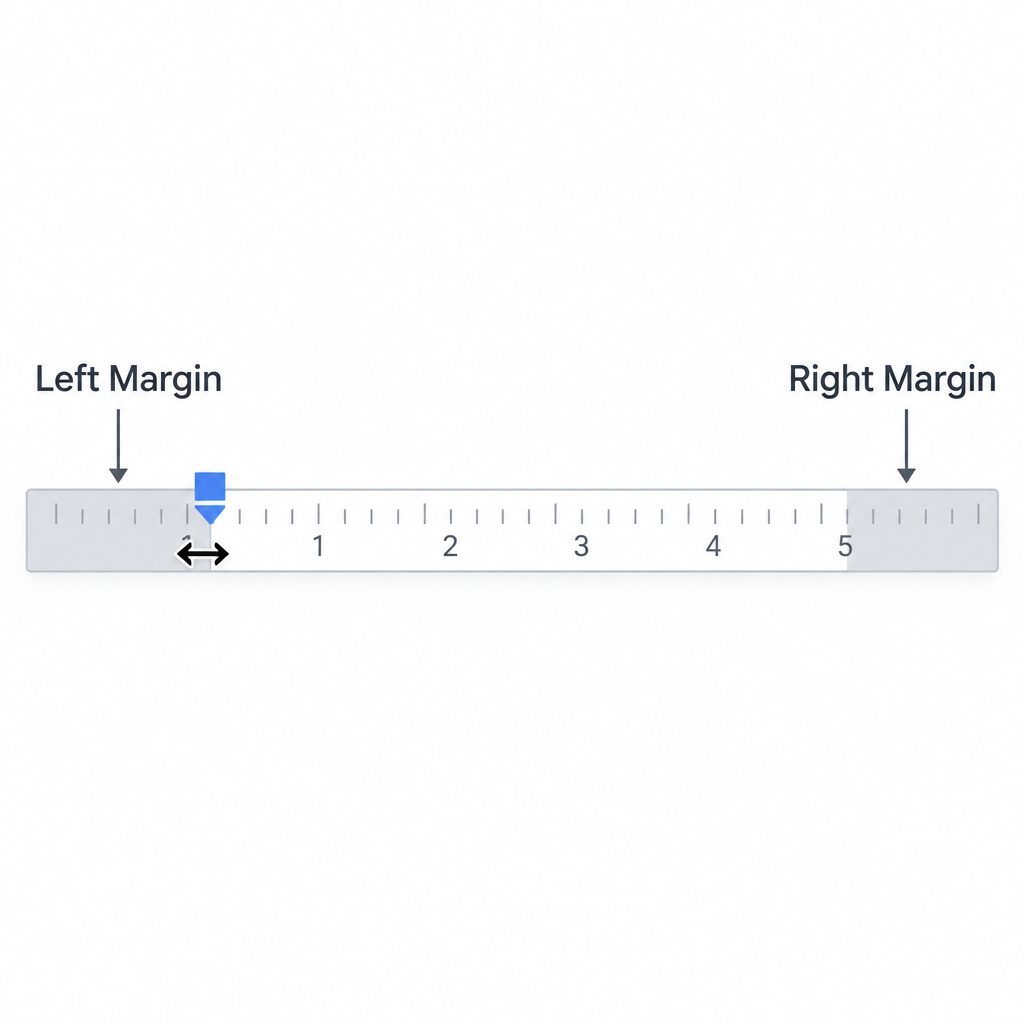
The ruler is the fastest way to change margins. If you can’t see it, click View > Show ruler. A horizontal ruler appears across the top of the page and a vertical ruler appears down the left side.
The left margin is where the gray part of the ruler meets the white part. That spot also holds two blue markers: a small rectangle (the first-line indent) and a triangle (the left indent). Point just above them, at the edge of the gray area, and you’ll see a two-headed arrow and a vertical blue guide line.
Drag right to make the left margin wider, or left to make it narrower. Don’t grab the rectangle or the triangle on their own. Those markers move paragraph indents, not the page margin.
The right margin works the same way. Point at the edge of the gray area on the right side of the ruler, near the triangle, and drag when the arrow and blue line appear.
To change the top or bottom margin, use the vertical ruler on the left. Point where the gray area turns white until a small arrow and a horizontal blue line appear. Drag up or down to make the margin smaller or larger.
As you drag, a small label shows the margin size, in inches or centimeters depending on your settings, so you can be fairly exact. For a precise value, use Page setup instead.
Change the page margins with Page setup
Use Page setup when you need exact values, for example the 1-inch margins most essay rules ask for.
- With your document open in Google Docs, click File and select Page setup.
- Make sure the Pages tab is selected.
- Type the values in the Margins boxes for Top, Bottom, Left and Right.
- Click OK to apply the changes.
If your document has section breaks, the Apply to menu in the same window lets you change only the current section instead of the whole document.
Set default page margins in Google Docs
Google Docs on the web can save your margins as the default. After that, every new blank document starts with the same margins. This helps if your school or workplace requires specific margin sizes.
- Open a document, or create a new one, with the margins you want to use as the default.
- Click File and choose Page setup.
- Type the values in the Margins boxes for all four sides.
- Click Set as default.
- Click OK.
To check that it worked, create a new blank document and open File > Page setup. The margins should match the defaults you saved.
Your saved defaults don’t apply to documents created from a template in the Google Docs template gallery. You can still change margins in those documents with the ruler or Page setup.
Adjust margins for columns in Google Docs
If your document uses columns, each column can have its own inner margins. Columns are only available in Pages format.
You set the outer left and right edges, which are the page margins, with the ruler or Page setup as described above. For the inner edges of each column, use the ruler.
- Click inside the first column. A blue triangle appears on the ruler at that column’s right edge. Drag it left or right to adjust that column’s right margin.
- Click inside the next column. The same rectangle and triangle you use for the left page margin appear at that column’s left edge. Drag them left or right to change that column’s margin.
- If you use three columns, the third column has the same blue markers. They only appear after you click inside that column.
To set the exact gap between columns, select the text in columns and go to Format > Columns > More options. There you can change the Spacing value and add a line between columns, then click Apply.
Adjust margins in Google Docs on mobile
Margins work differently in the Google Docs app. According to Google’s Docs Editors Help for Android, the Android app’s Page setup only covers orientation, paper size and page color, so there’s no margin setting on Android. To change margins on an Android phone or tablet, open docs.google.com in a desktop browser or in Chrome’s desktop site mode.
The iPhone and iPad app does have margin controls. Here’s how to use them:
- Open your document in Google Docs and tap the three-dot More menu at the top right.
- Select Page setup.
- Tap Margins.
- Choose Narrow, Default, Wide or Custom (described below).
- Tap Apply.
| Preset | Margins |
|---|---|
| Narrow | 0.5 inch on all four sides |
| Default | 1 inch on all four sides |
| Wide | 1 inch top and bottom, 2 inches left and right |
| Custom | Tap a side and type any size you like |
Change margins for columns on iPhone and iPad
To adjust columns in the iOS app, set the page margins first as described above, then change the spacing between columns.
- Tap the Format button (the “A” icon at the top).
- Select the Layout tab.
- Use the arrows next to Column spacing to make the gap between columns bigger or smaller.
When the margins won’t change
Most margin problems have one of four causes:
- The document is Pageless. The ruler and margin boxes do nothing useful until you switch to Pages format.
- You moved an indent, not the margin. If only one paragraph shifted, you dragged the blue rectangle or triangle. Press Ctrl+Z (Cmd+Z on a Mac) and drag the gray edge instead.
- The document has sections. Check the Apply to setting in Page setup so your change covers the whole document.
- Docs failed to save. A generic error banner, like the familiar facebook something went wrong message, usually means a connection problem. Reload the page and try again.
If you write web content in Docs before publishing it, margins don’t carry over to your site and play no part in your SEO strategy. They only affect the document and anything you print or export from it.
A margin of difference
Google Docs gives you simple tools for margins. The ruler is best for quick changes, and Page setup is best for exact sizes. Use whichever fits the job. If you always need the same margins, save them once with Set as default so every new blank document starts the right way.
FAQ
What are the default margins in Google Docs?
New documents start with 1-inch margins on all four sides. If you saved different values with Set as default in Page setup, new blank documents use your values instead.
How do I get 1-inch margins in Google Docs?
Open File > Page setup, type 1 in the Top, Bottom, Left and Right boxes, and click OK. If your settings use centimeters, type 2.54 instead.
Why can’t I change margins in Google Docs?
The usual reason is that the document is in Pageless format. Click Format > Switch to Pages format and try again. On Android the app has no margin setting, so use a desktop browser.
Do margins stay the same when I export to PDF or Word?
Yes. File > Download as PDF or.docx keeps the margins you set in Page setup. PDFs are made for reading and printing, so if you need an editable drawing for CAD software, look for the best pdf to dwg converter for that job. Google Docs doesn’t do that conversion.
Can I set different margins for one page?
Google Docs margins apply to a whole section, not to a single page. Add a section break with Insert > Break > Section break (next page), then open Page setup and use Apply to to change the margins for that section only.
Can I change margins in the Google Docs app on iPhone?
Yes. Tap the three-dot menu, then Page setup > Margins, and choose Narrow, Default, Wide or Custom. Tap Apply to save.
Sources
- Change page settings on Google Docs (Google Docs Editors Help)
- Change a document’s page setup: pages or pageless (Google Docs Editors Help)
- Add page breaks & move margins (Google Docs Editors Help)













