
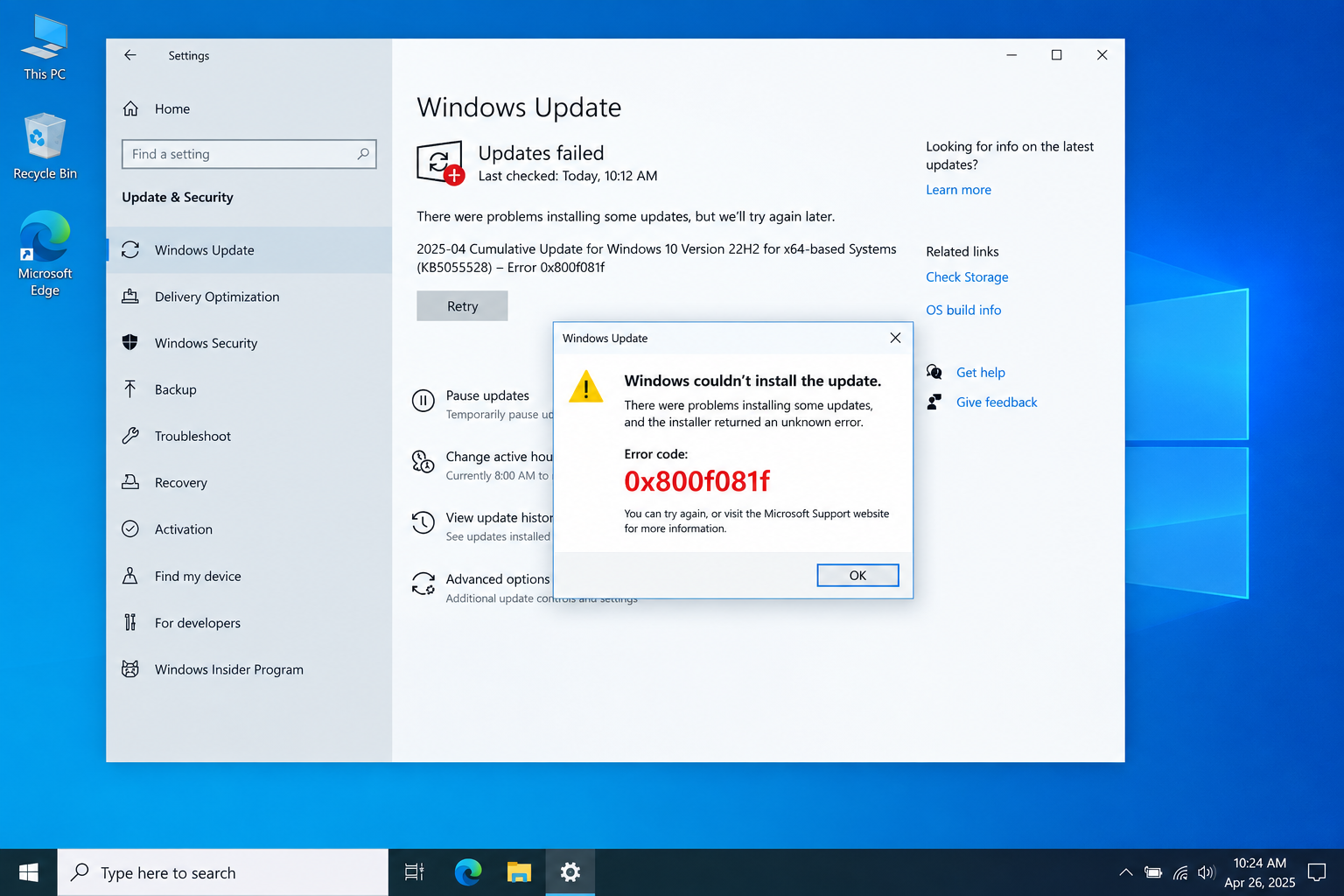
Error 0x800f081f means Windows can’t find the source files it needs. It shows up most often when you turn on.NET Framework 3.5 or install an update. The quickest fix is to let Windows Update download those files: either allow it in Group Policy, or point the DISM tool at a Windows installation ISO that matches your version. If a normal update fails, run the Windows Update troubleshooter, repair system files with DISM and SFC, then install the update yourself from the Microsoft Update Catalog. As of November 2026, Windows 10 22H2 PCs enrolled in Extended Security Updates (ESU) still get security fixes until October 12, 2027.
The error appears when you install or update Windows, and the usual cause is.NET Framework 3.5. It tends to happen when you turn the framework on in one of three ways: with a Windows PowerShell command, with the Deployment Image Servicing and Management (DISM) tool, or with the Windows Features dialog.
What causes error 0x800f081f
Microsoft’s code name for 0x800f081f is CBS_E_SOURCE_MISSING, which means a package or file could not be found. On Windows 8, Windows 8.1, Windows 10, Windows 11 (up to version 25H2), Windows Server 2012, Windows Server 2012 R2, Windows Server version 1709, Windows Server 2016 and later,.NET Framework 3.5 is a “Feature on Demand”. Its files are not stored on the PC. When you turn it on, Windows tries to fetch the.NET files from Windows Update. If a policy blocks Windows Update, or the PC can’t reach it, the files are never found and you get 0x800f081f.
The same code can also appear during a normal cumulative update. In that case, damaged component files on the PC are usually to blame, not.NET.
One recent change matters if you have a new PC. On Windows 11 version 26H1 (build 28000) and later,.NET Framework 3.5 is no longer a Windows component at all. DISM and Windows Features can’t install it there. You need Microsoft’s standalone installer for that Windows version.
Fixes for Windows Update error 0x800f081f
Work through the fixes below in order. They start with the quickest and safest and end with the most involved. Check whether the error is gone after each one.
Change the Group Policy setting
Some apps need.NET Framework 3.5, not the newer version that ships with Windows. If Group Policy stops Windows from downloading the 3.5 files, and no other source path is set, you get 0x800f081f. The Local Group Policy Editor is only in the Pro, Enterprise and Education editions of Windows. Windows 10 Home and Windows 11 Home don’t have it.
- Press the Windows key and R together to open the Run box.
- Type gpedit.msc and press Enter.
- The Local Group Policy Editor opens.
- Go to Computer Configuration > Administrative Templates > System.
- Find Specify settings for optional component installation and component repair and double-click it.
- Select Enabled. Make sure Never attempt to download payload from Windows Update is not ticked. If the PC gets updates from a work server (WSUS), also tick Download repair content and optional features directly from Windows Update instead of Windows Server Update Services (WSUS). Click OK.
- To apply the change now, open Command Prompt as administrator and run gpupdate /force.
Now try turning on.NET Framework 3.5 or installing the update again. If the error is still there, move on to the next fix.
Use the DISM command to turn on.NET Framework
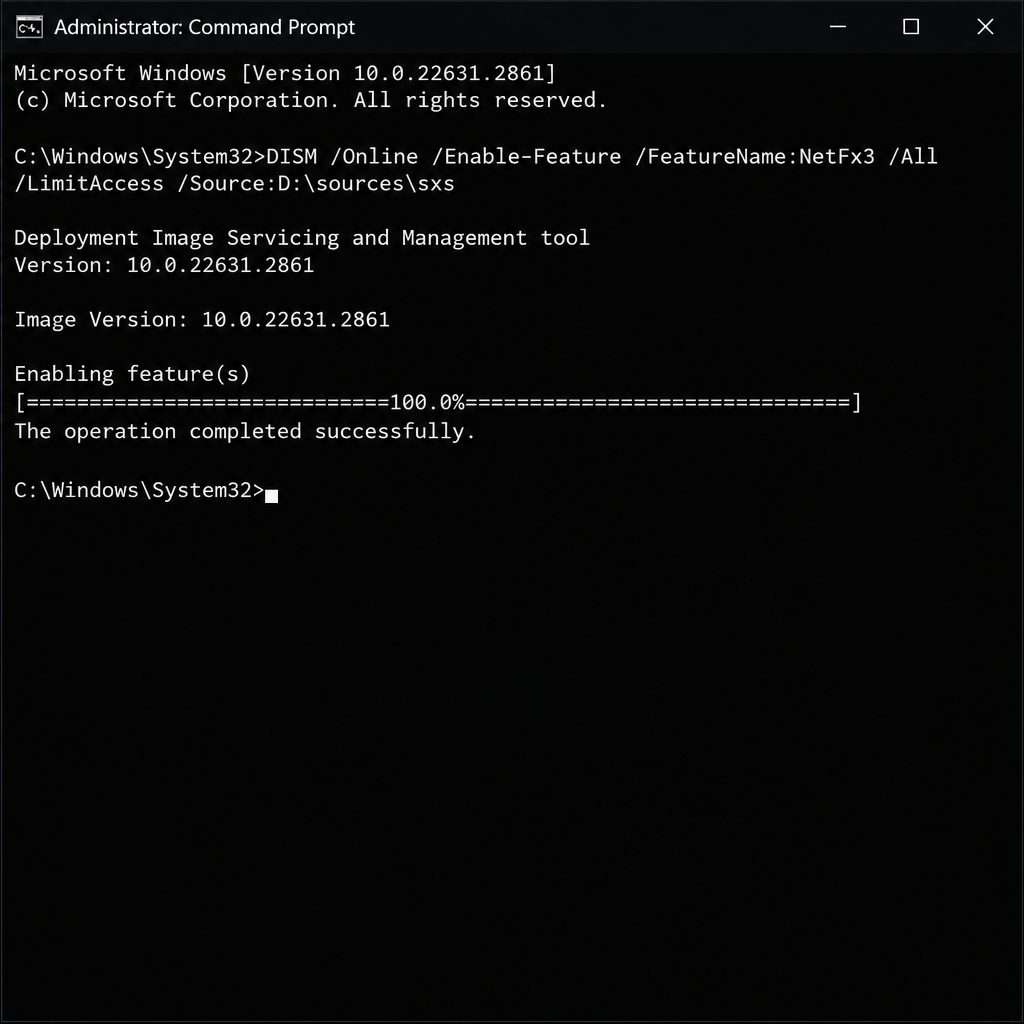
DISM can turn on.NET Framework 3.5 using files from a Windows ISO, so it doesn’t need Windows Update at all. The ISO must match the Windows version, edition and language on your PC. You can get one from Microsoft’s own download page or with the Media Creation Tool.
- Right-click the ISO file and choose Mount. Note the drive letter it gets in File Explorer, for example D:.
- Open Command Prompt as administrator. Type cmd in Start, right-click Command Prompt and choose Run as administrator.
- Type this command, replacing D: with your drive letter:
DISM /Online /Enable-Feature /FeatureName:NetFx3 /All /LimitAccess /Source:D:\sources\sxs
- Press Enter and wait for the progress bar to reach 100%.
The /LimitAccess switch tells DISM not to contact Windows Update. The /Source switch points it to the sxs folder on the ISO. Once it finishes, the error should be gone and you can install your updates and other apps. If DISM still says it can’t find the source files, the ISO almost certainly doesn’t match your Windows build.
Reinstall.NET Framework 3.5
You can also turn.NET Framework 3.5 off and back on through Windows Features. That makes Windows fetch a fresh copy.
- Open Settings > Apps > Apps & features. Under Related settings, click Programs and Features. A faster way is to press Windows + R, type optionalfeatures and press Enter.
- In the Programs and Features window, click Turn Windows features on or off in the top-left corner.
- Tick the box next to .NET Framework 3.5 (includes.NET 2.0 and 3.0) and click OK. When asked, choose Let Windows Update download the files for you.
The install usually takes a few minutes, depending on your internet speed. If.NET 3.5 was already ticked, untick it, restart, then tick it again. On Windows 11 24H2 and 25H2, the same dialog opens from Settings > System > Optional features > More Windows features.
Unplug all USB devices
Sometimes a USB device causes the error, so unplug everything that isn’t needed. That means flash drives, external hard drives, card readers and wireless dongles. Keep only the keyboard and mouse connected. Then run Windows Update again and see if 0x800f081f is still there. A wireless headset dongle is a common one to forget. If your g930 keeps turning off after an update, that’s a separate driver problem, and it’s best to deal with it once the update is in.
Run the Windows Update troubleshooter
The troubleshooter resets the Windows Update services and clears the download cache. It’s worth running before you try anything more manual.
On Windows 10:
- Open Start > Settings > Update & Security > Troubleshoot.
- Click Additional troubleshooters.
- Select Windows Update and click Run the troubleshooter.
- Follow the steps on screen. When asked, choose to apply the fixes.
On Windows 11, go to Settings > System > Troubleshoot > Other troubleshooters and click Run next to Windows Update. On current versions, this opens the troubleshooter in the Get Help app.
Once it’s finished, restart and check whether update error 0x800f081f is fixed. If not, move on to the next fix.
Repair Windows system files with DISM and SFC
If 0x800f081f shows up while installing a cumulative update, not.NET, the component store is often damaged. Two built-in tools can repair it.
- Open Command Prompt as administrator.
- Run DISM /Online /Cleanup-Image /RestoreHealth and wait for it to finish. This can take 10 to 20 minutes.
- Run sfc /scannow.
- Restart and try Windows Update again.
If RestoreHealth itself fails with 0x800f081f, give it a matching ISO as the source. Mount the ISO and run DISM /Online /Cleanup-Image /RestoreHealth /Source:wim:D:\sources\install.wim:1 /LimitAccess. Change the drive letter, and the index number if your edition isn’t the first one in the file. Some ISOs contain install.esd instead of install.wim. In that case, use esd: in place of wim: and install.esd as the file name.
Install the update manually
You can also download the update yourself from the Microsoft Update Catalog, Microsoft’s official site for standalone update packages.
- Find the KB number of the failing update in Settings > Update & Security > Windows Update > View update history (on Windows 11: Settings > Windows Update > Update history).
- Go to the Microsoft Update Catalog website, type the KB number in the search box and press Enter.
- From the results, pick the update that matches your Windows version (for example, Windows 10 Version 22H2) and your system type (x64 or ARM64). To check your system type, go to Settings > System > About.
- Click Download next to that update.
- A small window opens with a link to the.msu file. Click it and choose where to save the file.
- When the download finishes, close the window.
- Open the folder where you saved the file and double-click it to start installing.
Follow the instructions on screen, then restart your PC to finish installing the update.
If nothing works
If none of the fixes above clear the error, try a repair install, also called an in-place upgrade. It reinstalls Windows but keeps your files and apps. Mount a matching ISO, run setup.exe, and choose to keep personal files and apps. Back up your important files first anyway.
On Windows 10, also check the PC’s support status. Microsoft ended support for Windows 10 Home and Pro on October 14, 2025. Updates now come only through Extended Security Updates, which run until October 12, 2027 for enrolled 22H2 PCs. If the PC isn’t enrolled, it gets no new security updates at all. If a work device still shows the error after a repair install, ask your IT department. A WSUS or Configuration Manager policy may be the cause, and only an administrator can change it.
FAQ
What does error code 0x800f081f mean?
It means Windows couldn’t find the source files it needed. Microsoft’s name for the code is CBS_E_SOURCE_MISSING. It usually appears when you turn on.NET Framework 3.5 and Windows can’t reach Windows Update or another valid source. It can also appear when damaged system files stop a cumulative update from installing.
Is 0x800f081f the same as 0x800f0906 or 0x800f0907?
They are related, but not the same. Microsoft documents them together as.NET Framework 3.5 installation errors. 0x800F0906 means Windows couldn’t download the files from Windows Update. 0x800F0907 usually means a Group Policy setting blocked the download. The fixes in this guide (Group Policy, DISM with an ISO, Windows Features) work for all three.
Can I fix 0x800f081f on Windows 10 Home without Group Policy?
Yes. Home doesn’t include the Group Policy Editor, so skip that fix. Use the DISM command with a matching Windows ISO, or turn on.NET Framework 3.5 through Windows Features while you’re online. Both usually work on Home.
Why does DISM still say the source files could not be found?
The ISO almost always doesn’t match the installed Windows. Its version, edition or language is different. Download a fresh ISO for the exact version shown in Settings > System > About, mount it, and check that the drive letter in the command is correct.
Does this fix work on Windows 11?
On Windows 11 24H2 and 25H2, yes. The same steps apply, although the menu paths are slightly different. On Windows 11 26H1 (build 28000) and later,.NET Framework 3.5 isn’t a Windows feature anymore. DISM and Windows Features can’t install it, so use Microsoft’s standalone.NET Framework 3.5 installer for that version.
Should I still fix update errors on Windows 10 in 2026?
Yes, if the PC is enrolled in Extended Security Updates, because a failed update means missing security patches. Consumer ESU covers Windows 10 22H2 PCs until October 12, 2027. If your PC can run Windows 11, upgrading is the longer-term fix.
Sources
-.NET Framework 3.5 installation errors: 0x800F0906, 0x800F081F, 0x800F0907, 0x800F0922 (Microsoft Support)
-
Install.NET Framework 3.5 on Windows 11 (Microsoft Learn)
-.NET Framework 3.5 on Windows 11 FAQ (Microsoft Learn) -
Configure a Windows Repair Source (Microsoft)
- Features on Demand and language packs with WSUS or Configuration Manager (Microsoft Learn)
- Windows 10 Consumer Extended Security Updates (Microsoft)












