
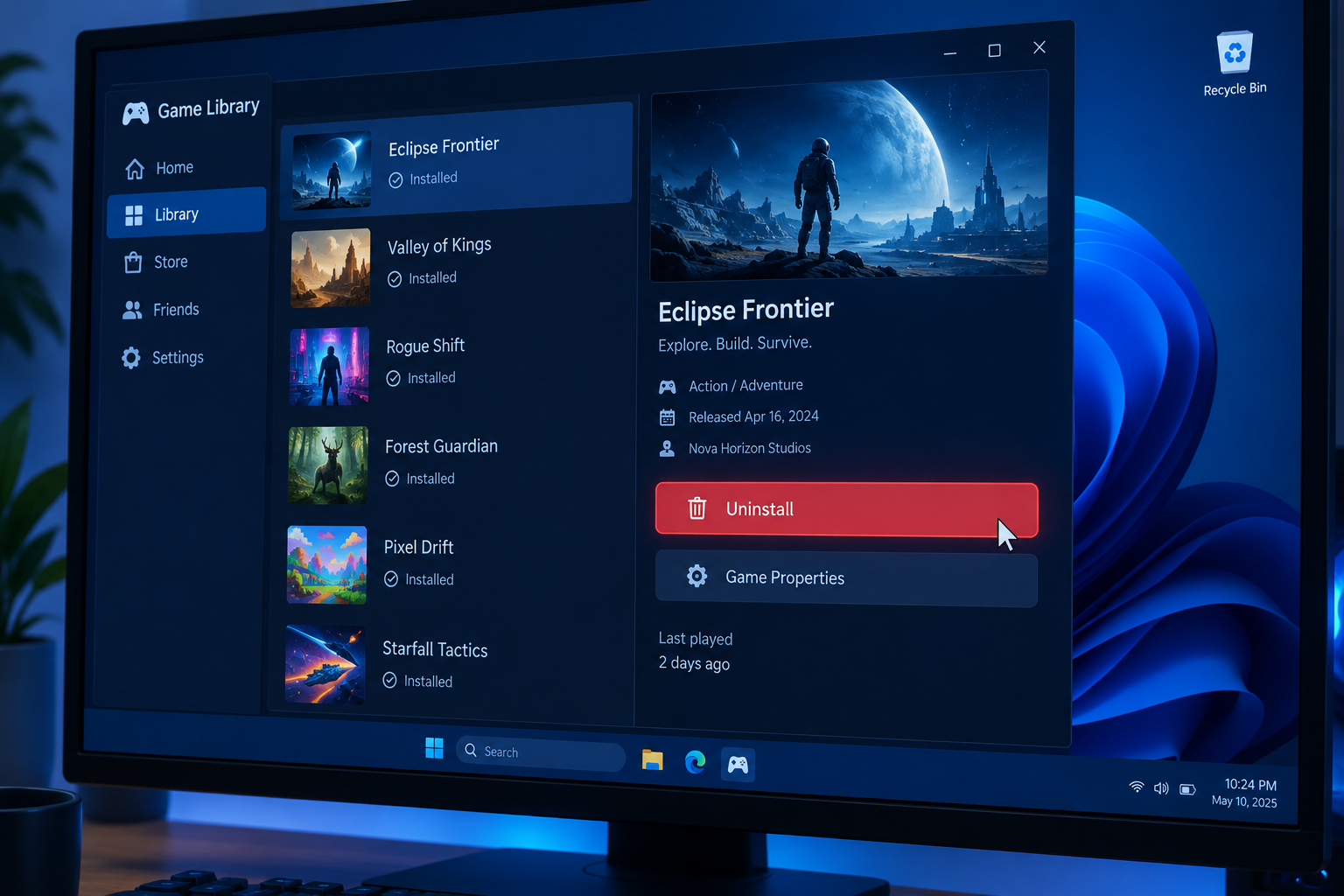
To delete a game from a Windows PC, uninstall it from the launcher you installed it with, such as Steam, the EA app, Epic Games Launcher or Battle.net. If that doesn’t work, go to Settings > Apps > Installed apps in Windows 11, select the three dots next to the game and choose Uninstall. On a Mac, use the game’s launcher or drag the app from Applications to the Trash. Uninstalling frees up disk space, but the game stays in your account library so you can download it again later.
Sooner or later you’ll want a game completely off your computer. You may have stopped playing it, or it may be taking up too much space. Either way, it’s time to delete it.
Ways to delete games from your PC
Below are several ways to delete games from your PC, starting with the quickest and safest. The best one depends on where the game came from.
Uninstalling from a digital distribution service
Steam, GOG, Epic, the EA app and the other big platforms each have an uninstall option inside their launcher. It’s handy when the launcher is already open and you want the game gone right away. It also lets you remove games from one store without affecting games from the others.
Here’s how uninstalling works in the most common PC game launchers.
1. Battle.net
Open the Battle.net app (once called the Blizzard app) and select the icon of the game you want to delete. Click the gear icon or drop-down arrow next to the Play button, then choose Uninstall. Removing the Battle.net app itself does not remove your games. Each game has to be uninstalled separately.
2. Bethesda.net
The Bethesda.net Launcher was retired on May 11, 2022. Bethesda moved its PC games to Steam, and anyone who owned games on the launcher got them on Steam at no charge. If a Bethesda game is still on your PC, uninstall it through Steam (see below) or through Windows Settings.
3. Epic Games Store
Open the Epic Games Launcher and go to Library. Click the three dots on the game tile (or at the far right of the row in list view), choose Uninstall, then confirm in the pop-up. The game stays in your Library, so you can install it again whenever you like.
4. GOG
In GOG Galaxy 2.0, go to Installed in the left-hand menu and select the game you want to remove. Click the options button (the settings icon) to the right of Play, hover over Manage installation, then choose Uninstall and confirm.
5. Microsoft Store
The Microsoft Store doesn’t have its own uninstall button. Uninstall Store and PC Game Pass games from Windows Settings (steps below). You can also do it in the Xbox app on PC: open the game’s More options menu (three dots) and choose Uninstall.
6. Origin (now the EA app)
EA ended support for the Origin client on April 17, 2025, and said players needed to transition to the EA app. The EA app needs 64-bit Windows. Your account and games carried over, and you sign in with the same login. To uninstall, open the EA app, go to Library, click the three dots on the game tile and choose Uninstall.
7. Steam
In Steam, go to Library. Right-click the game you want to remove, hover over Manage, then choose Uninstall. Click Uninstall again to confirm. This deletes only the local files. The game stays in your library for later. Removing a game from your Steam account permanently is a separate request you make through Help > Steam Support.
8. Ubisoft Connect (formerly Uplay)
Uplay is now called Ubisoft Connect. Open the launcher and click Games. Select the game you want to remove, open Properties, then choose Uninstall under Local files. If you uninstall a Ubisoft game from Windows Settings, Ubisoft Connect may open and ask you to sign in before it finishes.
Uninstalling with the game’s own launcher or uninstaller

Some games come with their own launcher, and you can often uninstall the game from there. These launchers are usually called Launcher.exe.
Look in the game’s install folder to see if there is one. Some games also include a separate uninstaller, usually called Uninstall.exe or unins000.exe. You can also start the game and check its Settings or Game Settings menu for an uninstall option. If the launcher doesn’t have one, look through its menus.
The upside of a game’s own uninstaller is that it sometimes removes the game but keeps your save files. That matters most for games without cloud saves. Because your progress stays on the PC, it will still be there if you reinstall the game.
Many PC games store saves outside the install folder, for example in Documents\My Games, in Saved Games under your user folder, or in AppData. If a game has no cloud saves, copy that folder somewhere safe before you uninstall.
Uninstalling through Windows Settings
Windows can uninstall any game that shows up in its app list, whichever store it came from.
On Windows 11:
- Open the Start menu.
- Select Settings.
- Select Apps.
- Select Installed apps.
- Find the game, then click the three dots (More options) next to it.
- Select Uninstall, then confirm.
On Windows 10:
- Open the Start menu.
- Select Settings.
- Select Apps.
- Select Apps & features.
- Select the game you want to uninstall.
- Select Uninstall.
Microsoft ended support for Windows 10 on October 14, 2025, so the Windows 11 steps are the ones most people will use from now on.
Using Control Panel (works on Windows 11, Windows 10 and older versions such as Windows 8.1):
- Click the search box on the taskbar.
- Type Control Panel.
- Open Control Panel.
- Under Programs, choose Uninstall a program.
- Find the game you want to delete in the list.
- Select it and choose Uninstall.
On newer Windows 11 builds, some Control Panel links now open Settings > Apps > Installed apps instead. The steps from there are the same.
Deleting games on a Mac
On macOS, the simplest way to delete a game is to open the Applications folder and drag the game’s icon to the Trash. Then empty the Trash. This removes the app but can leave support files behind.
For a cleaner removal, uninstall Steam, Epic or Battle.net games from inside their launchers first, since that removes the full download. Leftover data such as saves and settings usually sits in your user Library folder. In Finder, choose Go > Go to Folder and type ~/Library/Application Support to look for a folder named after the game or its developer. Delete it only if you don’t need the saves.
Deleting games manually
You can also delete a game by hand by removing its folder, much like dragging an app to the Trash on a Mac. Usually this isn’t a good idea for installed games. It can leave registry entries, shortcuts and a broken listing in your launcher, which then thinks the game is still installed.
Some games are self-contained, though. They don’t write to the Windows registry when they run. If a game doesn’t appear in the Windows uninstall list, it probably isn’t registered there. In that case, deleting its folder is the best way to remove it.
Only delete the folder you’re sure belongs to the game, and empty the Recycle Bin afterwards to get the space back. Skip “free cleaner” or “uninstaller” pop-ups promising one-click cleanups. They use the same pressure tactics as an essay scam and often install more junk than they remove.
Which method to use
For most people, the store’s own launcher is the best choice. It removes the game cleanly, keeps it in your library and avoids confusing the launcher later. Use Windows Settings when the launcher won’t open or you no longer use it. Use the game’s own uninstaller when you want to protect local saves. Keep manual deletion for portable, self-contained games.
Once you’ve freed up the space, you might move on to other setup jobs. If you use wireless earbuds for gaming, a guide on how to pair skullcandy wireless earbuds covers that.
FAQ
Does uninstalling a game delete my save files?
It depends on the game. Many games on Steam, the EA app, Epic and Battle.net sync saves to the cloud, so your progress comes back when you reinstall. Games without cloud saves often keep files in Documents\My Games, Saved Games or AppData, so back up that folder before uninstalling.
Will I lose the game if I uninstall it?
No. Uninstalling removes only the files on your PC. The game stays in your Steam, Epic, EA app, GOG or Battle.net library, and you can download it again for free whenever you want.
Why is the game still showing as installed after I deleted its folder?
The launcher keeps its own record of installed games, and deleting the folder doesn’t update it. Open the launcher and use its uninstall option, or start a reinstall so it detects the files are missing. Using the proper uninstall route from the start avoids the problem.
How do I uninstall a game that won’t uninstall from the launcher?
Try Windows Settings > Apps > Installed apps, or Control Panel > Uninstall a program. If the game isn’t listed there either, restart your PC, check the game’s folder for an Uninstall.exe file, and as a last step delete the folder by hand. If a launcher keeps failing, contact that store’s support team.
What happened to Origin, Uplay and the Bethesda.net Launcher?
Origin was replaced by the EA app, and EA ended support for the Origin client on April 17, 2025. Uplay was renamed Ubisoft Connect. The Bethesda.net Launcher was retired on May 11, 2022, and its games moved to Steam. Uninstall those games through the newer launchers or through Windows Settings.
Sources
- Epic Games: How do I uninstall a game in the Epic Games Launcher?
- Blizzard Support: Uninstalling Battle.net games
- Steam Support
- Engadget: EA’s Origin app for PC gaming will shut down in April
- Game Developer: Bethesda is shutting down its PC game launcher












