
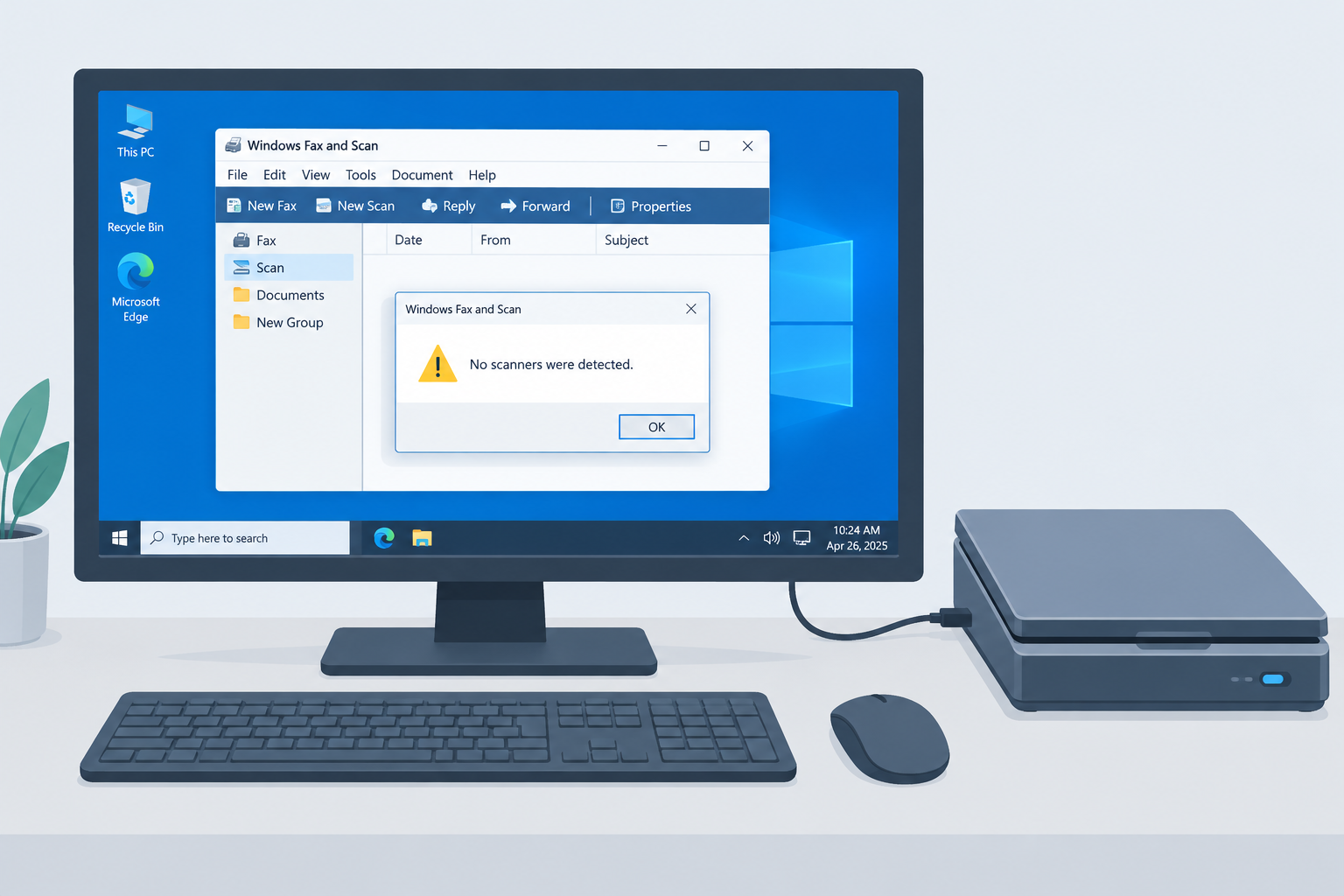
Windows Fax and Scan is a free scanning and faxing tool built into Windows. When it fails, it usually shows the message “No scanners were detected” even though the scanner is plugged in and turned on. The fixes below go from the quickest to the most involved, and they work on Windows 10 version 22H2 and on Windows 11.
About Windows Fax and Scan and the “No scanners were detected” error
Windows Fax and Scan has been part of Windows since Windows Vista, and it was also included in Windows 7, 8, 8.1 and 10. It scans documents and photos, and it can send and receive faxes through a fax modem connected to your PC. It doesn’t support T.38, the standard for fax over IP, so it can’t send internet faxes.
You need a fax modem to send scanned documents as faxes or to forward received faxes as email attachments from your computer. On Windows 11 the app may not be installed out of the box. Microsoft ships it as an optional feature, which you add under Settings > System > Optional features.
Many users report that the “No scanners were detected” error appears when they try to scan a document or send a fax. It means Windows can’t find a working scanner. The full message reads:
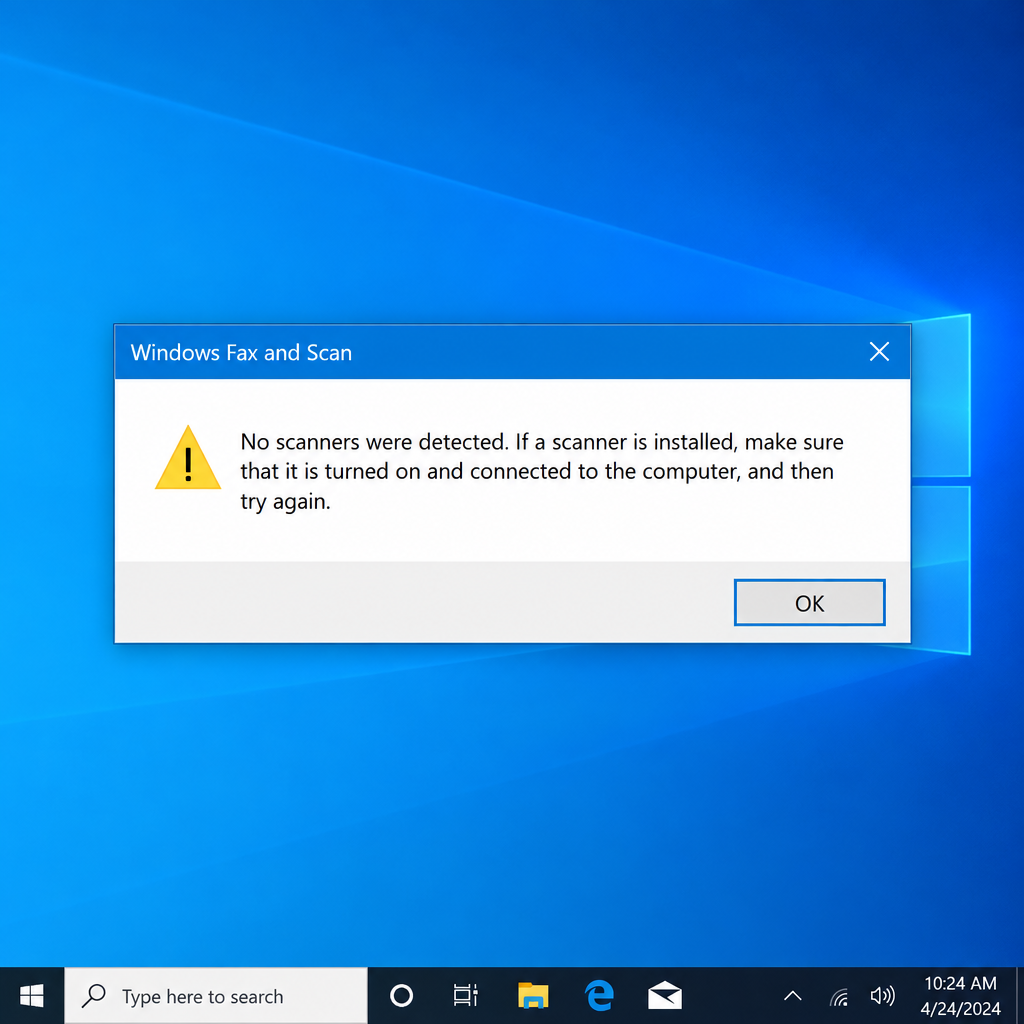
“No scanners were detected. If a scanner is installed, make sure that it is turned on and connected to the computer, and then try again. For information about adding or troubleshooting scanners, see Help and Support.”
Why the error happens
The usual causes, roughly from most to least common:
- Missing, corrupted or outdated scanner drivers
- A loose cable, a faulty USB port or a USB hub that doesn’t supply enough power
- The Windows Image Acquisition (WIA) service, or a service it depends on, isn’t running
- A scanner that was set up badly, or a network scanner Windows can no longer reach
- Damaged Windows system files, sometimes left behind by malware
- A problem inside the Windows Fax and Scan app itself
- For faxing: an old modem whose driver Windows no longer includes (see the note in Method 4)
Before you try the methods below, unplug the scanner, plug it straight into a USB port on the PC (not through a hub), turn it on and restart the computer. That alone fixes a surprising number of cases.
How to fix Windows Fax and Scan not working
Work through these methods in order and test a scan after each one.
Method 1: Update the scanner drivers
Missing, corrupted or outdated drivers are the most common reason the error appears. A clean reinstall of the newest driver from the scanner maker usually fixes it.
Step 1: Press Windows + I to open Settings.
Step 2: On Windows 10, go to Devices > Printers & scanners. On Windows 11, go to Bluetooth & devices > Printers & scanners.
Step 3: Select your scanner (or all-in-one printer) and choose Remove device (Windows 10) or Remove (Windows 11).
Step 4: If the manufacturer’s software is installed, remove it too. On Windows 10, go to Settings > Apps > Apps & features, select it and click Uninstall. On Windows 11, go to Settings > Apps > Installed apps. Then restart your computer.
Step 5: Go to the official support website of your scanner’s manufacturer (for example HP, Canon, Epson or Brother), find your exact model and download the latest driver for your version of Windows. Don’t download drivers from third-party “driver download” sites.
Step 6: When the download finishes, find the setup file. It is usually in your Downloads folder.
Step 7: Run the setup file and follow the on-screen instructions.
Step 8: If the newest driver your manufacturer offers was made for an older version of Windows, right-click the setup file and choose Properties before you install it.
Step 9: In the Properties window, open the Compatibility tab, tick Run this program in compatibility mode for, choose the Windows version the driver was written for, and click OK. Then run the setup.
Step 10: When setup finishes, restart your computer and check whether the “No scanners were detected” error is gone.
You can also remove the device in Device Manager: press Windows + X, choose Device Manager, expand Imaging devices (or Printers), right-click your scanner and choose Uninstall device.
Method 2: Run the Hardware and Devices troubleshooter
Windows has a built-in Hardware and Devices troubleshooter that can find and fix some scanner detection problems. On Windows 10 it no longer shows up in Settings, so you open it with a command instead.
Step 1: Press Windows + R to open the Run dialog box.
Step 2: Type msdt.exe -id DeviceDiagnostic and press Enter.
Step 3: Click Next and follow the on-screen instructions to finish the troubleshooting.
Step 4: When it finishes, check whether the problem is fixed.
On Windows 10 you’ll also find other troubleshooters, including the Printer troubleshooter, under Settings > Update & Security > Troubleshoot > Additional troubleshooters. On Windows 11 you’ll find them under Settings > System > Troubleshoot > Other troubleshooters. Microsoft is retiring the old troubleshooter platform behind this command (MSDT) on newer versions of Windows 11 and is removing Hardware and Devices with no replacement, so the command may not work on newer Windows 11 PCs. Microsoft says Windows 10 isn’t affected.
Method 3: Run SFC and DISM scans using Command Prompt
System File Checker (SFC) is a built-in Windows tool that scans the protected system files and repairs any that are damaged. DISM (Deployment Image Servicing and Management) repairs the Windows image that SFC copies its repairs from. Running both is the standard way to fix damaged system files.
Step 1: Click Start, type cmd, right-click Command Prompt and choose Run as administrator. On Windows 10, Windows + X usually opens a menu that lists Windows PowerShell (Admin), and that works for these commands too.
Step 2: Type sfc /scannow (note the space before the slash) and press Enter.
Step 3: Wait until the scan reaches 100%. Then close the window and check whether the error is fixed.
If SFC didn’t fix the problem, or it reports files it couldn’t repair, run DISM:
Step 1: Open Command Prompt as administrator again, type the following command and press Enter:
DISM /Online /Cleanup-Image /RestoreHealth
Step 2: Wait for the scan to finish. It can sit at one percentage for several minutes, and that’s normal. When it’s done, run sfc /scannow once more, restart and check whether the problem is fixed.
Method 4: Check for Windows updates
Windows updates fix many bugs, and they often include newer scanner and printer drivers. Install every pending update before you try anything more drastic.
Step 1: Press Windows + I to open Settings.
Step 2: On Windows 10, go to Update & Security > Windows Update. On Windows 11, go to Windows Update.
Step 3: Click Check for updates.
Step 4: Windows downloads and installs any updates it finds. Also check View optional updates (Windows 10) or Advanced options > Optional updates (Windows 11), because driver updates often show up there. Restart your computer when it asks.
A note for fax users: the January 13, 2026 security updates, KB5073724 for Windows 10 and KB5074109 for Windows 11, removed four old modem drivers: agrsm64.sys, agrsm.sys, smserl64.sys and smserial.sys. Microsoft says modems that depend on these drivers no longer work after the update. This was a deliberate change, not a bug. If your fax modem stopped working after January 2026, ask the modem maker for a current driver or replace the modem. Don’t uninstall the security update, because that leaves the PC open to attack.
Windows 10 support: Microsoft ended support for Windows 10 on October 14, 2025. Home and Pro PCs on version 22H2 that are enrolled in the consumer Extended Security Updates (ESU) program now get security updates until October 12, 2027. Microsoft extended that date quietly in June 2026. Without ESU, a Windows 10 PC gets no more Windows security fixes.
Method 5: Check that the related services are running
Windows Fax and Scan can’t find a scanner unless the services below are running. If one of them is stopped, you’ll see scanner errors in Windows Fax and Scan and in other scanning apps.
- Remote Procedure Call (RPC)
- DCOM Server Process Launcher
- RPC Endpoint Mapper
- Shell Hardware Detection
- Windows Image Acquisition (WIA)
Step 1: Press Windows + R, type services.msc and click OK to open the Services window.
Step 2: Find each service on the list, right-click it and choose Properties.
Step 3: If Service status shows Stopped, click Start and then OK. If the service is already running, skip it. The first three are core Windows services that should always be running. If one of them is stopped, Windows has a bigger problem, so run Method 3.
Step 4: For Windows Image Acquisition (WIA), also check Startup type. If it’s set to Disabled, change it to Automatic and click Apply. If WIA is already running, right-click it and choose Restart. That clears a stuck scanner connection more often than any other single step.
Step 5: Repeat for the other services, then check whether the problem is fixed.
Only touch the services on this list. Other background processes, such as compattelrunner.exe (Microsoft Compatibility Telemetry), have nothing to do with scanning, so leave them alone.
If nothing works
If the scanner still isn’t detected after all five methods, test it with the Windows Scan app from the Microsoft Store or with the manufacturer’s own scanning software. If those apps can see the scanner, the problem is in Windows Fax and Scan. On Windows 11, remove the Windows Fax and Scan optional feature, restart and add it again. If no app can see the scanner, try another USB cable and another PC. If it fails there too, the hardware is faulty, so contact the manufacturer’s support or a repair shop.
FAQ
Is Windows Fax and Scan still available in Windows 11?
Yes. On many newer Windows 11 installs it isn’t added by default. You can add it under Settings > System > Optional features > View features: search for “Windows Fax and Scan”, select it and install it. Windows Scan from the Microsoft Store does basic scanning, but it can’t send faxes.
Why does Windows Fax and Scan say no scanners were detected when my printer works?
An all-in-one printer uses separate drivers for printing and scanning. Printing can work while the scanning part (WIA) is missing or broken. Install the full driver package from the manufacturer, not just the basic print driver, and then restart the Windows Image Acquisition service.
Why did my fax modem stop working in 2026?
Microsoft’s January 13, 2026 updates removed four old soft-modem drivers (agrsm64.sys, agrsm.sys, smserl64.sys and smserial.sys) from Windows 10 and Windows 11. Modems that depend on them no longer work. The fix is a current driver from the modem maker, a newer modem or an online fax service.
Can Windows Fax and Scan send faxes over the internet?
No. It doesn’t support T.38, the fax-over-IP standard, so it needs a real phone line and a fax modem. To fax without a phone line, use an online fax service or a multifunction printer with fax built in.
Is it still safe to use Windows 10 for scanning?
Windows 10 itself still works. But Microsoft ended support on October 14, 2025, and Windows security updates now come through the Extended Security Updates program, which covers consumers until October 12, 2027. If you keep using Windows 10, enroll in ESU or plan to move to Windows 11.
Sources
- Install and use a scanner in Windows (Microsoft Support)
- Deprecation of Microsoft Support Diagnostic Tool (MSDT) and MSDT Troubleshooters (Microsoft Support)
- January 13, 2026, KB5073724 (OS Builds 19045.6809 and 19044.6809) (Microsoft Support)












