
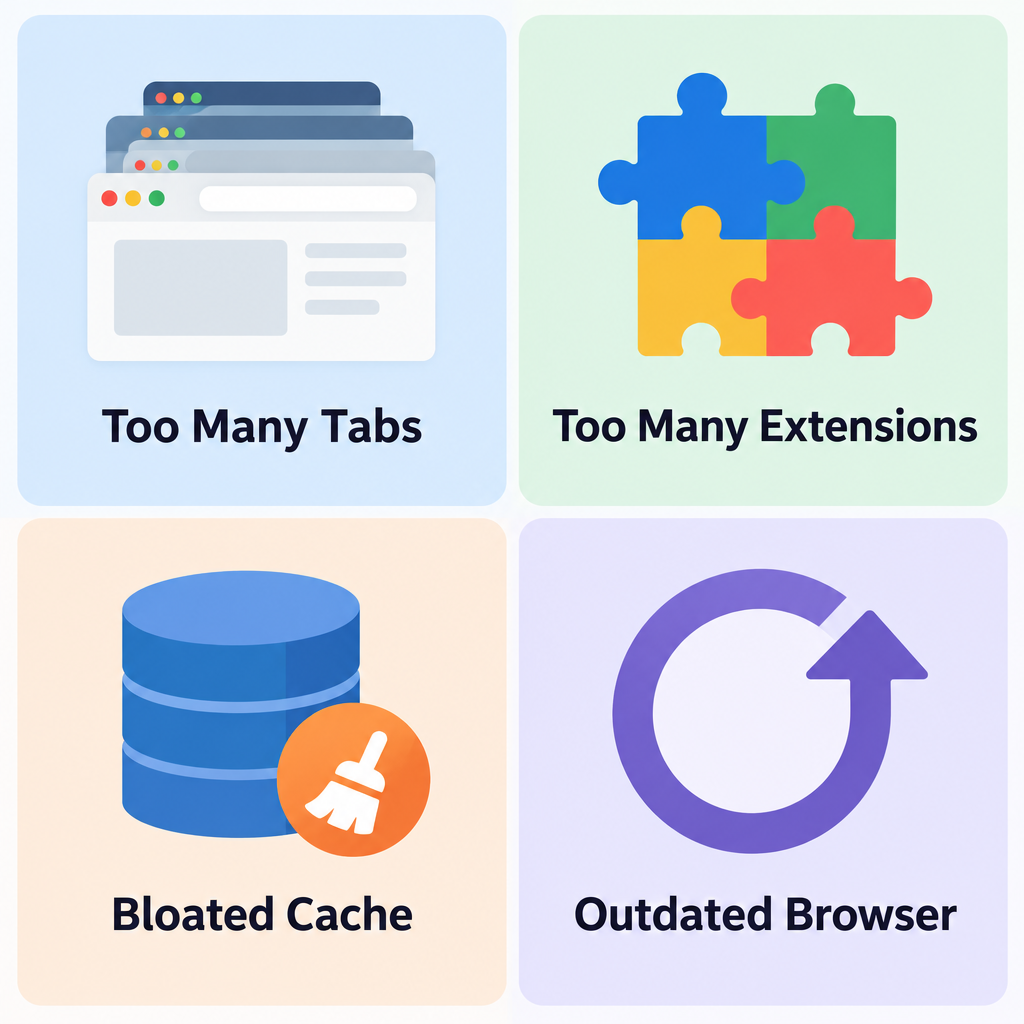
A slow browser usually has one of four causes: too many open tabs, too many extensions, a bloated cache, or an outdated version. Work through the fixes in this order: close or put tabs to sleep, remove extensions you don’t use, clear cached files and cookies, update the browser, and reset it as a last resort. Chrome, Edge and Brave can also put background tabs to sleep for you, and Firefox unloads tabs on its own when memory runs low, so turning those features on often does more than any extension.
Web browsers run on almost every device you own: phones, computers, TVs and more. They connect you to the web for everything from casual reading to work. Every browser claims to be faster than the rest. But Brave, Google Chrome, Mozilla Firefox, Microsoft Edge and Apple Safari all slow down over time, and the causes and fixes are much the same in each one.
What Makes Web Browsers Slow Down
Several things build up over time and drag a browser down. The most common are:
- Lots of open browser tabs (and windows).
- Too many unused browser extensions (and add-ons).
- An oversized cache and cookie store.
- An out-of-date browser version.
If one website is slow for everyone who visits it, the problem is on the site’s end and these fixes won’t help. That one is for the site owner, who will want to look at how to optimize website speed.
How to Speed Up Your Web Browser
The fixes below work in every major browser, and each section gives the exact steps for each one. Start with the first fix and only move on if the browser is still slow. If your whole computer is slow and not just the browser, the problem is bigger than the browser. A guide on how to speed up windows 10 covers that, though Microsoft ended Windows 10 support on October 14, 2025.
1. Close Tabs and Windows
Having lots of tabs and windows open at once is one of the main reasons browsers slow down. It is easy to open tab after tab while looking things up and end up with a pile you never go back to. Each one keeps using your device’s memory.
The simplest fix is to close the tabs and windows you no longer need. Most browsers can also put idle tabs to sleep for you, so they stop using memory without you closing them:
- Chrome: click the three-dot menu > Settings > Performance and turn on Memory Saver. Inactive tabs reload when you click them.
- Edge: sleeping tabs are on by default. You can change when tabs go to sleep in Settings > System and performance. Efficiency mode puts background tabs to sleep even sooner.
- Brave: click the menu > Settings > System > Performance and turn on Memory Saver.
- Firefox: Firefox unloads tabs on its own when your computer runs low on memory. There is nothing to switch on.
If you want more control, a tab manager such as Workona can save groups of tabs so you can close them and reopen them later. Only install tab managers from your browser’s official extension store. One popular tab suspender, The Great Suspender, was removed from the Chrome Web Store in 2021 after it was flagged as malware.
2. Clear Browser Cache and Cookies
Your browser saves cache files and cookies in the background as you visit sites. The cache stores copies of images and scripts so pages load faster next time. Cookies store your logins and site preferences. Both are useful, but a large or damaged cache can make the browser slow or make pages load wrongly, so clearing them now and then helps. Expect to be signed out of most sites afterwards.
Shortcut: in Chrome, Edge, Brave and Firefox on Windows, press Ctrl + Shift + Delete to open the clearing window straight away. On a Mac, press Command + Shift + Delete.
- Brave: click the menu > Settings > Privacy and security > Delete browsing data. Tick Cookies and other site data and Cached images and files, then click Delete data.
- Chrome: click the three-dot menu > Delete browsing data (or Settings > Privacy and security > Delete browsing data). Set the time range to All time, tick Cookies and other site data and Cached images and files, then click Delete data.
- Edge: click the three-dot menu > Settings > Privacy, search, and services. Under Delete browsing data, click Choose what to clear, tick Cookies and other site data and Cached images and files, then click Clear now.
- Firefox: click the menu > Settings > Privacy & Security. Scroll to Cookies and Site Data (called Browsing data in newer versions) and click Clear Data. Tick the cookies and cached content options, then confirm.
- Safari: click Safari in the menu bar > Settings (Preferences on older versions of macOS). Open the Privacy tab, click Manage Website Data, click Remove All, then click Done.
3. Remove Unused Browser Extensions
Extensions add handy features, but they are also known for causing odd behaviour and slowdowns. Some are malicious and spy on you or collect your personal information. Extensions you installed long ago and never use still load every time the browser starts.
Check your installed extensions from time to time. Remove any you don’t use. If one looks suspicious, remove it and then reset your browser (fix 5).
- Brave: click the menu > Extensions > Manage extensions. Click Remove on the extension you want to delete.
- Chrome: click the three-dot menu > Extensions > Manage Extensions. Click Remove on the extension you want to delete.
- Edge: click the three-dot menu > Extensions > Manage extensions. Click Remove under the extension you want to delete.
- Firefox: click the menu > Add-ons and themes > Extensions. Click the three-dot button next to the extension and choose Remove.
- Safari: click Safari in the menu bar > Settings > Extensions. Select the extension in the list and click Uninstall. If you use the same extension on other Apple devices, you have to remove it on each one.
4. Update to the Latest Version
Browser makers ship updates often. Most are security fixes, but updates also bring new features and speed improvements. Chrome, Edge, Brave and Firefox update themselves in the background, but the new version only takes effect after a restart. If you leave the browser open for weeks, you may be running an old version.
If a new version causes trouble, check the release notes or the browser’s support forum before you change anything. Don’t skip updates for long, though. Security fixes matter more than avoiding a small bug.
- Brave: click the menu > Settings > About Brave. Brave checks for updates and installs them. Click Relaunch to finish.
- Chrome: click the three-dot menu > Settings > About Chrome. Chrome updates itself. Click Relaunch to finish.
- Edge: click the three-dot menu > Settings > About Microsoft Edge. Edge checks for updates. Click Restart if asked.
- Firefox: click the menu > Help > About Firefox. Firefox downloads any update. Click Restart to update Firefox.
- Safari: Safari updates arrive with macOS updates, not through the App Store. Open the Apple menu > System Settings > General > Software Update and install what is offered.
5. Reset the Browser
If the fixes above haven’t helped, your last option is to reset the browser to its default settings. You get a clean browser to start over with, and you can keep it from slowing down again by adding extensions carefully. A reset usually keeps your bookmarks, history and saved passwords, but it turns off extensions and resets your settings.
- Brave: click the menu > Settings > Reset settings (Reset and cleanup on Windows). Click Restore settings to their original defaults and confirm. Brave keeps your bookmarks, history and saved passwords.
- Chrome: click the three-dot menu > Settings > Reset settings. Click Restore settings to their original defaults, then Reset settings.
- Edge: click the three-dot menu > Settings > Reset settings. Click Restore settings to their default values, then Reset.
- Firefox: click the menu > Help > More troubleshooting information > Refresh Firefox, then confirm. Firefox keeps your bookmarks, history, passwords, cookies and autofill data. It removes extensions and custom settings, and it puts your old profile in a folder called “Old Firefox Data” on your desktop. If you use Firefox’s newer profile manager, you need Firefox 150 or later to get the Refresh option.
- Safari: Safari has no single reset button. Do it by hand: clear your history (Safari > Clear History), remove website data (Safari > Settings > Privacy > Manage Website Data > Remove All) and uninstall extensions one at a time (Safari > Settings > Extensions). MacPaw’s paid CleanMyMac app can do these steps in one go, but you don’t need it. The built-in steps do the same job.
If Nothing Works
A slow browser can make the web hard to use, but the fixes above solve most cases. If your browser is still slow after a reset, try another browser on the same computer. If that one is slow too, the problem is your device or your connection, not the browser. Check how much memory is free in Task Manager (Windows) or Activity Monitor (Mac), and run a scan with your security software. If a work or school computer is still slow after all this, ask your IT team. They may control the browser settings.
FAQ
How often should I clear my browser cache?
For most people, clearing the cache when something goes wrong is enough: pages loading wrongly, logins failing, or the browser feeling slow. Clearing it every day actually makes browsing slower, because the browser has to download every site’s images and scripts again. Once every month or two is a sensible habit if you want a routine.
Will clearing cookies delete my saved passwords?
No. In Chrome, Edge, Brave, Firefox and Safari, saved passwords are a separate option from cookies, and they stay unless you tick that box too. You will be signed out of most websites, so make sure you know your passwords or have them saved before you clear cookies.
Does Memory Saver or sleeping tabs close my tabs?
No. The tab stays in your tab bar, and the browser frees up the memory it was using. When you click it, the page reloads. If you need a site to stay active, for example a music player or a web app that loses unsaved work, add it to the exceptions list in Settings > Performance in Chrome, or the matching settings page in Edge and Brave.
Which browser is the fastest?
Speed tests change with every release, and the gaps between the big browsers are small on a modern computer. How you use it matters far more: twenty open tabs and a dozen extensions will slow any of them down. Pick the browser that suits your devices, for example Safari on a Mac or iPhone for battery life, and keep it tidy with the fixes above.
Will resetting my browser delete my bookmarks?
No. Chrome, Edge and Brave keep your bookmarks, history and saved passwords when you reset settings. Firefox’s Refresh keeps bookmarks, history, passwords, cookies and autofill data, and saves a copy of your old profile to your desktop. Extensions are turned off or removed, so you will need to add back the ones you want.
Can an extension slow down my whole computer?
Yes. A badly made or malicious extension can use a lot of processor and memory even when you aren’t using it, and some do things like hidden crypto mining in the background. Open your browser’s built-in task manager (Shift + Esc in Chrome, Edge and Brave) to see which tabs and extensions use the most resources, then remove anything you don’t recognise.
Sources
- Google Chrome Help: Delete browsing data in Chrome
- Google Chrome Help: Personalize Chrome performance
- Mozilla Support: Clear cookies and site data in Firefox
- Mozilla Support: Refresh Firefox, reset add-ons and settings
- Apple Support: Manage cookies and website data in Safari on Mac
- Apple Support: Use Safari extensions on your Mac
- Microsoft Support: View and delete browser history in Microsoft Edge
- Microsoft Edge: Sleeping tabs
- Brave Help Center: How do I use the Memory and Energy Saver features in Brave
- Brave Help Center: How do I reset Brave settings to default













