
Why upload conditions affect Short quality
Your connection during the upload matters as much as the camera. On public Wi-Fi or mobile data, an unstable or weak connection can lead the YouTube mobile app to reduce upload quality to save bandwidth. To get the best possible result, record in good light at your phone’s highest practical resolution, then upload with the same care.
Brand-new uploads can also look soft for a short time. YouTube’s own help page explains that a new video first becomes available in low quality, and higher-quality versions such as 1080p or 4K take longer to process. A blurry Short in the first few minutes is often still processing, not ruined.
If your phone’s editor keeps exporting soft or blurry files, the app itself may be the problem, and it may be worth looking at VivaVideo Alternatives.
Export settings for the best quality Shorts
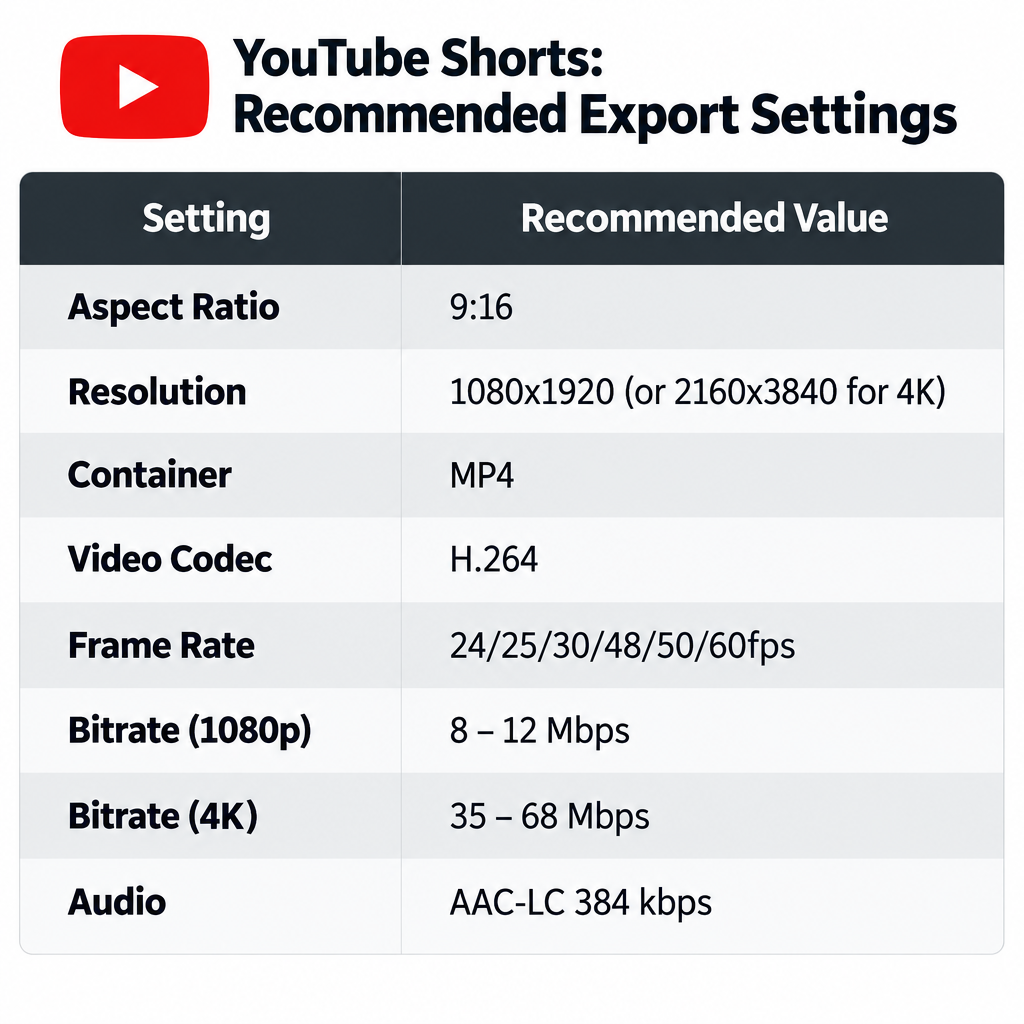
If you shoot on a camera or phone and edit in a program like Adobe Premiere Pro before moving the file to your Android phone or iPhone, the export settings decide most of the final quality. YouTube’s recommended upload encoding settings are the best starting point.
| Setting | What to use |
|---|---|
| Aspect ratio | 9:16 vertical (1:1 square also counts as a Short) |
| Resolution | 1080×1920 minimum; 2160×3840 if you shot in 4K |
| Container | MP4 |
| Video codec | H.264 |
| Frame rate | The frame rate you recorded at (24, 25, 30, 48, 50 or 60fps) |
| Bitrate, 1080p | At least 8 Mbps at 24 to 30fps, 12 Mbps at 48 to 60fps |
| Bitrate, 4K | 35 to 45 Mbps at 24 to 30fps, 53 to 68 Mbps at 48 to 60fps |
| Audio | AAC-LC, 384 kbps for stereo |
Pay close attention to the bitrate. Older advice said 16 Mbps was the sweet spot and warned that going higher made YouTube’s compression “take over”. That isn’t how it works. YouTube says it sets no bitrate limit, and its figures are recommendations, not a ceiling. YouTube re-encodes every upload anyway, so a higher-bitrate source gives it more detail to work with. A very low bitrate is the real problem, because detail lost at export can’t be recovered.
Here is an example. A 45-second Short shot at 1080p and 30fps, exported at 16 Mbps, comes to roughly 90 MB. That is well above YouTube’s 8 Mbps minimum and small enough to upload quickly over home Wi-Fi.
Many creators export Shorts at 4K (2160×3840) even when they plan to watch them on phones. YouTube usually gives higher-resolution uploads a better-quality stream, so 1080p viewers often get a cleaner image from a 4K upload too. The downsides are bigger files and longer processing.
How to set up the YouTube app for maximum upload quality
Before you upload from your phone, change a few settings in the YouTube app. Menu names differ slightly between Android, iPhone and app versions.
- Open the YouTube app, tap your profile picture, then tap the Settings gear.
- Open Data saving (on some versions it sits under General). Turn off Data saving mode and any option that reduces video quality.
- In the same menu, turn on Upload over Wi-Fi only if you see it. Your uploads then wait for a Wi-Fi network instead of going out over mobile data at reduced quality, which saves trouble later.
- If you don’t need data saving at all, leave the whole feature switched off.
- When you upload, tap Create (the plus icon), then pick your finished clip from the gallery instead of recording in the app. If your app shows an Upload quality option on the upload screen, set it to the highest choice.

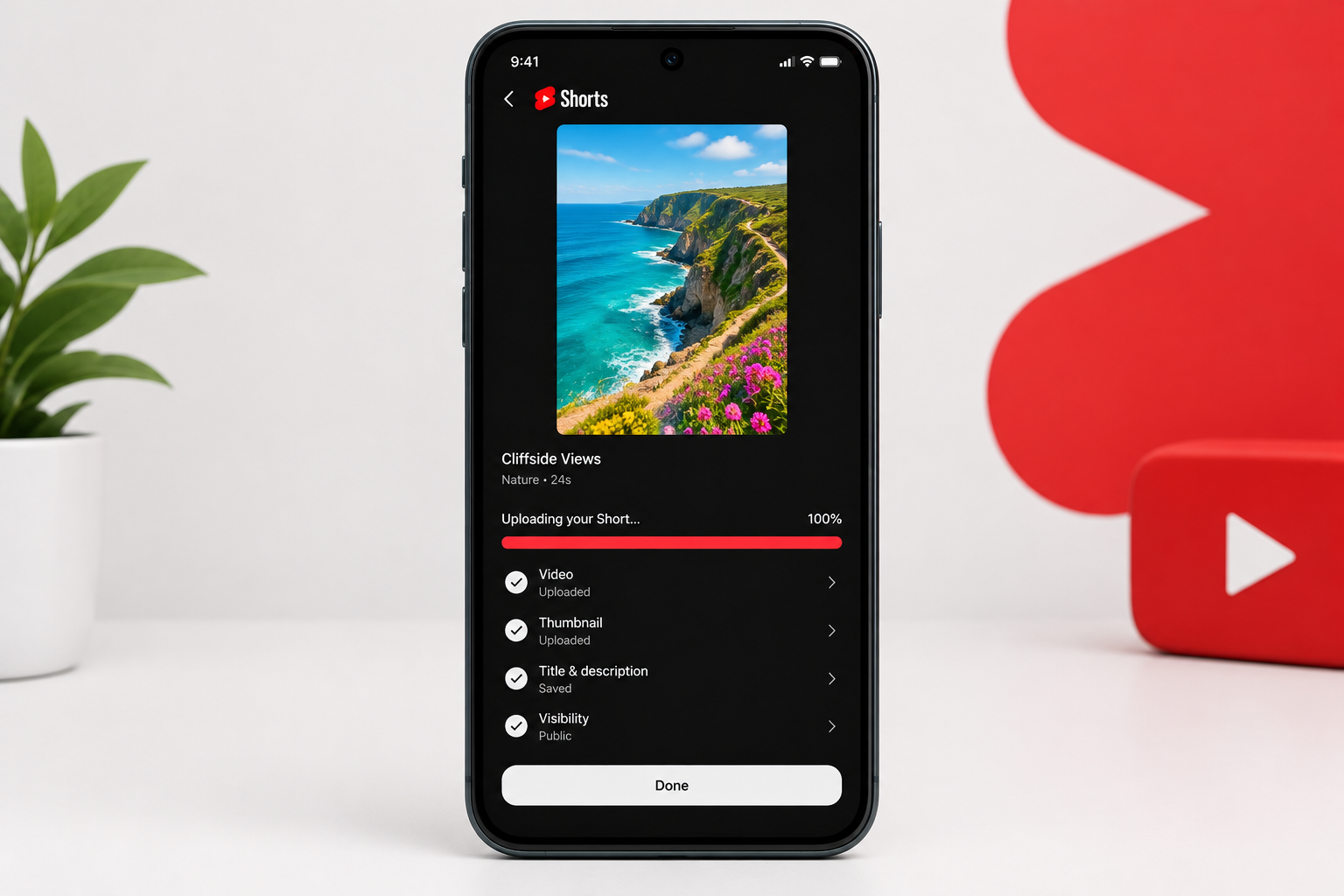
The last step is to let your upload finish completely and wait for YouTube to finish processing it before you share it. Keep the app open and the phone connected until the upload reaches 100 percent. Then check the Short a few minutes later, or look at the SD, HD or 4K processing indicator in YouTube Studio. Closing the app in the middle of an upload can stop it.
If the Short looks sharp but keeps stalling while it plays, that is a playback issue, not an upload issue, and the usual Ways to Fix Video Buffering apply.
The same steps work for TikTok and Instagram Reels: a clean vertical export, a strong Wi-Fi connection and no data saver while uploading. Each app has its own upload quality settings, so check them separately. On Instagram, look for High-quality uploads under Settings > Data usage and media quality.
Upload from a computer if your phone keeps compressing
Uploading through YouTube Studio in a desktop browser avoids most phone-app quirks, and it is the simplest fix when mobile uploads keep coming out soft. Sign in at YouTube Studio, click Create > Upload videos and choose your vertical file. Any video that is vertical or square and three minutes or shorter is automatically classified as a Short.
FAQ
Why does my YouTube Short look blurry right after I upload it?
YouTube processes the low-quality version first so the video can go live quickly. The 1080p and 4K versions follow later. A short clip usually catches up within minutes, but busy periods and 4K or 60fps files take longer. If it still looks blurry after about 30 minutes, check the export settings on the original file.
What resolution should a YouTube Short be?
Use 9:16 vertical at 1080×1920 or higher. Square 1:1 videos also qualify as Shorts, but horizontal videos don’t and are treated as regular long-form uploads. If you filmed in 4K, exporting at 2160×3840 usually gives a cleaner result after YouTube compresses it.
How long can a YouTube Short be?
Since October 15, 2024, vertical or square videos up to three minutes long count as Shorts. Anything longer is classified as a regular video, even if it is vertical. Some clips with copyrighted music may be limited differently, so check the music’s terms before you post.
Is a higher bitrate always better for Shorts?
Up to a point, yes. YouTube sets no bitrate limit, and a higher-bitrate file gives its encoder more detail to work with. The trade-off is file size and upload time. For a 1080p Short, anything from 8 to 20 Mbps works well, and 4K needs 35 Mbps or more.
Should I record in the YouTube Shorts camera or upload a finished video?
For the best quality, record in your phone’s own camera app at its highest practical resolution, edit the clip, then upload the finished file. The in-app Shorts camera is quick and handy, but the regular camera gives you more control over resolution and frame rate.
Does uploading over mobile data lower quality?
It can. A weak or unstable mobile connection can make the app reduce upload quality, especially with data saving turned on. Turn on Upload over Wi-Fi only in the app’s settings and upload on a strong home or office network.
Sources
- YouTube Help: YouTube recommended upload encoding settings
- YouTube Help: Understand three-minute YouTube Shorts
- YouTube Help: Low video quality after upload













