
If you use a Windows laptop, you have probably come across the Power Plans feature. It lets you trade battery life for performance, or the other way round.
Used well, power plans make the battery last longer. Classic Windows has three standard plans: High performance, Balanced and Power saver. Power saver stretches battery life by reducing performance. Balanced weighs power use against speed. High performance lets the processor run at full speed with minimal throttling. A fourth plan, Ultimate Performance, is hidden by default. You can add it with the command powercfg -duplicatescheme e9a42b02-d5df-448d-aa00-03f14749eb61 in an administrator Terminal.
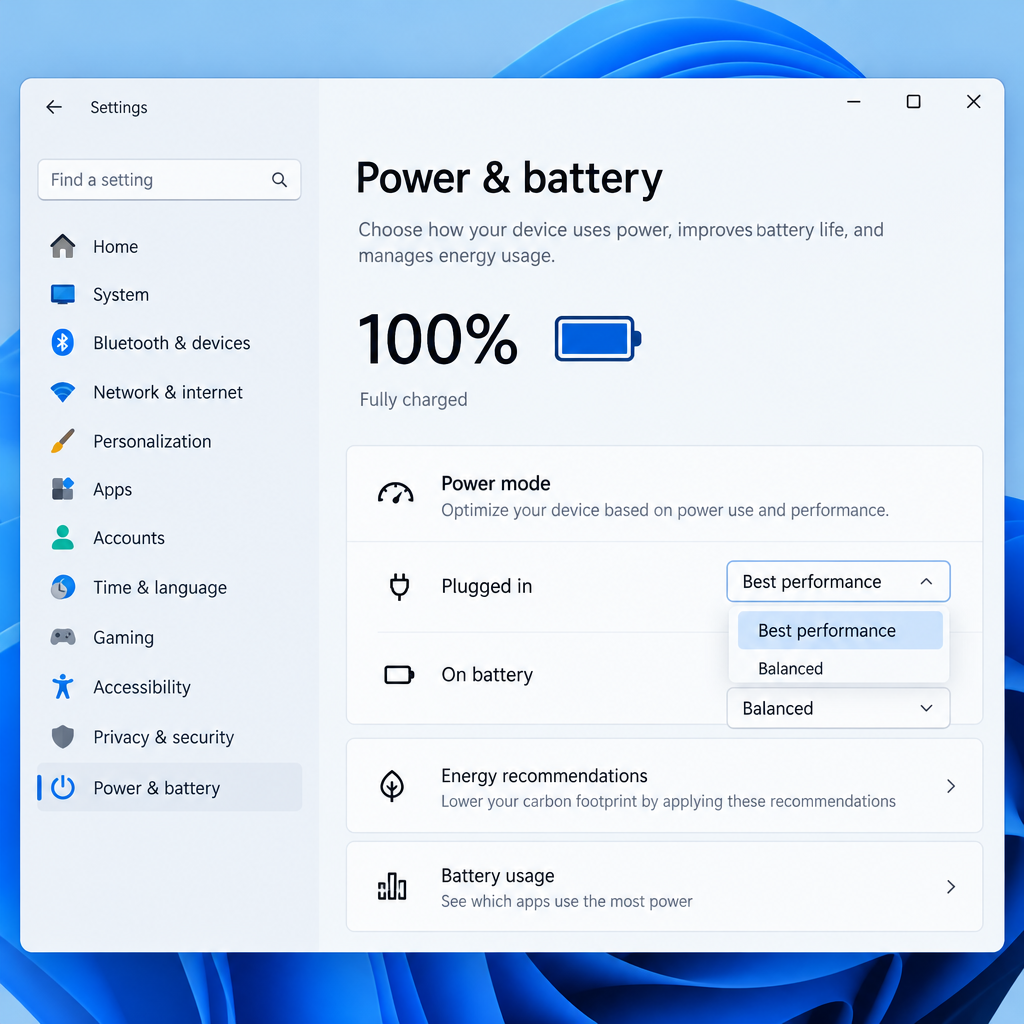
Windows 11 adds a simpler control on top of these plans. Under Settings > System > Power & battery > Power mode, you can choose Best power efficiency, Balanced or Best performance, with separate choices for Plugged in and On battery. Many newer laptops only show the Balanced plan in Control Panel, so on those machines the power mode setting is the control that matters. In Windows 11 version 24H2 and later, Energy saver has replaced the old Battery saver.
| Windows control | Where to find it | What it changes |
|---|---|---|
| Power mode | Settings > System > Power & battery | Best power efficiency, Balanced or Best performance, set separately for battery and plugged in |
| Power plans | Control Panel > Hardware and Sound > Power Options | Balanced, Power saver, High performance and Ultimate Performance (if available or added) |
| Energy saver | Settings > System > Power & battery > Energy saver | Dims the screen and limits background activity, usually when the battery is low |
| Graphics preference | Settings > System > Display > Graphics | Picks the integrated or dedicated GPU for each app |
What Full Throttle does
Full Throttle is a free program that turns on the High performance power plan only while programs you have chosen are running. Everything else runs under your normal plan.
Older tools did part of this job. Power Plan Assistant, a Windows 7 era utility, offered a lot of options for setting up the power plan you wanted. Full Throttle went further: it watched the list of running processes and switched to high performance as soon as one of your selected programs started. When you closed that program, it switched back.
Full Throttle is easy to use because it sits in the system tray. It has three modes: Full Throttle (always high performance), Automatic (high performance only for your listed programs) and Disabled. Double-clicking the tray icon toggles between Automatic and Full Throttle. Instead of switching the whole plan, it can also be set to raise only the maximum processor state to 100 percent and leave the rest of the plan alone.
The program is tiny, only about 112 KB, but it still comes with a quick installer. When setup finishes, Full Throttle places itself in the system tray. Run it as administrator: without administrator rights, the Automatic and Full Throttle modes are turned off by default.
To add programs:
- Right-click the Full Throttle icon in the system tray.
- Select Add program….
- In the file dialog, choose the executable (.exe) of the program you want to run at full performance.
Once you have added your first program and it is running, the power plan switches to High performance. Only your selected programs trigger the switch. When none of them is running, your previous power plan returns.
Full Throttle is older freeware that came out before Windows 11 and has not kept up with it. It switches classic power plans and does not use the Windows 11 power mode setting, and users have pointed out that it cannot target custom power plans. On a laptop that only offers the Balanced plan, it has little to switch to. If you try it, get it from a trusted source and check it with Microsoft Defender first.
Modern ways to give one program full speed
If you are on Windows 11, these options are better supported. They are listed from simplest to most involved.
Switch the power mode by hand
This is the quickest and safest option, and it is built into Windows.
- Open Settings (Windows key + I).
- Go to System > Power & battery (just Power on desktops).
- Under Power mode, set Plugged in or On battery to Best performance.
- When you finish the heavy task, set it back to Balanced.
If Power mode is greyed out, a custom power plan may be active. Open Control Panel > Hardware and Sound > Power Options and select Balanced, and the setting should become available again.
Send the app to the dedicated graphics chip
Laptops that have both integrated and dedicated graphics (for example Intel or AMD integrated graphics alongside an NVIDIA GeForce or AMD Radeon chip) can be told which one each app uses.
- Go to Settings > System > Display > Graphics.
- Find the app in the list, or add it with Browse.
- Select the app, then choose High performance.
Some games use their own graphics settings and ignore this choice. If that happens, pick the GPU in the game’s own options.
Automate it with Process Lasso
Bitsum’s Process Lasso has a feature called Application Power Profiles. It switches to the power plan you choose when a program starts and switches back when the program closes. Unlike Full Throttle, it works with every power plan, custom ones included, and it can add its own “Bitsum Highest Performance” plan. To set it up, right-click a process in Process Lasso and choose a plan under Application Power Profile. There is a free edition and a paid Pro edition. Download it only from Bitsum’s own website.
Manufacturer apps such as Lenovo Vantage, ASUS Armoury Crate and HP’s Omen Gaming Hub often have their own performance modes. Using one of these alongside Process Lasso or Full Throttle can lead to the two tools overriding each other’s settings. Pick one tool and turn off the “smart” power features in the other.
Watch the heat
Maximum performance makes a laptop run hotter, particularly in a warm room. The processor holds higher clock speeds, the fans work harder and the battery runs down faster. If your laptop gets hot quickly, Balanced or Best power efficiency is the better everyday setting, with Best performance kept for the few tasks that actually need it. Keep the air vents clear, and use the laptop on a hard surface instead of a bed or sofa.
FAQ
Can Windows 11 set a power mode for each app on its own?
No. Windows 11 has one power mode for when the laptop is plugged in and one for when it runs on battery, and neither changes based on which app is open. The per-app setting that does exist is the GPU choice under Settings > System > Display > Graphics. To switch power plans automatically for each program, you can use a third-party tool such as Process Lasso, or automate plan changes with Windows’ built-in powercfg command-line tool.
Why does my laptop only show the Balanced power plan?
A lot of modern laptops, especially those that use Modern Standby, come with only the Balanced plan. On these machines, use the Power mode setting under Settings > System > Power & battery to change performance. You can add the Ultimate Performance plan with powercfg, but on some hardware it either won’t appear or makes little difference.
Is Best performance mode bad for my laptop?
It won’t damage the laptop. Your processor and firmware still protect it from overheating. The cost is more heat, more fan noise and shorter battery life. For everyday work like browsing and email, Balanced is usually just as fast.
Why is the Power mode setting greyed out?
This usually means a custom or High performance power plan is active. Select Balanced in Control Panel > Hardware and Sound > Power Options and the Power mode setting comes back. Manufacturer utilities can also lock it. If so, change the mode in that utility or turn off its power management.
Does Ultimate Performance make games run faster?
Usually not by much on a laptop. Ultimate Performance mainly cuts small delays in how the processor and devices wake up and change speed, and Microsoft designed it for high-end workstations. Using the dedicated GPU and keeping the laptop cool tends to make a bigger difference.
Sources
- Change the power mode for your Windows PC (Microsoft Support)
- Power settings in Windows 11 (Microsoft Support)
- Battery saving tips for Windows (Microsoft Support)
- About power profiles in Process Lasso (Bitsum)












