
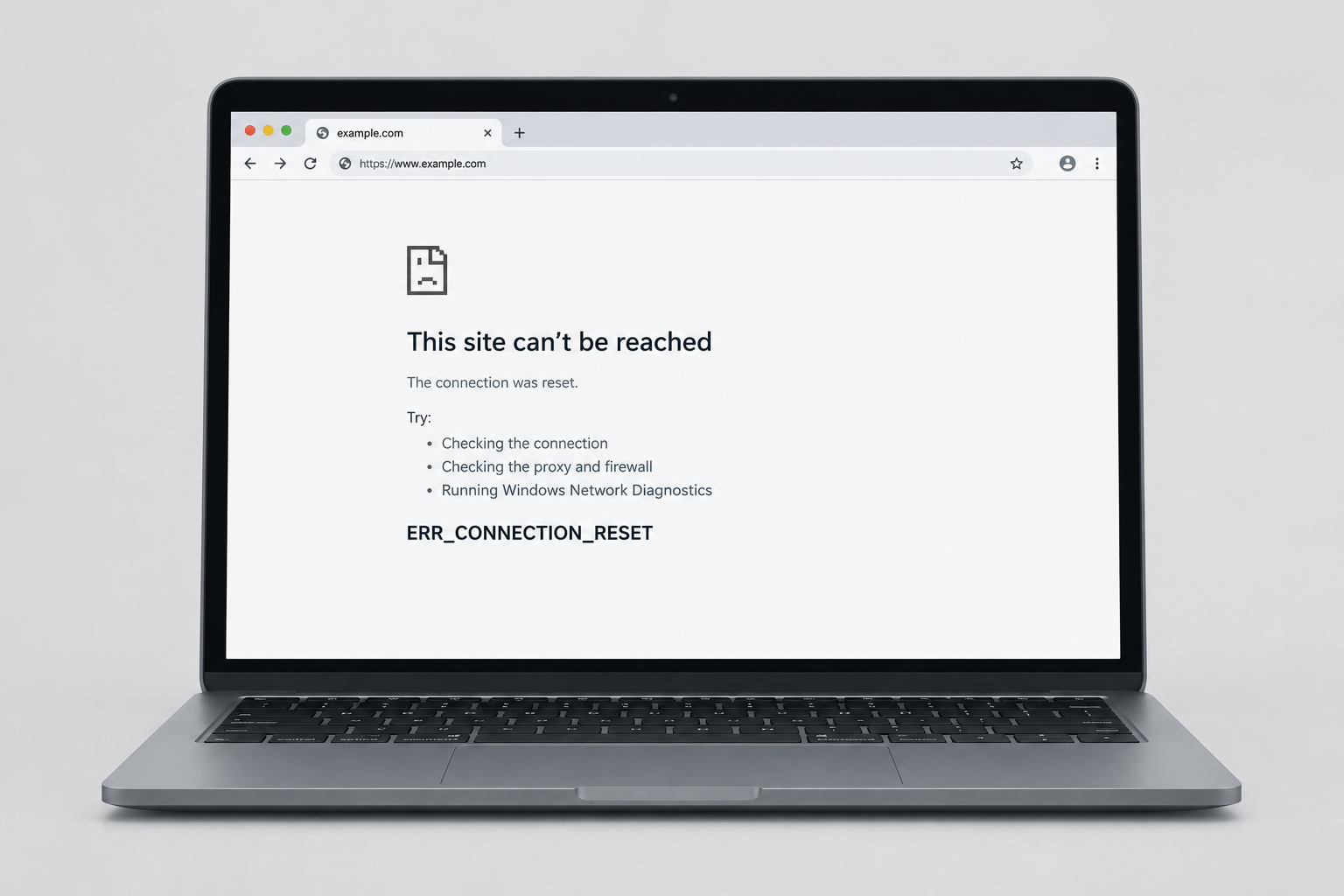
ERR_CONNECTION_RESET means Chrome started connecting to a website, but the connection was cut off before the page could load. As of November 2026, start by reloading the page and opening the same site in another browser or on your phone. If it fails everywhere, restart your router. If only Chrome on one computer fails, update Chrome, clear its cache and cookies, turn off any proxy, then reset Chrome’s settings. Changing the MTU value in Windows is an advanced step, so save it for last.
Most of the time this error comes from your network or browser, not from the website. It can usually be fixed without reinstalling anything. The steps below work on Windows 11 and Windows 10. The Chrome steps also apply on Mac.
What ERR_CONNECTION_RESET means
Chrome shows this error when the site you are trying to reach drops the connection before the page loads. Instead of the site, you see “This site can’t be reached” and the code ERR_CONNECTION_RESET.
The connection can be cut at any point between your computer and the website’s server. Common reasons:
- Your internet service provider, or a firewall on your network, is blocking the website.
- Your internet connection dropped out for a moment.
- Your device has incorrect network settings, such as a leftover proxy or a bad MTU value.
The error is usually caused by network settings that have changed, not by problems with the website. Often only some sites are affected. That is a useful clue: if one site fails and everything else loads, the problem may be on that site’s end, or a filter may be blocking it. Either way, the fixes below go from simple to advanced, so work through them in order and stop when the page loads.
How to fix ERR_CONNECTION_RESET in Chrome
Start with the quick checks: reload the page, try the site in a different browser, and turn your VPN off for a moment if you use one. If the site still won’t load in Chrome, do the two checks in the next section, then try the fixes one at a time.
Two checks before you start
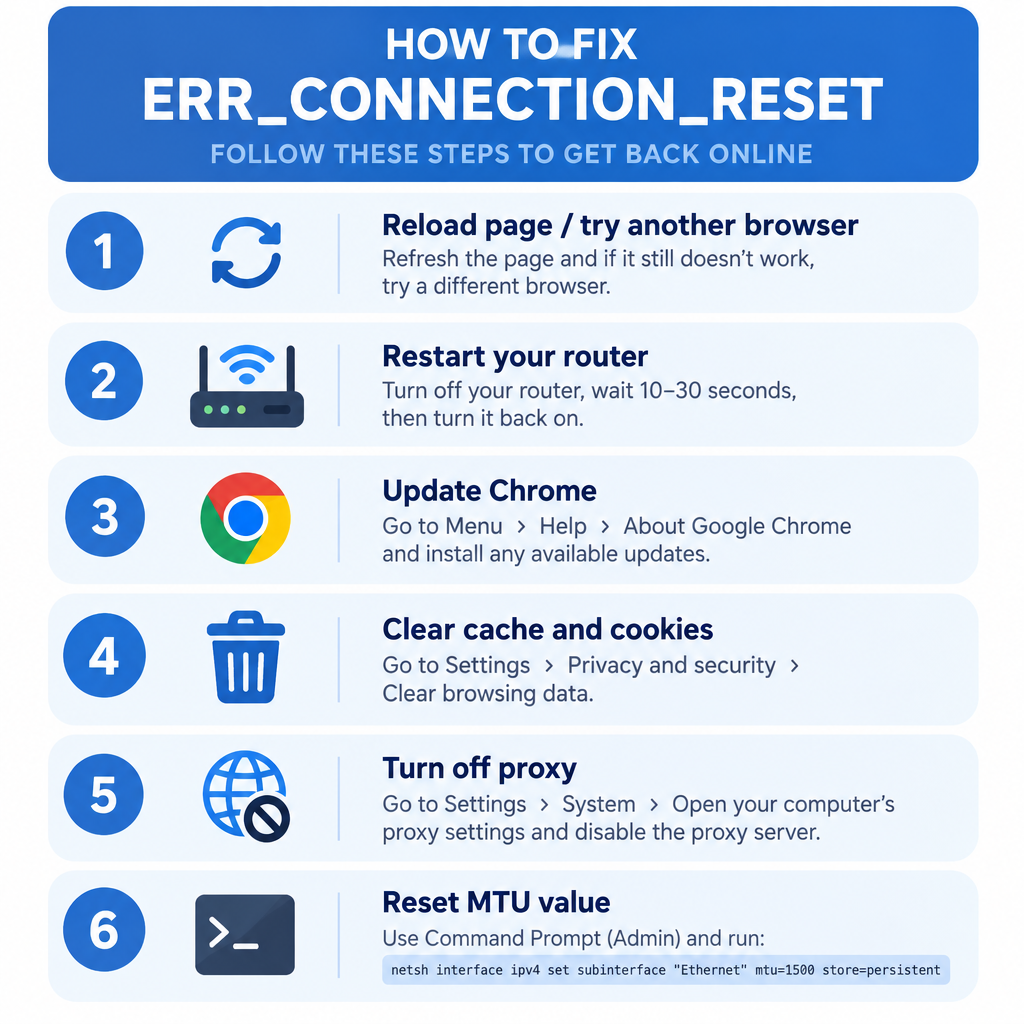
Do these two things before you change any settings.
- Confirm which error you are seeing. ERR_CONNECTION_TIMED_OUT and ERR_CONNECTION_REFUSED look similar but have different causes. The steps here are for ERR_CONNECTION_RESET.
- Create a restore point in Windows. A restore point saves your system settings, so you can undo a network change that goes wrong. In the Start menu, search for Create a restore point, open it, select your system drive on the System Protection tab, click Create, and give it a name. A restore point does not back up your personal files, so keep a separate backup of anything important.
Set the Maximum Transmission Unit (MTU)
The MTU sets the largest data packet your network adapter sends. The usual value is 1500. On some connections, especially ones that use VPNs or certain ISP setups, large packets get dropped and the connection resets. A slightly lower value such as 1472 can fix that.
- Press Windows + R together to open the Run box.
- Type ncpa.cpl and click OK.
- The Network Connections window opens. Write down the exact name of the connection you are using, such as Wi-Fi or Ethernet.
- Press Windows + X and choose Terminal (Admin) on Windows 11, or Windows PowerShell (Admin) or Command Prompt (Admin) on Windows 10. Click Yes when User Account Control asks.
- To check the name and the current MTU, run this command:
netsh interface ipv4 show subinterfaces
- Then run the command below. Replace Wi-Fi with the connection name you wrote down, and keep the quotation marks:
netsh interface ipv4 set subinterface "Wi-Fi" mtu=1472 store=persistent
- Open Chrome again and check whether the error is gone.
If the error is still there, put the MTU back to the default so it doesn’t cause other problems. Run the same command with mtu=1500, then move on to the next fix.
Clear the browser cache
Damaged cached files or cookies can break the connection to one site again and again. Clearing them forces Chrome to load everything fresh.
- Open Google Chrome and press Ctrl + Shift + Delete (Command + Shift + Delete on a Mac). You can also press Ctrl + H to open History and click Delete browsing data.
- Set Time range to All time.
- Select these items:
– Browsing history
– Cookies and other site data
– Cached images and files
– Download history (optional)
– Autofill form data (optional) - Leave Passwords and other sign-in data unchecked. The error has nothing to do with saved passwords, and deleting them will sign you out everywhere.
- Click Delete data.
- Close Chrome and restart your computer.
Open the site again and check whether the ERR_CONNECTION_RESET error is fixed.
Turn off the proxy
A proxy left behind by an old VPN, a work setup or adware can send Chrome’s traffic through a server that drops the connection. Chrome on Windows uses the Windows proxy settings, so this is where to fix it.
- Press Windows + R, type inetcpl.cpl and click OK.
- The Internet Properties window opens. Go to the Connections tab and click LAN settings.
- Uncheck Use a proxy server for your LAN and check Automatically detect settings.
- Click OK, then Apply, then restart your computer.
On Windows 11 you can also do this in Settings > Network & internet > Proxy. Turn on Automatically detect settings, and under Manual proxy setup make sure Use a proxy server is off. If your computer is managed by an employer or school, leave the proxy alone and contact their IT team. They often require it.
Update Chrome
Chrome updates itself in the background, but the update only installs after you relaunch the browser. An outdated build can have networking bugs that a newer one fixes.
- Click the Chrome menu (the three dots in the top-right corner).
- Go to Help > About Google Chrome.
- Chrome checks for updates and downloads any it finds.
- Click Relaunch to finish installing the update.
If the About page says Chrome is up to date, close every Chrome window and open it again anyway. Google’s own help page for connection errors recommends restarting Chrome.
Reset Chrome settings
Resetting Chrome puts the search engine, homepage, startup tabs and site settings back to their defaults. It also turns off all extensions and clears cookies. Your bookmarks, history and saved passwords are kept. This rules out a bad extension or setting.
- Open Chrome and click the three-dot menu.
- Click Settings, then Reset settings in the left-hand menu. (Older versions of Chrome on Windows call this Reset and clean up.)
- Click Restore settings to their original defaults, then click Reset settings to confirm.
- Restart Chrome and check whether the error is gone.
After the reset, turn your extensions back on one at a time. If the error comes back after a particular extension, that extension is the cause. Remove it.
If nothing works
If the error still appears after all these steps, find out where the problem is. If the site fails on every device on your home Wi-Fi but works on mobile data, restart your router or contact your internet provider. If only one website fails for everyone, the problem lies with that site or something along its service path, such as its hosting provider or CDN, so there is little you can do except wait or contact the site. If only your Windows PC fails, temporarily turn off any third-party antivirus web shield to test it, and turn it straight back on afterwards. As a last resort, use Settings > Network & internet > Advanced network settings > Network reset on Windows 11. It reinstalls your network adapters, so you will need to enter your Wi-Fi password again.
Other error codes need different fixes. A bad image error status 0xc000012f windows 10 message points to a damaged program or system file. A hamachi cannot get adapter config windows 10 message is a problem with the LogMeIn Hamachi virtual network adapter. If Windows Update fails with its own code, look up how to fix error code 0x800f0988. None of these are related to Chrome’s connection reset error.
FAQ
Is ERR_CONNECTION_RESET my fault or the website’s?
It can be either. If the site loads on your phone over mobile data but not on your computer, the problem is on your side, usually the browser, a proxy or your network. If the site fails for everyone on every device, the cause is on the site’s side, which can mean the site itself, its hosting provider or an intermediary such as a CDN, and the fix is out of your hands.
Why does the error only happen on one website?
Usually a cookie or cached file for that one site is damaged, or a firewall, ISP filter or antivirus web shield is blocking that site. Clearing the browsing data fixes the first case. Testing on another network, such as mobile data, will tell you whether a filter is the cause.
Does clearing cookies delete my saved passwords?
No, not unless you also tick Passwords and other sign-in data. Clearing cookies does sign you out of most websites, so you will need to log in again. Your passwords stay saved in Chrome or Google Password Manager.
Can a VPN or antivirus cause ERR_CONNECTION_RESET?
Yes. VPNs can drop large packets, which is why lowering the MTU sometimes helps. Antivirus programs that scan web traffic can also cut connections they think are suspicious. Turn the VPN off briefly to test, and if you pause your antivirus, turn it back on as soon as you have finished testing.
Will resetting Chrome delete my bookmarks?
No. A reset keeps your bookmarks, history and saved passwords. It restores the default search engine, homepage and startup pages, clears cookies and site settings, and turns off your extensions.
Do these steps still work on Windows 10?
Yes. The Chrome steps and the netsh commands work the same on Windows 10 and Windows 11. However, Windows 10 reached end of support on October 14, 2025, so a PC that no longer gets updates should be moved to Windows 11 or replaced when you can.
Sources
- Fix connection and loading errors in Chrome (Google Chrome Help)
- Get help with common error messages in Chrome (Google Chrome Help)
- How to reset Chrome settings to default (Google Workspace Knowledge Center)
- Use a proxy server in Windows (Microsoft Support)
- netsh interface command reference (Microsoft Learn)












