If Disney Plus freezes on the “Who’s Watching” profile screen, first check Downdetector to see whether the service is down. If it isn’t, fully close and reopen the app, and turn off any VPN. If it’s still stuck, clear the app’s cache (or your browser’s cookies and cache), update the Disney+ app and your device, and restart your modem and router. If none of that works, deleting and reinstalling the app usually fixes it. After that, the next step is Disney+ support.
This happens to a lot of people, and it’s frustrating when you pay every month just to watch something. The good news is that the cause is usually something small on your device or network, and most of these fixes take only a few minutes.
Seven Fixes to Try, in Order
Start at the top of this list. The quickest and safest checks come first.
- Check the Disney Plus servers.
- Check your internet connection.
- Close and reopen the app.
- Clear your cache and cookies.
- Update the Disney Plus app.
- Update your streaming device.
- Turn off your VPN.
1. Check the Disney Plus Servers
Before you change anything on your end, make sure Disney Plus itself is working. If the service has a problem, nothing you do at home will fix it.
Disney’s servers handle sign-in, subscription checks, profiles and video for millions of people at the same time. They are built to be reliable, but they can still fail. A storage fault, a bad update or an attack can slow things down or knock parts of the service offline.
When that happens, you might see:
- membership or subscription check errors
- slow loading
- trouble signing in
- audio, video or subtitles out of sync
- the app stuck on the “Who’s Watching?” page
Checking takes a few seconds:
- Open Google, type “Is Disney Plus down?” and press Enter.
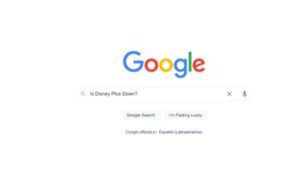
- Open “Downdetector” in the results (the Disney Plus status page is https://downdetector.com/status/disney-plus/).
- The page shows a graph of recent problem reports, along with the most common complaints.
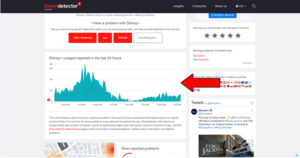
The higher the spike in the graph, the more people are reporting problems right now. Downdetector collects problem reports from users and also scans social media, such as X, for posts about outages. It is not an official statement from Disney, but a sudden large spike is a strong sign the problem is not on your end.
If Disney Plus really is down, all you can do is wait. Outages are usually fixed within hours. Try again later and don’t reset your devices in the meantime.
2. Check Your Internet Connection
A weak or unstable connection is one of the most common reasons the app stalls at the profile screen. You can be online without having enough bandwidth to stream.
That’s why Disney Plus can sit on “Who’s Watching?” while messages and light web browsing still work. Texting uses very little bandwidth, and streaming video uses far more.
The commonly cited Disney+ figures are about 5 Mbps for HD and 25 Mbps for 4K UHD. Each figure is for a single stream. Two 4K TVs playing at once need about 50 Mbps for Disney Plus alone, before you count phones, game consoles and video calls in the same house.
If you live alone, a slower plan is usually fine. A busy household streaming on several screens should leave a lot of headroom above those minimums. For several 4K streams at once, a plan of 100 Mbps or more is a sensible target. To see what you’re getting, run a speed test on the same device and Wi-Fi network you watch on.
If your plan should be fast enough, call your internet provider and ask about outages in your area. If they say everything is fine on their end, restart your modem and router:
- Unplug the power cable from the modem and from the router (or from the single combined box most providers supply).
- Wait about 30 seconds.
- Plug the modem back in first and wait until its lights are steady, usually one to two minutes.
- Plug the router back in and give it another minute or two.
- Open Disney Plus again. If your connection was the problem, you should get past “Who’s Watching?”
Don’t press the small recessed “Reset” button on the back of the modem. Holding it down usually performs a factory reset, which can erase your Wi-Fi name, password and other settings. A simple power cycle is all you need here.
3. Close and Reopen the App
Often the simplest fix is the right one. Fully closing Disney Plus and opening it again gets you past “Who’s Watching?” more often than you’d expect. On a computer, close the browser completely and open it again.
Why does this work? Apps run many background processes while you use them. Most of the time those processes behave, but sometimes one hangs or holds on to bad data. Closing the app ends those processes, and reopening it starts everything fresh.
Make sure the app is really closed, not just in the background:
- iPhone and iPad: Swipe up from the bottom of the screen and pause to open the App Switcher, then swipe Disney+ up and off the screen.
- Android: Open your recent apps view and swipe Disney+ away, or go to Settings > Apps > Disney+ > Force stop.
- Smart TVs and streaming sticks: Exit to the home screen. If the app still freezes, turn the TV or device off at the wall, wait 30 seconds and turn it back on.
4. Clear Your Cache and Cookies
Clearing the cache and cookies removes old, saved data that can get corrupted and confuse the app at sign-in. If you’re not sure what these are, here’s a quick explanation.
The cache is where apps and browsers keep data so they can load faster. It can hold images, settings, bits of video and sometimes sign-in details. Having this data on hand helps Disney Plus start up faster.
Cookies are small files that websites save in your browser. They remember who you are and what you prefer, and they are also why ads seem to follow you around after you search for something.
Most of the time, it’s best to leave both alone. But when cached data or a cookie gets corrupted, Disney Plus can get stuck on “Who’s Watching?” until you clear them.
Clearing Cookies and Cache in Google Chrome
- Open Chrome.
- Click the three dots in the top-right corner and choose “Delete browsing data.” You can also go to Settings > Privacy and security > Delete browsing data, or press Ctrl + Shift + Delete on Windows (Command + Shift + Delete on a Mac).
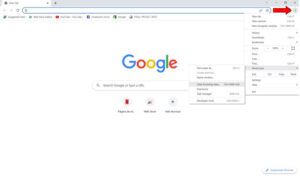
- In “Time range,” choose “All time.”
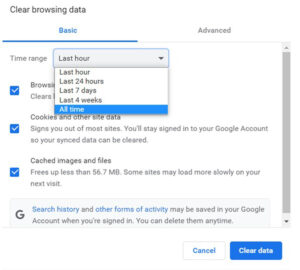
- Make sure “Cookies and other site data” and “Cached images and files” are both checked.
- Click “Delete data,” then restart Chrome and sign back in to Disney Plus.
Clearing cookies signs you out of most websites. Your saved bookmarks and passwords are not deleted.
Clearing the Disney Plus Cache on Android
Menu names vary a little between phone brands, but the path is usually:
- Open “Settings.”
- Tap “Apps.”
- Tap “See all apps” if your phone shows it.
- Find and tap Disney+.
- Tap “Storage & cache” (sometimes just “Storage”).
- Tap “Clear cache.”
If clearing the cache doesn’t help, “Clear storage” (called “Clear data” on some phones) goes further. It resets the app completely, so you’ll need to sign in again. Downloaded titles may need to be downloaded again too.
On iPhone, iPad and Apple TV, there’s no button to clear an app’s cache. The equivalent is deleting the Disney+ app and installing it again from the App Store.
You don’t need to memorize these steps, but clearing your cache now and then is a good habit that heads off a lot of strange app problems.
5. Update the Disney Plus App
An outdated version of the Disney+ app can stop working properly with Disney’s servers, and getting stuck at the profile screen is a common sign.
Developers try to keep new versions working with older ones, but that isn’t always possible. Updates normally install on their own. Still, a network drop, a stuck background process or strict device settings can leave an update pending, and then you have to install it yourself.
The steps differ by device. If yours isn’t listed below, search for “how to update apps on” followed by your device name, or check the manufacturer’s support site. Here’s how it works on the most common ones.
iPhone and iPad
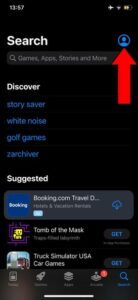
- Open the “App Store.”
- Tap your profile picture in the top-right corner.
- Scroll to the list of pending updates. Tap “Update” next to Disney+, or tap “Update All.”
Android
- Open the Google Play Store and tap your profile icon in the top-right corner.
- Tap “Manage apps & device.”
- To update only Disney Plus, tap “Updates available,” find Disney+ and tap “Update.”
- To update every app that’s waiting, tap “Update all.”
- Wait for the update to finish.
If your phone asks for permission to continue, accept it and let the update run.
Roku
- Press the “Home” button on your remote.
- Go to your list of apps on the right side of the screen.
- Highlight Disney+ and press the Star (*) button on your remote.
- Choose “Check for updates.”
- If an update is found, approve it.
- When it’s done, you’ll see a message that Disney+ is up to date.
6. Update Your Streaming Device
An up-to-date app helps, but your TV, streaming stick, console or phone needs current software too. Old system software can cause the same sign-in and loading problems.
Like app updates, system updates usually install automatically. If one hasn’t, you’ll have to start it yourself. For devices not covered here, search for “how to update” followed by your device name, or check the maker’s support site.
Roku
- Press “Home” on your remote.
- Scroll down to “Settings” and select it.
- Select “System.”
- Select “Software update.” On older Roku menus, this is called “System update.”
- Select “Check now.”
- If newer software is available, accept the download.
- Wait for the device to finish updating and restart.
The same screen also shows your current software version and when it was last updated. Roku’s check also looks for updates to your installed apps.
Other Common Devices
- iPhone and iPad: Settings > General > Software Update.
- Android phones: Settings > System > Software update (the exact wording varies by brand).
- Smart TVs: Look for a “Software update” or “System update” option in the TV’s Settings menu.
7. Turn Off Your VPN
Disney Plus blocks traffic it detects coming from VPNs and proxy servers. Turning your VPN off is often the quickest fix when the app hangs at the profile screen or shows an error.
If you don’t use a VPN, you can skip this section. If you do, this is a likely cause.
VPNs are useful for privacy on public Wi-Fi, but streaming services see them differently. Disney Plus, Netflix, Hulu, Amazon Prime Video and HBO Max all restrict VPN use. The reason is licensing. Many shows and movies can only be offered in certain countries, and a VPN can make it look like you’re somewhere you aren’t. Error codes such as 73, which usually means content isn’t available in the location Disney Plus thinks you’re in, are often linked to VPN or proxy use.
To find out whether your VPN is the cause:
- Disconnect the VPN on the device you’re watching on. If the VPN runs on your router, turn it off there.
- If you use a manual proxy, turn that off too. On Windows, it’s under Settings > Network & internet > Proxy.
- Fully close and reopen Disney Plus.
If Disney Plus works with the VPN off, you’ve found the problem. Keep the VPN turned off while you stream. When you travel, Disney Plus shows the library for the country you’re in, and that is how the service is meant to work.
If Nothing Works
If you’ve tried all seven fixes and Disney Plus is still stuck, there are two more steps before you contact support:
- Sign out and reinstall. Sign out of Disney Plus, delete the app, restart the device, install the app again from your device’s official app store, and sign back in.
- Try another device. If Disney Plus works on your phone but not your TV, the problem is that TV or its app. If it fails everywhere on your network, it’s likely your connection or your account.
If it still won’t load, contact Disney+ through the Disney+ Help Center. Have your device model, app version and any error code ready. Account or subscription problems, like a failed payment, can only be fixed on Disney’s side.
The Bottom Line
A stuck “Who’s Watching?” screen almost always has a simple cause: an outage, a weak connection, old cached data, an outdated app or a VPN. Work through the fixes in order and you’ll usually be streaming again in minutes. If it keeps coming back on one device, check that device’s software updates first. That’s the most common long-term fix.
FAQ
Why does Disney Plus get stuck on “Who’s Watching”?
It usually happens when the app can’t finish loading your profiles from Disney’s servers. The most common causes are a Disney Plus outage, a slow or unstable internet connection, corrupted cached data, an outdated app or system version, and VPN or proxy use. Closing the app and checking your connection fixes most cases.
Will clearing the Disney Plus cache delete my downloads or profiles?
Clearing only the cache doesn’t touch your profiles, watch history or account. Those are stored with your Disney account, not on your device. “Clear storage” or “Clear data” on Android, or reinstalling the app, signs you out and may remove downloaded titles, so you may need to download them again.
How fast does my internet need to be for Disney Plus?
The commonly cited Disney+ guidance is about 5 Mbps for HD and 25 Mbps for 4K UHD, per stream. If several people stream at once, add those numbers together and leave some room for everything else on your network.
Can a VPN cause Disney Plus to stop loading?
Yes. Disney Plus restricts VPN and proxy connections because its content is licensed country by country. A VPN can cause loading problems or errors such as code 73. Turn the VPN off while you watch.
How do I know if Disney Plus is down or the problem is just me?
Check Downdetector’s Disney Plus page. A sudden spike in reports means many people are affected at the same time. If the graph is flat and Disney Plus works on another device or network, the problem is probably your device or your connection.
What should I do if none of these fixes work?
Sign out, delete and reinstall the app, restart your device, and test Disney Plus on a different device. If it still fails, contact Disney+ through its Help Center. Include your device model, app version and any error code shown on screen.
Sources
- Disney+ Help Center
- Roku Support: How to update the software on your Roku streaming device
- Downdetector: Disney Plus status