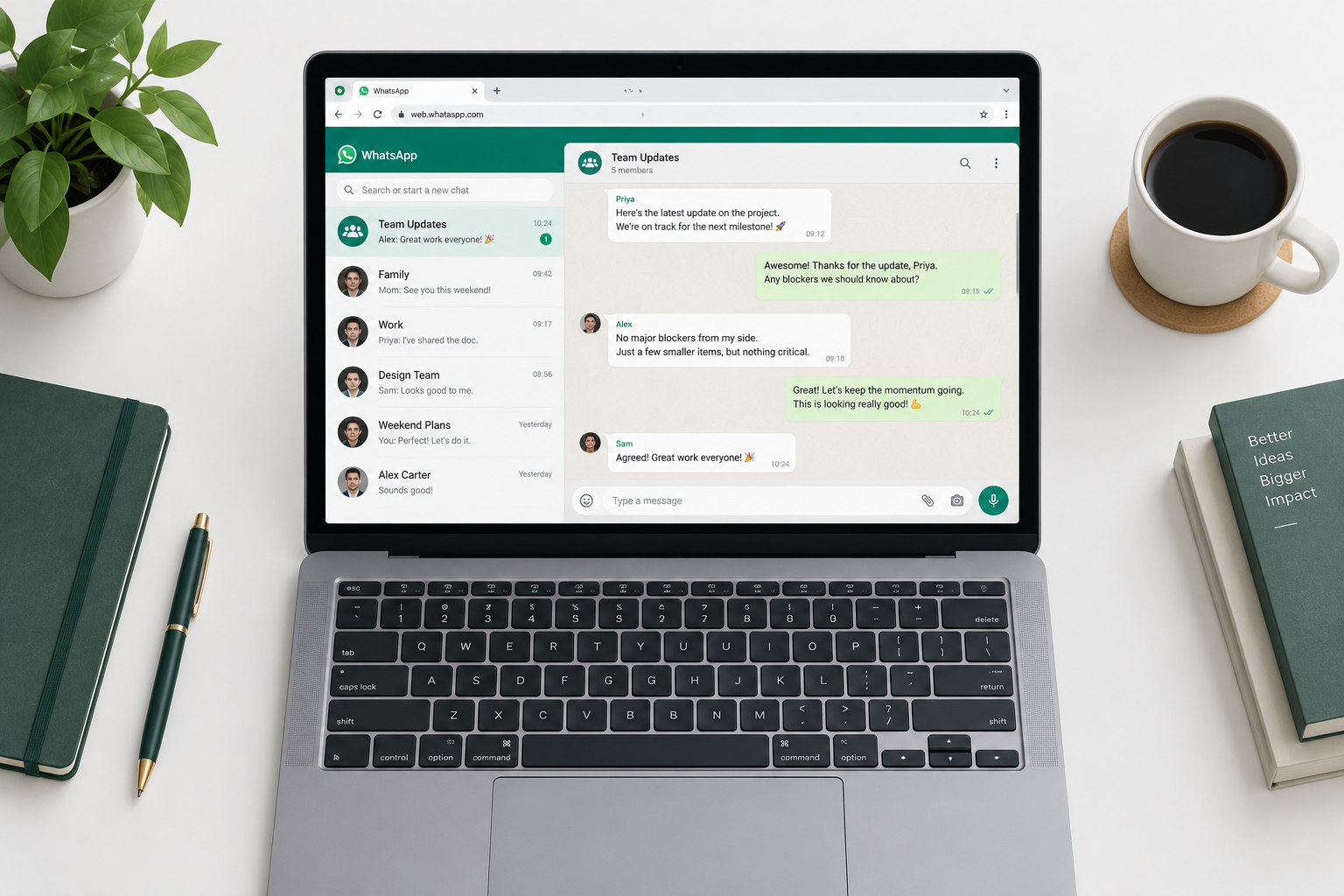
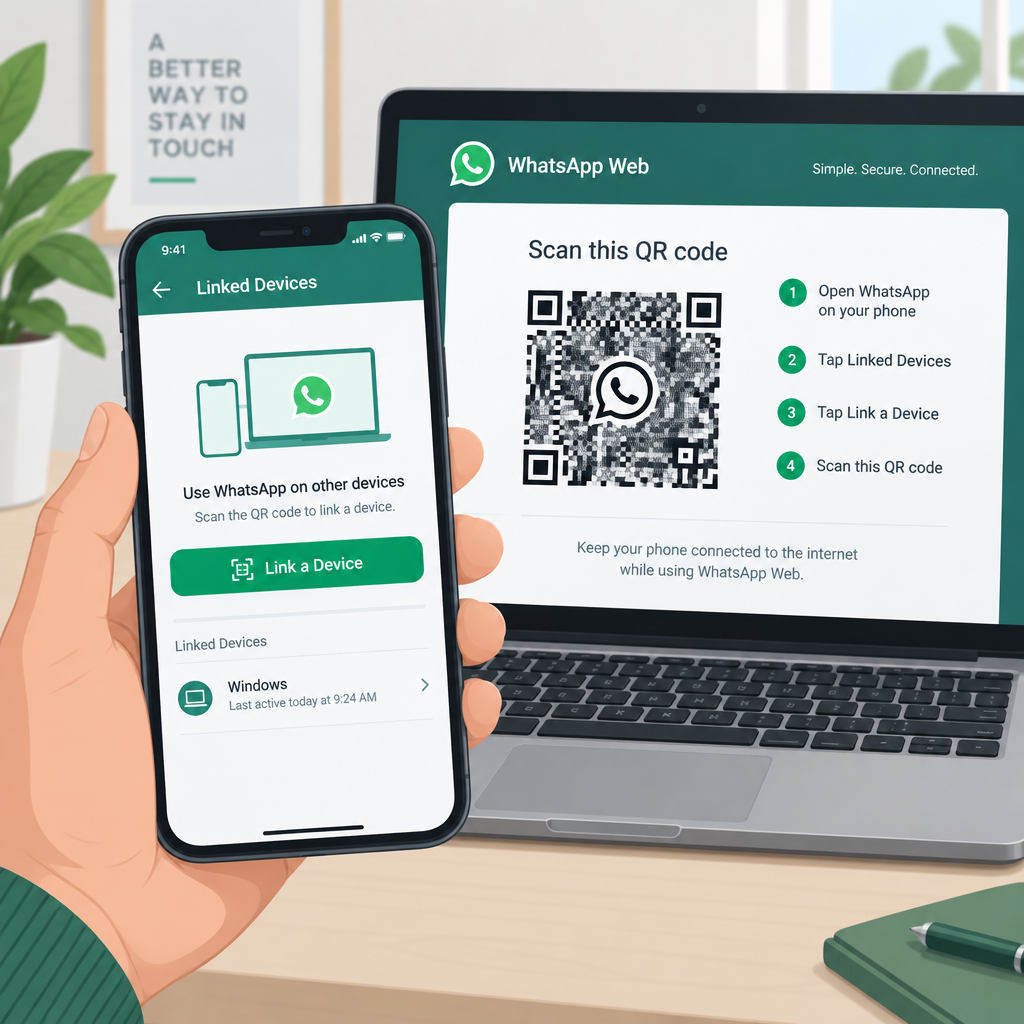
To use WhatsApp on a laptop or desktop, open web.whatsapp.com in a current browser or install the free WhatsApp app for Windows or Mac. Then link it to your phone: on Android, tap the three-dot menu, then Linked devices, then Link a device. On iPhone, tap Settings, then Linked devices, then Link a device. Scan the QR code, or link with your phone number instead. Since late July 2026, WhatsApp Web can also make voice and video calls. Since multi-device support arrived in 2021, you can also use it without your phone being online, as long as you open WhatsApp on the phone at least once every 14 days.
WhatsApp is the messaging app most smartphone users pick, and you can use it on a laptop, PC or tablet too. There are two ways to do it. The first is WhatsApp Web, which runs in your browser. The second is the WhatsApp Desktop app. Many people don’t know about either one.
Typing on a phone screen is slow for a lot of people. A full keyboard is quicker, and that adds up when you send a lot of messages. If that sounds like you, WhatsApp on your computer is worth setting up.
What you need before you start
WhatsApp Web works for anyone with a modern browser. The WhatsApp Desktop app is only made for Windows and Mac. On Windows you get it from the Microsoft Store, and on a Mac from the Mac App Store. WhatsApp has no official Linux app, so Linux users run WhatsApp Web in the browser. GNOME extensions can change how the desktop looks and behaves, but WhatsApp doesn’t need any of them.
Older guides said your phone had to stay online and close to your computer. That stopped being true when WhatsApp brought in multi-device support. Today:
- Your WhatsApp account still lives on your phone, so you need WhatsApp installed and set up there first.
- Once a computer is linked, it keeps working even when your phone is switched off or offline.
- You can link up to four devices at once, on top of your main phone.
- If you don’t use WhatsApp on your main phone for more than 14 days, your linked devices get logged out.
WhatsApp Web vs. WhatsApp Desktop
The two are now almost the same. On Windows, WhatsApp swapped its native app for one built on Microsoft’s Edge WebView2 in 2025, so the Windows app is basically WhatsApp Web inside an app window. Both versions let you send photos, videos, documents and voice messages, just like on your phone. Both can make voice and video calls.
Use WhatsApp Web if you only use WhatsApp on a computer now and then, or if the computer is shared or belongs to your workplace. Nothing gets installed. There is nothing to download for WhatsApp Web either: you just open the website.
Install the Desktop app if you use WhatsApp on your computer every day. You won’t have to open the site each time, it gets its own taskbar or Dock icon, and notifications don’t depend on a browser tab being open. One downside: when Windows Latest tested the WebView2 Windows build, it used about 30% more memory than the old native app.
WhatsApp Web vs. the WhatsApp phone app
| Feature | WhatsApp on your phone | WhatsApp Web |
|---|---|---|
| Send messages | Yes | Yes |
| Send photos | Yes | Yes |
| Edit photos before sending | Yes | Yes (basic tools) |
| Take photos with the camera | Yes | Yes (webcam) |
| Send videos | Yes | Yes |
| Share documents | Yes | Yes |
| Share contacts | Yes | Yes |
| Share location | Yes | No |
| Send emojis | Yes | Yes |
| Send GIFs and stickers | Yes | Yes |
| Record and send voice messages | Yes | Yes |
| Voice calls | Yes | Yes (rolled out July 2026) |
| Video calls | Yes | Yes (rolled out July 2026) |
| View status updates | Yes | Yes |
| Post status updates | Yes | Rolling out; post from your phone if the option is missing |
| Search messages and contacts | Yes | Yes |
How to log in to WhatsApp Web on a computer
To use WhatsApp Web on a laptop or PC, WhatsApp must already be set up on your phone. The steps depend on which phone you have. You can scan a QR code, or link with your phone number if your phone camera won’t scan.
WhatsApp Web login on Android
- Open web.whatsapp.com in your browser. Any current version of Chrome, Firefox, Edge, Opera or Safari works.
- Open WhatsApp on your Android phone.
- Tap the three-dot menu in the top-right corner.
- Tap Linked devices, then Link a device.
- If your phone asks, unlock it with your fingerprint, face or PIN.
- Point your phone at the QR code on the computer screen.
- Your chats now open on the computer. Use it to talk with friends, family, colleagues and customers.
These steps work on any Android phone running a current version of WhatsApp. A rooted phone, for example one set up with a guide to Root LG G6 Android 9, links the same way as long as WhatsApp itself is up to date.
If your camera can’t scan the code, click Link with phone number on the web page. Enter your number, and a code appears on the computer. Your phone then shows a notification, and you type that code into WhatsApp on the phone.
On a shared computer, remember to log out when you’re done. The steps are in the logging out section below.
WhatsApp Web login on iPhone
- Open web.whatsapp.com in your browser. Any current version of Chrome, Firefox, Edge, Opera or Safari works.
- Open WhatsApp on your iPhone.
- Tap Settings in the bottom bar.
- Tap Linked devices, then Link a device.
- Confirm with Face ID, Touch ID or your passcode if asked.
- Scan the QR code on the computer screen with your iPhone.
- Your chats now open on the computer.
The Link with phone number option works on iPhone too. When you’ve finished on a shared computer, log out.
Desktop notifications for WhatsApp Web
Your WhatsApp tab has to stay open in the browser for alerts to work, but you don’t need to keep looking at it. Turn on desktop notifications and new messages pop up even while you’re in another tab or app.
Turn on desktop notifications
The first time you use WhatsApp Web, a banner above your chat list asks you to turn on notifications.
- Click the banner that asks you to turn on desktop notifications.
- Your browser shows a pop-up asking for permission. Click Allow.
If you don’t see the banner in Google Chrome, you probably blocked notifications earlier. Here’s how to undo that:
- Open Chrome and click the three-dot menu in the top-right corner.
- Click Settings.
- Click Privacy and security, then Site settings.
- Click Notifications.
- Find web.whatsapp.com in the list of sites not allowed to send notifications.
- Click it and set Notifications to Allow.
- Reload WhatsApp Web. Desktop notifications should now come through.
A quicker way: on the WhatsApp Web page, click the site information icon to the left of the address bar and switch Notifications on there. Chrome can also take notification permission away from sites it thinks are spammy, so check this if alerts stop for no clear reason.
Mute desktop notifications
You can silence WhatsApp Web alerts in Settings.
- Open WhatsApp Web in your browser.
- Open Settings. It’s the gear icon in the side bar, or the three-dot menu above your chat list.
- Choose Notifications.
- Turn off message notifications or sounds, depending on what you want.
To mute just one noisy chat or group, open it, click its menu and choose Mute notifications. Then pick how long to mute it for.
Quick fixes for desktop notifications
If notifications aren’t working right, try these fixes in order.
Fix 1: Turn on sound
If alerts arrive without a sound, check that sounds are turned on in WhatsApp.
- Open WhatsApp Web in your browser.
- Open Settings from the side bar or the three-dot menu above the chat list.
- Choose Notifications.
- Make sure the Sounds options are switched on.
Also check that your computer isn’t muted and that your browser tab isn’t muted.
Fix 2: Turn on desktop alerts and previews
If WhatsApp Web plays a sound but no alert pops up in the corner of your screen, the alerts themselves are probably switched off.
- Open WhatsApp Web in your browser.
- Open Settings, then Notifications.
- Make sure desktop alerts and Show previews are both switched on.
If they’re already on, check your computer’s settings. In Windows 11, open Settings, then System, then Notifications, and make sure your browser is allowed to send notifications and Do not disturb is off. On a Mac, open System Settings, then Notifications, select your browser and turn on Allow notifications. Focus modes can also hide alerts.
How to log out of WhatsApp Web
In the browser:
- Click the three-dot menu above your chat list, or open Settings.
- Click Log out.
- Confirm to log out of WhatsApp Web.
Forgot to log out on another computer? No problem. You can do it from your phone.
On Android:
- Open WhatsApp on your phone.
- Tap the three-dot menu in the top-right corner.
- Tap Linked devices.
- Tap the computer you want to remove and tap Log out.
On iPhone:
- Open WhatsApp on your iPhone.
- Tap Settings in the bottom bar.
- Tap Linked devices.
- Tap the computer you want to remove and tap Log out.
Every so often, look through this list and log out of any device you don’t recognize.
What you can and can’t do with WhatsApp Web
WhatsApp Web has caught up with the phone app on most things, but there are still gaps. WhatsApp Web lets you:
- Type quickly on a full keyboard.
- Open many kinds of media and files and save them straight to your computer.
- Share photos, videos, documents, contacts and voice messages.
- Make one-to-one and group voice and video calls, including screen sharing in video calls.
- Get or mute desktop notifications.
- Stay linked on several computers at once, up to four linked devices in total.
- Keep chatting when your phone is off or offline.
But WhatsApp Web doesn’t let you:
- Share a map or your live location. Do that from your phone.
- Set up a new WhatsApp account. You need a phone for that.
- Stay logged in forever if you stop using your phone. After 14 days without opening WhatsApp on your main phone, your linked devices get logged out.
Old guides said you couldn’t use one account in two browsers at once. That’s no longer the case. Each browser just counts as one of your four linked devices.
How to use more than one WhatsApp account on a computer
Plenty of people have more than one WhatsApp account, such as a personal one and a work one. You can use both on the same computer. Each browser or browser profile holds one WhatsApp account, so the easy way is to link one account in Chrome and the other in Firefox, or in a second Chrome profile. Another option is to put one account in the WhatsApp Desktop app and the other in WhatsApp Web.
You can also open WhatsApp Web in a private or incognito window. Closing the window doesn’t fully end the link, so on a computer you’re only borrowing, log out from the menu or from Linked devices on your phone before you leave.
On the phone side, WhatsApp lets you add a second account to the same app, so both numbers can live on one phone before you link them to your computer. Stick to official browsers and the official app. Third-party “multi-account” tools ask for access to your messages.
Is WhatsApp Web safe
Yes, as long as you look after the computer it runs on. In its early years, WhatsApp was criticized for weak security and its risk of data breaches. That changed once it added end-to-end encryption to messages, and WhatsApp Web uses the same encryption. WhatsApp says calls from the browser are end-to-end encrypted too.
The weak spot is the computer and browser, not the encryption. TechRepublic points out that a compromised browser, a malicious extension or a hijacked web session could expose your chats or your account. Some simple habits keep you safe:
- Only type web.whatsapp.com directly, and never scan a WhatsApp QR code that someone sends you.
- Log out on shared or public computers.
- Check Linked devices on your phone and remove anything you don’t recognize.
- Keep your browser up to date, and remove extensions you don’t need.
Many people worry about being watched on WhatsApp. WhatsApp doesn’t show anyone who looked at your profile, and apps that claim to show this are scams. The only “who viewed” list is the one on your own status updates. You can limit who sees your profile photo, last seen and status in Settings, then Privacy.
FAQ
Does my phone need to be on to use WhatsApp Web?
No. Once a computer is linked, WhatsApp Web keeps working even when your phone is off or has no internet. You do need to open WhatsApp on your main phone at least once every 14 days, or your linked devices get logged out.
Can I make calls on WhatsApp Web?
Yes. WhatsApp announced browser calling on July 28, 2026, and rolled out one-to-one and group voice and video calls to WhatsApp Web users. The Windows and Mac desktop apps can make calls too. Your browser will ask for permission to use your microphone and camera the first time.
Can I use WhatsApp Web without scanning a QR code?
Yes. On the WhatsApp Web page, choose Link with phone number and enter your number. A code appears on the computer, and you type it into WhatsApp on your phone. This is handy when your phone’s camera is broken or won’t focus.
How many computers can I link to one WhatsApp account?
You can link up to four devices alongside your main phone. Each browser and each desktop app counts as one device. To free up a slot, log out of an old device under Linked devices on your phone.
Why does WhatsApp Web keep logging me out?
The most common reason is not opening WhatsApp on your main phone for more than 14 days. Private or incognito windows, and browsers set to clear cookies when they close, also make you scan the code again every time, even though the old session can still show under Linked devices on your phone. Logging out from the phone or reinstalling WhatsApp on the phone can end linked sessions as well.
Is WhatsApp Web free?
Yes. WhatsApp Web and the WhatsApp Desktop app are both free, and so are messages and calls. You only use your normal internet connection. Download the Desktop app only from the Microsoft Store or the Mac App Store, never from other download sites.
Sources
- Google Chrome Help: Use notifications to get alerts
- WhatsApp Blog: Multiple accounts coming to WhatsApp
- Help Net Security: WhatsApp brings end-to-end encrypted voice and video calls to the web
- TechRepublic: WhatsApp Web voice and video calling
- WABetaInfo: WhatsApp is rolling out group voice and video calls on the Web
- Notebookcheck: WhatsApp ditches native Windows 11 app in favor of Microsoft WebView2