
A bug in software testing is a defect in a component, system or application that can make it fail to do its job. If the code containing the bug runs during a test or in normal use, it can cause a failure, meaning the software does not behave the way it should. Common causes include wrong data definitions, faulty statements, bad input handling and design mistakes.
What a bug is, in plain terms
A bug is the flaw itself. The thing you actually see, such as a crash, a wrong total or a frozen screen, is the failure that the bug causes. The ISTQB Certified Tester Foundation Level (CTFL) syllabus, now at version 4.0.1, uses a simple chain of cause and effect:
| Term | What it means | Example |
|---|---|---|
| Error (mistake) | A human action that produces a wrong result | A developer types > instead of >= |
| Defect (bug, fault) | The flaw in the work product that the error leaves behind | The discount check skips customers who spend exactly $100 |
| Failure | What you see when the defect runs | A customer who spends $100 gets no discount at checkout |
Not every bug causes a failure. A defect sitting in code that never runs, or that only runs under rare conditions, can stay hidden for years. This is why testers write test cases around edge values like the $100 boundary above.
The bug life cycle
The bug life cycle, also called the defect life cycle, is the series of statuses a bug moves through from the moment someone reports it until it is closed. It starts when a tester finds a new defect. It ends when the developer has fixed it and the tester has confirmed that the problem no longer happens.
The status names below are the generic ones used in testing courses. Real trackers use their own names, but they map onto the same steps.
The bug life cycle at a glance
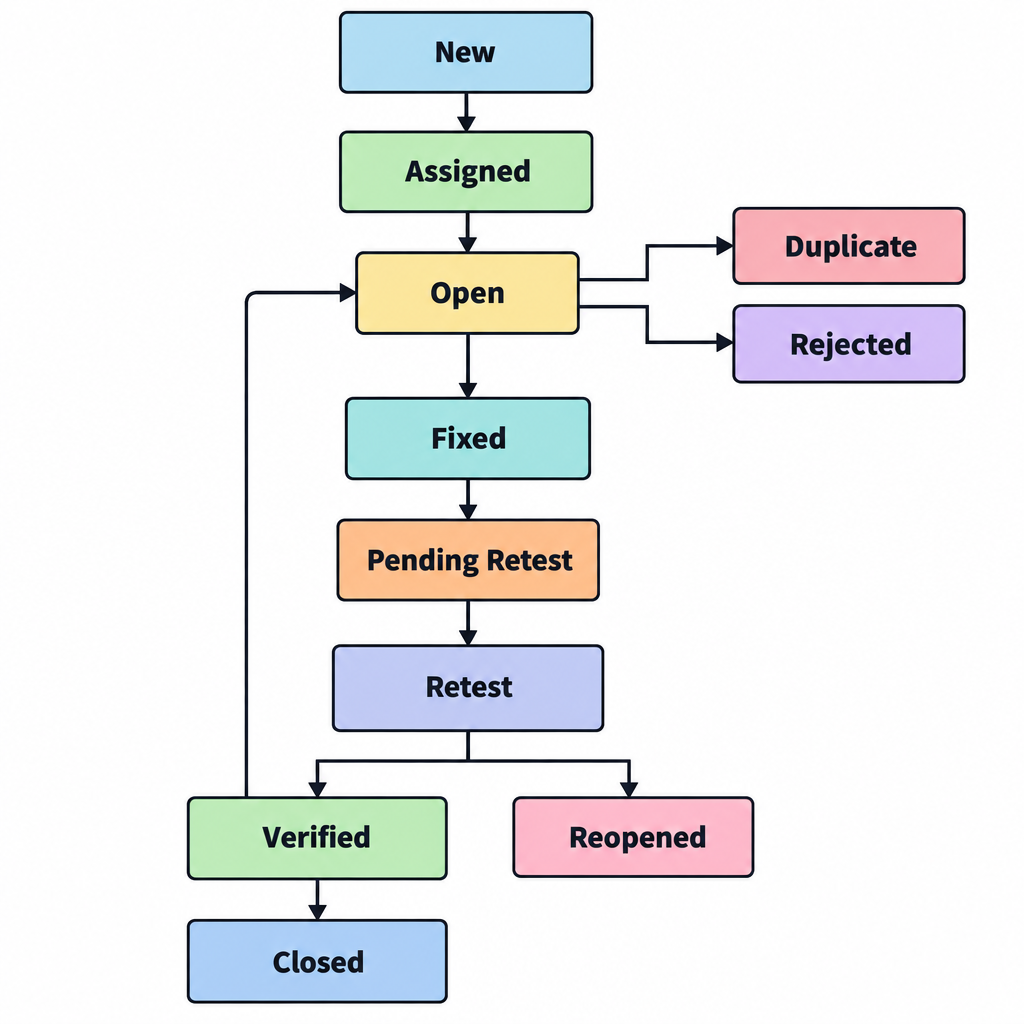
The usual path for a bug that gets fixed looks like this:
- New: a tester logs the bug.
- Assigned: a lead hands it to a developer.
- Open: the developer starts analysing it.
- Fixed: the developer makes the code change.
- Pending Retest: the fix goes back to the tester.
- Retest: the tester checks the fix.
- Verified: the fix works.
- Closed: the bug is done.
If the retest fails, the bug goes to Reopened and back through the loop. Bugs that turn out to be repeats of an existing report go to Duplicate. Bugs that are not real defects go to Rejected (sometimes called “Not a Bug”).
Here is how the generic statuses map onto two widely used trackers:
| Generic status | Bugzilla (default workflow since version 4.0) | Jira (typical bug workflow) |
|---|---|---|
| New | UNCONFIRMED | To Do or Open |
| Assigned / Open | CONFIRMED, then IN_PROGRESS | In Progress |
| Fixed | RESOLVED with resolution FIXED | Resolved, or Done with resolution Done/Fixed |
| Verified / Closed | VERIFIED | Closed or Done |
| Duplicate | RESOLVED with resolution DUPLICATE | Done with resolution Duplicate |
| Rejected | RESOLVED with INVALID or WONTFIX | Done with resolution Won’t Do |
In Jira, “Duplicate”, “Won’t Do” and “Cannot Reproduce” are resolutions, not statuses. Admins can rename or add statuses, so your team’s board may look different.
Each status is described below.
Open
In the Open status, the developer starts analysing the bug and works on a fix. If the developer decides the report is not a real defect, the bug can move to a different status instead. Common options are Rejected (not a bug), Duplicate (already reported), Deferred (real, but put off to a later release) or Cannot Reproduce (the developer cannot make it happen).
New
New is the first status in the bug life cycle. It is set when a tester logs a defect that nobody has reported before. In the later stages, the bug is checked and triaged, which means someone confirms it is real and decides how urgent it is. In Bugzilla this first status is called UNCONFIRMED.
Assigned
In the Assigned status, the new bug has been given to the development team to work on. The project lead or development manager usually picks the developer who will own it.
Pending Retest
Once the developer has fixed the bug, it goes back to the tester for retesting. It stays in Pending Retest until the tester starts checking it.
Fixed
When the developer has made the code changes needed to fix the problem, the bug’s status changes to Fixed. Fixed only means the developer believes it is solved. Nobody has independently checked it yet.
Verified
If the tester retests the bug and the problem no longer happens, the status changes to Verified. This confirms the fix works as the requirement says it should.
Reopened
If the problem still happens after the fix, the tester changes the status to Reopened. The bug then goes back to the developer, and the cycle runs again. A high reopen rate is a common warning sign that fixes are being rushed or that bug reports are unclear.
Closed
When the tester confirms the bug no longer exists, the status changes to Closed. Some teams close bugs as soon as they are verified. Others, such as the Eclipse project, used to keep verified bugs open and close them in bulk at a major release.
Retest
In the Retest status, the tester checks whether the developer has fixed the problem correctly and the software now meets the requirement. Good retesting also includes a short regression check, meaning a quick test of nearby features to make sure the fix did not break something else.
Duplicate
If the bug is the same as one already reported, or describes the same underlying problem, the status changes to Duplicate. In Jira and Bugzilla, the duplicate should be linked to the original report so that any extra details, such as new steps to reproduce, are not lost.
What a bug report should include
A good bug report lets a developer who has never seen the problem reproduce it in a few minutes. The ISTQB syllabus and the ISO/IEC/IEEE 29119-3 standard list similar contents:
- A unique ID, a short title and a summary.
- The date reported, the author, the approver and the current status.
- Severity (how badly the bug hurts the product) and priority (how soon it needs fixing). These are not the same. A typo on the home page is low severity but can be high priority.
- The test case or test activity that found the problem.
- The test environment: OS version, browser or app version, and device.
- Exact steps to reproduce, plus the expected result and the actual result.
- Screenshots, screen recordings or log files where they help.
Most defect management tools fill in some of these fields for you, such as the ID, the date and status changes.
Tips for running the defect life cycle
A defect life cycle only works if everyone uses the statuses the same way. These practices keep it running smoothly:
- Agree on the statuses first. The whole team should understand what each status means before anyone starts logging bugs.
- Write the workflow down. Document the life cycle, including who is allowed to move a bug to each status, so there is no confusion later.
- Make roles clear. Everyone involved should know their own responsibilities. For example, developers move bugs to Fixed, and testers move them to Verified or Reopened.
- Explain every status change. Anyone who changes a bug’s status should add a comment saying why. That way, anyone who picks up the bug later can see its history.
- Keep the tracker consistent. Use one tracker, with the same fields and the same severity scale for every bug, so reports can be compared and counted.
- Reproduce on a clean machine. Bugs that only appear on one tester’s PC are often caused by leftover software or settings. A scripted setup makes a clean test machine quick to rebuild. Ninite does this on Windows, and ninite alternatives such as Microsoft’s Windows Package Manager (winget) can do the same.
Putting it into practice
The fastest way to get better at handling bugs is to write better bug reports. Before you file your next one, try following your own steps to reproduce on a fresh setup. If you can’t make the bug happen again from what you wrote, a developer won’t be able to either, and the bug will probably come back as “Cannot Reproduce”.
FAQ
Is a bug the same as a defect?
In practice, yes. The ISTQB glossary treats bug, defect and fault as synonyms. “Defect” is the formal term used in standards and certification exams, while “bug” is the everyday word most teams use in trackers and conversation.
What is the difference between severity and priority?
Severity describes how much damage the bug does to the product, such as a crash or data loss. Priority describes how soon the team should fix it. Product owners or leads usually set priority, while testers usually suggest severity.
Who can close a bug?
In most workflows, the tester who verified the fix closes the bug, not the developer who fixed it. This keeps the check independent. Some teams let a lead close bugs marked Duplicate, Rejected or Won’t Do without a retest.
What happens when a bug cannot be reproduced?
The developer marks it “Cannot Reproduce” (in Bugzilla, the resolution is WORKSFORME). The report stays searchable. If someone later finds more details or new steps that trigger it, the bug should be reopened instead of filed again.
What is the difference between Deferred and Rejected?
Deferred means the bug is real but will be fixed in a later release, usually because it has low priority or the fix is risky. Rejected means the team decided it is not a defect, for example because the software is working as designed or the report misread the requirement.
Which tools are used to track bugs?
Jira (from Atlassian), Bugzilla, Azure DevOps, GitHub Issues and GitLab Issues are among the most widely used. All of them let you set up your own statuses and workflows. That is why the bug life cycle in your team may use different names from the ones in this guide.
Sources
- ISTQB Certified Tester Foundation Level (CTFL) v4.0
- ISTQB CTFL Syllabus v4.0.1 (PDF)
- Atlassian: Defining status field values in Jira
- Atlassian: What are workflows in Jira?
- Jira issue resolutions and constants
- Eclipse Foundation: Bugzilla use
- WebKit: Bug Life Cycle